SMC Order Block EA
- Uzmanlar
- Sürüm: 1.6
- Güncellendi: 14 Ağustos 2026
- Etkinleştirmeler: 5

SMC Order Block EA
This Expert Advisor trades Smart Money Concepts (SMC) order-block mitigation setups on a
3-timeframe stack (H4 structure bias, H1 order-block/liquidity detection, M15 entry
confirmation). A companion indicator (SMC Zones, sold separately) visualizes the same order
blocks, fair value gaps, and liquidity levels the EA uses internally.
How it works:
- Determines market structure bias on H4 (higher-highs/higher-lows for bullish, lower-highs/
lower-lows for bearish).
- Locates the nearest valid order block on H1 that aligns with the current bias and premium/
discount zone, within a configurable maximum age.
- Confirms entry on M15 before placing a pending limit order at the order-block midpoint.
- Stop loss is placed beyond the order-block boundary with an ATR buffer; no order is sent
without a stop loss attached.
Trade management:
- Three take-profit levels (1R / 2R / 3R by default) with partial position closes at each
level and stop-loss moved to breakeven/TP1 progressively.
- Position size is calculated with a half-Kelly formula based on the strategy's own recent
trade history per symbol, bounded between configurable minimum and maximum risk percentages.
- Built-in news filter pauses new entries around high-impact economic releases.
- Optional Telegram notifications for trade events (requires the buyer's own bot token and
chat ID; disabled by default).
Configuration:
- Timeframes, swing/order-block detection thresholds, Kelly risk bounds, and take-profit
levels are all adjustable inputs — no hardcoded symbol or account restrictions.
- Works on any symbol/account; parameters should be tuned and tested per instrument before
live use.
This product does not guarantee profits. Past performance of any trading system does not
indicate future results. Test on a demo account before live deployment and use position
sizing appropriate to your risk tolerance.
HOW TO USE AND ENTER PARAMETERS
Setup:
1. Attach to any chart/symbol, any timeframe — the EA runs its own internal H4/H1/M15
analysis regardless of the chart's own timeframe. InpAutoEntryTF (default true) switches
the chart to M15 automatically on load; InpAutoLoadIndicator (default true) attaches the
companion SMC Zones indicator (sold separately) so you can see the order blocks, fair
value gaps, and liquidity levels the EA is tracking.
2. Works on Netting or Hedging accounts. Only one position per symbol at a time
(InpMaxPos, default 1). Entries are pending limit orders at the order-block midpoint, so
a filled trade may take longer to trigger than a market-order strategy — this is by design.
3. Review the "Risk / Kelly" group before going live: InpBaseRisk/InpMinRisk/InpMaxRisk set
the position-sizing range; InpUseKelly (default true) scales risk within that range from
the strategy's own recent trade history on the symbol (needs a few closed trades first —
uses InpBaseRisk until then).
4. Review the "L0 Safety Gate" group. InpMaxATRMult defaults to 3.0, and the account-equity
drawdown limits default to 5% daily / 10% total. InpEODHour (default 23) flattens open
trades on Friday and is read in BROKER SERVER time — the clock in Market Watch, not UTC.
It is moved earlier automatically when the symbol's own trading session for that day ends
sooner, so where your broker publishes a session calendar for the symbol the flatten runs
before that session's last tick whatever your broker's timezone is. Where the broker
publishes no session for that weekday there is nothing to clamp against and InpEODHour
applies exactly as configured — check the symbol specification and set it from the
published session end. Set InpEODHour to 0 to disable it, or InpEODWeekendOnly to false
to flatten every day. InpMaxDailyLossPct and InpMaxSpreadPoints use 0 to disable their respective
gates. The 10% total-drawdown limit is measured from the highest account equity the
EA has seen, which is remembered across restarts. After you deposit or withdraw, create an
empty file named reset_equity_high_<MagicNumber>.flag in MQL5/Files/ATS_v4/ to rebase that
high-water mark to your current equity; the EA deletes the file and logs the new value.
5. Session windows (London/NY) are UTC and auto-adjust for daylight saving time
(InpAutoSessionDST, default true) — no manual DST changes needed twice a year.
6. Optional: to receive Telegram notifications on trade events, set InpTgToken/InpTgChatID
(or leave blank and place a telegram.ini file under Files/ATS_v4/secrets/) and add
api.telegram.org to Tools > Options > Expert Advisors > Allow WebRequest for listed URL.
Leave both blank to disable — no external request is made in that case.
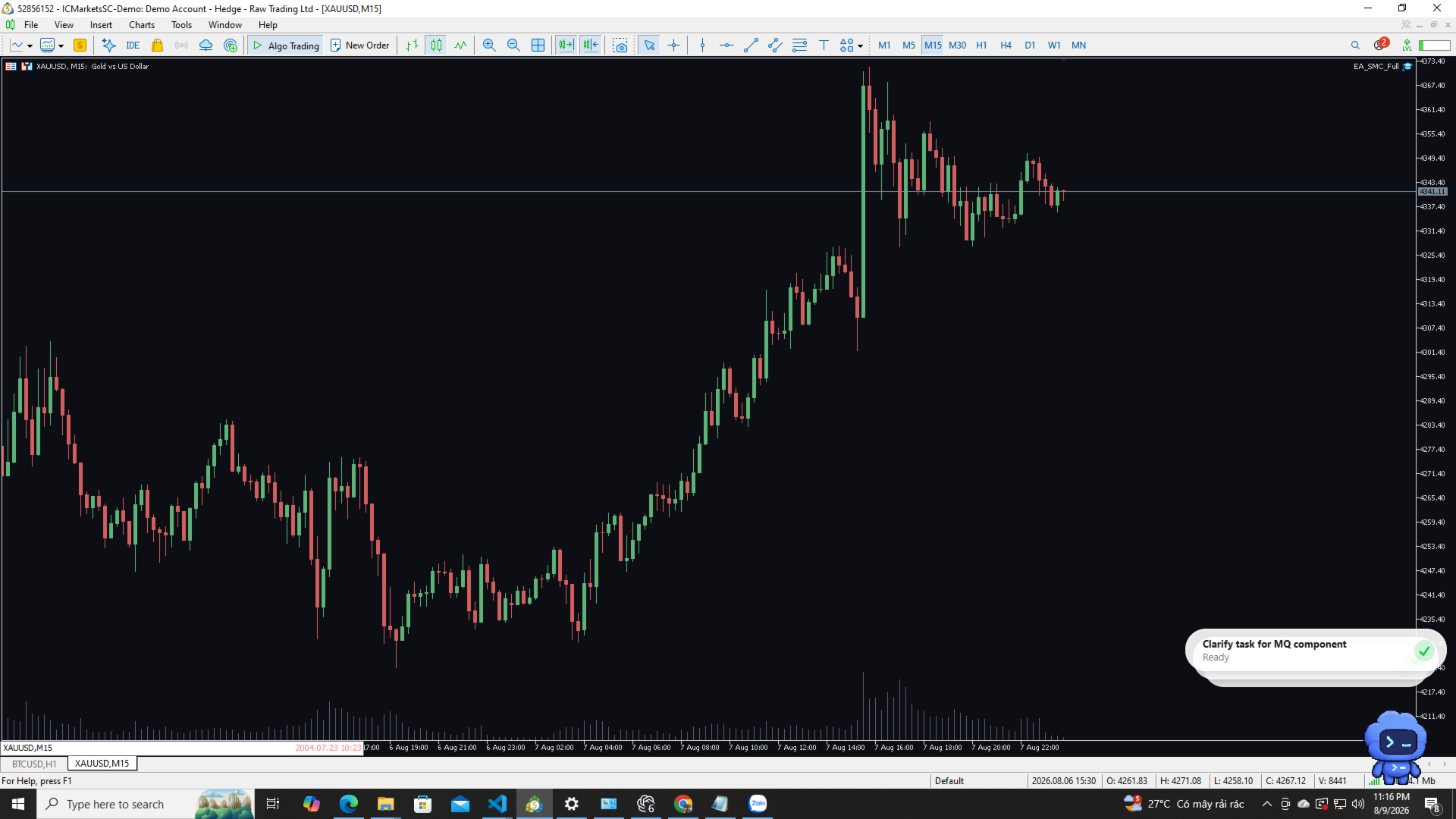
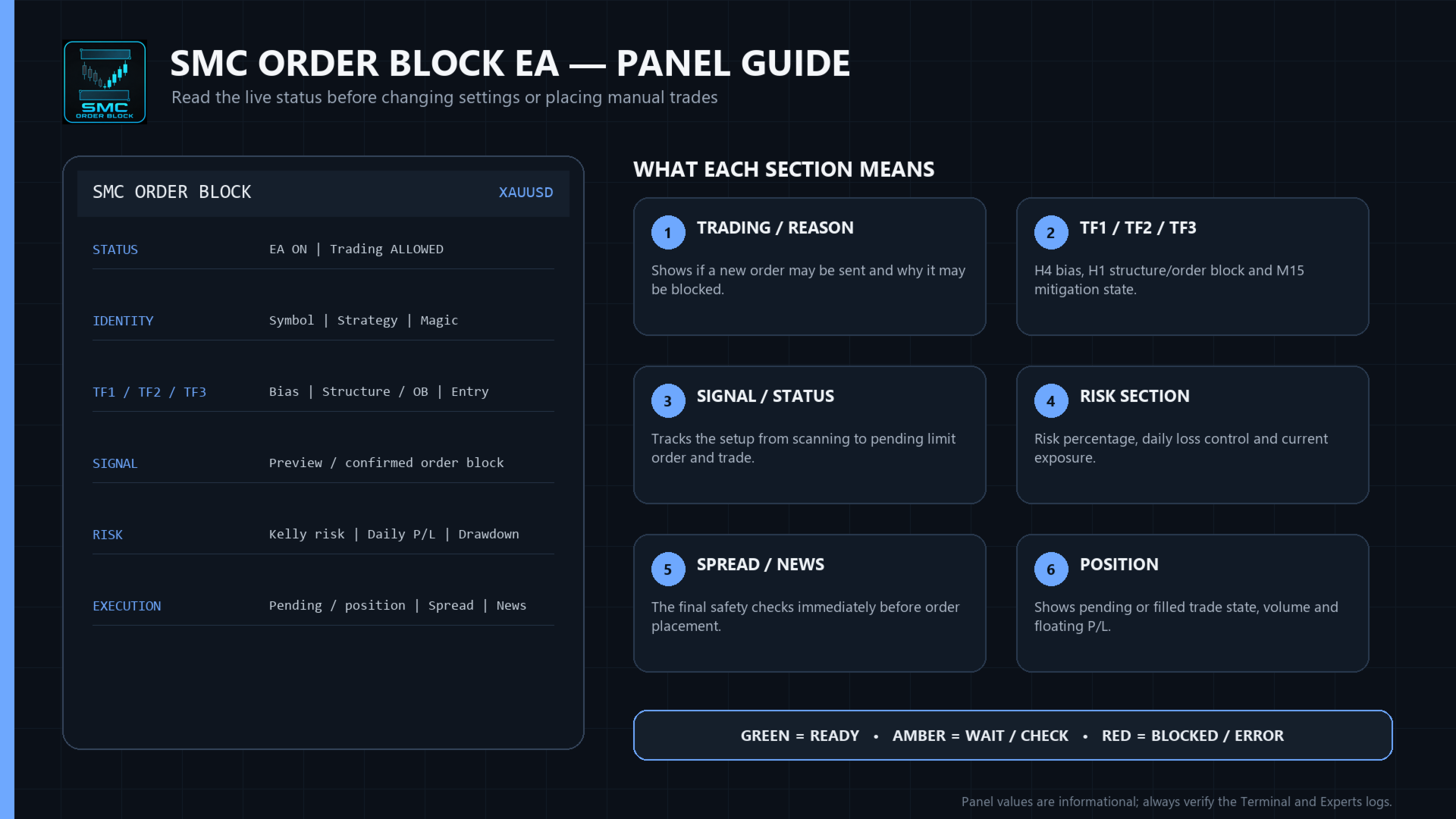
7. The on-chart panel (InpShowPanel) shows current detection state, open position, and
session status; disable it or reposition with InpPanelX/InpPanelY if it overlaps other
chart objects.
Input entry checklist:
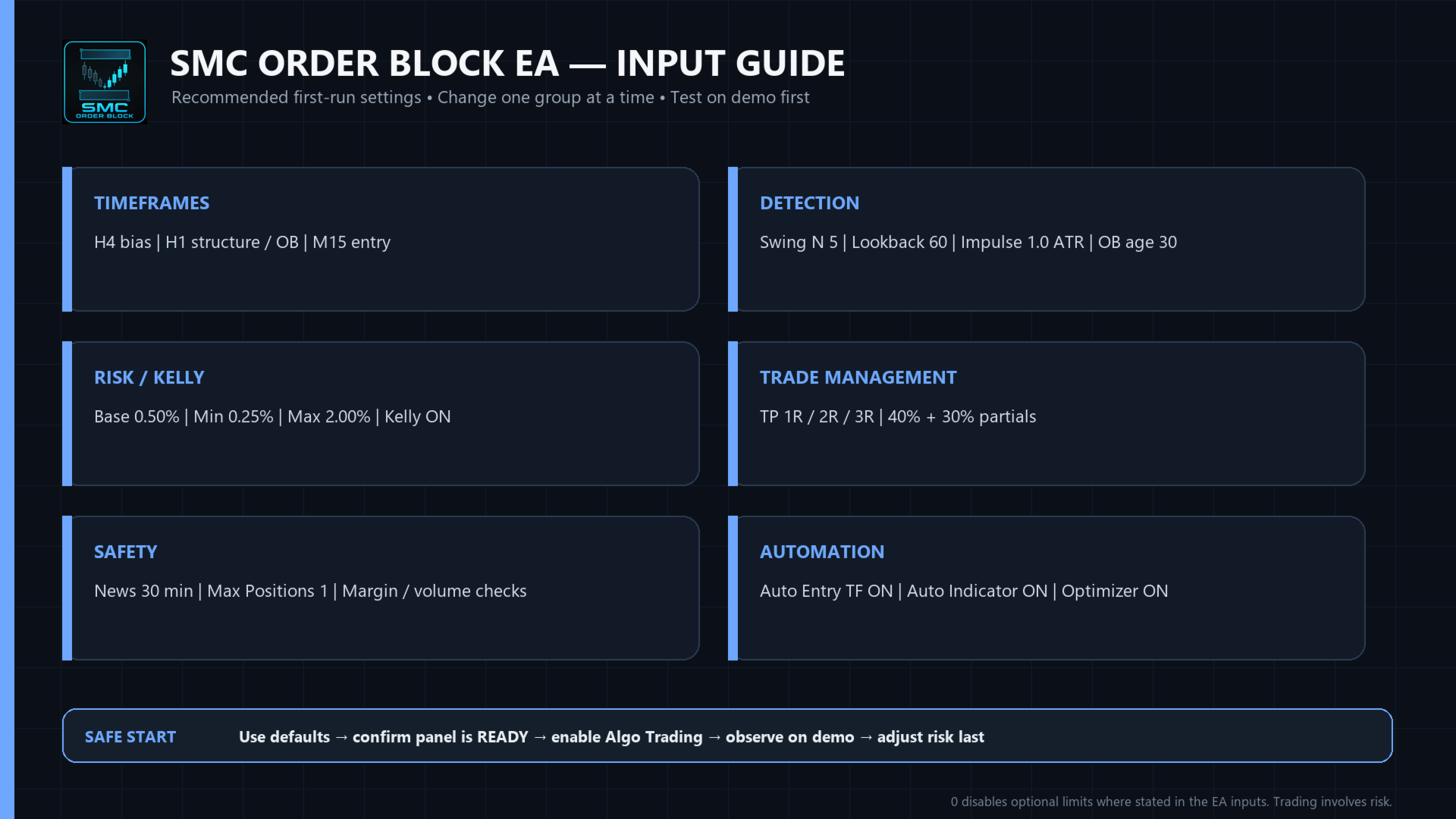
- Start with H4/H1/M15. InpSwingN defines pivot width, InpLookback defines the H1 search
depth, InpImpATR sets minimum displacement strength, and InpOBMaxAge rejects old blocks.
- InpKillzone is retained for compatibility; the current SMC engine can trade outside the
displayed London/New York windows. Do not use this legacy input as the primary session gate.
- Keep InpBaseRisk at 0.50% for the first demo run. Set InpUseKelly=false for fixed base-risk
sizing. TP1/TP2/TP3 default to 1R/2R/3R with partial closes at TP1 and TP2.
- Pending entries are placed near the order-block midpoint. Wider spreads and larger broker
stop levels can cause a valid setup to be skipped; spread limits are entered in points.
As with any automated strategy, test on a demo account first and use position sizing
appropriate to your own risk tolerance before trading a live account.