Azimuth Gold
- Experts
- Versione: 1.0
- Attivazioni: 11

Azimuth Gold MT5 EA
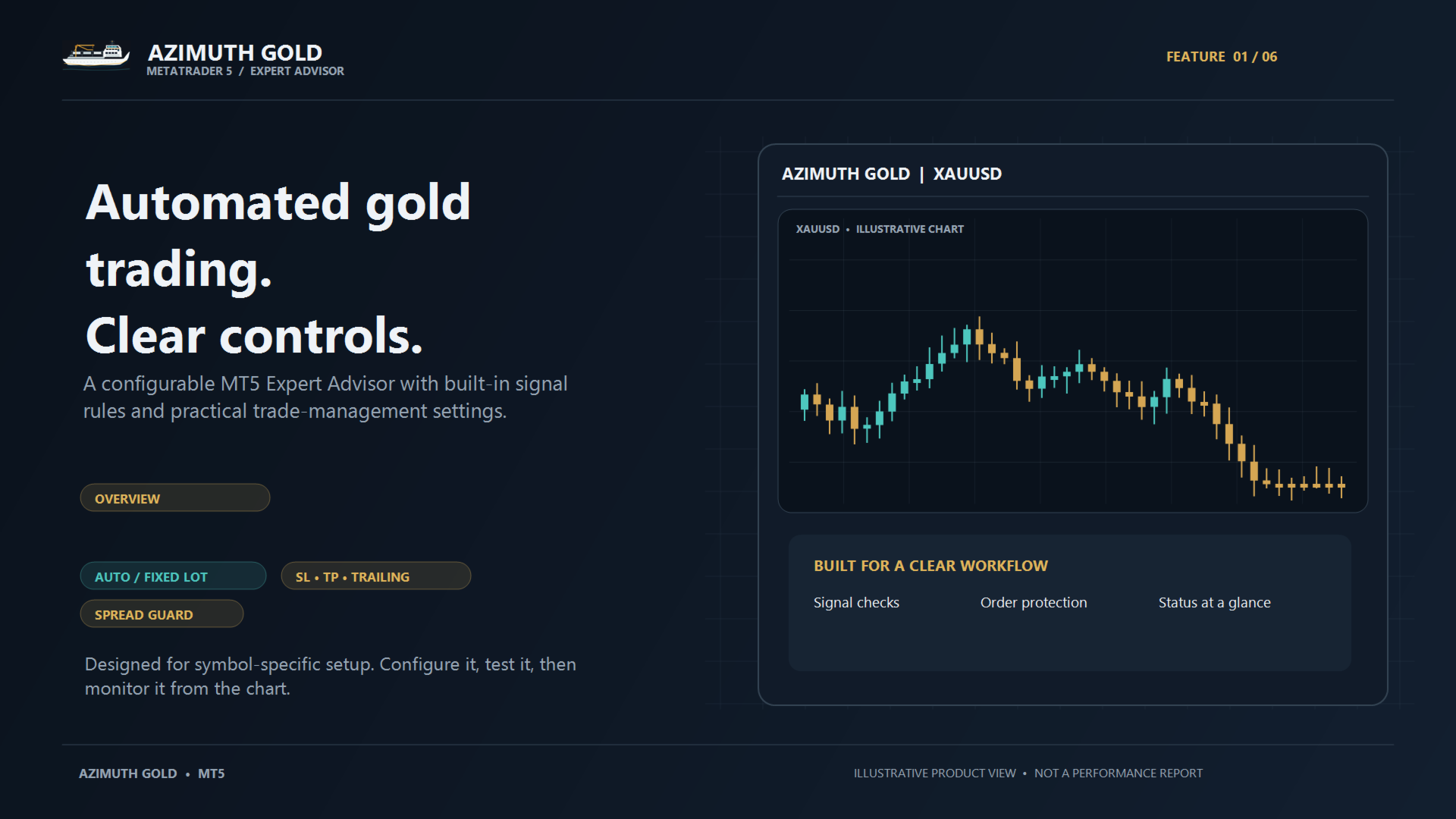
Azimuth Gold MT5 EA is an Expert Advisor for MetaTrader 5, designed with gold trading in mind. It can trade the chart symbol or a custom symbol entered in the EA settings.
The EA uses its internal signal rules and can open buy or sell trades with configurable position sizing, stop loss, take profit, and trailing stop settings. No external custom indicators are required.
Singnal: https://www.mql5.com/en/signals/2399248
Features
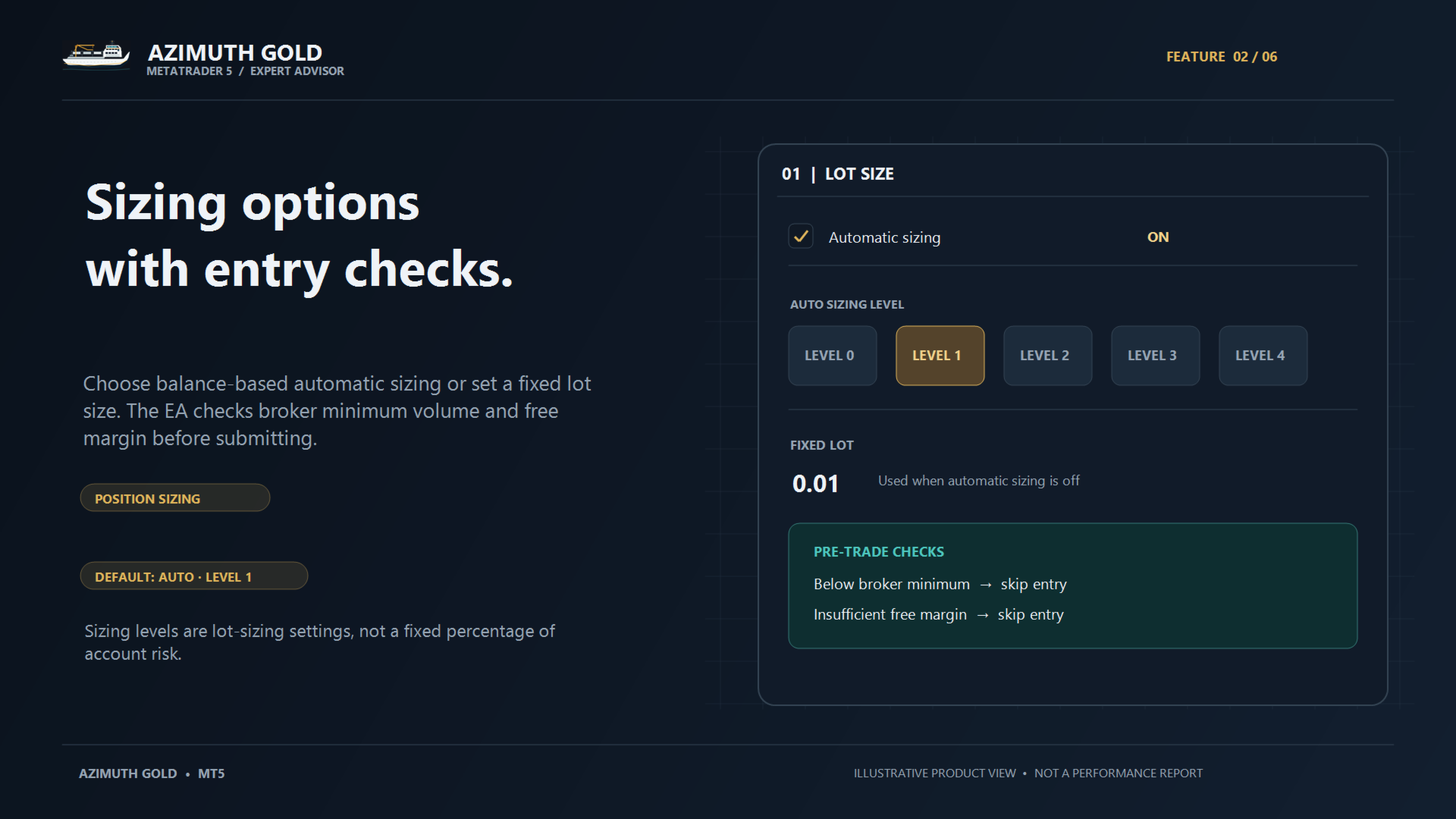
- Automatic balance-based lot sizing with five selectable sizing levels.
- Fixed lot sizing option.
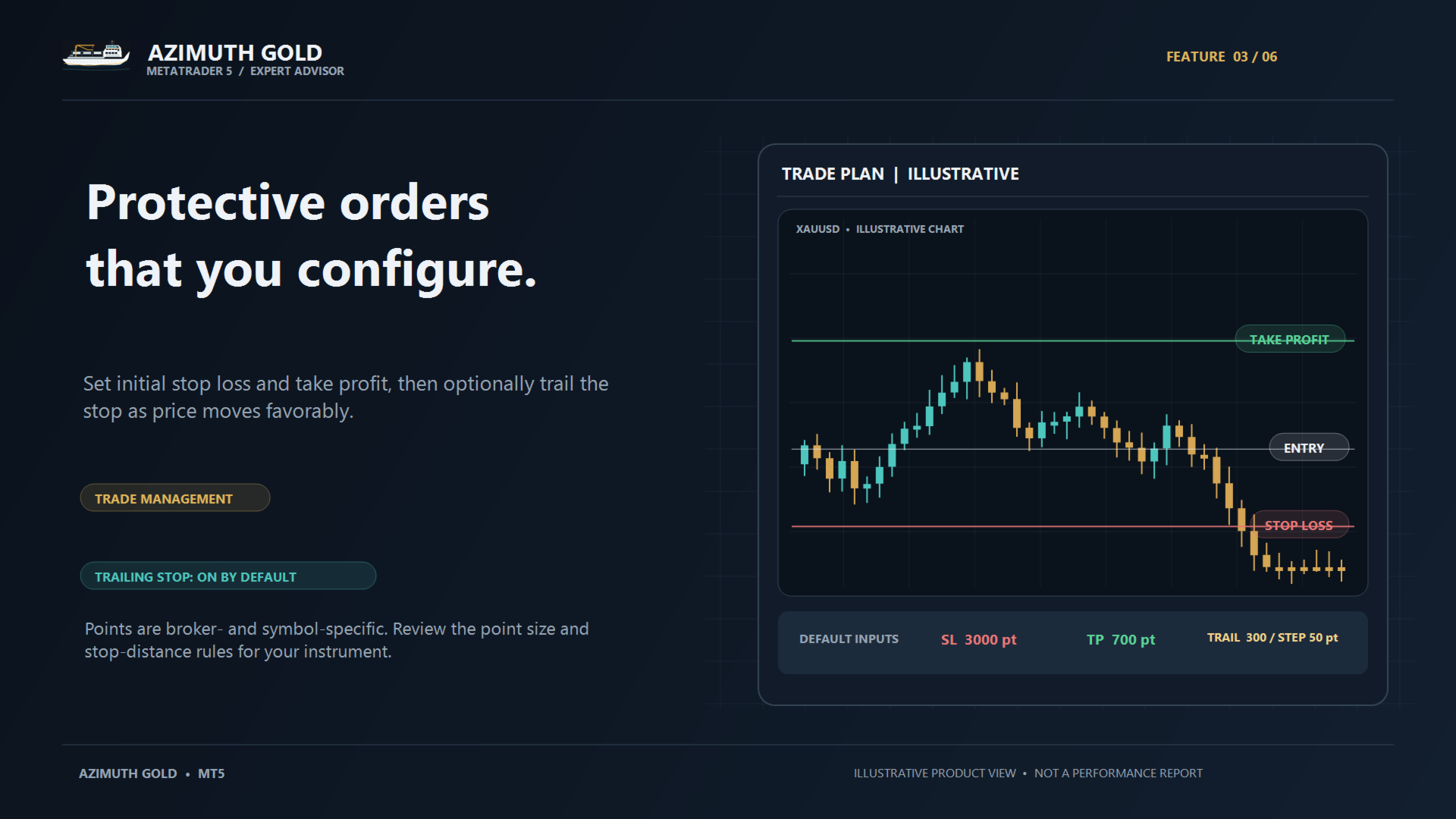
- Configurable stop loss and take profit.
- Optional trailing stop with adjustable distance and step.
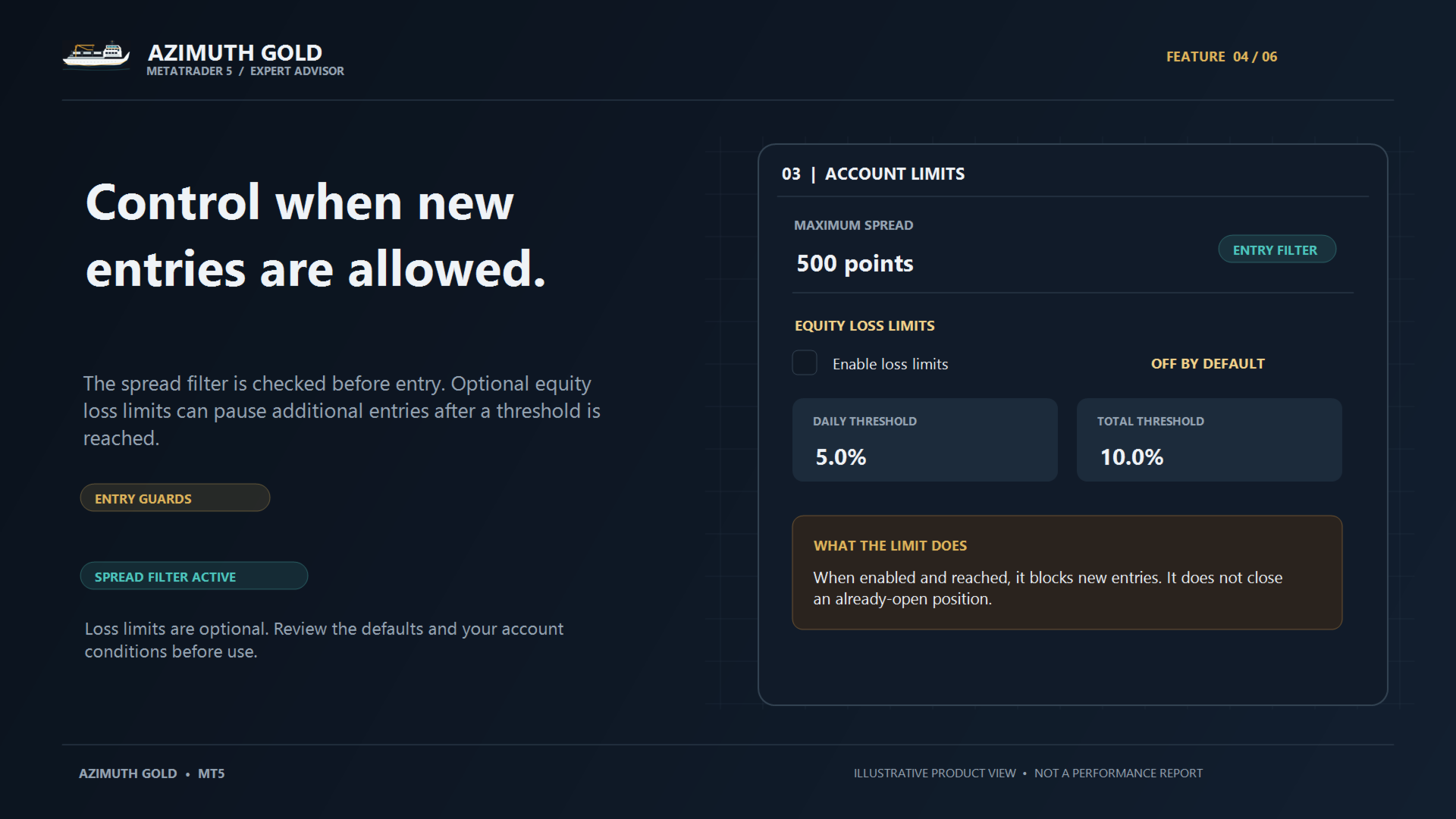
- Maximum spread filter.
- Optional daily and total equity drawdown limits to stop new entries.
- Chart symbol selection or custom symbol entry.
- Configurable trade magic number and order comment.
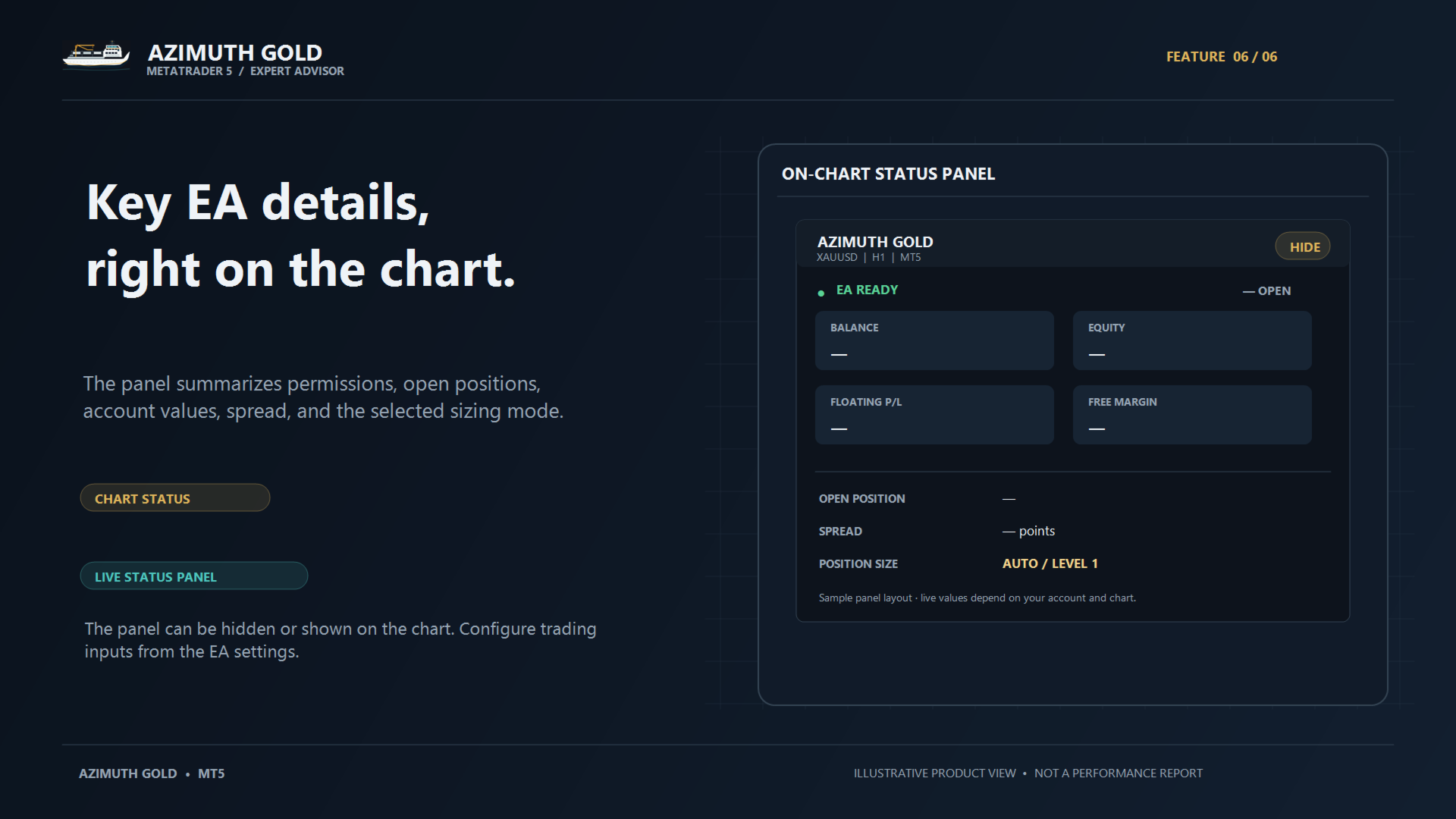
- On-chart EA status panel.
How It Works
The EA evaluates its internal trading rules and checks the configured spread and account limits before opening a trade. It submits market buy or sell orders with the selected stop loss and take profit. When enabled, the trailing stop adjusts the stop loss as price moves favorably.
Automatic lot sizing is calculated from the account balance and selected sizing level. The level is a lot-sizing setting, not a stated percentage risk per trade. The EA skips an entry if the calculated lot size is below the broker’s minimum or if the available margin is insufficient.
Inputs
01 | Lot Size
- ae_auto_lot — Enable automatic lot sizing. Default: true.
- ae_risk — Select automatic lot-sizing level 0–4. Higher levels generally request larger lots. This is not a percentage risk setting.
- ae_manual_lot — Fixed lot size when automatic sizing is disabled. Default: 0.01.
02 | Stops and Targets
- ae_stop_loss — Stop loss distance in symbol points. Set to 0 to disable. Default: 3000.
- ae_take_profit — Take profit distance in symbol points. Set to 0 to disable. Default: 700.
- ae_use_trailing — Enable trailing stop. Default: true.
- ae_trail_distance — Trailing stop distance in symbol points. Default: 300.
- ae_trail_step — Minimum favorable movement in points before the stop is updated. Default: 50.
03 | Account Limits
- ae_use_loss_limits — Enable daily and total equity loss limits. Default: false.
- ae_daily_loss_pct — Daily equity loss threshold for stopping new entries. Default: 5.0%.
- ae_total_loss_pct — Total equity loss threshold for stopping new entries. Default: 10.0%.
- ae_max_spread — Maximum permitted spread in symbol points. New entries are skipped above this value. Default: 500.
- ae_max_slippage — Maximum price deviation in points for trade execution. Default: 100.
The loss limits stop new entries when reached; they do not close existing positions. Point values depend on the broker’s symbol specification.
04 | News Filter
- ae_use_news_filter, ae_news_impact, ae_minutes_before_news, and ae_minutes_after_news are displayed in the inputs, but the news filter is not active in this version.
05 | Strategy
- ae_confirm_entries — This input is displayed, but entry confirmation is not active in this version.
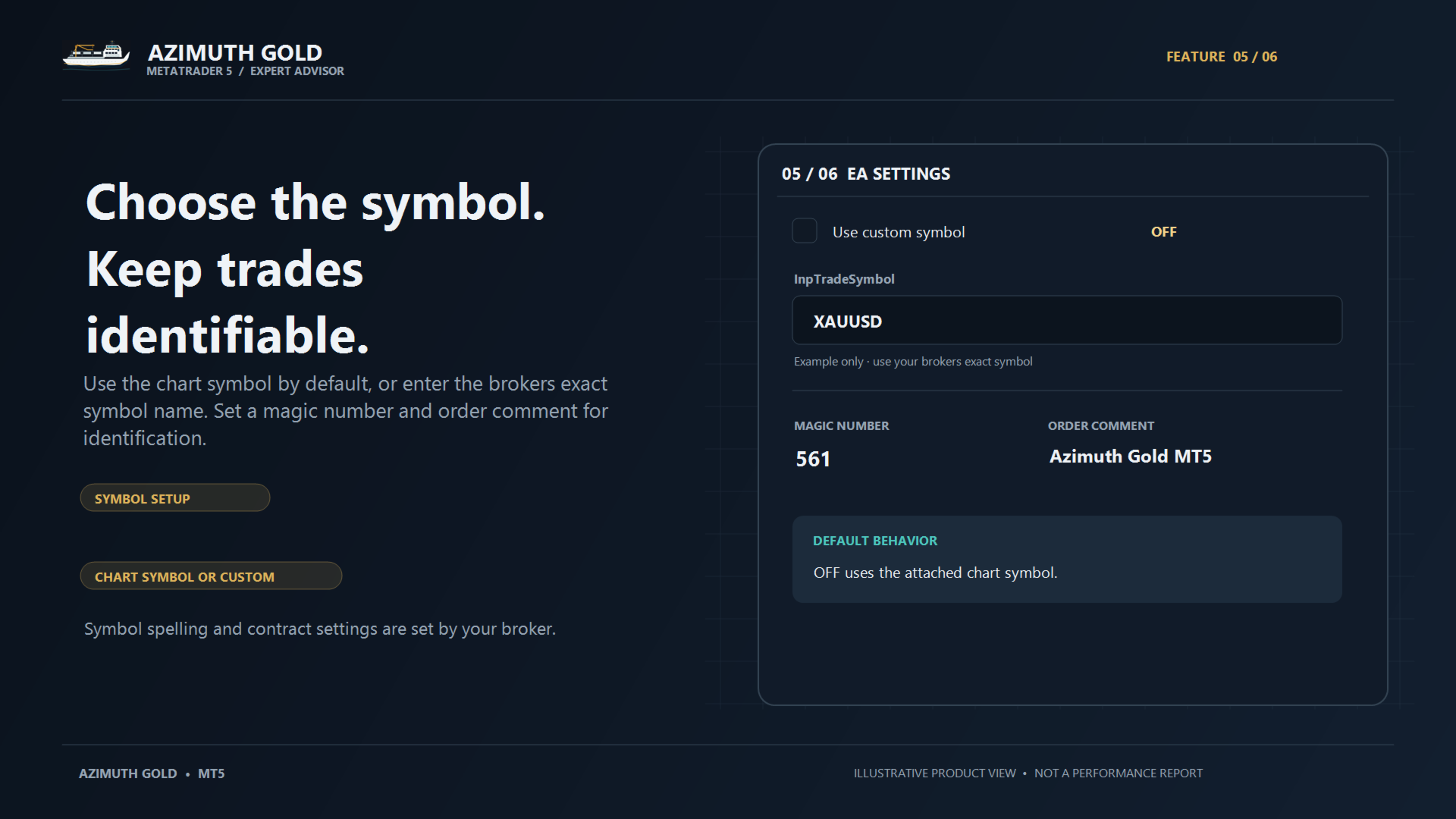
- UseInpSymbol — Enable custom symbol selection. When false, the EA uses the chart symbol.
- InpTradeSymbol — Exact broker symbol name to use when custom symbol selection is enabled.
06 | EA Info
- ae_magic — Magic number used to identify the EA’s trades. Default: 561.
- ae_comment — Comment attached to orders. Default: Azimuth Gold MT5.
- ae_jpy_account_mode — Use the alternate internal lot-sizing scale for JPY-denominated accounts. Default: false.
Installation and Use
- In MetaTrader 5, choose File → Open Data Folder.
- Open MQL5 → Experts and copy the compiled EX5 file into that folder.
- Refresh the Navigator panel or restart MetaTrader 5.
- Open a chart for the symbol you want to trade, then attach Azimuth Gold MT5 EA.
- Review the Inputs, enable Algo Trading, and check the Experts and Journal tabs for status messages.
To compile from source, copy the complete source package, including its Images folder, into MQL5 → Experts. Open the MQ5 file in MetaEditor and compile it with F7.
Test the EA with your broker’s symbol settings in Strategy Tester and on a demo account before considering live use. Trading results can vary with symbol specifications, spread, execution, and account conditions. Backtest results do not guarantee future performance.