Prop Sizing Trade Copier EA
- Utilità
-
Toshimichi Hirasawa
 Prop firm trader and freelance programmer from Japan. 33 years writing
software. I trade discretionary on MT4/MT5 and run several prop accounts
at the same time.
Every tool here started as my own problem. I was managing eight accounts - Versione: 1.11
- Aggiornato: 25 ottobre 2026
- Attivazioni: 5
💭 DOES THIS SOUND FAMILIAR?
- Do you find the lot calculation slow and boring?
- Does it get worse with every new currency pair?
- Are you afraid of hitting a loss limit and losing the account?
- Does every lost account hurt more than the last one?
I was caught in this loop myself. I built this tool for my own use.
📌 WHAT THIS IS
This is an Expert Advisor.
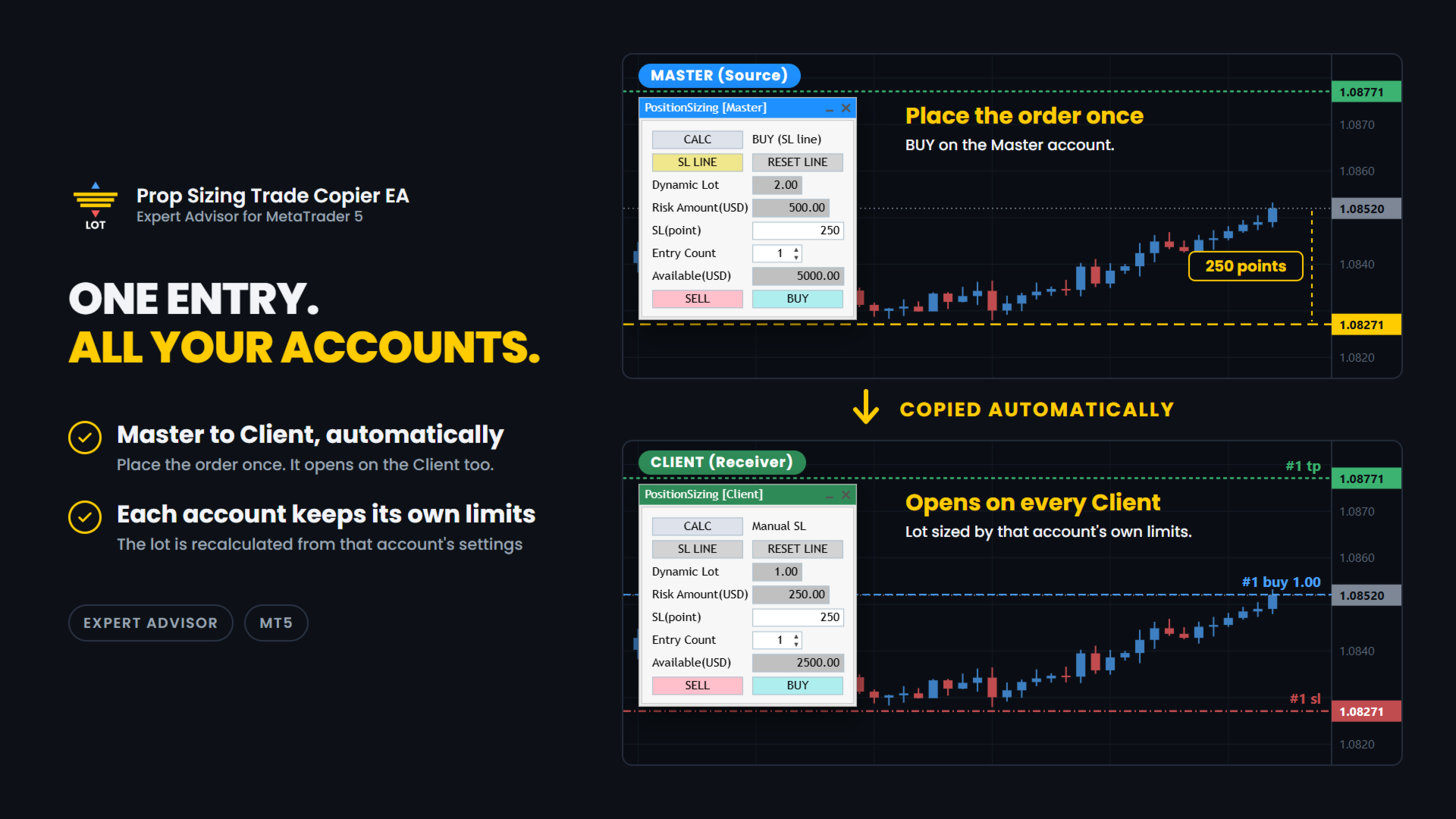
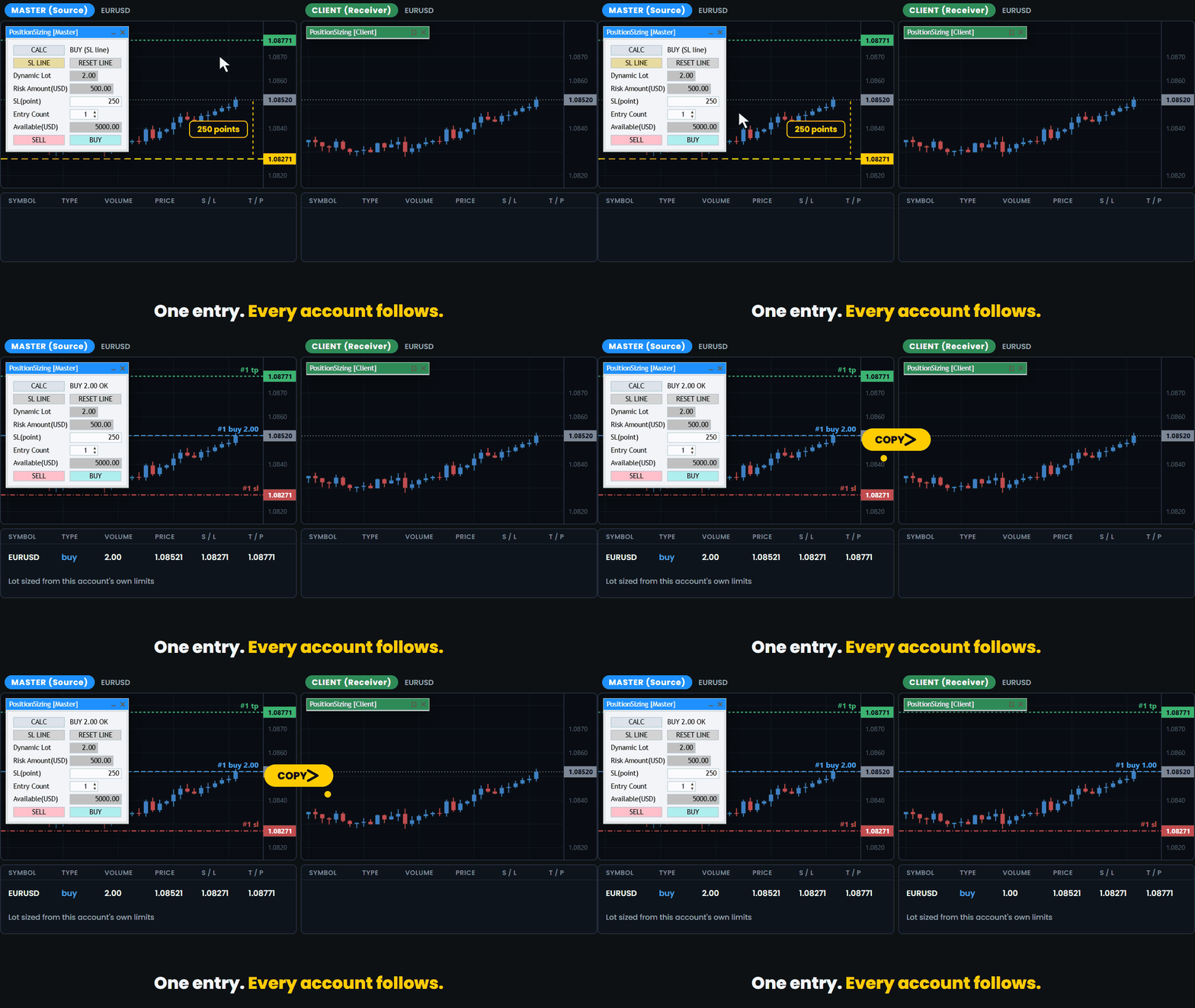
It lets you run several prop firm accounts from one PC. You enter on your main account and the trade is copied to the other accounts.
Each account calculates its own lot from its own balance and its own loss limits.
✅ WHAT IT DOES
Pick the role and match the magic number. That is the setup.
Copy:
- Master and Client roles. One terminal is the Master, which is the source.
The others are Clients, which receive.
The title bar is colour coded so you can see the role at a glance: blue for Master, green for Client. - Copying happens between MT5 terminals on the same PC, through a shared file.
This is not an internet signal service and nothing is sent outside your computer. - If a Master and a Client are set up inside the same MT5 terminal by mistake, the one that started later is disabled automatically and a warning is shown.
- The Master can hold up to 100 positions.
- A cooldown stops the same position from being copied twice while the first copy is still waiting to be confirmed.
The default is 10 seconds and you can change it. - Each Client sizes its own lot.
A 50,000 account and a 10,000 account do not take the same lot for the same trade.
Trade panel (included):
- Drag the stop-loss line and the lot size updates at once.
- BUY and SELL buttons send the order with the calculated lot.
The stop loss is the price of the line. - Direction is read from the line. Below the price is BUY. Above the price is SELL.
- Auto TP. The TP is set from your Risk-Reward setting, and the TP preview line follows the stop-loss line.
You can turn it off with the Auto TP Setting input. - The risk is shown in your account currency, not only in percent.
- Available shows how much of your allowed loss is still left, in your account currency.
- Round-trip commission is measured from your own trade history.
It is shown for reference and is not included in the risk amount. - Entry Count from 1 to 10 for split entries. Lot and risk are shown for one entry.
An "x2", "x3" ... mark appears next to the risk. - Fixed lot mode when you do not want the calculation.
- Entry Count and the stop-loss line are stored per chart.
- The panel can be collapsed to its title bar.
- I use it live on FX majors and crosses.
It has also been checked on gold (XAUUSD), BTCUSD and indices such as US30. Brokers set symbols differently, so check with a small lot first.
Order safety:
- If the button you pressed and the line do not agree, no order is sent.
- If the line is inside the spread, no order is sent.
- The spread is checked again when you press the button.
If it is wider than your Maximum spread setting, the order is cancelled. - If the stop-loss distance is zero or less, no order is sent.
- If the calculated lot is zero, no order is sent.
This also happens when no lot fits inside the risk you allowed. - A double-click on the button does not send two orders.
- If the currency conversion for your account is not available, the tool stops.
It does not send a guessed lot. - After the order is filled, the preview lines are removed.
🧪 HOW THE LOT IS CALCULATED
The tool works in four steps. Every account does this for itself.
1. Available. How much you can still lose.
It comes from your Initial Balance, Maximum Overall Loss (%) and Maximum Daily Loss (%).
The limit you would hit first is used.
2. Divide by Maximum allowed losses. This is how many losing trades in a row you want to survive.
3. Cap the risk. Maximum Risk per Trade (%) of your Initial Balance is the most one trade can risk, so the risk stays the same from trade to trade.
Set it to 0 to turn the cap off.
4. Work back from the stop. The distance to your stop-loss line is turned into a lot size for the current symbol.
You enter the limits your firm gives you. The tool does the rest.
🔧 SETTINGS
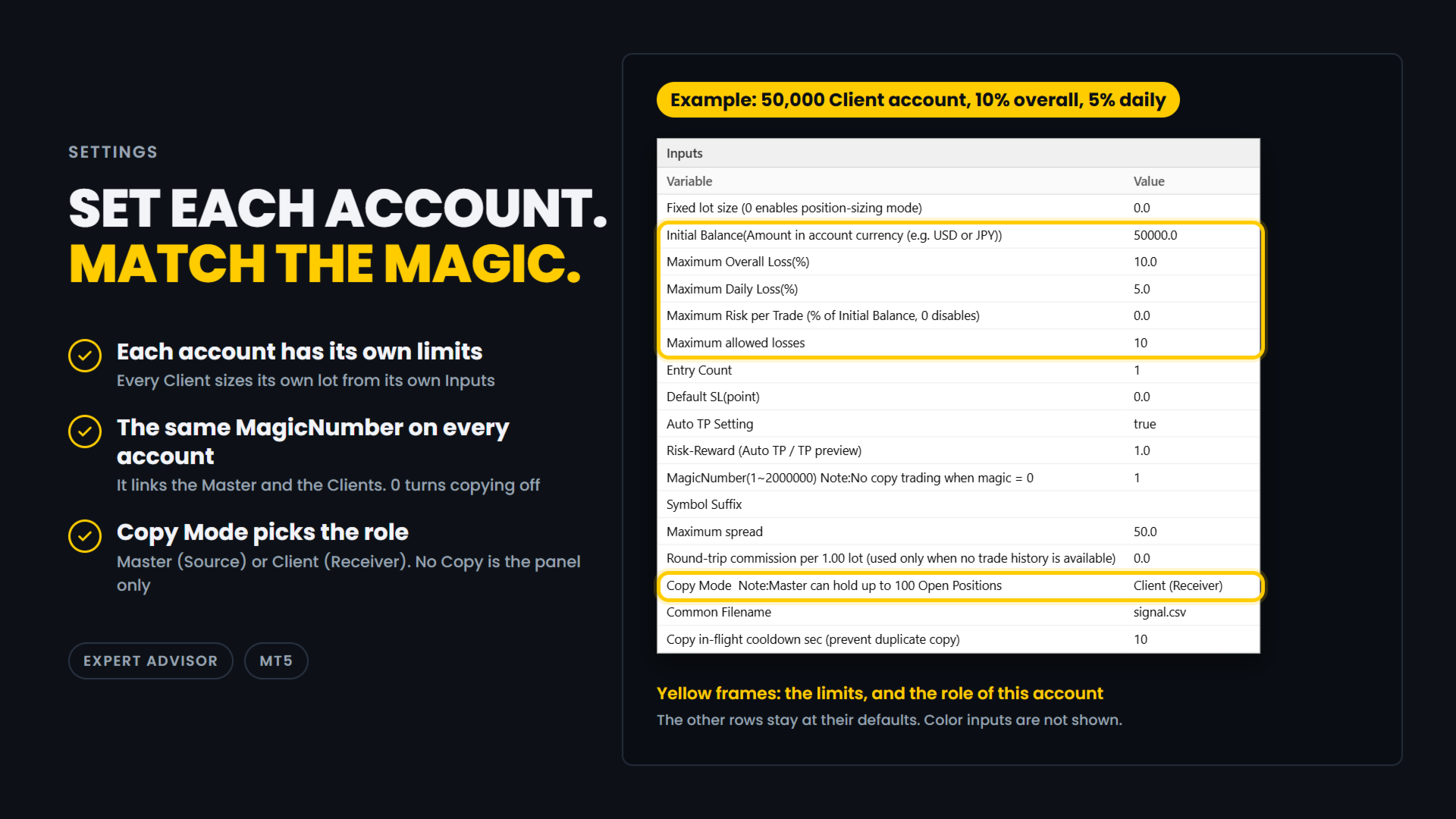
Example: a 50,000 Client account with a 10% overall loss limit and a 5% daily loss limit.
- Fixed lot size: 0.0
0 means each account calculates its own lot.
Enter a lot size only if you want a fixed lot, copied orders included. - Initial Balance: 50000.0
The starting balance of this account, in its currency.
Every account has its own settings. Set 0 to use the current balance instead. - Maximum Overall Loss(%): 10.0
The overall loss limit, in percent of Initial Balance. - Maximum Daily Loss(%): 5.0
The daily loss limit, in percent.
It is measured from the balance at the start of the day. - Maximum Risk per Trade: 0.0
A cap on the risk of one entry, in percent of Initial Balance.
0 turns the cap off.
If your firm limits the risk of a single trade, entering about half of its limit leaves a margin. - Maximum allowed losses: 10
How many losing trades in a row you want to survive. - Entry Count: 1
How many orders one press of BUY or SELL sends on this account, from 1 to 10. Each order has the calculated lot.
It is not part of the lot calculation.
With Maximum allowed losses 10 and Entry Count 2, the number of losing trades you survive is 5 (10 / 2). - Default SL(point): 0.0
The starting distance of the stop-loss line, in points.
0 places the line at half the range of the last 20 bars. - Auto TP Setting: true
true sets a TP on every order, copied orders included. false sends orders without a TP. - Risk-Reward: 1.0
The TP distance as a multiple of the stop-loss distance.
1.0 puts the TP as far from the entry as the stop loss. - MagicNumber(1~2000000): 1
The link between the Master and the Clients. Use the same number on all of them.
0 turns copying off. - Symbol Suffix: empty
The ending your broker adds to symbol names, such as .m.
Enter the one of the account this EA runs on, and leave it empty if there is none.
It lets EURUSD on one broker match EURUSD.m on another.
It is also used to find the currency pair that converts the risk into your account currency. - Maximum spread: 50.0
The spread limit, in points (50.0 is 5 pips on a 5-digit symbol).
If the spread is wider when an order is about to be sent, a copied order included, the order is cancelled.
0 means no limit: the spread is not checked. - Round-trip commission per 1.00 lot: 0.0
Used only when there is no trade history to measure from.
It is shown for reference and is not included in the risk amount. - Copy Mode: Client (Receiver)
No Copy is the panel only.
Master (Source) copies the trades you enter on this account.
Client (Receiver) copies the Master's trades.
The title bar is blue for Master and green for Client. - Common Filename: signal.csv
Leave it as it is.
The Master and the Clients share this file through the MetaTrader Common folder, so use the same name on all of them. - Copy in-flight cooldown sec: 10
After a Client sends a copy order, it waits this many seconds before it copies the same position again.
This stops double copies.
In this example, on a day that starts with a balance of 50,000, Available is 2500.00, because the 5% daily limit is reached before the 10% overall limit.
The Client sizes its own lot from the risk of one entry, which is 250.00 (2500.00 / 10).
⚠️ IMPORTANT
- When DefaultSL is 0, which is the default, the first stop-loss line is placed below the current price, at half the range of the last 20 bars of the timeframe you are on.
Because the distance comes from the range, it may be an odd number such as 119 pips, and it changes when you switch timeframe.
This is intended.
Set DefaultSL to a fixed value if you want the same starting distance every time. - This EA and Prop Sizing Lot Size Calculator cannot run on the same chart.
If the indicator is attached to the same chart, this EA will notify you and remove it.
The stop-loss line position is not carried over. This is by design. - The older free Prop Sizing EA does not have this detection.
Do not run it on the same chart as Prop Sizing Lot Size Calculator.
📋 ABOUT PROP FIRM RULES
Prop firms have different rules about third-party tools.
Some do not allow Expert Advisors that you did not write yourself.
Some also restrict third-party indicators, even ones that only calculate the lot size.
Some firms also limit copying between your own accounts. Rules can change.
Check the rules of your own firm before you use this product.
Whether to use it is your decision.
🎯 ONE THING ONLY
This tool does one thing. You enter on one account, the others follow, and each of them sizes its own lot.
🔗 ALSO AVAILABLE
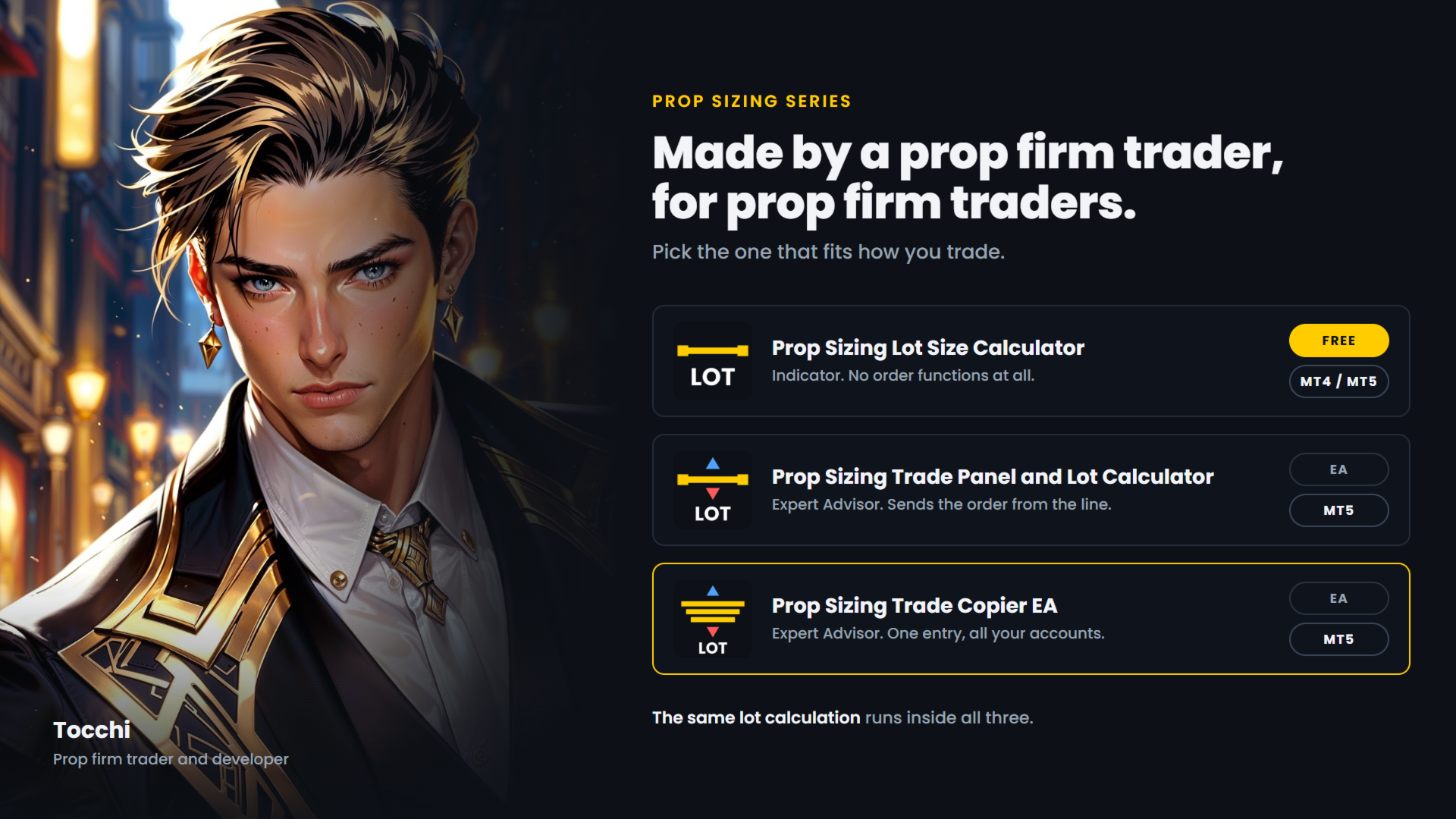
- Prop Sizing Lot Size Calculator - free.
Calculation and stop-loss line only, no order functions. MetaTrader 5. - Prop Sizing Lot Size Calculator MT4 - the same indicator for MetaTrader 4. Free.
- Prop Sizing Trade Panel and Lot Calculator - the trade panel without the copy function.
MetaTrader 5.