Trendline Alert Pro MT5
- Indicatori
- Versione: 1.20
- Aggiornato: 25 aprile 2026
- Attivazioni: 15

MT4 version is here
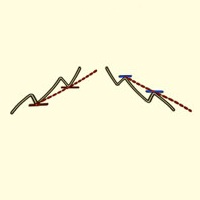
- Trendlines, channels, and angled lines
- Horizontal & vertical lines
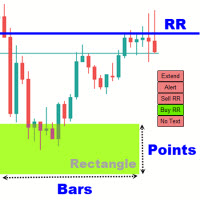
- Rectangles (support/resistance zones)
- Fibonacci retracements & expansions (customizable levels)
- Popup alerts inside MT5
- Push notifications to your mobile device
- Email alerts directly to your inbox
- Alerts when price crosses or breaches your drawn levels
- Option to trigger alerts only after candle close for confirmed break signals
- Customizable suffix filter to limit alerts to specific objects
- Works on all symbols and timeframes
Note: The indicator doesn't draw trendlines or support/resistance zones. It only alerts on objects that the user has created.
Settings
Trendlines Alert: Enable/Disable getting alerts for trendlines.
Horizontal Lines Alert: Enable/Disable
Vertical Lines Alert: Enable/Disable
Rectangle Alert: Enable/Disable
Fibonacci Alert (Define levels below): Enable/Disable
To get Fibonacci alerts, you must enter the percentage levels in the settings below.
Fibonacci levels % to get alert: Type the desired percentage levels of the Fibonacci to get alerts for them. Separate the numbers with the underline symbol "_" (without quotation mark). These numbers you type here work for both Fibonacci retracement and Fibonacci expansion objects.
Object Name Suffix: Type a 3-letter suffix to limit alerts for objects that have this suffix in their name.
By default, the indicator monitors all objects in the chart. If you don't want that, for example, for objects created by other indicators that you don't want to get alerts for, you can type a suffix here, and also type the suffix at the end of the object name, then you get alerts only for those objects that have this suffix in their name. (To change an object name, right-click on it and select properties.)
Line Extend To Future: If true the indicator auto extends the trend lines and other objects to the future of the chart and alerts whenever price hit them in the future. If false it doesn't alert after the price passes the end of the line so you must be aware when you draw a trend line, to what extent draw it to get alert for future price moves.
Alert after candle closed beyond the line: Enable/Disable waiting for candle to close for confirmed breaks. (Time frame dependent. So don't change the time-frame if you enabled this)
Popup Alert: Enable/Disable Metatrader pop-up alert.
Phone Alert: To receive indicator alerts on the cell phone. For this to work, you must enable and fill the MetaTrader push notification settings from the Notifications tab on the MetaTrader options dialog (Ctrl+O).
Email Alert: To receive indicator alerts via email. For this to work, you must enable and fill the MetaTrader email settings from the Email tab on the MetaTrader options dialog (Ctrl+O).