Range BreakOut Advanced
- Experts
-
Cem Ummak
 I am a professional algorithmic trader and EA developer with **5+ years of experience** in building automated trading systems for real market conditions.
🌐 Community
📩 Personal Telegram: https://t.me/cemummak - Versione: 4.16
- Aggiornato: 27 maggio 2025
- Attivazioni: 20
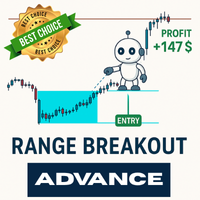
The most advanced breakout strategy you can find — is here!
Time-based trade control, grid strategy integration, automatic breakeven stop adjustment, custom trading days, trailing stop, and so much more…
All packed into a single powerful robot, ready for you!
We’ve been developing professional trading robots for over 8 years.
Instead of relying on flashy visuals, we focus on building reliable, results-driven systems that actually work.
Explore the features below — creating your own breakout strategy has never been this easy!
A Quick Look at the Robot's Power!
Scalping, long-term trades, or grid? This robot does it all!
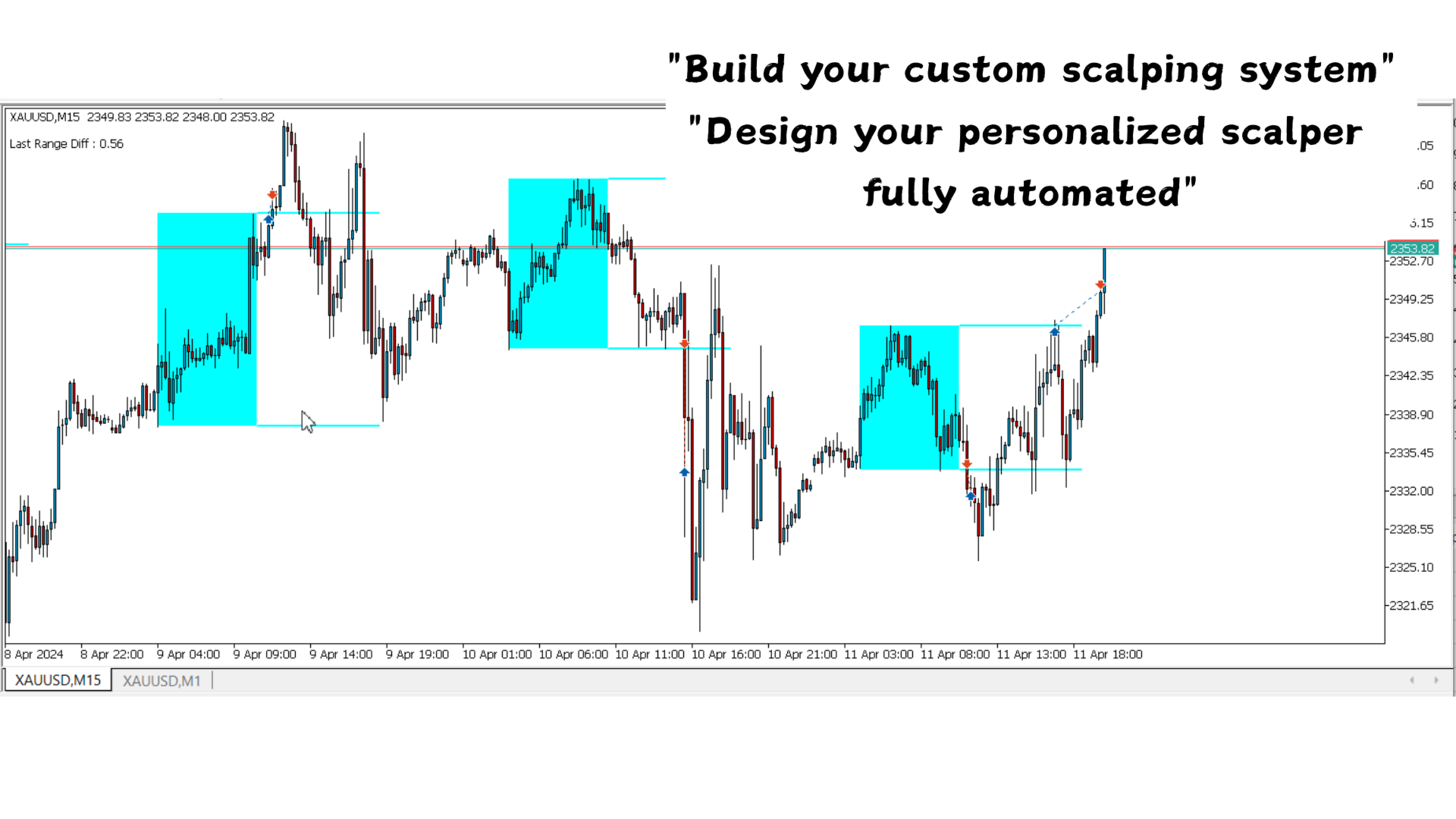
This robot can open long-term trades, or work like a scalper using the trailing stoploss feature.
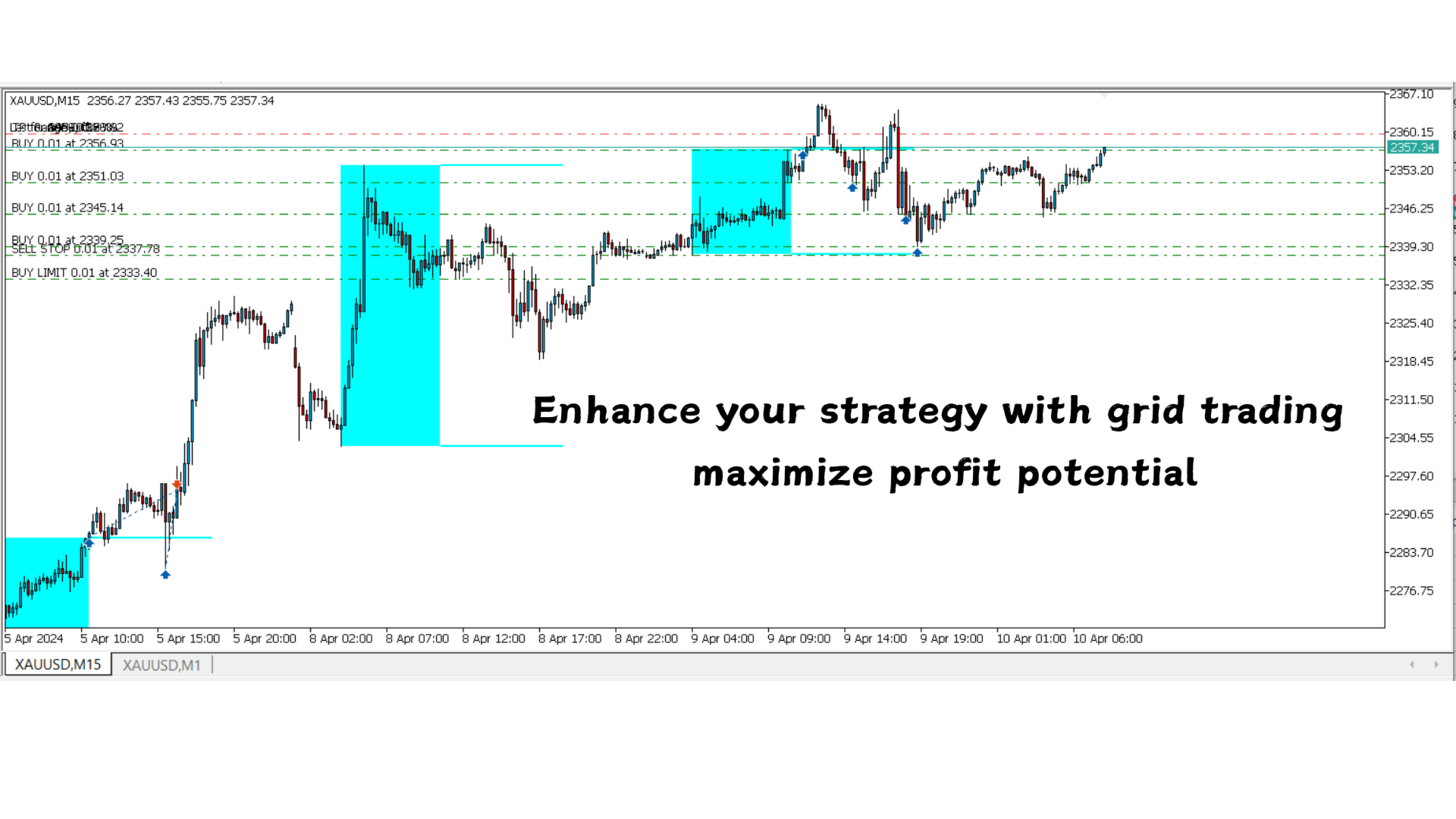
Thanks to its built-in grid strategy (note: carries risk), it can help you exit every trade in profit.
You decide: automatically close grid trades at a set time, or keep them open until they turn profitable — the choice is yours!
Inputs
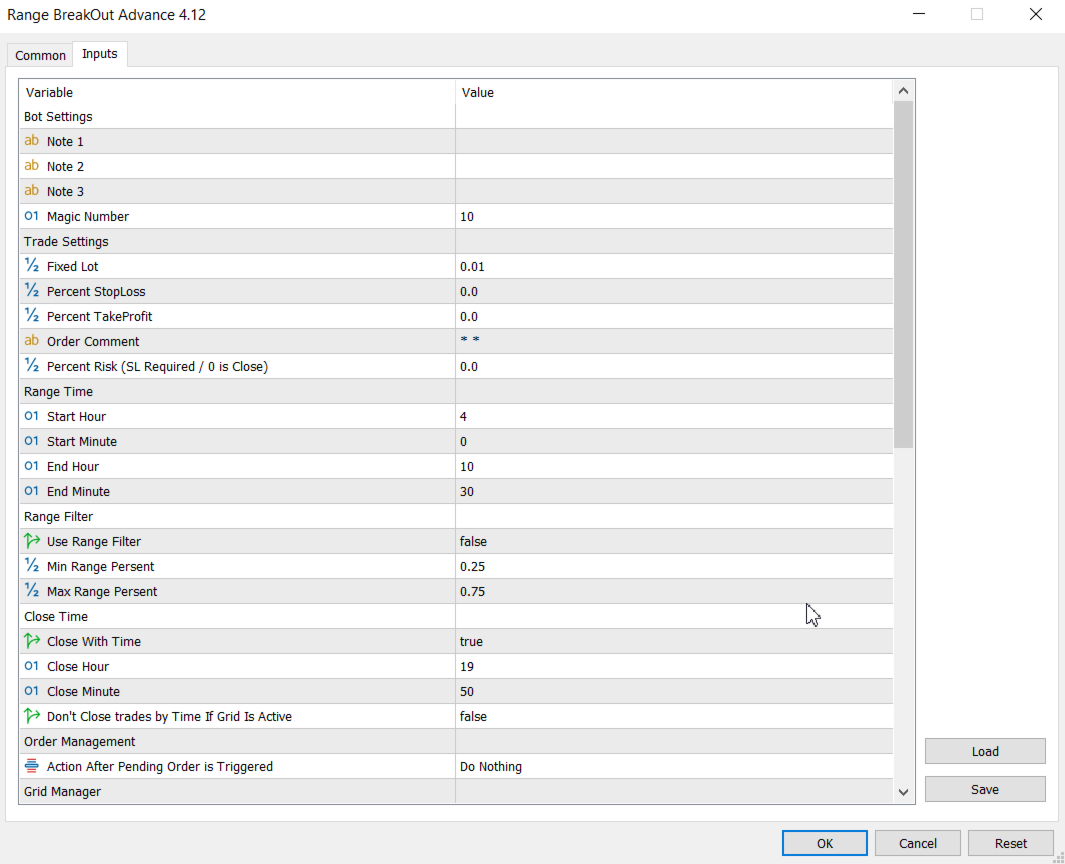
Bot Settings:
At the top of the input section, you'll find 3 Note Fields designed to help you document and track your settings easily.
These fields do not affect trade execution — they’re simply there to help you manage your custom strategies.
- Add comments while testing your settings
- Keep notes for different strategy variations
- Quickly recall your logic behind each configuration
Trade Settings:
Fixed Lot: Defines the fixed lot size for each trade. If you don’t want to use automatic risk calculation, enter a value here for manual control.
Lot Digits (0.01 = 2 / 0.1 = 1): Sets the lot precision. For example, use 2 for 0.01 or 1 for 0.1. Match this to your broker’s lot step size.
Percent StopLoss: Sets the stop loss as a percentage of the entry price. Enter 2 for a 2% stop loss. Set to 0 to disable.
Percent TakeProfit: Sets the take profit as a percentage of the entry price. Enter 3 for a 3% target. Set to 0 to disable.
Order Comment: Custom comment to label each trade. Helps you track and identify orders easily.
Percent Risk (SL Required / 0 is Close): Enables automatic lot sizing based on risk percentage. Requires a valid stop loss. Enter 2 to risk 2% of your balance. Set to 0 to disable.
Range Settings:
Start Hour: Sets the hour when the range-building period begins.
Start Minute: Sets the minute when the range-building period begins.
End Hour: Sets the hour when the range-building period ends.
End Minute: Sets the minute when the range-building period ends.
Range Filter:
Use Range Filter: Enables or disables the range filter. When set to true, trades are only allowed if the price range meets the specified criteria.
Min Range Persent: Defines the minimum percentage size of the range (relative to symbol price) required to allow trading.
Max Range Persent: Defines the maximum percentage size of the range allowed. If the calculated range exceeds this value, no trade will be executed.
Delete Pending Orders Time:
Delete With Time: Enables or disables the automatic deletion of pending orders at a specific time.
Delete Hour: Sets the hour when pending orders will be deleted.
Delete Minute: Sets the minute when pending orders will be deleted.
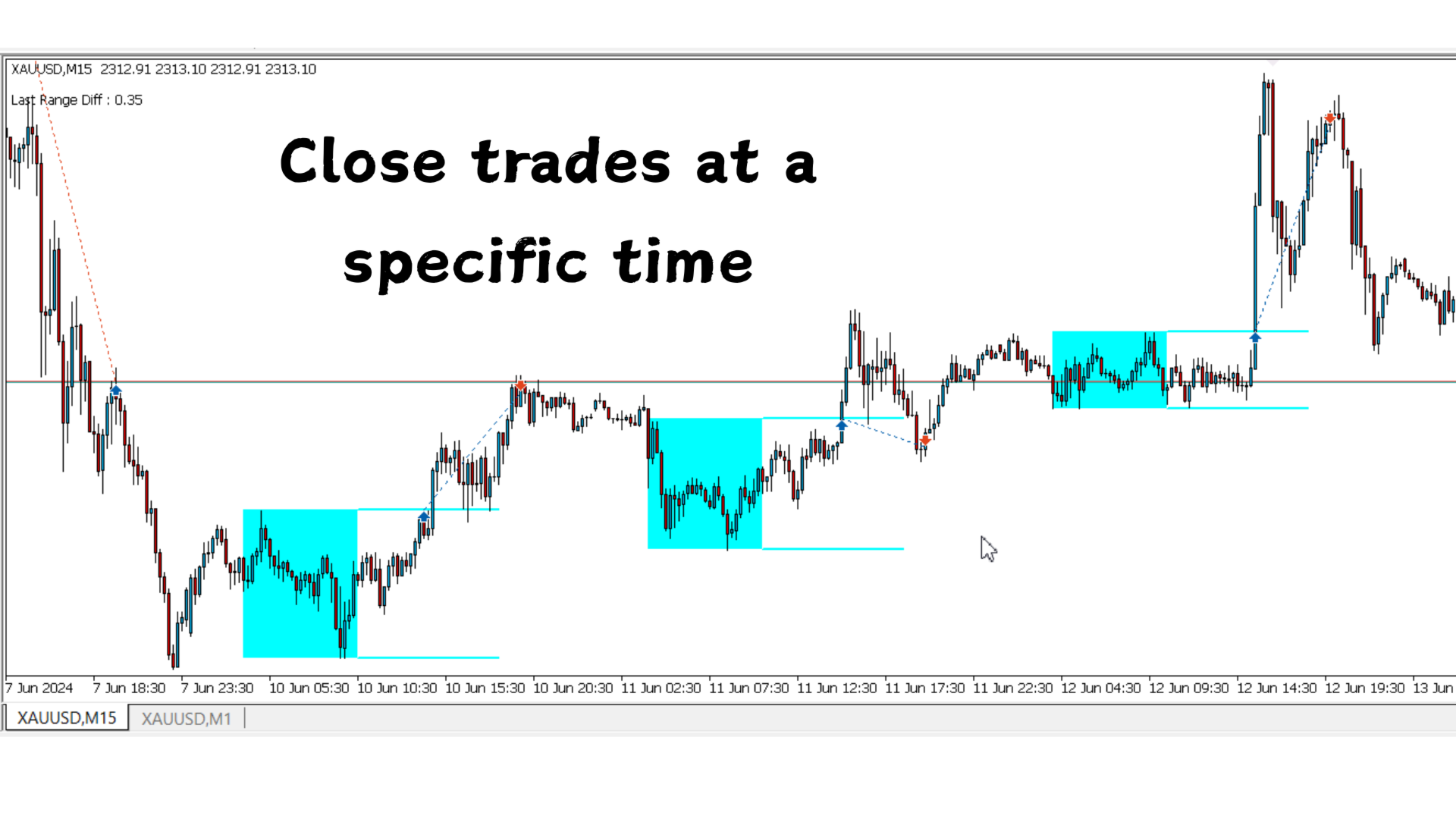
Close All Time:
Close With Time: Enables or disables automatic closing of trades at a specific time.
Close Hour: Sets the hour at which all open trades will be closed if time-based closing is enabled.
Close Minute: Sets the minute at which all open trades will be closed if time-based closing is enabled.
Don't Close trades by Time If Grid Is Active: If set to true, time-based closing will be skipped if there is an active grid position.
Order Manager:
Defines how the robot handles opposite-side orders when managing trades.
Do Nothing: Takes no action. All other pending or open orders remain untouched.
Delete Opposite Pending Order: Deletes the opposite pending order as soon as one of the two pending orders is triggered and becomes active.
Delete Opposite After Position Close: Deletes the opposite pending order only after the current open position is closed.
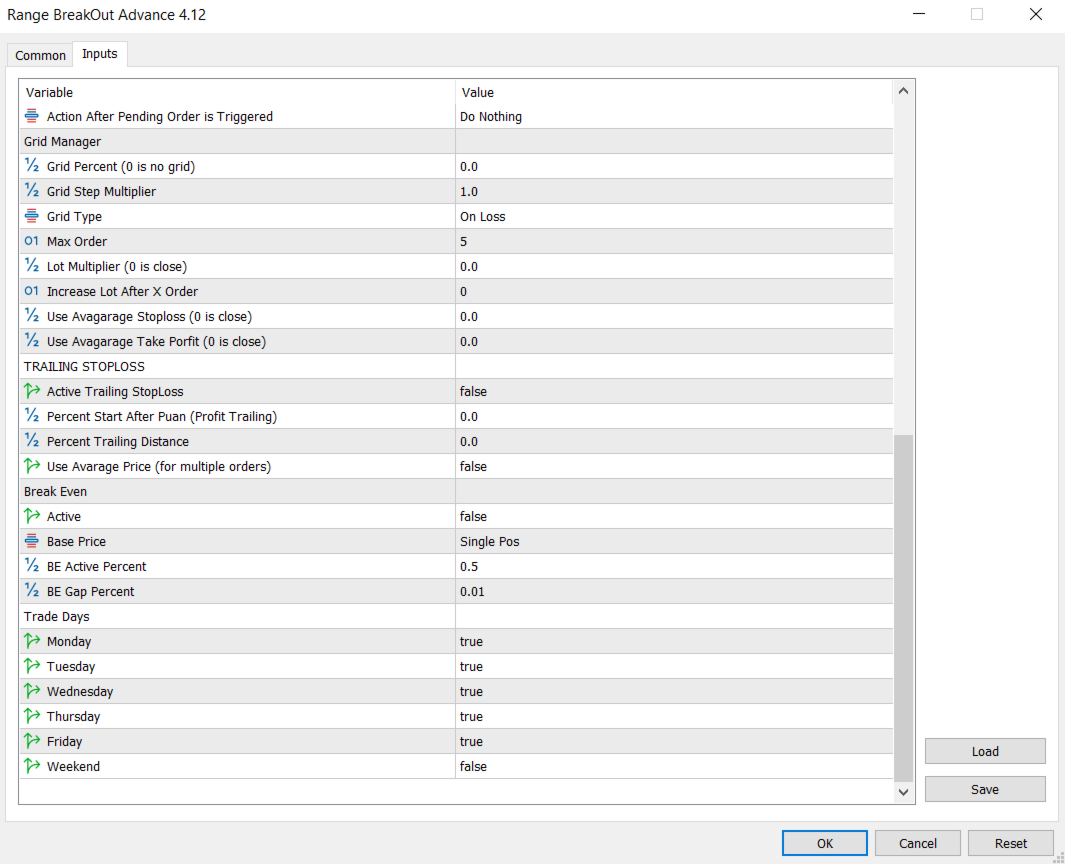
Grid Manager:
Grid Percent (0 is no grid): Sets the percentage distance from the initial order where new grid orders will be placed. Set to 0 to disable the grid system.
Grid Step Multiplier: Multiplies the step size between grid orders, allowing for variable spacing as the grid expands.
Grid Type: Defines the type of grid strategy used (depends on enum implementation).
Max Order: Limits the total number of grid trades the robot can open.
Lot Multiplier (0 is close): Multiplies the lot size of each new grid order. Set to 0 to disable lot scaling.
Increase Lot After X Order: Starts increasing the lot size only after this number of grid orders has been opened.
Use Avagarage Stoploss (0 is close): Sets a single averaged stop loss for all grid positions. Set to 0 to disable.
Use Avagarage Take Porfit (0 is close): Sets a single averaged take profit for all grid positions. Set to 0 to disable.
Trailing Stoploss:
Active Trailing StopLoss: Enables or disables the trailing stoploss feature. When set to true, the robot will adjust stop levels dynamically as profit increases.
Percent Start After Puan (Profit Trailing): Defines the profit percentage at which the trailing stoploss will activate.
Percent Trailing Distance: Sets the distance (in percentage) the stoploss will trail behind the current price once activated.
Use Avarage Price (for multiple orders): When enabled, the trailing stop will be calculated based on the average entry price of all open positions, instead of the last one.
BreakEven:
Active: Enables or disables the break-even feature. When set to true, the robot will move the stoploss to a break-even level after certain profit is reached.
Base Price: Selects the reference price for break-even calculation.
Avarage Price: Uses the average entry price of all positions.
Single Pos: Uses the entry price of the specific position.
BE Active Percent: Specifies the profit percentage at which the break-even mechanism becomes active.
BE Gap Percent: Sets the buffer (in percent) between the entry price and the stoploss.
Trade Days:
Allows you to choose which days of the week the robot is permitted to open trades. You can enable or disable trading for each individual day, including the weekend if needed.