Fakeout Box vMT4
- Indicateurs
-
Part-time Day Trader
 I build practical MT4 and MT5 tools that help traders follow consistent execution routines with more structure, discipline, and confidence.
Because consistency is the real edge behind any trading strategy — and without it, no strategy works. - Version: 1.0
Fakeout Box lets traders create alert zones around selected price ranges, consolidation areas, intraday kill zones, or individual candle wicks in seconds by dragging a vertical line.
Unlike fully automatic fakeout indicators and alerters, Fakeout Box gives traders more flexibility to choose which levels the tool should monitor, making it easier to integrate the tool into different fakeout strategies.
Usage is simple: select the fakeout direction, drag the vertical line to define the setup area, and release it to place the box. The tool then monitors the selected boundary and alerts when price moves beyond it, allowing a reversal-confirmation strategy to be applied in preparation for the impulse move that may follow a possible fakeout.
Built For Traders Who Want To:
- Define custom fakeout zones around ranges, kill zones, or individual price levels.
- Get alerted when price moves beyond the selected upper or lower boundary.
- Use a separate reversal confirmation strategy before trading a possible fakeout.
- Reduce chart watching without missing the next fakeout opportunity.
Key benefits
Create fakeout zones in a second
Drag the vertical line to define a range, kill zone, consolidation area, or individual candle wick.
Control where alerts are active
Choose the exact setup area instead of relying on fully automatic fakeout alerts.
Reduce screen watching
Get alerted when price moves beyond the selected boundary.
Support manual confirmation
Use the alert to activate a preferred reversal-confirmation strategy before trading.
Main features of Fakeout Box
Three Alert Modes
Choose Both, Upper, or Lower boundary monitoring.
Drag-and-Drop Placement
Drag the vertical line and release it to place the box.
Clear Chart Markings
See active alert levels and where an alert was triggered.
Customizable Appearance
Adjust box colors, alert colors, and panel size.
Manual
1. Click Both, Upper, or Lower to select which box boundary should be monitored.
2. Drag the vertical line to the left and release it when the box and boundary levels are positioned as desired.
3. When the line is released, price labels appear on the monitored boundaries, indicating that the alerts are armed.
4. The vertical line automatically hides after a short period of inactivity. Before it hides, the box can still be adjusted directly. Afterward, clear the box and place it again to change its position.
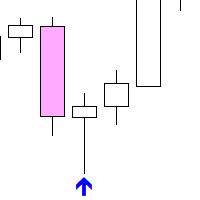
5. When a boundary is triggered, its price label disappears, the line turns gray, and an arrow marks the trigger candle.
6. The left side of the box remains fixed at the time the fakeout box was placed.
7. To remove the box and clear its alerts, click the highlighted monitoring button again.
Combined Workflow Tip
Use Fakeout Box alongside Signal Activator MT4 to get alerted on a reversal confirmation after a possible fakeout.