IMD TP Manager
- Utilities
- Version: 6.40

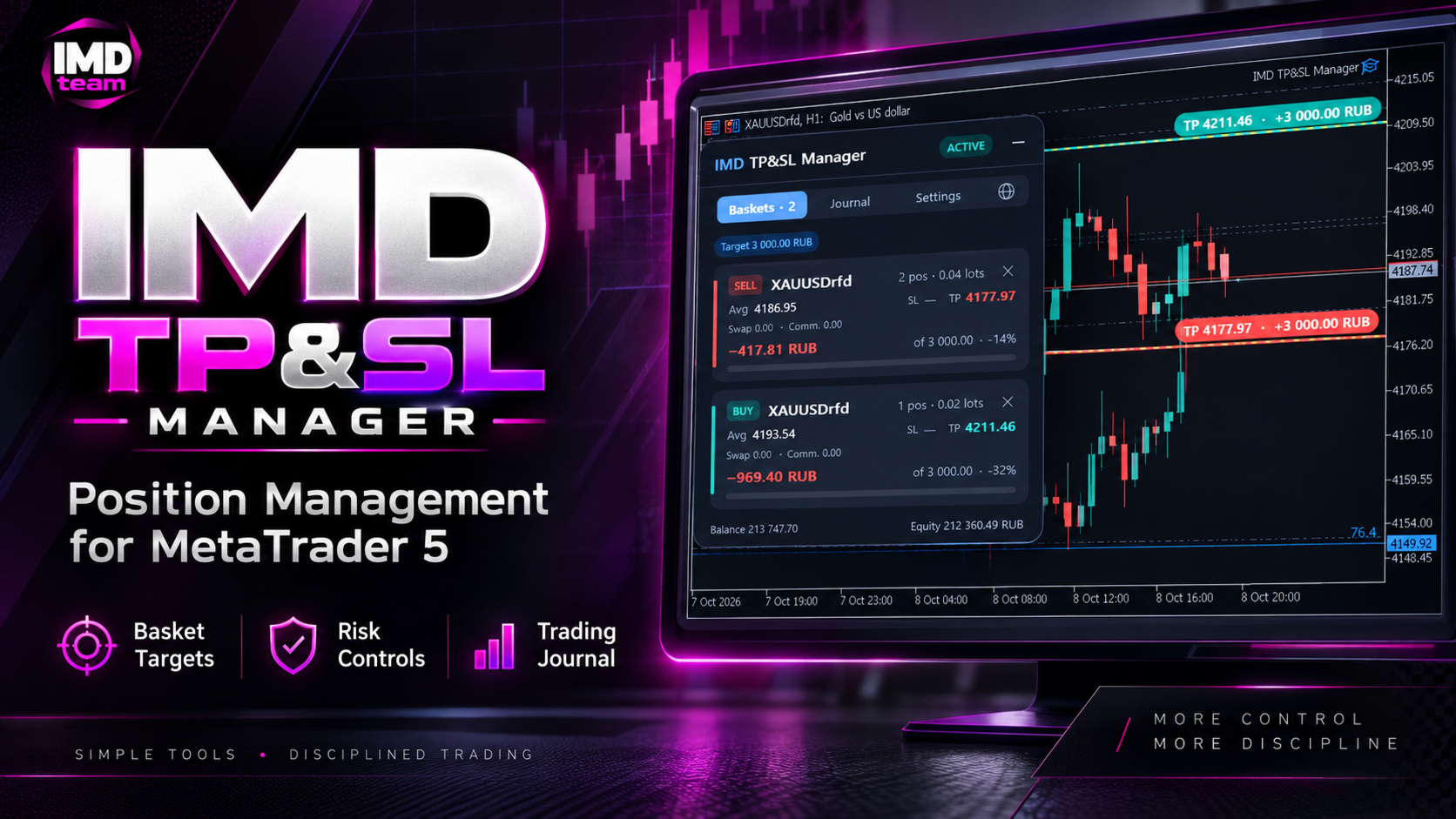
IMD TP SL Manager — take profit and stop loss management for a basket of positions
Chat for discussing the robots in the team: join
IMD TP SL Manager is an assistant Expert Advisor for traders who hold several positions on one instrument and want to close them at a predefined financial result. You set the target as a percentage of the balance or as an amount in the account currency. The EA calculates a common take profit for the whole group of positions, taking into account the average price, swaps and commissions, and keeps it up to date.
The EA does not open trades and does not make trading decisions. It works with positions you opened manually or with other Expert Advisors and takes over their management.
What it does
When several positions are open, the common take profit has to be recalculated by hand, and swaps and commissions gradually shift the price at which the group reaches the desired result. IMD TP SL Manager recalculates the levels after every change: a new position, a swap charge, a partial close. The take profit level always corresponds to the amount you specified.
How it works
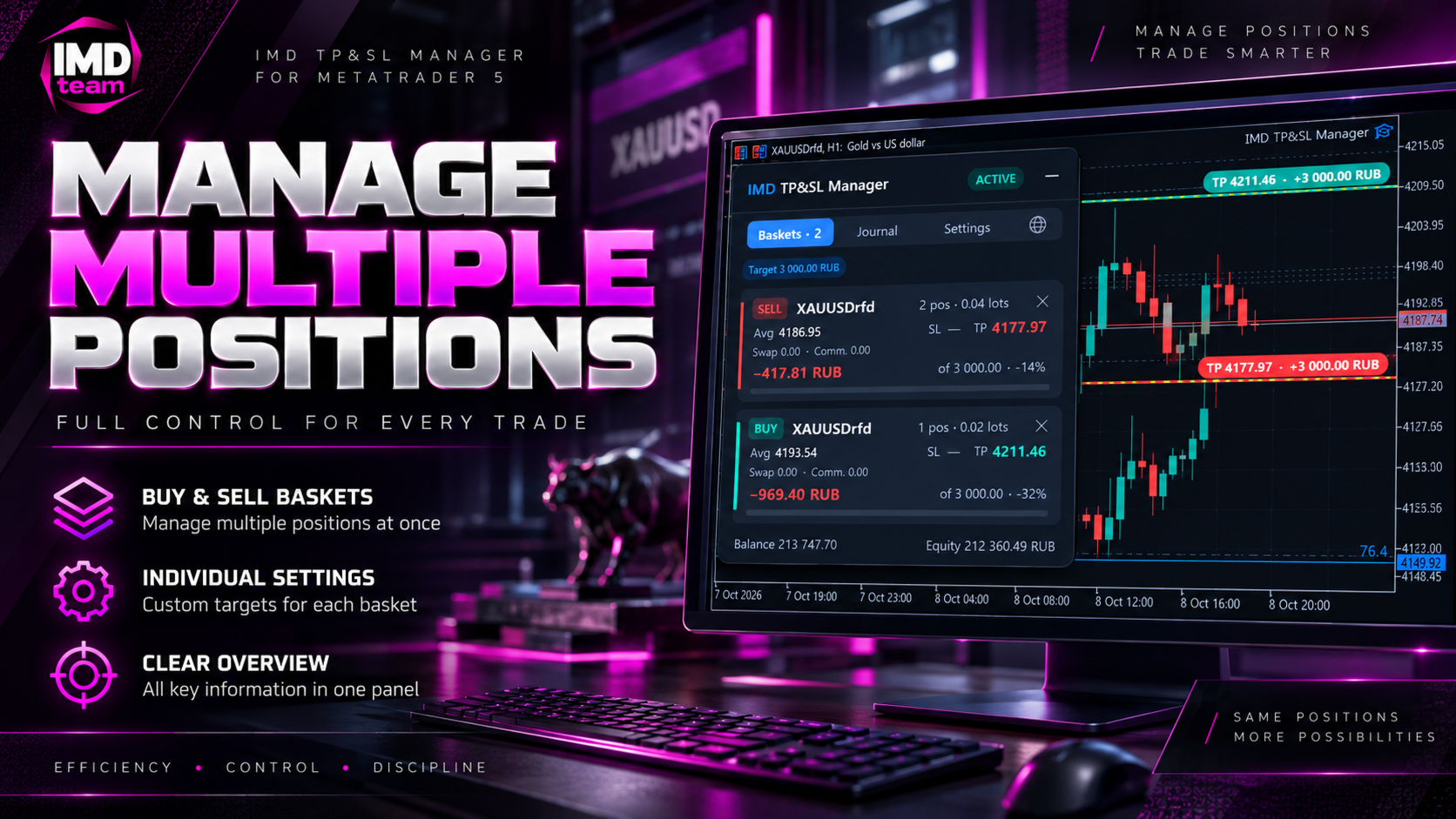
Positions are grouped into baskets by symbol and direction. For each basket the EA determines:
• the volume-weighted average open price;
• the accumulated swap and the commission already charged;
• the expected closing commission (automatically from the deal history or by a set factor);
• the price at which the basket result equals the target.
For cross rates the point value is refined with the terminal’s built-in profit calculation, so levels are correct for instruments whose point value depends on the price.
Target, stop loss and position management
• Target: a percentage of the balance or a fixed amount in the account currency. The percentage is taken from the balance at the moment the basket opens or from an amount you set, so closing other baskets does not shift the target.
• Basket stop loss: the allowed loss in percent or money, with the same swaps and commissions taken into account.
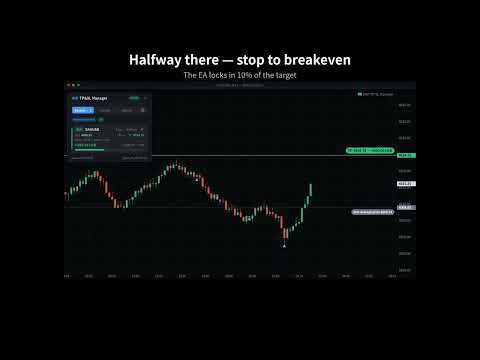
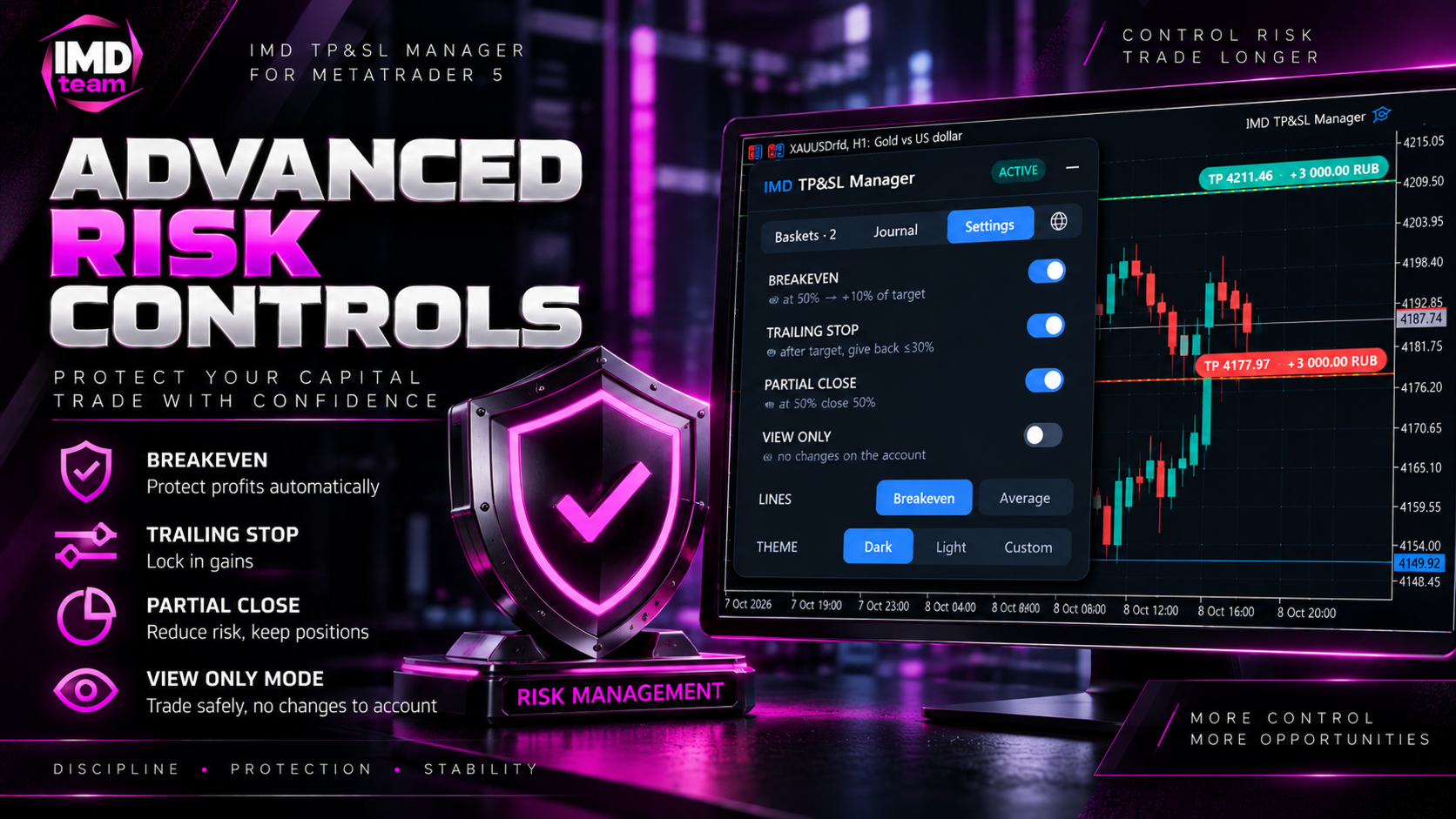
• Breakeven: when the basket covers a set share of the way to the target, the stop moves into the profit zone.
• Profit trailing: after the target is reached, the EA does not close the basket at once. It follows the profit and limits how much of the peak can be given back.
• Partial close: at an intermediate point a set share of the volume is closed, and the remainder can be moved to breakeven. The locked part is counted in the basket result.
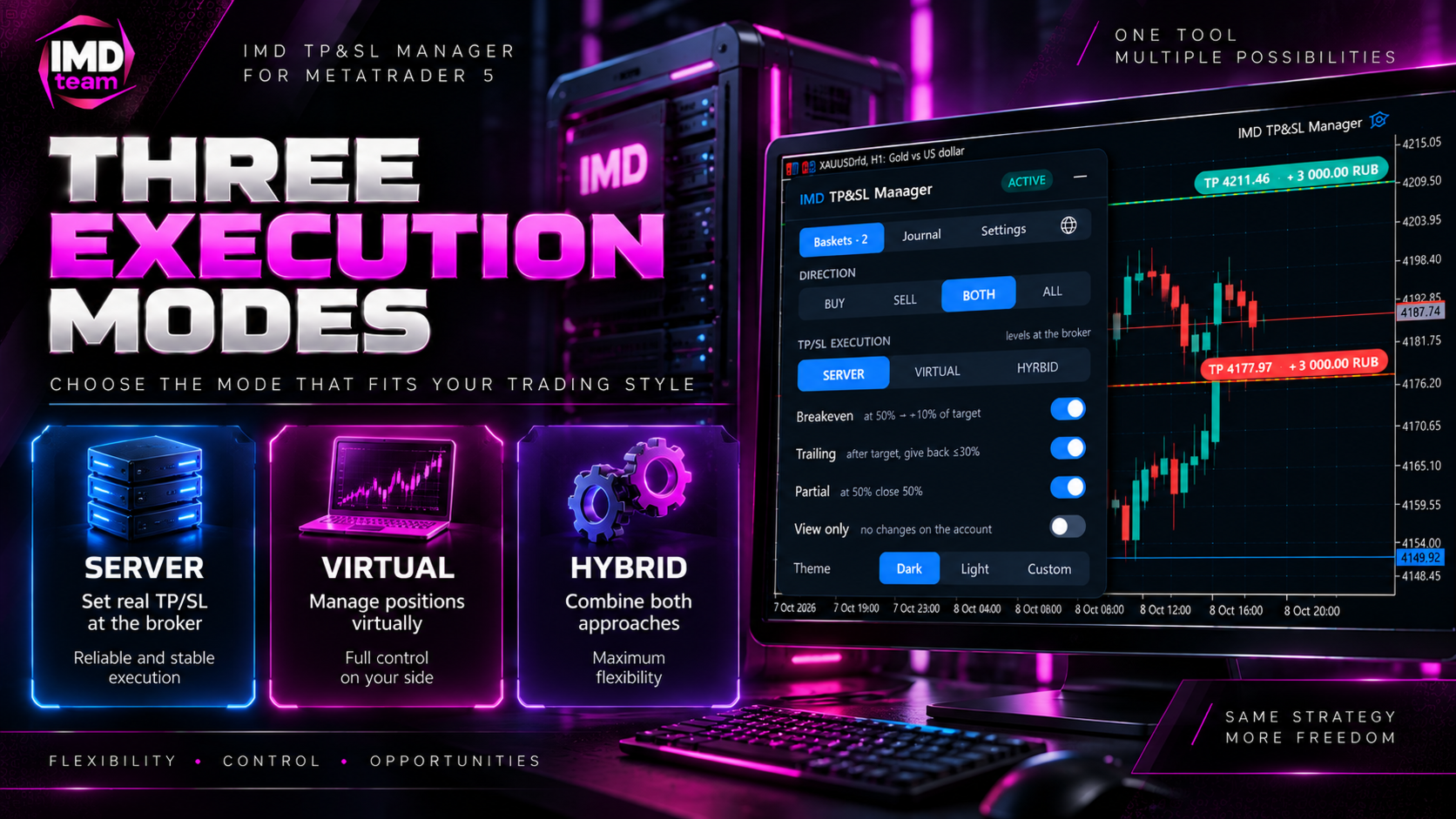
Execution modes
• Server levels: take profit and stop loss are placed at the broker and work even when the terminal is off.
• Virtual levels: not visible to the broker; the EA closes the basket itself.
• Hybrid: virtual levels plus safety server levels at a set distance.
Directions and filters
• Buys only or sells only.
• Buys and sells separately: two independent baskets, each with its own levels and target.
• All positions together: one combined basket closed by its total result. Suitable for hedging and grid approaches. On hedging accounts positions are first closed against each other, which reduces spread costs.
• The current symbol or all symbols of the account.
• All positions, manual positions only, or positions with a specific magic number.
Control panel
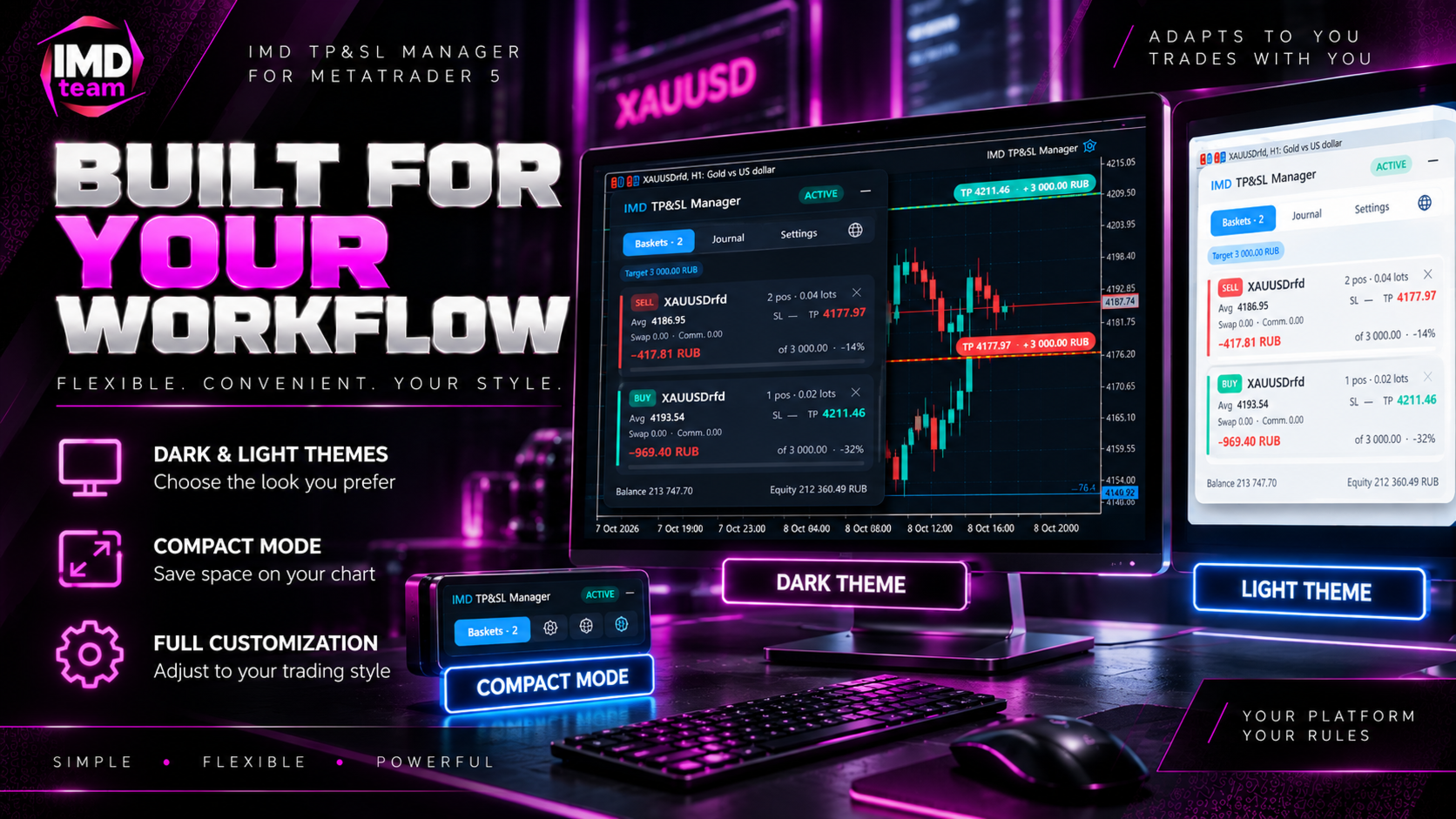
• Baskets: cards with the number of positions and volume, average price, stop loss and take profit levels, swap, commission, current result and a progress bar to the target. A basket can be closed manually with a double confirmation.
• Journal: statistics of closed baskets for today, the week, the month or the whole period — total result, number of baskets, share of profitable ones, average result, average holding time, close reasons and recent records.
• Settings: the main parameters are changed directly on the panel, without restarting the EA.
The header shows the current status of the EA; the language is selected on a separate tab and the color theme in the settings. The panel can be dragged with the mouse and minimized to a compact strip with the total result of all baskets. Settings chosen on the panel are saved immediately and are kept after a timeframe change, a terminal restart or an unexpected computer shutdown.
Working with the chart
• Draggable lines: the target and stop loss lines can be dragged with the mouse. While dragging, the amount and the percentage of the balance for the current price are shown next to the line. The value is applied when you release the line.
• Optional lines: average price and breakeven level including swaps and commissions. Each can be turned on separately.
• Three color themes: dark, light and custom. The dark and light themes also change the chart colors, the custom theme keeps the chart as it is. When the EA is removed, the original chart colors are restored.
Reliability
• Trading availability check: algorithmic trading permission, the symbol’s trading session and up-to-date quotes. When the market is closed, the EA sends no requests and makes no decisions based on an outdated price.
• Pause after errors: after a server error, the request is repeated with an increasing interval.
• Broker limits: the minimum level distance and the freeze level are respected. The minimum level change is set in ticks and as a share of the spread.
• Rollover: level changes are paused during rollover. Closing by the EA stop can also be blocked when the spread is wide.
• One managing instance per symbol: if the EA runs on several charts, only one of them manages the positions; the others show the corresponding status.
• Manual stop losses: stop losses you set yourself are not removed.
• View only mode: calculations and lines without any changes on the account. Convenient for getting acquainted with the EA and checking settings.
Journal and notifications
Each closed basket is recorded in a CSV file in the MQL5folder: the exact result from the deal history (including partial closes, swaps and commissions), the close reason and the holding time. The file opens in any spreadsheet editor. The EA reports basket closes with a terminal alert and, if enabled, a push notification to your mobile device.
Interface languages
English, Русский, 中文, Español, Deutsch, 日本語, Português, 한국어, Français, Italiano, Türkçe. The language is switched with a button on the panel and applies to the panel, the chart lines and notifications. The Auto option in the inputs uses the terminal language.
Getting started
1. Allow algorithmic trading in the terminal.
2. Attach the EA to the chart of the instrument with open positions.
3. Turn on View only and make sure the levels on the chart match your expectations.
4. Turn View only off. The EA starts managing the levels.
Good to know
• The EA does not open positions on real or demo accounts. In the Strategy Tester it opens demonstration positions with the minimum volume to show how management works; this can be disabled in the inputs.
• Virtual levels, breakeven, trailing and partial close work while the terminal is running. If the terminal may be switched off, use the server or hybrid mode.
• Works on hedging and netting accounts.
• The EA is a position management tool. Trading results depend on your decisions and market conditions; the EA does not guarantee profit.