Grid Awesome Oscillator EA
- Uzmanlar
- Sürüm: 3.10

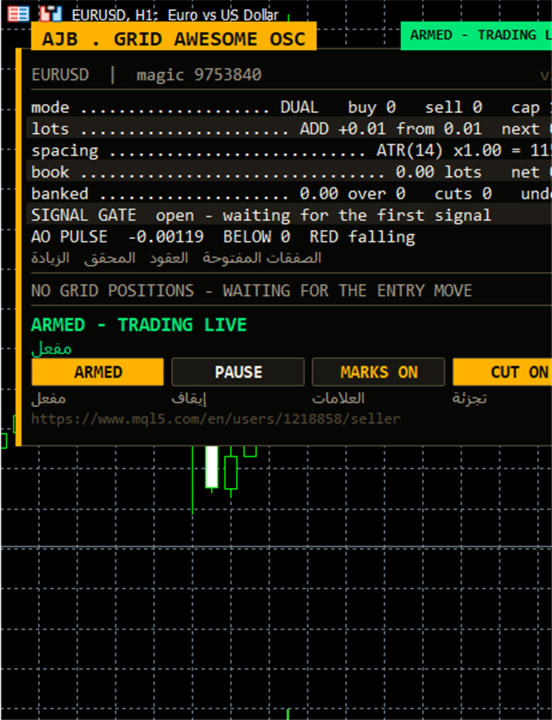
- New on-chart panel design
- Margin check bug fixed: grid levels are no longer refused falsely
- Test it free in the Strategy Tester first
NEXT GENERATION MOMENTUM GRID AUTOMATION: GRID AWESOME OSCILLATOR EA VERSION 3.10
Market volatility is the natural fuel of active trading, yet fixed-distance grid systems frequently struggle when calm sessions suddenly erupt into wide, directional expansions. Grid Awesome Oscillator EA solves this structural challenge by pairing classical momentum readings from the Awesome Oscillator with adaptive, volatility-scaled trade spacing and an intelligent basket liquidation engine. Instead of relying on blind entries or rigid closure rules, this automated system evaluates real-time market rhythm to build structured positions and actively pairs winning newest positions against older exposed positions to clear risk systematically.
Whether you prefer dual-sided grid execution, dynamic Average True Range (ATR) step sizing, or multi-leg partial order slicing, this Expert Advisor gives you institutional-grade execution tools right inside your MetaTrader 5 terminal.
WHAT IS NEW IN VERSION 3.10
Version 3.10 introduces major visual and architectural upgrades designed to streamline your workspace and maximize execution reliability during high-stress market events.
First, the EA features a completely redesigned on-chart dashboard panel. The fresh layout organizes active buy and sell grids, current spacing distances, basket targets, and multi-leg closure plans into a clean, readable interface with optional bilingual English and Arabic labels.
Second, this update includes critical core bug fixes, highlighted by a completely reworked margin check verification engine. In earlier builds, transient broker margin calculations or hedging margin offsets could occasionally trigger false margin warnings. The upgraded verification logic ensures that valid new grid levels are never wrongly refused when your account holds adequate equity and margin reserves.
CORE ARCHITECTURAL ADVANTAGES
Momentum-Driven Cycle Initiation
Rather than opening positions randomly, the system monitors the Awesome Oscillator to detect genuine shifts in market momentum before arming the initial grid level. Traders can filter signals by bar shift, signal validity windows, and cooldown delays between entries.
Adaptive Volatility Spacing
By reading the Average True Range, the Expert Advisor automatically stretches grid distances during high-impact news or volatile sessions and tightens them during quieter periods. You remain in full control with customizable point floors, ceilings, and spacing multipliers.
Smart Basket & Multi-Leg Slicing Engine
Standard grid systems wait for the entire basket to reach breakeven, which requires deep price retracements. Grid Awesome Oscillator EA includes a multi-leg combination scanner and target-slicing technology. It uses profitable newest trades to chip away at the oldest open positions in calculated slices, reducing exposure step by step without waiting for a full trend reversal.
Optional Multi-Symbol Hedge Cycle
For advanced portfolio management, an integrated hedge module can maintain balanced counter-positions on correlated or secondary instruments, retiring small slices of the hedge alongside primary grid closures.
EXPERIENCE IT FIRST IN THE METATRADER 5 STRATEGY TESTER
Do not take our word for how smoothly the multi-leg scanner and ATR spacing adapt to changing market regimes. We strongly invite you to download the free demo right now and run Grid Awesome Oscillator EA in the MetaTrader 5 Strategy Tester before buying. Use visual mode on every tick based on real ticks to watch the new Version 3.10 on-chart panel in action, observe how the Awesome Oscillator arms entries, and see how target slicing retires older trades during live pullbacks.
STEP-BY-STEP SETUP AND OPERATION GUIDE
Step 1: Prepare Your Workspace
Open your MetaTrader 5 terminal, select your desired trading instrument, and open a clean chart on your preferred timeframe. Ensure that Algorithmic Trading is enabled on the main terminal toolbar.
Step 2: Attach the Expert Advisor
Locate Grid Awesome Oscillator EA Version 3.10 in the Navigator window under Expert Advisors and drag it onto your chart. In the Common tab, check the box to Allow Algo Trading.
Step 3: Configure Your Risk and Spacing Rules
Switch to the Inputs tab. Choose whether you want fixed point spacing or dynamic SPACING_ATR mode. Set your InitialLotSize, your preferred LotSizingMode, and your safety boundaries such as MaxSpreadPoints and MinMarginLevelPercent.
Step 4: Select Your Operating Mode and Launch
Set RunMode to RUN_ARMED for automated trading or start in scan mode to preview how the engine evaluates your open book. Click OK to initialize the EA. Verify that the new Version 3.10 control panel appears cleanly on your chart and displays your selected parameters.
COMPLETE INPUT PARAMETERS REFERENCE
TradeMode: Selects the directional structure of the grid, such as running a dual-sided grid simultaneously or isolating a single direction.
GridSpacePoints: Sets the base distance in points between consecutive grid levels when using fixed spacing.
GridSpaceMultiplier: Multiplies the distance between each successive grid level to widen or maintain equal spacing as the grid grows.
MaxGridLevels: Defines the maximum number of open grid levels permitted per directional grid.
UpDirectionIsBuy: Determines whether an upward price movement triggers buy grid levels or sell grid levels.
EAMagicNumber: Assigns a unique numerical identifier to all primary grid orders so the EA tracks only its own trades.
GridOrderComment: Writes a custom text tag onto every primary grid order for easy identification in your trade history.
OneOrderPerBar: Restricts the execution engine to opening at most one new grid level per candlestick bar.
InitialLotSize: Establishes the starting trade volume for the very first level of a new grid cycle.
LotSizingMode: Chooses the mathematical progression method for subsequent grid levels, such as additive steps or multiplication.
LotMultiplier: Specifies the multiplication factor applied to the lot size at each new level when multiplication mode is active.
LotAddStep: Defines the exact lot volume added to each successive grid level when additive lot sizing mode is selected.
MaxOrderVolume: Places a strict upper limit on the lot size of any single individual trade opened by the EA.
UseAutoLot: Enables or disables automatic scaling of the starting lot size in proportion to your account balance.
AutoLotBaseBalance: Sets the reference account balance amount used to calculate proportional auto-lot sizing.
AutoLotAllowDecrease: Controls whether the auto-lot calculation is permitted to reduce the starting lot size following a balance drawdown.
GridSpacingMode: Switches the grid distance calculation between static point distances and dynamic ATR-based volatility measurements.
ATRTimeframe: Selects the chart timeframe used to calculate the Average True Range for dynamic grid spacing.
ATRPeriod: Defines the number of bars averaged together by the ATR indicator to measure market volatility.
ATRSpacingFactor: Multiplies the raw ATR value by this number to determine the actual point distance between grid levels.
ATRBarShift: Specifies which candlestick bar is read for the ATR value, where 1 uses the most recently closed bar.
ATRMinSpacingPts: Establishes a minimum point distance floor so dynamic ATR spacing never becomes too tight during quiet markets.
ATRMaxSpacingPts: Establishes a maximum point distance ceiling so dynamic ATR spacing never stretches beyond your preferred limit.
ATRFreezeOnStart: Locks the initial ATR spacing measurement when a cycle begins so all levels in that cycle share the same base distance.
DesiredProfitPerClosure: Sets the baseline monetary profit target required before the engine closes a qualifying pair or basket of orders.
ProfitMultiplier: Applies a final scaling multiplier between 1.00 and 2.00 to boost the calculated profit target at closure.
ProfitTargetMode: Selects whether the closure profit target remains flat or scales dynamically with trade volume and grid depth.
ProfitVolumePower: Controls the exponential weight applied to total trade volume when calculating scaled profit targets.
ProfitDepthBonus: Adds an extra percentage bonus to the profit target for each additional open level deep in the grid.
ProfitMaxMultiple: Caps the scaled profit target at a maximum multiple of the base DesiredProfitPerClosure value.
ProfitMaxReachFraction: Limits the maximum required price travel for a closure target to a safe fraction of one grid step.
UseMultiLegScan: Activates the advanced combination scanner to evaluate multi-order closures before falling back to simple pair closures.
MaxOldestLegs: Caps how many of the oldest open grid positions can be bundled together into a single closure operation.
MaxNewestLegs: Caps how many of the newest profitable grid positions can be combined to finance a single closure operation.
ScanPriority: Determines how the scanner ranks valid closure combinations, such as prioritizing the removal of the most open orders.
NeverBankLessThanPair: Ensures that any complex multi-leg combination yields at least as much profit as a standard two-order pair closure.
RequireCloseVolumeExceedsTarget: Demands that the combined lot volume of the newest closing trades is larger than the oldest target trade volume.
MinCloseVolumeRatio: Sets the minimum required ratio between the closing trade volume and the target trade volume Being retired.
EnableTargetSlicing: Allows the EA to partially close a slice of the oldest trade when accumulated profit cannot yet retire the entire position.
FragProfitWeightPower: Adjusts how profit targets are weighted relative to the lot volume during partial slice closures.
FragMinSlicePercent: Defines the smallest allowable partial closure size expressed as a percentage of the target order volume.
FragAllowMultiCloser: Permits multiple newest profitable orders to pool their gains together to pay off a single slice of an older trade.
FragPreferFullClosure: Instructs the decision engine to always execute a complete order closure instead of a partial slice whenever both qualify.
ReopenGuard: Prevents a basket closure from executing if the current price would immediately trigger the reopening of the same grid level.
ReopenGuardCushion: Sets the required safety buffer distance as a fraction of one grid step before a guarded closure is permitted.
MinMarginLevelPercent: Blocks the opening of any new grid levels if the account margin level drops below this percentage threshold.
MaxAccountRiskPercent: Stops new grid levels from opening if total floating drawdown exceeds this percentage of the account balance.
NetMaxMarginPercent: Limits the total margin utilized by the net open position on netting accounts to a set percentage of equity.
MaxTotalOrders: Enforces a hard ceiling on the total number of open grid orders allowed per side at any time.
RunMode: Determines the startup operational state of the EA, allowing you to begin in scan-only mode or fully armed execution mode.
CloseSequence: Dictates the exact order in which individual trade legs are sent to the broker server during a multi-leg closure.
MaxSlippagePoints: Sets the maximum acceptable price slippage in points when submitting market orders to the broker.
MaxSpreadPoints: Suspends new trade entries whenever the current bid-ask spread widens beyond this point threshold.
MinSecondsBetweenClosures: Enforces a mandatory cooldown pause in seconds between consecutive basket closures on the same grid side.
CloseAttemptsPerLeg: Defines how many immediate execution retries the EA performs for each leg before moving it to the background retry queue.
VerifyTimeoutSeconds: Specifies how many seconds the system continues checking a delayed or stuck closing order before flagging an issue.
DeferWhenMarketClosed: Instructs the EA to patiently pause execution when the market session closes rather than triggering an operational halt.
MarketClosedRetrySeconds: Sets the interval in seconds between order retry attempts while the broker trade book is temporarily unavailable.
AutoResumeAfterSeconds: Automatically clears a temporary execution halt after the specified number of seconds have elapsed.
AbortIfBookChanged: Cancels a pending multi-leg closure plan immediately if any target order changes state between the scan and execution phases.
UseFullCommission: Includes both entry and exit broker commissions in all net profit calculations before triggering a closure.
CommissionPerLot: Provides a manual fallback commission value per lot in case the broker trade history does not report commission data.
CloseOrderComment: Writes a specific text tag onto deals generated by the partial slicing and basket closure engine.
EnableHedgeCycle: Turns the secondary multi-symbol hedge cycle subsystem on or off.
HedgeSymbols: Lists the comma-separated instrument names used for opening balanced hedge cycles.
HedgeSymbolRotation: Defines the selection rule for picking the next trading instrument when rotating hedge cycles across multiple symbols.
HedgeMaxSymbolsInTester: Restricts the number of active hedge symbols when running inside the MetaTrader 5 Strategy Tester to conserve memory.
HedgeCycleLots: Sets the equal trade volume opened on both the buy and sell sides of a newly initialized hedge cycle.
HedgeSliceLots: Determines the exact lot volume retired from each side of the hedge during a funded slice reduction.
HedgeFragmentBonus: Specifies the extra trader profit margin required on top of the raw hedge slice cost before executing a reduction.
HedgeBonusIsPercent: Chooses whether the HedgeFragmentBonus is calculated as a percentage of the slice cost or as a flat currency amount.
HedgeMaxSurcharge: Places a strict monetary cap on how much hedge payoff cost can be added to a single grid closure target.
HedgeMaxSurchargePercent: Limits the maximum percentage by which a hedge surcharge is allowed to increase any primary grid closure target.
HedgeMagicNumber: Assigns a dedicated magic number to hedge orders that must remain distinct from the primary EAMagicNumber.
HedgeReopenOnFinish: Automatically launches a brand-new hedge cycle as soon as the previous hedge cycle is completely retired.
HedgeStartRequiresTrade: Waits for the primary grid to open at least one active position before initializing the first hedge cycle.
HedgeIntegritySeconds: Sets the timer interval in seconds for verifying that both legs of the active hedge remain equally balanced.
HedgeAutoRepair: Enables automatic corrective action if one side of the balanced hedge becomes exposed or unbalanced.
HedgeNakedAction: Selects the specific recovery method used when repairing an unbalanced or naked hedge leg.
HedgeMaxSpreadPoints: Blocks new hedge order execution if the spread on the hedge symbol exceeds this point limit.
HedgeSlippagePoints: Defines the maximum tolerable slippage in points when executing or closing hedge orders.
HedgeAttemptsPerLeg: Sets the number of immediate transmission attempts for each leg of a hedge transaction.
HedgeVerifyTimeout: Specifies the duration in seconds that the EA monitors a pending hedge leg to confirm successful broker execution.
HedgeCommissionPerLot: Supplies a manual per-lot commission figure for hedge calculations if historical commission records are unavailable.
HedgeOrderComment: Attaches an identifying text comment to all orders placed by the hedge cycle module.
WeeklyCashDay: Activates a scheduled weekly trading pause so no new hedge cycles or slices fire during your planned withdrawal window.
CashDayOfWeek: Selects the numeric day of the week, from 0 for Sunday through 6 for Saturday, when the weekly cash window applies.
CashCutoffHour: Defines the broker server hour on the designated cash day after which new slice reductions are paused.
ShowPanel: Toggles the visibility of the Version 3.10 graphical status and control panel on your chart.
PanelX: Adjusts the horizontal pixel distance between the on-chart panel and the edge of the chart window.
PanelY: Adjusts the vertical pixel distance between the on-chart panel and the edge of the chart window.
PanelFontSize: Controls the base typography size used across the on-chart graphical dashboard.
ShowArabic: Displays or hides the secondary Arabic translation line beneath the English text on the dashboard panel.
ShowChartMarks: Draws visual price lines and planned closure markers directly on the chart canvas for instant visual tracking.
MaxTableRows: Limits the maximum number of individual open order rows listed inside each grid table on the chart panel.
PanelCorner: Anchors the graphical dashboard to your preferred corner of the MetaTrader 5 chart window.
EntryTriggerMode: Selects the activation mechanism that arms the very first level of a grid cycle, such as the Awesome Oscillator strategy.
SignalBarShift: Determines which bar is inspected for the Awesome Oscillator entry signal, where 1 represents the last closed bar.
SignalBarsDelay: Enforces a minimum waiting period measured in candlestick bars between consecutive accepted entry signals.
SignalValidBars: Defines how many bars a generated entry signal remains active and eligible to open a cycle before expiring.
SignalAllowBuy: Permits the Awesome Oscillator signal engine to arm and initiate long buy grid cycles.
SignalAllowSell: Permits the Awesome Oscillator signal engine to arm and initiate short sell grid cycles.
SignalReverse: Inverts the logic of the Awesome Oscillator signals so bullish readings trigger sell grids and bearish readings trigger buy grids.
InpAOTF: Selects the specific chart timeframe used to compute the Awesome Oscillator momentum values.
InpShowSignalArrows: Plots visual arrows directly onto the chart candlesticks whenever a valid entry signal arms a cycle.
DebugMode: Enables detailed diagnostic messages in the Experts log tab to assist with performance tracking and parameter auditing.
A free gift comes with every purchase.
Want me to create matching promotional screenshots text and MQL5 short summary?
Yes