RoundReflection
- Experts
- Versão: 1.0
- Ativações: 10

RoundReflection
RoundReflection is a MetaTrader 5 Expert Advisor for USDJPY that trades reversals near round-number levels. Core strategy settings are preset. Users control trading volume, protection filters, tester time settings, and the dashboard.
Strategy and risk settings
The EA uses a limited sequence of entries at predefined price intervals. Later entries use larger volumes, and each trading set shares a Stop Loss level and a price-based exit target. It does not double the next set after a loss.
Choose fixed base lots, with a default of 0.01 lot, or percentage-risk sizing based on the lower of balance and equity. By default, the minimum broker volume is used if the calculated base lot is too small, even when this exceeds the risk target. A skip-set option is available.
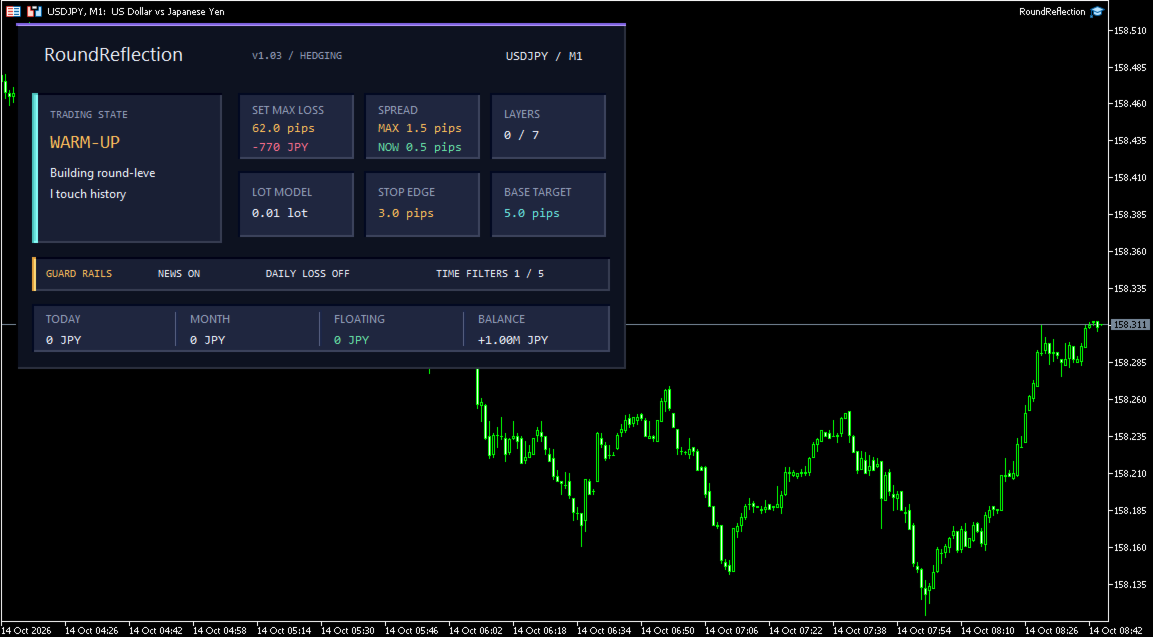
Spread, USD and JPY news, market-opening and fixing filters can block entries. The optional daily loss limit includes account-wide equity changes and blocks entries until the next server day. Ordinary entry blocks leave exit management active. The dashboard shows trading state, blocking reasons, risk estimates, and performance.
Account requirements
Netting and hedging accounts are supported. Use only one RoundReflection instance per resolved USDJPY symbol, even when attaching it to different charts. On netting accounts, start with no positions or pending orders in that USDJPY symbol and dedicate it to this EA. Do not add manual or other-EA trades. On hedging accounts, trades with other magic numbers remain separate.
Mixed trades or unverifiable ownership trigger GUARD STOP, suspending entries and EA close requests until review and restart. Broker-side Stop Loss orders remain effective. Open trading sets cannot be restored after restart, so do not restart or change inputs while strategy positions remain.
The symbol must support Fill or Kill or Immediate or Cancel execution. Partial entry fills are recorded without retrying the remainder.
Setup
- Prefer a USDJPY chart with any timeframe for tick-driven operation. Other chart symbols are accepted, but the EA always trades USDJPY and also polls its quotes once per second. The chart timeframe does not change signal logic. Broker suffixes are resolved automatically. Check the trading symbol shown on the dashboard and in the log.
- Enable algorithmic trading and configure volume, the minimum-volume policy, and protection filters.
- Keep the terminal connected and running for profit-target management. Check the dashboard and Experts log. An observation period follows startup before trading can begin.
News history and backtesting
Live and demo operation use the built-in economic calendar by default, blocking high-impact USD and JPY events for 15 minutes before and after release. Settings are configurable. Missing or uncovered required data blocks entries.
The EA includes news history for January 1, 2025 through August 30, 2026 and October 13 through October 22, 2026 in UTC. When no readable CSV is available, it uses this built-in history. Entries remain blocked outside verified coverage, including the gap between these periods. A readable but invalid CSV is rejected.
An available RoundReflection\news_history.csv takes priority. Live operation saves it under MQL5\Files in the terminal data folder. Use File > Open Data Folder, then open MQL5\Files\RoundReflection. Successful live calendar refreshes accumulate recent data. Check the tester log to confirm which history was loaded.
Local tester agents read their own MQL5\Files folder. Exported CSV files are not automatically transferred to agents in this build. Without a CSV in the agent folder, testing uses the built-in history.
For earlier periods, use the built-in news-history export mode. No separate script is needed. Run it on a connected chart outside the Strategy Tester, with no open RoundReflection trading set.
- Set InpRunMode to Export news history only. This mode never trades, including after export finishes.
- Set InpExportFromUtc and InpExportToUtc to cover the test period with a margin for news windows. The end is excluded. An end value of zero uses the current UTC time.
- Existing history is retained by default. Enable InpExportOverwrite to replace it after an automatic backup. Apply the inputs and wait for Export complete on the chart and Calendar CSV saved in the Experts log.
- The EA creates the destination folder, exports USD and JPY with the required metadata, and saves only after the requested intervals succeed. Resolve failures without editing coverage records. Select Normal trading manually when export is finished, or load the CSV in the Strategy Tester.
Use real ticks where available and match tester server-offset and daylight-saving settings to historical broker time. Test the intended settings and account mode on a demo account. Disabling news filtering does not validate a news-enabled test.
Parameters
Lot and risk
- InpLotSizingMode selects fixed base lots or percentage-risk sizing for a complete trading set.
- InpBaseLots sets the base lot in fixed mode. The default is 0.01 lot.
- InpSetRiskPercent sets the intended percentage loss per complete set in risk mode. The default is 1%.
- InpDailyLossLimitPercent stops entries for the rest of the server day when the account loss threshold is reached. Zero disables it.
- InpBelowMinLotPolicy selects minimum-volume trading or skipping the set when the calculated base lot is too small. The default uses minimum volume even if risk exceeds the target.
Each entry is checked for sufficient margin and the symbol's total volume limit. Unavailable entries are deferred without increasing the planned volume.
Trading costs
InpMaxSpreadPips limits the spread for new and additional entries. The default is 1.5 pips. Zero disables this filter in fixed-lot mode. Risk mode requires a positive value.
Market-opening and fixing filters
- InpUseTokyoOpenBlock controls the Tokyo-open entry block and is enabled by default.
- InpUseFixingBlock controls the Tokyo-fixing entry block.
- InpUseLondonOpenBlock controls the London-open entry block.
- InpUseNewYorkOpenBlock controls the New York-open entry block.
- InpUseLondonFixingBlock controls the London-fixing entry block.
The other four blocks are disabled by default. Existing positions continue to be managed during these blocks.
News filter
- InpNewsSource selects the built-in calendar, historical CSV, or no news filtering.
- InpFilterHighImpact, InpFilterMediumImpact, and InpFilterLowImpact select event importance. Only high-impact filtering is enabled by default.
- InpNewsMinutesBefore and InpNewsMinutesAfter set the blocking window around publication. Both default to 15 minutes and each accepts 0 to 10080 minutes.
- InpFilterUncertainTimeEvents blocks the entire Japan-time filter day for selected events without a confirmed time when enabled. It is disabled by default.
Tester time zone
InpTesterDstMode selects no daylight saving time, the US rule, or the European rule. The default is the US rule. InpTesterWinterUtcOffsetHours sets the historical server's winter UTC offset and defaults to 2. These settings apply only to testing, not live trading or calendar export.
Dashboard
InpShowDashboard shows or hides the trading dashboard without changing the strategy. It is enabled by default. Export mode displays its own progress and output path.
Trade comment
InpTradeComment sets the text recorded with orders. The default is RoundReflection.
News-history export
- InpRunMode selects Normal trading or Export news history only. Normal trading is the default. Export mode never trades or switches itself to trading.
- InpExportFromUtc sets the inclusive UTC start and defaults to 1 January 2025.
- InpExportToUtc sets the exclusive UTC end. Zero, the default, uses the current UTC time when export starts.
- InpExportOverwrite allows replacement of existing history after an automatic backup. It is disabled by default.
Risk and support
Trading and staged volume increases can cause substantial losses. Risk estimates and stops do not guarantee maximum losses or execution prices. Results vary by broker and trading costs. No profits are guaranteed.
For assistance, use product comments or MQL5.com messaging and include the EA version, symbol, account mode, settings, and relevant log messages.