SentinelAI
- Experts
- Versão: 1.17
- Ativações: 10

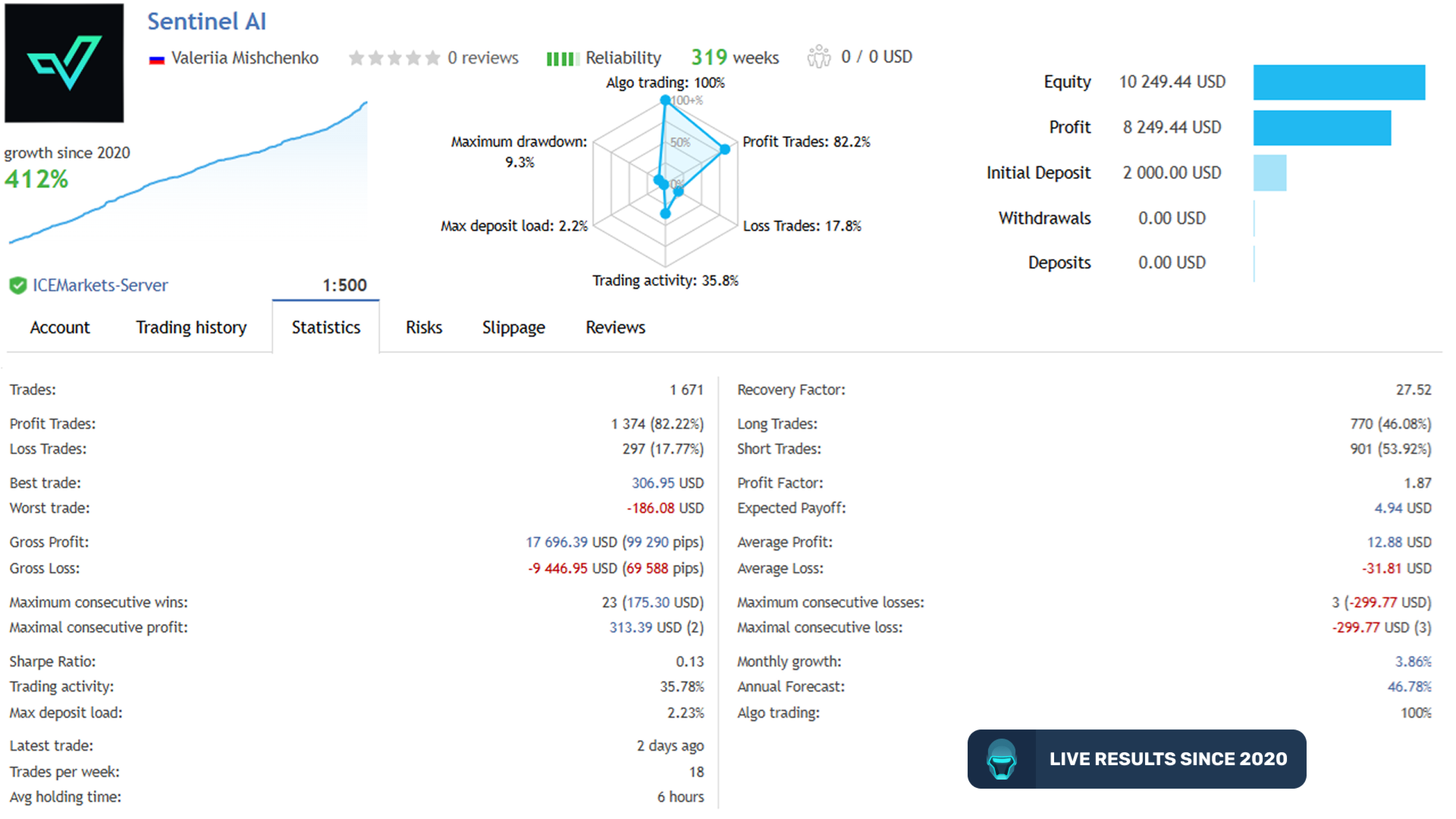
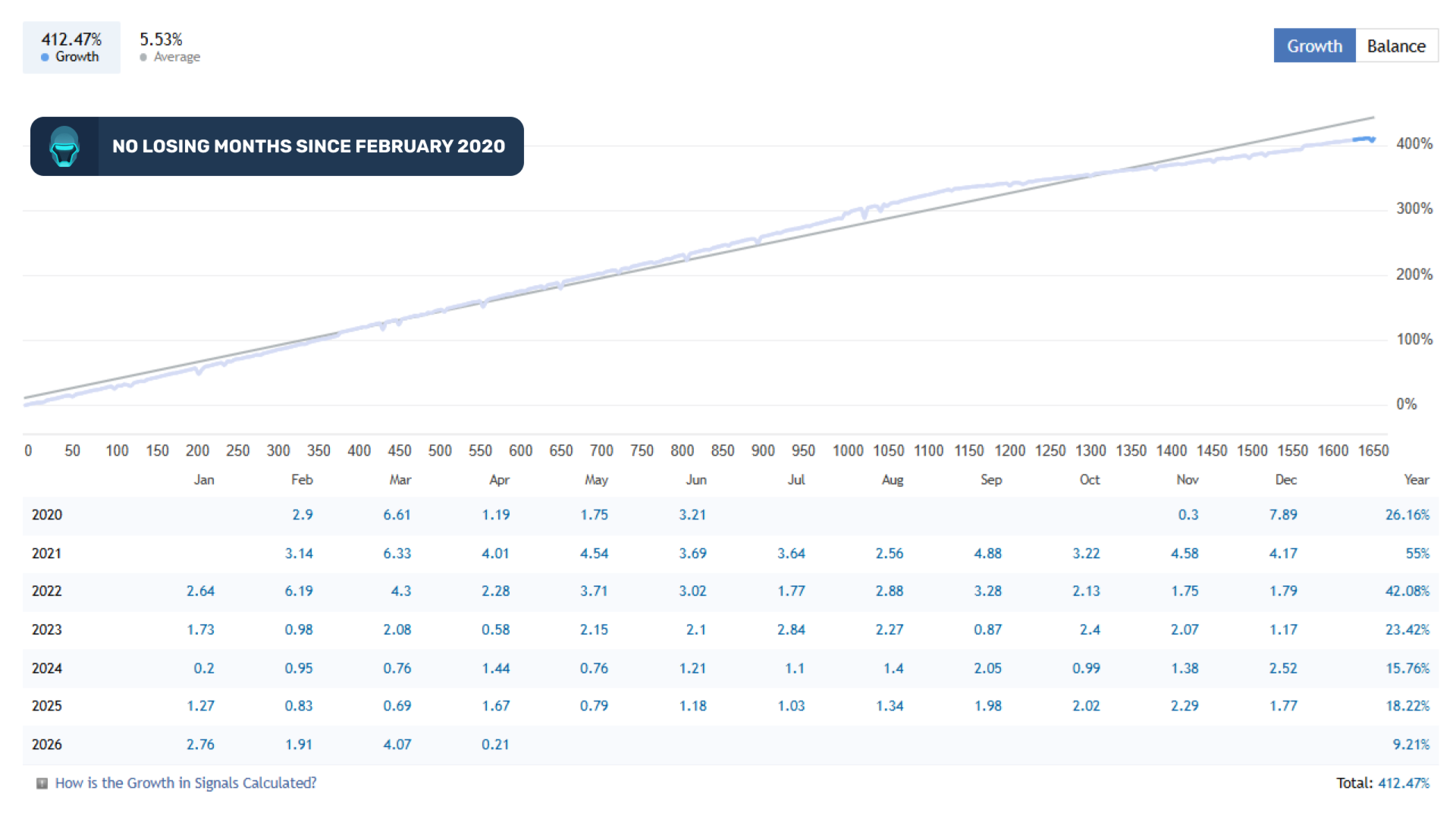
No losing months since August 2019, with a 2.04% monthly gain: Requirements
MM & Risk settings
Time settings
Strategy settings
Forecasts settings (Live trading only)
Machine Learning Setup
TakeProfit settings
StopLoss settings
Grid settings
News Filter settings
Stock Market Crash Filter settings
Additional settings
Backtest settings
MT 5 version can be found here
Sentinel AI is fully automated trading system is built for major forex pairs such as EURUSD and GBPUSD on the M5 timeframe. By combining price action and mean reversion principles with advanced AI-driven analytics, it is designed to identify potential trend reversals and exploit market inefficiencies with greater accuracy and efficiency.
Supported currency pairs: EURUSD, GBPUSD
Timeframe: M5
Features:
- Trend, Momentum, and Volatility filters powered by Deep Learning algorithms
- Low-potential trades filtered using Artificial Intelligence (AI) forecasts
- Advanced News and Stock Market Crash Filter
- Support for multiple currency pairs
- One Chart Setup: trade all symbols from a single chart
- Flexible customization with a wide range of filters and options
- Automatic GMT adjustment
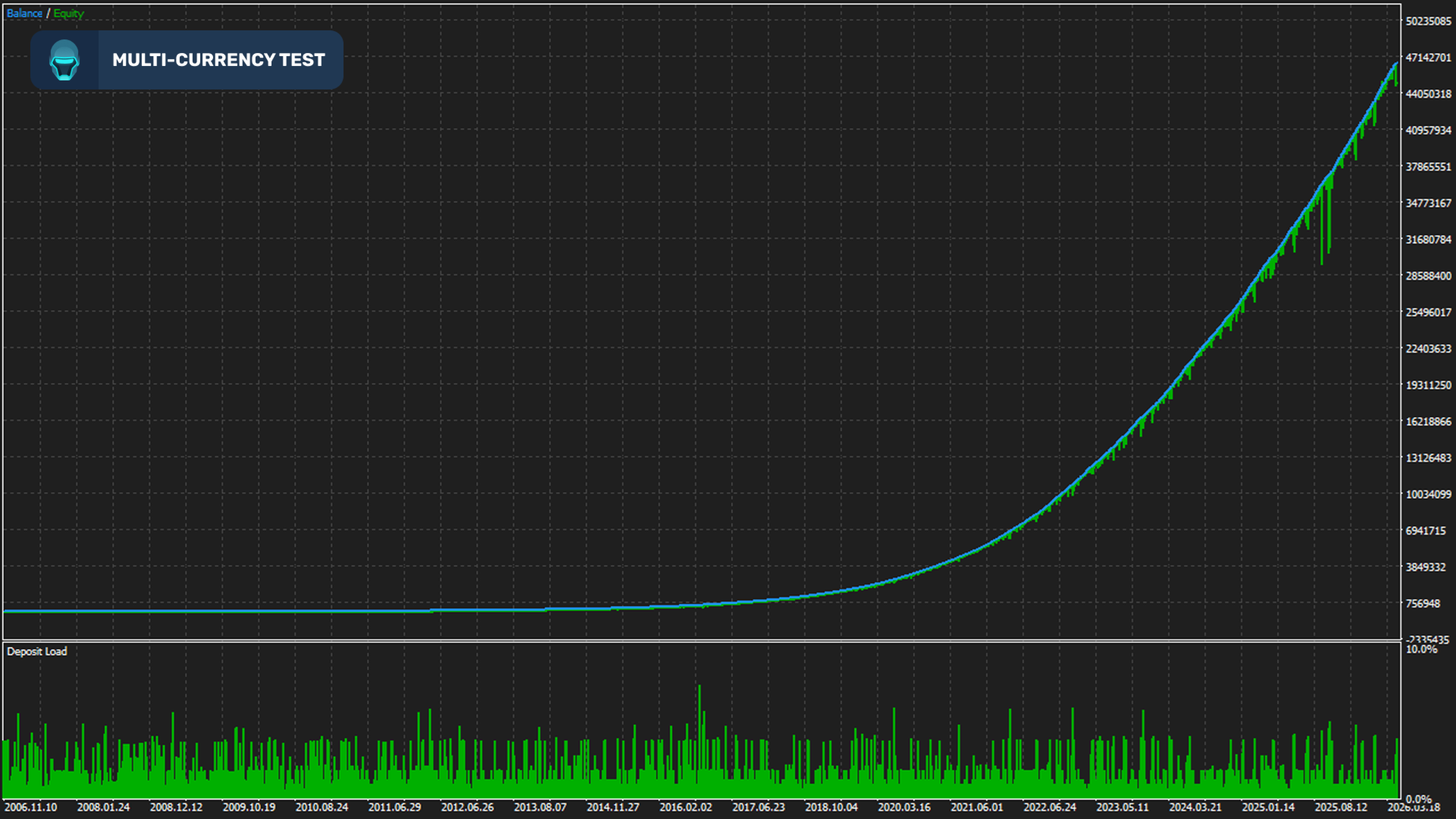
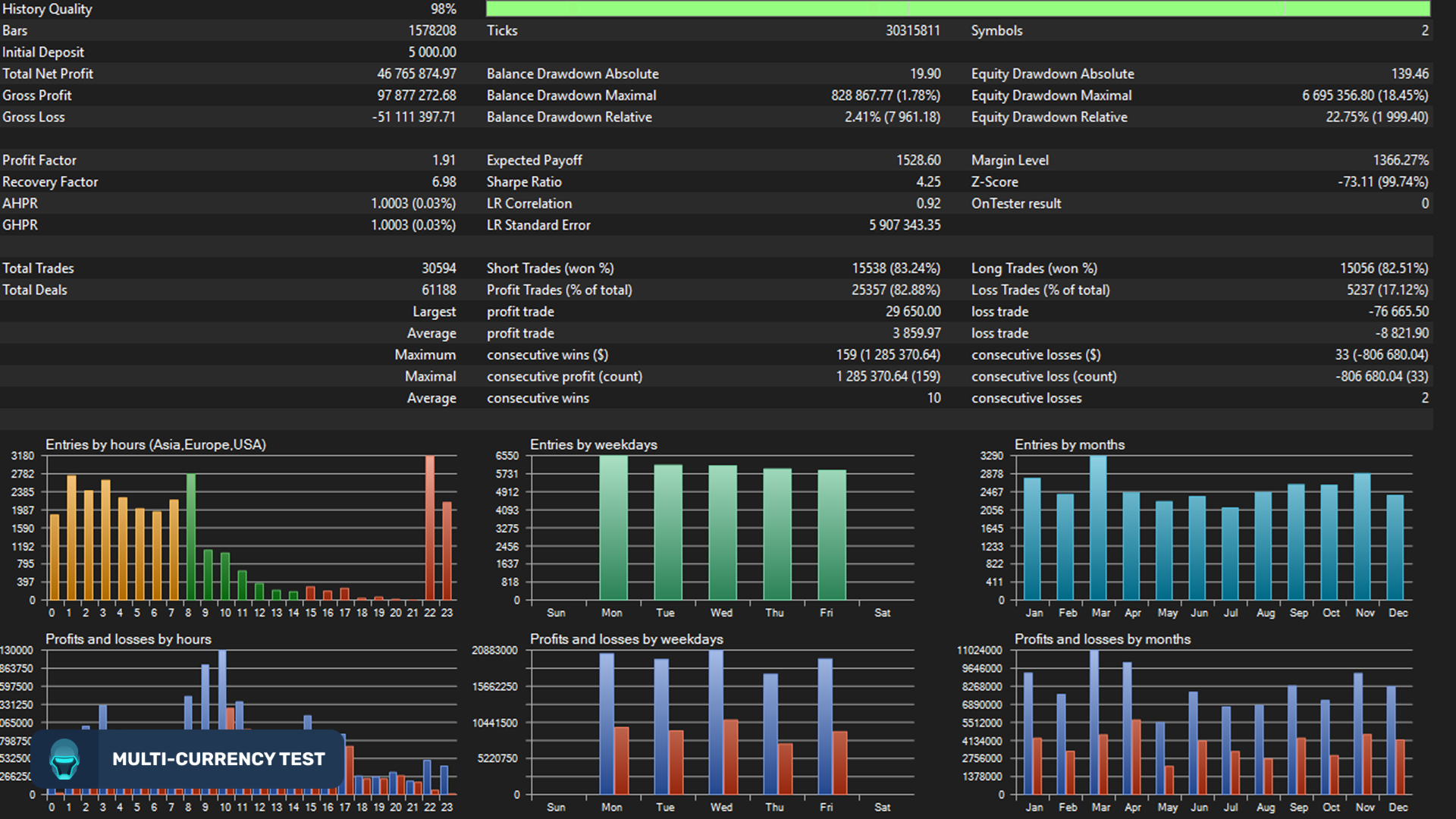
- Solid backtest and strong live performance
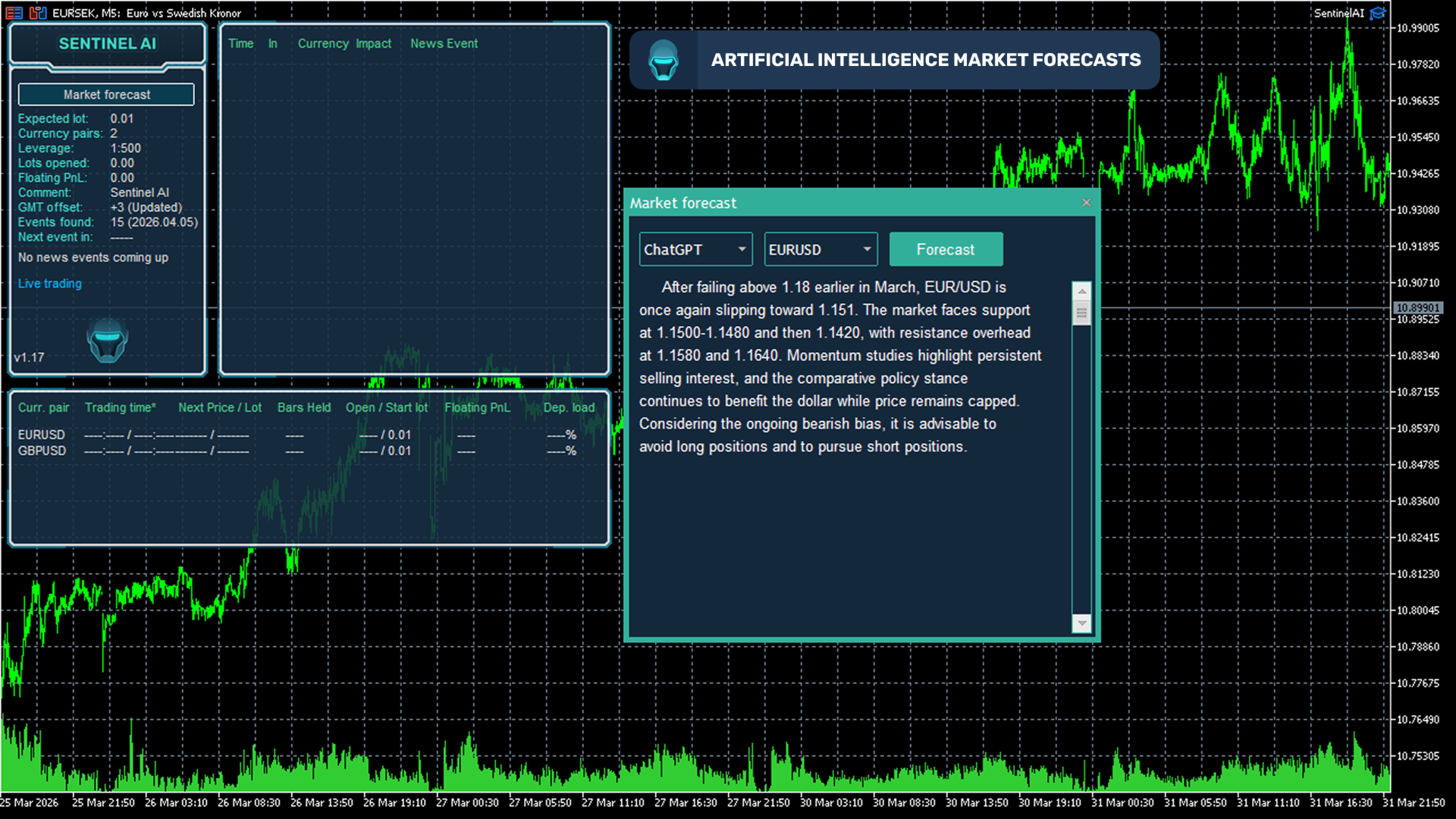
- Statistics Panel with a Self-Diagnostic System and Neural Network Forecast indicator
- Very easy to use: simply follow the instructions
Backtests should be conducted using GMT+2 with US DST as this offset is used by most brokers.
How to install
- The EA must be attached to ONLY one M5 chart, EURUSD is recommended
- If your broker uses a suffix (e.g. EURUSD.a) you should update names in the Symbol parameter
- You need to give the EA access to the news list website and time server for news filter and time detection functionality to work correctly (delete spaces!):
1. http: //timesrv.online
2. http: //valeryservice.com
3. http: //valerytools.com
Requirements
- The EA is not highly sensitive to spread and slippage, but I still recommend using a good ECN broker
- The EA should run continuously on a VPS
- With only 1:30 leverage, I recommend using no more than low-risk settings on accounts below $6,000; otherwise, you may encounter free margin issues. With 1:100 leverage, it should be fine to use up to significant-risk settings on a $1,000 account
- Check for Instances of the EA - checks that only one instance of the EA is running at a time. If EA detects other instances with the same UID, trading will be disabled.
- Allow Opening a new Initial Trade? - on/off opening of new grids. It does not affect the already open grids.
- Allow Manual Trading Buttons - enable/disable manual trading buttons that allow you to manually open an initial trade: the EA will pick up the manually opened trade and manage it as usual. The buttons are affected by the following parameters: Symbols, Maximum Spread, and Maximum Symbols at a time.
- Lot-sizing Method - select the lot sizing method according to the risk you want to take: Fixed Lots will use fixed lot size from the "Fixed lot" parameter, Dynamic Lots will use 'Dynamic Lot' parameter, Deposit load will calculate lots based on deposit load%, and 4 predefined presets will calculate risk automatically for you.
- Fixed Lot - fixed trading lot for the initial trade.
- Dynamic Lot (Balance/Equity based) - balance/equity to be used per 0.01 lot.
- Deposit Load % - % of the deposit that will be totally used to open the initial trade.
- Fixed Initial Deposit? (Tester only) - lot size will be calculated based on the initial deposit; new profits will not be considered.
- Tester Withdrawal (Tester only) - the withdrawal will take place if the account equity exceeds the specified value. For MT5 only.
- Withdrawal Amount (Tester only) - amount to withdrawal. For MT5 only.
- Rounding Method - allows you to choose the method of rounding fractional lots to calculate trading lot sizes.
- Max Lot per Order - maximum size of a single order.
- Auto Split? - option allowing the EA to trade with any lot size/volume without limits. Most brokers have a limit of 100 lots per order, so if the option is enabled, the EA will automatically split a large trading volume (e.g. 10000 lots) into multiple smaller orders (not more than 100 lots per the child order). It is intended to be used in tester to allow testing the EA on all the available history.
- Maximum Spread, in pips - maximal allowed spread.
- Maximum Slippage for a non-ECN acc, in pips - max allowed slippage for a non-ECN account.
- Portfolio Mode - allows you to run more than one set file (instance of the EA) and/or my other EAs (instances of Perceptrader AI and Golden Pickaxe) on the same account so that the EAs do not open new initial trades simultaneously.
- Initial Delay for Portfolio Mode, ms - time delay, which will be set automatically based on the UID value. This delay is necessary to ensure one set file recognizes the opened trades of another and skips the trading signal.
- Please note that set files of the same EA must have a unique UID!
- For example, if you run 2 set files on the same account and want to prevent the same pair from being opened by both set files simultaneously, then I recommend setting as follows:
- First set file: Portfolio Mode=true, UID=0
- Second set file: Portfolio Mode=true, UID=1
- Consider WAKA Orders (Portfolio only) - the EA will take into account open trades of Waka Waka EA in portfolio mode.
- Consider PAI Orders (Portfolio only) - the EA will take into account open trades of Perceptrader AI in portfolio mode.
- Consider GP Orders (Portfolio only) - the EA will take into account open trades of Golden Pickaxe in portfolio mode.
- Maximum Symbols at a time - maximal allowed number of symbols that can be opened at the same time.
- Only One Symbol if Grid reaches this Level [0-disabled] - this option allows you to temporarily reduce the "Maximum Symbols at a Time" to one if an open grid reaches the specified level.
- Disable Trades on the Same Side of a Currency - this option disables the opening of new initial trades on the same side of a currency. For example, it can help prevent having 2 shorts for CAD at the same time to protect accounts from a strong trend for the CAD currency.
- Allow Hedging? - allow opening multi-directional trades on the same symbol.
- Allow Trading on Holidays? - on/off Christmas/New Year trading filter.
- Allow to Buy/Sell - on/off Buy/Sell trades.
- Minimum Free Margin % [0-disabled] - if Free Margin% falls below the specified value, the EA will not place new pending orders and will cancel already placed ones.
- Max Open Lots (Filter) - the EA will not send new initial orders if the volume of all positions opened by the EA exceeds the specified value.
- Max Open Lots Adjusted For... - allows you to adjust Max Open Lots for balance or equity so that it will grow proportionately.
- Max Floating Drawdown % - if current floating drawdown exceeds the specified % the EA will close open positions.
- Max Floating Drawdown % for each Symbol, separated by comma - allows you to specify the max. drawdown % separately for each symbol.
- Max Floating Drawdown in Money [0-disabled] - if current floating drawdown exceeds the specified value in money the EA will close open positions.
- Max Daily Drawdown Limit % FTMO Rules - maximum daily drawdown limit, calculated according to the FTMO rules. Non-trading operations (like withdrawals) during the day are not taken into account.
- Max Daily Drawdown Limit in Money FTMO Rules [0-disabled] - maximum daily drawdown limit in MONEY, calculated according to the FTMO rules. Non-trading operations (like withdrawals) during the day are not taken into account.
- Max Daily Drawdown Reset Hour FTMO Rules (Broker time) - hour to reset the max. drawdown with the prop firm.
- Max Daily Drawdown Type FTMO - allows you to customize the daily drawdown calculation.
- Max Drawdown Action - allows you to specify actions to be taken after the max. drawdown is reached (in money or %):
- 'Close trades & stop trading for 24h' - the EA will close all open trades/grids and will not open new ones for 24 hours.
- ‘Close trades & stop trading until the end of the day’ - the EA will close all open trades/grids and will not open new ones until the end of the day.
- 'Close trades & stop trading until restart' - the EA will close all open trades/grids and will not open new ones until the EA/MT restarts.
- ‘Close trades & resume trading as normal’ - the EA will close all open trades/grids and resume trading as normal.
- 'Prohibit opening new trades' - new grids will be prohibited as long as the floating drawdown is above a specified value;
- 'Prohibit opening new trades until restart' - new grids will be prohibited until the EA/MT restarts.
- Do Nothing if During Rollover - set to true if you want to ignore max. drawdown checks during rollover.
- Max Drawdown Calculation - allows you to specify how the maximum drawdown is calculated:
- 'The account' - takes into account all positions opened on the account, including trades opened manually or by other EAs;
- 'This strategy' - takes into account only positions opened by this EA.
- Handle Max Drawdown Events on Every Tick - enable/disable drawdown event handling on every tick (instead of once a minute which is used by default, it may consume more CPU resources).
- Check Margin for all Grid Levels - if true, the EA will check if there is enough free margin to open all grid levels at the same time. If not enough, the initial lot size will be reduced.
- Check Bars for Errors - if true, the EA will check the relevance of historical data and bar opening time. Turn it off if your broker uses non-standard bar opening time (for example hh:02, hh:17, hh:32, hh:47).
Time settings
- Hour to Start Trading - hour to start trading (for initial orders only).
- Minutes to Start Trading - minutes to start trading (for initial orders only).
- Hour to Stop Trading - hour to stop trading (for initial orders only).
- Minutes to Stop Trading - minutes to stop trading (for initial orders only).
- Trade on Monday - enable/disable trading on Monday.
- Trade on Tuesday - enable/disable trading on Tuesday.
- Trade on Wednesday - enable/disable trading on Wednesday.
- Trade on Thursday - enable/disable trading on Thursday.
- Trade on Friday - enable/disable trading on Friday.
- Rollover Start Hour - rollover start hour.
- Rollover Start Minutes - rollover start minutes.
- Rollover End Hour - rollover end hour.
- Rollover End Minutes - rollover end minutes.
- Send Orders During Rollover - enable/disable sending orders (including grid trades) during rollover time.
- Remove TakeProfit During Rollover - removes TP for all orders at the specified rollover time. This option helps to avoid closing trades via TP during bad trading conditions since slippage can turn a profitable trade into a losing one.
- Remove StopLoss During Rollover - removes StopLoss for all orders at the specified rollover time.
Strategy settings
- Symbols separated by comma (custom if empty) – trading symbols separated by comma (custom if empty).
- Symbol Suffix - here you can specify a symbol suffix if your broker uses one.
- Custom Symbol Multipliers separated by comma (e.g. 0.9,1.2,1) - here you can set multipliers to calculate trading lots for each pair, for example, 1.0,0.7,0.9. This means that the first pair (specified in the 'Symbols separated by comma' parameter) will be open normally, but the second and third will have smaller lots, multipliers 0.7x and 0.9x.
- Percentage Pips Mode - enable/disable percentage pips mode. 1 percentage pip = 0.0001 * Current Price.
Forecasts settings (Live trading only)
- Use Chat G P T Forecast – enable/disable filtering of trades using Chat G P T forecasts.
- Use G e m i n i Forecast – enable/disable filtering of trades using G o o g l e G e m i n i.
Machine Learning Setup
- Enable Neural Network Filter – enable/disable filtering of trades using machine learning technology based on Perceptron.
TakeProfit settings
- TakeProfit for Initial Trade, in pips - take profit for the initial trade (if no grid trades opened).
- Weighted TakeProfit? - if true, then Grid TP is weighted by volume so TP in pips decreases in proportion to the open volume of the grid levels. This allows keeping the initial TP in money unchanged after adding new averaging trades.
- TakeProfit for Grid, pips (can also be 0/negat. for emergency) - take-profit for the grid (if at least one averaging trade is open). It allows any value including zero and negative.
- Hide TakeProfit? - on/off take-profit hiding.
- Do not adjust TP unless new grid level opened - if true, the EA will adjust TP of open positions only when a new grid level is opened. The user can manually set their own TP, which will stay current until the EA opens a new grid level.
- Cover Swaps - if true, the EA adjusts the TP to cover any possible loss due to the swap. Set it to false if you want to deactivate this option.
StopLoss settings
- StopLoss for Grid, in pips (500pips if zero) - stop-loss for the initial/grid trades.
- Hide StopLoss? - on/off stop-loss hiding.
- Trailing SL Size, in pips [0-disabled] - trailing stop in pips based on the grid breakeven point (=weighted average entry price of all orders including SWAPs and commissions).
- Trailing SL Start, in pips - number of pips in profit at which the trailing SL is activated.
- Randomize Order/TP Levels - if enabled, the EA will randomly slightly change the TP/SL levels. This option allows you to have a unique TP/SL.
- Max Random Delay before sending Orders, sec [0-disabled] - maximum random delay in seconds before sending an order. Values over 15 seconds are not recommended.
- Allow sending SL along with an order (for a non-ECN acc.) - if true, then the EA will send SL along with orders. If false, then SL will be set after the order is sent and executed.
Grid settings
- Trade Distance - min. step in pips between grid(averaging) trades.
- Pause Between Grid Trades, in min [0-disabled] - minimum pause between grid trades in minutes.
- Smart Distance? - auto- adjusts the trade distance depending on market volatility.
- Maximum Trades - max number of grid(averaging) trades.
- Custom Multipliers sep. by comma (e.g. 1,2,4,8,14,24,41,69) - custom multipliers for each GRID step separated by a comma, for example - 1,2,4,8,14,24,41,69.
- Calculate Levels from Initial Trade - if true, then entry prices of grid levels will be calculated based on the entry price of the initial trade. In this case, if the distance of the previous grid is very large, the next grid can be formed shorter than 25 (by default) or even inside the previous grid. If false, then the entry price of a grid level will be calculated based on the entry price of the previous grid to form grids with distances greater than 25 (by default).
- Grid Level to Start (1-initial trade) - allows you to skip a certain number of grid levels, trading will start from the specified level. To calculate entries correctly, the EA opens "marker" orders at skipped levels with a minimum lot size.
- Keep Original Profit Level & Lot Size - when skipping grid level, the EA will keep profit target and lot sizes from the original strategy. This can help boost performance.
- Force Basket Closure once the Initial Order is Closed - option to force basket closure once the initial order/trade is closed by TP or by manual intervention.
- Send Push Notifications after this Level [0-disabled] - sends a push notification if a trade above the specified level is opened. You need to allow push notifications in the terminal settings and specify your MetaQuotes ID.
News Filter settings
- News Filter Enabled - on/off News Filter.
- News Filter Action:
- Prohibit opening of the initial trade - the news filter only prohibits opening new initial trades.
- Prohibit opening of all trades - the news filter prohibits both the initial trades and the averaging ones.
- Close all open trades - the EA will close all trades before the news is released.
- Disable Trading on Bank Holidays - enable/disable trading on bank holidays according to the real-time Economic Calendar (https://www.investing.com). This filter is currency-specific. For example, with it, EA won't take trades on USD pairs during bank holidays in the USA. It also works in Strategy Tester.
- Disable Built-in News Filter Settings - disables the built-in news filter settings, allowing you to fine-tune the news filter.
- Custom Events (separated by comma, disabled if empty) - custom rules allowing you to fine-tune the news filter.
Format: Key[-Currency pair],Key[-Currency pair],.........,Key[-Currency pair]
Key – the currency of the news event or keyword in the news header. You can use multiple currencies without a separator, for example, USDAUDGBP.
If you specify a keyword, the letter case does not matter. For example, FOMC.
[-Currency pair] - optional parameter specifying which currency pair the rule applies to. For example -EURUSD.
Example: USD,AUDGBP-GBPUSD-NZDUSD,CHFEUR-EURUSD,FOMC,Rate-AUDCAD
USD, - takes into account all news events for USD on all currency pairs
AUDGBP-GBPUSD-NZDUSD, - takes into account all news events for AUD and GBP on GBPUSD and NZDUSD currency pairs
CHFEUR-EURUSD, - takes into account all news events for CHF and EUR on the EURUSD currency pair
FOMC, - takes into account news events with the word (or part of the word) FOMC in the header on all currency pairs
Rate-AUDCAD - takes into account news events with the word (or part of the word) Rate in the header on AUDCAD currency pair
Each rule must be separated by a comma. if 'Disable Built-in News Filter Settings'=false, then the custom rules are in addition to the built-in ones.
- Medium Impact News - enable/disable news events with medium impact (2 stars news).
- Low Impact News - enable/disable news events with low impact (1 star news).
- Speaks - if false, then the EA will not consider news events marked as Speeches/Speaks.
- Wait Minutes Before Event - suspend trading before the news.
- Wait Minutes After Event - suspend trading after the news.
- Increase Take Profit, in pips [0-disabled] - specified number of pips to be added to TP during news events.
- Show News List - displays a list of upcoming news events to the right of the info panel.
- News List Refresh Rate - news events list update frequency (selection from the drop-down list).
Stock Market Crash Filter settings
- Stock Market Crash Filter Enabled - enable/disable the stock market crash filter.
- Stock Market Symbol - symbol name of the S&P500 stock index of your broker. It is usually called something like US500 or SPX500 (press Ctrl+U to see all symbols).
- Filter Period - period of the stock market crash filter.
- Max Historical Volatility (HV), in % - max. annualized standard deviation of H1 returns (HV in %).
- Block Trading for the Entire Day - prohibits opening new trades throughout the day if HV hits the specified level just once at any moment during the day.
Additional settings
- Trade Comment - comment for orders.
- UID (0...9) - unique EA instance number. Usually, no need to change it.
- Show Panel - on/off Info-panel.
- Show Stats - show a panel with statistics.
- Font Size (1...8) - reduce this value if you're having trouble with the info panel.
Backtest settings
- Disable Automatic GMT Detection - set it to 'true' to disable automatic GMT detection. You can use the GMT Test/Manual' and 'DST Test/Manual' parameters to manually set the GMT offset in live trading.
- GMT Test/Manual - GMT offset in winter in Tester.
- DST Test/Manual - DST in Tester.