
Simple MACD Expert
- Experts
- 버전: 1.20

Why use it
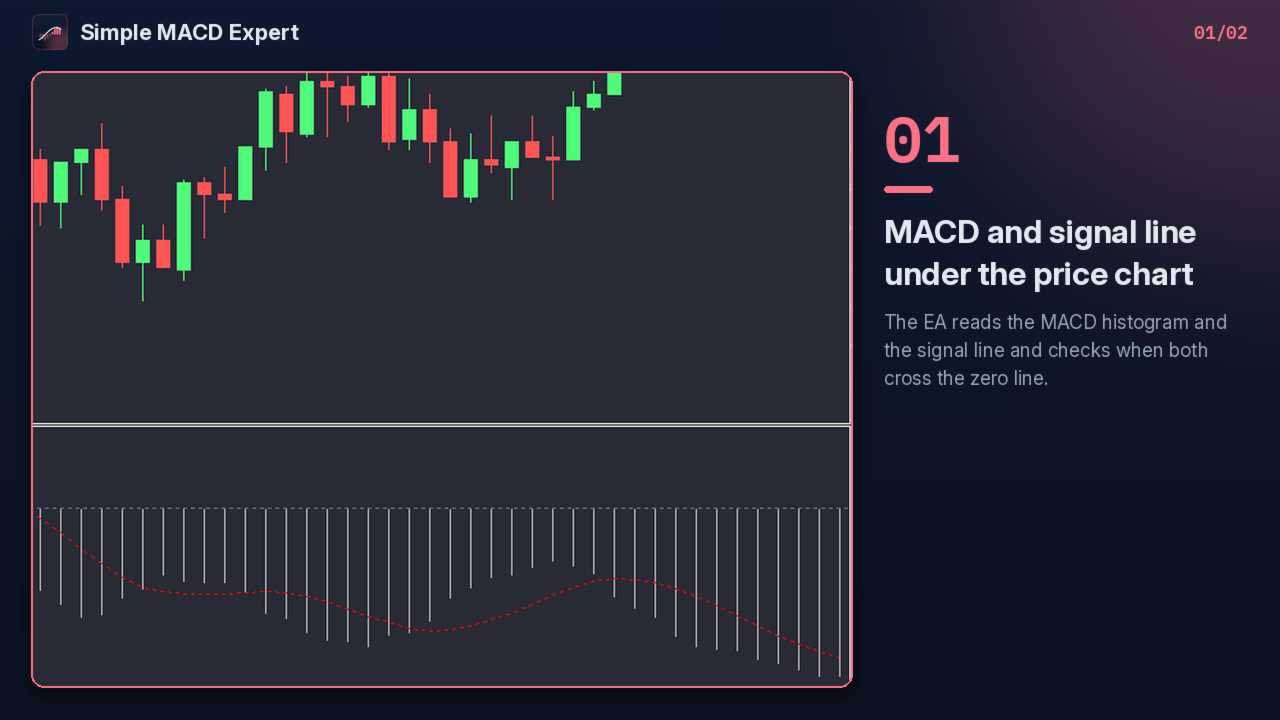
- A simple, readable rule: the EA trades when the MACD and its signal line both cross the zero line.
- Every position gets a stop loss and a take profit when you set them.
- Daily gain and daily loss limits in money: when one is hit, the EA closes its positions and stops for the day.
- A trading-hours window, plus a clear message if the volume does not fit the symbol.
How the rule works
MACD is calculated on every tick and the EA keeps the last three values.
- When the latest MACD value is above 0 and the value two bars earlier was not, there is an upward cross. A downward cross is detected the same way.
- A cross arms the EA. A position is opened only if the signal line then crosses zero in the same direction, detected with the same method.
Risk controls
- Stop loss / take profit: set on every position when not zero, based on Ask for buys and Bid for sells.
- Volume check: an invalid volume for the chart's symbol shows a warning with the fix, and the trade is not sent.
- Trading hours: when enabled, positions are opened only between the start and stop times. Attaching the EA outside that window shows the configured hours.
- Daily gain / loss limit: when a limit is reached, a message is shown, all open positions are closed and no new position is opened that day.
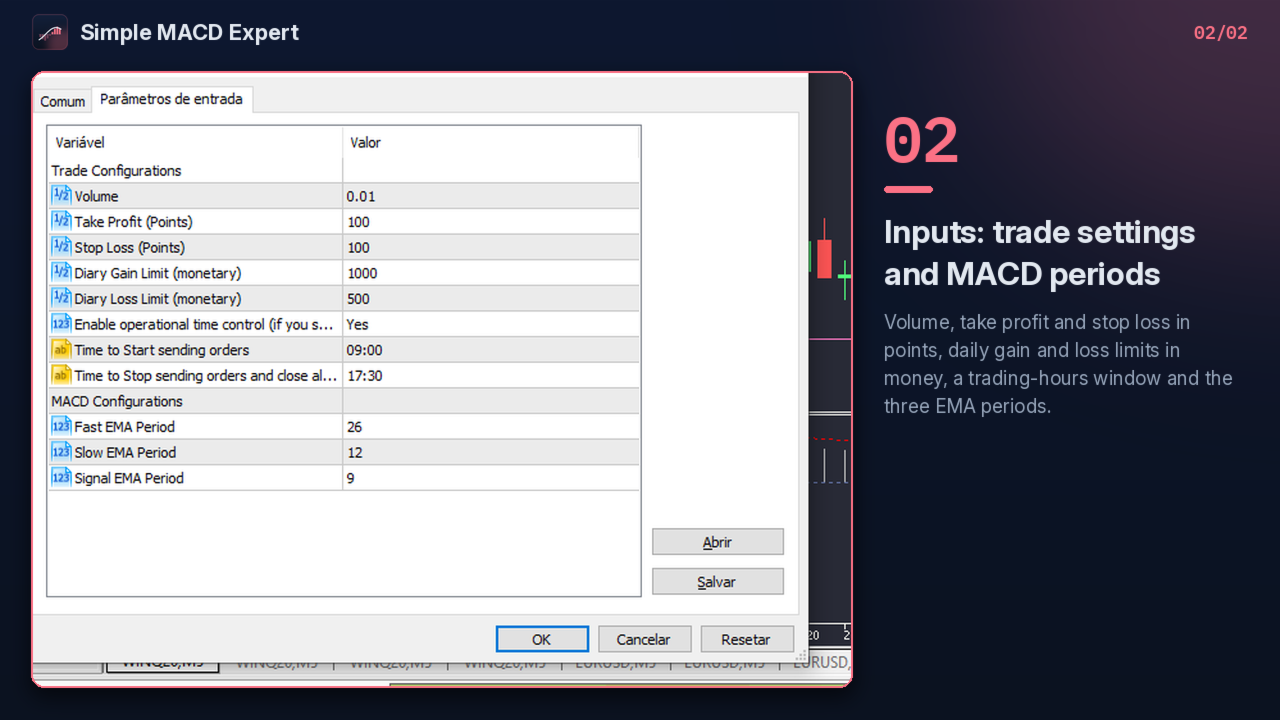
Parameters (labels as shown in the Inputs tab, with the defaults visible in it)
Trade Configurations
- Volume (0.01)
- Take Profit (Points) (100)
- Stop Loss (Points) (100)
- Diary Gain Limit (monetary) (1000)
- Diary Loss Limit (monetary) (500)
- Enable operational time control (Yes)
- Time to Start sending orders (09:00)
- Time to Stop sending orders and close all positions (17:30)
MACD Configurations
- Fast EMA Period (26)
- Slow EMA Period (12)
- Signal EMA Period (9)
FAQ
- Are results shown? No. Test it in the Strategy Tester with your broker's data before using a live account.
- Which symbols? Any symbol. Set the volume to a value the symbol accepts.
- Why are the Fast and Slow defaults 26 and 12? That is how the published build shows them. Set them to the values you want.
---
































Enjoying using the bot. Wish there was a support contact though. Sometimes hard to work through issues.