Ultimate 2
- Experts
- Versione: 1.0

# CAM Ultimate — Gold Trading System
## Short Description
CAM Ultimate is a complete gold (XAUUSD) trading toolkit built around a Hull Moving Average trend-stack combined with an RSI extreme filter, layered with fibonacci trend lines, key price zones, and a 300-pip grid. It's available as matching indicator + auto-trading pairs for both MetaTrader 5 and cTrader, plus the original TradingView script — so you can watch the signal build for free before ever risking an order.
---
## In-Depth Description
CAM Ultimate started life as a TradingView Pine Script (`Cam_Ultimate_Gold.pine`) and has been ported, feature-for-feature, into two live trading platforms: **MetaTrader 5** and **cTrader**. Six files make up the full pack:
| File | Platform | Type | Role |
|---|---|---|---|
| CAM Ultimate TradingView Indicator.pine | TradingView | Pine Script | Original horizontal-lines-only script |
| CAM Ultimate MT5 Indicator.mq5 | MetaTrader 5 | Indicator | Draws every level + legend — **never trades** |
| CAM Ultimate MT5 EA.mq5 | MetaTrader 5 | Expert Advisor | Trades the Ultimate signal automatically |
| CAM Ultimate cTrader Indicator.cs | cTrader | Indicator | Draws every level + legend — **never trades** |
| CAM Ultimate cTrader cBot.cs | cTrader | cBot | Trades the Ultimate signal automatically |
| CAM Ultimate Logo Full.png | — | Branding | Logo asset for the pack |
**This system is built for gold (XAUUSD) only** — pip size is fixed at 0.10 throughout, matching the original script's scale. It is not calibrated for forex pairs or other instruments.
### What it draws and trades
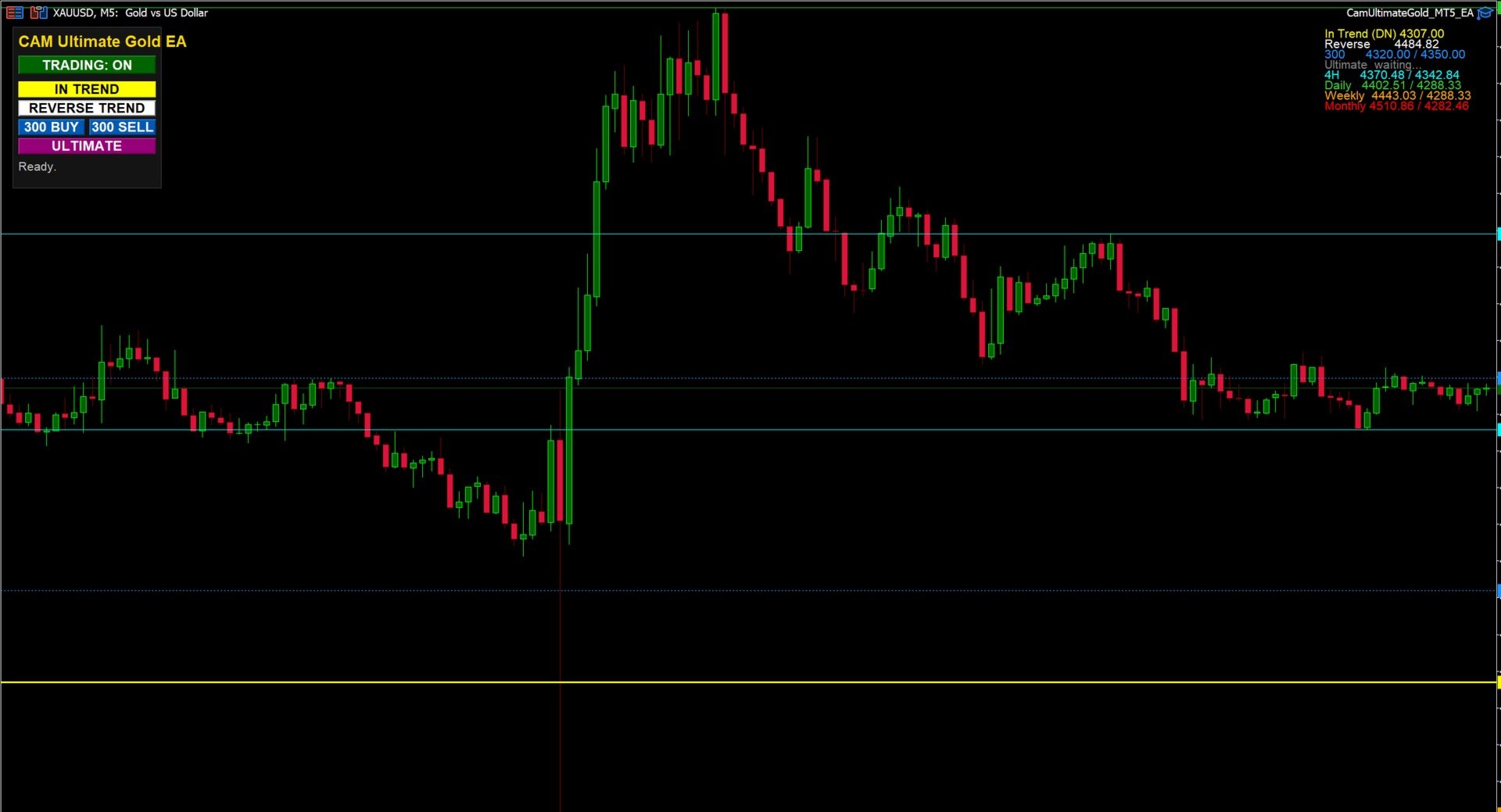
- **The Ultimate Signal (core entry logic).** A buy or sell only fires when the Hull Moving Averages (9 / 21 / 50 / 200) are fully stacked in trend order **and** RSI(hlc3, 14) is simultaneously at an extreme (oversold for a buy, overbought for a sell). This is deliberately strict — it's designed to catch a clean pullback inside an established trend, not every minor swing, so signals are infrequent by design.
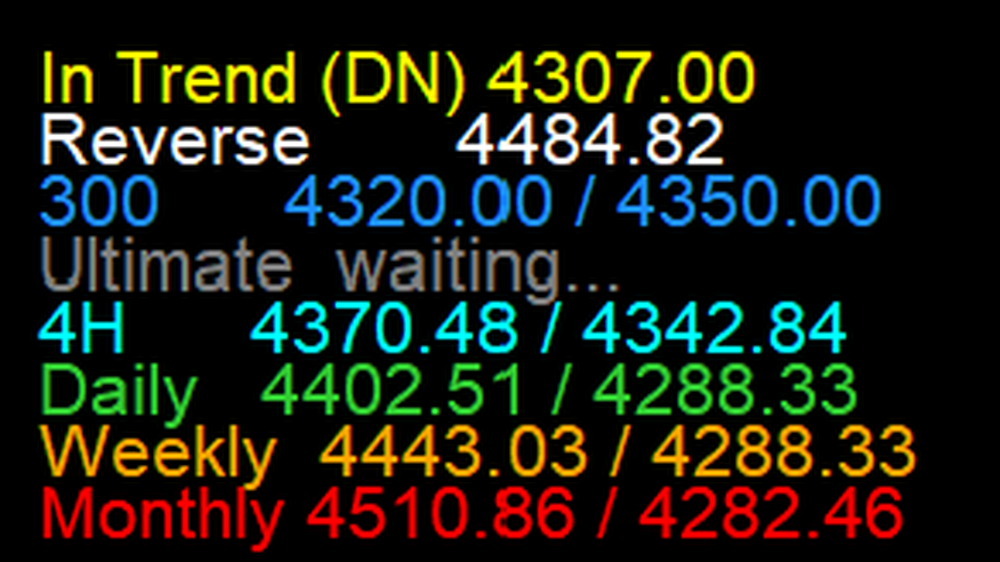
- **In Trend / Reverse Trend lines.** An 88.6% Fibonacci retracement of the last 50 completed 4-hour swing candles, direction taken from the most recently closed 4H candle. These are independent of the HMA/RSI signal and snap to the nearest key price zone.
- **Key price zones.** A recurring grid of round-number gold levels (e.g. ...00, ...07, ...10, ...13, ...18, ...20, ...30... repeating every 100 points) used to snap stop-loss, take-profit, and trend-line levels to psychologically relevant prices.
- **300-pip grid.** The two nearest 300-pip levels bracketing the current price, drawn as dotted blue lines.
- **Multi-timeframe high/low lines.** Previous completed 4H, Daily, Weekly, and Monthly high/low, each colour-coded and labelled live in the on-screen legend.
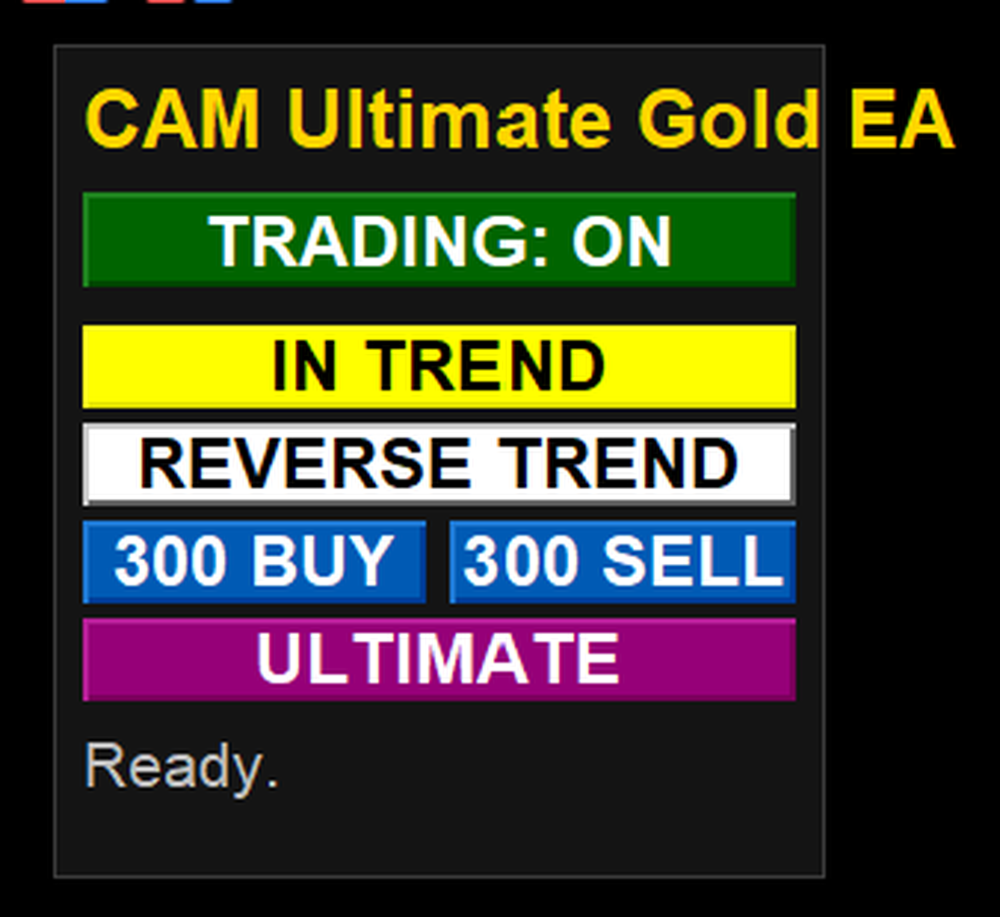
- **On-chart dashboard.** A trading on/off toggle plus manual trade buttons (In Trend, Reverse Trend, 300 Buy, 300 Sell, Ultimate) that mirror the automatic signal logic — available on the EA/cBot versions only.
### Indicators vs. traders
- The two **Indicators** (MT5 and cTrader) draw every line above and raise an alert/arrow when the Ultimate confluence fires, but **never place, modify, or close an order**. Use these to watch the system for days or weeks with zero risk before trusting it with money.
- The two **traders** (MT5 EA and cTrader cBot) act on the Ultimate signal automatically: risk-based position sizing (risk % of account balance ÷ stop distance), stop-loss/take-profit in pips or a fixed 300-pip target, optional snapping of SL/TP to the nearest key zone, and settings to keep only one position open per direction and close an opposing position when a new signal appears.
### What changed in the port (read before trading live)
- Horizontal lines always span the full chart width on MT5/cTrader (Pine's partial-width mode doesn't carry over).
- The legend is a single screen-anchored text block rather than Pine's table object.
- RSI is computed on HLC3 either way: MT5 uses its native `PRICE_TYPICAL` applied price directly; cTrader uses a hand-rolled RSI since it has no built-in RSI-on-arbitrary-series.
- Neither platform has a native Hull Moving Average, so both are built from the standard formula: `HMA(n) = WMA(2·WMA(close, n/2) − WMA(close, n), round(√n))`.
- MT5 has no IANA timezone database, so the MT5 files skip session-level lines entirely (matching the original EA's behaviour). cTrader's .NET build uses the real Europe/London timezone for session levels.
- All four files (both indicators and both traders) evaluate the Ultimate setup on the **last closed bar only** — signals are non-repainting and appear once per new bar at most.
- Position sizing is risk-percent based (risk % of balance ÷ stop-loss distance in pips), not a fixed lot size.
---
## Instructions of Use
### 1. Install
**MetaTrader 5**
1. Open MetaEditor (press **F4** from MT5).
2. **File → New → Expert Advisor / Indicator**, then paste the corresponding `.mq5` code in — or copy the file directly into your data folder's `MQL5\Experts` (for the EA) or `MQL5\Indicators` (for the indicator).
3. Press **F7** to compile.
4. In MT5's Navigator panel, drag the compiled Indicator or Expert Advisor onto an **XAUUSD** chart.
**cTrader**
1. Open cTrader → **Automate** tab → **New**.
2. Paste the `.cs` code into a new cBot (for the trader) or Indicator, or drop the file into `Documents\cAlgo\Sources\Robots` (cBot) or `Sources\Indicators` (indicator).
3. Hit **Build** in the cAlgo IDE, then attach it to an **XAUUSD** chart.
### 2. Start with the indicator, not the trader
Attach the **Indicator** version first and let it run on a live or demo chart for a few days. It draws every line the trading version would act on and raises an alert when the Ultimate confluence fires — with zero trading risk. Use this stretch to confirm the fib/session/300-pip levels and Ultimate signals line up with what you expect from the original TradingView script.
### 3. Move to the EA/cBot on a demo account
Once you're comfortable with what the indicator is showing:
1. Attach the **EA (MT5) or cBot (cTrader)** to the same XAUUSD chart on a **demo account**.
2. Check the key inputs before enabling trading:
- `InpRiskPercent` — % of account balance risked per trade.
- `InpStopLossPips` / `InpTakeProfitPips` / `InpUse300PipTarget` — stop and target distances.
- `InpRsiOversold` / `InpRsiOverbought` — how extreme RSI must be to confirm a signal (defaults 20/80; loosen toward 30/70 if you want more frequent signals to sanity-check the logic).
- `InpOnePositionOnly` / `InpCloseOppositeOnSignal` — position management behaviour.
- `InpSnapStopsToZones` — whether SL/TP snap to the nearest key price zone.
3. Use the on-chart dashboard's **TRADING: ON/OFF** toggle to pause automatic trading at any time without removing the EA.
4. Run the EA/cBot side by side with the indicator and the original TradingView script for at least a few sessions, and confirm the levels and signals match across all three before increasing size or going live.
### 4. Backtesting notes (MT5 Strategy Tester)
- Test on **XAUUSD only** — this build isn't calibrated for other symbols.
- The 200-period Hull Moving Average needs roughly 200+ historical bars of your chosen timeframe *before* your test start date to produce a valid value. If your history window is too short, no signal will ever fire — extend the date range or download more history for the symbol.
- Because the entry condition requires a full HMA stack **and** a simultaneous RSI extreme, signals are naturally infrequent — don't be surprised by long stretches, or even a full backtest, with no trades on shorter date ranges. This is expected behaviour, not a malfunction.
### 5. Going live
Only move to a real account once the demo run has matched the indicator's output over a reasonable stretch of time, and you're satisfied the risk % and stop/target settings suit your account size. As with any automated system, monitor it regularly rather than leaving it fully unattended.