DeepNero MT5
- Experts
-
Paranchai Tensit
 ============================================================================================================
Contact info:
+Profile: https://www.mql5.com/en/users/paran1615 - Versione: 3.39
- Aggiornato: 4 aprile 2026
- Attivazioni: 20
DeepNero MT5 is an advanced Expert Advisor operating on a native Deep Neural Network (DNN) architecture.
It completely bypasses traditional lagging indicator crossovers by utilizing a mathematical Multi-Layer Perceptron (MLP). This engine processes price action and the morphology of completed candles to classify the market's next directional probability (Buy, Sell, or Hold) in real-time.
A core advantage of DeepNero MT5 is its built-in "One-Click Neural Optimization" system. Users can train and adapt the neural network directly inside the MetaTrader 5 Strategy Tester. By utilizing genetic algorithms, the EA will automatically extract the optimal memory weights and save them for your specific broker, symbol, and timeframe.
Key Features:
- Native MQL5 Deep Learning: A self-contained Neural Network (6 Inputs, 2 Hidden Layers, 3 Outputs). Complete independence with no external DLLs required.
- Self-Optimization: Train the AI on your broker's actual historical data to adapt to the most current market structure.
- Live News Filter: Integrates with the native MT5 Economic Calendar to pause trading before and after high-impact news events.
- Smart Risk Management: Auto-Lot sizing based on account equity, supported by a dynamic Trailing Stop module.
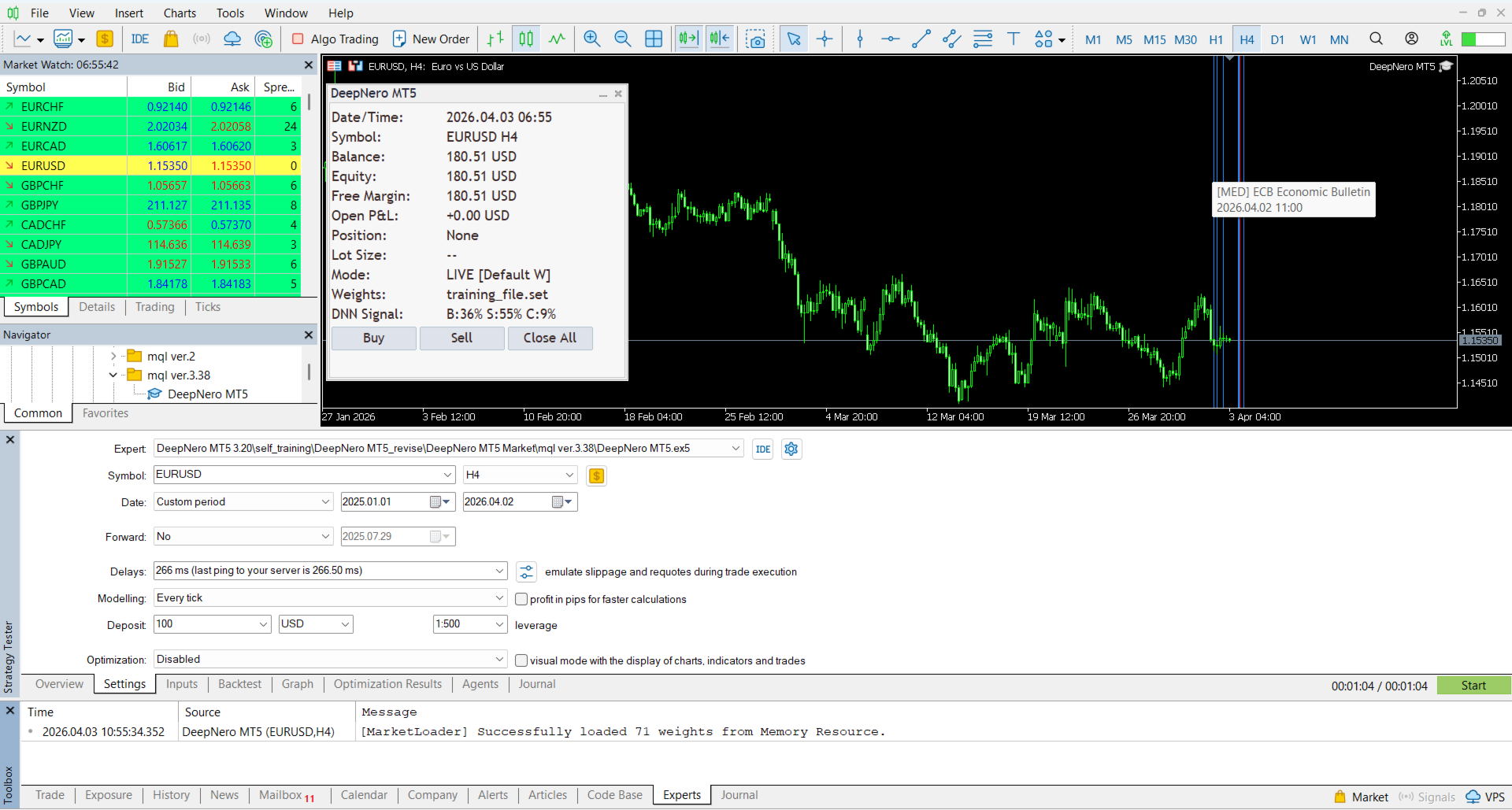
- Interactive Dashboard: Real-time display of Neural Weights, System Health, and AI Signal Probabilities.
How to Train and Use Your AI (Sliding Window Method):
DeepNero relies on analyzing the most relevant market conditions. We recommend training on a 6 to 12-month data window, and strictly no more than 2 years.
1. Optimization Setup:
- In the MT5 Strategy Tester, select "Open prices only" for the modeling method. This is required because DeepNero's mathematical structure is explicitly designed to process the Open/Close data of confirmed candles.
- Select a high timeframe (H1 or H4 recommended).
- Set your preferred date range (e.g., the last 12 months).
2. One-Click Neural Optimization:
- Enable "Optimization" (Fast genetic based algorithm).
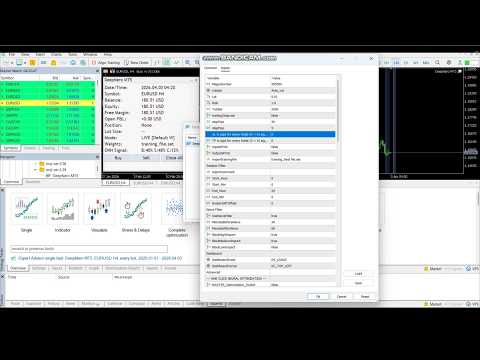
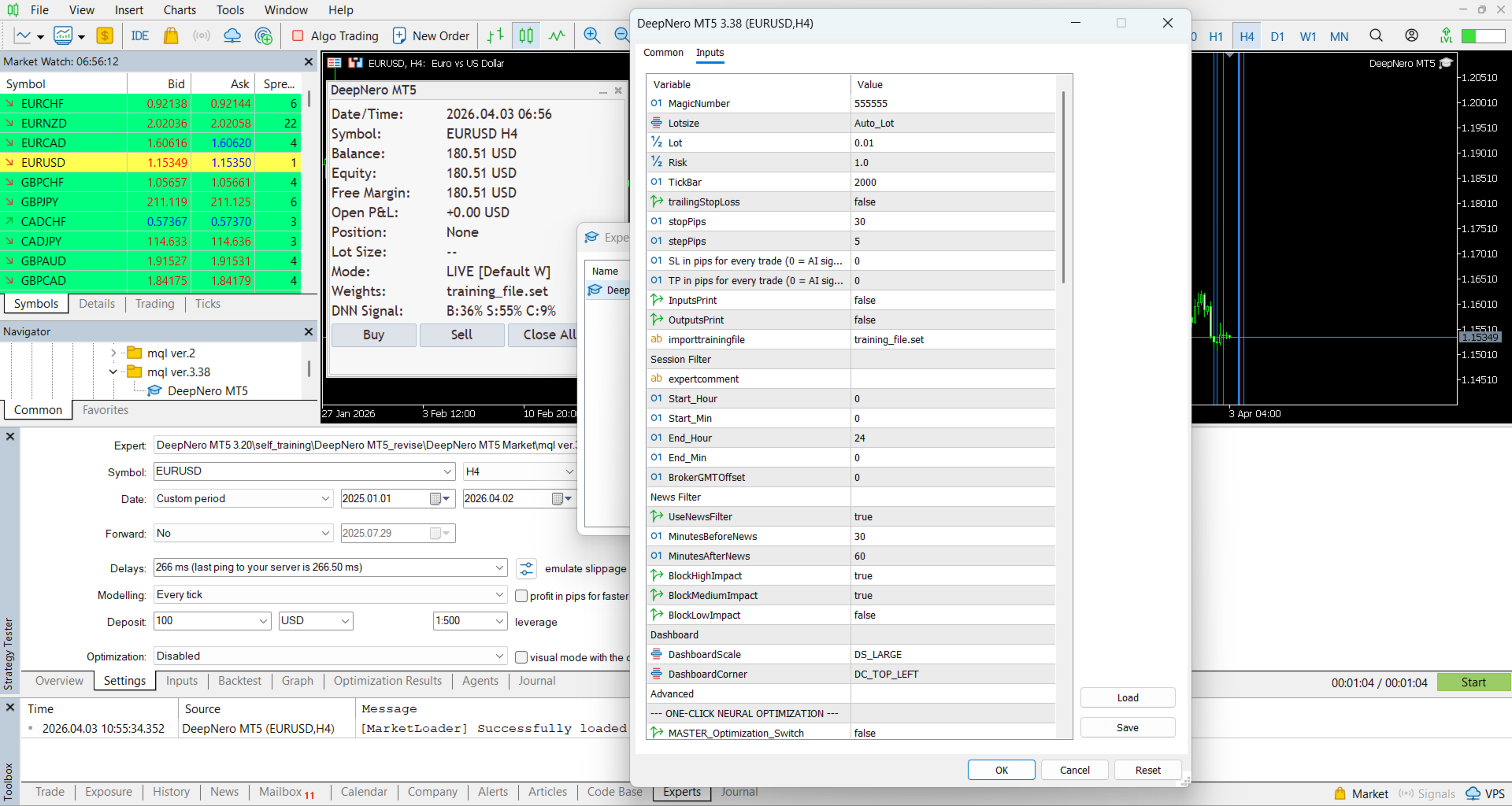
- In the Inputs tab, set 'MASTER_Optimization_Switch' to true.
- Set the 'TickBar' parameter to logically match your date range (e.g., 2000 for a 1-year H4 chart).
- In 'importtrainingfile', specify your desired file name including the extension (e.g., training_file.set).
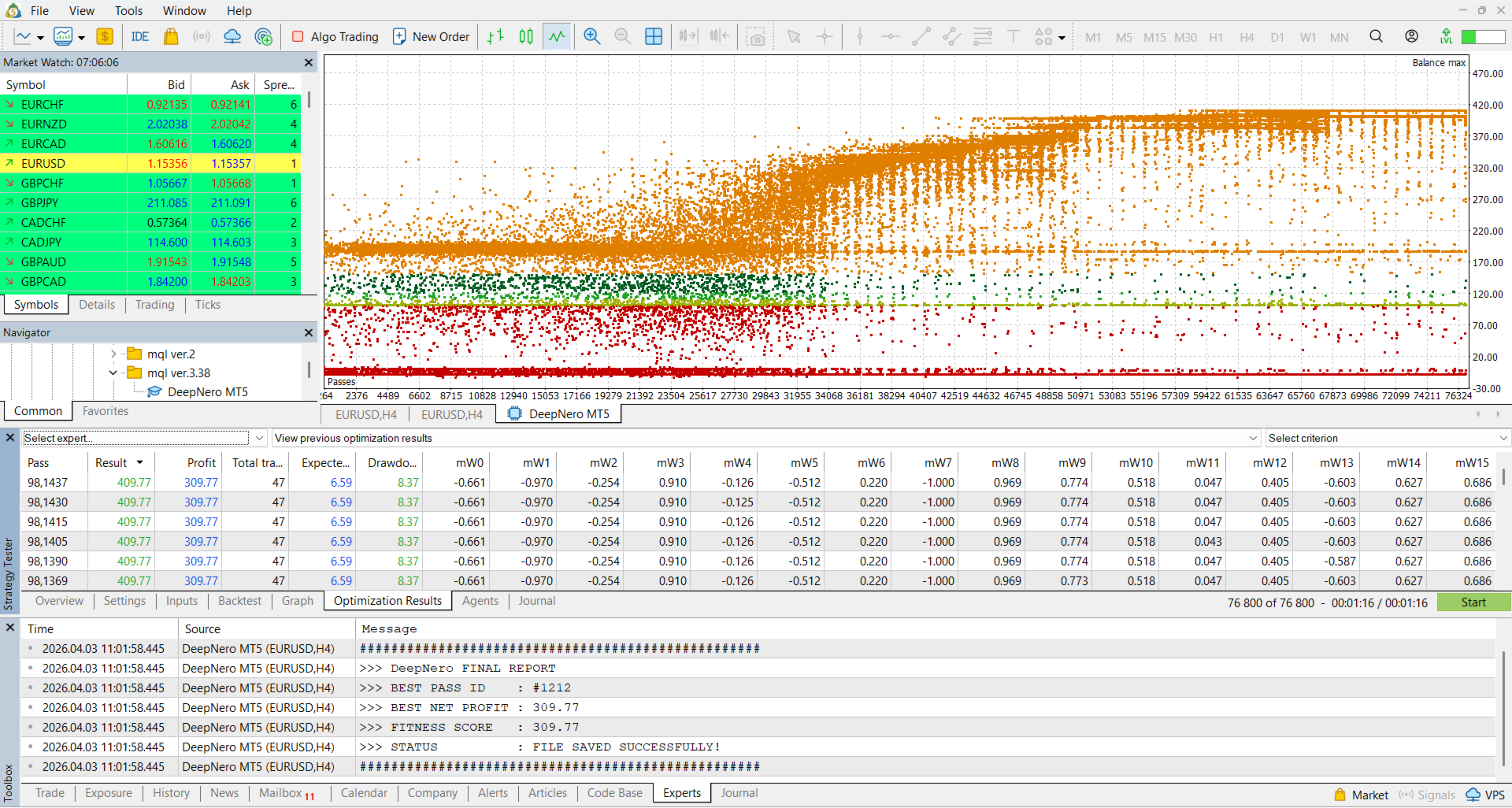
- Start the optimization. Once complete, the EA automatically saves the best performing neural weights (a string of decimal values separated by semicolons) directly into your [Terminal\Common\Files] folder.
3. Backtesting and Live Trading:
- To Backtest the new weights: Change the Strategy Tester mode from "Optimization" to "Single".
- Set 'MASTER_Optimization_Switch' to false. Ensure the 'importtrainingfile' input exactly matches your saved file name (e.g., training_file.set).
- Run the Single test using "Open prices only" to verify the results match your optimization pass. Once verified, you can test it with "Every tick" or "Every tick based on real ticks"; the performance results will be highly similar.
- Live Trading: Attach the EA to a live chart with the same input settings.
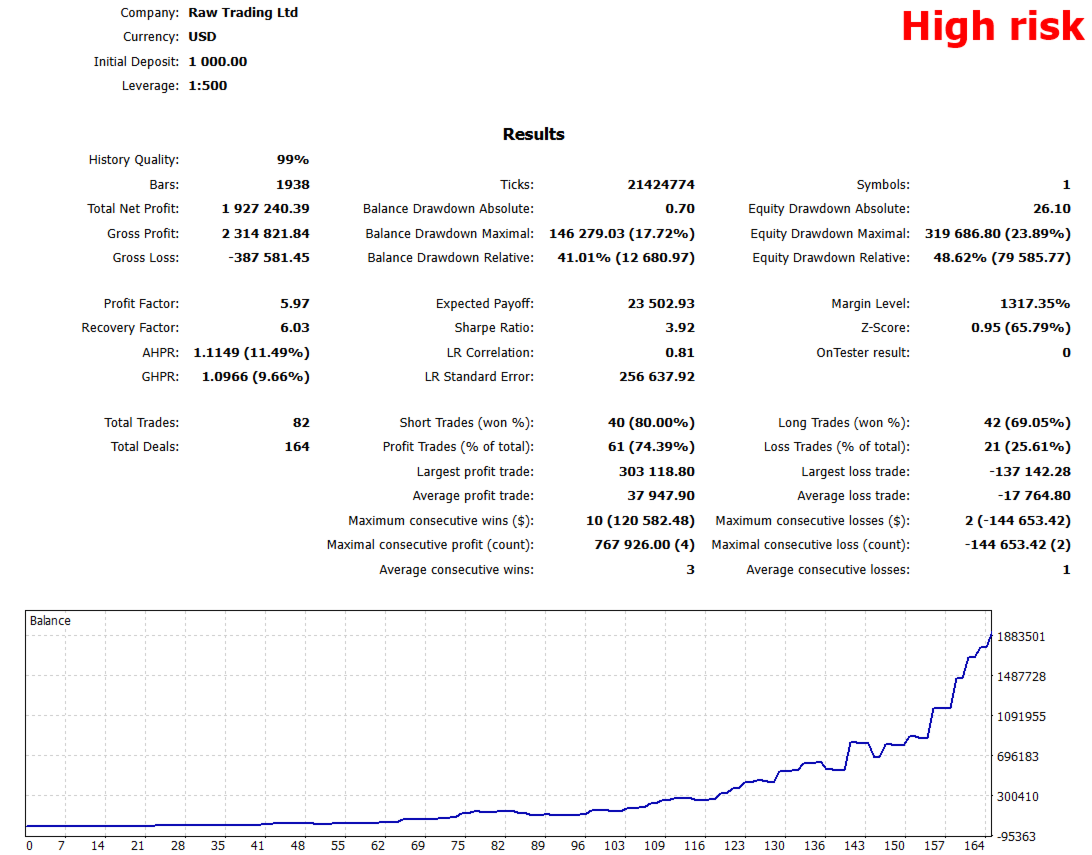
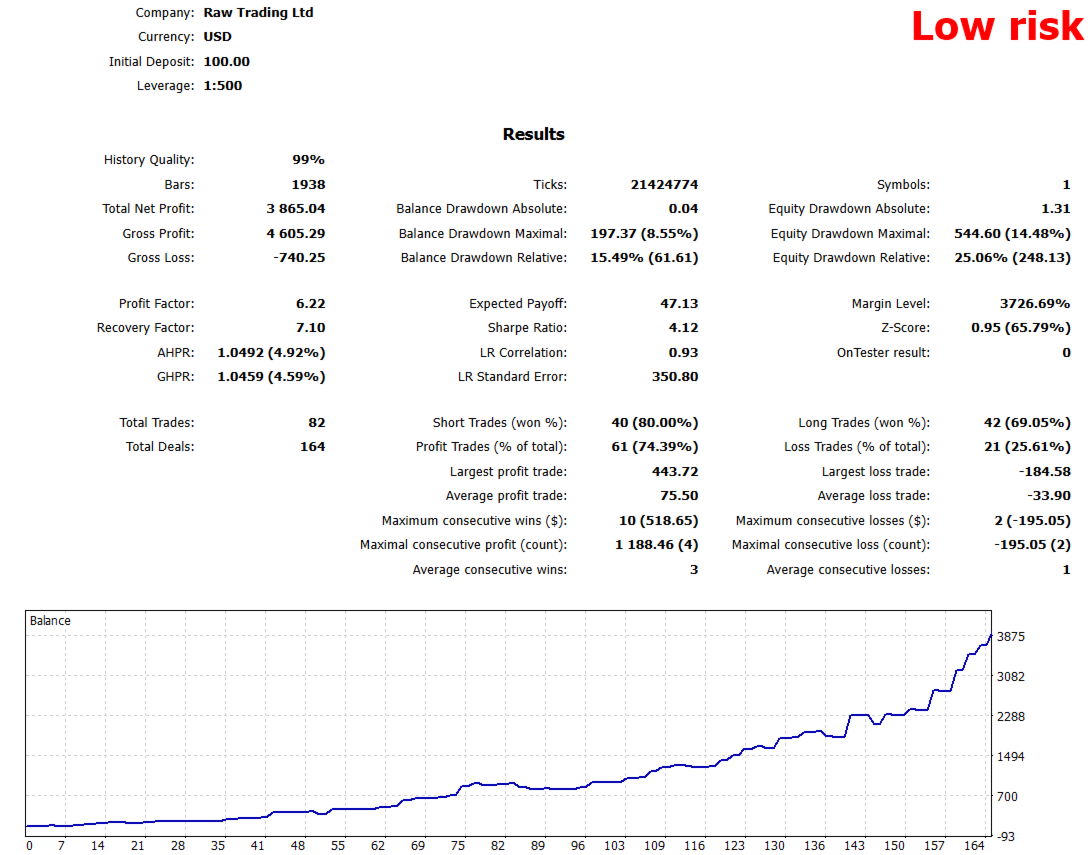
- Maintenance: It is recommended to re-optimize the EA using the sliding window every 4 months, or immediately if the trading hit-rate begins to decrease.
Note regarding Inputs: When using your optimized file, do not be concerned if the neural weight variables (mW0 to mW70) in the MT5 Inputs tab still display default values (e.g., -1.0). The EA loads and processes your custom weights internally, bypassing the visual UI inputs.