Fast Copier Pro
- Utilitaires
- Version: 2.0
- Mise à jour: 21 septembre 2026
- Activations: 5

Fast Copier PRO - Ultimate Cross Broker, Local Connection and Cross PC/VPS only one in the world
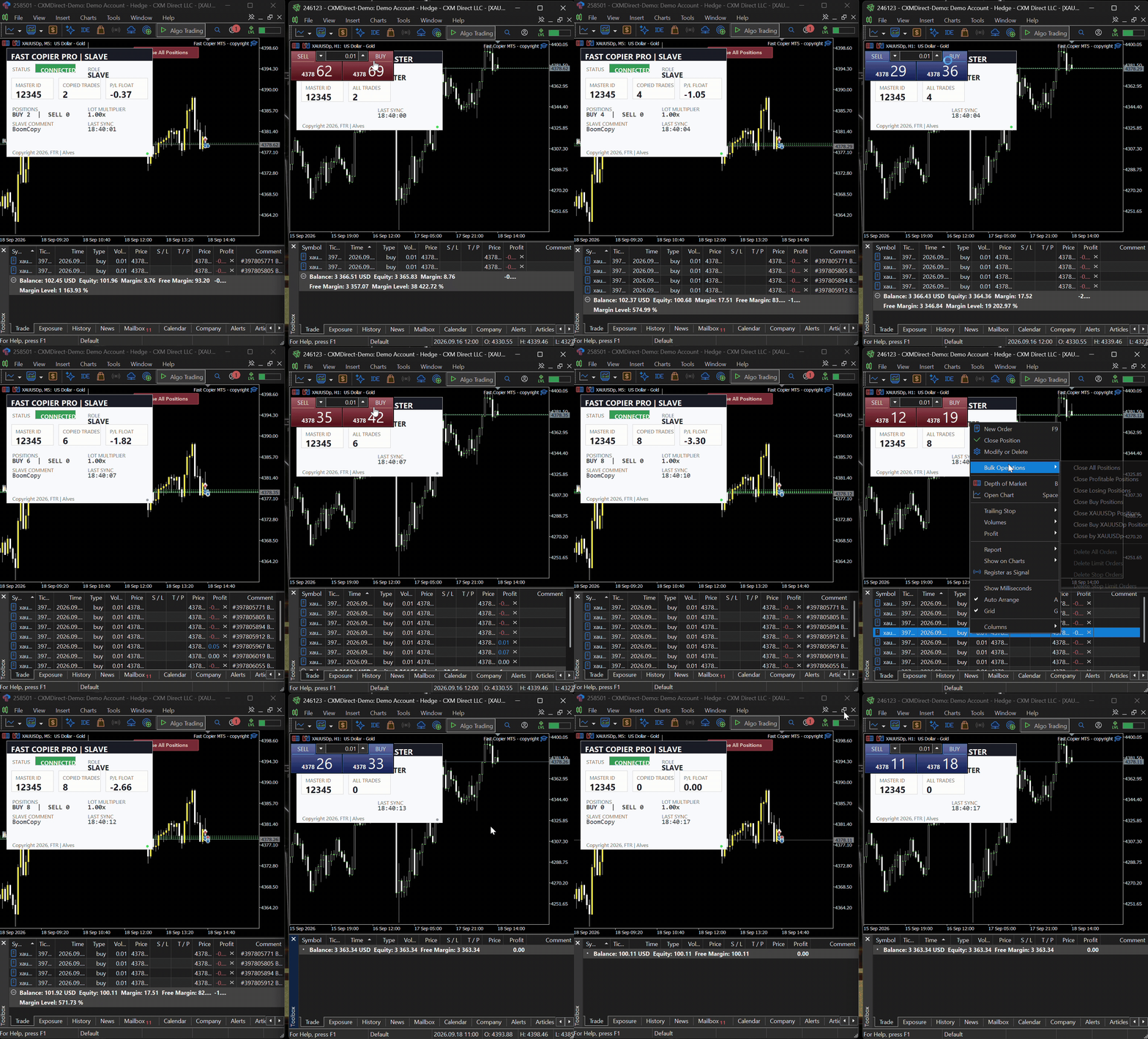
Fast Copier PRO MT5 is an ultra-lightweight, lightning-fast, and all-in-one local trade copying solution for MetaTrader 5. Designed for maximum efficiency, this utility functions as both MASTER and SLAVE within a single file.
| Fast Copier PRO Promotial price $55 for 10 buyers and final price in $80 |
|---|
IMPORTANT PREREQUISITE : This is a Hybrid Copier. You can run both the MASTER and SLAVE terminals on the SAME Computer/VPS (using ultra-fast Local File mode) OR across DIFFERENT Computers/VPS anywhere in the world (using Web Remote mode).
If you choose Web Remote, you must configure the WebRequest settings (See Step 3).
STEP 1 : SETTING UP THE MASTER ACCOUNT (SENDER)
- Open your first MetaTrader 5 terminal and log into your Master account.
- Ensure the "Algo Trading" button at the top menu is turned ON (Green).
- Open ONLY ONE chart (e.g., EURUSD on any timeframe). Note: You do not need to open a chart for every pair you want to trade. One chart handles everything.
- Drag and drop Fast Copier PRO MT5 from the Navigator panel onto the chart.
- In the Inputs tab, configure the following:
- Copier Mode: Select MASTER.
- Connection Mode: Select LOCAL PC (if Slave is on the same VPS) or WEB REMOTE (if Slave is on a different VPS).
- Account ID (Master ID): Create a unique number (e.g., 12345). You will need this exact number for the Slave account.
- Click OK.
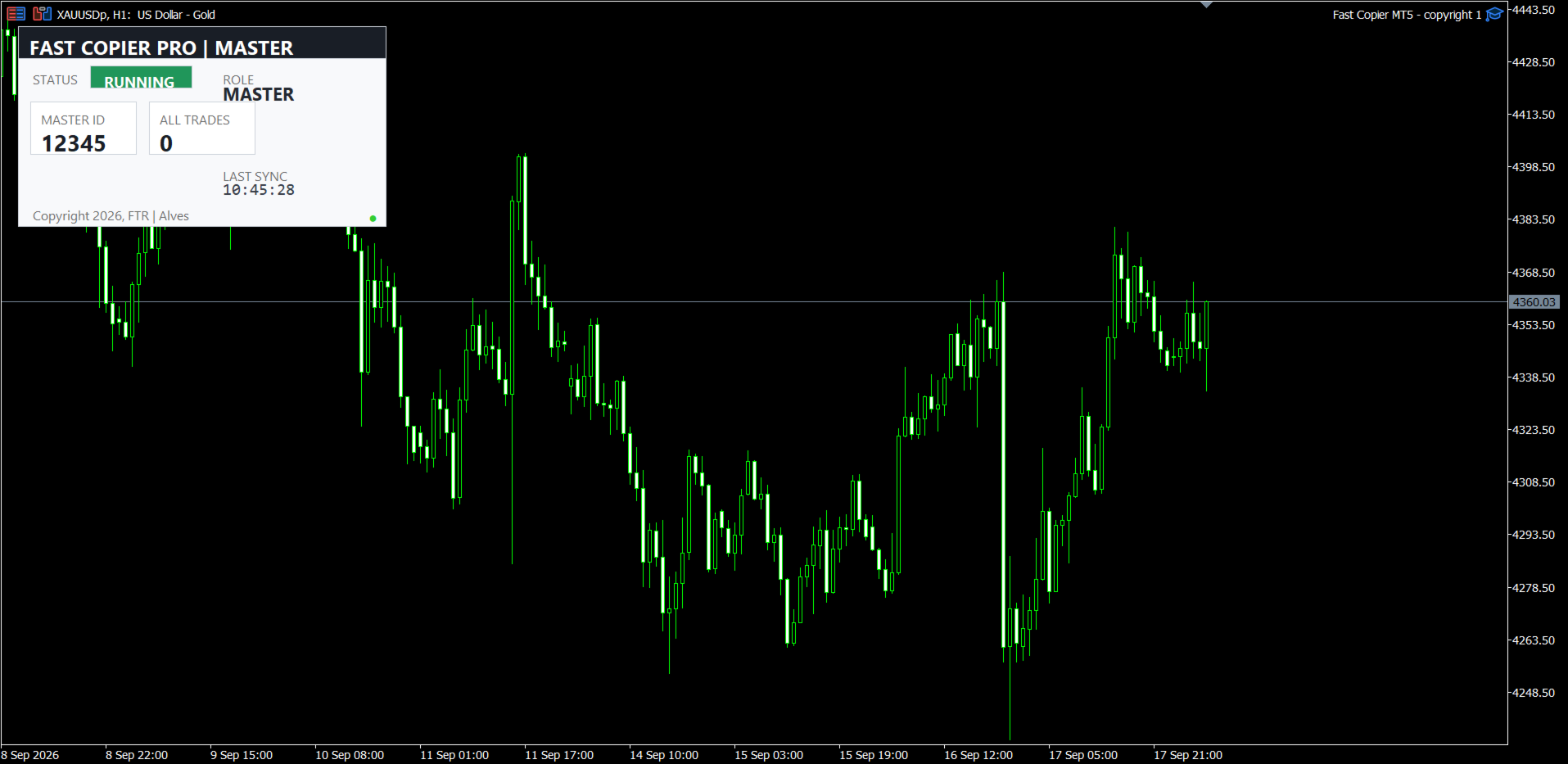
- Look at the on-chart Dashboard. The Status should display RUNNING (Green background). Your Master is now ready!
STEP 2 : SETTING UP THE SLAVE ACCOUNT (RECEIVER)
- Open your second MetaTrader 5 terminal and log into your Slave account.
- Turn ON the "Algo Trading" button.
- Open ONLY ONE chart (e.g., EURUSD).
- Drag and drop the same Fast Copier PRO MT5 onto the chart.
- In the Inputs tab, configure the following:
- License Key: Enter your exclusive license key.
- Copier Mode: Select SLAVE.
- Connection Mode: Make sure this matches the Master's setting (LOCAL PC or WEB REMOTE).
- Account ID (Master ID): Enter the exact same number you used in the Master setup (e.g., 12345).
- Lot Multiplier: Set to 1.0 to copy the exact same lot size, or change it according to your risk management (e.g., 0.5 for half size, 2.0 for double size).
- Symbol Mapping: (Leave blank if both brokers use the exact same symbol names. See Step 4 below if they are different).
- Click OK.
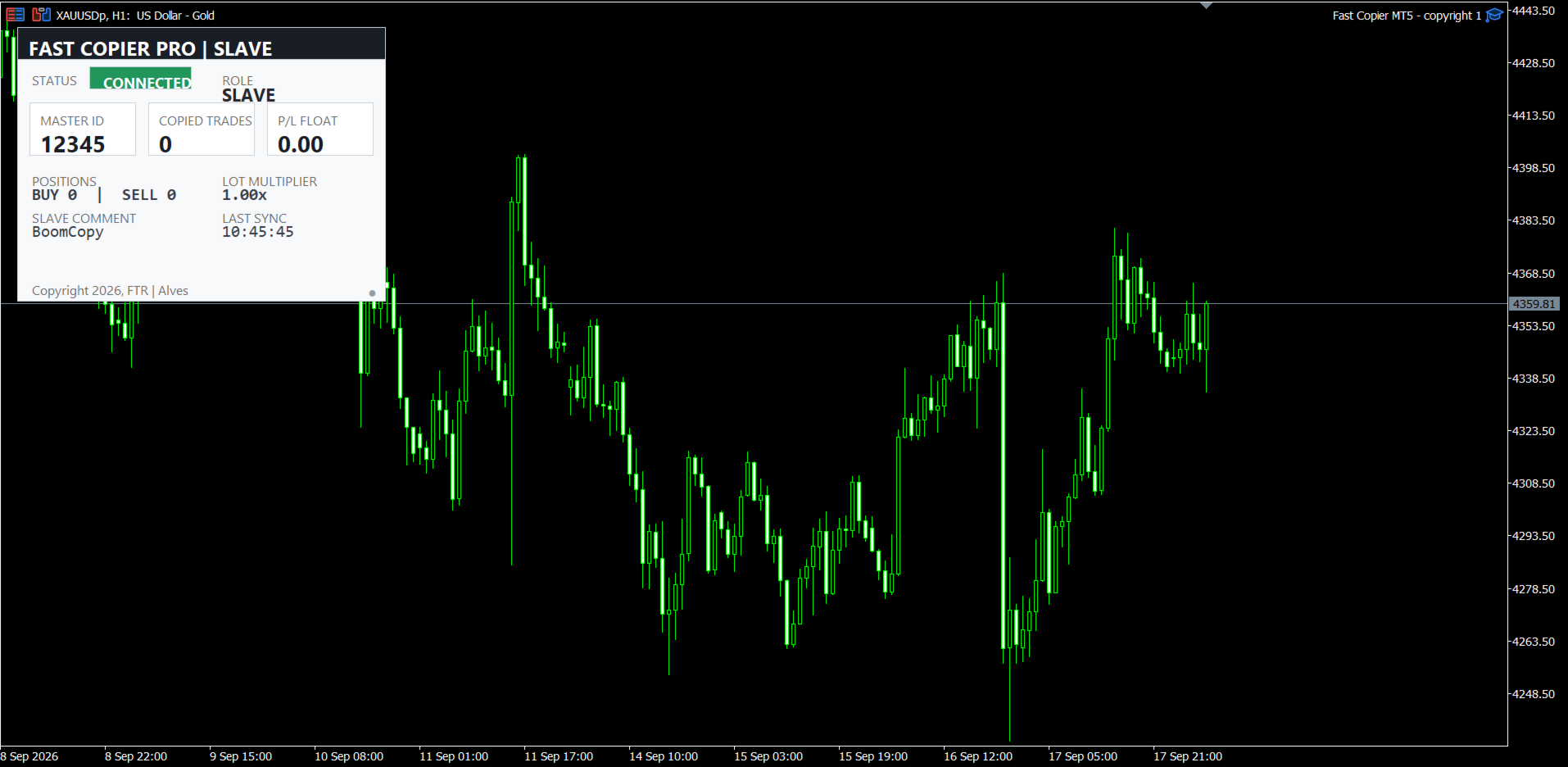
- Check the Dashboard. The Status should quickly change to CONNECTED (Green background).
Congratulations! Your accounts are now perfectly synchronized.
STEP 3: ENABLING WEB REQUEST (FOR SERVER MODE)
Skip this step if you are using "LOCAL PC" connection mode.
If you selected WEB REMOTE to copy trades between different computers, you MUST allow MT5 to communicate over the internet. You must do this on BOTH the Master and Slave terminals:
1. Open MT5 and press Ctrl + O (or go to Tools > Options in the top menu).
2. Go to the Expert Advisors tab.
3. Check the box that says "Allow WebRequest for listed URL".
4. Click the green plus (+) icon below it.
5. Type or paste your server URL (contact me)
6. Press Enter, then click OK.
STEP 4: HOW TO USE SYMBOL MAPPING (CROSS-BROKER FIX)
Different brokers often use different symbol names (suffixes). If your Master broker uses EURUSD but your Slave broker uses EURUSD.ecn, the Slave will reject the trades. You must use the Symbol Mapping input to fix this.
Format: MasterSymbol=SlaveSymbol (without spaces between the '=' symbol)
- Single Pair Example: If Master is XAUUSD and Slave is GOLD, type: XAUUSD=GOLD
- Multiple Pairs Example: Separate them with a comma ( , ). EURUSD=EURUSD.ecn,GBPUSD=GBPUSD.ecn,XAUUSD=XAUUSD.ecn
Note: Make sure the Slave symbols are visible (enabled) in the Slave terminal's "Market Watch" window!
DASHBOARD STATUS MEANINGS
To ensure everything is working smoothly, keep an eye on the Status panel on your dashboard:
- 🟢 RUNNING (Master): The Master EA is active and successfully monitoring trades.
- 🟢 CONNECTED (Slave): The Slave EA is successfully receiving the heartbeat signal from the Master. Ready to execute trades!
- 🟠 WAITING (Slave): The Slave is waiting for the Master terminal to send data. Make sure the Master MT5 is open, the Account IDs match exactly, and the Master's Algo Trading is ON.
- 🔴 ALGO OFF: You forgot to enable the "Algo Trading" button at the top of your MT5 terminal.
- 🔴 OFFLINE: The EA is not functioning properly. Please check your MT5 "Experts" Journal tab for error messages.