ZigZag AO Divergence PRO
- Experts
-
Saniyat Nabiyeva
 - C# - Java - Kotlin - JavaScript - TypeScript - C++ - Python, MQL4, MQL5
- (Expert Advisors, indicators, utilities, API integration) - 5 years of experience - Version: 1.0
- Activations: 7
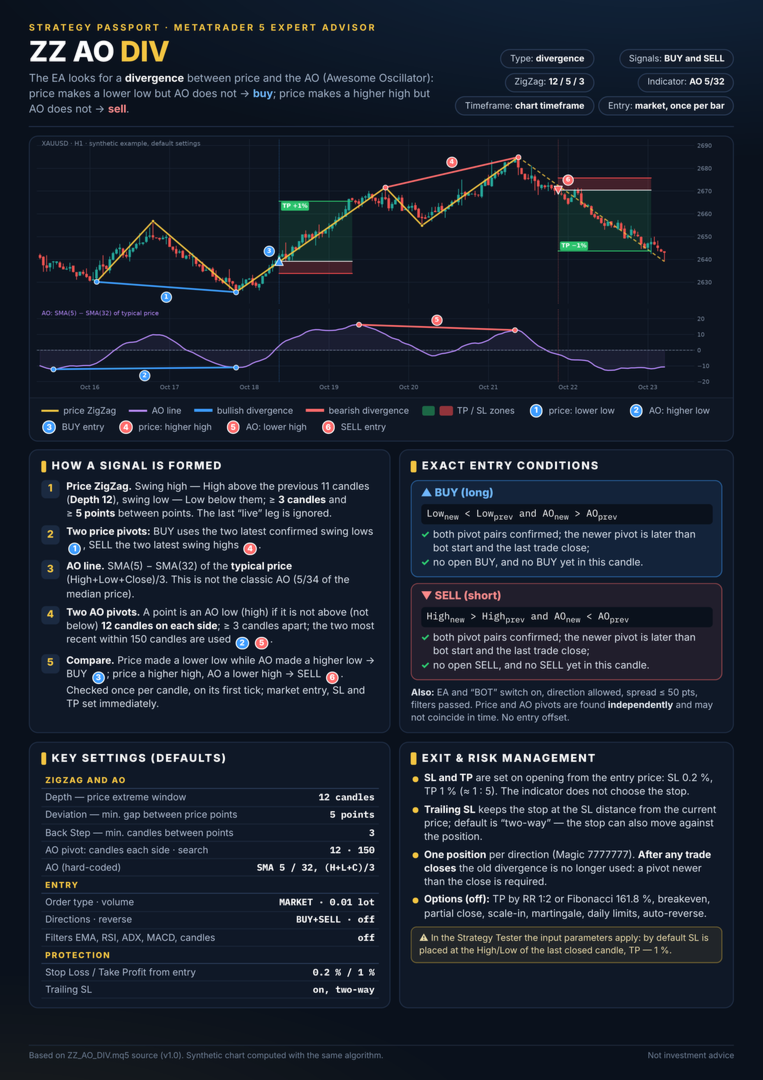
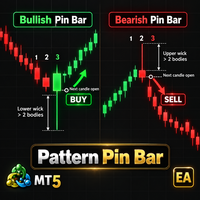
1) The Expert Advisor looks for a divergence between price and the AO oscillator (Awesome Oscillator):
price made a new low while AO did not → buy; price made a new high,
while AO did not → sell
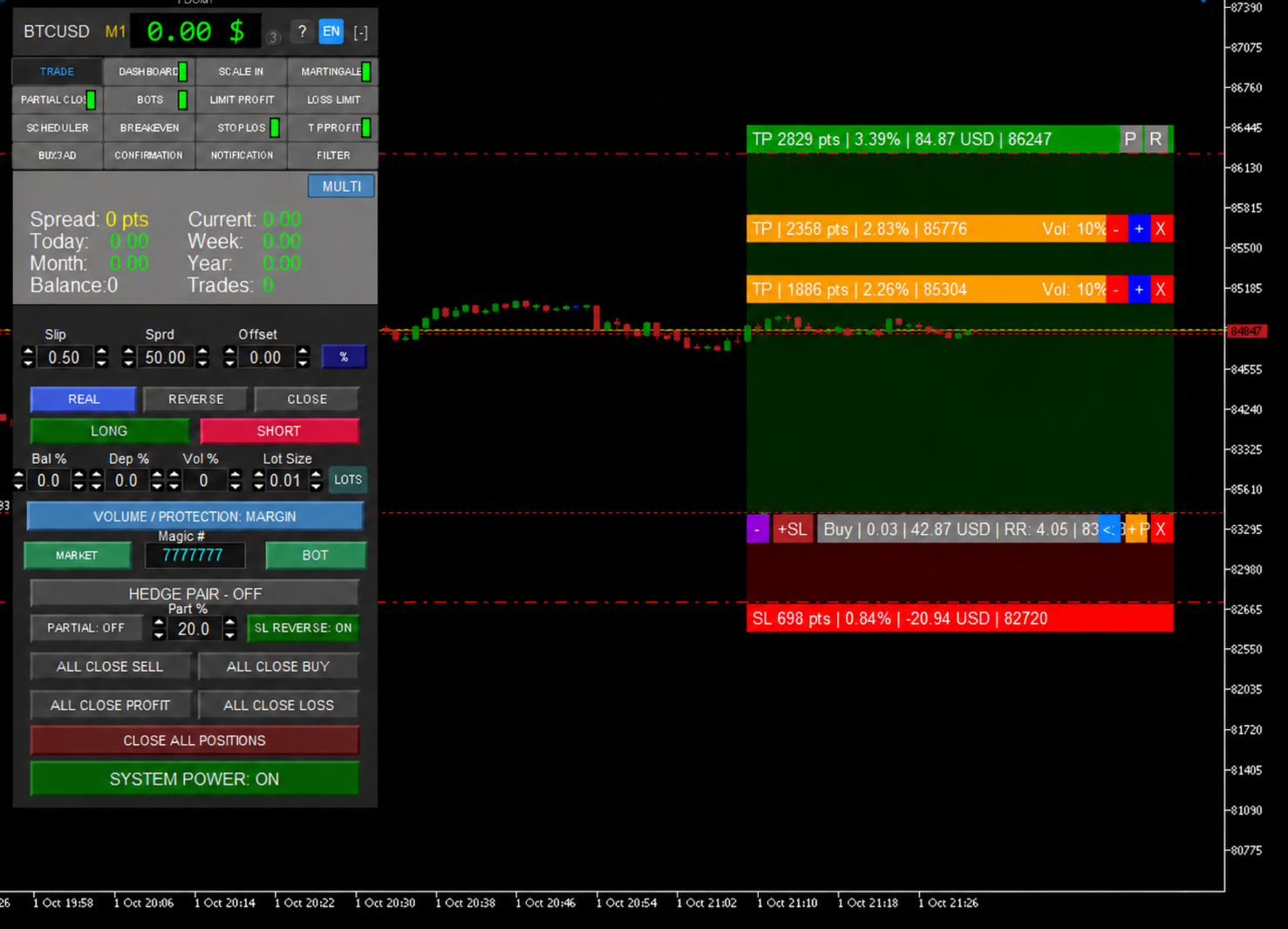
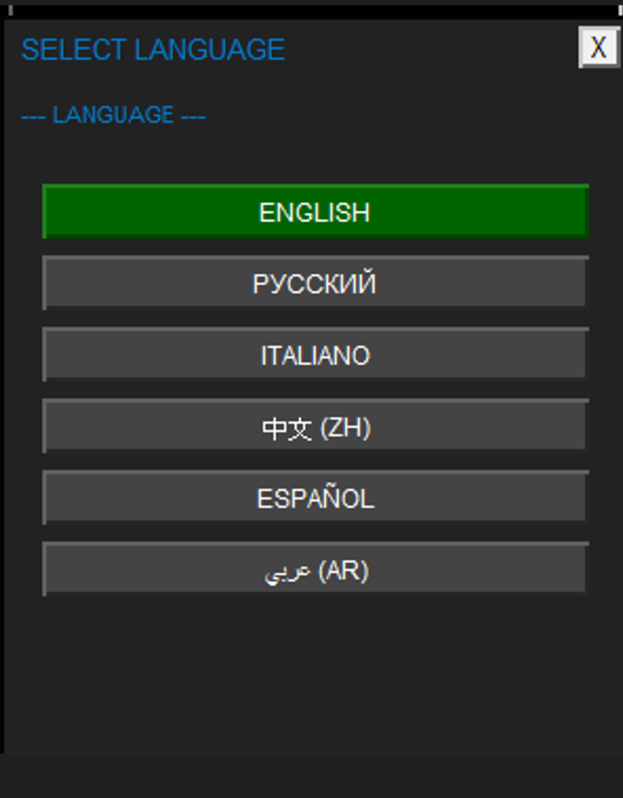
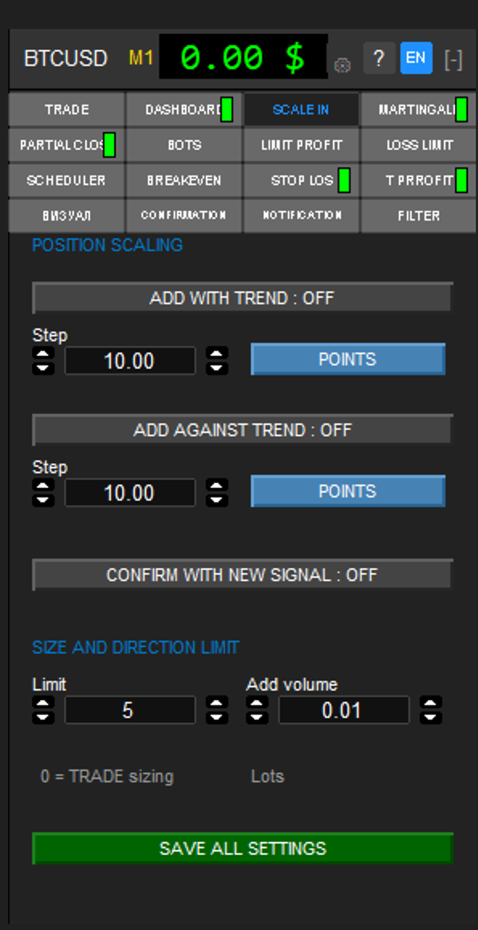
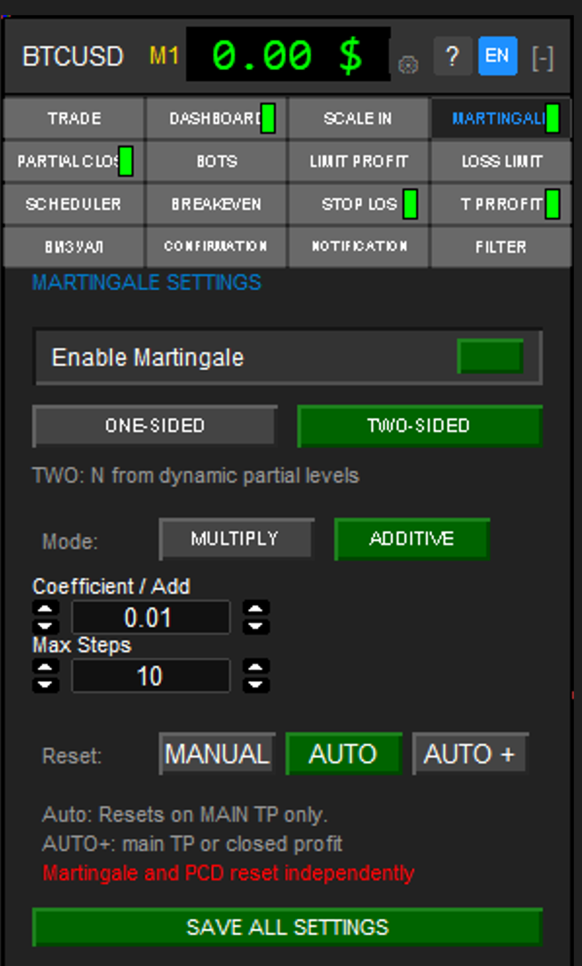
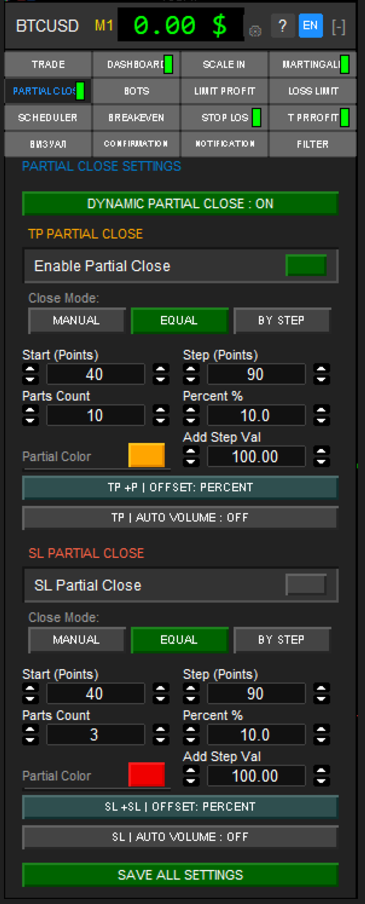
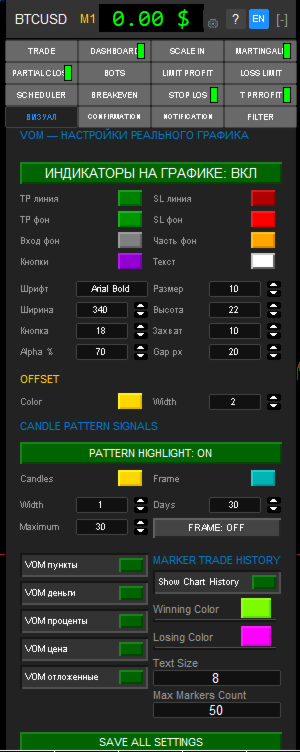
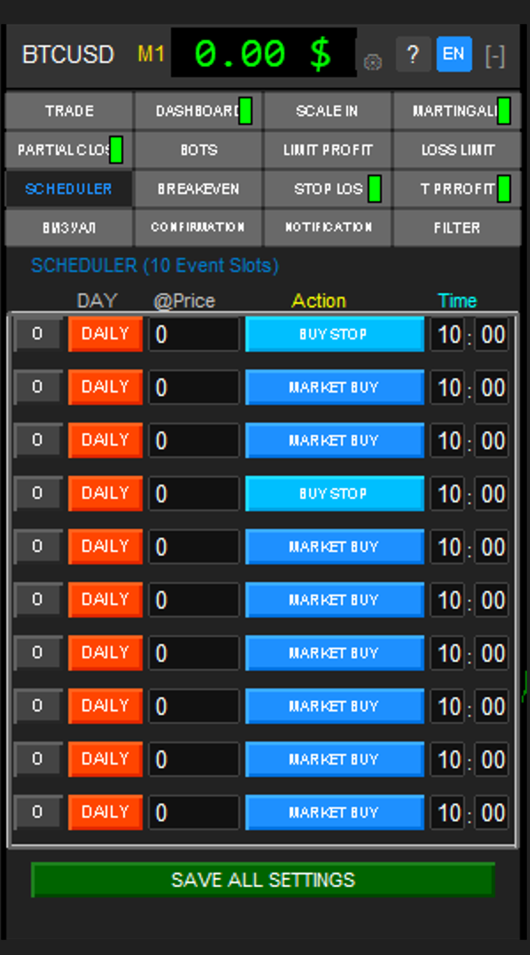
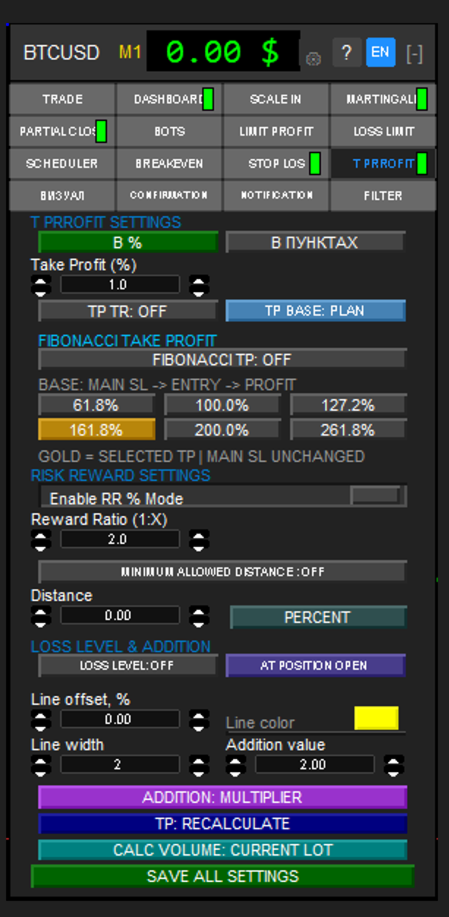
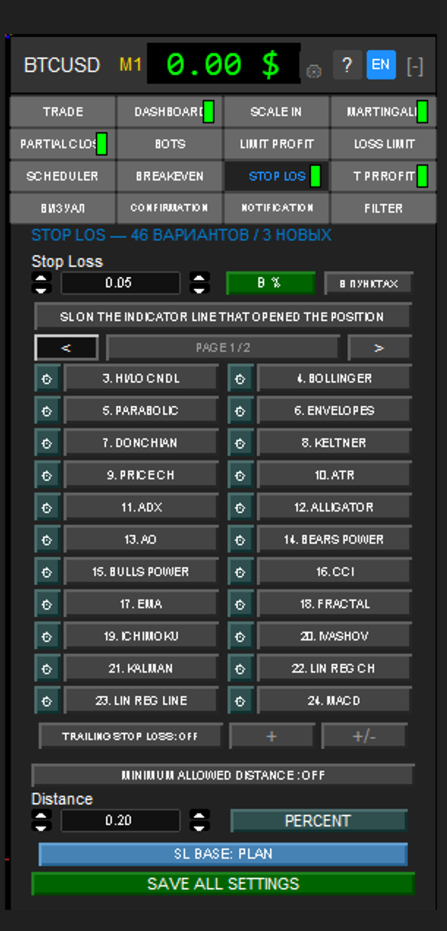
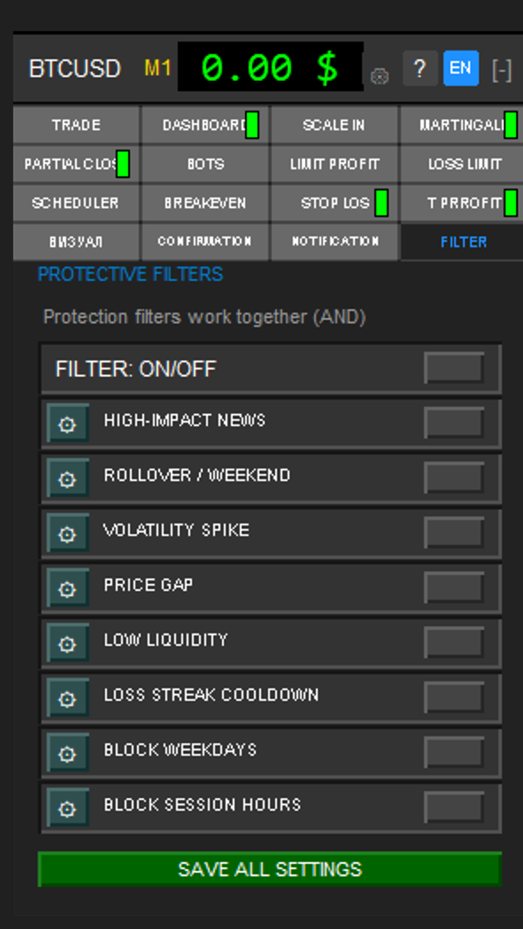
2) 45 types of stop loss + trailing SL, 3) 10 types of take profit + trailing profit, 4) an external CONTROL PANEL that works both on a live account and in the Tester, 5) 3 money management modes, 6) 5 options for increasing position volume, 7) 15 position management modes, 8) 8 protection filters, 9) 9 signal confirmation options, 10) Visual Position Manager, 11) Partial position closing for TP and SL, 12) Breakeven, 13) SCHEDULER mode, 14) Loss limit, 15) Profit limit, 16) RR% SL to profit, 17) 9 risk management modes, 18) HEDGE - PAIR, 19) Standard and Multi trading modes, 20) works on all trading instruments in MT5 — Gold, Cryptocurrency, Forex, Stocks, Futures, 21) 6 language options, 22) real and Hidden-from-broker virtual order placement modes, 23) Order reverse, 24) position flip on stop-loss close, 25) all broker account types, 26) Order types — Market — Stop — Limit, 27) POSITION AVERAGING on trend and counter-trend, 28) HELP function, 29) additional (Assistant) mode for manual trading only, 30) + weekly updates, 31) + BONUS — free installation of any one custom buyer strategy on request as an update
- ( for convenient setup in the Tester, the Expert Advisor's external Control Panel works and through it you can configure both the Bots and test manual trading via Assistant mode — but due to MT5 limitations the following rules must be followed to activate this control panel — instructions: — in Tester mode do not enable (optimization); the external control panel does not work in it, and in optimization mode you must make settings through the standard general Tester settings menu — the external control panel works only in Tester Visualization mode; to do this enable it by putting a (checkmark) in its row — parameter input into the mode settings windows on the external control panel in the Tester is done only via the arrow keys (spin box) on each settings input window; due to system limitations keyboard input of parameters does not work — after enabling the (START) button in the Tester, set all required parameters of the selected Bot strategy on the external control panel and when finished press the orange button on the control panel (SETTINGS READY - START TEST) — for convenient navigation of the control panel features in the Tester, the (Help) function is called by hovering the mouse cursor over any parameter window or button + right-clicking that object; you will get a pop-up window with detailed help about that function in any of the 6 languages selected in the Expert Advisor control panel settings )