StopFirst Lot Calculator
- Yardımcı programlar
-
RUSLAN SLOBODIANIUK
 Знание языков и технологий:C
C++
Visual C++
WinAPI
C#
GDI+
ADO.NET
LINQ to SQL
WPF
WCF
SQL
XHTML
XML
PHP
MySQL
JScript
Unity3D(C# scripting) - Sürüm: 1.0
StopFirst Lot Calculator answers one question before every trade: how many lots, if this is where my stop goes?
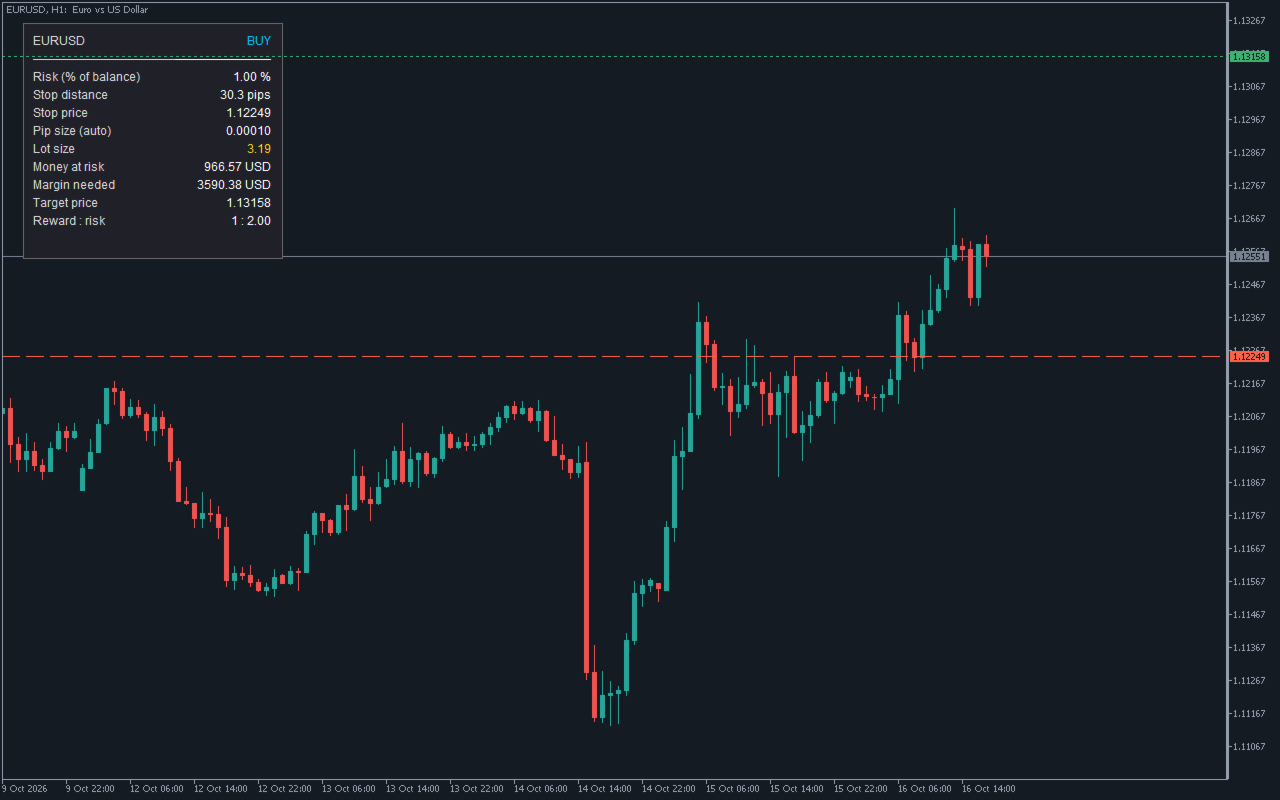
You decide how much you are willing to lose and where the trade is wrong. The calculator turns those two decisions into a lot size, and shows you what that lot really puts at risk, what margin it needs and where the target sits. Drag the stop line and every figure follows.
It is an indicator. It cannot place an order, it needs no Algo Trading permission, and it runs on the same chart as your Expert Advisor.
HOW TO USE IT
1. Attach it to any chart. A panel appears in the corner and a red stop line appears below the price (above it for a sell).
2. Drag the stop line to where your stop belongs: below the swing low, beyond the level, wherever your analysis puts it.
3. Read the lot size. Enter that volume in your order ticket, your trading panel or your EA.
That is all. The figures update on every tick and every time you move the line.
If you prefer a fixed distance, switch the stop mode to pips and type the distance in the inputs. The line then follows the price at that distance.
WHAT THE PANEL SHOWS
- Symbol and side: the chart symbol and whether you are sizing a buy or a sell.
- Risk: your risk as a percentage of balance, or as a fixed amount of money.
- Stop distance: the distance from the entry to the stop, in pips.
- Stop price: where the stop line sits.
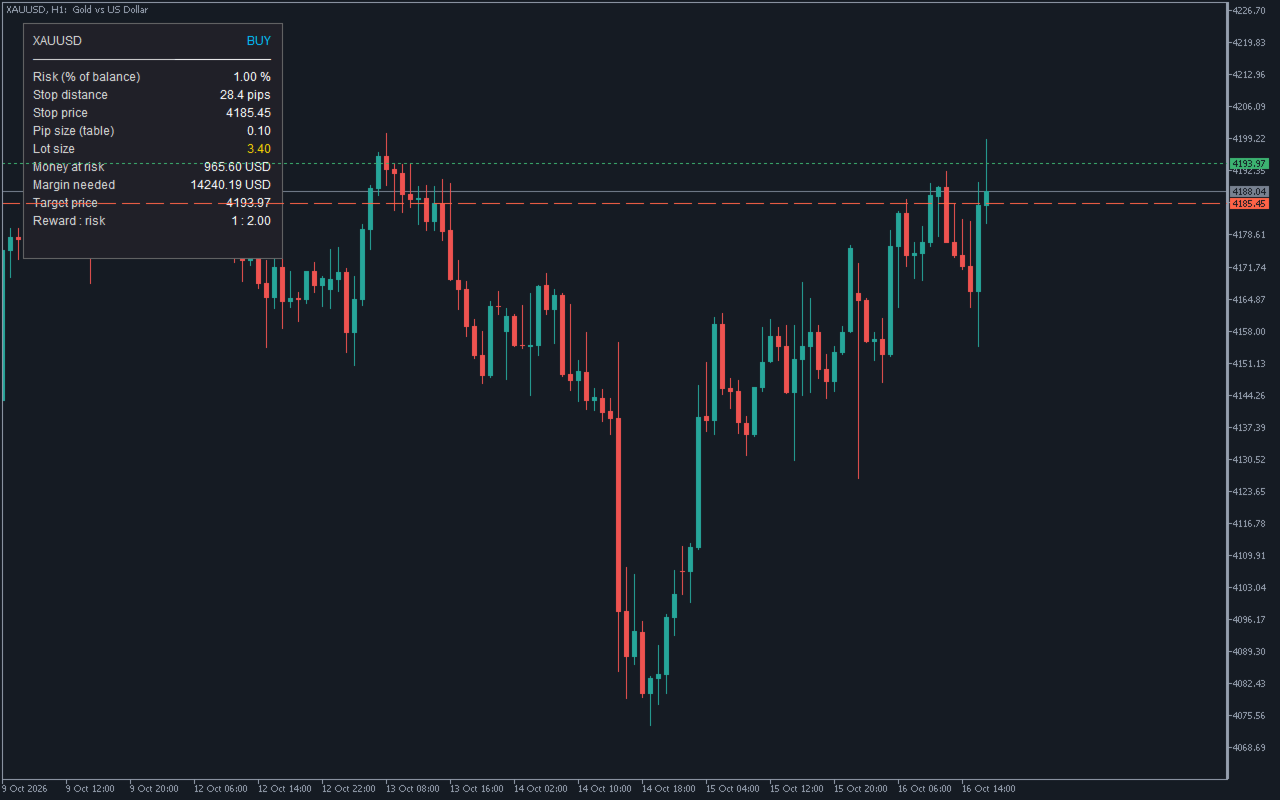
- Pip size: the pip in use, and where it came from - the automatic rule, the built-in table or your own override.
- Lot size: the volume to trade, already rounded to your broker's volume step.
- Money at risk: what that lot loses if the stop is hit, after rounding. This is the number that matters, not the percentage you typed.
- Margin needed: the margin the trade will tie up. Shown in the warning colour if it is more than your free margin.
- Target price: entry plus your reward multiple of the stop distance.
- Reward : risk: the ratio the target gives you.
- Note: a plain-language line whenever something needs your attention.
A buy is measured from the Ask, a sell from the Bid, so the spread is already inside the stop distance.
NUMBERS YOU CAN TRUST
A position size calculator is only useful if it never tells you to risk more than you asked for. Every rule below exists for that reason.
- Rounded down, never up. The lot is rounded down to your broker's volume step. The money at risk shown is for the rounded lot, so it is at or below your budget.
- "Below minimum" instead of a silent round-up. If your risk budget cannot pay for even the smallest lot your broker allows, the lot row says "below minimum" and the panel shows what one minimum lot would risk. You decide whether to widen the risk, tighten the stop or skip the trade. The calculator does not decide for you.
- Capped by free margin. If your free margin cannot fund the size your risk implies, the lot is reduced to what the margin allows and shown in the warning colour. The money row changes to "Risk after capping", and the note says why. The Margin input lets you keep part of your free margin in reserve.
- Capped at the broker maximum, and the note says so.
- "Wrong side" instead of a nonsense number. If the stop line is above the price for a buy, or below it for a sell, the panel says "wrong side" and tells you which way to move it. It never shows a negative or meaningless lot.
- "No quote" when there is no price. On a symbol with no current quote the panel says so and leaves the results blank, rather than calculating from stale data.
GOLD, INDICES, OIL - AND WHY A PIP IS NOT ALWAYS A PIP
The usual forex rule - a pip is ten points on a five-digit quote - is wrong on most other instruments. Applied to gold it can make a pip ten times too small, and every lot size built on it ten times too large.
StopFirst uses the conventional pip size where one exists:
- Gold (XAU, GOLD): 0.10
- Silver (XAG, SILVER): 0.01
- Platinum, palladium: 0.10
- Oil (WTI, BRENT, USOIL, UKOIL, XTI, XBR): 0.01
- Natural gas: 0.001
- Indices (US30, US100, US500, NAS100, SPX500, GER40, UK100, JP225 and others): 1.0
Symbol names are matched with or without broker suffixes. Exchange-traded stocks and ETFs are deliberately left out of the table: a ticker can look like an index or a metal by name alone.
These are conventions, not broker facts. If you mean something else by a pip, set your own pip size in the inputs. The panel always shows the pip size in force and where it came from, so you are never guessing.
Stocks: a stock's pip is its price step, usually 0.01. Use the stop line, or set a pip size that matches how you think about the stock.
HOW THE MONEY IS CALCULATED
Lot size is only as good as the money-per-pip behind it, and the obvious source - the tick value a symbol reports - is not always reliable for CFDs. On a live account we measured a broker reporting gold's tick value ten times too low; a calculator trusting it would size gold positions ten times too large.
StopFirst calculates money per pip from the contract specification: the profit formula MetaTrader documents for each symbol's calculation mode, converted to your account currency. The tick value fields are used only as a last resort, when nothing better is available. Margin is calculated the same way, from the documented margin formula for the symbol.
This was checked against the terminal's own profit calculation on forex, gold and indices.
Example from a demo account: EURUSD, balance 99,998 USD, risk 1 %, stop line 23.3 pips away. The panel showed 4.29 lots risking 998.60 USD - just under the 999.98 budget, because the lot was rounded down.
INPUTS
Risk
- Risk mode: percent of balance, or a fixed amount of money.
- Risk value: the percentage or the amount. Default 1 %.
- Direction: buy or sell.
Stop and target
- Stop mode: draggable line (default) or a fixed distance in pips.
- Stop distance in pips: used in pips mode, and as the starting distance for the line.
- Reward ratio: target as a multiple of the stop distance. Default 2.
Margin
- Maximum share of free margin one trade may use. Default 100 %. Lower it to keep a reserve.
Instrument
- Pip size override: 0 for automatic, or your own pip size.
- Use the built-in pip table for metals, indices and oil: on by default.
Appearance
- Panel position and corner, background, text, value and warning colours, stop and target line colours, font size.
GOOD TO KNOW
- It never trades. There is no order code in it, and as an indicator MetaTrader would not let it trade anyway.
- It works alongside anything. Your EA, other indicators and other panels stay where they are.
- Any account type: hedging or netting, any broker, any account currency.
- If you delete the stop line by accident, it comes back where it was. The calculation never silently switches to a different stop.
- Removing the indicator leaves your chart exactly as it was found. Every object it draws is removed with it.
- Strategy Tester: in visual mode the panel and lines work as on a live chart. In a non-visual test there is no chart, so it draws nothing and simply runs without errors.
QUESTIONS
Why is the lot smaller than I expected?
It is rounded down to your broker's volume step, and it may be capped by free margin or by the broker maximum. The note line says which.
Why does it say "below minimum"?
Your risk budget is smaller than what the minimum lot would lose at this stop distance. The panel shows that amount, so you can decide what to change.
Why is the pip size on gold 0.10?
That is the convention most gold traders use. If you count gold pips differently, set your own pip size in the inputs.
Can I use it with my Expert Advisor?
Yes. It is an indicator, so it does not take the chart's EA slot, and it never sends orders.
Does it place the trade for me?
No, and that is deliberate. It tells you the size; you place the trade however you normally do. If you want to trade from a panel with the same sizing, see StopFirst Trade Manager.