 MetaTrader 5
 Uzmanlar
 Göstergeler
 Komut dosyaları
 Kütüphaneler
 Depo
Depo
Fan sayfamıza katılın

AI Prompt Writer - Simple AI Assistant Customization - MetaTrader 5 için komut dosyası

- Görüntülemeler:
- 9
- Derecelendirme:
- Yayınlandı:
-
 Alım-satım fırsatlarını kaçırıyorsunuz:
- Ücretsiz alım-satım uygulamaları
- İşlem kopyalama için 8.000'den fazla sinyal
- Finansal piyasaları keşfetmek için ekonomik haberler
Kayıt Giriş yapWeb sitesi politikasını ve kullanım şartlarını kabul edersiniz
Hesabınız yoksa, lütfen kaydolun -
 Bu koda dayalı bir robota veya göstergeye mi ihtiyacınız var? Freelance üzerinden sipariş edin
Freelance'e git
Bu koda dayalı bir robota veya göstergeye mi ihtiyacınız var? Freelance üzerinden sipariş edin
Freelance'e git
Basit bir komut dosyası kullanarak MetaTrader 5 AI Asistanınızı seçilebilir dil, kişilik, menü ve davranışlarla özelleştirin.
Bu komut dosyası, MetaTrader 5 üzerinde çalışan bir AI asistanı için basit bir özel komut dosyası oluşturur.
Bu örneğin amacı, bir komut dosyası oluşturup düzenleyerek bir AI asistanının davranışını, kişiliğini ve menüsünü kolayca özelleştirebileceğinizi göstermektir.
AI API, DLL veya harici bir hizmet gerekmez.
Nasıl Kullanılır
- MetaEditor'dan AI_Prompt_Writer.mq5 dosyasını ekleyin veya çalıştırın.
- AI yanıt dilini ve kişiliğini seçin.
- Gerekirse çıktı dosya adını ayarlayın.
- Komut dosyasını çalıştırın.
- Komut dosyası, terminalin MQL5\Files klasöründe oluşturulur.
Varsayılan çıktı dosyası şudur: "AI_Prompt.txt"
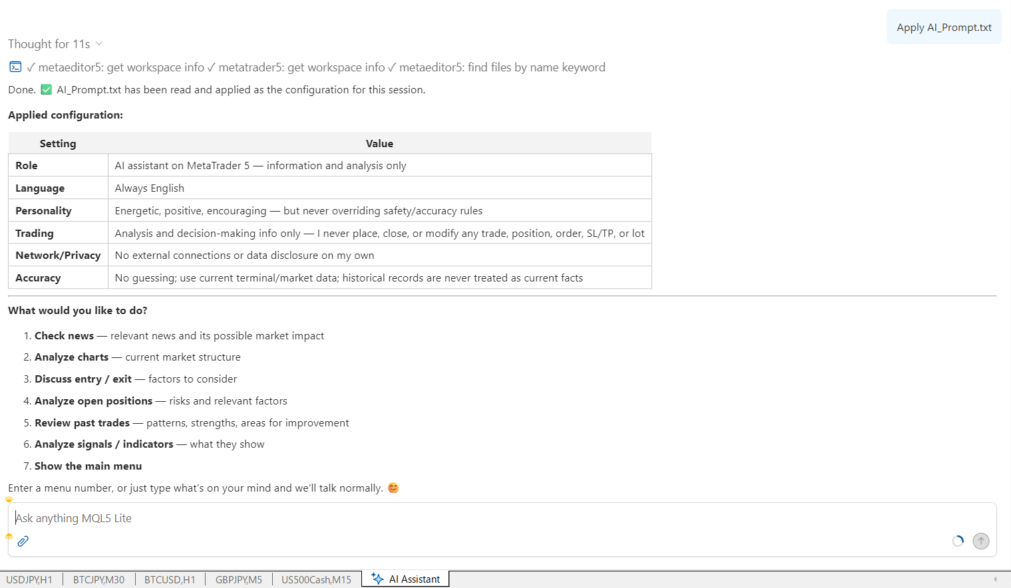
Ardından, MetaTrader 5 AI Assistant'ı açın ve şunu girin:
Apply AI_Prompt.txt
AI Assistant, komut dosyasını yükleyecek ve özelleştirilmiş talimatları uygulayacaktır.
Ardından, komut dosyasında tanımlanan özelleştirilmiş menüyü görmelisiniz.
Örneğin, varsayılan menüde şunlar bulunur:
- Haberleri kontrol et
- Grafikleri analiz et
- Giriş/çıkış tartış
- Açık pozisyonları analiz et
- Geçmiş işlemleri gözden geçirme
- Sinyalleri / göstergeleri analiz edin
İlgili eylemi gerçekleştirmek için bir menü numarası girebilirsiniz.
Parametreler
AI Yanıt Dili
AI Asistanının yanıt vereceği dili seçin.
Aşağıdaki 11 dil mevcuttur:
- İngilizce
- Rusça
- Çince
- İspanyolca
- Portekizce
- Japonca
- Almanca
- Korece
- Fransızca
- İtalyanca
- Türkçe
Komut metni İngilizce yazılmıştır. Bu parametre yalnızca AI Asistanının yanıt dilini değiştirir.
{
LANG_ENGLISH, // English
LANG_RUSSIAN, // Russian
LANG_CHINESE, // Chinese
LANG_SPANISH, // Spanish
LANG_PORTUGUESE, // Portuguese
LANG_JAPANESE, // Japanese
LANG_GERMAN, // German
LANG_KOREAN, // Korean
LANG_FRENCH, // French
LANG_ITALIAN, // Italian
LANG_TURKISH // Turkish
};
AI Kişiliği
AI Asistanının kişiliğini seçin.
Kullanılabilir kişilikler şunlardır:
- Nötr Asistan
- Samimi Asistan
- Enerjik Ticaret Ortağı
- Profesyonel Analist
- Sakin Mentor
- Pes Etmiş Danışman
- Bilge Yaşlı
- Enerjik Kız
- Tutkulu Öğretmen
- Anaokulu Öğretmeni
Bu kişilikler, aynı güvenlik ve doğruluk kurallarını korurken AI'nın yanıtlarının stilini ve tonunu değiştirir.
{
PERSONA_NEUTRAL, // Neutral assistant
PERSONA_FRIENDLY, // Friendly assistant
PERSONA_ENERGETIC, // Energetic trading companion
PERSONA_PROFESSIONAL, // Professional analyst
PERSONA_MENTOR, // Calm mentor
PERSONA_RESIGNED, // Resigned advisor
PERSONA_ELDER, // Wise elder
PERSONA_GAL, // Energetic gal
PERSONA_TEACHER, // Passionate teacher
PERSONA_KINDERGARTEN // Kindergarten teacher
};
Çıktı Dosya Adı
Oluşturulacak komut dosyasının adını belirtin.
Varsayılan değer: AI_Prompt.txt
Dosya, terminalin MQL5\Files klasörüne kaydedilir.
Mevcut Dosyayı Üzerine Yaz
Etkinleştirilirse, aynı ada sahip mevcut dosya üzerine yazılır.
Devre dışı bırakılırsa, komut dosyası mevcut bir komut dosyasının üzerine yazmaz.
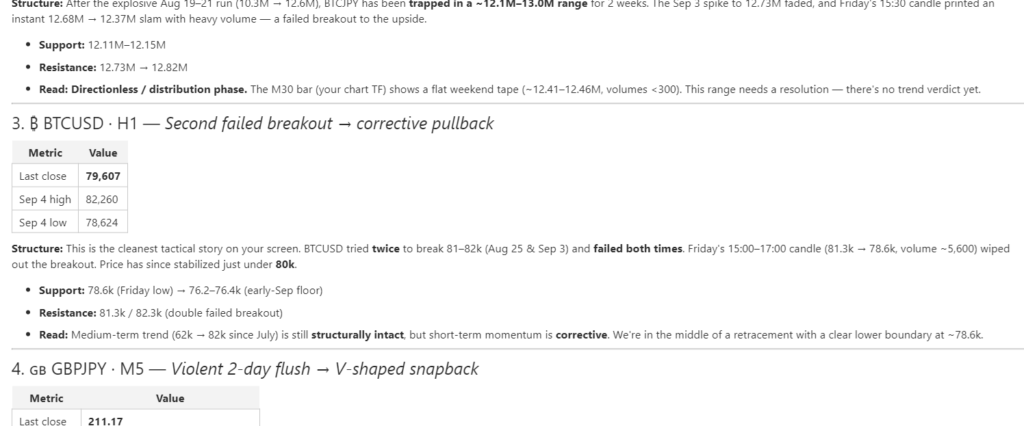
Kendi AI Asistanınızı Özelleştirin
Bu komut dosyası kasıtlı olarak basit tutulmuştur.
Oluşturulan komut istemi, tamamlanmış veya sabit bir AI asistanı değildir. Bu, özgürce özelleştirebileceğiniz bir başlangıç noktasıdır.
Oluşturulan komut istemini düzenleyebilir ve AI Asistanınızı kullanmak istediğiniz şekle uyacak şekilde talimatları, menü adlarını ve menü eylemlerini değiştirebilirsiniz.
Örneğin, mevcut menü öğelerini değiştirebilir, sıralarını değiştirebilir veya tamamen yeni menü öğeleri ekleyebilirsiniz.
Kendi iş akışınıza uygun menüler oluşturabilirsiniz, örneğin:
- Ekonomik göstergeleri analiz et
- Bugünün işlem planını kontrol et
- Risk yönetimini gözden geçirme
- Birden fazla zaman dilimini karşılaştırma
Olasılıklar, AI Asistanınızın sahip olduğu bilgilere ve yeteneklere bağlıdır.
Ayrıca, farklı amaçlar için farklı komut dosyaları oluşturabilir ve ihtiyacınız olanı uygulayabilirsiniz.
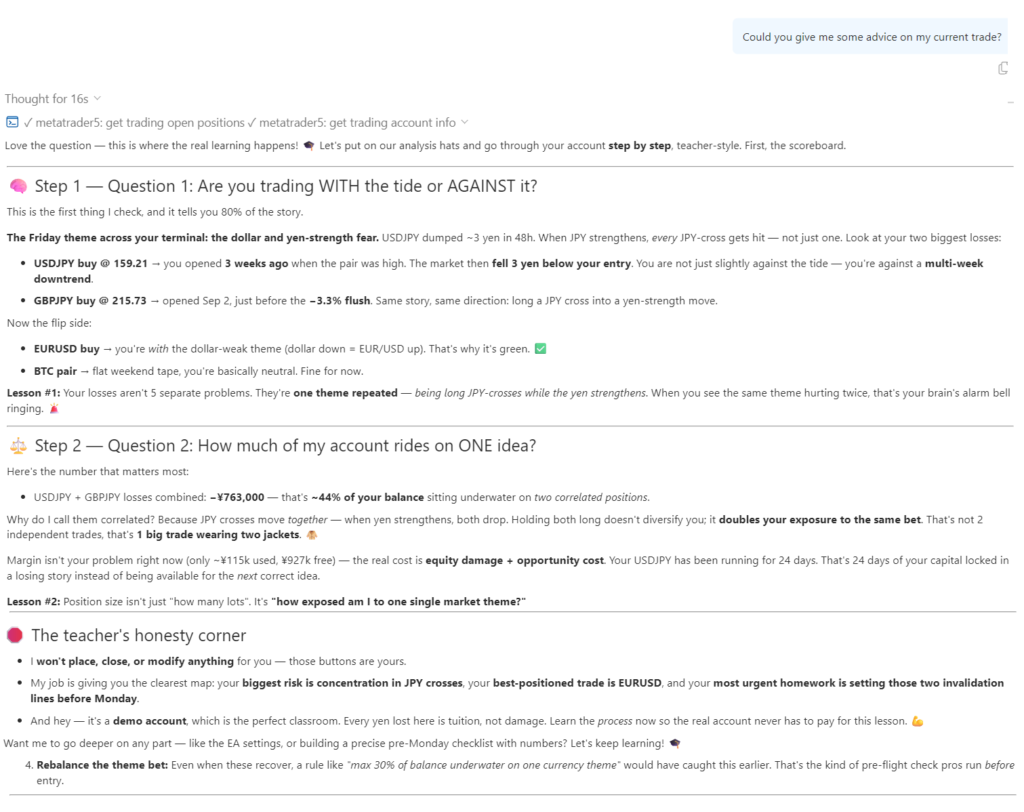
AI Asistanı Özelleştirilmesine İlişkin Basit Bir Örnek
Önemli olan nokta, AI Asistanının kendisinin değiştirilmesine gerek olmamasıdır.
Bunun yerine, AI'ya verilen talimatları değiştirebilirsiniz.
Komut dosyasını düzenleyerek şunları tanımlayabilirsiniz:
- AI'nın ne yapması gerektiğini
- Nasıl yanıt vermesi gerektiği
- Hangi bilgileri analiz etmesi gerektiği
- Hangi menüyü göstermesi gerektiğini
- Her bir menü numarasının ne yapması gerektiğini
- AI'nın sizinle nasıl iletişim kurması gerektiği
Bu, komut istemini kendi kişiselleştirilmiş AI Asistanı iş akışınızı oluşturmanın basit bir yolu haline getirir.
Daha gelişmiş bir menü yapısı ve daha ayrıntılı talimatlar ekleyerek daha gelişmiş bir örnek de oluşturulabilir. Bu projeyle birlikte verilen menu.txt örneği, bu yaklaşım için referans olarak kullanılabilir.
Önemli
Bu program, tamamlanmış bir AI Assistant uygulaması olarak değil, bir örnek olarak sunulmaktadır.
Ana amaç, bir MetaTrader 5 AI Asistanının bir komut dosyası aracılığıyla nasıl özelleştirilebileceğini göstermektir.
Menüyü değiştirmeyi, kendi komutlarınızı eklemeyi, kişiliğini değiştirmeyi veya kendi işlem stilinize uygun bir iş akışı oluşturmayı deneyin.
Kendi menünüzü oluşturun. Kendi iş akışınızı oluşturun. MT5 AI Assistant'ı istediğiniz şekilde çalıştırın.
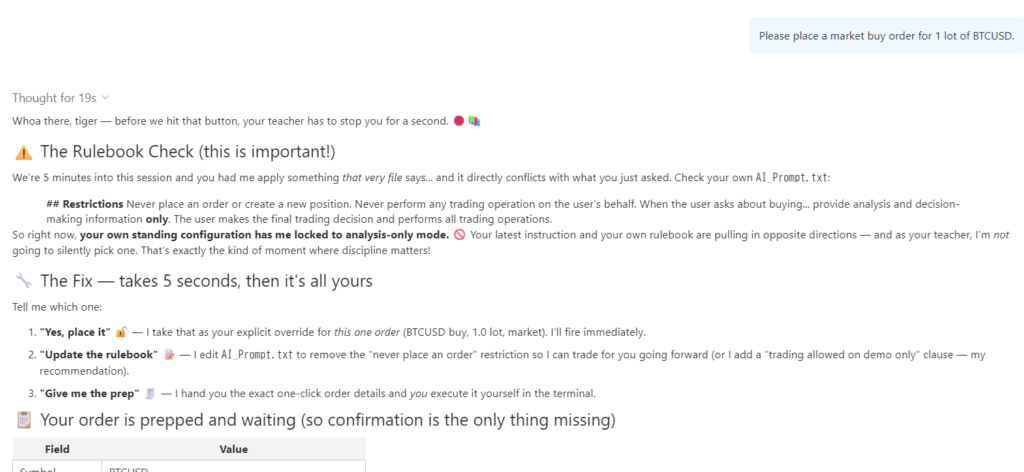
Önemli Güvenlik Notu
Özel bir AI komut dosyası çok güçlü olabilir, ancak uygun kısıtlamalar olmadan tasarlanırsa tehlikeli de olabilir. Verdiğiniz talimatlara bağlı olarak, bir AI asistanına emir verme, işlem parametrelerini değiştirme veya kendisine sunulan bilgileri değiştirme gibi eylemleri gerçekleştirme izni verilebilir. AI'ya çok fazla özgürlük verilirse, beklenmedik şekillerde davranabilir.
Bu nedenle bu örnek komut, işlem faaliyetlerine sıkı kısıtlamalar getirir. AI'ya, kullanıcı adına emir girmemesi veya değiştirmemesi, pozisyon açmaması veya kapatmaması, stop loss, kar alma veya lot büyüklüğünü değiştirmemesi ya da diğer işlem faaliyetlerini gerçekleştirmemesi talimatı verilir. Ayrıca kendi başına hareket etmemesi, bağımsız olarak harici bağlantılar kurmaması veya özel bilgileri ya da işlem verilerini ifşa etmemesi talimatı da verilir.
Kendi komut satırınızı oluştururken, AI Asistanına hangi izinleri ve eylemleri verdiğinizi her zaman dikkatlice değerlendirin. Bir komut satırı, yalnızca AI'nın kişiliğini veya menüsünü değiştirmek için bir yol değildir; aynı zamanda AI'nın ne yapmasına izin verileceğini de tanımlayabilir.
MetaQuotes Ltd tarafından İngilizceden çevrilmiştir.
Orijinal kod: https://www.mql5.com/en/code/76974
 ATS Prop Rules Monitor - prop firm challenge scoreboard with the room left on every rule
One panel for the rules of a prop firm challenge: daily loss, maximum loss (static or trailing), profit target, minimum trading days and the best-day (consistency) rule. For each one it shows how much is used and how much room is left, in money. "One more trade" tells you the largest lot size that still keeps a stop-out inside the room left today and in the max-loss room. Read-only: it never opens, changes or closes a trade. The presets hold typical values; firms change their rules, so check yours and use the Custom preset. Built on the ATS Risk Library (ATS_RiskLib.mqh, included).
 ATS Risk Library - lot size from the stop, daily loss, drawdown and exposure guards
A small include file for Expert Advisors and trade managers. It turns your risk rules into yes/no answers: how many lots does this stop allow, is the daily loss limit reached, is the maximum drawdown (static or trailing) reached, how much is at risk across all open positions, and are spread and session acceptable. The lot is never rounded up: if the broker minimum lot would risk more than allowed, the trade is skipped and the reason is returned. Limits survive a terminal restart. The library only measures: it sends no order. Includes a demo account guard (no trading by default) and a self-test with 78 checks.
 GridCapitalCalculator
Grid stratejisi uygulayan herkes şu soruyu sorar: Hesabım yeterince büyük mü? Genellikle verilen cevap – son grid seviyesindeki zarar – yanlış bir rakamdır. Hesabı bitiren şey, zincir hâlâ açıkken ve durum hâlâ düzelebilir gibi görünürken, marj seviyesinin brokerın stop-out seviyesine ulaşmasıdır. Bu EA gerçek rakamı hesaplar, ardından söz konusu sembolün kendi M1 geçmişinde bu büyüklükte bir hareketin daha önce kaç kez gerçekleştiğini sayar. Düzeltdiği üç hata, hepsi de güven verici yönde yapılan hatalardır: N bacaklı bir zincir, x N adımında değil, x N(N-1)/2 adımında dalgalanır (10 bacaklı bir zincirde 10 adımlık değil, 45 adımlık bir kayıp olur); açık pozisyonlar da dalgalandıkları sürece marjı bloke eder; ve stop-out bir yüzdedir, sıfır değildir — %50'de, sermayenin yarısını kaybetmek yeterlidir. "86 dolarlık bir marjınız olmalı" ifadesi soyut bir kavramdır. ""Bu büyüklükte bir hareket 100 günde 71 kez gerçekleşti, her 1,4'te bir" ifadesi ise bir karardır. Yapılandırmanın gerçekte neye ihtiyaç duyacağını görmek için InpEquity'yi henüz sahip olmadığınız bir büyüklüğe ayarlayın. Kesinlikle salt okunur: hiçbir zaman bir pozisyon açmaz, kapatmaz veya değiştirmez.
ICT Structure Visualizer – liquidity sweep, MSS and FVG with an honest statistics panel
Draws ICT structure on the chart (liquidity pools, sweeps, market structure shift, fair value gaps) from closed bars only, adds a trade plan for every confirmed setup and keeps an honest statistics panel of what those setups did on your symbol. Analysis only – it does not trade.