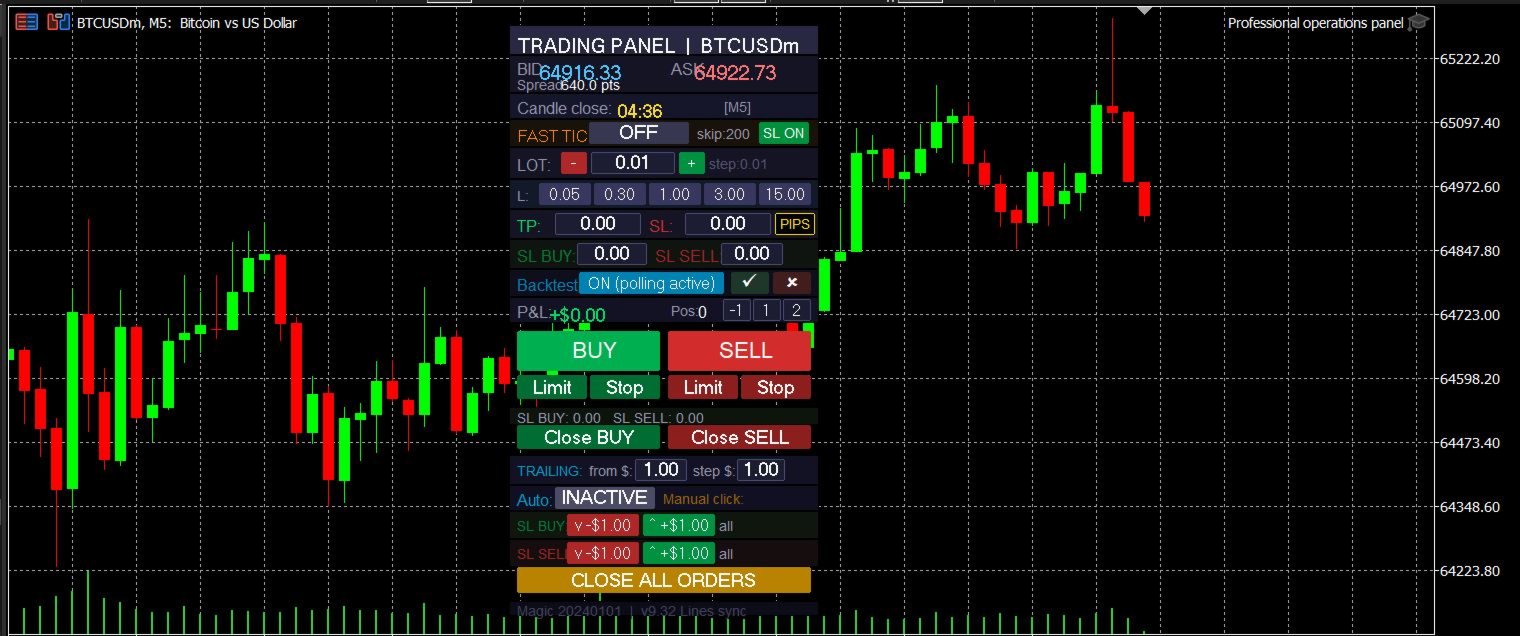
Professional operations panel
- Utilitários
- Versão: 9.33
- Ativações: 5

Professional Operations Panel (MT5)
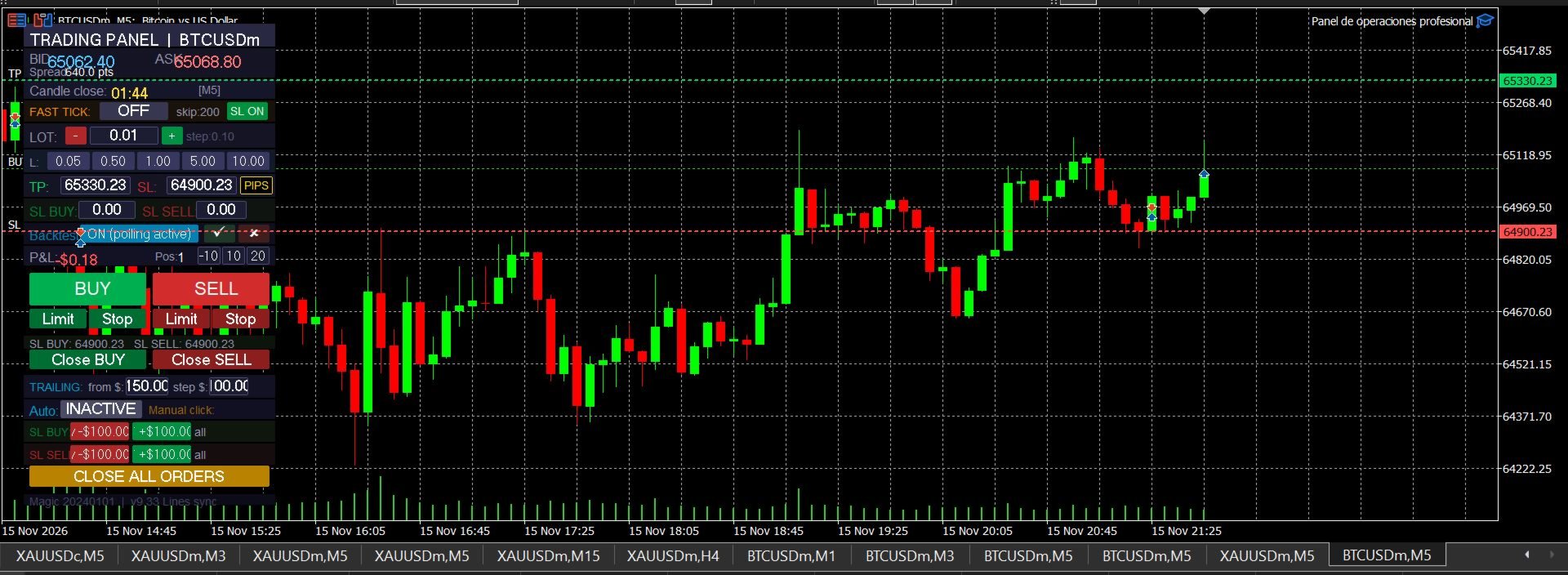
Professional Operations Panel is an all-in-one visual utility for manual execution and risk management, designed for high-speed scalping and for practicing in the Strategy Tester. It combines one-click trading with interactive chart lines.
Key Features
- Real-time market info: active symbol, live BID / ASK, spread in points, active timeframe, and a candle close countdown.
- Chart lines in sync: TP, SL, SL BUY and SL SELL are drawn as draggable horizontal lines. Moving a line updates the fields and the open positions. If an SL/TP is changed from the terminal or mobile app, the lines update by themselves (Lines sync).
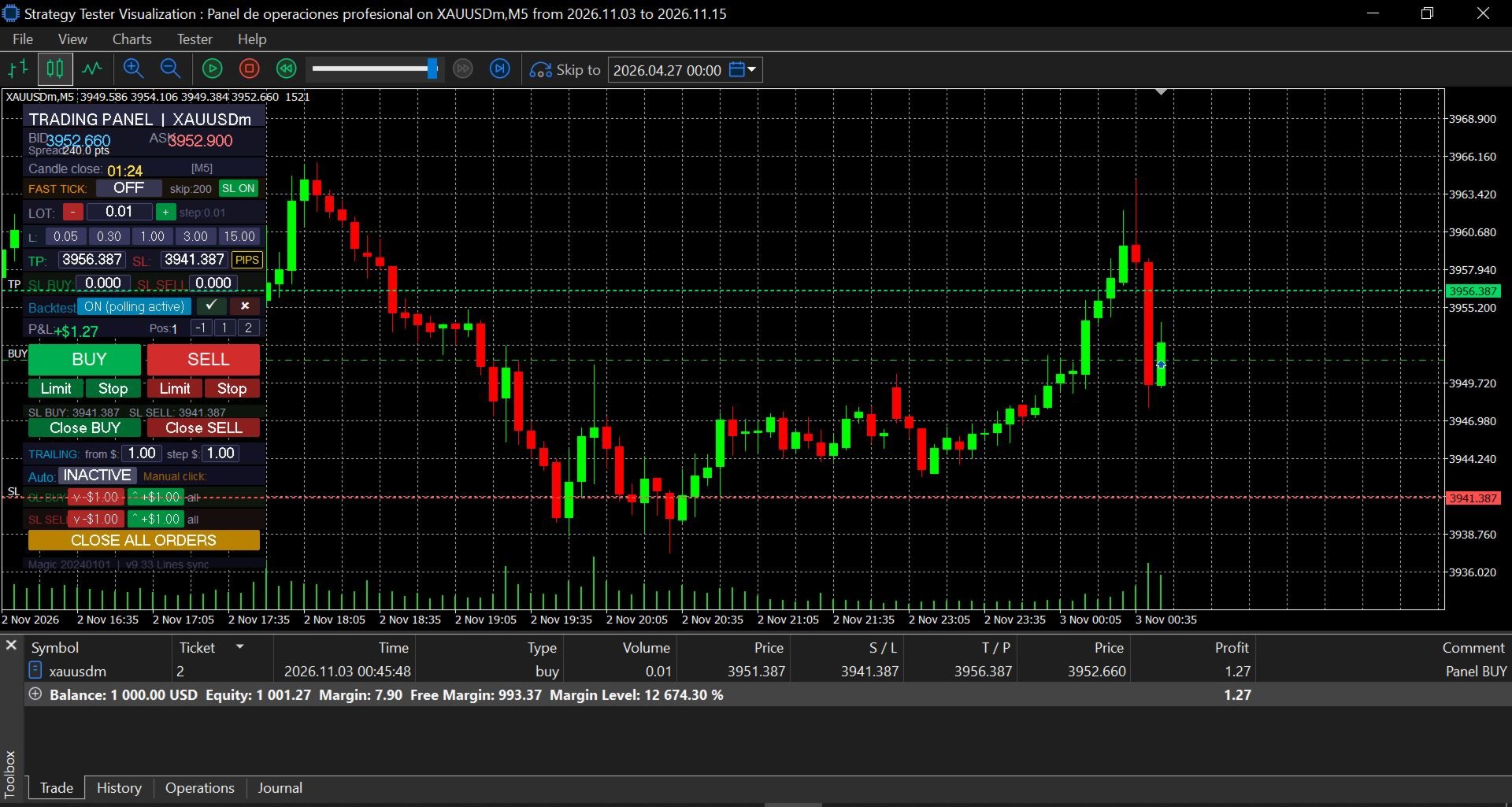
- Strategy Tester support: Backtest Mode reads the buttons by polling, so the panel works inside the MetaTrader 5 Strategy Tester.
- English and Spanish interface: choose the panel language with the InpLanguage input.
Buttons & Controls
1. Performance
- FAST TICK (ON / OFF) and skip: reduces how often the panel is redrawn ( InpFastTickSkip ) to save CPU during high volatility or fast backtests. Trading functions still run on every tick.
2. Lot Size & Presets
- LOT (- / +): adjusts the volume by the configured step ( InpLotStep ). You can also type the value.
- Presets (0.05, 0.50, 1.00, 5.00, 10.00): five configurable buttons to set the lot with one click.
3. Take Profit & Stop Loss
Note on pips: in this panel, 1 pip equals 1 price unit (for example, from 4000 to 4005 is 5 pips), regardless of how your broker defines a pip for that symbol.
- TP and SL fields: exact target and stop prices for new orders. Changing the price also applies it to open positions.
- SL BUY and SL SELL: exact SL price per direction. They take priority over the general SL.
- PIPS button: applies TP and SL in pips ( InpPipsTP / InpPipsSL ), measured from the open price, to open positions and to the panel’s pending orders.
- Quick SL (-10, 10, 20): three editable pip values relative to the open price (negative = below, positive = above). Pressing one moves the SL of open positions to that distance, useful for break-even or locking in profit.
- SL ON / OFF: enables or disables the three Quick SL buttons.
4. Backtest
- Backtest (ON / OFF): turns polling mode on or off for the Strategy Tester.
5. Execution & Closing
- P&L and Pos: floating profit or loss (swap included) and the number of open positions on the current symbol.
- BUY / SELL: instant market execution with the selected lot and TP/SL.
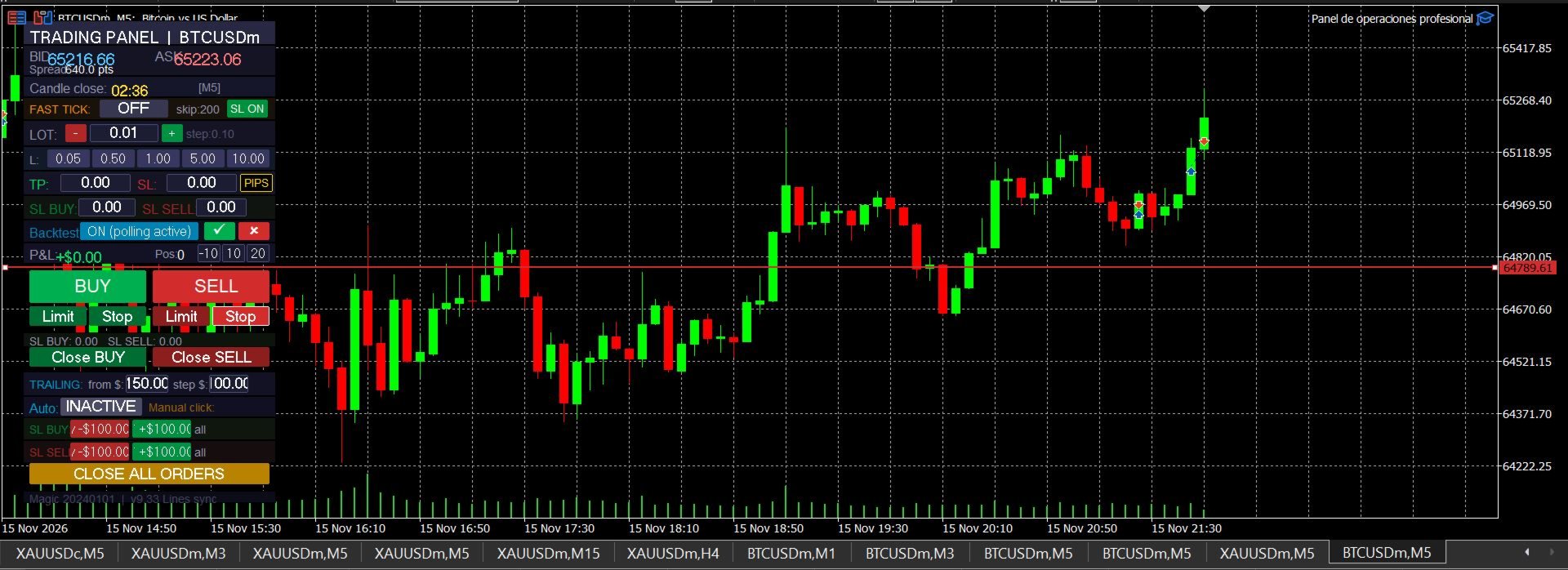
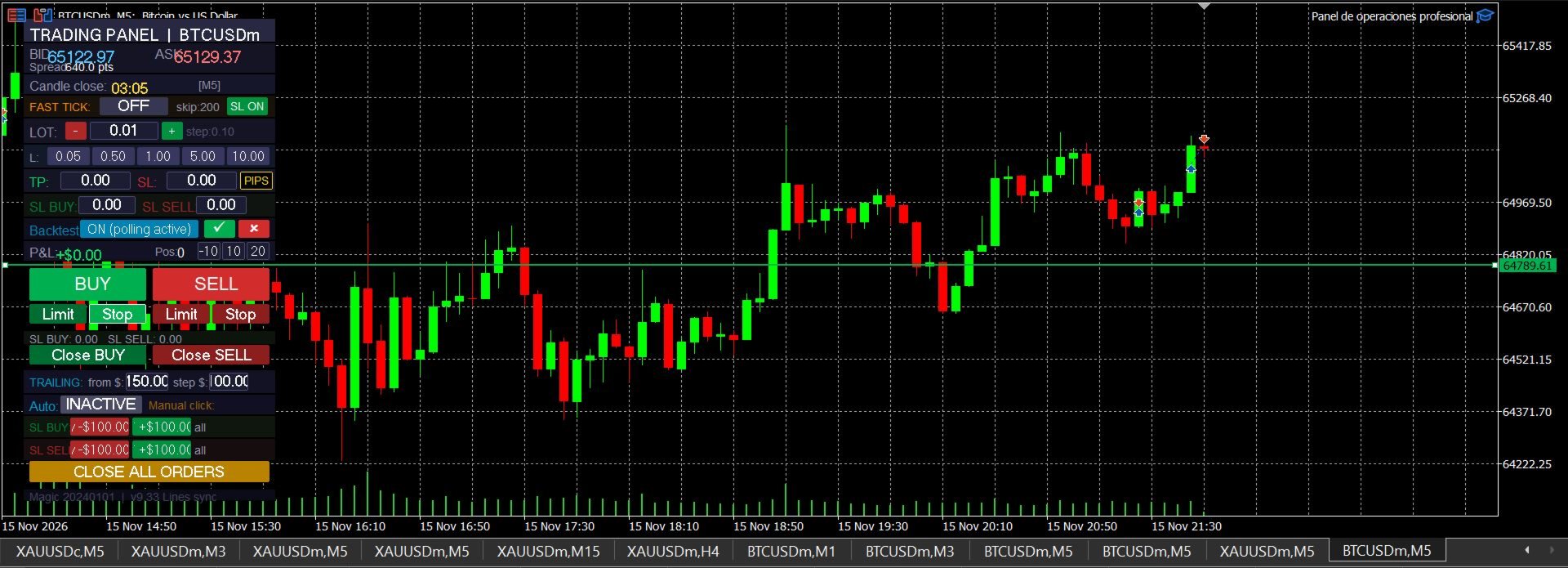
- Limit / Stop (Buy and Sell): create a draggable line on the chart at the initial distance InpPendingOffset . Drag it to the price you want, confirm with ✓ to send the pending order, or cancel with ✗.
- Close BUY / Close SELL: closes all Buy positions or all Sell positions on the symbol, independently.
6. Trailing & Close All
- TRAILING (from $ / step $): dollar-based trailing stop applied to each position. When its profit reaches the from $ amount, the SL follows at a distance equal to the step $ and only moves in your favor. Switch it on and off with the ACTIVE / INACTIVE button.
- Manual click (SL BUY / SL SELL, v -$ / ^ +$): lowers or raises the SL of all Buy or all Sell positions by the dollar step.
- CLOSE ALL ORDERS: closes all positions on the symbol, deletes the panel’s pending orders, and cancels any pending order being prepared.
Global Protection (by parameters)
- With InpUseGlobalTP and InpUseGlobalSL , all positions are closed when the total result reaches the target ( InpGlobalTPUSD ) or the maximum loss ( InpGlobalSLUSD ). It triggers once and then switches off.
Input Parameters
- Language & General: InpLanguage , InpLotSize , InpLotStep .
- Custom lots: InpPresetLot1 to InpPresetLot5 .
- TP / SL & pips: InpDefaultTP , InpDefaultSL , InpSLBuy , InpSLSell , InpPipsTP , InpPipsSL , InpSLQuickOn , InpSLQ1 , InpSLQ2 , InpSLQ3 .
- Protection & trailing: InpUseGlobalTP , InpGlobalTPUSD , InpUseGlobalSL , InpGlobalSLUSD , InpTrailTriggerUSD , InpTrailStepUSD .
- Pending & performance: InpPendingOffset , InpBacktestMode , InpFastTickSkip , InpUseFastMode , InpFastModeTicksPerSecond .
- Layout: InpPanelX , InpPanelY .
Conclusion
Professional Operations Panel is aimed at traders who already have experience trading manually. It groups the main execution and risk controls in one window: lot size, TP and SL, pending orders, trailing and closing, with labeled buttons and draggable chart lines to set levels. It does not generate trading signals or decide entries: every operation is opened and managed by the trader. Trading involves risk, and the panel makes no promise of results. Test it in the Strategy Tester before using it on a live account.