TradingCockpit
- 유틸리티
- 버전: 3.0
- 활성화: 5

Trading Cockpit is a manual trading panel for MetaTrader 5: order entry, lot sizing, trade management and a journal.
It places orders, sizes positions, manages stops and targets and records your closed trades, from one window on the chart. It produces no entry signals and no buy or sell recommendations, so you choose every trade yourself. Several parts of it do act on their own once you switch them on, and each is described below: trailing, breakeven, the close rules, the grid engine and the funded account guard.
Strategy Tester
Attention. The panel cannot be operated in the Strategy Tester. MetaTrader 5 does not pass mouse or keyboard input to an Expert Advisor there, so the buttons do not respond. This is a property of the platform and applies to every panel of this kind. Trading Cockpit is made for a live or demo chart in the terminal, with algorithmic trading enabled. Screenshots and a video of the panel in use are included with this listing.
Order entry and position sizing
Market orders. BUY and SELL send a market order on the chart symbol with the lot, stop loss and take profit set on the panel, and a card on the chart confirms the fill price or shows the return code and comment from your broker. Both levels are checked before the order is sent, so a level on the wrong side of price, or inside the minimum stop distance of your broker, is reported instead of sent.
Lot and levels. Volume is sized as lots per 1000 units of account equity, a fixed cash risk, a percentage of equity, or a percentage of balance, and it is rounded down to the volume step of your broker. Stop loss and take profit are entered in pips or in multiples of the Average True Range, one button converts the values already on screen between the two units, and a reward multiple places the take profit at that multiple of the stop distance.
Closing and reversing. CLOSE percent, CLOSE BUY, CLOSE SELL, CLOSE ALL and DELETE ORDERS clear part or all of the book in one press. REVERSE closes the open positions and reopens the same volume on the other side, mirroring the original stop distance when the position had one, and without a take profit. These buttons act on the trades the panel opened on the chart symbol, and All Magics in Settings extends them to manual trades and to trades from other Expert Advisors on that symbol.
Working on the chart
Order ticket. The pencil button draws an order ticket on the chart: an entry line, with take profit and stop loss lines. Drag a line and the panel values follow, and each level reads out its distance in points, its share of equity and its cash value at the selected lot. In pending mode the entry line relabels itself buy stop, buy limit, sell stop or sell limit according to where you drop it, and pending orders from the panel are day orders. The OK icon sends exactly what you drew and shows the answer from the server.
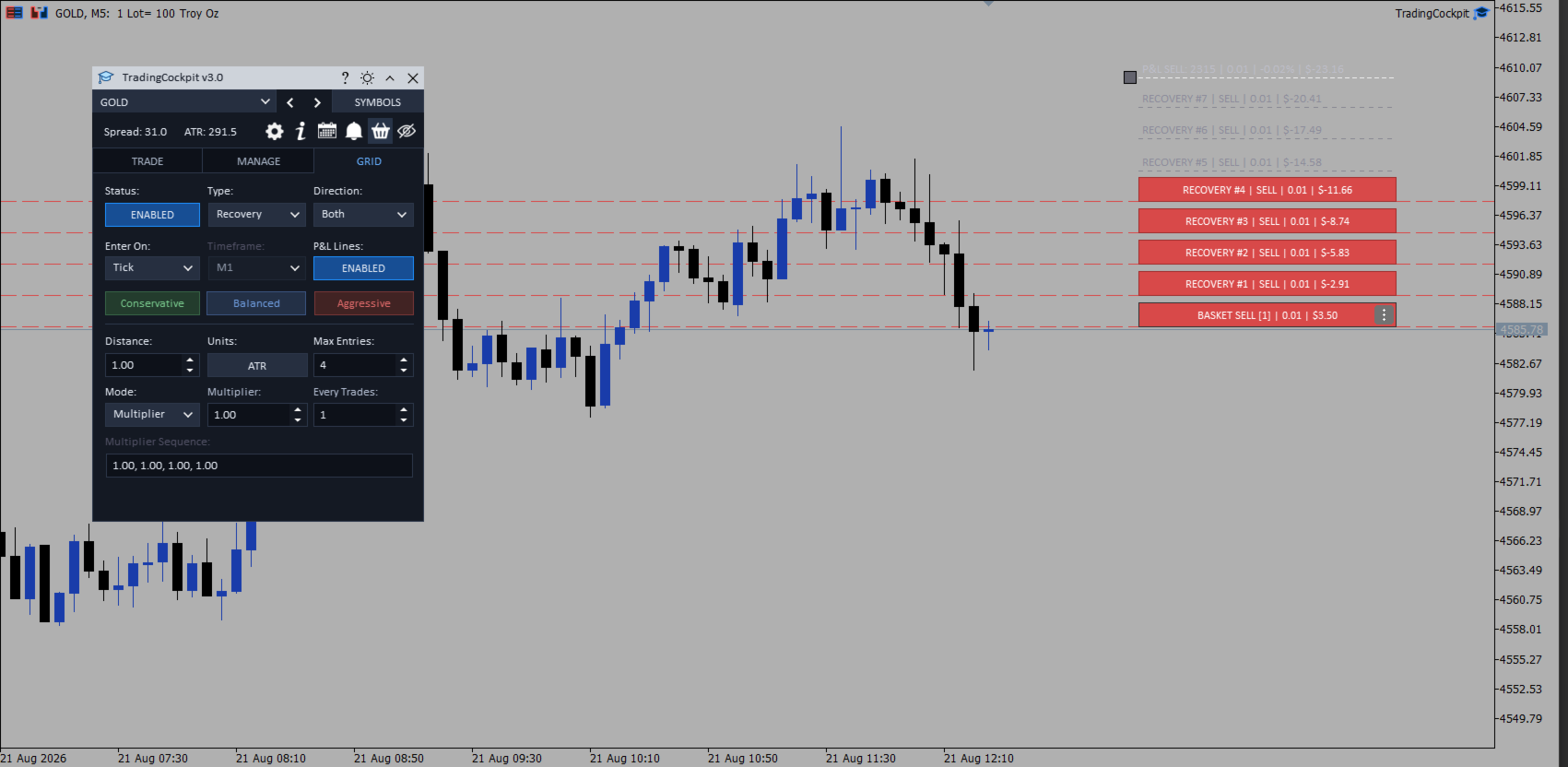
Trade bars. Each open trade gets a bar on the chart with its direction, points moved, lot size and running result in cash, and a pending order shows its type and its distance from price. Up to twenty trades are tracked at once. Drag a stop or target bar to modify it, use the menu on the bar to close the trade, close a percentage, scale out or move to breakeven, and changes made from the terminal or from a phone appear on the next tick. Basket mode collapses the positions into one buy bar and one sell bar at the weighted average entry, and dragging a basket level writes that price to every position on that side; trailing and breakeven are suspended while basket mode is on. The scale out ladder sets up to five profit levels and five loss levels, each with its own lot size, for up to sixteen trades at a time.
Trailing stop, breakeven and closing by rule
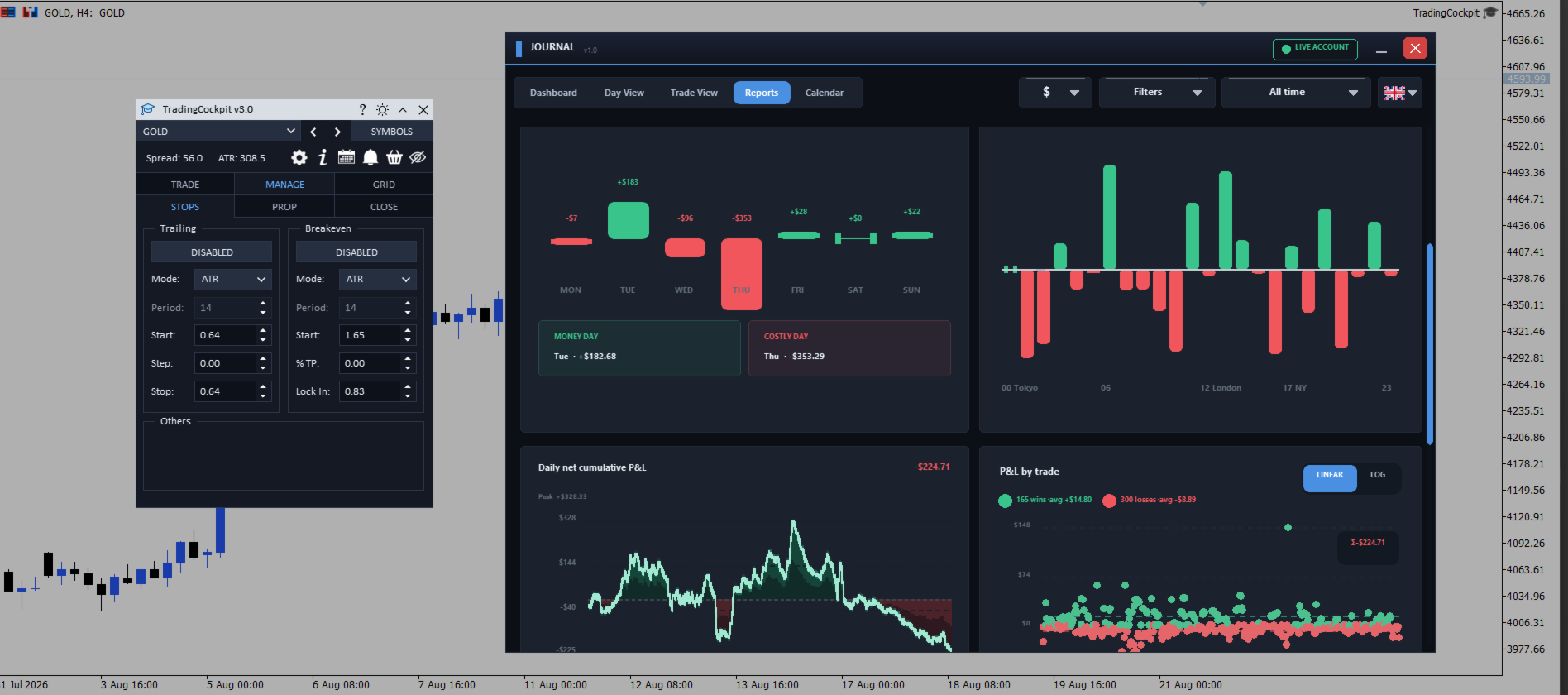
Trailing and breakeven. Trailing follows a fixed pip distance, an Average True Range multiple, the high or low of the last completed bars, or a moving average, and with every method the stop can only move in your favour. Breakeven triggers on pips, an Average True Range multiple, half the recent swing range, or the moving average reaching entry, and a Lock In distance can place the stop past entry rather than exactly on it. The two are alternatives, so arming one switches the other off.
Close rules. The Close tab shows a live table for buys, sells, winners, losers and everything, with the floating result in cash, the same figure as a percentage of balance, and the trade count, on two scopes: the current symbol and all symbols. Close All If closes the positions in a scope once floating profit or floating loss reaches a cash figure or a percentage of balance, and an account wide daily loss limit is available on the all symbols tab. These rules close every position in scope, winners included, and they cover paper trades alongside real positions; positions owned by the grid engine are closed by the grid exits instead.
Trailing, breakeven and the close rules are worked out in the terminal on incoming ticks of the chart symbol, including the rules set for all symbols. They run only while the terminal is running and are not a replacement for a stop loss held at your broker.
Grid and recovery engine
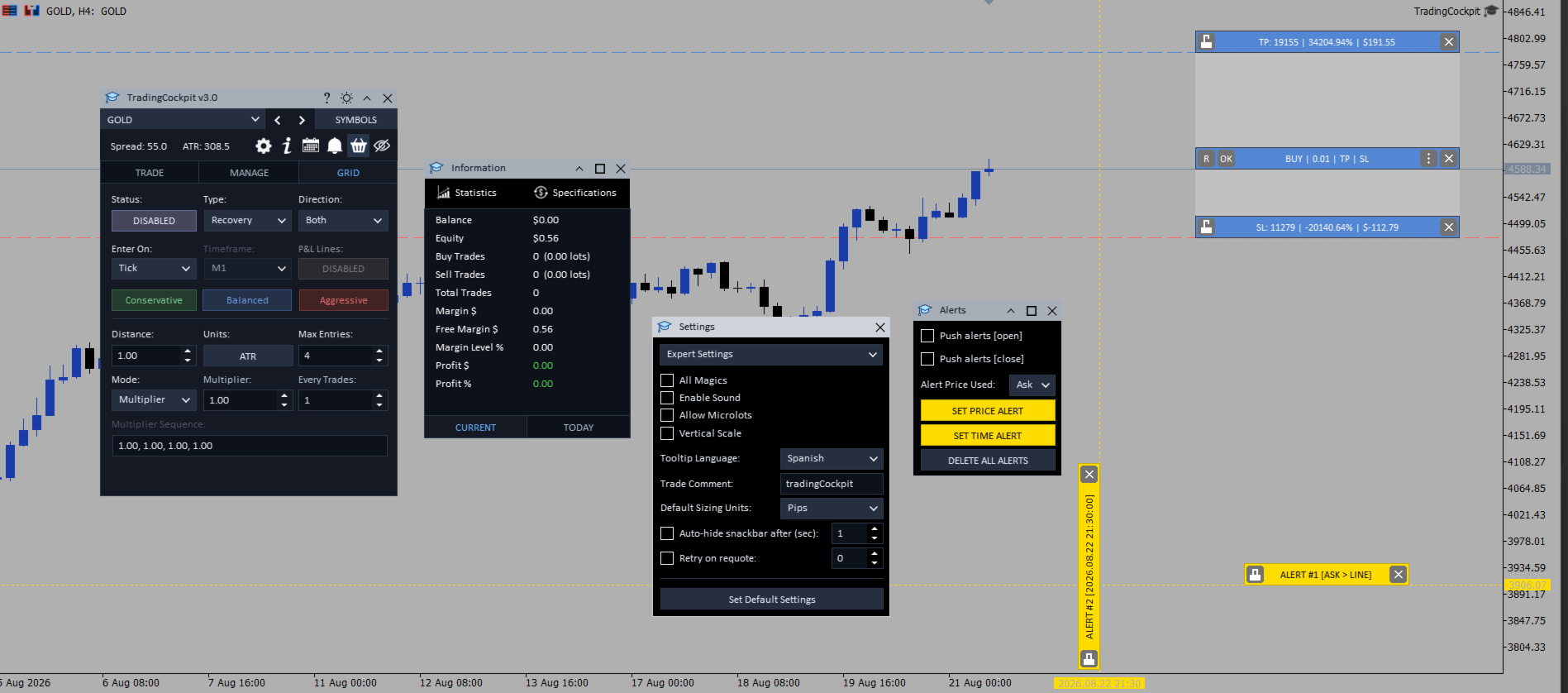
The grid engine is optional and does nothing until you arm it. Recovery and Martingale add to the losing side, Stack adds to the winning side, Hedge builds a two sided position from one anchor, Zone Recovery changes direction at the edges of a zone, and Dual Grid runs both ladders at once. Entries are evaluated on every tick, on candle close or on candle open, on a timeframe of your choice. Spacing is set in Average True Range multiples or fixed pips, the lot ladder can multiply the previous lot, add a fixed amount or follow a sequence you type, and a Max Entries cap limits each ladder. A cash target and a cash maximum loss close the basket on position profit plus swap, with commission not included, and the maximum loss is required on every strategy. Preview bars show where the next entries would open, up to four per side. The exposure limits are fixed and are not inputs: a rung that would need more than half your free margin is skipped, a single entry is capped at five lots, the combined two sided position at twenty lots, and the panel tracks at most twenty open trades.
Before you arm it. Dual Grid sends real market orders to seed whichever side is missing, at the moment you enable it. When the engine is armed it takes ownership of the tracked positions already open on that symbol, so its target and maximum loss exits can close them as well, while positions opened after arming are not adopted. The grid configuration, including the on and off state, is saved, so the engine arms itself again against your existing positions after a reload.
Funded account limits
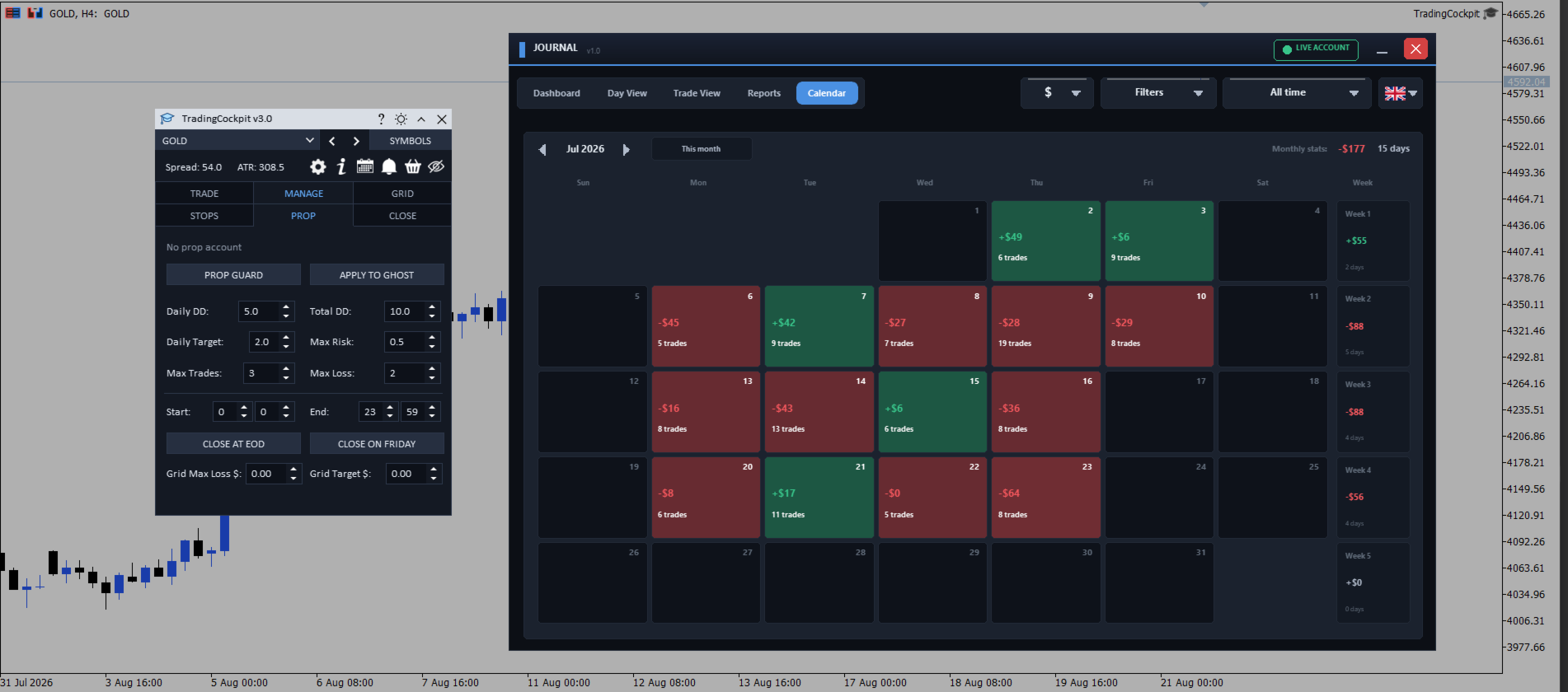
The Prop tab, named after the proprietary trading firms whose rules it is meant to mirror, holds limits you set for yourself, armed by one master switch; while that switch is off, nothing on the tab has any effect. Daily and overall drawdown limits are set as percentages, measured against the opening equity of the server day and against a peak equity mark the panel records. On a breach the panel closes open positions across the account, deletes pending orders, disarms the grid, notifies you and blocks new entries from the panel, the chart ticket and the grid for the rest of the server day. A daily profit target blocks new entries once equity is up by your percentage; that check is live rather than latched, so the block lifts again if equity falls back under the target.
Risk per trade is capped as a percentage of equity, worked out from your lot and stop distance, and orders that are too large, as well as orders with no stop loss, are refused; this check covers the BUY and SELL buttons, the chart order ticket and REVERSE, while grid rungs are governed by the grid limits instead. Further limits cover the number of trades per day and a losing streak, counted across the account from the deal history of the day, and a session window in server time, with an option to flatten the chart symbol at your end time and on Friday. Apply To Ghost extends the same blocks and the same risk cap to paper trades.
The tab reads the server and company name of your account and shows a matching label for a number of funded account providers. It is a label only. It does not change what the panel does, it does not load the rules of any firm, and you remain responsible for the limits you enter.
Paper trading
One switch turns BUY, SELL and the chart ticket into simulated trades, using the same lot and the same levels the panel would have sent, and nothing reaches your broker. Pending orders are not simulated and are refused with a message while the switch is on, and REVERSE is always live, so it sends real orders even while paper trading is on.
Paper trades get their own bars with live points, lots and floating cash, their levels drag in the same way, and they close themselves when price reaches the virtual target or stop. Breakeven, trailing, close by percentage and the scale out ladder all work on them. They are restored after a timeframe change, and from a file after a restart; if they return while the switch is off, paper trading arms itself again and tells you how many were restored, so that the next BUY cannot send a real order onto a chart that looks simulated. A separate window lists the open paper trades, including those on your other Trading Cockpit charts, although only the chart that owns a trade can close it.
Journal and statistics
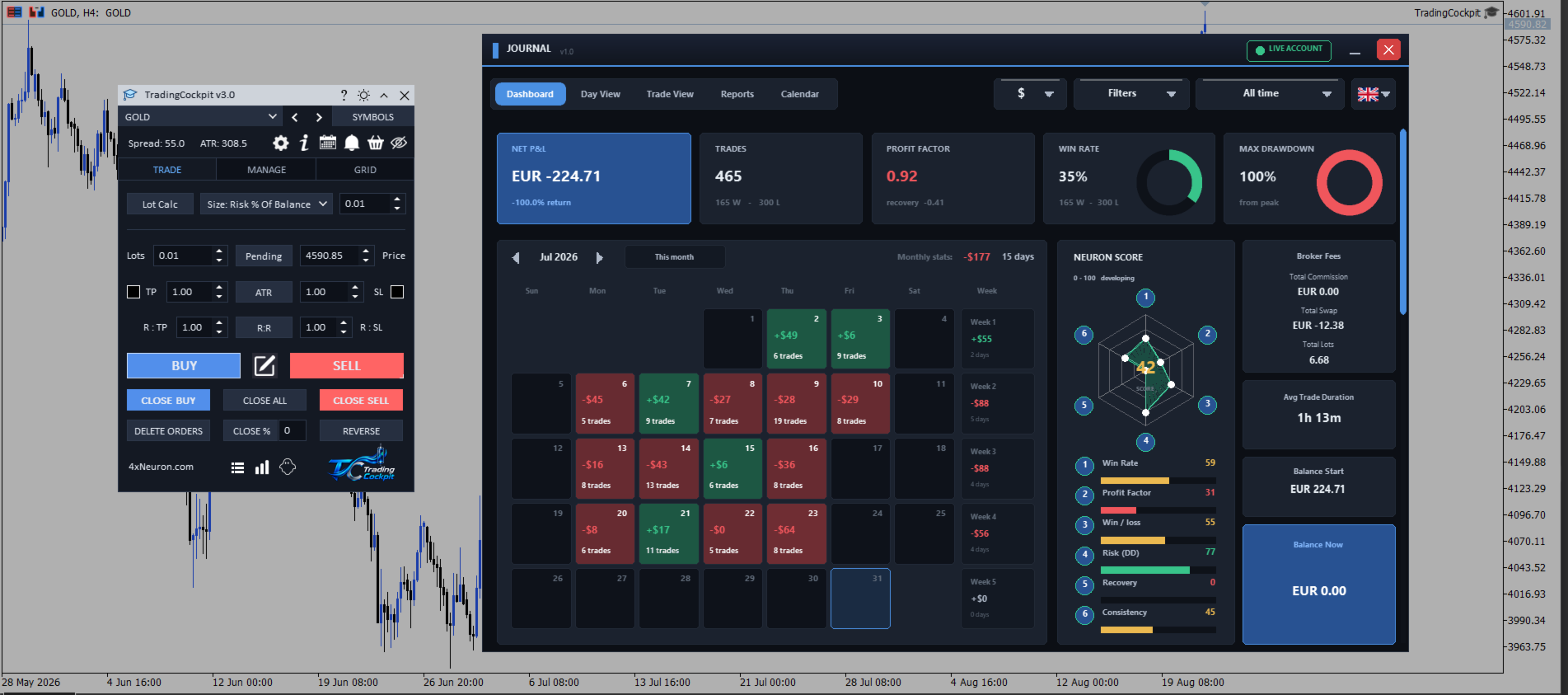
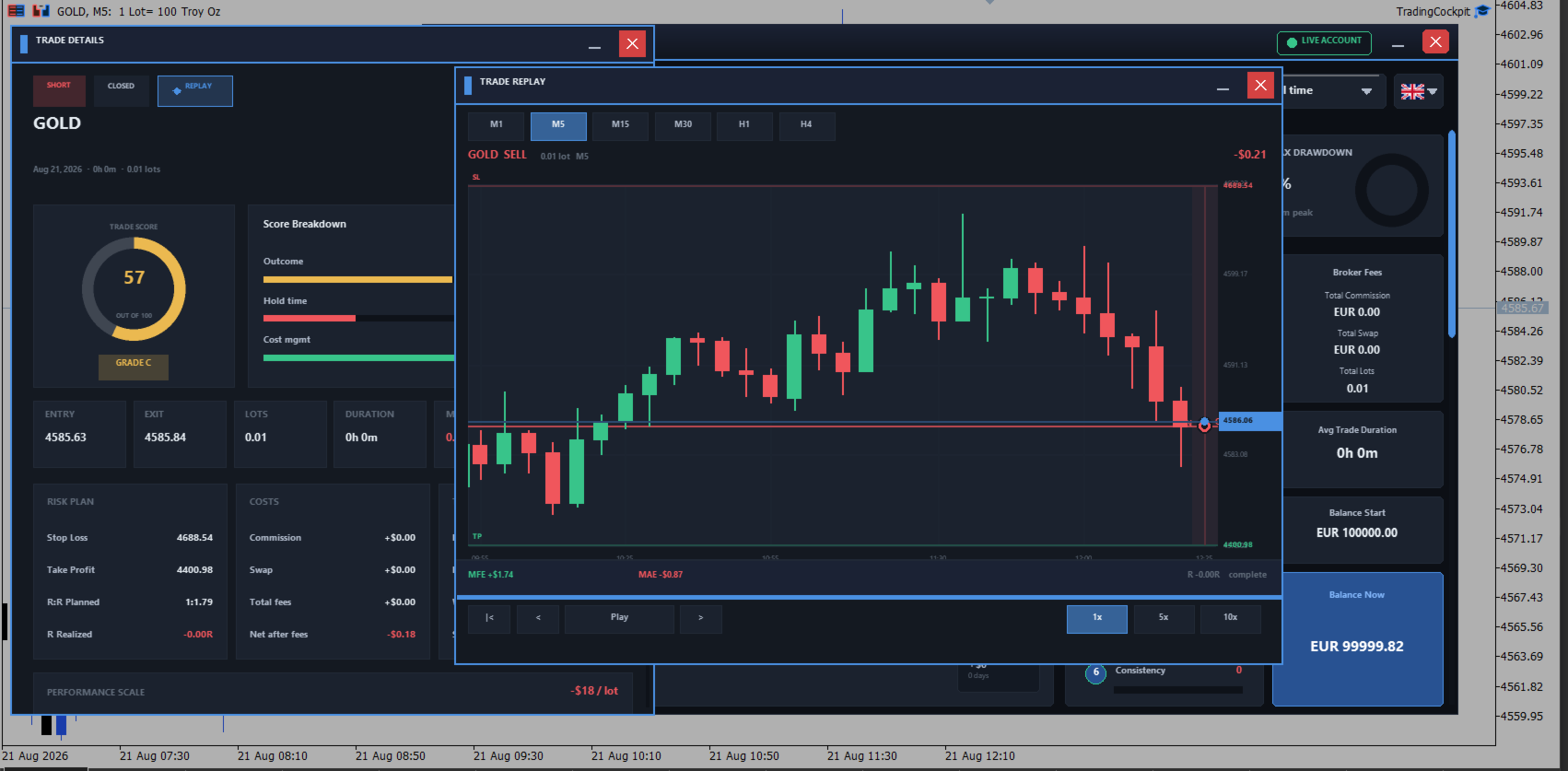
The journal is built from your closed trade history and has five sections: dashboard, day view, trade view, a performance report and a month calendar of results. It is read only and never places or modifies an order. The figures cover net result and percentage return, wins and losses, profit factor and recovery factor, win rate, maximum drawdown, commission, swap, volume traded and average trade duration. The Neuron Score rates six factors out of 100, from win rate to consistency; it is the scoring system of this product and not an industry standard.
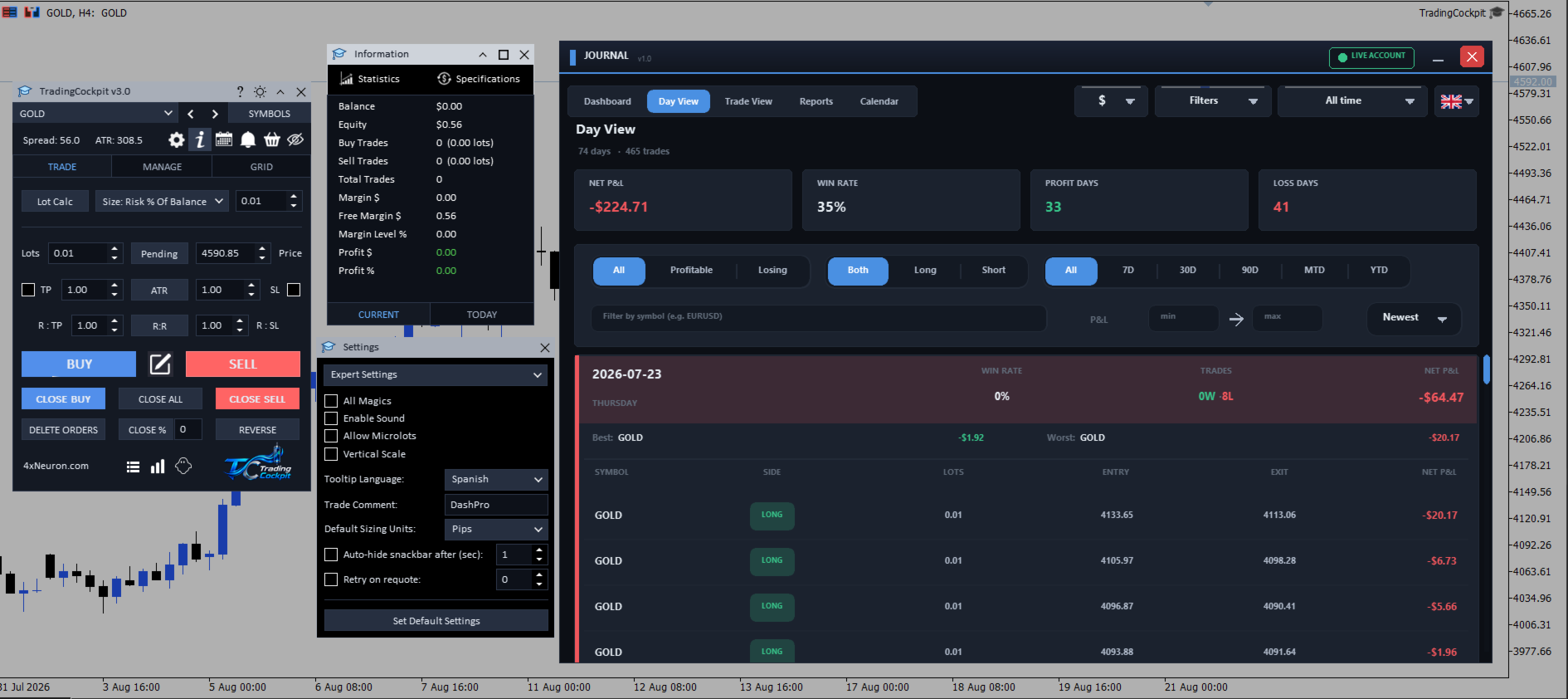
Click a day in the calendar for the trades closed that day, then a trade for a breakdown with entry, exit, lots, duration, price move, costs and timing, a grade from A to F, the stop and target recorded on its orders, the planned and realised reward multiple, and a marker for trades taken without a stop. Notes can be typed under any trade and are kept in a file on this terminal, with no export and no synchronisation.
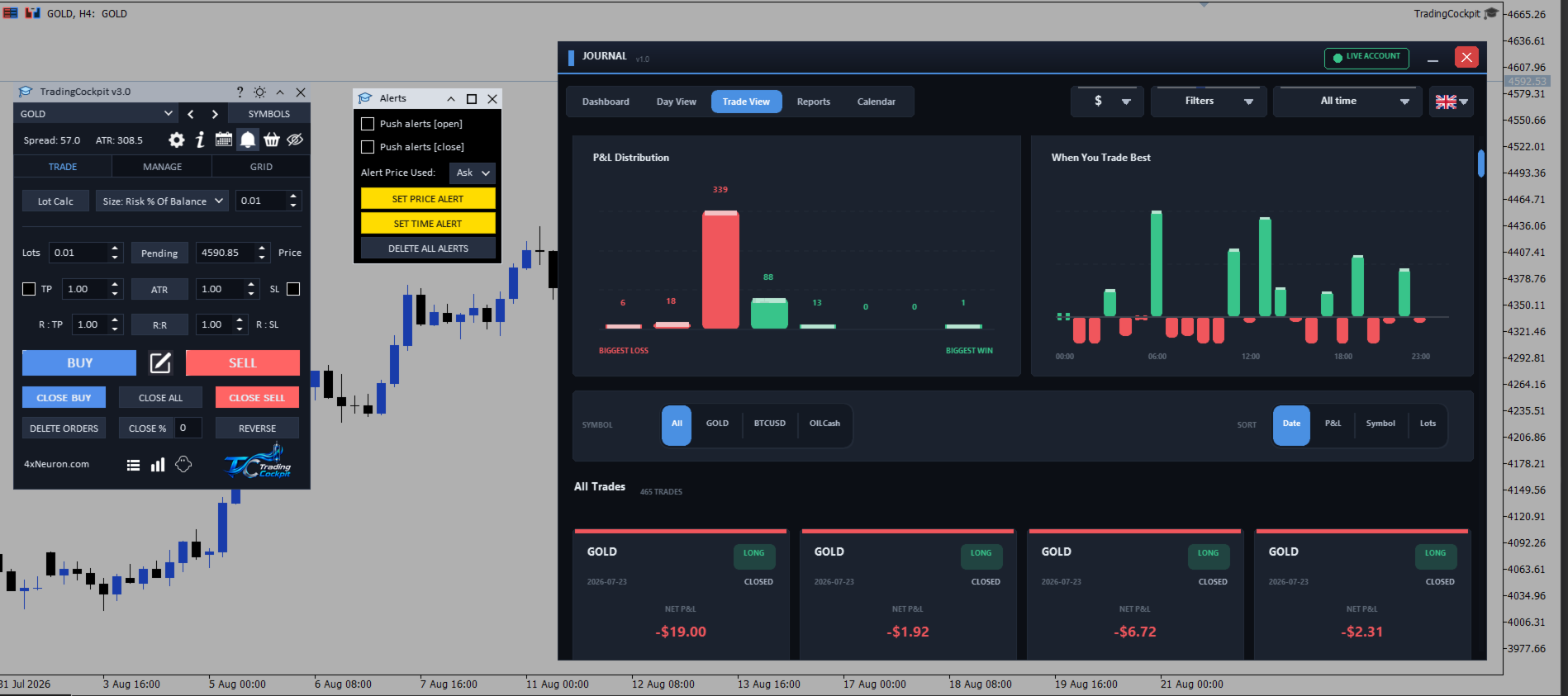
The charts cover the cumulative result, a consistency map of the last fifteen weeks, plain language insight cards, results by symbol, by direction and by hour of day, and a per trade scatter that opens the trade when you click a point. Filters cover ten date ranges plus direction, result and symbol, and values can be shown in account currency, percent, pips, or a privacy mode that masks amounts for screenshots. A separate statistics window compares cumulative profit curves per symbol next to the classic report. Journal labels are available in fourteen languages with ten selectable fonts, and some short controls remain in English.
Calendar, account and symbol information
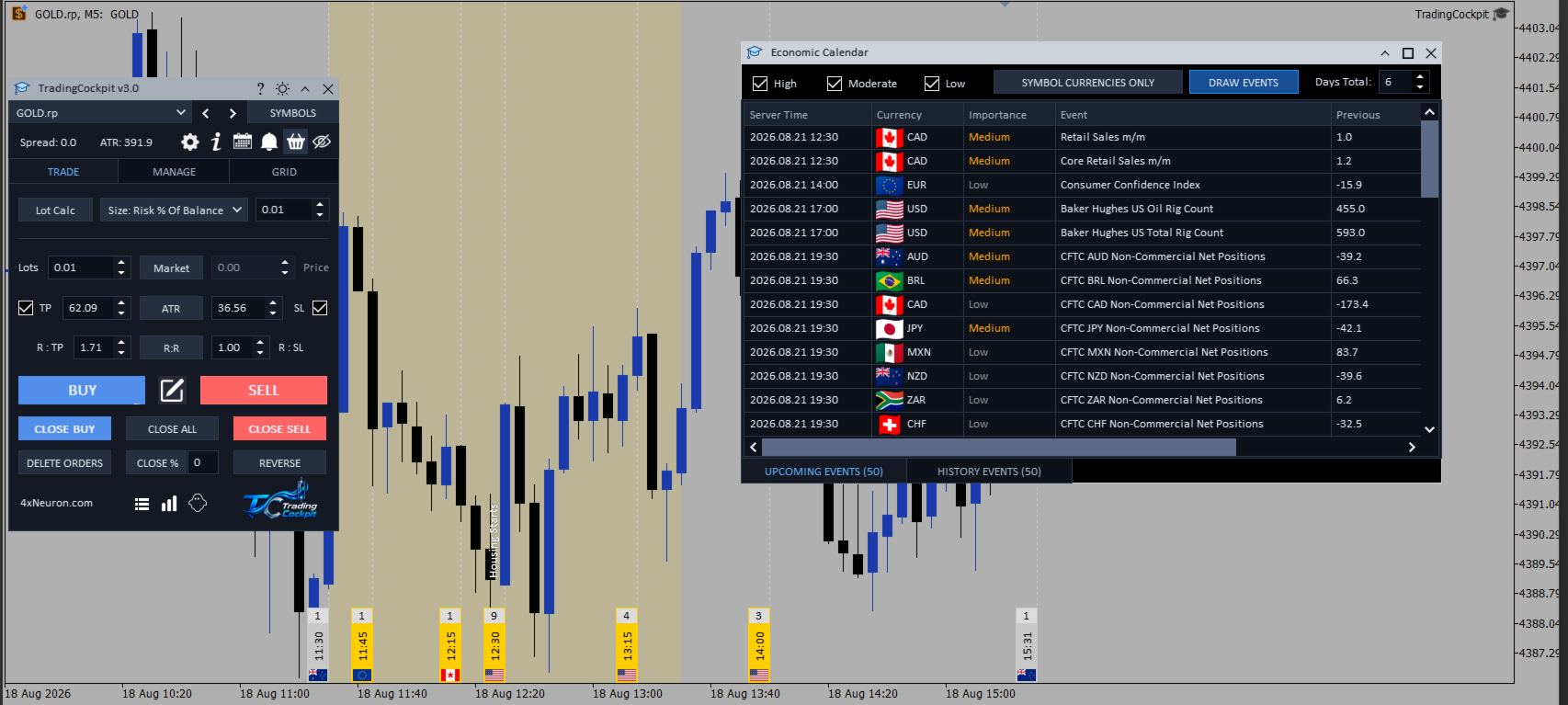
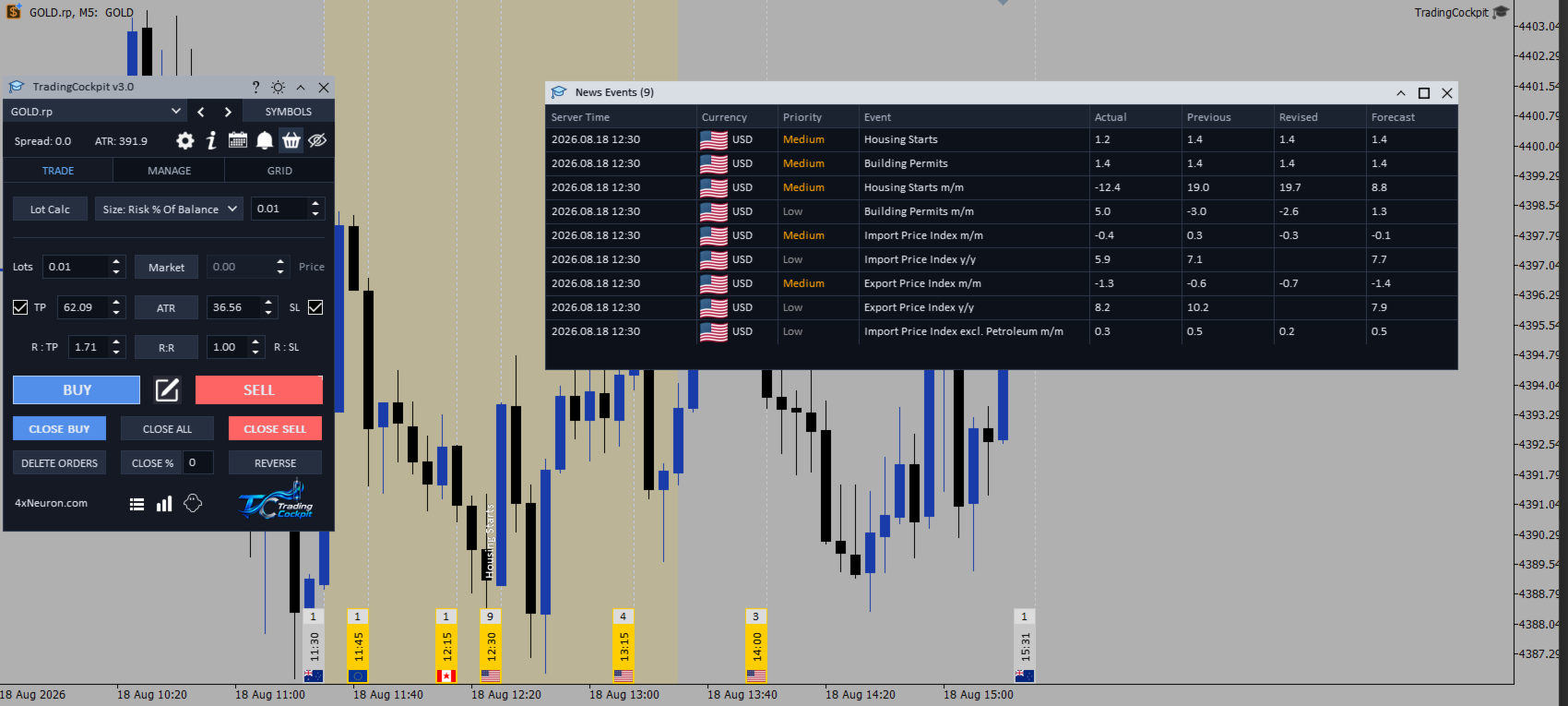
A calendar window with upcoming and history tabs lists up to fifty events each over the next and last six days, with date and time, currency, importance, event name, previous, actual and forecast, filtered by importance or by the two currencies of the chart symbol. Draw Events marks releases on the price chart with a dotted line and a colour coded strip carrying the event count, the time and a country flag, covering nineteen major economies, and clicking a marker shades the period around that release.
The panel also shows the current spread, an optional countdown to the close of the current bar, optional lines marking the closest prices at which your broker will accept a pending order, an account panel with balance, equity, margin, open result and the figures of the current day, a sortable specifications window for your Market Watch symbols, and optional overlays that mark your recent closed trades on the chart.
Settings, saved values and inputs
Settings hold the order comment used on the orders you send, All Magics, an optional sound on notifications, microlot support, a fixed vertical chart scale, the auto hide delay for notifications, hover help on the main buttons in English or Spanish, and the timeframe and period used for every Average True Range distance in the panel. A theme button switches the panel, the journal and the tables between light and dark. By default the Expert Advisor also applies its own colour scheme to the chart and an input turns that off; your original chart settings are backed up the first time they are changed and restored when you remove the Expert Advisor. Almost everything else is set on the panel itself and stored in a settings file, so the input list is short: the chart theme, and how much history the journal reads.
What is saved. Lot, sizing method, risk figure, stop and target values, units, reward multiple, market or pending mode, the close percentage and the grid configuration survive a timeframe change, a symbol switch, a recompile and a terminal restart. Three groups are deliberately not saved and return to their coded defaults on reload: the trailing and breakeven settings, the close rules, and the numeric limits on the Prop tab. The Prop master switch is remembered, so a guard left armed comes back enforcing those defaults, which are five percent daily drawdown, ten percent overall, a two percent daily target, half a percent risk per trade, three trades a day and a two loss streak, until you enter your own. Check those three areas after every restart.
Requirements
- MetaTrader 5 on a live or demo account, with algorithmic trading enabled in the terminal and on the chart, because the panel sends real orders.
- Any symbol and any timeframe. Attach one copy to each chart you want to trade from.
- A hedging account for the two sided grid strategies, because a netting account cannot hold opposite positions at the same time.
- Calendar data supplied by your broker, for the economic calendar.
- No external library and no additional software.
Support and updates
Updates are published through the Market and are included with your purchase at no additional cost. Questions, problems and suggestions can be posted in the comments section of this product or sent through the private message system of this site.
Getting started
- Attach Trading Cockpit to a chart with algorithmic trading enabled.
- Switch on paper trading and place a few simulated trades, which do not reach your broker, to learn the panel.
- Choose your sizing method and risk figure, then enable the stop and target and set your distances.
- Press BUY or SELL, or draw the trade on the chart with the pencil button and send it from the ticket.
- If you trade a funded account, enter your limits on the Prop tab and arm the guard, and enter them again after any reload.