AMD Scanner Tool
- インディケータ
- バージョン: 1.0
- アクティベーション: 5

The trend of many symbols and timeframes in one small table.
Instead of opening chart after chart, you see at a glance which pairs are trending up, which are trending down and
which have no clear trend - on every timeframe you choose. The ALL column shows where every timeframe agrees, and an
alert tells you when a symbol turns ALL UP or ALL DOWN. Click a symbol or a cell and the chart switches to it.
WHAT YOU SEE
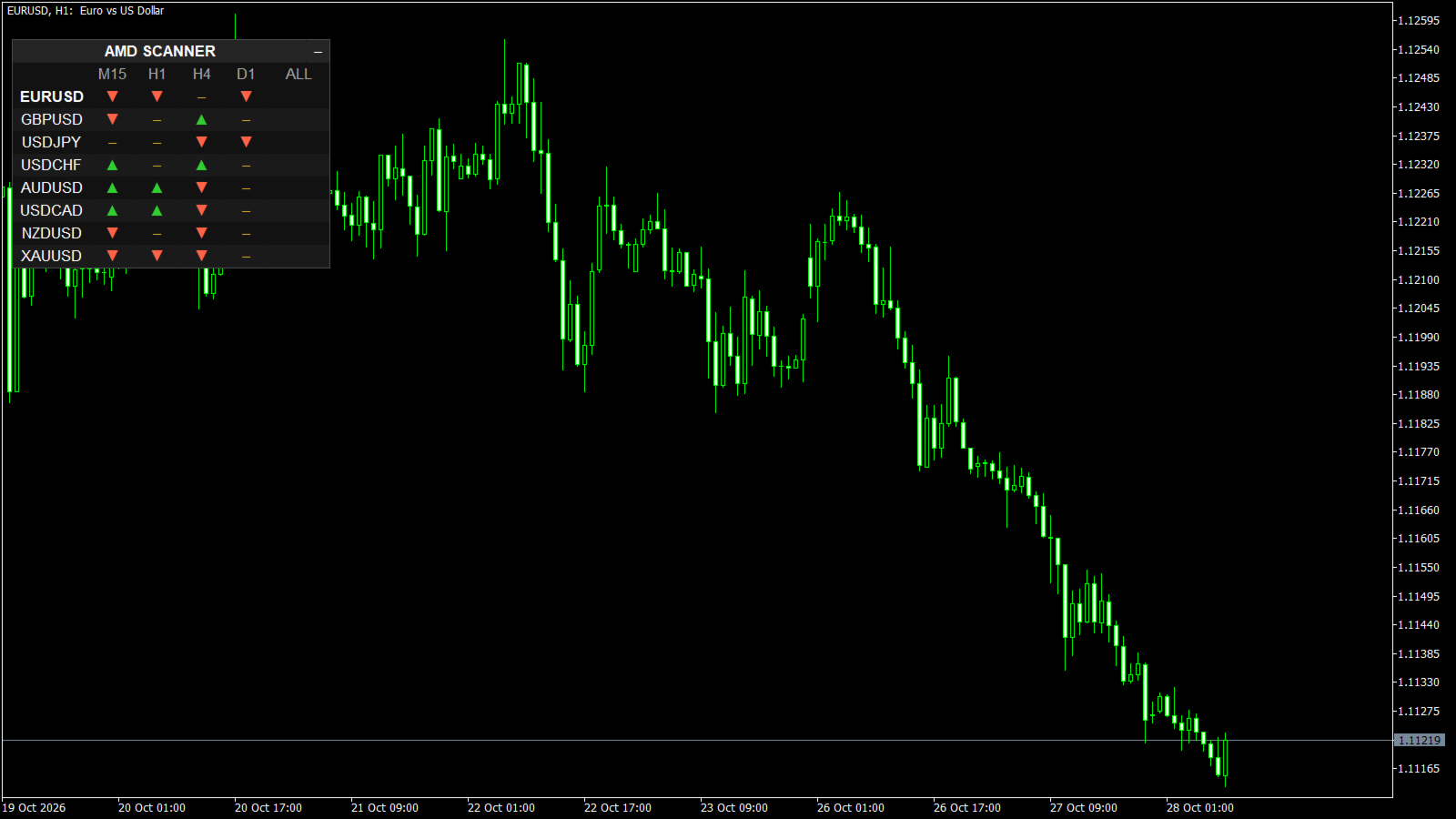
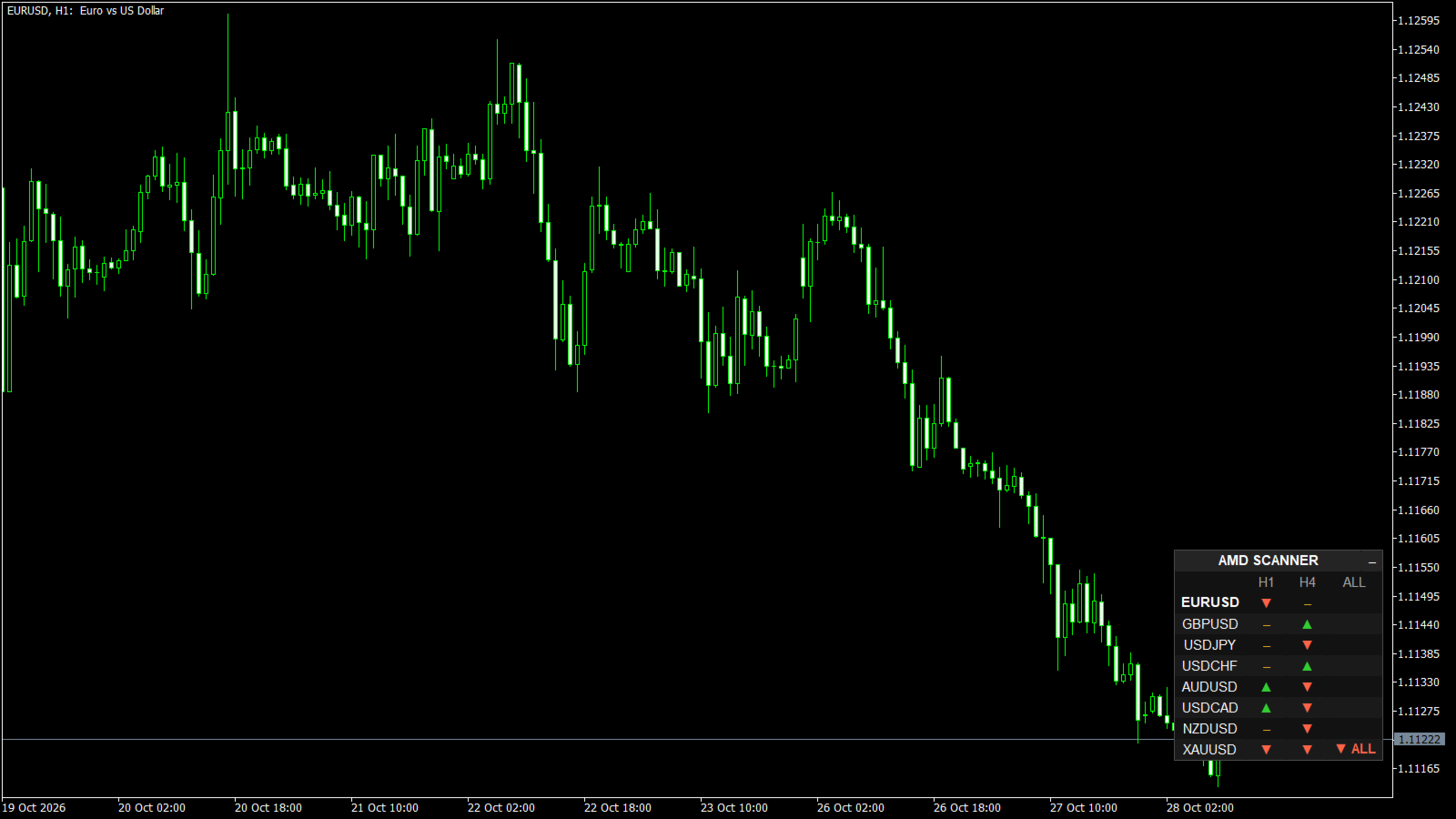
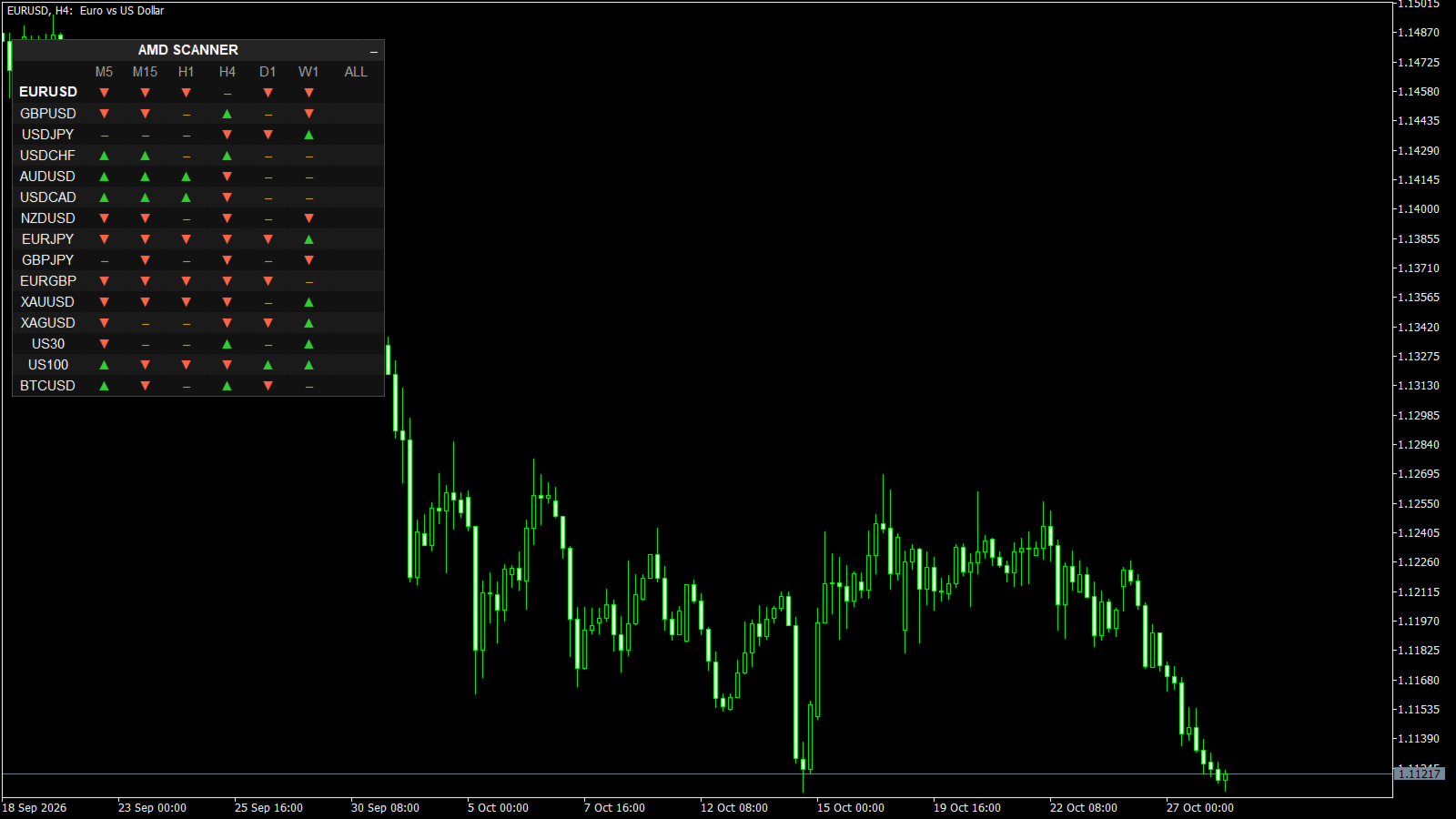
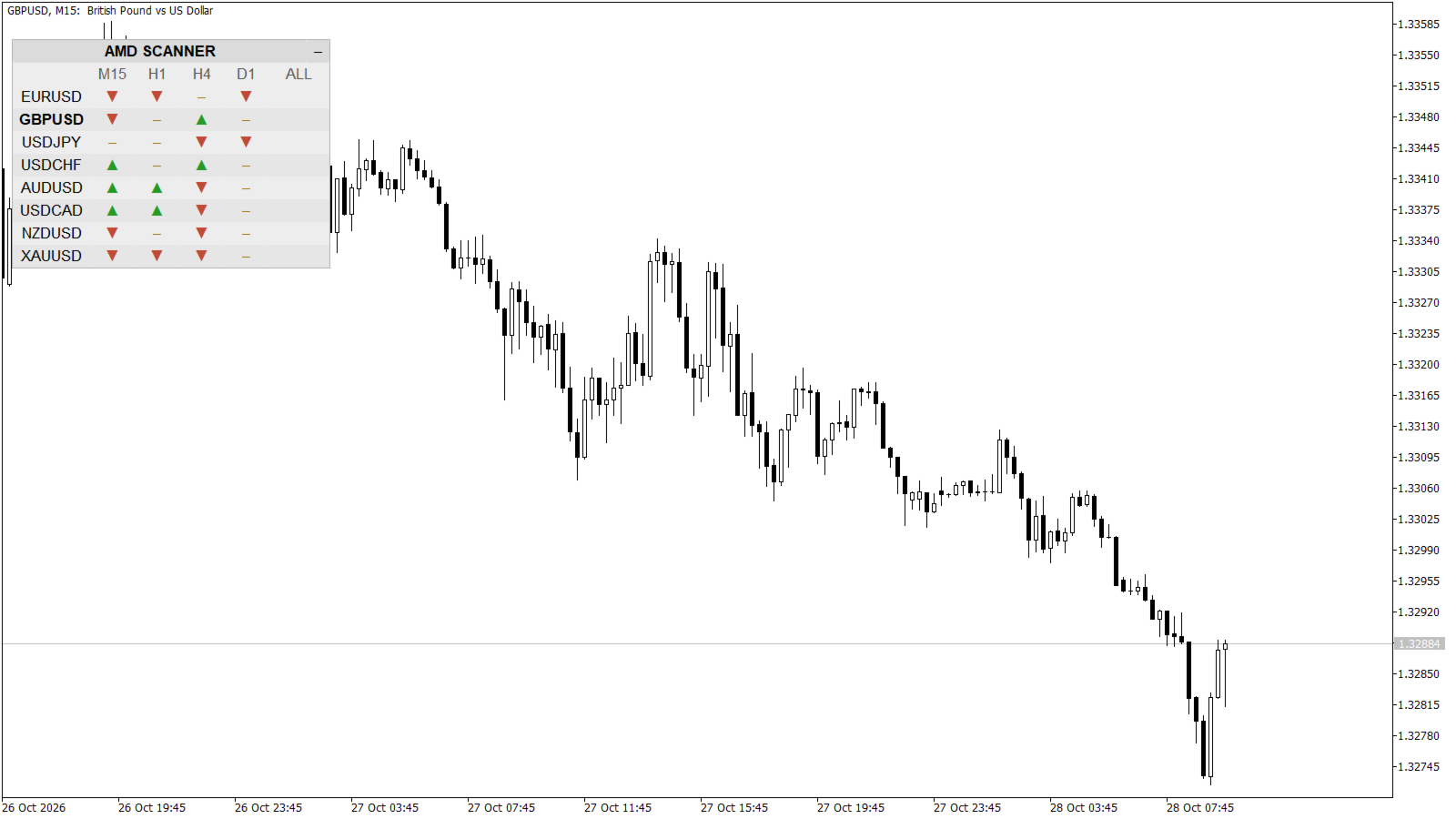
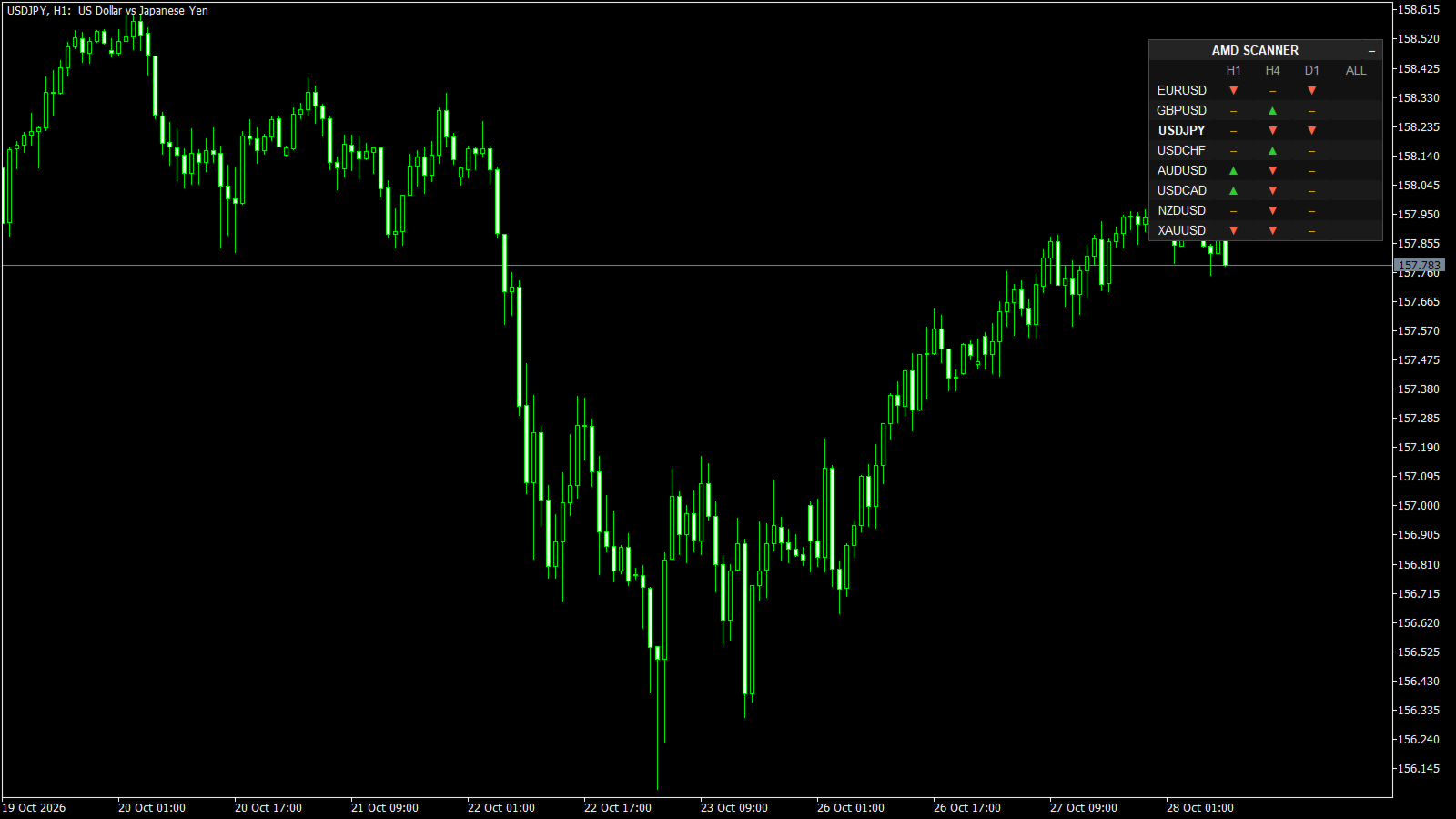
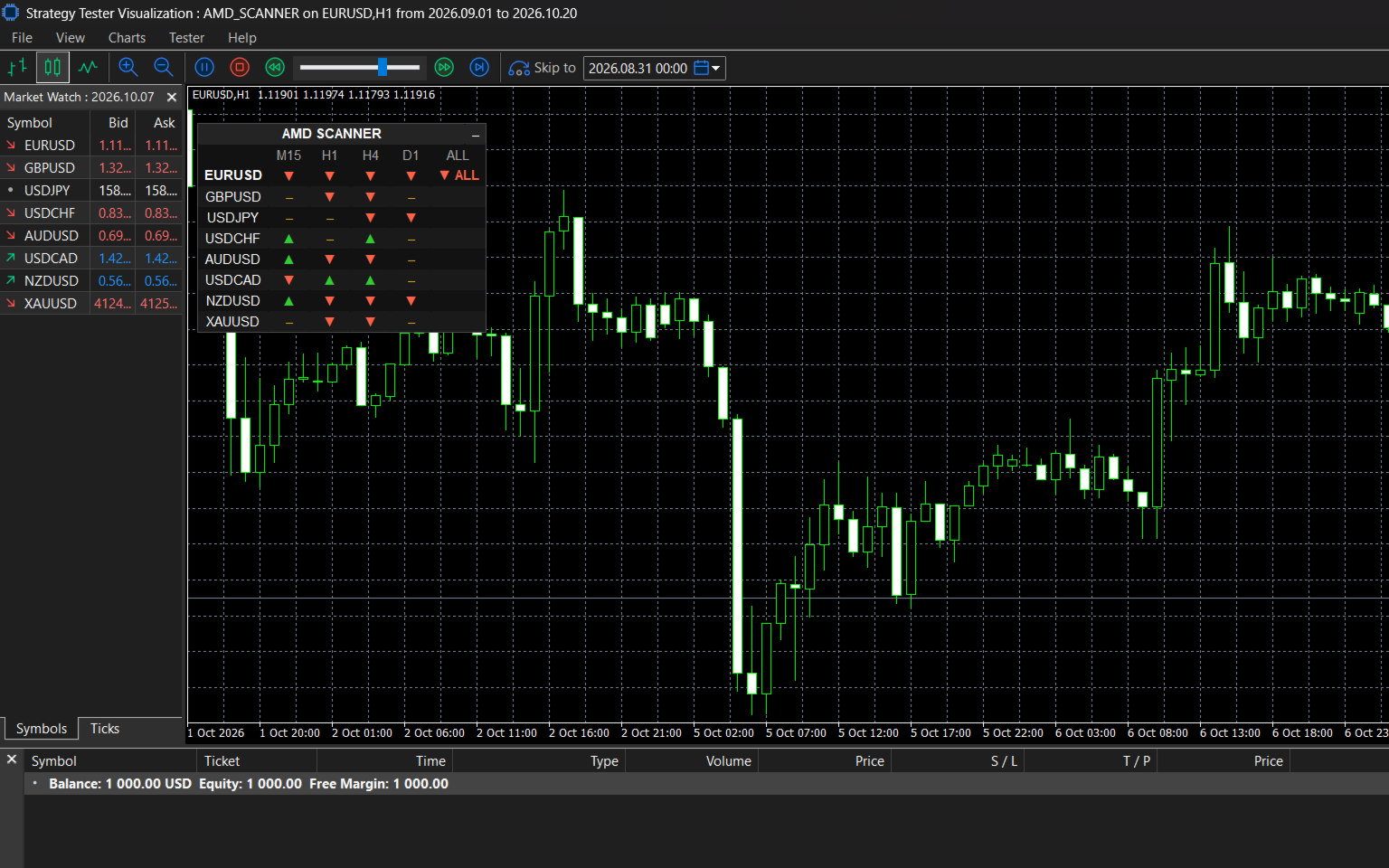
- A table: one row per symbol, one column per timeframe (default EURUSD, GBPUSD, USDJPY, USDCHF, AUDUSD, USDCAD, NZDUSD, XAUUSD on M15, H1, H4, D1)
- Green up arrow = uptrend, red down arrow = downtrend, yellow dash = no confirmed trend
- ALL column: every timeframe of the row agrees (ALL UP or ALL DOWN)
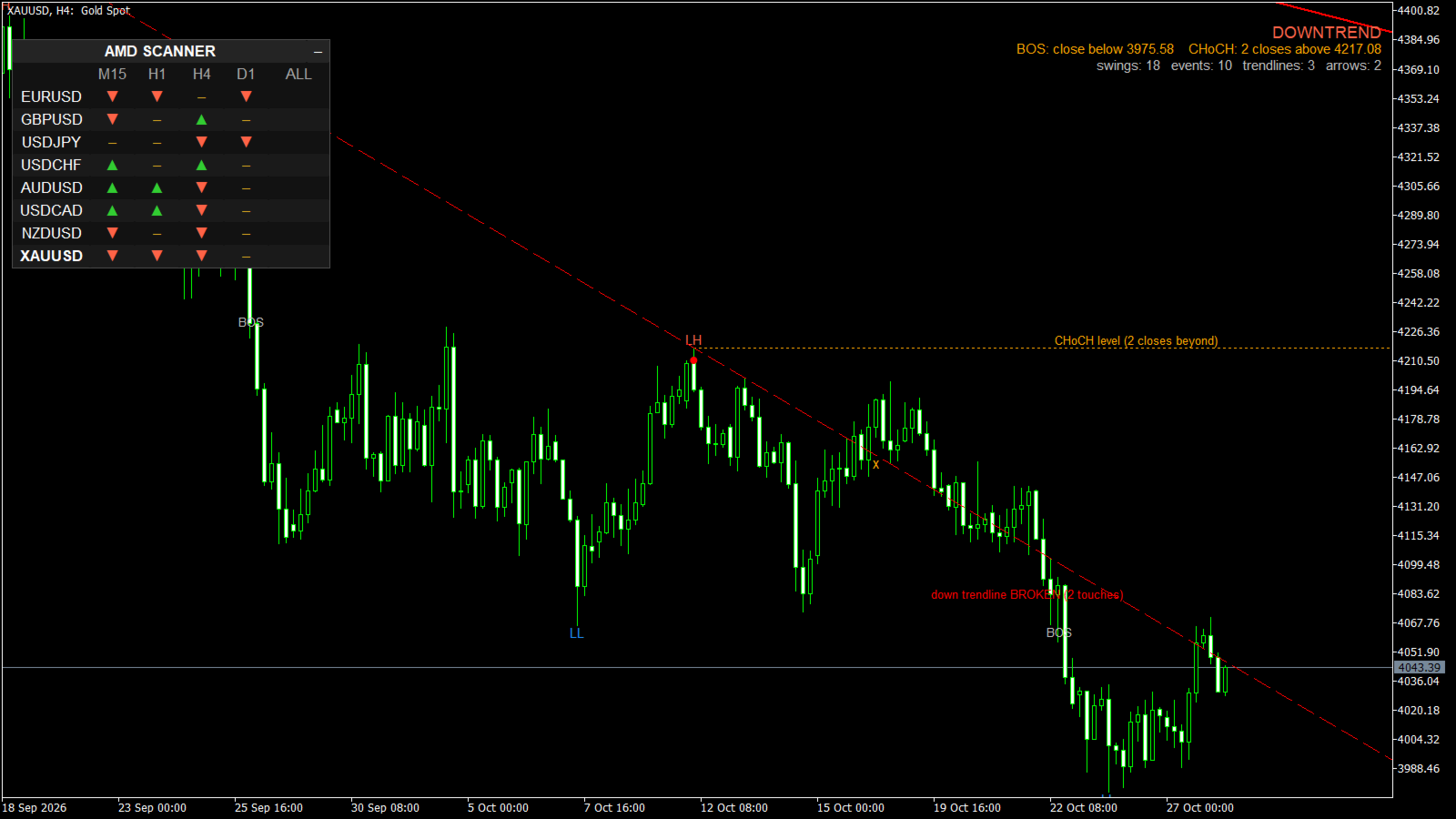
- Hover a cell for the details, for example "XAUUSD H4: DOWNTREND" or "no trend: reversal UP in progress"
- The symbol of the current chart is shown in bold
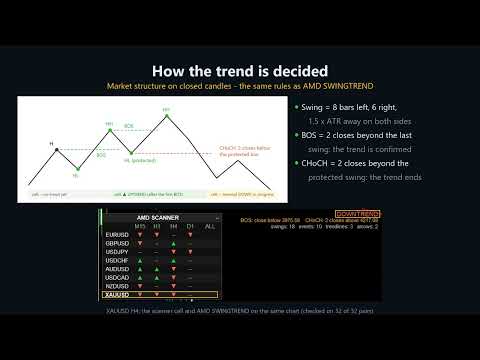
HOW THE TREND IS DECIDED (clear rules, no black box)
Every cell uses the market structure rules of AMD SWINGTREND, with the same default inputs:
1. Swings. A swing high is the highest high of 8 bars to the left and 6 to the right, and price moved away from it by
at least 1.5 x ATR(14) on both sides. Small wiggles do not count. Only external swings are used.
2. Uptrend = higher highs and higher lows, confirmed by a breakout: 2 closes above the last swing high (BOS).
Downtrend = lower highs and lower lows, confirmed by 2 closes below the last swing low.
3. A trend ends only when 2 candles close beyond the protected swing (CHoCH). The cell then shows "no trend" until the
new direction is confirmed by its own structure (a higher low and a breakout, or a lower high and a breakdown).
4. Only closed candles are used. A cell changes only when a candle of that timeframe closes, never inside a candle.
On the chart symbol and timeframe the cell is exactly the trend AMD SWINGTREND shows on that chart (checked on
32 symbol / timeframe pairs, 32 of 32 equal).
FEATURES
- Up to 30 symbols and 9 timeframes (M1 ... MN1); MARKETWATCH = all symbols in your Market Watch
- Broker names found automatically: EURUSD finds EURUSD.m, EURUSDm, fxEURUSD.raw ... Symbols your broker does not offer are skipped (listed in the Experts log)
- Click a symbol: the chart switches to it. Click a cell: symbol and timeframe (or symbol only, see inputs)
- Alert when a symbol turns ALL UP / ALL DOWN: popup, push notification, email. The same alert is not repeated within 4 hours (input); the opposite direction always alerts at once
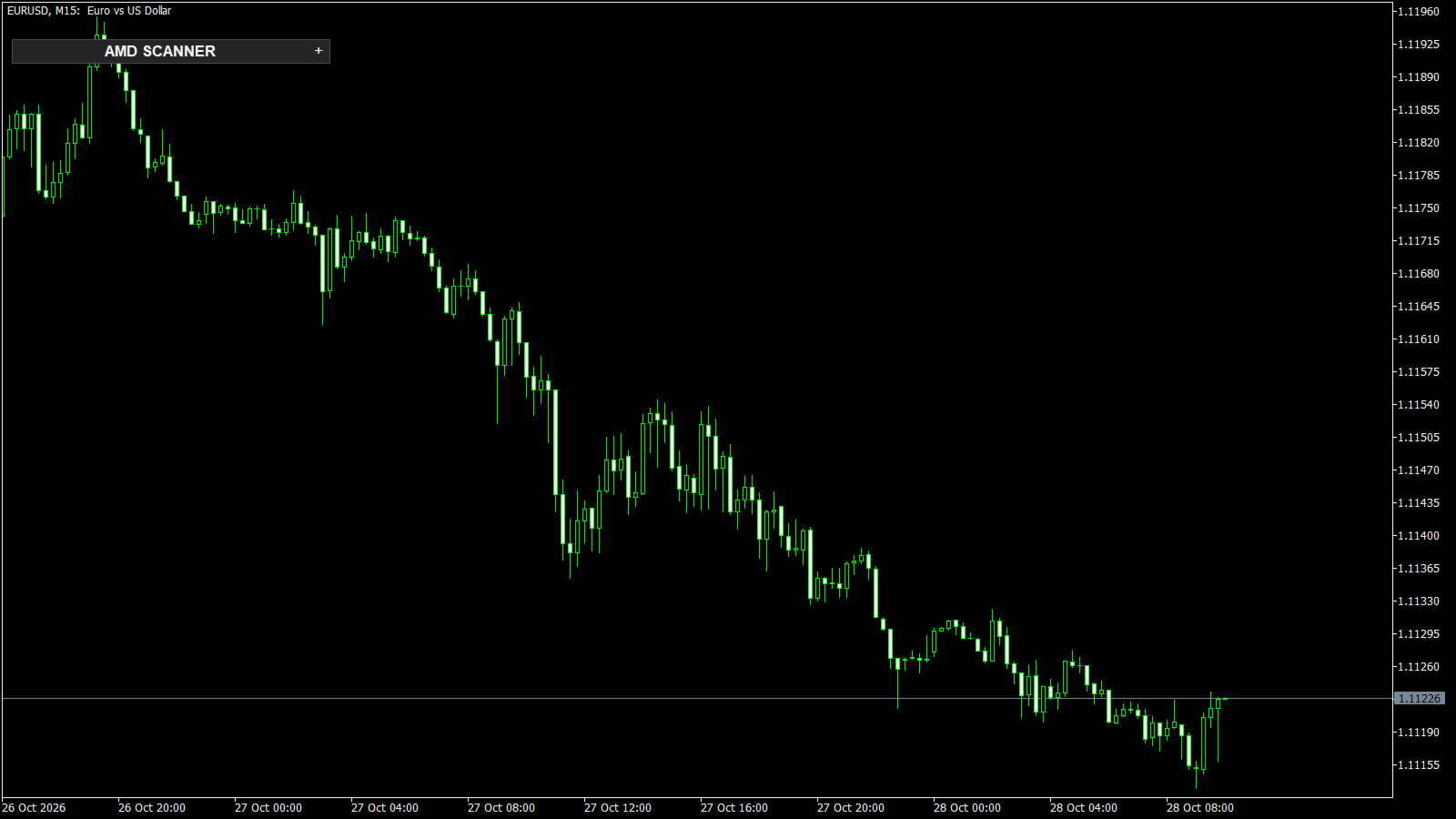
- Minimise button: the table folds into one title line and stays folded after a timeframe change
- Any corner, any font size; follows your chart colours (dark and light themes)
- Light: no indicator handles; a cell is recalculated only when a new candle of its timeframe has closed, the work is spread over a 1-second timer (about 40 ms at most per step once the history is loaded)
- Strategy Tester (free demo): the whole table runs on history - all symbols and timeframes change as the test runs
- No DLL, no web requests, no file access
NOTES
- AMD SCANNER shows the trend. It gives no buy / sell signals and never places orders.
- When it is started for the first time MetaTrader downloads the history of every symbol and timeframe in the table. The cells show "..." until it is there (usually a few seconds).
- A trend is confirmed after the move has started (a breakout needs 2 closes). This is by design: it filters noise, it does not predict.
- A full PDF user guide with real chart examples is available - send me a private message after purchase.
- Trading carries a high level of risk. Test on a demo account first.
INPUT PARAMETERS
================
=== Symbols & timeframes ===
Symbols ....................... Comma separated; broker suffix found automatically; MARKETWATCH = Market Watch
Timeframes .................... Comma separated, M1 ... MN1 (default M15,H1,H4,D1)
=== Trend (same rules as AMD SWINGTREND) ===
Swing left / right bars ....... Default 8 / 6
Swing size (x ATR) ............ Default 1.5
External swings only .......... Default true
Bars of history per cell ...... Default 1200
Closes for BOS / CHoCH ........ Default 2 / 2
Close buffer (x ATR) .......... Default 0.15
=== Panel ===
Corner, X / Y distance ........ Default left upper corner, 10 / 40 pixels
Font size ..................... Default 9
Click a cell: symbol + TF ..... Default true (false = symbol only)
=== Colors ===
UP / DOWN / no trend .......... Default LimeGreen / Tomato / Goldenrod
=== Alerts ===
Popup / push / email .......... Default popup on, push and email off
Hours before the same alert ... Default 4 (0 = always)