Ninja Entry Manager MT5
- エキスパート
- バージョン: 1.1
- アクティベーション: 5

Ninja Entry Manager MT5 is a visual trade-planning and market-execution utility for MetaTrader 5.
The name “Ninja” reflects its discreet execution approach. Planned entries remain locally armed inside the MT5 terminal instead of being submitted immediately to the broker as pending orders. The broker receives a market-order request only when price reaches the selected trigger and the EA’s execution checks have passed.
Designed for discretionary traders, the EA supports Buy Stop, Sell Stop, Buy Limit, and Sell Limit-style setups. Traders can select the direction, lot size, entry price, Stop Loss, and Take Profit directly on the chart using draggable lines.
Like a ninja waiting for the right moment, the EA monitors the planned setup and acts only when its trigger and safety conditions are satisfied.
HOW IT WORKS
- Select the desired lot size and default Stop Loss and Take Profit distances.
- Click Draw Buy Stop, Draw Sell Stop, Draw Buy Limit, or Draw Sell Limit.
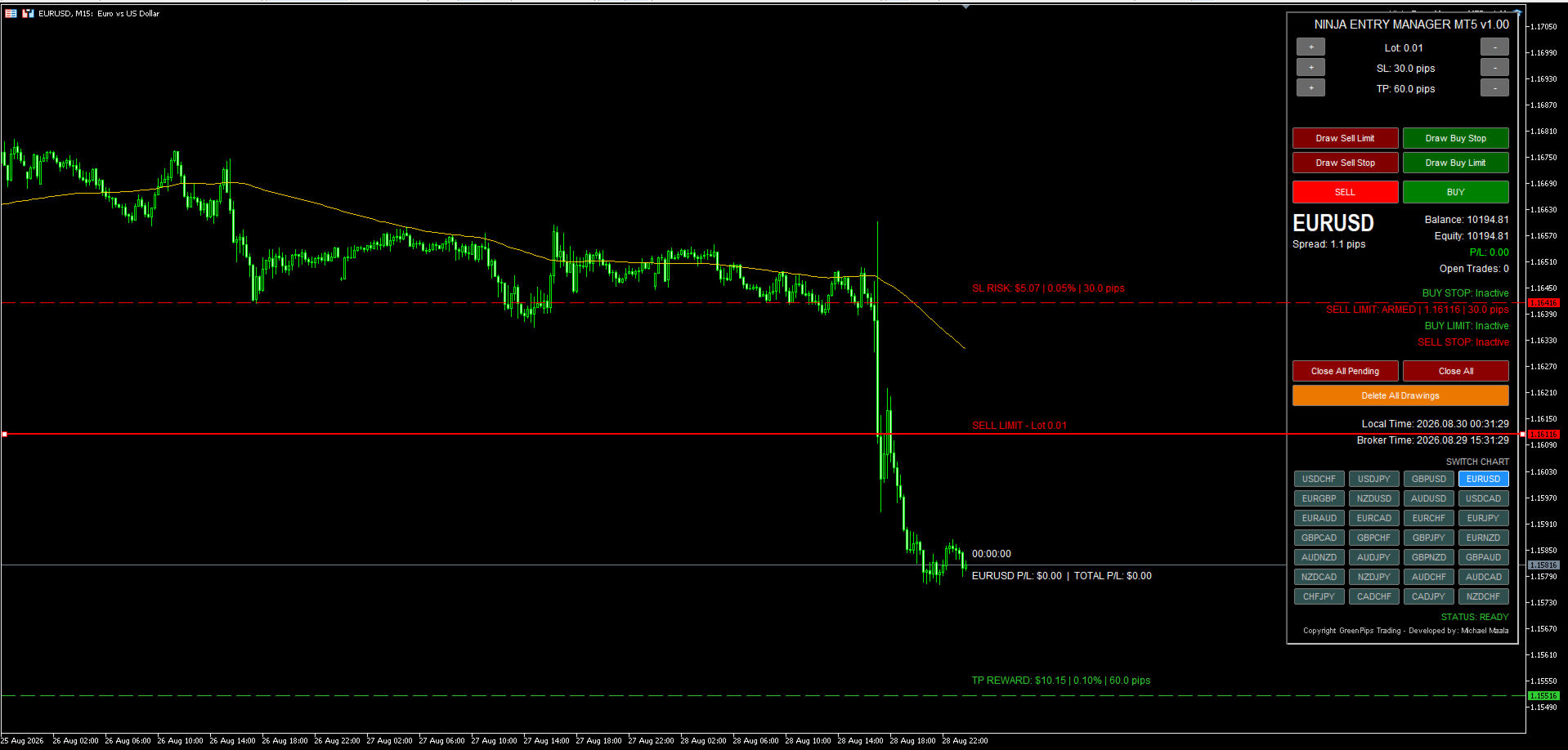
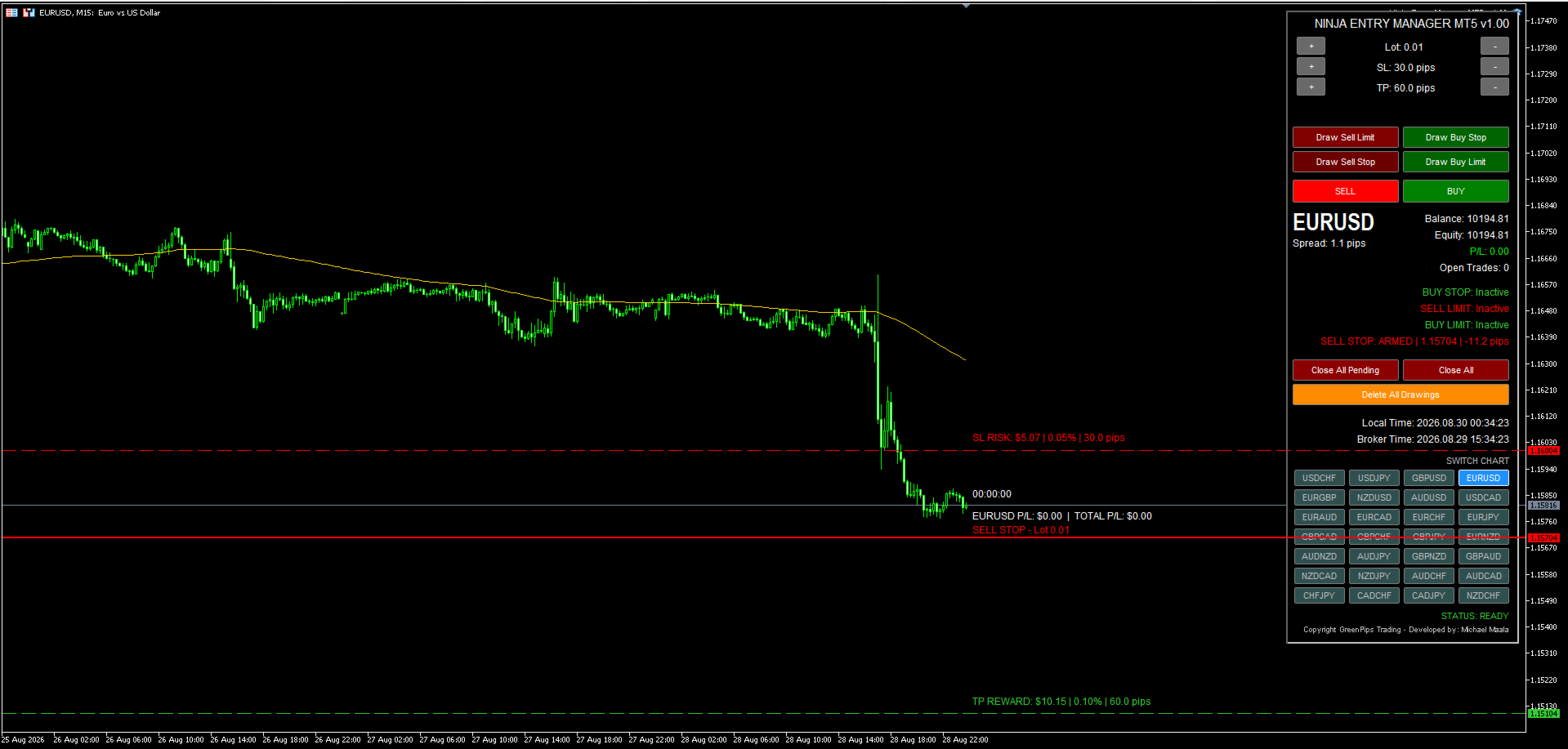
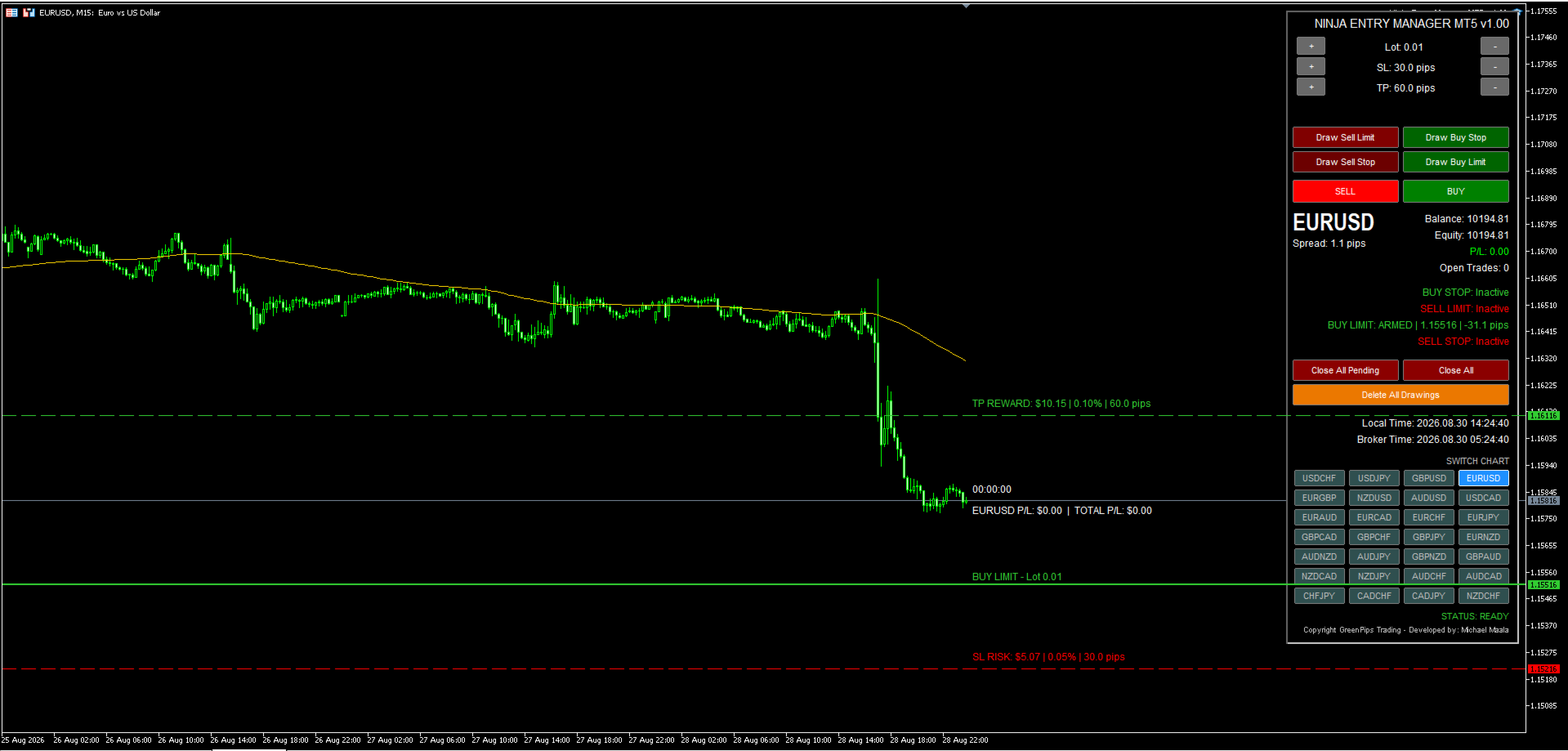
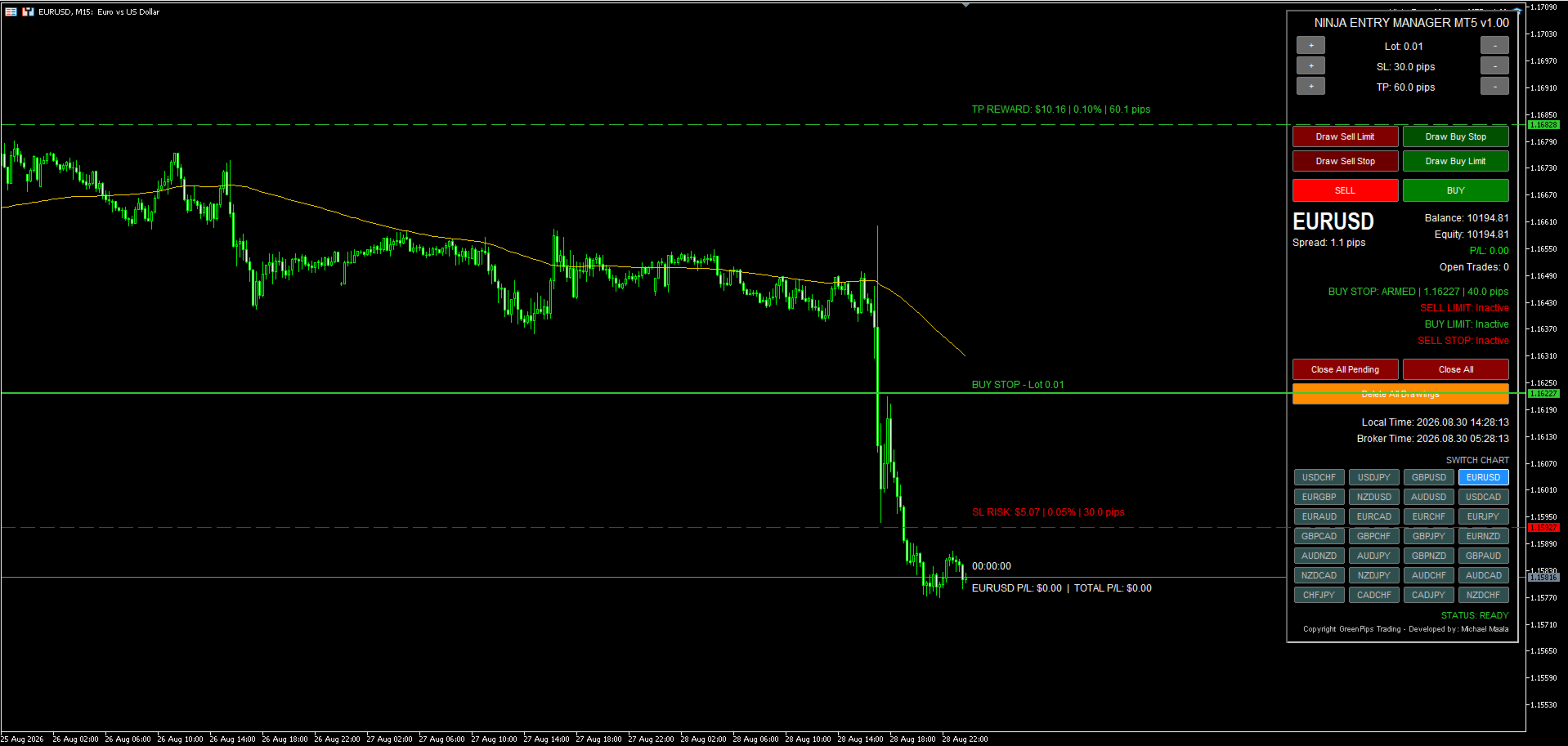
- The EA creates draggable Entry, Stop Loss, and Take Profit lines.
- Move the lines to the desired prices.
- Review the displayed risk and reward information.
- When price reaches the trigger, the EA performs its execution safety checks.
- If every check passes, a market order is submitted using the setup’s stored lot size and final SL/TP prices.
The dashboard also provides BUY and SELL buttons for immediate market execution.
LOCAL ENTRY TRIGGERS
The drawn Stop and Limit entries are local EA triggers, not broker-side pending orders.
Before execution, the setup exists only inside MetaTrader 5. When price reaches the trigger and all safety checks pass, the broker receives a market order with the selected Stop Loss, Take Profit, Magic Number, and trade comment.
Because the triggers are managed locally, MetaTrader 5, the EA, Algo Trading, and the broker connection must remain active.
VISUAL RISK AND REWARD
Every armed setup displays important information beside its Entry, Stop Loss, and Take Profit lines:
- Entry type and stored lot size
- Stop Loss risk in account currency
- Stop Loss risk as a percentage of account balance
- Stop Loss distance in pips
- Take Profit reward in account currency
- Take Profit reward as a percentage of account balance
- Take Profit distance in pips
These values update when the Entry, Stop Loss, or Take Profit lines are moved, allowing the trader to adjust the setup visually before it is triggered.
The lot size is frozen when the setup is created. Changing the dashboard lot size afterward does not modify an already armed setup.
Risk and reward figures are estimates based on the stored lot size, planned prices, current account balance, and broker-provided symbol specifications.
ACTIVE TRADE INFORMATION
After execution, the waiting setup is replaced by active-position information obtained from the broker’s position data.
The chart continues to display:
- Original trigger type
- Actual broker entry price
- Actual position lot size
- Active Stop Loss and Take Profit
- SL risk in account currency, percentage, and pips
- TP reward in account currency, percentage, and pips
The displayed information updates automatically if the broker-side SL or TP changes. It is removed when the associated position closes.
MULTI-PAIR DASHBOARD
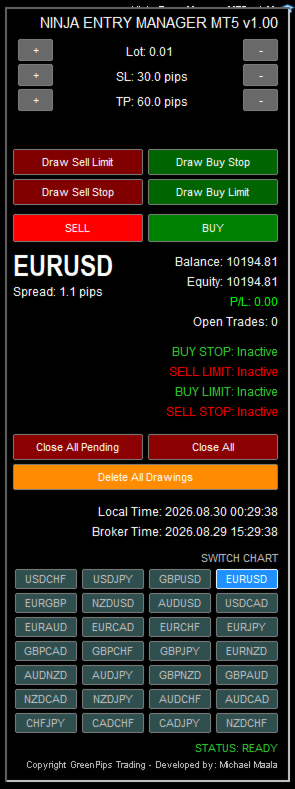
The dashboard includes one-click chart-switching buttons for 28 major and cross-currency pairs.
Each symbol independently stores its:
- Dashboard lot size
- Default SL and TP distances
- Armed entry triggers
- Dragged Entry, SL, and TP prices
- Frozen setup lot sizes
When the trader switches away from a symbol and later returns, its saved settings and armed setups are restored.
Setups also persist through timeframe changes, EA reinitialization, and normal terminal restarts.
BROKER SYMBOL COMPATIBILITY
The EA supports broker symbols that use prefixes or suffixes, including formats such as:
- EURUSD.a
- EURUSD.r
- EURUSDpro
- mEURUSD
- fx_EURUSD
Automatic symbol-affix detection is enabled by default. The EA first follows the symbol format used by the current chart and then searches the broker’s available symbols.
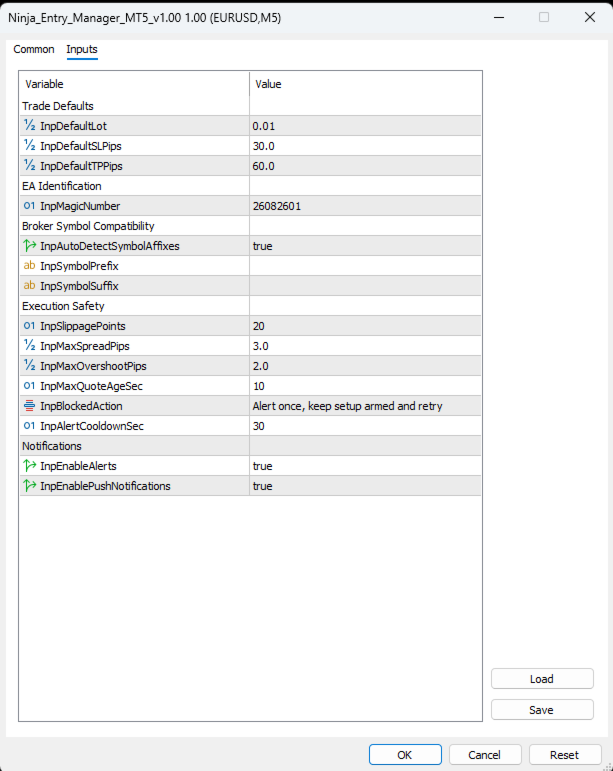
Optional Prefix and Suffix inputs allow traders to specify an exact symbol format when a broker provides several versions of the same currency pair.
LIVE CHART INFORMATION
The dashboard displays:
- Current chart symbol
- Live spread
- Account balance and equity
- Floating account P/L
- Open EA trade count
- Candle countdown for the active timeframe
- Current-symbol P/L
- Total account P/L
- Local computer time
- Broker server time
- Current EA execution status
The active symbol is highlighted in the chart-switching grid.
EXECUTION SAFETY CHECKS
Before submitting a triggered or immediate market order, Ninja Entry Manager checks:
- Terminal and account connection
- Algo Trading and EA permissions
- Symbol trading permissions
- Buy-only and sell-only restrictions
- Broker trading session
- Live quote availability and age
- Current spread
- Trigger overshoot
- Broker minimum and maximum volume
- Permitted volume step
- Stop Loss and Take Profit orientation
- Broker stop and freeze levels
- Symbol filling mode
- Required and available margin
- Broker order response
If execution is blocked or rejected, the dashboard displays the reason.
SPREAD AND OVERSHOOT PROTECTION
The Maximum Spread filter blocks execution when the current spread exceeds the configured limit.
The Maximum Trigger Overshoot filter blocks execution when price has moved too far beyond the local trigger before the order can be submitted.
These controls are intended to reduce execution risk during spread expansion, fast markets, gaps, high-impact news, and market reopening. They cannot guarantee a specific execution price or eliminate slippage.
BLOCKED-EXECUTION OPTIONS
The trader can select one of three responses when execution is blocked:
Keep Armed
The setup remains active, and the EA checks again on subsequent ticks.
Cancel Setup
The blocked setup is removed.
Alert and Keep Armed
The EA reports the reason and keeps the setup active for another execution attempt when conditions improve.
ALERTS AND PUSH NOTIFICATIONS
Terminal alerts and MT5 mobile push notifications are enabled by default and can be independently disabled in the EA inputs.
Notifications may report:
- Successful market-order execution
- Blocked or rejected execution
- Unavailable broker symbols
- Duplicate EA instances
- Magic Number conflicts
Repeated blocked-execution messages are controlled by an alert cooldown to reduce notification flooding.
Mobile push delivery requires a valid MetaQuotes ID configured under MT5 → Tools → Options → Notifications.
IMMEDIATE MARKET ORDERS
The BUY and SELL dashboard buttons submit immediate market orders using the current dashboard lot size and default SL/TP distances.
Immediate orders pass through the same permissions, spread, quote, stop-level, volume, margin, and broker-response checks used by locally triggered setups.
DUPLICATE AND MAGIC-NUMBER PROTECTION
Ninja Entry Manager is designed to operate as one central dashboard for each account and Magic Number within the same MT5 terminal.
The EA blocks another active instance using the same account and Magic Number. It also checks for possible conflicts with orders or positions created by another trading program using the same Magic Number.
IMPORTANT INFORMATION
Ninja Entry Manager MT5 is an execution and trade-planning utility. It does not provide trading signals, predict market direction, or guarantee profits, order acceptance, or execution prices.
Market gaps, high-impact news, spread expansion, low liquidity, slippage, connection interruptions, terminal shutdowns, and broker restrictions may delay, alter, block, or prevent execution.
Displayed risk and reward values are estimates. Actual results may differ because of spread, commission, swaps, slippage, currency conversion, gaps, and the final broker execution price.
Always test the EA and its settings on a demo account before using it for live trading.