MaxiFinishEA
- Utilità
-
Stsiapan Kreidzich
 E-mail: stepkrei@gmail.com, step_bot@mail.ru. SOLO questi indirizzi e SOLO il sito web MQL5.com per comunicare con il vero autore.
Esperienza di trading reale forex (e programmazione mql4) dal 2011. Programmatore C con più di 35 anni di esperienza. - Versione: 1.0
- Attivazioni: 5
A promotional price is currently. The price will increase later.
This is a trading assistant—a robot designed for both automated and manual (button-click) trading based on signals from any indicator, featuring automatic TakeProfit and StopLoss placement calculated via volatility. The robot will not automatically close trades at a loss if you disable this function in the settings.
You can:
- specify trading hours (two periods: start and end times in hours and minutes),
- enable or disable auto-trading at any time by clicking on the robot's panel,
- set a default lot size or enter a specific lot size on the robot's panel for each trade,
- configure auto-trading to trigger based on arrows from your indicator or via its data buffers,
- specify the name of any indicator and its buffers for auto-trading; the robot will automatically detect signals and open trades.
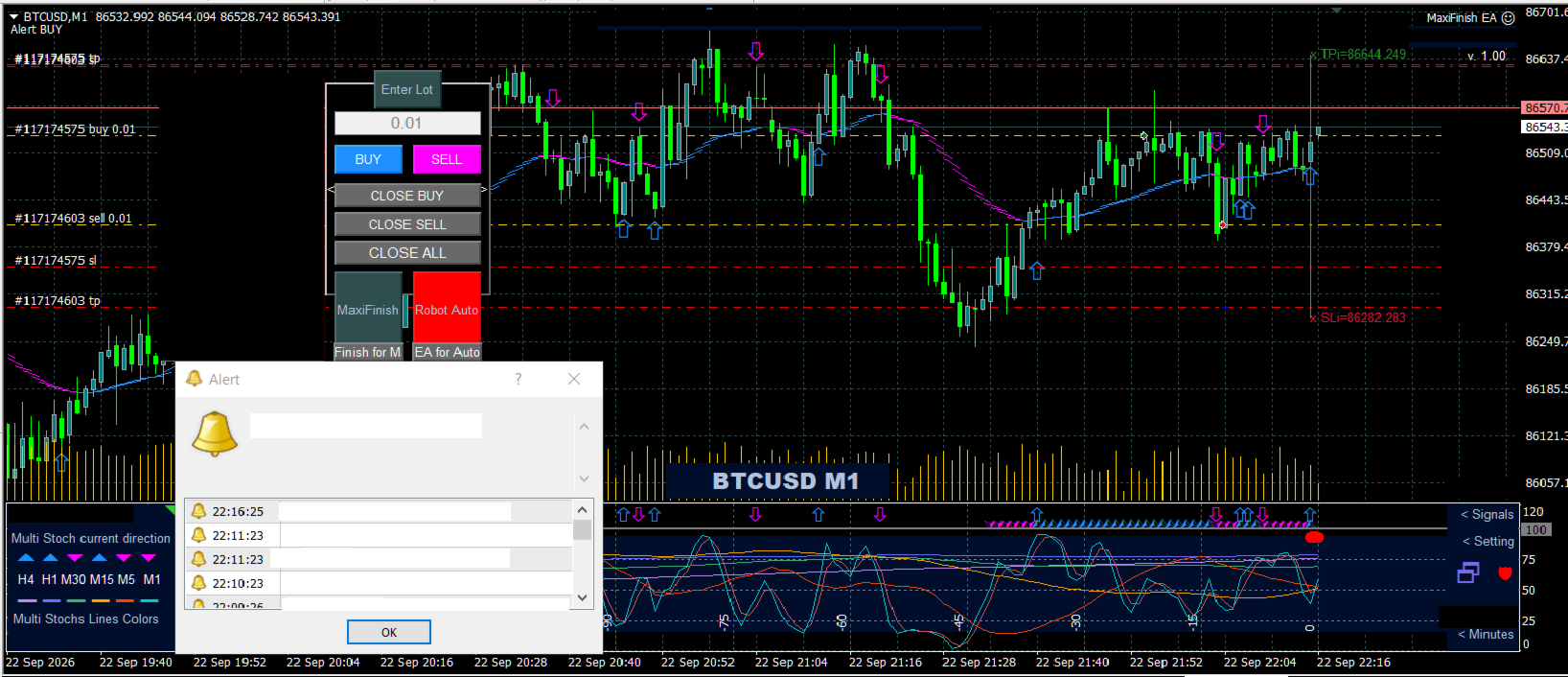
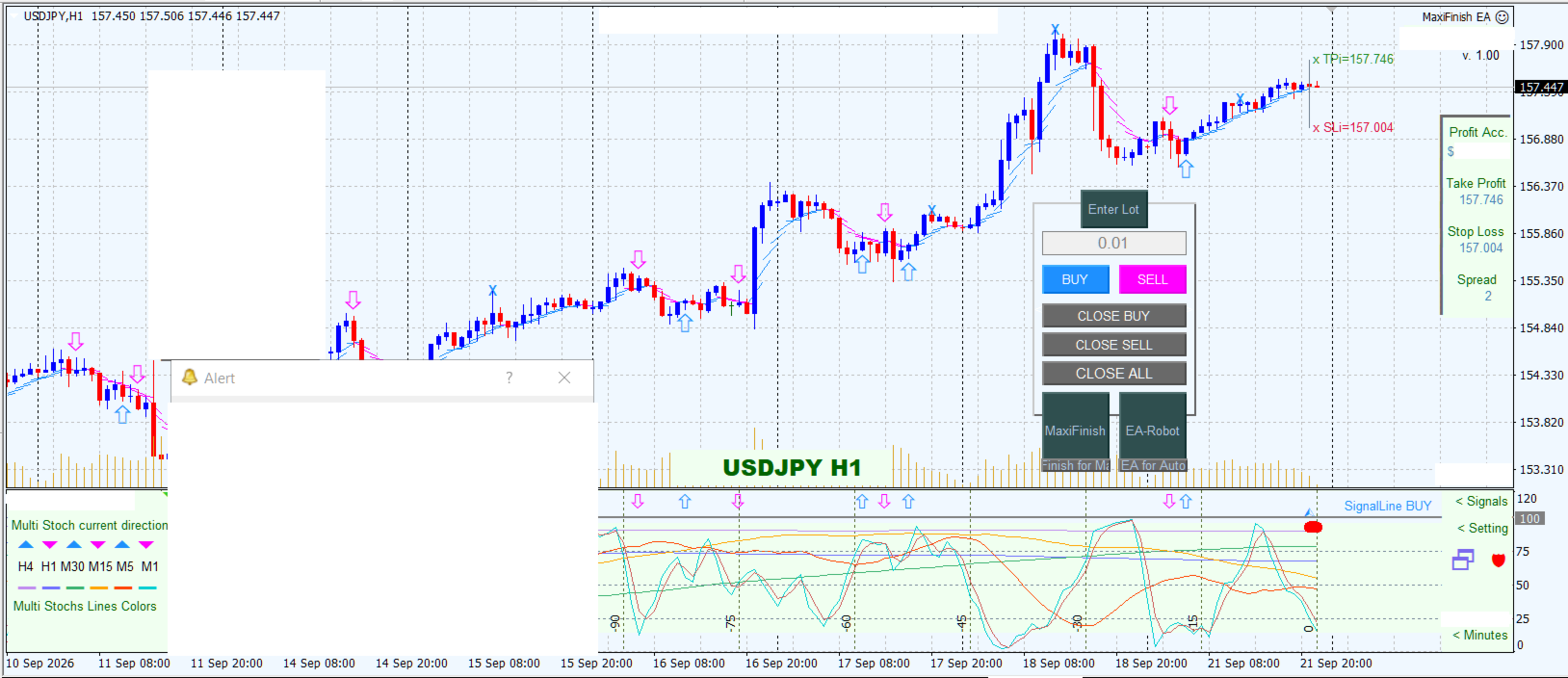
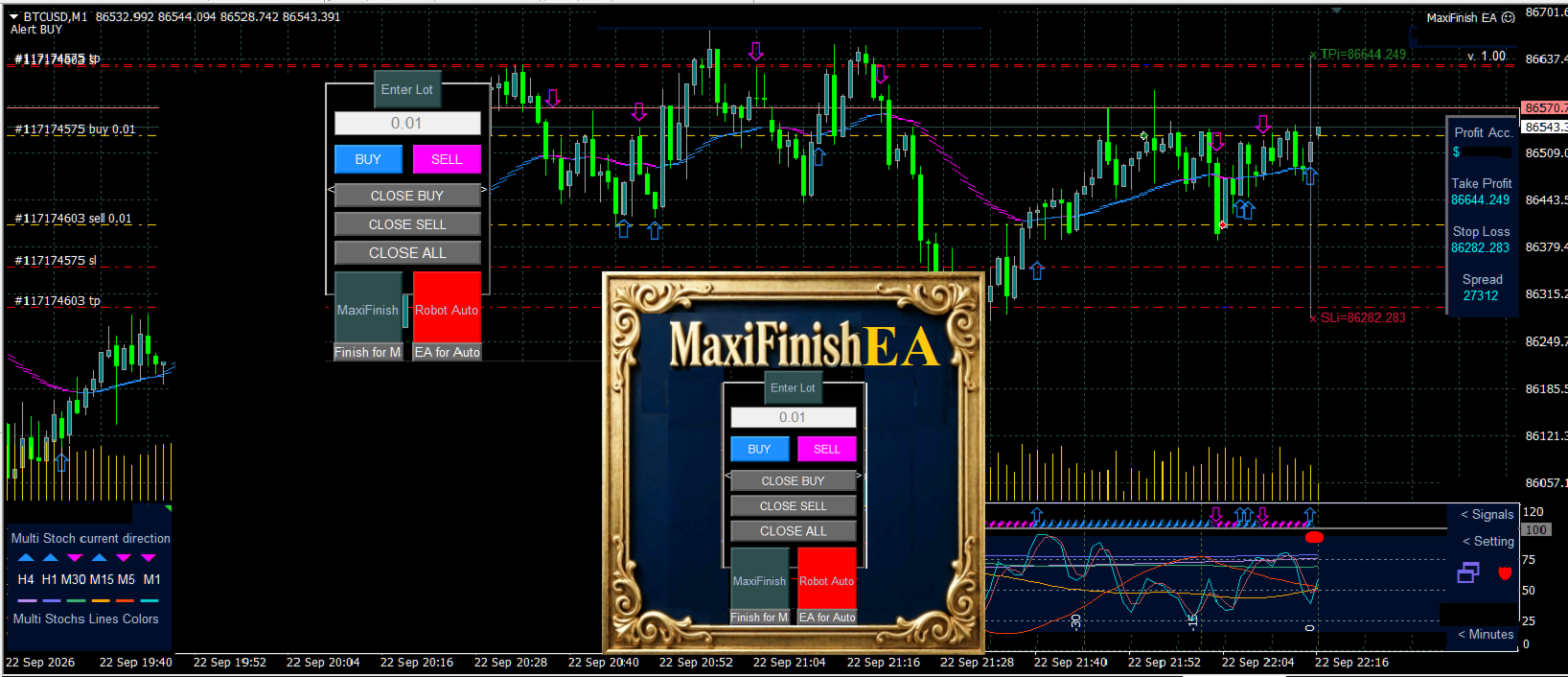
Once attached to the chart, the robot's interface appears on the screen, and you can drag it to any convenient location using your mouse. If an indicator is present on the same chart, opening the indicator's settings may cause the chart to redraw, potentially obscuring the robot's interface with the indicator's background; you can restore the interface by re-initializing the robot or by switching the chart timeframe back and forth.
You can trade manually by clicking the buttons. Clicking the EA icon in the top corner of the screen (or pressing F7) allows you to access the robot's initialization (settings) and configure new parameters at any time. The lot size for each trade can be entered directly on the robot's interface, or the default value from the settings will be used.
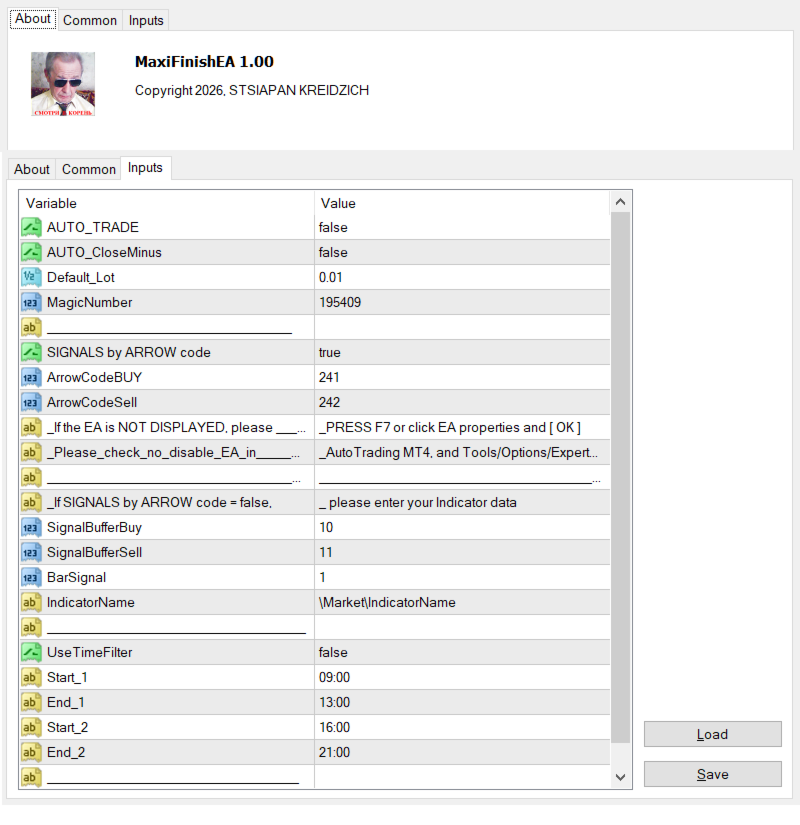
When auto-trading via buffers, the robot executes the indicator's code to retrieve signals; if the indicator shares the same chart (screen) as the robot, this process may affect the indicator's visual display. In this scenario, the indicator itself does not necessarily need to be on the same chart as the robot, but its `.ex4` file must be located in the `MQL4/Indicators` or `MQL4/Market/Indicators` folder. In the robot's settings, enter the exact indicator filename (excluding the `.ex4` extension), the numbers of its external signal buffers, and the signal bar index.
It is best to trade based on the indicator arrows displayed on the screen (the default setting). In this case, you only need the codes for the BUY and SELL arrows. When trading using arrows, the robot does not interact with the indicator file itself; it does not require the indicator's name or buffer details. Instead, the robot automatically receives signals by scanning and analyzing objects on the chart. You can easily identify the arrow codes for any indicator: double-click an arrow on the screen to select it, then right-click to open the object properties, where you will find the arrow code. Enter these codes into the robot's settings for the BUY and SELL arrows.
When a TakeProfit or StopLoss is triggered, the robot automatically opens a new trade based on the most recent indicator arrow or signal. The robot automatically trades with the trend following TakeProfit triggers. When the indicator signal changes, the robot opens a trade aligned with the new trend and continues trading in that direction, provided the time filter in the settings allows it.
You can also trade automatically without using indicators. Observe the H1 chart to determine the time of day (usually early on) when your trading symbol moves both up and down by roughly the same amount. At that time, use the buttons to open a BUY trade at the lows of the standard M1 and M5 Stochastic indicators, and then open a SELL trade at their highs. The robot will execute the trades and set the TakeProfit and StopLoss levels. Afterward, click the "EA Robot" button to activate automated trading; the robot will then trade automatically as long as the time filter permits.
When trading based on the indicator's signals, automated trading begins on a new M1 bar after the "EA Robot" button is activated. A new indicator signal may appear while a previous trade is in a loss. If your settings prohibit closing trades at a loss, the existing trade will not be closed when a new one opens. Of course, the trading server will still close any trade if the Stop Loss is triggered. If there is no restriction set in the robot, the previous trade is automatically closed upon a new signal regardless of its status.
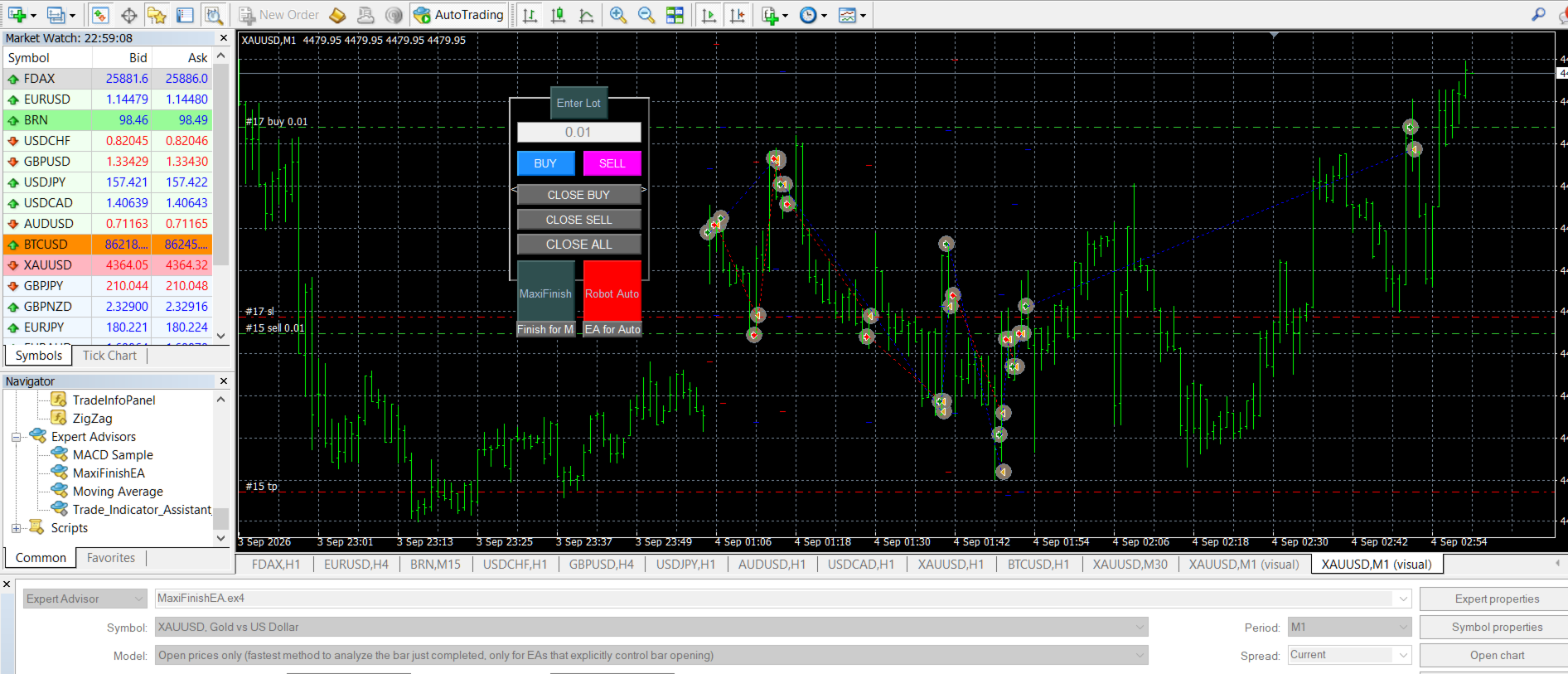
In the free demo version for the Strategy Tester, you can view the robot's interface (panel) and settings by clicking [Expert properties] in the tester window. Unfortunately, the MT4 Strategy Tester lacks full functionality for testing live trading dynamics and handling mouse clicks.
The robot's settings are self-explanatory; simply set them to "true" to enable a function or "false" to disable it.
Read about the author in the [Profile] section, where you will also find links to contact them. I wish you profitable trades that hit the Take Profit target every time.
From the MetaTrader Market, click [View on MQL5 website] to see screenshots and comments with additional explanations. Please take a moment to leave a review if you like the robot. The better the review, the better the robot performs...
The screenshots display the robot and its settings across various color schemes, as well as charts showing real trading activity.