Confluence Trading Engine
- Experts
- Version: 1.20
- Activations: 10

Configurable Trading Automation and Strategy Research for MetaTrader 5
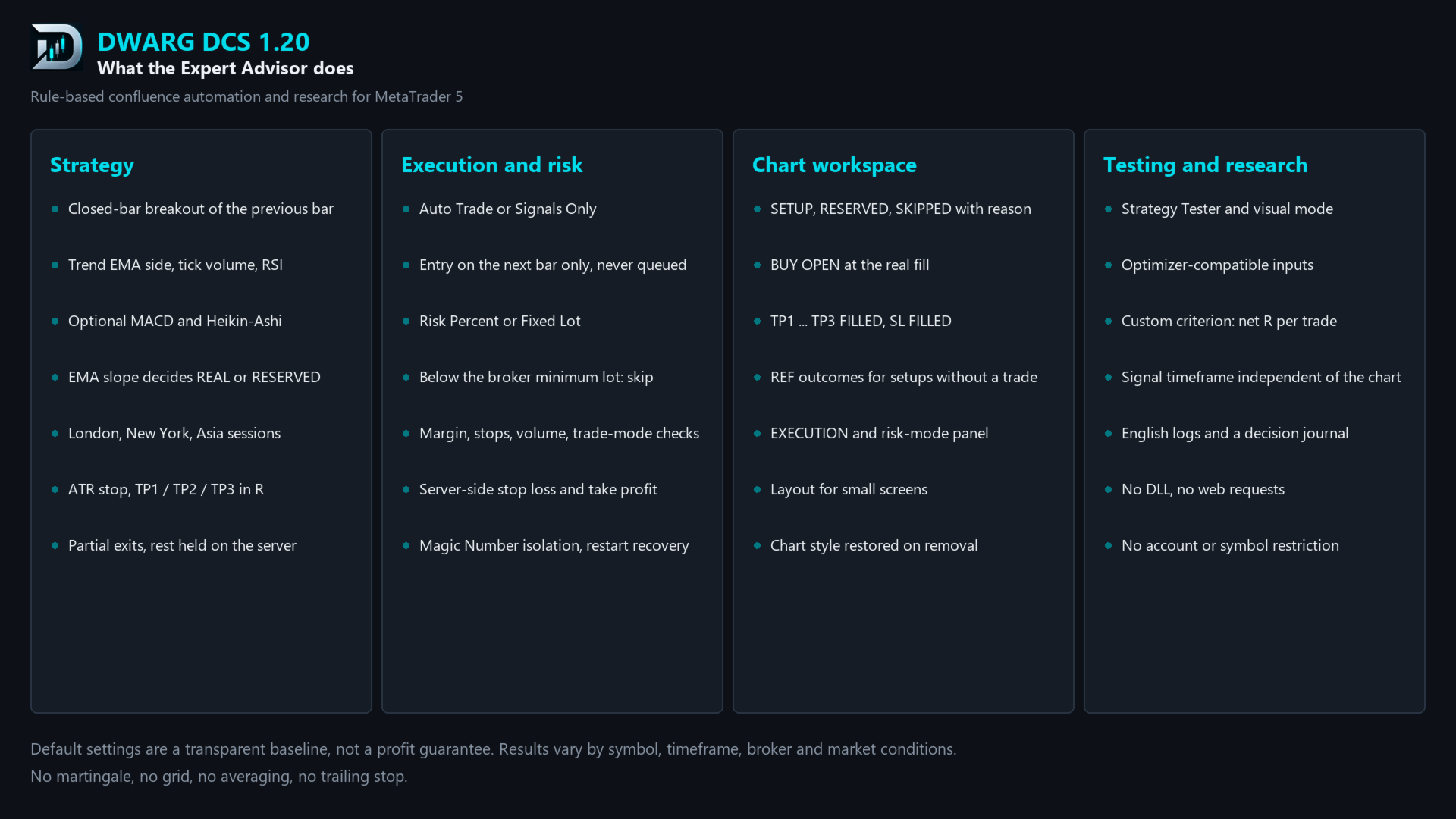
Confluence Trading Engine is a trading Expert Advisor developed by DWARG TRADE LAB under the DWARG DCS system.
It combines technical confirmation rules, automated order execution, risk management and a visual trading workspace in one application.
You can use it to monitor trading setups without placing orders, automate its built-in strategy, or test different parameter configurations using the MetaTrader 5 Strategy Tester.
The system is designed for traders who want to understand when a setup appears, why a trade is opened or skipped, and how each position is managed.
1. How the Strategy Works
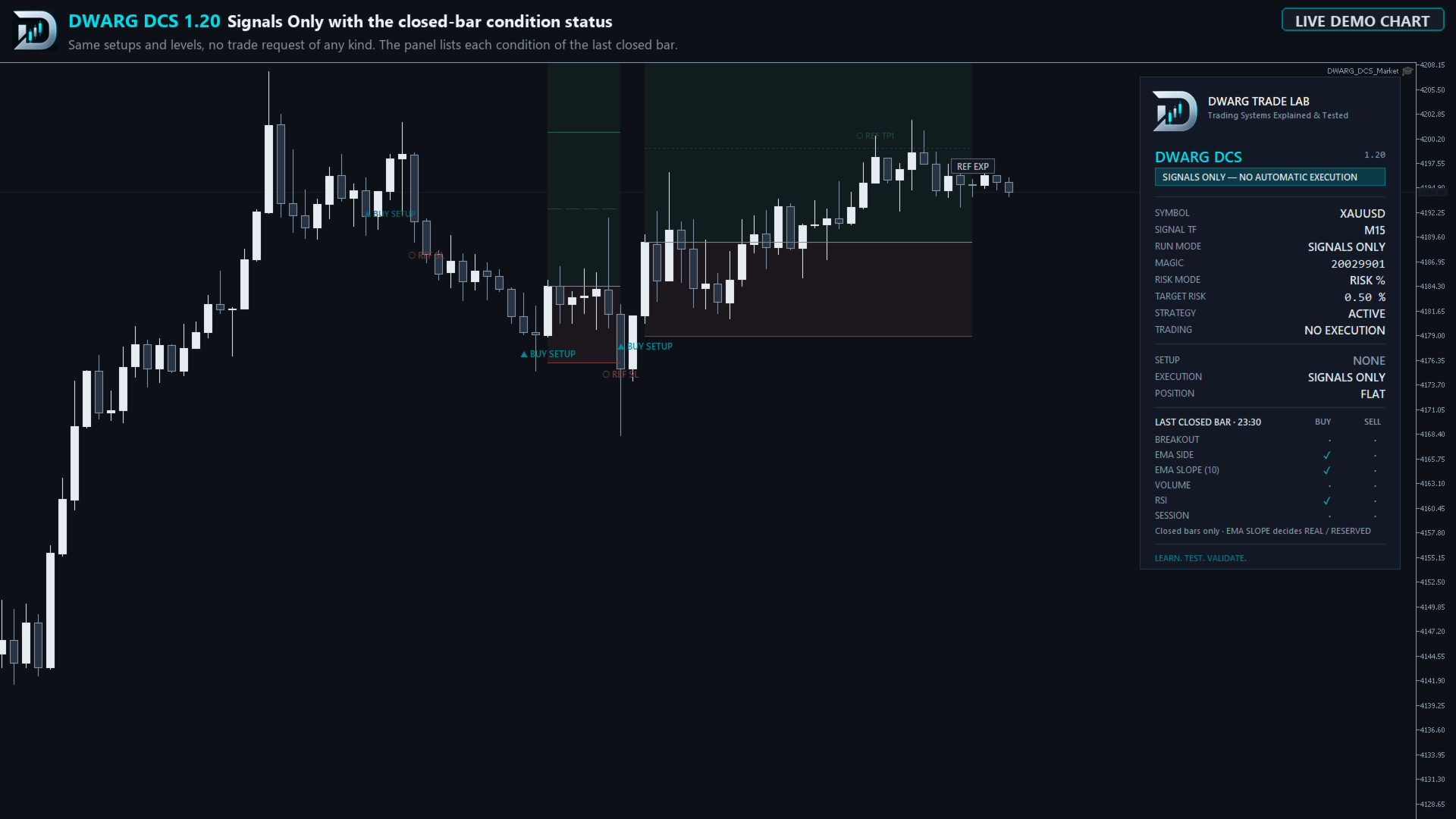
DWARG DCS evaluates completed price bars rather than reacting to unfinished candles.
The trading logic combines several technical conditions:
-
Price breakout: the closing price moves beyond a previous high or low.
-
Trend confirmation: an Exponential Moving Average (EMA) evaluates price direction.
-
Volume confirmation: current tick volume is compared with its recent average.
-
Momentum confirmation: the Relative Strength Index (RSI) checks directional momentum.
-
Optional confirmations: MACD and Heikin-Ashi filters can be enabled.
-
Trading sessions: activity can be restricted to selected market sessions.
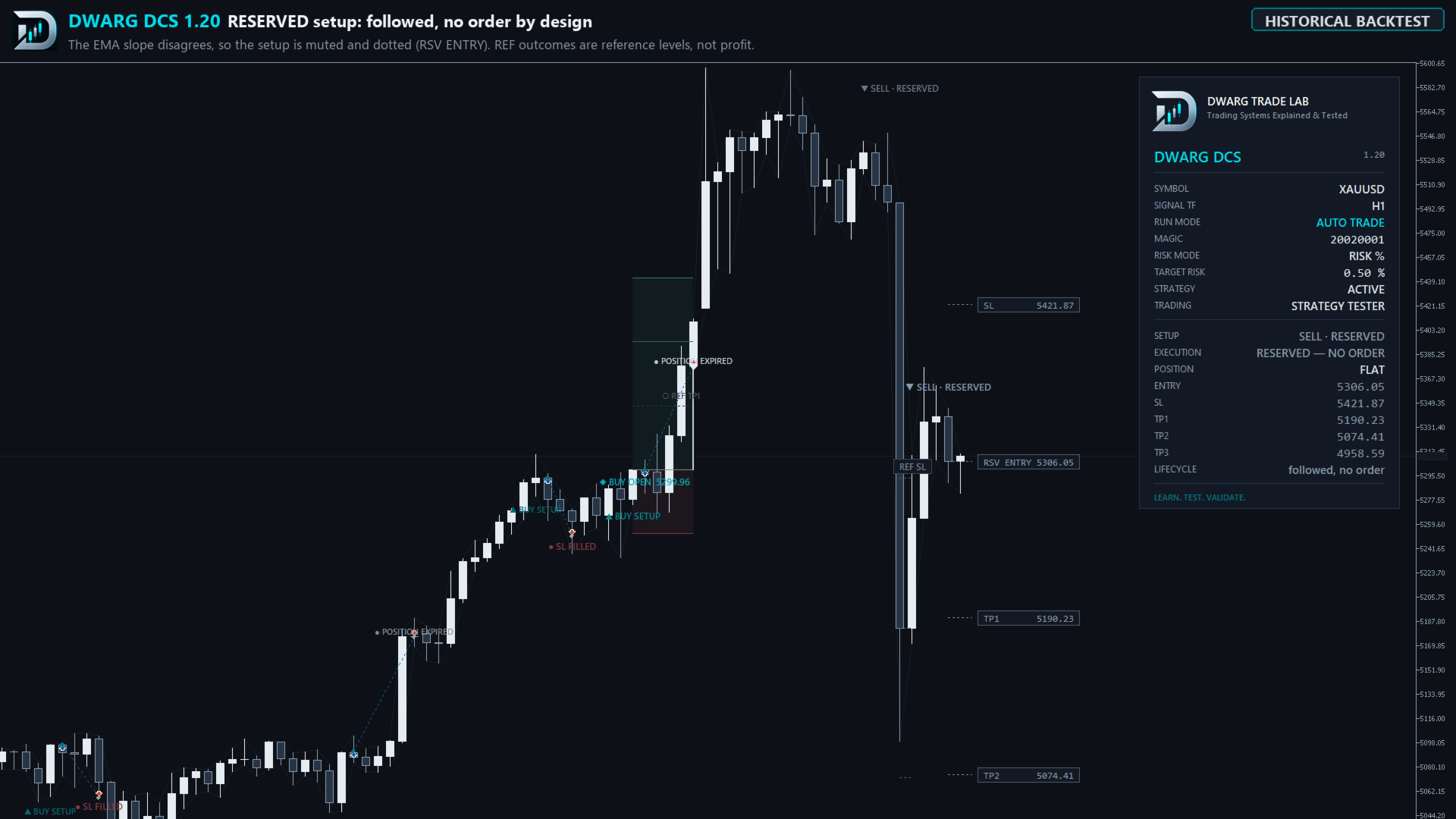
An additional trend-direction rule determines whether a setup is eligible for automated execution or should only be followed as a reference.
The default configuration is a starting point for testing, not a universal setting for every market.
2. Two Operating Modes
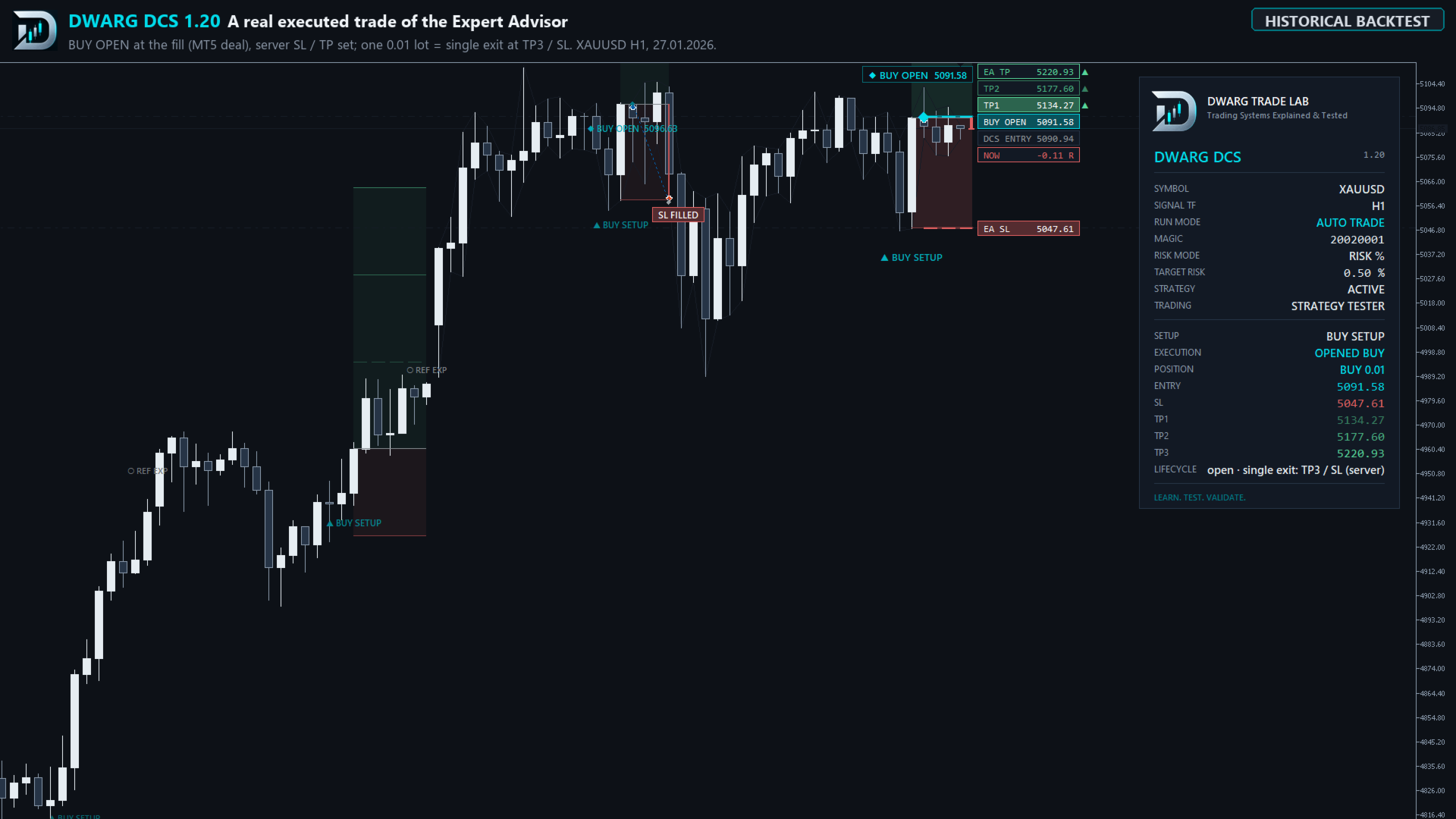
Auto Trade
The Expert Advisor can automatically open and manage positions when the required trading conditions are satisfied.
Entries are evaluated after a signal bar closes. The system attempts execution at the beginning of the following bar, within the configured entry-delay limit.
Before entering, it checks trading permissions, market conditions, broker volume requirements, available margin and other execution restrictions.
If an entry cannot be executed, the system records the reason instead of silently opening a later trade.
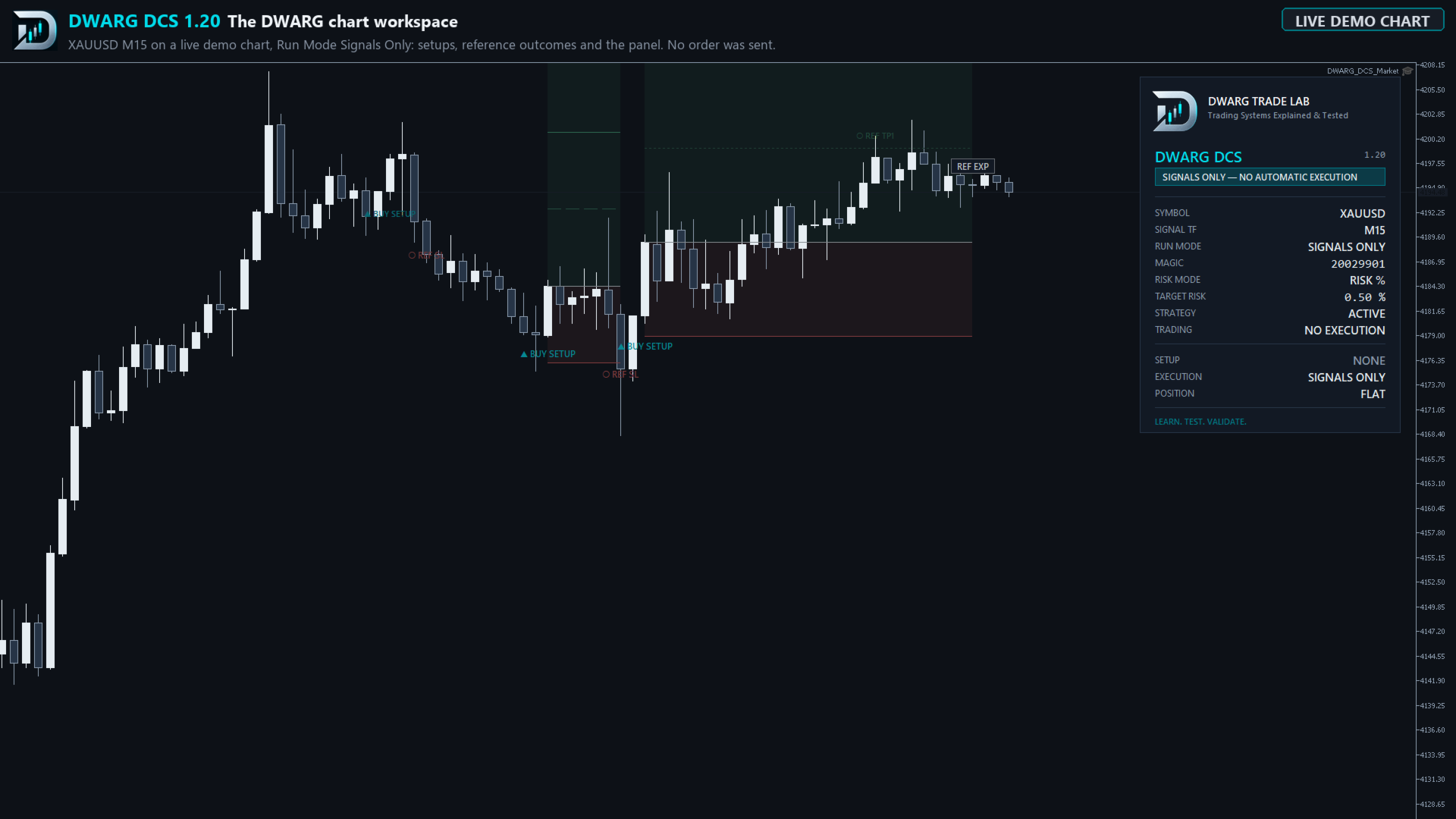
Signals Only
Use the system as a visual trading assistant without automatic execution.
In this mode:
-
Trading setups are calculated and displayed.
-
Entry, stop-loss and target reference levels are displayed.
-
Strategy decisions are recorded.
-
No trading orders are sent.
Signals Only can be useful for studying market conditions, comparing configurations and reviewing potential trading opportunities.
3. Risk Management
DWARG DCS includes two position-sizing methods.
Risk Percent
Calculate position size from account equity, the selected risk percentage and the distance to the stop loss.
If the calculated lot is smaller than the minimum allowed by the broker, the trade is skipped. The system does not automatically increase the position size beyond the requested risk.
Fixed Lot
Select a fixed trading volume manually.
The system checks the requested volume against the broker's minimum, maximum and permitted lot step.
Additional controls include:
-
ATR-based stop loss.
-
Three configurable profit targets.
-
Partial position closing when broker volume rules permit.
-
Server-side stop loss and take profit.
-
Optional spread restriction.
-
Trading-session controls.
-
Entry-delay protection.
-
Position identification through Magic Number.
Risk settings apply to each Expert Advisor instance. There is no account-wide portfolio risk limiter.
4. Three Profit Targets
The Expert Advisor uses an Average True Range (ATR) based stop loss and three targets measured in multiples of the initial trade risk.
With the default settings:
-
TP1: 1R.
-
TP2: 2R.
-
TP3: 3R.
The system attempts to close approximately one third of the initial position at TP1, another third at TP2, and the remaining volume at TP3.
Actual partial closing depends on broker volume requirements. Small positions may use fewer partial exits.
The Expert Advisor does not use martingale, grid averaging, break-even adjustment or trailing stop.
5. DWARG Visual Trading Workspace
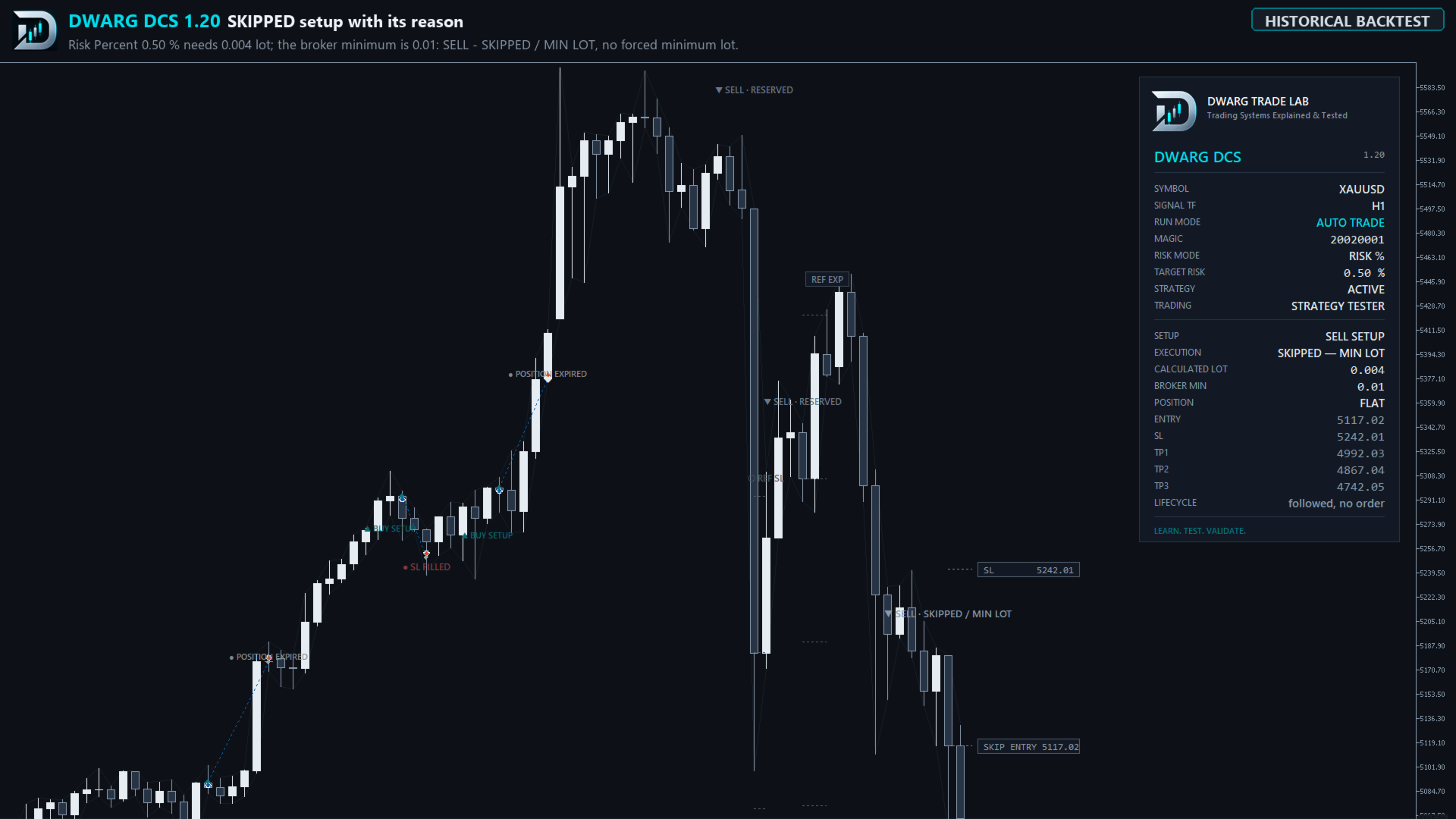
The Expert Advisor includes a dark DWARG TRADE LAB chart theme with an information panel.
The panel displays information such as:
-
Trading symbol and signal timeframe.
-
Operating mode.
-
Risk mode and configured risk.
-
Current trading status.
-
Latest trading setup.
-
Entry and protective levels.
-
Execution status.
-
Position information.
The chart distinguishes three different event types:
SETUP — a trading condition detected by the strategy.
OPEN / FILLED — an actual trade entry or exit recorded by the Expert Advisor.
RESERVED / SKIPPED / REF — setups or reference outcomes that did not result in an executed trade.
For example, a reference target being reached does not mean the Expert Advisor earned that profit.
The chart theme can be disabled, and the previous chart appearance is restored when the Expert Advisor is removed.
Visual settings do not change trading decisions.
6. Configurable Inputs
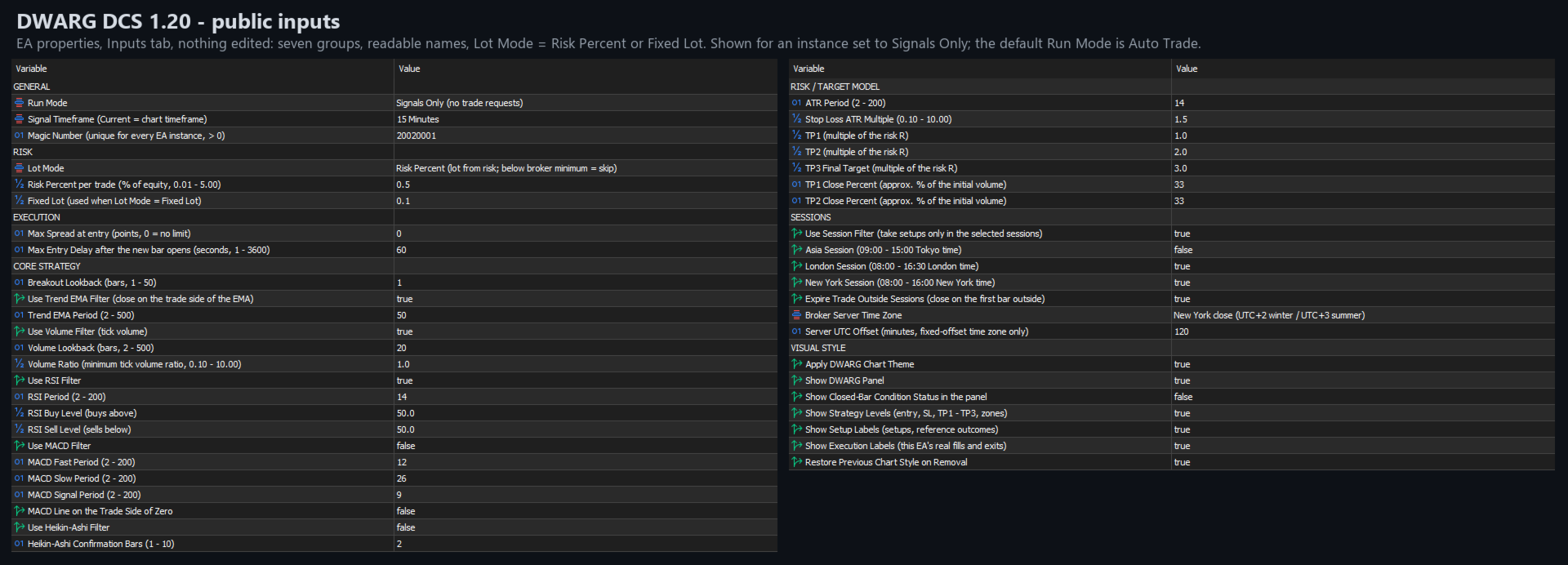
The Expert Advisor provides the following input groups.
General
-
Run Mode: Auto Trade or Signals Only.
-
Signal Timeframe: independent of the chart timeframe.
-
Magic Number: unique identifier for each instance.
Risk
-
Lot Mode: Risk Percent or Fixed Lot.
-
Risk Percent per Trade.
-
Fixed Lot.
Execution
-
Maximum spread at entry.
-
Maximum entry delay.
Core Strategy
-
Breakout lookback.
-
EMA filter and period.
-
Volume filter, lookback and ratio.
-
RSI filter, period and buy/sell levels.
-
Optional MACD filter and parameters.
-
Optional Heikin-Ashi confirmation.
Risk and Targets
-
ATR period.
-
Stop-loss ATR multiplier.
-
TP1, TP2 and TP3 risk multiples.
-
Partial closing percentages.
Trading Sessions
-
Asia, London and New York session selection.
-
Optional expiry outside selected sessions.
-
Broker-server time configuration.
Visual Settings
-
DWARG chart theme.
-
Information panel.
-
Condition status.
-
Trading levels.
-
Setup and execution labels.
-
Restoration of the previous chart style.
All parameters should be tested carefully before being used for automated trading.
7. Symbols and Timeframes
The Expert Advisor operates on the symbol of the chart to which it is attached.
It is not restricted to a fixed list of currency pairs or instruments.
The signal timeframe can be selected independently from the chart timeframe.
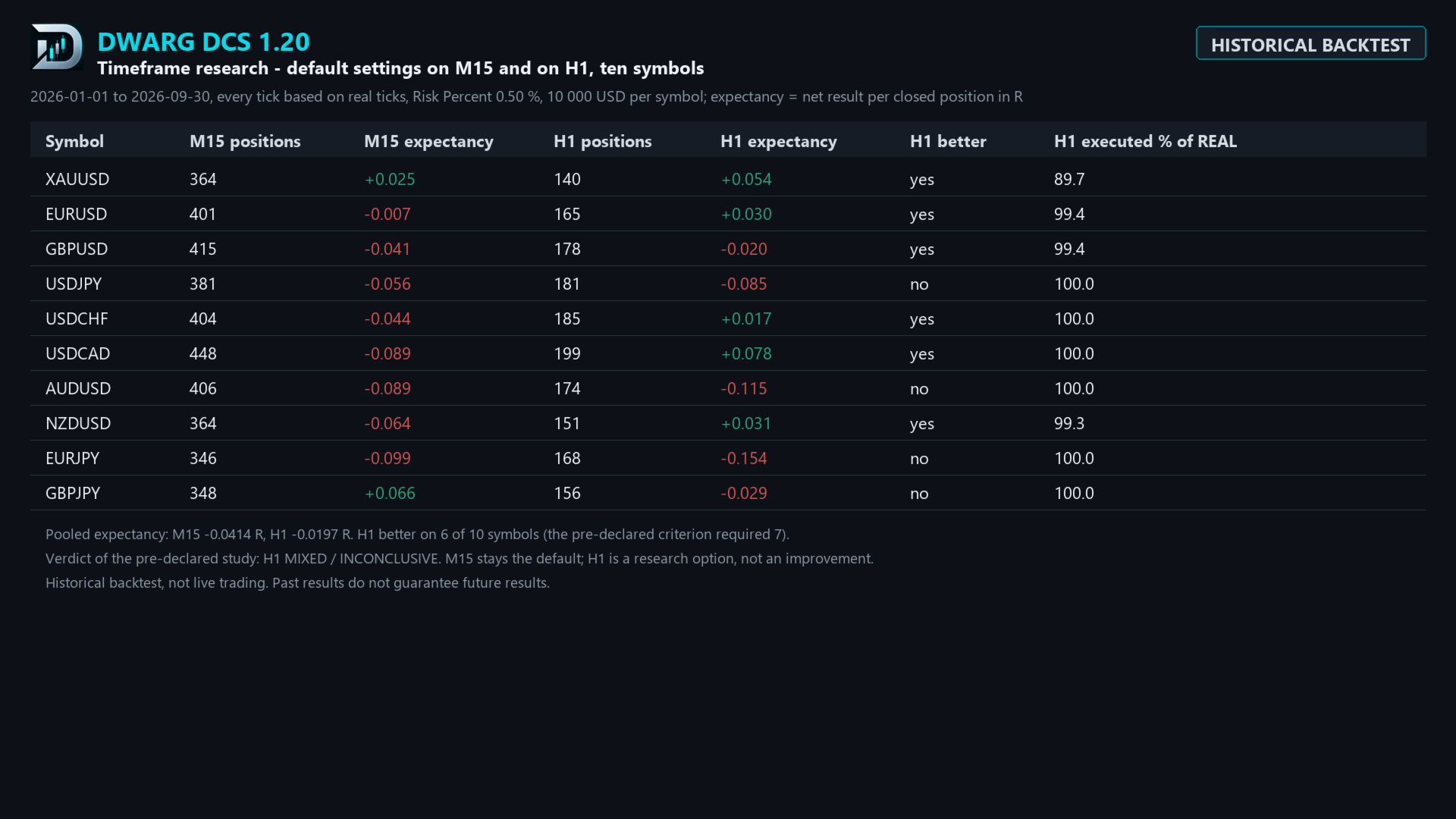
M15 is the product default and the configuration used most extensively during development and testing.
Other timeframes, including H1, can be evaluated in the Strategy Tester. Their trading behaviour and historical results may differ significantly.
Each chart uses its own Expert Advisor instance. Use a different Magic Number for each instance.
8. Strategy Tester and Optimization
Confluence Trading Engine supports the MetaTrader 5 Strategy Tester and its visual testing mode.
You can:
-
Replay historical trading activity.
-
Observe signals and executed positions.
-
Review skipped and reserved setups.
-
Test different symbols and timeframes.
-
Change the available strategy inputs.
-
Use the MetaTrader 5 optimization functionality.
-
Compare historical results between configurations.
Optimization identifies settings that behaved differently on historical data. It does not establish that the same settings will perform well in future markets.
Configurations should also be checked on separate historical periods and demo accounts.
9. Historical Testing Example
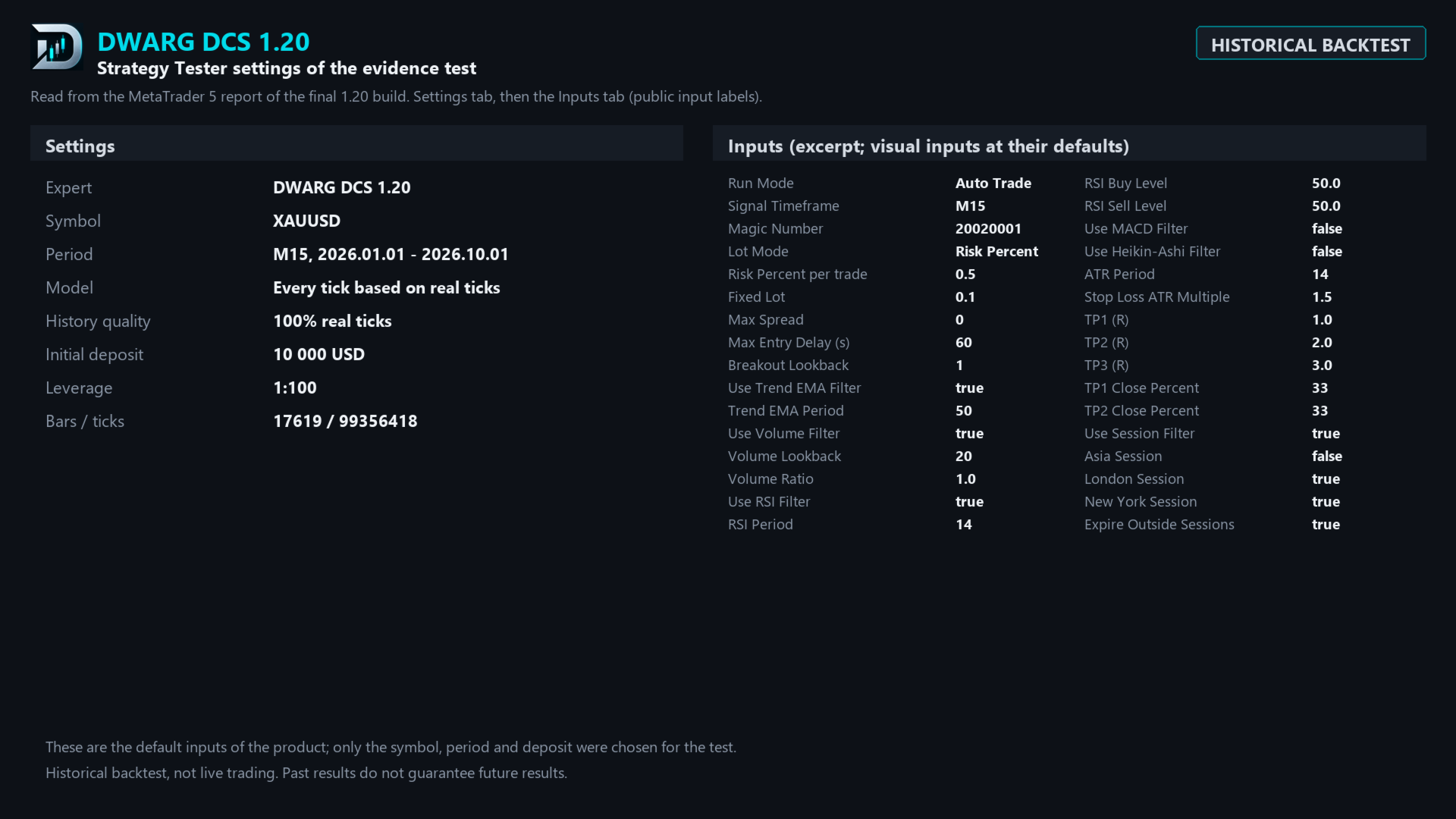
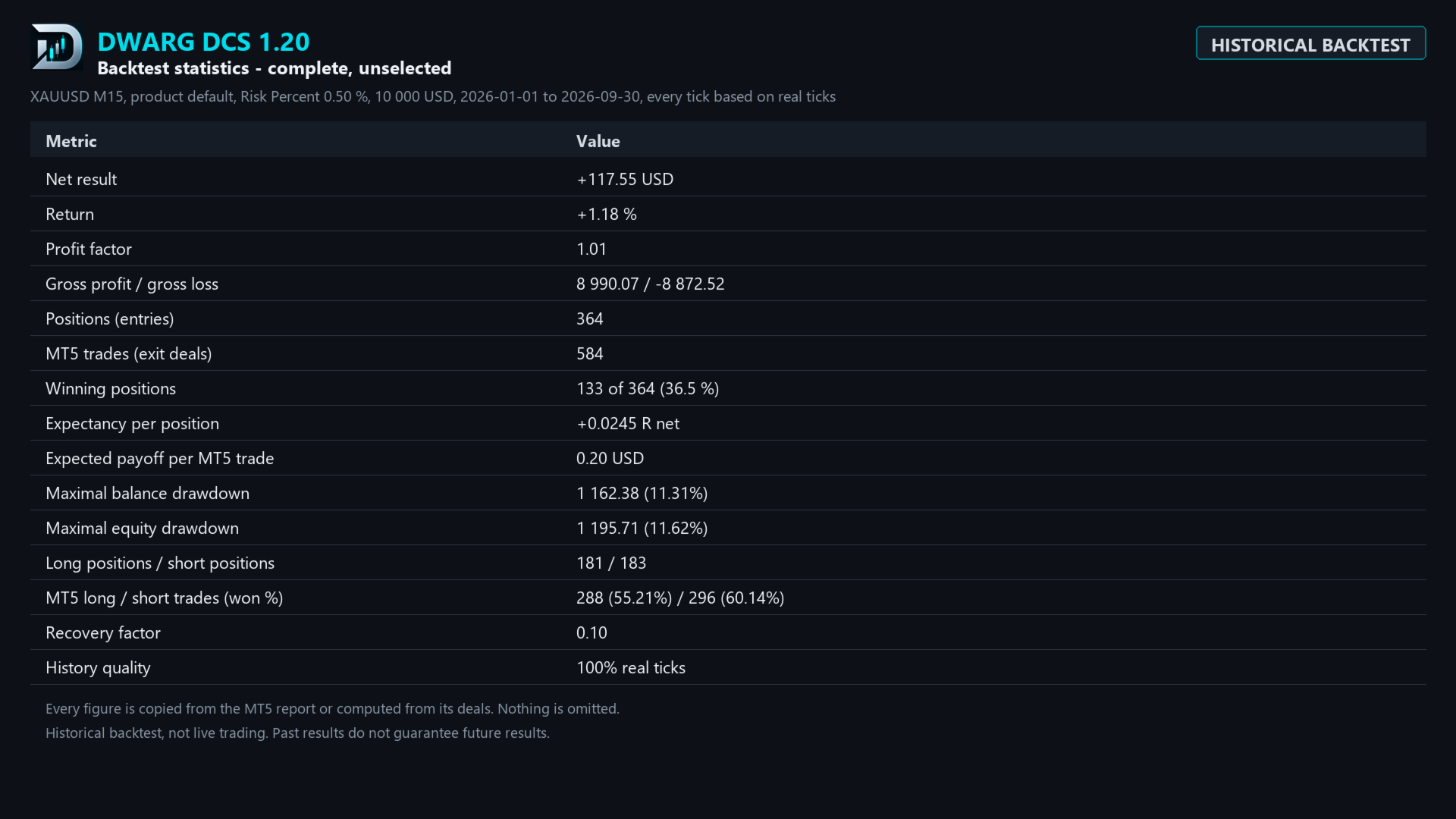
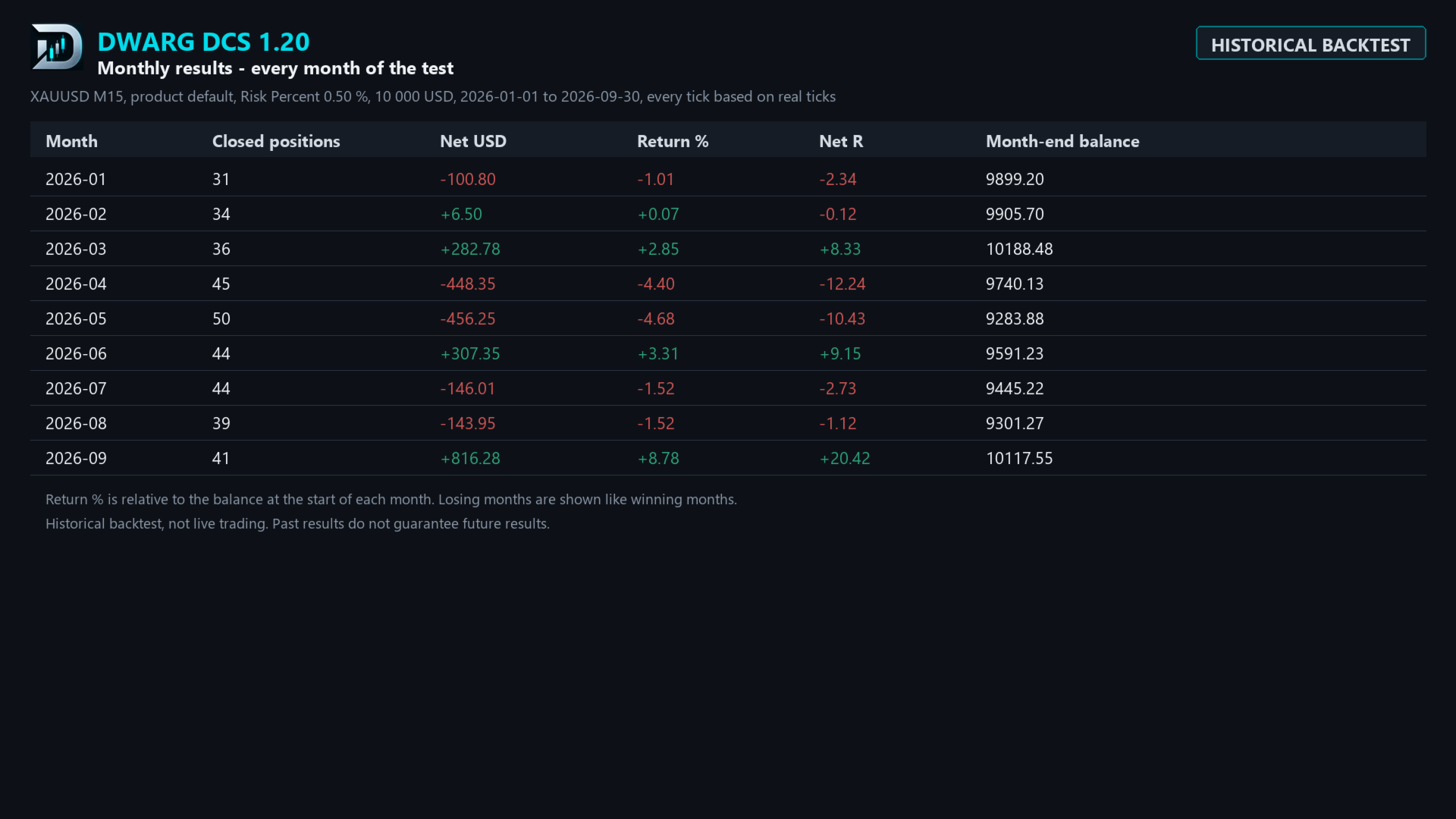
The product screenshots include a historical test using the default strategy configuration.
Test conditions
-
Symbol: XAUUSD.
-
Signal timeframe: M15.
-
Period: January 1 – September 30, 2026.
-
Initial deposit: $10,000.
-
Risk per trade: 0.50%.
-
Modeling: Every tick based on real ticks.
-
Executed positions: 364.
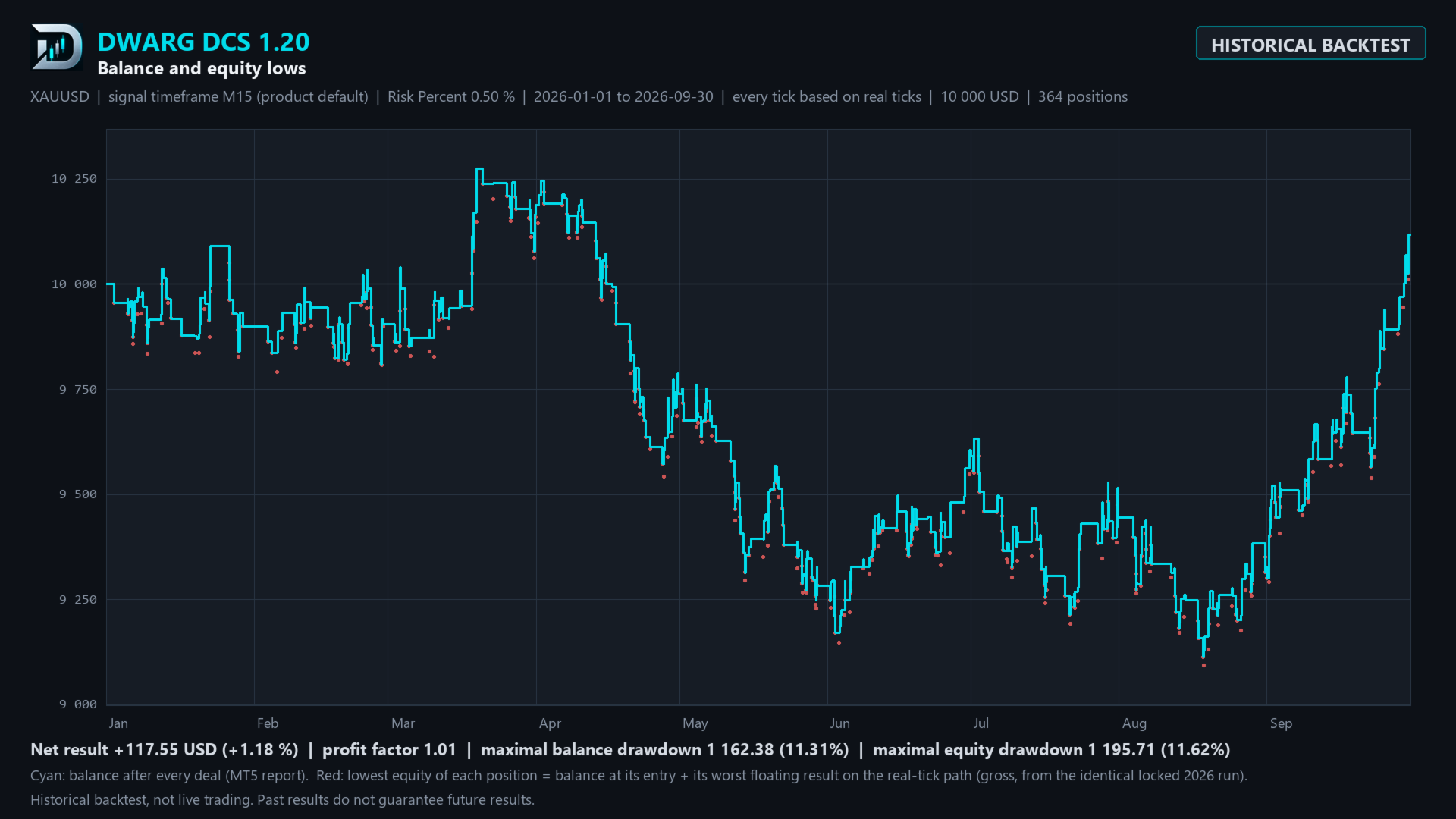
Historical results
-
Net result: +$117.55 (+1.18%).
-
Profit factor: 1.01.
-
Maximum balance drawdown: 11.31%.
-
Maximum equity drawdown: 11.62%.
These results describe one historical configuration on one broker's data. They are not live trading results and do not demonstrate a reliable future return.
Results vary by symbol, timeframe, broker specifications, trading costs and market conditions.
10. Installation and First Use
After renting or purchasing the Expert Advisor:
-
Install the product through MQL5 Market in MetaTrader 5.
-
Find the Expert Advisor in the Navigator.
-
Open the chart of the instrument you want to use.
-
Attach the Expert Advisor to the chart.
-
Review the Inputs tab and select the operating mode, timeframe and risk settings.
-
Start with Signals Only if you want to observe setups without trading.
-
For Auto Trade, enable algorithmic trading permissions in MetaTrader 5.
The system requires sufficient price history before it can calculate its trading conditions.
An open position retains its server-side stop loss and take profit if the Expert Advisor is removed. Reattach the Expert Advisor with the same symbol and Magic Number to resume its management.
11. Free Demo and Licensing
MQL5 Market provides a free demonstration version for testing the Expert Advisor in the MetaTrader 5 Strategy Tester.
The free Market Demo cannot be attached to a normal live or demo-account chart for trading.
To use the Expert Advisor on a trading chart, including its Signals Only mode, rent or purchase the full product.
Product licensing and activations are managed by MQL5 Market.
12. Important Information
Confluence Trading Engine automates its documented built-in trading rules and configurable confirmation modules. It is not a general-purpose strategy builder and cannot automatically execute arbitrary external trading strategies.
Trading involves the risk of financial loss.
Stop-loss orders do not guarantee an exact execution price during gaps, slippage or abnormal market conditions.
Historical backtesting, optimized parameters and demo performance do not guarantee future trading results.
Test your configuration carefully and use position sizes appropriate for your risk tolerance.
For product questions and technical support, use the MQL5 product comments or the MQL5 messaging system.
DWARG TRADE LAB — Trading Systems Explained & Tested
Learn. Test. Validate.