BitPulse
- Uzmanlar
- Sürüm: 1.78
- Etkinleştirmeler: 10

Setup:
- Timeframe: M15
- Minimum account balance: $200
- Account type: low-spread account
(spread up to 300 points = excellent, 300-700 points = acceptable)
On BTCUSD, 1 point = 0.01 in price, so 300 points = a spread of $3.00.
- If your account spread is often above 300 points, raise the input
MaxSpreadPoints (for example to 700). Otherwise the EA will skip placing
pending orders while the spread is above the limit.
For faster backtesting in the Strategy Tester:
- Turn off the "Panel and chart" features. Set these inputs to false:
ShowPanel, ShowProfitTags, DrawOrderLines, ApplyChartStyle.
- Do not use Visual mode.
- These options only change what is drawn on the chart. They do not change
the trading logic, so the trading results stay the same.
"Note: Make sure to test the EA before buying. Past results don't guarantee current performance."
BITPULSE EA - INPUT GUIDE
BEFORE YOU START
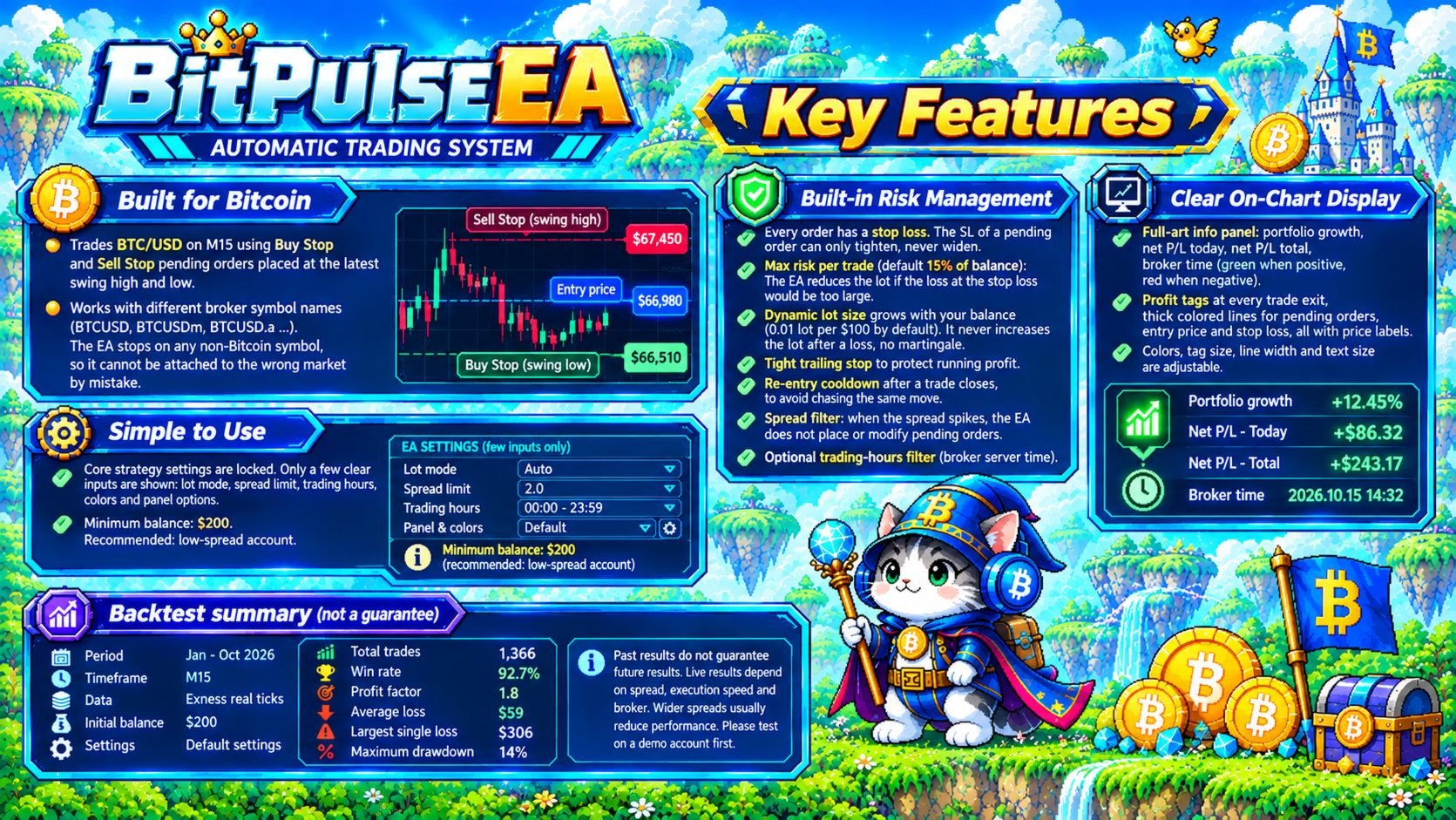
- Works on Bitcoin vs USD charts only. Broker suffixes are fine
(for example BTCUSDm). On any other symbol the EA shows an alert
and stops.
- Recommended timeframe: M15.
- Places Buy Stop / Sell Stop pending orders based on the latest swing
high and low.
- The core strategy settings are locked inside the EA and are not
shown in the Inputs window.
- Trading involves risk. Backtest results do not guarantee future
performance. Please test on a demo account first.
TRADING
EnableBuy = true
Allow Buy Stop orders.
EnableSell = true
Allow Sell Stop orders.
(Turn one side off if you want to trade in one direction only.)
LOT SIZE
LotSizing = Dynamic
Fixed: uses a fixed lot (the value of MinLotSize).
Dynamic: the lot grows with your account balance.
BalancePerStep = 100
Dynamic mode: adds 0.01 lot for every this amount of balance.
Example: a balance of 350 gives 0.03 lot.
MinLotSize = 0.01
Minimum lot. It is also the fixed lot in Fixed mode.
MaxLotDynamic = 1.0
Dynamic mode: maximum lot (0 = no limit).
MaxRiskPct = 15
Maximum risk per trade, as a % of balance. If the loss at the stop
loss would exceed this, the EA reduces the lot (0 = off).
The final lot is always adjusted to your broker's lot step,
minimum and maximum.
PROTECTION
MaxSpreadPoints = 300
Maximum spread allowed for placing or modifying pending orders,
in units of 0.01 price (300 = a spread of 3.00).
If the spread is higher, the EA does not place or modify pending
orders. Existing ones stay. 0 = no limit.
TRADING HOURS (broker server time)
UseTimeFilter = false
Turn the trading-hours filter on.
TradeStartDay = Monday, TradeStartHour = 0
Start day and hour.
TradeEndDay = Friday, TradeEndHour = 20
End day and hour (the final hour is excluded).
Outside the window the EA deletes its pending orders and places no
new ones. It does NOT close trades that are already open; they are
still managed by their stop loss and trailing. The panel shows
OFF HOURS. Times use the broker's server clock, not your local
time.
GENERAL
MagicNumber = 1001
The EA's ID number. It only manages orders with this number. If you
run several EAs or several charts on one account, give each one a
different number.
OrderComment = BitPulse
Text attached to orders (visible in the trade history).
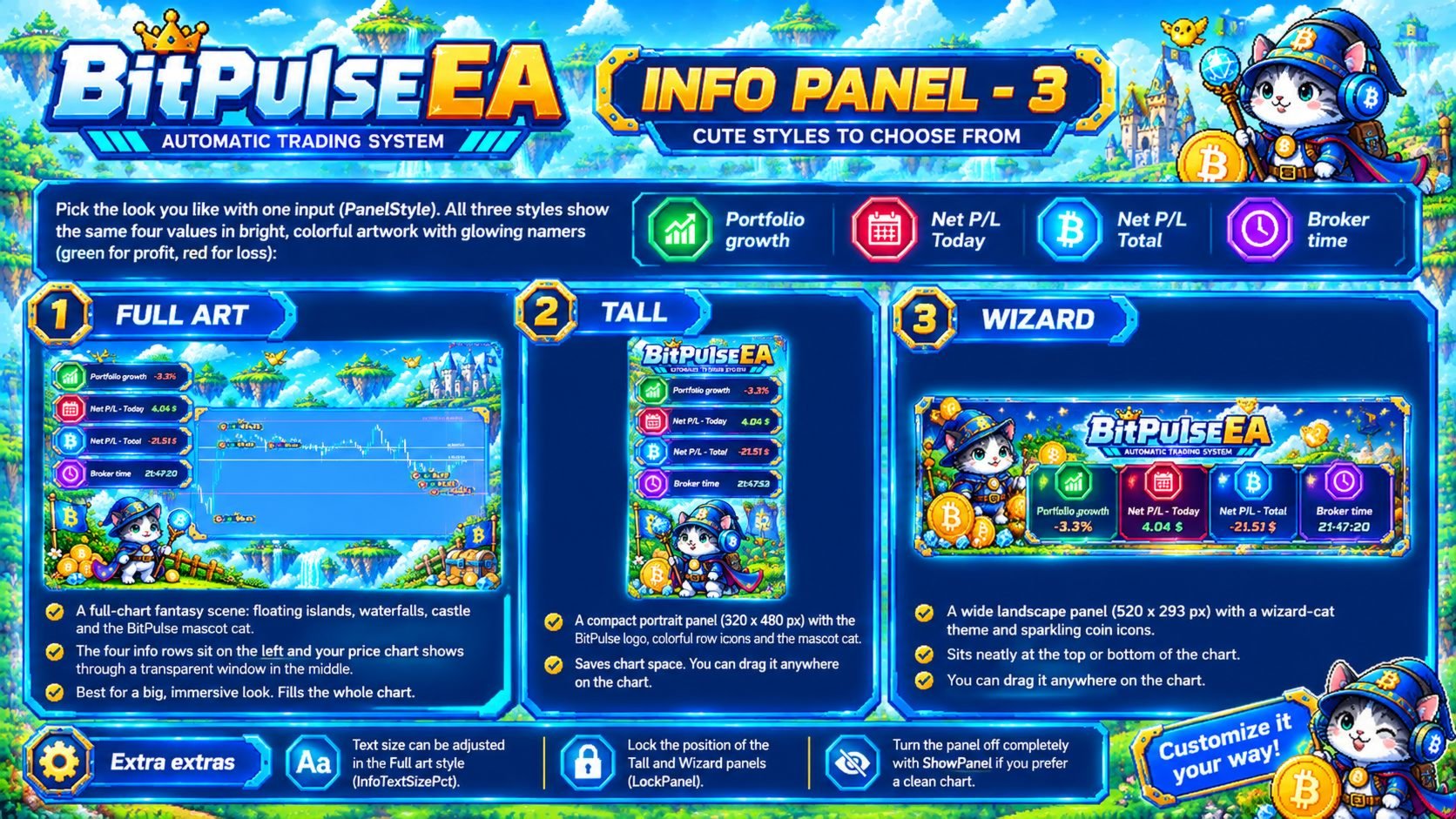
PANEL AND CHART - INFO PANEL
ShowPanel = true
Show the info panel.
PanelStyle = Full art
1 Full art (full-chart artwork), 2 Tall, 3 Wizard.
InfoTextSizePct = 100
Full art only: text size in the panel, in % (60 to 200).
LockPanel = false
Lock the panel position so it cannot be dragged (Tall and Wizard).
ResetPanelPos = false
Ignore the remembered position and use Panel X / Panel Y.
PanelX = 0, PanelY = 18
Panel position (Tall and Wizard).
PanelIncludeOpen = false
Include the floating profit/loss of open trades in Net P/L.
GrowthStartCapital = 0
Starting capital for Portfolio growth
(0 = calculated automatically from your deposit history).
The panel shows four values: Portfolio growth (%), Net P/L today,
Net P/L total, and broker time. Numbers are green when positive
and red when negative.
PANEL AND CHART - PROFIT TAGS AND ORDER LINES
ShowProfitTags = true
Show a net profit/loss tag where each trade closed
(green arrow = profit, red arrow = loss).
TagScalePct = 60
Tag size as a % of the original (30 to 150).
DrawOrderLines = true
Draw thick lines for pending orders, entry price (same color as
pending) and stop loss, with price labels. MT5's own trade-level
lines are hidden.
OrderLineWidth = 2
Line thickness (1 to 5).
PendingLineColor = Violet
Color of pending-order and entry lines.
SLLineColor = White
Color of stop-loss lines.
PANEL AND CHART - CHART STYLE
ApplyChartStyle = true
Let the EA set the chart colors and candle style at start.
Turn it off to keep your own colors.
ColBackground = DodgerBlue
Chart background color.
ColBullOutline, ColBullBody = Cyan
Outline and body of rising candles.
ColBearOutline, ColBearBody = White
Outline and body of falling candles.
PANEL AND CHART - FULL ART PANEL ONLY
SkinFitChart = true
Fix the price scale so the visible price range fits the
transparent chart window.
SkinKeepOrdersVisible = false
Force the pending-order lines to stay inside the chart window.
This can make candles smaller if a pending order is far from price.
GOOD TO KNOW
- Full art looks best when the chart area is about 2.1 : 1
(width : height). If the Toolbox window is open under the chart,
the picture is squeezed vertically.
- The fonts Exo 2 and Saira must be installed on the PC that runs
MT5. If they are missing, a fallback font is shown.
- Always test on a demo account before using real money.