Crypto Killer MT5
- Uzmanlar
- Sürüm: 1.31
- Etkinleştirmeler: 10

Crypto Killer is a fully automated EA for trading Bitcoin and Ethereum. It combines several trend-following and breakout strategies into a diversified portfolio that enters once a move has begun, cuts losing trades short, and lets winners run, with no grid and no martingale.
Supported currency pairs: BTCUSD, ETHUSD
Timeframe: M1
Features:
- Based on trend-following, momentum, and volatility breakout algorithms
- Low-potential trades are filtered out using Flat and ER filters
- Advanced News and Stock Market Crash Filter
- No grid and no martingale
- Support for multiple currency pairs
- One Chart Setup: trade all symbols from a single chart
- Automatic GMT adjustment
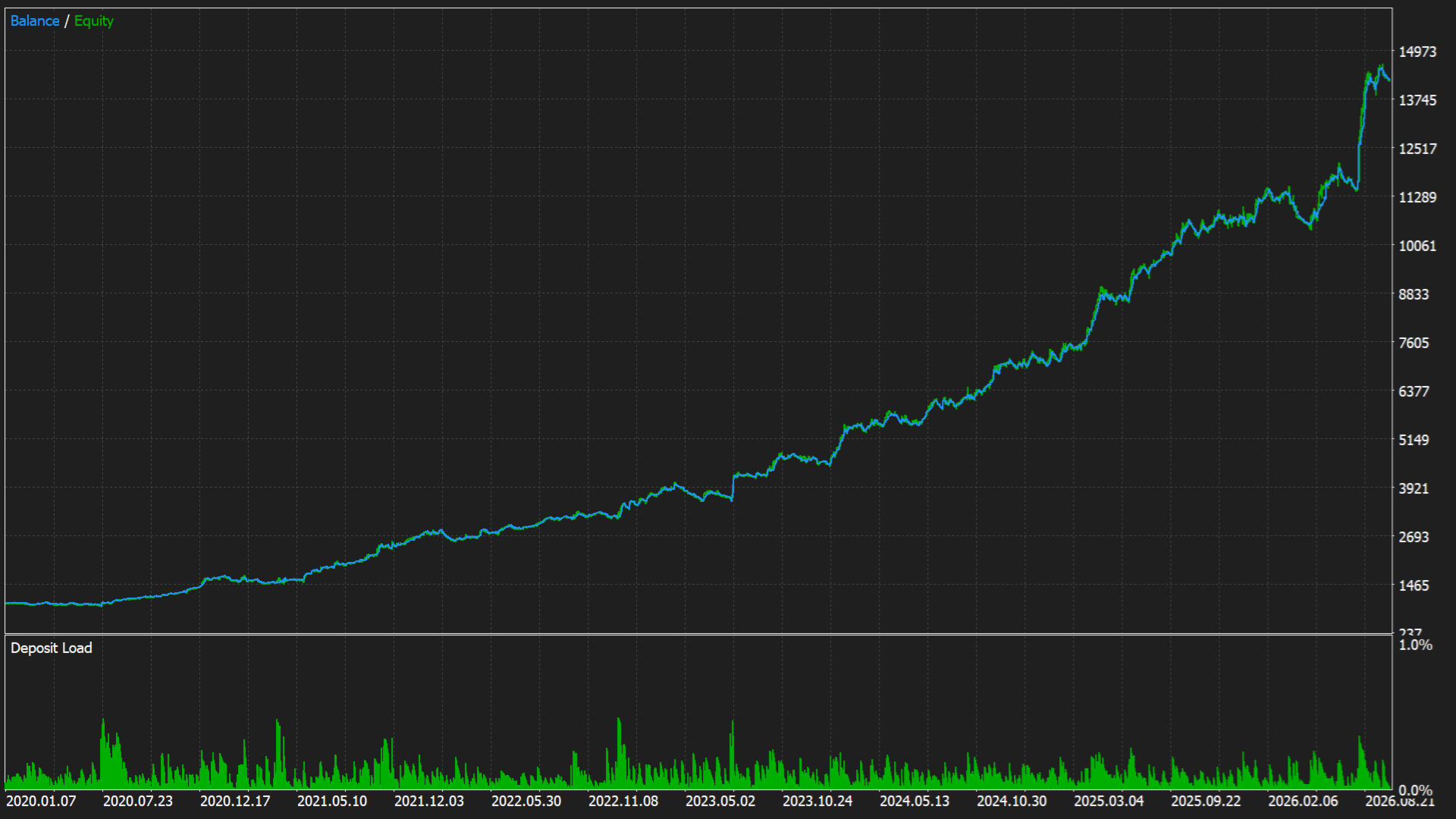
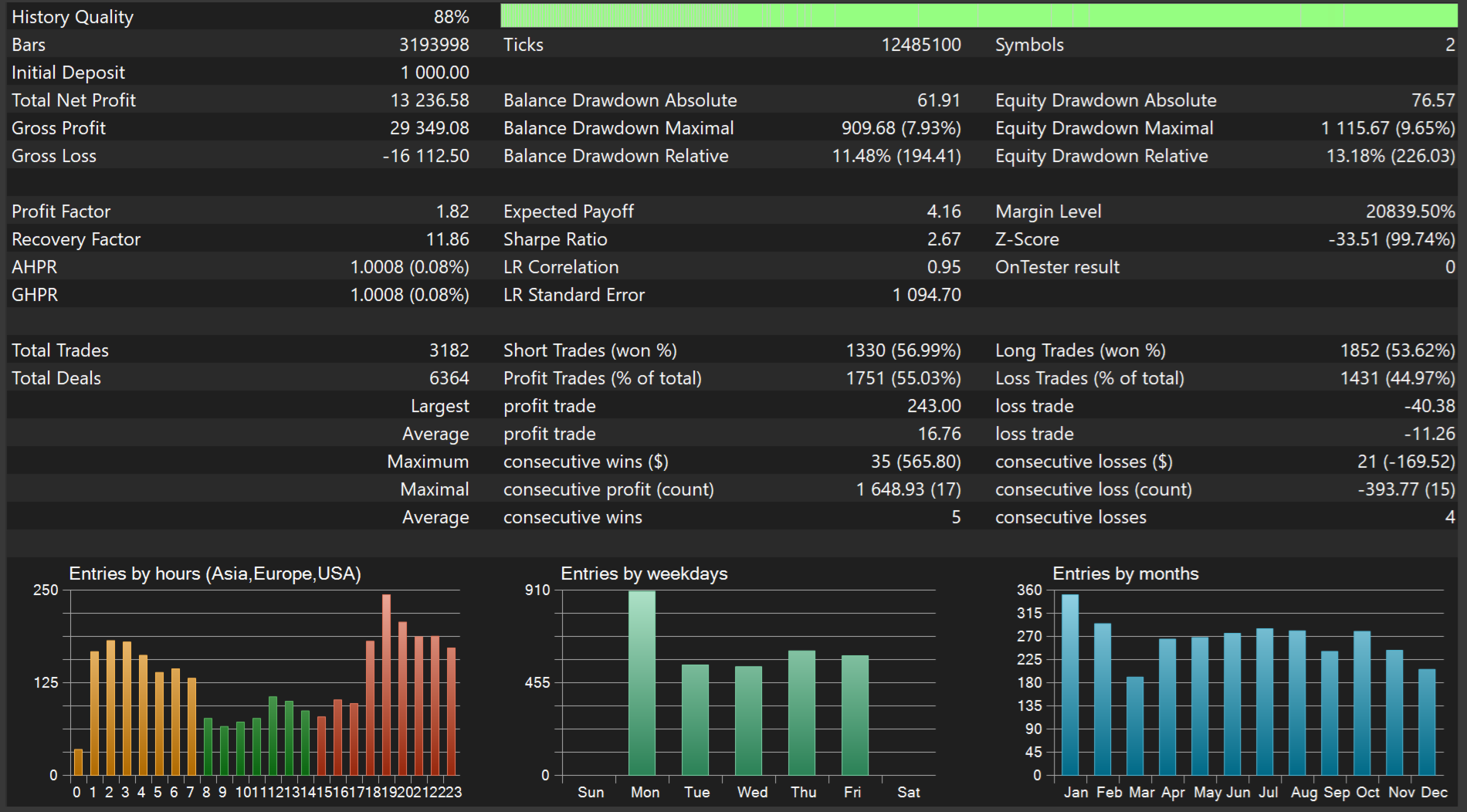
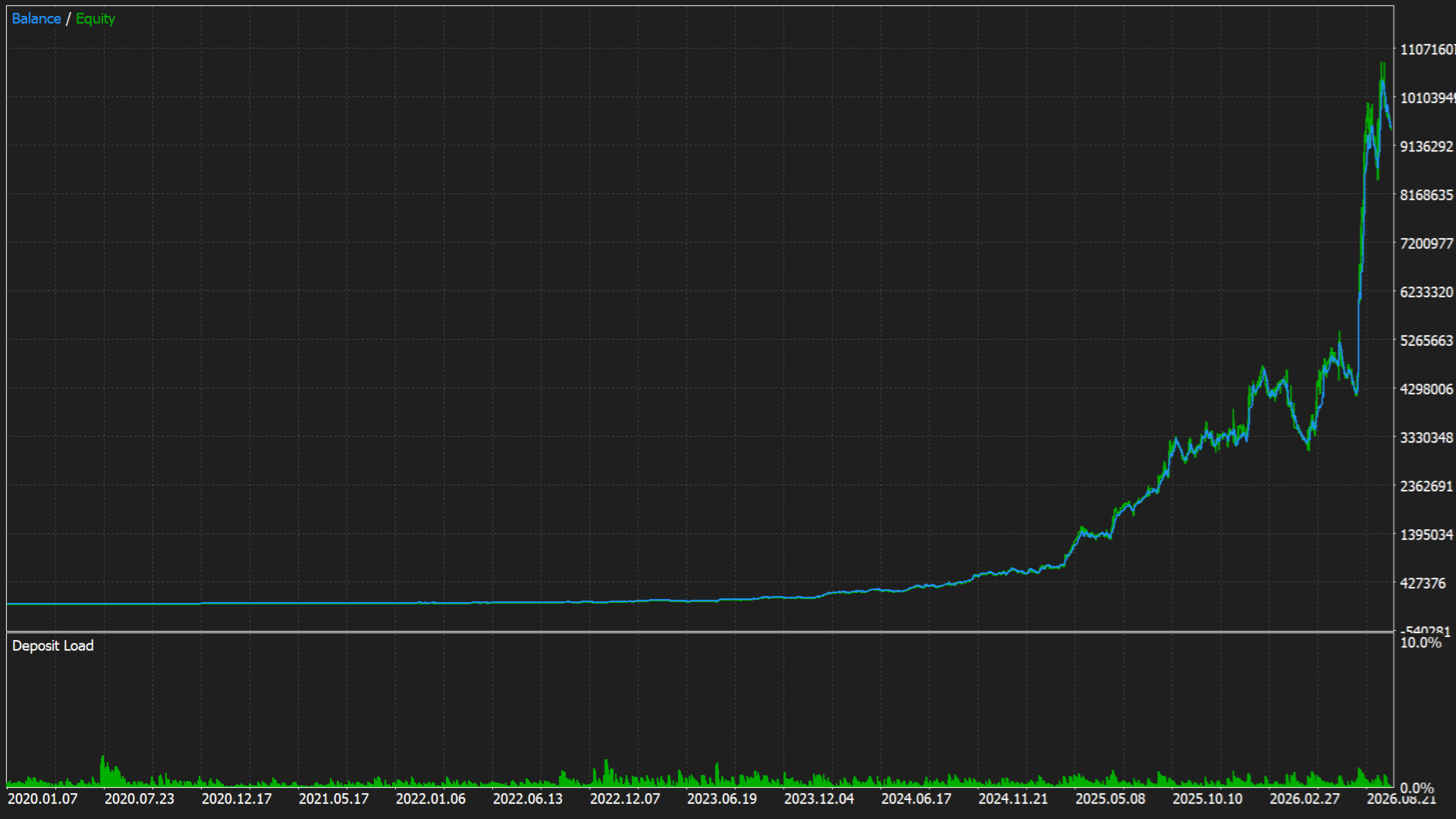
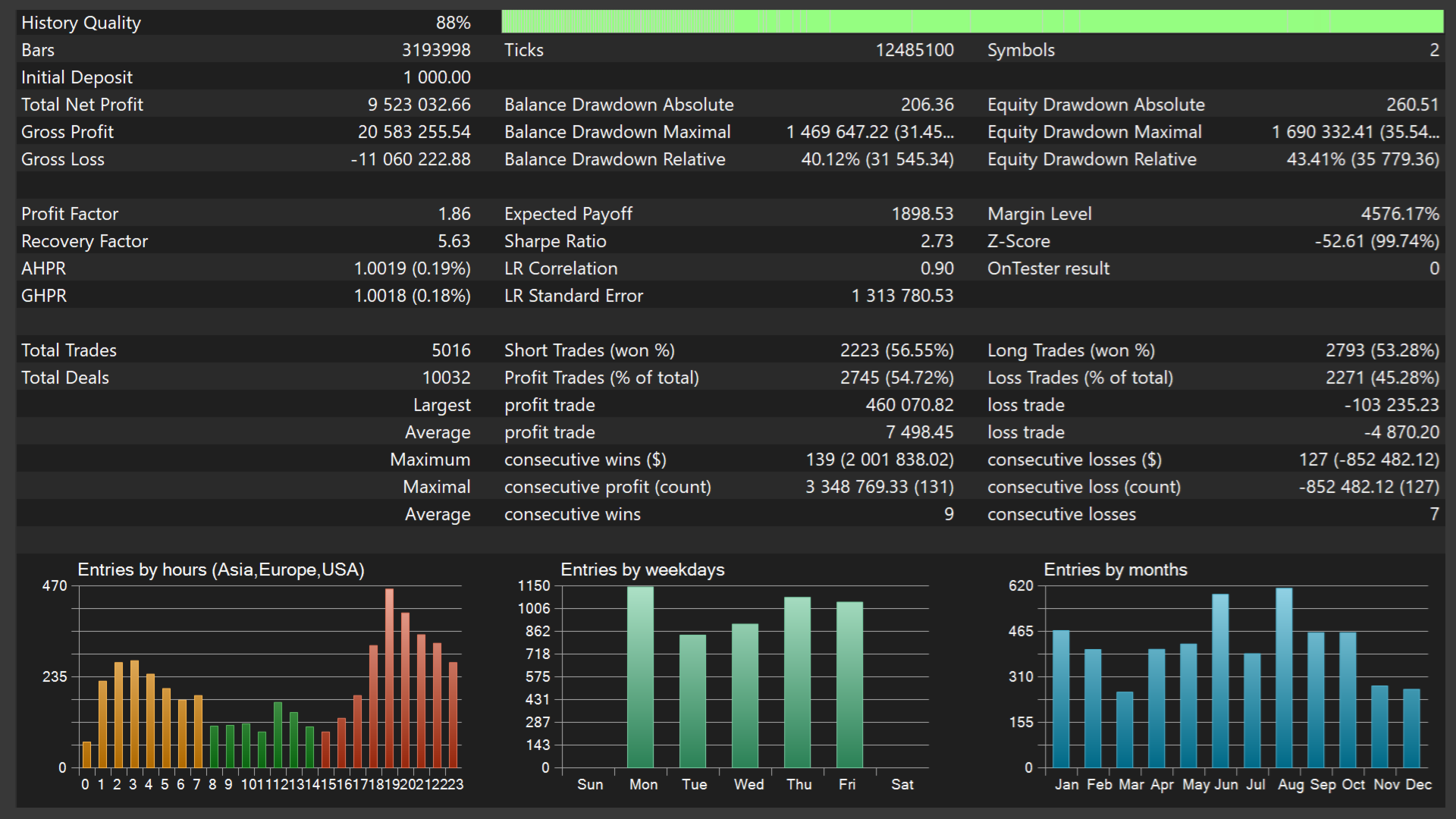
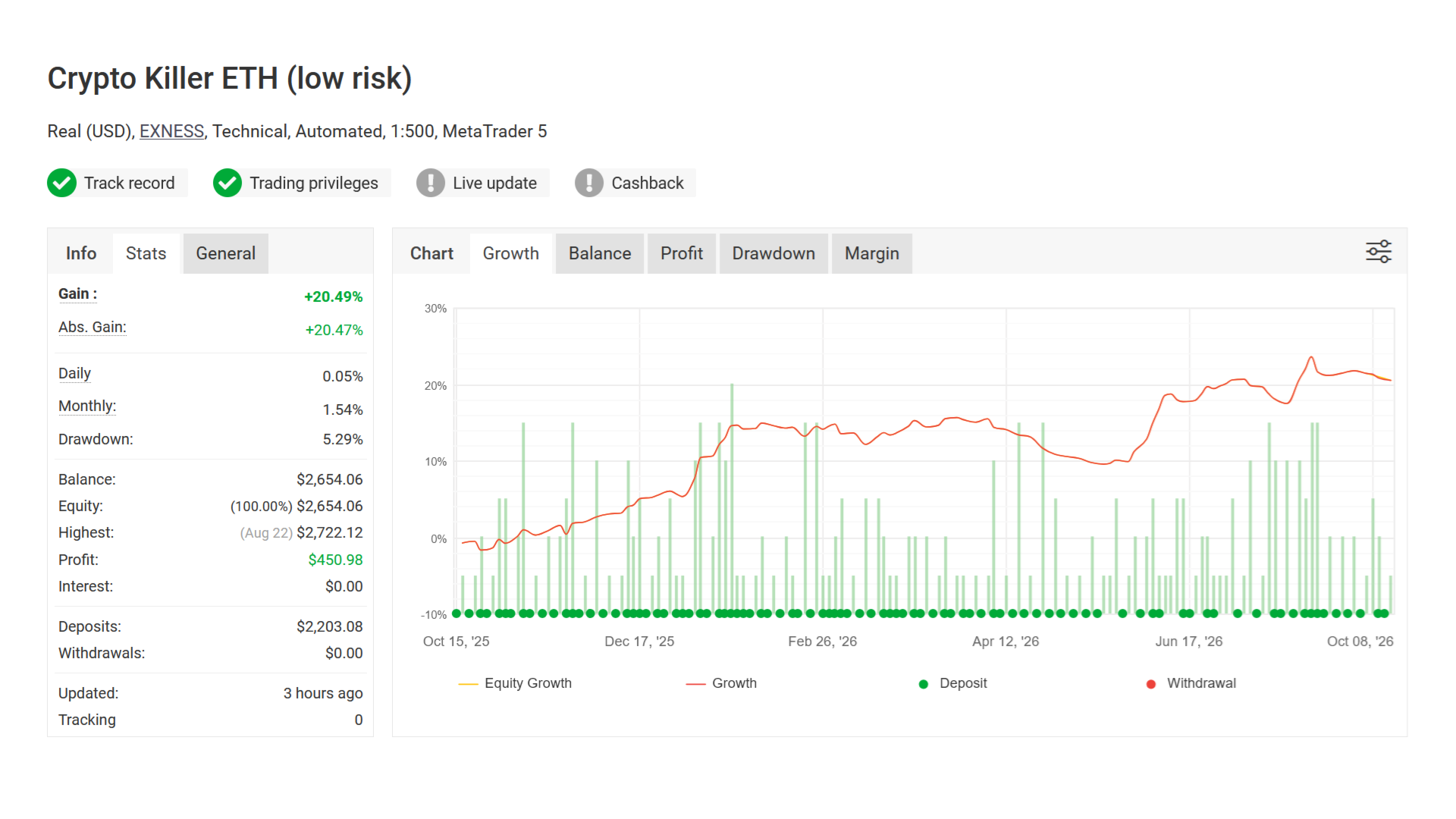
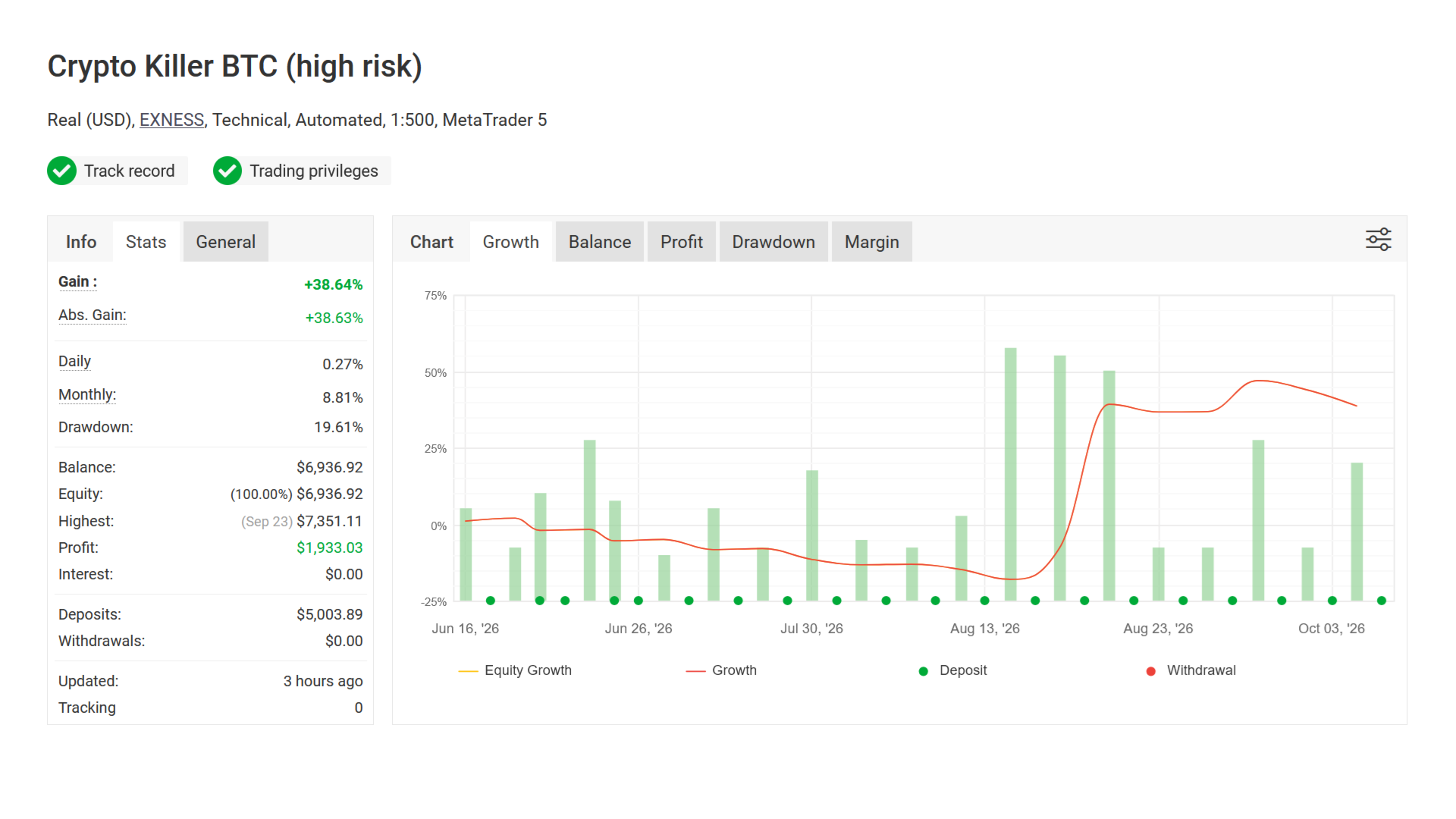
- Solid backtest and strong live performance
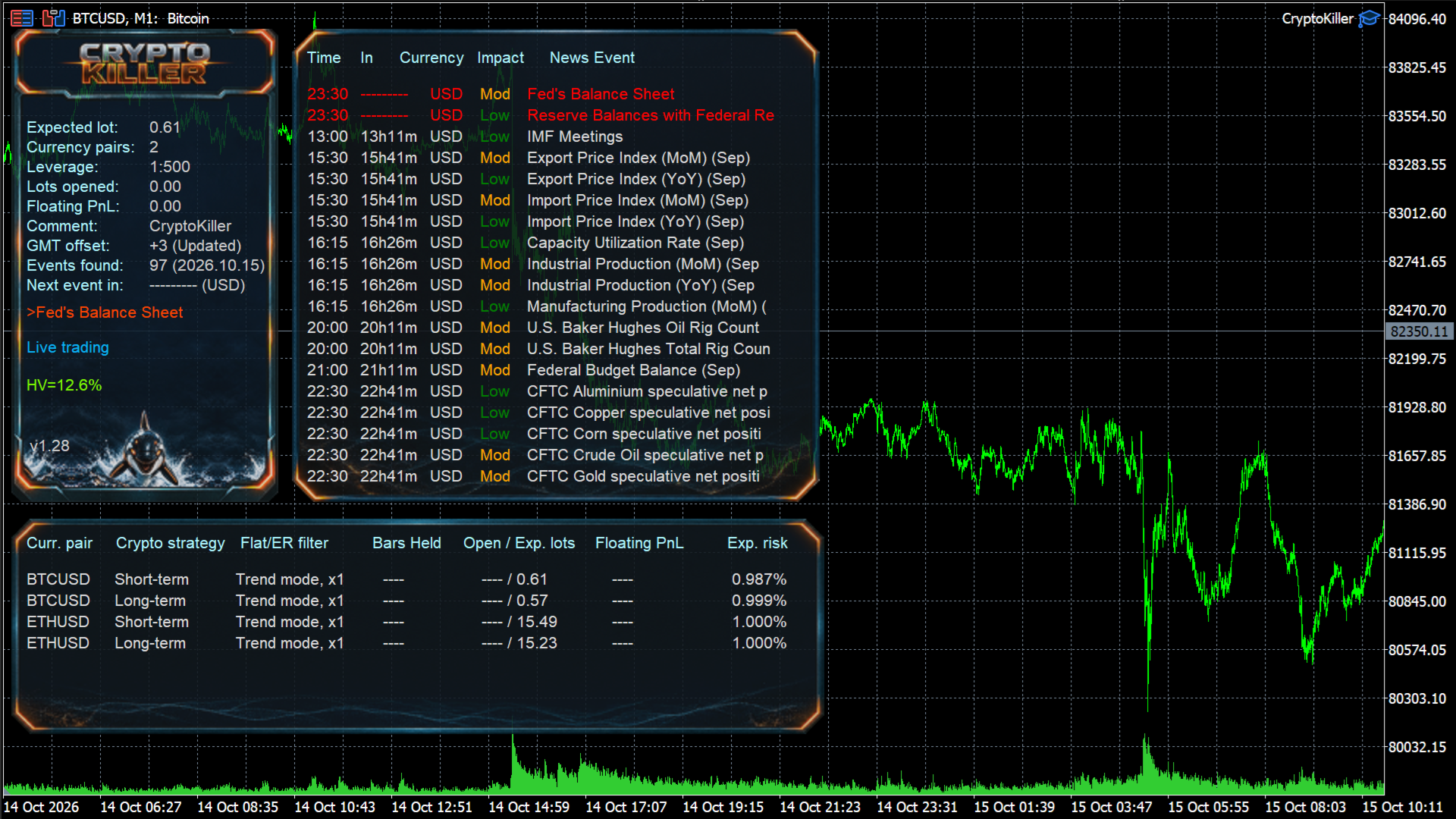
- Statistics Panel with a Self-Diagnostic System
- Very easy to use: simply follow the instructions
Backtests should be conducted using GMT+2 with US DST as this offset is used by most brokers.
How to install
- The EA must be attached to ONLY one M1 chart, BTCUSD is recommended
- If your broker uses a suffix (e.g. BTCUSD.a) you should update names in the Symbol parameter
- You need to give the EA access to the news list website and time server for news filter and time detection functionality to work correctly (delete spaces!):
1. http: //timesrv.online
2. http: //valeryservice.com
3. http: //valerytools.com
Requirements
- The EA is not highly sensitive to spread and slippage, but I still recommend using a good ECN broker
- The EA should run continuously on a VPS
- Check for Instances of the EA - checks that only one instance of the EA is running at a time. If EA detects other instances with the same UID, trading will be disabled.
- Allow Opening a new Trade? - on/off opening of new trades. It does not affect the already open trades.
- Lot-sizing Method - select the lot sizing method according to the risk you want to take: Fixed Lots uses a fixed lot size from the "Fixed lot" parameter, while four predefined presets automatically calculate the risk for you.
- Fixed Lot - fixed trading lot for the initial trade.
- Max Risk per Trade - calculate lots based on % risk per trade.
- Max Lot per Order - maximum size of a single order.
- Auto Split? - option allowing the EA to trade with any lot size/volume without limits. Most brokers have a limit of 10-100 lots per order, so if the option is enabled, the EA will automatically split a large trading volume (e.g. 10000 lots) into multiple smaller orders (not more than 10-100 lots per the child order). It is intended to be used in tester to allow testing the EA on all the available history.
- Maximum Spread, in pips - maximal allowed spread.
- Maximum Slippage for a non-ECN acc, in pips - max allowed slippage for a non-ECN account.
- Maximum Symbols x Strategies at a time - maximum allowed number of symbols for each strategy that can be opened at the same time.
- Allow Trading on Holidays? - on/off Christmas/New Year trading filter.
- Allow to Buy/Sell - on/off Buy/Sell trades.
- Max Floating Drawdown % - if current floating drawdown exceeds the specified % the EA will close open positions.
- Max Floating Drawdown in Money [0-disabled] - if current floating drawdown exceeds the specified value in money the EA will close open positions.
- Max Daily Drawdown Limit % FTMO Rules - maximum daily drawdown limit, calculated according to the FTMO rules. Non-trading operations (like withdrawals) during the day are not taken into account.
- Max Daily Drawdown Limit in Money FTMO Rules [0-disabled] - maximum daily drawdown limit in MONEY, calculated according to the FTMO rules. Non-trading operations (like withdrawals) during the day are not taken into account.
- Max Daily Drawdown Reset Hour FTMO Rules (Broker time) - hour to reset the max. drawdown with the prop firm.
- Max Daily Drawdown Type FTMO - allows you to customize the daily drawdown calculation.
- Max Drawdown Action - allows you to specify actions to be taken after the max. drawdown is reached (in money or %):
- 'Close trades & stop trading for 24h' - the EA will close all open trades and will not open new ones for 24 hours.
- ‘Close trades & stop trading until the end of the day’ - the EA will close all open trades and will not open new ones until the end of the day.
- 'Close trades & stop trading until restart' - the EA will close all open trades and will not open new ones until the EA/MT restarts.
- ‘Close trades & resume trading as normal’ - the EA will close all open trades and resume trading as normal.
- 'Prohibit opening new trades' - new trades will be prohibited as long as the floating drawdown is above a specified value;
- 'Prohibit opening new trades until restart' - new trades will be prohibited until the EA/MT restarts.
- Max Drawdown Calculation - allows you to specify how the maximum drawdown is calculated:
- 'The account' - takes into account all positions opened on the account, including trades opened manually or by other EAs;
- 'This strategy' - takes into account only positions opened by this EA.
- Handle Events on Every Tick - enable/disable drawdown event handling on every tick (instead of once a minute which is used by default, it may consume more CPU resources).
- Symbols separated by comma (custom if empty) – trading symbols separated by comma (custom if empty).
- Symbol Suffix - here you can specify a symbol suffix if your broker uses one.
- Max Random Delay before sending Orders, sec [0-disabled] - maximum random delay in seconds before sending an order. Values over 15 seconds are not recommended.
News Filter settings
- News Filter Enabled - on/off News Filter.
- News Filter Action:
- Prohibit opening of the initial trade - the news filter only prohibits opening new initial trades.
- Prohibit opening of all trades - the news filter prohibits both the initial trades and the averaging ones.
- Close all open trades - the EA will close all trades before the news is released.
- Disable Trading on Bank Holidays - enable/disable trading on bank holidays according to the real-time Economic Calendar (https://www.investing.com). This filter is currency-specific. For example, with it, EA won't take trades on USD pairs during bank holidays in the USA. It also works in Strategy Tester.
- Disable Built-in News Filter Settings - disables the built-in news filter settings, allowing you to fine-tune the news filter.
- Custom Events (separated by comma, disabled if empty) - custom rules allowing you to fine-tune the news filter.
Format: Key[-Currency pair],Key[-Currency pair],.........,Key[-Currency pair]
Key – the currency of the news event or keyword in the news header. You can use multiple currencies without a separator, for example, USDAUDGBP.
If you specify a keyword, the letter case does not matter. For example, FOMC.
[-Currency pair] - optional parameter specifying which currency pair the rule applies to. For example -EURUSD.
Example: USD,AUDGBP-GBPUSD-NZDUSD,CHFEUR-EURUSD,FOMC,Rate-AUDCAD
USD, - takes into account all news events for USD on all currency pairs
AUDGBP-GBPUSD-NZDUSD, - takes into account all news events for AUD and GBP on GBPUSD and NZDUSD currency pairs
CHFEUR-EURUSD, - takes into account all news events for CHF and EUR on the EURUSD currency pair
FOMC, - takes into account news events with the word (or part of the word) FOMC in the header on all currency pairs
Rate-AUDCAD - takes into account news events with the word (or part of the word) Rate in the header on AUDCAD currency pair
Each rule must be separated by a comma. if 'Disable Built-in News Filter Settings'=false, then the custom rules are in addition to the built-in ones.
- Medium Impact News - enable/disable news events with medium impact (2 stars news).
- Low Impact News - enable/disable news events with low impact (1 star news).
- Speaks - if false, then the EA will not consider news events marked as Speeches/Speaks.
- Wait Minutes Before Event - suspend trading before the news.
- Wait Minutes After Event - suspend trading after the news.
- Increase Take Profit, in pips [0-disabled] - specified number of pips to be added to TP during news events.
- Show News List - displays a list of upcoming news events to the right of the info panel.
- News List Refresh Rate - news events list update frequency (selection from the drop-down list).
Stock Market Crash Filter settings
- Stock Market Crash Filter Enabled - enable/disable the stock market crash filter.
- Stock Market Symbol - symbol name of the S&P500 stock index of your broker. It is usually called something like US500 or SPX500 (press Ctrl+U to see all symbols).
- Filter Period - period of the stock market crash filter.
- Max Historical Volatility (HV), in % - max. annualized standard deviation of H1 returns (HV in %).
- Block Trading for the Entire Day - prohibits opening new trades throughout the day if HV hits the specified level just once at any moment during the day.
Additional settings
- Trade Comment - comment for orders.
- UID (0...9) - unique EA instance number. Usually, no need to change it.
- Show Panel - on/off Info-panel.
- Font Size (1...8) - reduce this value if you're having trouble with the info panel.
Backtest settings
- Disable Automatic GMT Detection - set it to 'true' to disable automatic GMT detection. You can use the GMT Test/Manual' and 'DST Test/Manual' parameters to manually set the GMT offset in live trading.
- GMT Test/Manual - GMT offset in winter in Tester.
- DST Test/Manual - DST in Tester.