Trade Manager Pro by PositionBoss
- Утилиты
-
Md Mahadi Hassan Rakib
 Hi, I'm MD MAHADI HASSAN RAKIB, the developer behind PositionBoss.
PositionBoss builds practical tools for MetaTrader traders: tools that help you manage risk, protect your trades and follow your own rules with discipline. No signals, no hype, no profit promises. - Версия: 2.0
- Активации: 10
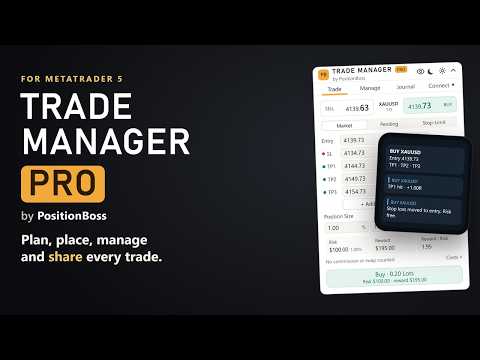
Plan, place, manage and share every trade from one small panel. Trade Manager Pro works out your lot size from the risk you choose, shows the whole trade on your chart before you click, places it in one click, protects it while it runs, records the result, and can post it to your Telegram or Discord channel by itself.
Two tools in one. A complete trade panel and a Telegram / Discord / webhook signal sender, working from the same trades. No second product to buy, set up or keep in step.
The problem it solves
Every trade asks the same questions. How many lots is 1% with this stop? What do I make at each target, after commission? When do I move the stop to entry? How do I close half of three trades at once? What do I tell my followers, and when?
In MetaTrader 5 these are separate windows, a calculator and a lot of typing, usually while the price is moving. That is where mistakes happen: the wrong lot size, a forgotten stop, profit given back, a signal posted late.
Trade Manager Pro puts all of it into one 300-pixel panel with four tabs: Trade, Manage, Journal and Connect.
1. Trade tab: plan the trade, then place it in one click
- Lot size from your risk. Type 1%, $100 or a fixed lot size. The other two follow. Lots are rounded down, so you never risk more than you set.
- Your trade on the chart. Entry, stop loss and every take profit are lines you can drag. The panel follows. Each label shows the price, pips, money, % of your account and R.
- Up to 10 take profits. Close the trade in parts. Share the lots equally, more on the near targets or more on the far ones, or set each share yourself. Lock a target at a fixed R so it follows your stop.
- Market, pending and stop-limit orders. Type a price and a market order becomes a limit or stop order. Stop-limit orders get their own trigger line.
- Costs before and after. Commission is read from your broker (or typed by you), and swap is added for the nights you plan to hold. A table shows risk, reward and reward : risk before and after costs, at the lots you will really trade. You choose whether your risk amount includes costs.
- A last check before you trade. “Place this order?” shows the order, size, entry, stop and risk. Enter places it, Esc cancels.
- Hotkeys for the things you do often (list below).
2. Manage tab: look after every open trade
- Every position and pending order in one list, grouped by pair. All symbols or only this one.
- Filters: Profit, Loss, Buys, Sells. Tick the trades you want to act on.
- Breakeven in one click, for one trade or every ticked trade. The panel tells you which trades are at breakeven and which are not yet.
- Partial close by % or by lots, shared across the ticked trades by size. You see the lots and the money you book before you click.
- Move Stop: move the stops of many trades closer or further by pips or points, with the risk at the stops shown now and after.
- Close a trade, close half, close the ticked trades, delete pending orders.
- Automatic exits: breakeven after the profit you choose (it can also cover the commission) and a trailing stop that only ever moves in your favour.
- Your account at a glance: equity, floating result, margin level, and risk and margin by symbol.
3. Journal tab: see what works for you
- Today, this week, this month or all time.
- Net result, win rate, profit factor, average trade, maximum drawdown and your equity curve.
- Only the trades placed with Trade Manager, or every trade on the account.
4. Connect tab: your trades become signals, automatically
- Send to a Telegram channel, group or chat, a Discord channel, or any webhook address (an automation service or your own website). Up to 6 channels, each with its own choice: everything, entries and results, or results only.
- One message per trade: direction, symbol, entry, stop loss and every target with pips and R, and the risk in %.
- Updates arrive as replies under the signal: take profit hit with % booked and % still running, stop moved to entry, part closed, trade closed with the average pips and R. The signal itself updates its status too.
- Instant or Manual. Instant posts within about a second of the trade. Manual holds each message until you press Send, so you can skip a trade you don’t want to share.
- Three styles: Clean (tidy text), Emoji (coloured dots and ticks) or Copier (plain lines that signal-copy tools can read). Choose what each signal shows: pips, R, risk, lots, money. Add your own last line.
- One-click posts: Looking For Buys / Sells (with your price zone), Get Ready, Wait For Confirmation, News Ahead (the next high-impact event from the MetaTrader 5 calendar) and Staying Out. Undo removes a post within 10 seconds.
- Short alerts to the MetaTrader 5 app on your phone.
- Check Everything tests every channel; the Activity list shows each message and where it went. With the panel on several charts, each message is still sent only once.
13 safety rules that protect your account
Set them once (Inputs, group 8; 0 = off). A trade that breaks a rule is blocked, and the panel says which rule and why.
- Maximum risk for one trade (%)
- Maximum risk of all open trades together (%)
- Maximum spread (points)
- Maximum open trades
- Maximum stop loss distance
- Minimum stop loss distance
- Maximum margin for one trade (%)
- Maximum open trades on this symbol
- Maximum open lots in total
- Maximum open lots on this symbol
- Maximum risk on this symbol (%)
- Maximum margin in use (%)
- Maximum margin on this symbol (%)
Prefer a smaller trade to a blocked one? Switch that on. A market order whose stop breaks rule 5 or 6 can become a pending order instead.
Made to stay out of your way
- A small panel you can drag anywhere and fold to one line. Light or dark, size 80% to 150%.
- Lines never draw over the panel, and the trade history markers stay under it.
- Distances in pips or points. Every symbol your broker offers: forex, metals, indices, energies, crypto.
- Works with market-execution brokers (stops are added right after the fill) and with 3 and 5 digit quotes.
- Uses no DLL files.
Start in 3 steps
- Drag Trade Manager Pro onto a chart and allow Algo Trading.
- Set your risk on the Trade tab, then drag the stop and target lines to where you want them.
- Check the numbers and click the trade button.
Keyboard shortcuts (change them in Inputs, group 10)
- Shift+T: place the trade. Enter: confirm. Esc: cancel.
- Tab: switch buy / sell. O: switch market / pending / stop-limit.
- E, S, P: move the entry, stop loss or take profit line to the mouse.
- H: hide or show the lines. ` (left of 1): fold the panel.
Connect Telegram (3 minutes)
- MetaTrader 5: Tools > Options > Expert Advisors > tick “Allow WebRequest for listed URL” and add api.telegram.org (and discord.com for Discord), each with https:// in front.
- Telegram: message @BotFather, send /newbot, choose a name, copy the token.
- Add your bot to your channel or group as an admin with Post Messages.
- Connect tab > Add Channel > Telegram: paste the token, Check, click your channel when it appears, Send Test, Finish.
Connect Discord (2 minutes)
- Discord: Edit Channel > Integrations > Webhooks > New Webhook > Copy Webhook URL.
- MetaTrader 5: press F7 > Inputs > 12.1 Discord webhook link, paste, OK.
- Connect opens on Add Discord: Check, Send Test, Finish.
Messages go only to the channels you add. MetaTrader 5 must be running (on your computer or a VPS) to send them.
Settings: press F7 > Inputs. Every setting is numbered (groups 1 to 12) and explained. What you change on the panel is remembered for each chart and symbol.
Try it first
- Free demo: run it in the Strategy Tester in visual mode to try the Trade, Manage and Journal tabs on any symbol.
- Rent or buy to use Connect live with your own channel. Connect sends real messages, so it does not run in the Strategy Tester.
Good to know
- Trade Manager Pro never opens a trade unless you click. In the Strategy Tester without visual mode the panel is not drawn; it opens and closes one trade of the minimum lot size so the test has a trade to show.
- On netting accounts only one take profit per position is possible. The panel tells you when this applies.
- Always check an order before you place it. The panel uses the prices, contract sizes and limits your broker sends.
- Trading carries a high risk of loss. This is a tool that carries out your plan; it does not predict the market.
Questions? Write in the Comments or send a private message. We usually answer within a day.