 MetaTrader 5
 Experts
 지표
지표
 스크립트
스크립트
 라이브러리
라이브러리
 보관함
보관함
당사 팬 페이지에 가입하십시오

T5Copier - MT 5 client to client Local trade copier - MetaTrader 5용 expert

- 조회수:
- 38
- 평가:
- 게시됨:
- 업데이트됨:
-
 이 코드를 기반으로 한 로봇이나 지표가 필요하신가요? 프리랜스로 주문하세요
프리랜스로 이동
이 코드를 기반으로 한 로봇이나 지표가 필요하신가요? 프리랜스로 주문하세요
프리랜스로 이동

C#으로 구현된 맞춤형 대시보드와 Go 언어로 구현된 전송 파이프를 갖춘 로컬 클라이언트 간 트레이드 카피어
MT5 트레이드 카피어 실행 방법 (아카이브된 DLL 기반 버전)
1단계: ZMQ 라우팅 브리지 시작
- Windows 파일 탐색기를 열고 다음 경로로 이동합니다: C :\T5Copier\Go_bridge\
- T5Copier_Bridge.exe 파일을 더블 클릭하여 실행합니다.
- 브릿지가 다음 포트에서 수신 대기 중임을 나타내는 터미널 창이 열립니다:
- 포트 5567 ( 마스터 수신)
- 포트 5568 ( 슬레이브 발신)
- 포트 5569 ( 대시보드 로그)
2단계: C# WPF 대시보드 열기
- 다음 경로로 이동합니다: C :\T5Copier\Dashboard\
- CSharpDashboard.exe 파일을 더블 클릭하여 실행합니다.
- 상단의 드롭다운 메뉴에서 MT5 Copier (포트 5569) 를 선택합니다.
- ‘대시보드 연결’을 클릭합니다. 상태 표시기가 ‘연결됨 (MT5)’으로 변경됩니다.
3단계: MT5 마스터 터미널(송신기) 설정
- 거래를 복사할 MT5 터미널을 엽니다.
- 마스터 EA가 설치되어 있는지 확인하십시오. 내비게이터 패널로 이동하여‘전문가’를 마우스 오른쪽 버튼으로 클릭한 다음‘새로 고침’을 클릭하십시오. ‘T5Copier_Master’가 표시되어야 합니다.
- 'T5Copier_Master'를 차트 중 하나 위로 드래그합니다.
- 속성 창에서:
- '일반(Common)' 탭 으로 이동하여 'DLL 가져오기 허용(Allow DLL imports)' 및 '알고리즘 트레이딩 허용(Allow Algo Trading) '을 선택합니다.
- '입력 (Inputs) ' 탭으로 이동하여 주소가 브리지 주소인 tcp ://localhost:5567과 일치하는지 확인하십시오.
- '확인'을 클릭합니다. MT5 상단 도구 모음의'알고 트레이딩' 버튼 이 녹색인지 확인하십시오.
4단계: MT5 슬레이브 터미널(수신기) 설정
- 거래를 복사할 MT5 터미널을 하나 이상 엽니다.
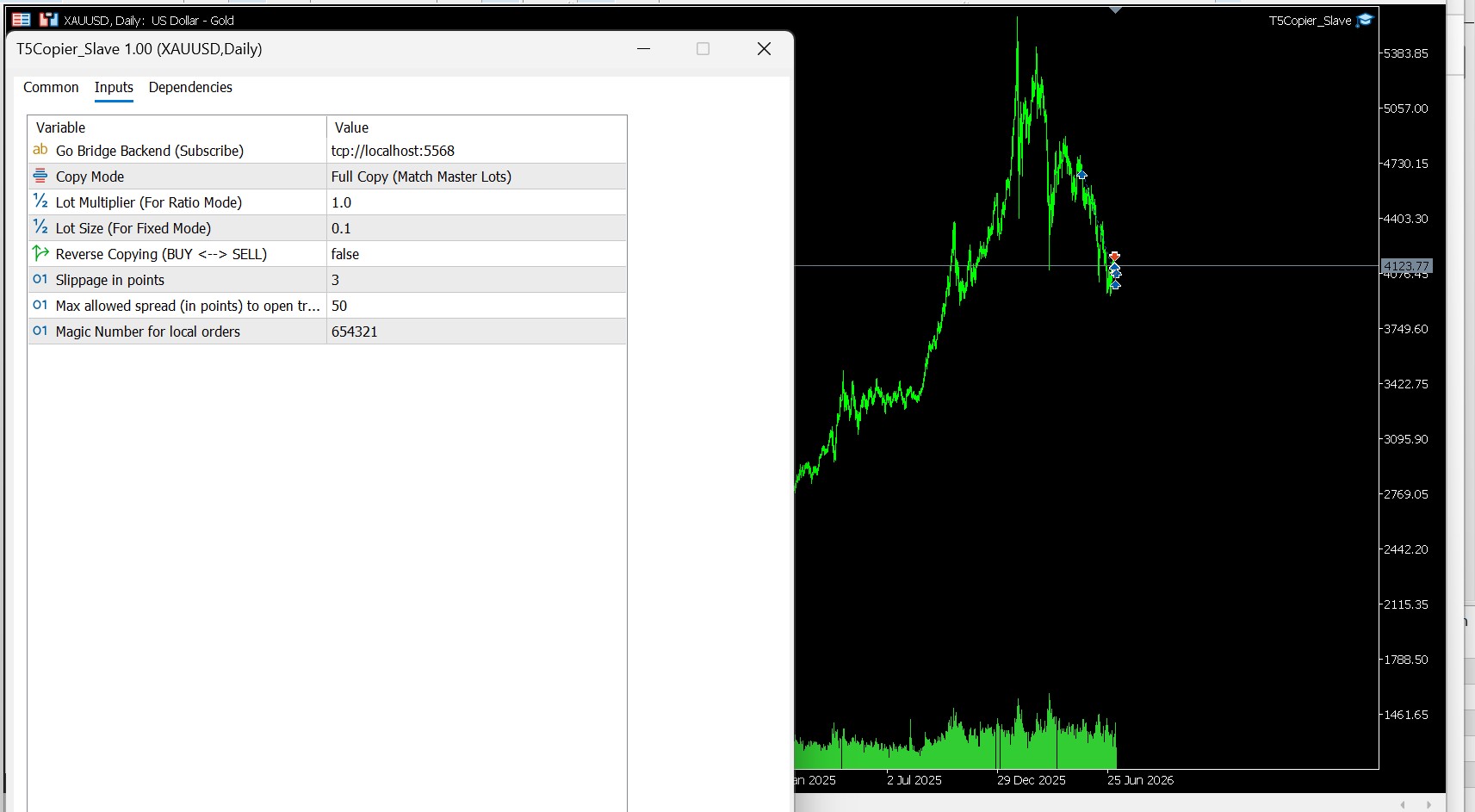
- 슬레이브 EA( T5Copier_Slave )를 차트로 드래그합니다.
- 속성 창에서:
- '일반' 탭 으로 이동하여 'DLL 가져오기 허용' 및 '알고 트레이딩 허용'을 선택합니다.
- '입력 (Inputs )' 탭으로 이동하여 복사 로직을 구성합니다:
- InpLotMode: LOT_MODE_FULL , LOT_MODE_RATIO 또는 LOT_MODE_FIXED 중 하나를 선택합니다.
- InpLotMultiplier: 배율을 설정합니다(예: 2 . 0은 2배의 랏).
- InpReverseCopy: 매수(BUY) 주문을 매도(SELL)로, 매도(SELL) 주문을 매수(BUY)로 반전시키려면 'true '로 설정하십시오.
- '확인'을 클릭하십시오. 상단 도구 모음에서'알고리즘 트레이딩'이 활성화 되어 있는지 확인하십시오.
++++++++++++++++++++++++++++++++++++++++++++++++++++++++++++++++++++++++++++++++++++++++++
다음은 새로운 트레이드 카피어 버전을 실행하기 위한 포괄적인 단계별 사용자 가이드입니다.
1부: MT5 DLL 프리 카피어 실행하기 (코드베이스 준수)
이 버전은 MetaTrader 5의기본 TCP 소켓을 사용하므로,100% DLL이 없으며 실행이나 유효성 검증을 위해 외부 라이브러리 파일( libzmq.dll 또는 libsodium .dll )이 필요하지 않습니다.
1단계: Go TCP Bridge 시작
- 다음 경로로 이동하십시오: C :\T5Copier\Go_bridge\
- T5Copier_Bridge.exe 파일을 더블 클릭하여 실행합니다.
- Go Bridge가 TCP 포트 5580 에서 수신 대기 중임을 나타내는 콘솔 창이 열립니다.
2단계: C# WPF 대시보드 실행
- 다음 경로로 이동하십시오: C :\T5Copier\Dashboard\
- CSharpDashboard.exe 파일을 더블 클릭하여 실행합니다.
- 드롭다운 메뉴에서 MT5 Copier (포트 5580)을 선택합니다.
- ‘대시보드 연결’을 클릭합니다. 상태가 ‘연결됨 (MT5)’으로 변경됩니다.
3단계: MT5 마스터 EA(송신기) 연결
- 마스터 MT5 터미널을 엽니다.
- 네비게이터에서 T5Copier_Master 를 차트 중 하나 위로 드래그합니다.
- 속성 창에서:
- 일반 탭: ‘알고리즘 거래 허용’이 선택 되어 있는지 확인하십시오.(참고: DLL 임포트는 필요하지 않습니다!)
- 입력 탭: 서버 주소가 127 .0.0. 1이고 포트가 5580인지 확인하십시오.
- '확인'을 클릭하십시오. MT5 상단 도구 모음 에서 '알고 트레이딩'을 활성화하십시오.
4단계: MT5 슬레이브 EA(수신기) 연결
- 슬레이브 MT5 터미널을 엽니다.
- T5Copier_Slave를 차트 중 하나 위로 드래그합니다.
- 속성 창에서:
- 일반 탭: ‘알고리즘 거래 허용’을 선택합니다. (DLL 임포트는 필요하지 않습니다!)
- 입력 탭: 원하는 매개변수를 설정합니다(예: InpLotMode , InpLotMultiplier , InpReverseCopy ).
- '확인'을 클릭하십시오. 도구 모음 에서 '알고 트레이딩'을 활성화하십시오.
2부: MT4 카피 트레이더 실행 (ZeroMQ 기반)
이 버전은 MT4의 엄격한 환경에 부합하는 고성능ZeroMQ 라이브러리를 사용합니다.
1단계: Go ZMQ 브리지 시작
- 다음 경로로 이동하십시오: C :\T4Copier\Go_bridge\
- T4Copier_Bridge.exe 파일을 더블 클릭하여 실행합니다.
- 다음 포트에서 수신 대기합니다:
- 5557 ( 마스터 수신)
- 5558 ( 슬레이브 발신)
- 5559 ( 대시보드 로그)
2단계: C# WPF 대시보드 실행
- 다음 경로로 이동: C :\T4Copier\Dashboard\
- CSharpDashboard.exe 파일을 더블 클릭하여 실행합니다.
- 드롭다운 메뉴에서 MT4 Copier (포트 5559)를 선택합니다.
- '대시보드 연결'을 클릭합니다.
3단계: MT4 마스터 EA(송신자) 연결
- 마스터 MT4 터미널을 엽니다.
- 'T4Copier_Master'를 차트 중 하나 위로 드래그합니다.
- 속성 창에서:
- 일반 탭: DLL 가져오기 허용 을 선택합니다. (ZeroMQ DLL에 필수!)
- 입력 탭: 기본값인 tcp ://localhost:5557을 그대로 유지하십시오.
- '확인'을 클릭하십시오.
4단계: MT4 슬레이브 EA(수신기) 연결
- 슬레이브 MT4 터미널을 엽니다.
- T4Copier_Slave를 차트 중 하나 에 드래그합니다.
- 속성 창에서:
- 일반 탭: ‘DLL 가져오기 허용 ’ 및 ‘실시간 거래 허용’을 선택합니다.
- 입력 탭: 입력값을 설정합니다(예: InpLotMode , InpLotMultiplier 등).
- '확인'을 클릭하십시오.
5단계: 검증 (두 터미널 모두 동일)
- 마스터 터미널에서 거래를 실행합니다.
- C# 대시보드를 확인하십시오. 거래 세부 정보(티켓, 심볼, 유형, 랏 크기)가'Active Copied Trades' 그리드에 즉시 표시됩니다.
- 설정한 랏/리버스 규칙에 따라 거래가 슬레이브 터미널에 즉시 복제되었는지 확인합니다.
- 마스터 터미널에서 거래를 청산하면, 슬레이브 터미널에서도 즉시 청산됩니다.
MetaQuotes Ltd에서 영어로 번역함.
원본 코드: https://www.mql5.com/en/code/74807
 Previous Day High Low Open Close Indicator
Plots the previous trading day's High, Low and Close as horizontal reference levels across the current session, with optional multi-day history for context. No repainting, no discretion — the levels are read directly from the completed Daily bar
 Channel Proximity Engine
채널 기반 지표에 대한 근접 신호를 가져오는 라이브러리
Envelope SAR
이 지표는 파라볼릭 SAR과 엔벨로프 간의 정규화된 관계를 활용하여, 가격이 구조적 변동성 채널 내에서 어느 위치에 있는지 추적하는 추세-모멘텀 오실레이터입니다.
Trend Regime Inspector for MetaTrader 5
Open-source indicator combining moving-average direction, ADX and Kaufman's Efficiency Ratio into a transparent trend-condition score. Informational only; no trade execution.