QuickTrade Lines Risk Panel
- Utilities
-
Sompop Jittrakul
 Trader since 2007 and owner of www.ThailandTraderClub.com - www.ThailandTradingSchool.com - www.TradingStat.me
 - Version: 1.0
- Activations: 20
QuickTrade Lines Risk Panel
QuickTrade Lines Risk Panel is a manual trading panel that works with three lines on the chart: entry, stop loss and take profit. You drag the lines to the prices you want, and the panel reads their positions and works out the order by itself - buy or sell, limit or stop. The lot is calculated from the stop loss distance, either from the money you are willing to risk or from a fixed lot that you type in. Every order is sent with its stop loss and take profit already attached.
One Panel For Every Market
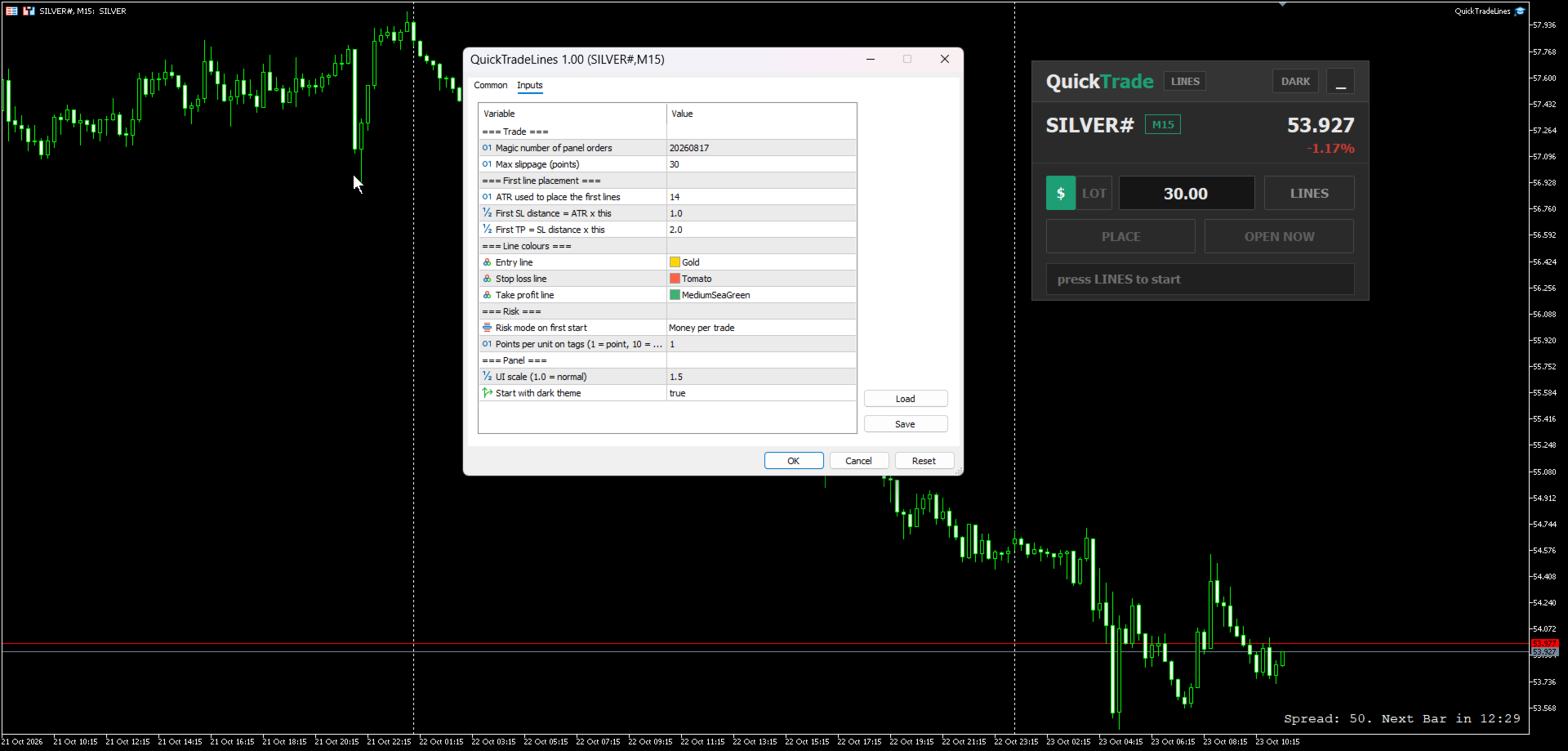
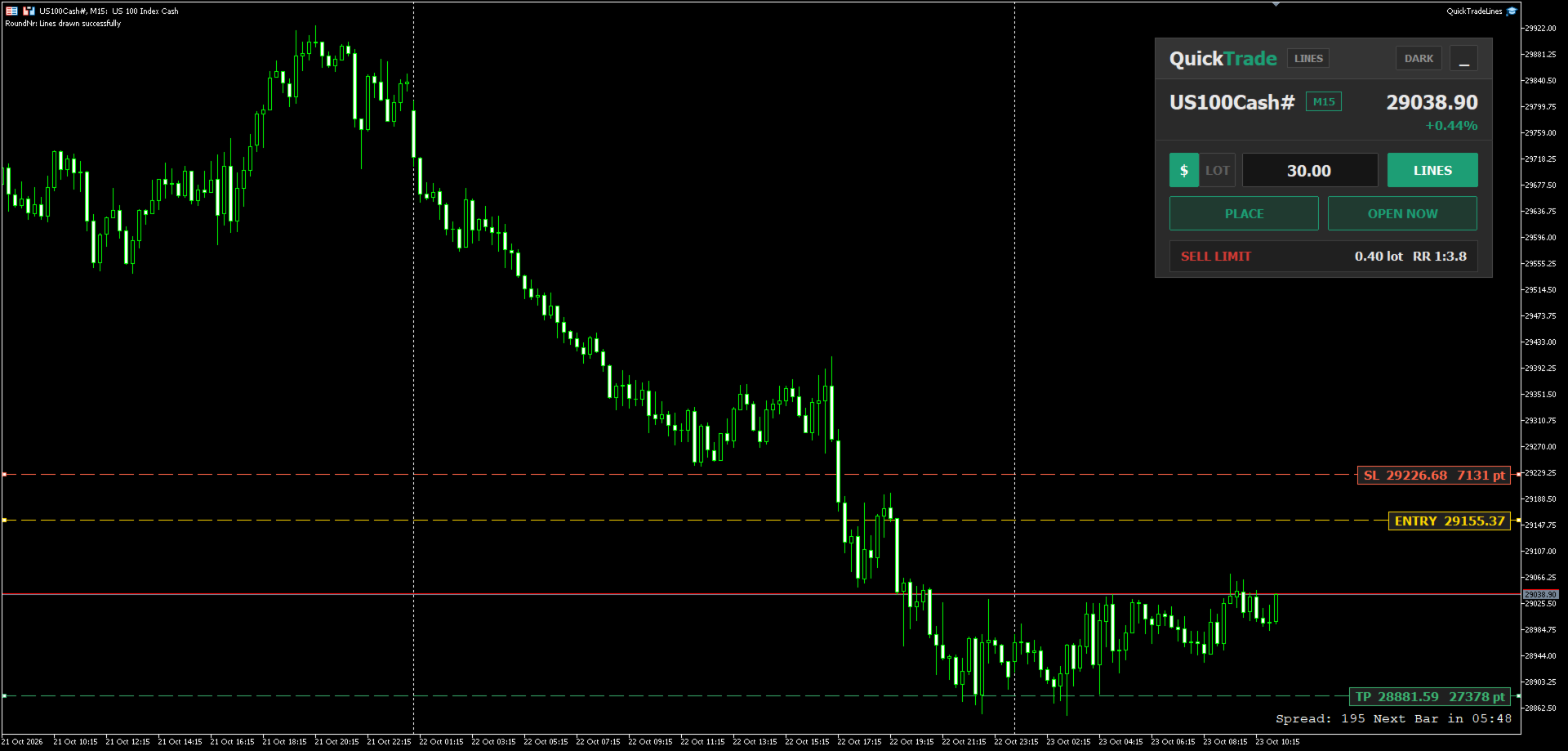
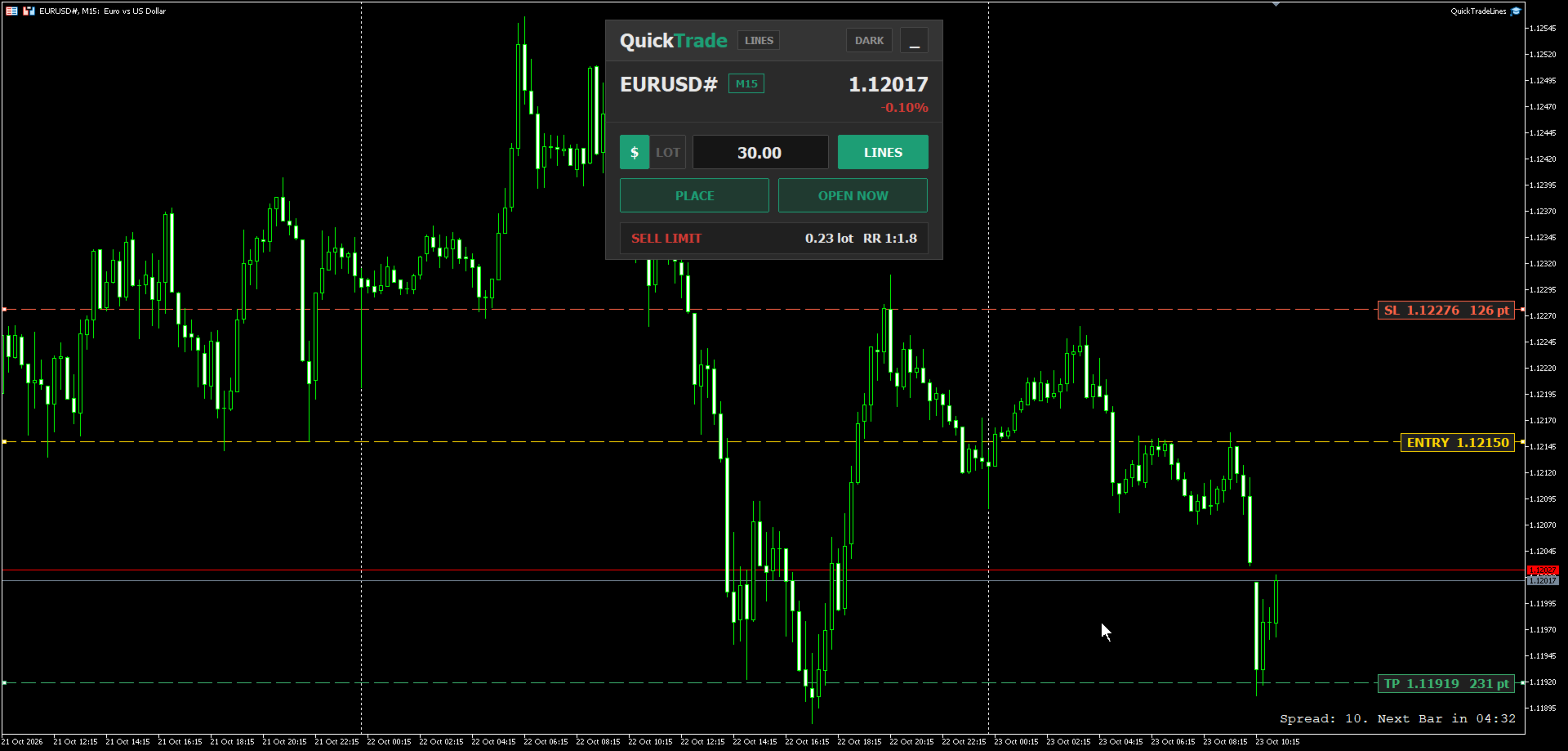
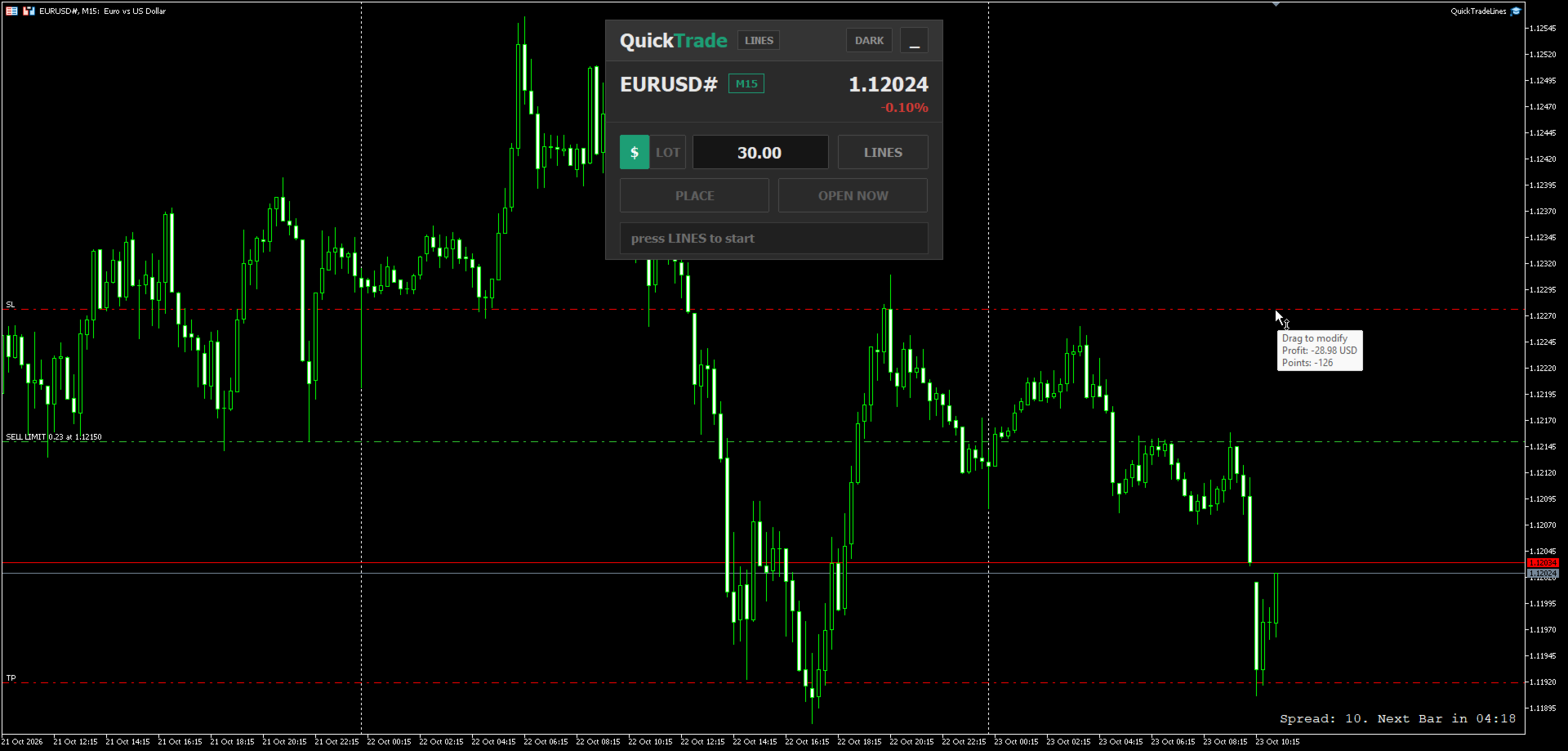
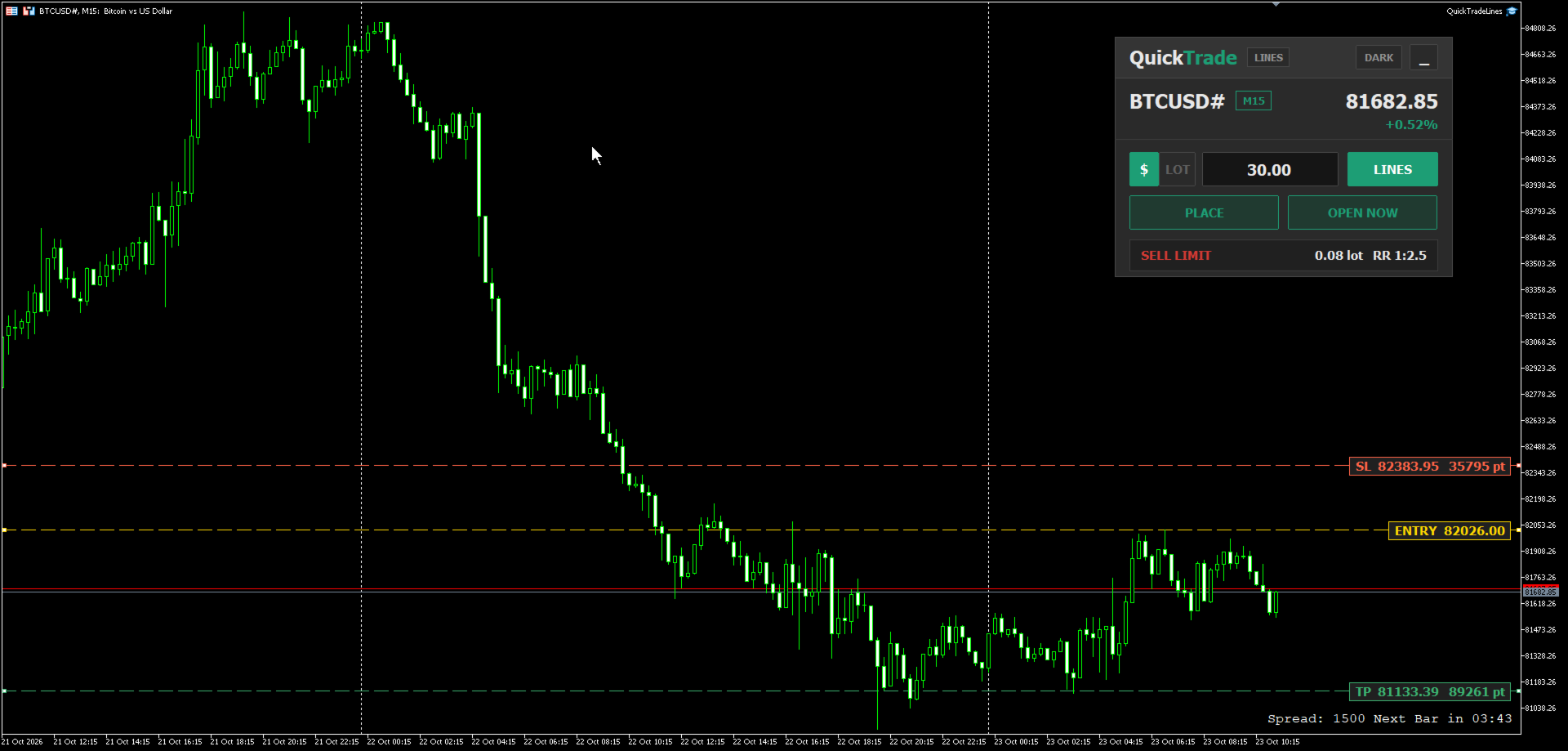
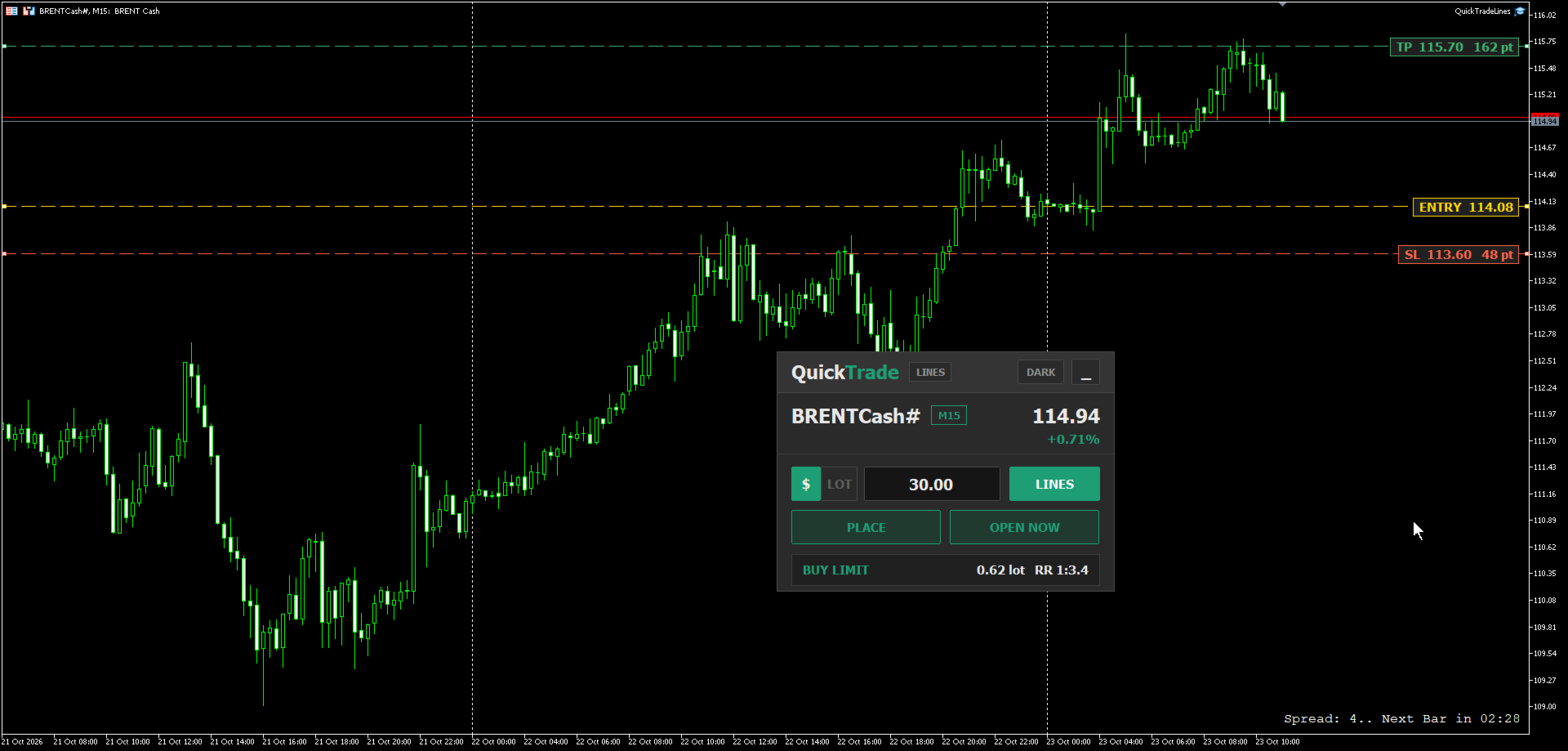
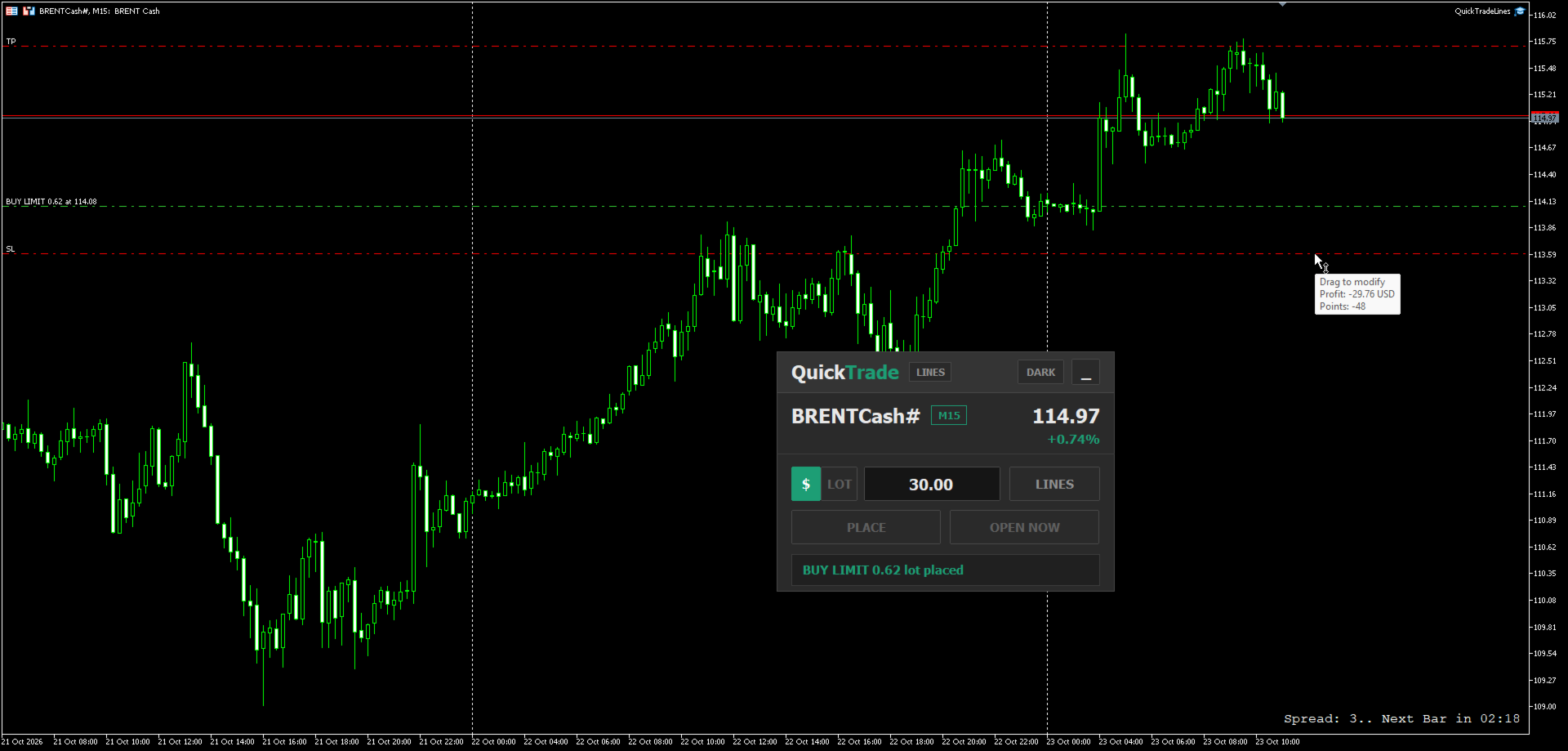
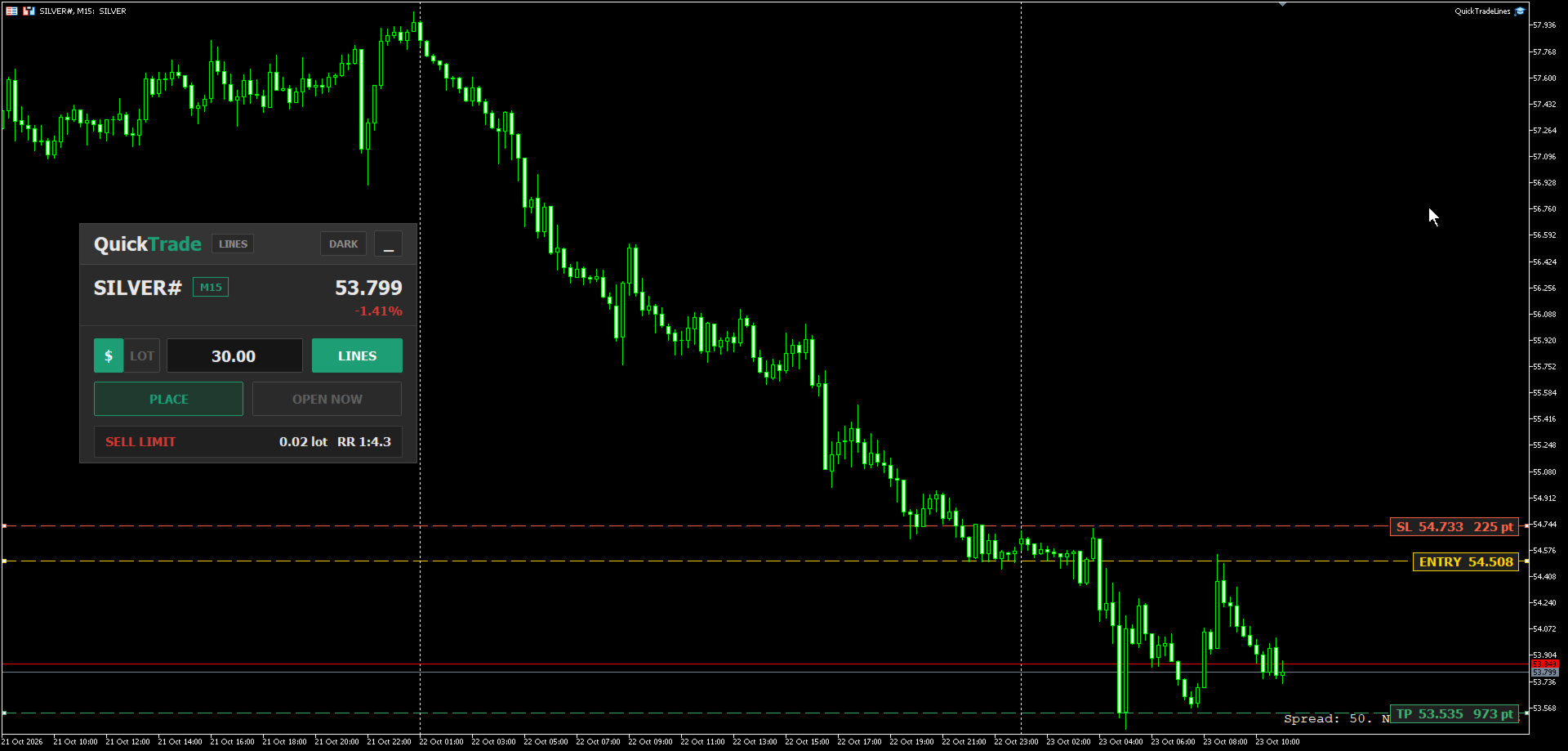
The panel reads the contract specification of the symbol it is attached to - point size, tick size, tick value and volume step - so the same risk amount gives the correct lot on any instrument without any extra setting. For example, a risk of 30 USD with the stop loss set on the chart produces a different lot on each market, matched to how much one point is worth on that symbol:
- Indices - for example US100
- Currencies - for example EURUSD
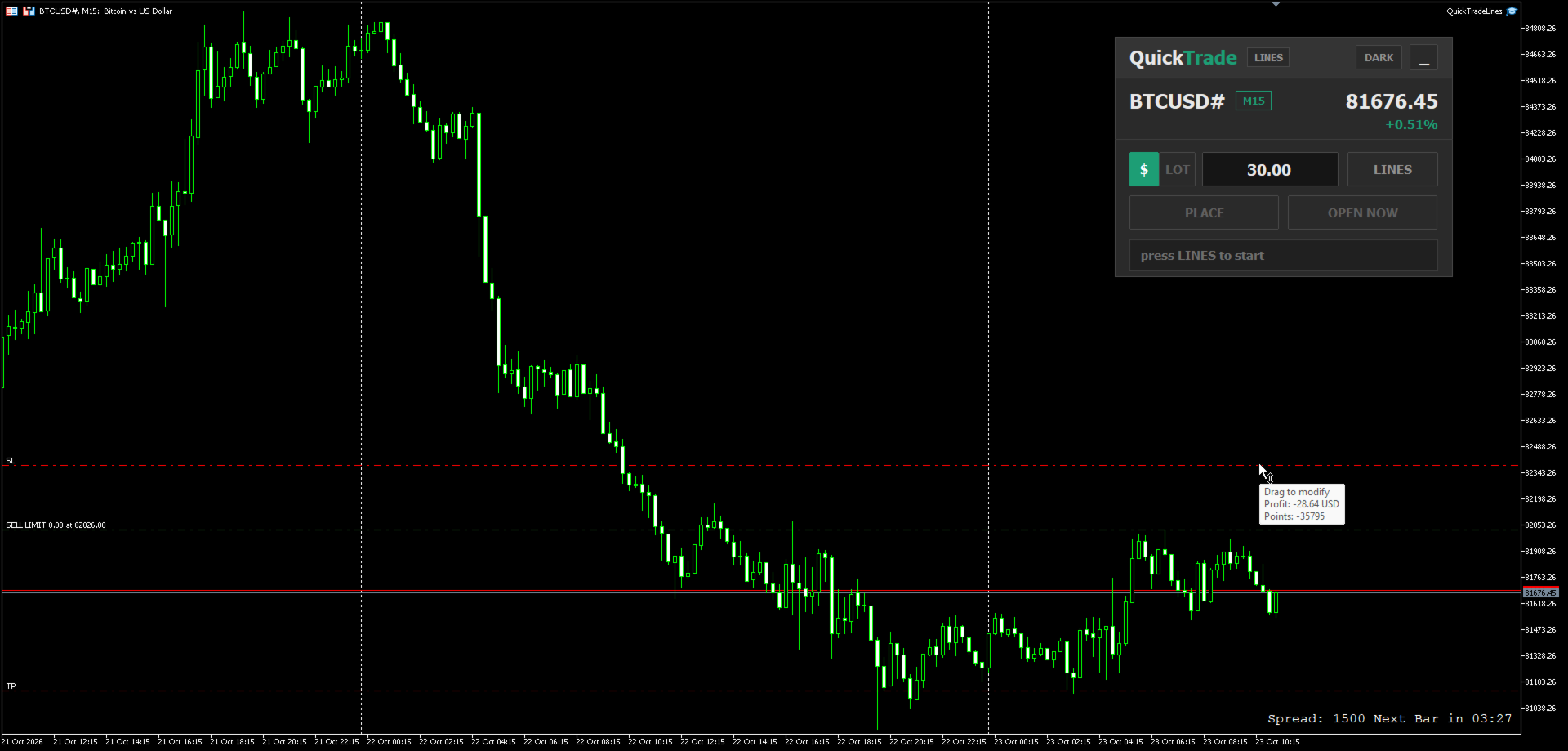
- Crypto - for example BTCUSD
- Commodities - for example Brent oil
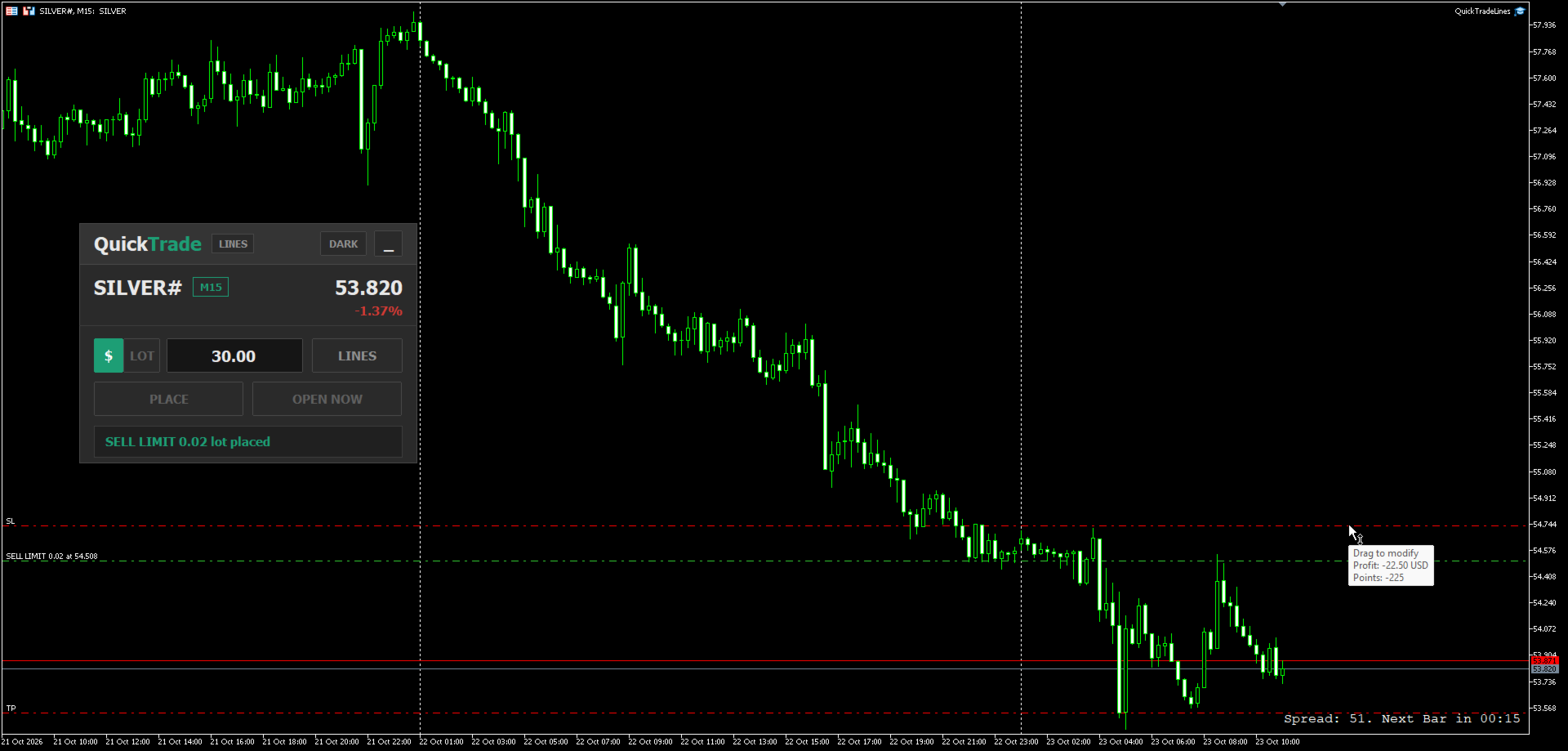
- Metals - for example Silver and Gold
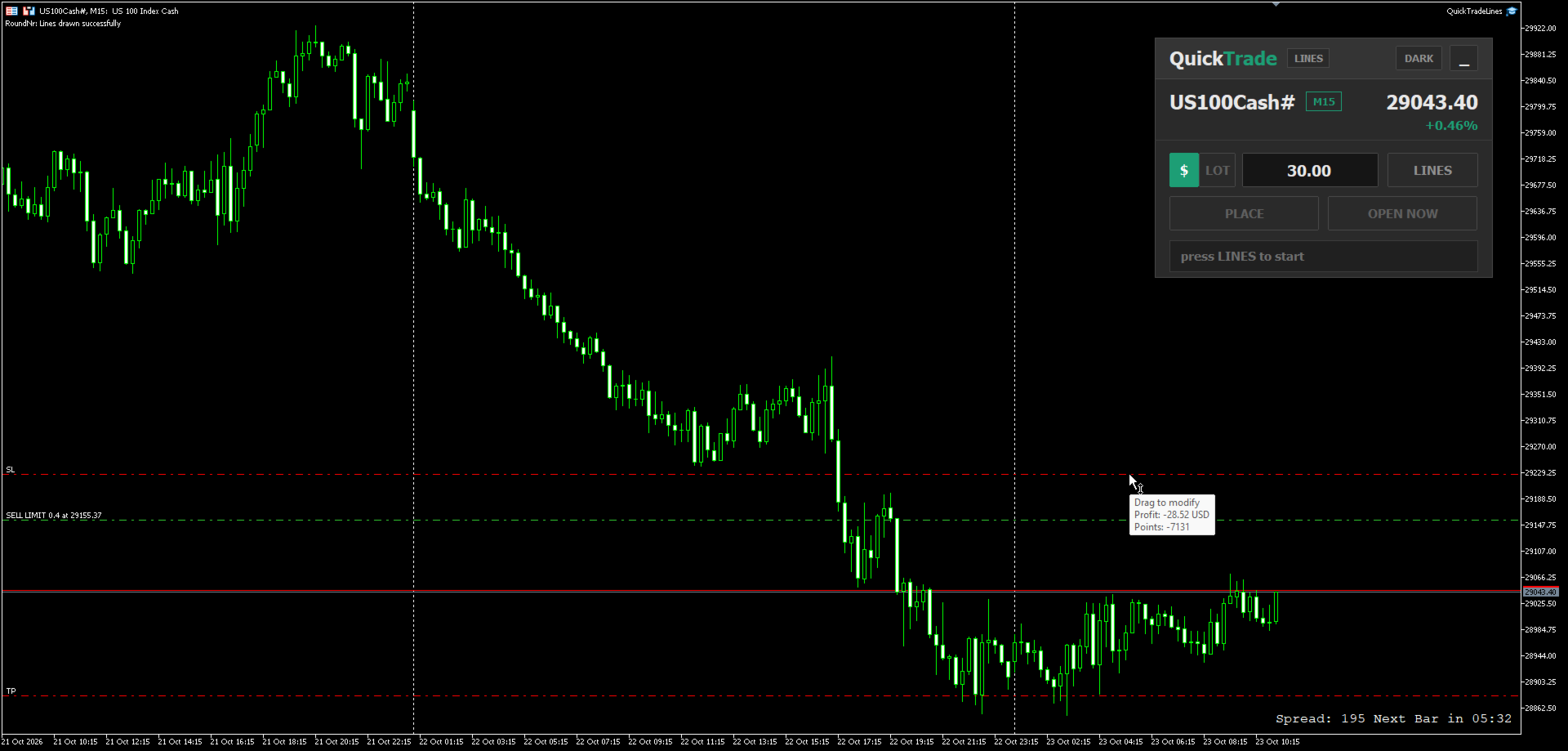
The screenshots show the same panel setting a pending order on each of these markets and the order placed on the chart.
How It Works
- Type the money you want to risk per trade, or switch the panel to LOT and type a fixed lot.
- Press LINES. Three lines appear on the chart: entry at the current price, stop loss at a distance based on ATR, and take profit at a set multiple of that distance.
- Drag the lines to the prices you want. The panel updates on every tick and shows the order type, the lot and the reward to risk ratio.
- Press PLACE to send a pending order at the entry line, or OPEN NOW to open a market position at the current price with the stop loss and take profit taken from the lines.
- After the order is sent, the lines are removed from the chart, ready for the next trade.
How The Order Type Is Decided
- Stop loss line below the entry line = buy side. Stop loss line above the entry line = sell side.
- Buy side with the entry above the current price = Buy Stop, below the current price = Buy Limit.
- Sell side with the entry below the current price = Sell Stop, above the current price = Sell Limit.
- For OPEN NOW the entry line is not used: stop loss below and take profit above the price = Buy, stop loss above and take profit below the price = Sell.
Key Features
- Two risk modes switched with one click on the panel:
- $ - type the money to risk; the panel calculates the lot from the stop loss distance.
- LOT - type a fixed lot; the panel shows how much money that lot puts at risk.
- Distance on the line tags - the stop loss and take profit tags show their price and their distance from the entry, in points or pips (set by an input). The distance updates while any of the three lines is dragged.
- Live summary bar - order type, lot or money at risk, and the reward to risk ratio.
- Lot rounded down to the broker volume step and checked against the minimum, maximum and volume limit of the symbol.
- Prices snapped to the symbol tick size - the lines move in the same steps as the price of the symbol, so the tags, the lot and the order all use the same price.
- Safety checks before sending - the order is blocked with a short message if the take profit is on the wrong side, the stop loss, take profit or entry is closer than the broker stop level, the free margin is not enough, the Algo Trading button of the terminal is off, or the symbol is not tradable.
- Symbol header showing the symbol, timeframe, current price and daily change.
- Draggable panel with a full view and a minimal view, and a Dark / Light theme.
- UI scale input to resize the whole panel for any screen resolution.
- Remembers its state when you switch timeframe: panel position, view, theme, risk mode, typed values and line positions.
- Works on any symbol and any timeframe - indices, currencies, crypto, commodities and metals.
Input Parameters
Trade
- Magic number of panel orders - magic number given to every order sent by the panel. Default 20260817.
- Max slippage (points) - allowed slippage for market orders. Default 30.
First line placement
- ATR used to place the first lines - ATR period used when the lines are created. Default 14.
- First SL distance = ATR x this - distance of the first stop loss line from the entry. Default 1.0.
- First TP = SL distance x this - distance of the first take profit line as a multiple of the stop loss distance. Default 2.0.
Line colours
- Entry line, Stop loss line, Take profit line - colours of the three lines and their tags.
Risk
- Risk mode on first start - Money per trade or Fixed lot. Used only the first time the panel is attached; after that the panel remembers the last mode you chose.
- Points per unit on tags - 1 shows the distance in points, 10 shows it in pips. Other values divide the points by that number. Default 1.
Panel
- UI scale - resize the whole panel. Default 1.0.
- Start with dark theme - starting theme of the panel. Default on.
Notes
- This is a manual trading assistant. It does not open trades by itself and does not give signals - every order is sent by your own click.
- Algo trading must be enabled in the terminal for the panel to send orders.
- The stop loss line is required in both risk modes, because every order is sent with a stop loss.