Gold Injection Pro EA MT5
- Experts
- Version: 1.0
- Activations: 5
Gold Injection Pro – Protected Grid EA for XAUUSD
Gold Injection Pro EA is an automated MetaTrader 5 Expert Advisor developed for XAUUSD and GOLD trading.
The EA uses a protected grid strategy with adjustable basket stop loss, basket take profit, basket trailing profit, drawdown control, spread filtering, automatic lot calculation, broker-side protection, weekly trading schedules, and news filter settings.
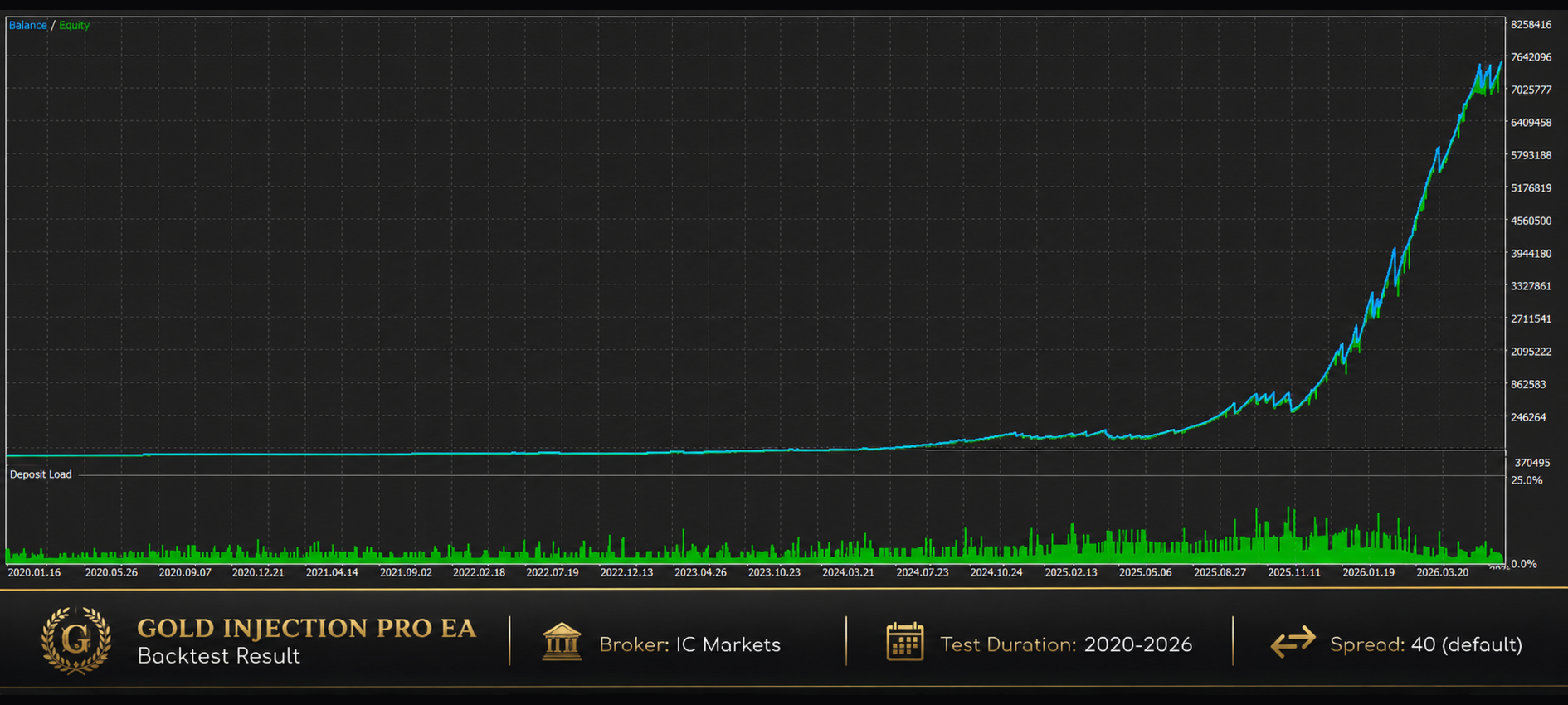
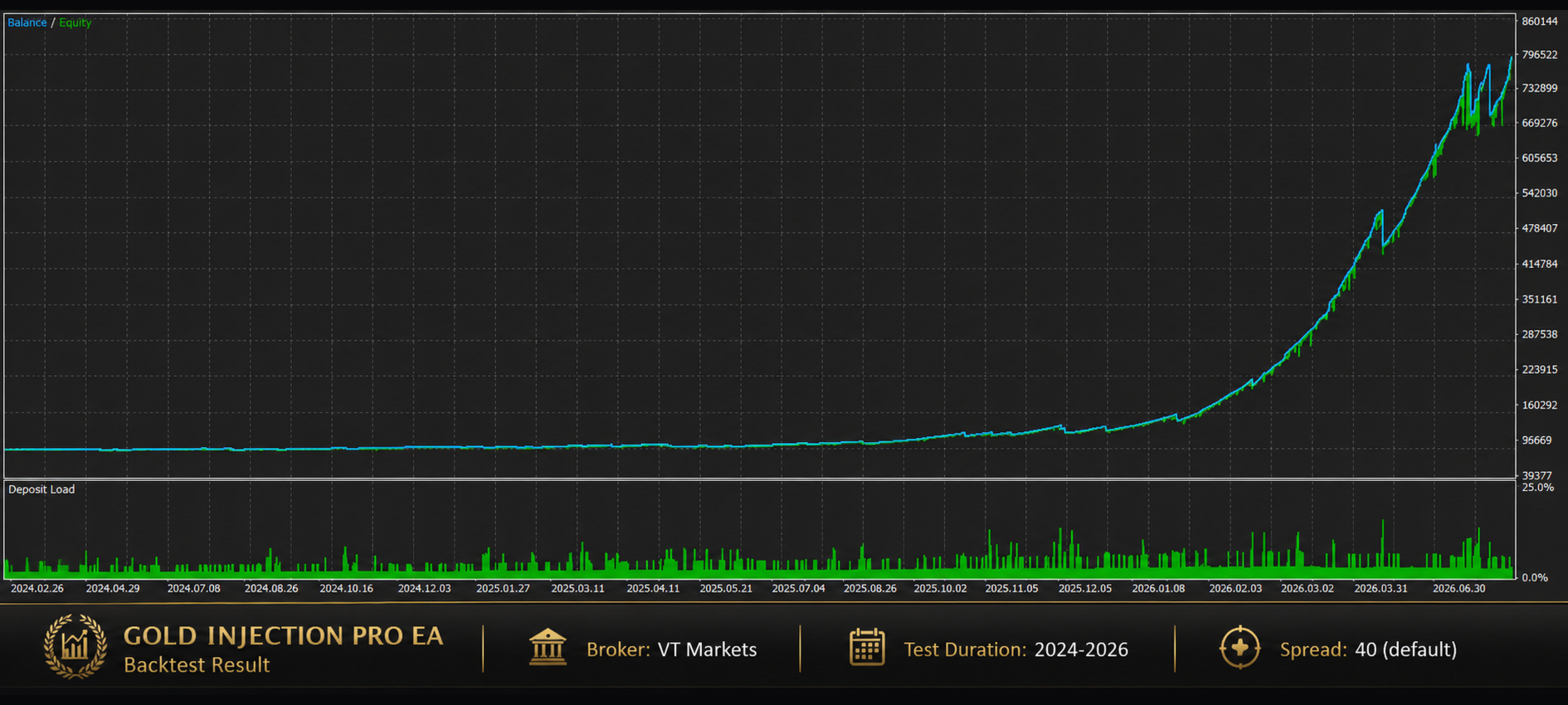
Gold Injection Pro has currently been tested on:
• VT Markets
• Tickmill
• IC Markets
• Exness
Testing has included Exness Standard accounts and Raw Spread accounts.
The EA supports Gold symbols quoted with both two decimal digits and three decimal digits, depending on the broker’s XAUUSD or GOLD symbol configuration.
If you use a broker that is not listed above, you should first backtest Gold Injection Pro using that broker’s historical data, spread, symbol specifications, commission, and trading conditions before using it on a live account.
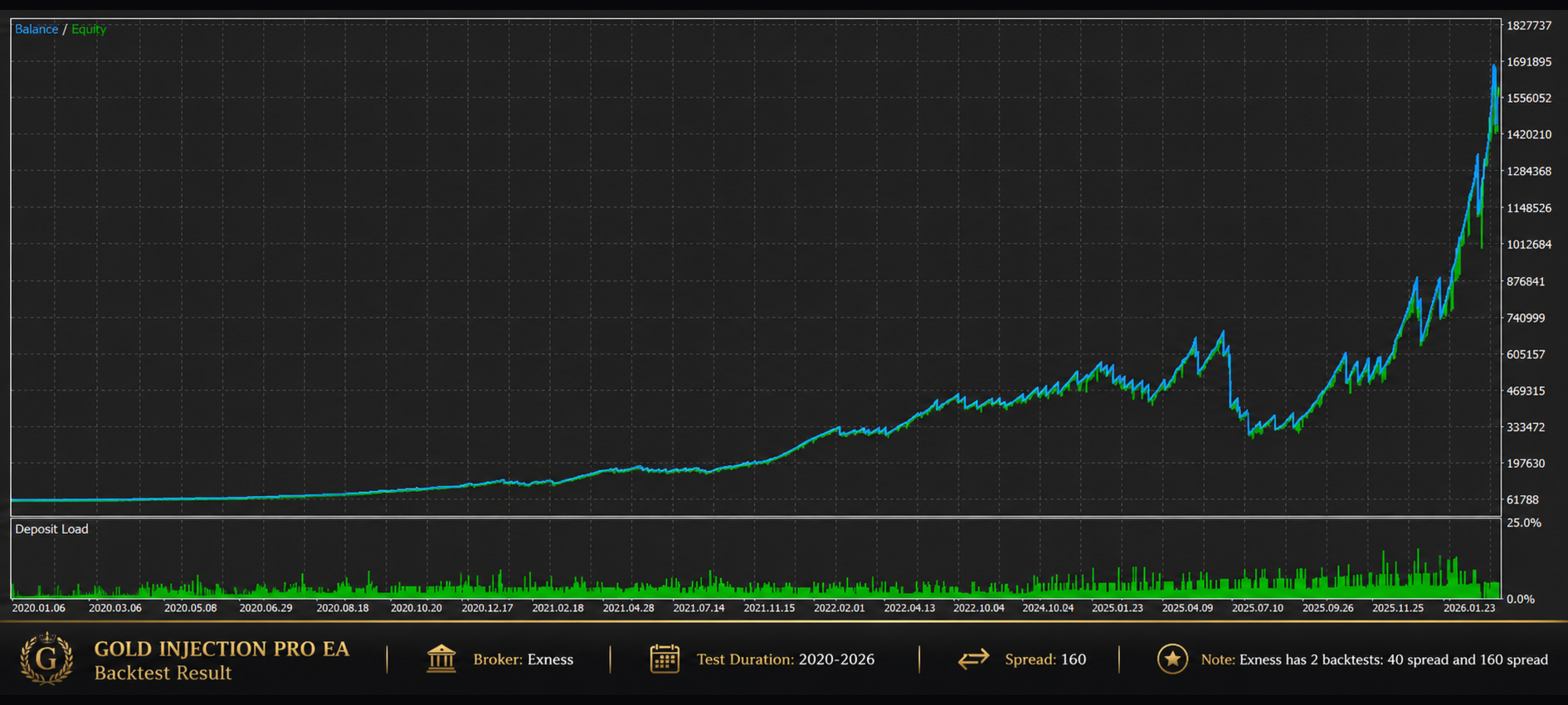
The EA is designed for traders who want an automated Gold trading system with adjustable risk, protected grid management, and flexible trade-management controls.
Important: If your broker is not listed, perform a complete backtest using your broker’s own XAUUSD or GOLD data before using the EA on a live account.
Main Features
✅ Automated XAUUSD and GOLD Trading
✅ Protected Grid Trading Strategy
✅ Basket Stop Loss Protection
✅ Basket Take Profit Management
✅ Basket Trailing Profit Management
✅ EA-Managed and Broker-Side Protection
✅ Automatic Lot and Fixed Lot Options
✅ Low, Medium, and High Risk Modes
✅ Maximum Grid Trade Control
✅ Drawdown Control Settings
✅ First Trade and Average Basket Price References
✅ Full Percent and Divide By Grid Trades Modes
✅ Maximum Spread Filter
✅ Weekly Trading Schedule
✅ Optional Friday Trade Close
✅ Economic News Filter Settings
✅ Support for Two- and Three-Decimal Gold Symbols
✅ Preconfigured Default Inputs
✅ No Additional Set Files Required
Default Settings
Gold Injection Pro comes with ready-to-use default input settings.
Default settings have been prepared and tested for:
• VT Markets
• Tickmill
• IC Markets
• Exness
• Standard account conditions
• Raw Spread and low-spread account conditions
Attach the EA to an XAUUSD or GOLD chart, enable Auto Trading, and use the default settings or adjust the inputs according to your account size, broker conditions, and preferred risk level.
The protected grid configuration includes basket stop loss, basket take profit, basket trailing profit, and additional broker-side protection options. These settings remain adjustable so traders can configure the EA according to their own risk preferences.
Users can also select an automatic lot risk level, configure a fixed lot size, set maximum drawdown limits, limit the total number of grid trades, control spread conditions, and manage trading activity around high-impact news events.
Designed for Automated XAUUSD Trading
Whether you are a beginner or an experienced trader, Gold Injection Pro EA is designed to provide an automated trading experience for XAUUSD and GOLD.
The EA does not open trades continuously. It waits for its internal trading conditions before entering the market.
When a grid develops, the EA can manage multiple positions using its protected basket-management system. The number of positions opened can vary depending on price movement, market volatility, broker conditions, spread, and selected input settings.
The EA includes adjustable controls for lot management, grid exposure, drawdown, spread, basket stop loss, basket take profit, basket trailing profit, weekly schedules, Friday trade closing, and economic news events.
Input Parameters
Lot Settings
1. Enable Auto Lot?
Enable Auto Lot = true;
Enable or disable automatic lot calculation.
• true = The EA automatically calculates lot size according to account balance and the selected risk level
• false = The EA uses the fixed lot size entered in Fixed Lot
The EA includes an automatic lot calculation system based on account balance.
For accounts below $500:
• Uses a 0.01 lot size, subject to the broker’s minimum supported volume
For accounts of $500 or more:
• Low Risk: 0.01 lot per $500
• Medium Risk: 0.02 lot per $500
• High Risk: 0.03 lot per $500
The final order volume is also subject to the broker’s minimum lot, maximum lot, and volume-step requirements.
2. Select Risk Level
Select Risk Level = Low Risk;
Choose the risk level used for automatic lot calculation.
Available modes:
• Low Risk
• Medium Risk
• High Risk
3. Fixed Lot Size
Fixed Lot = 0.01;
Used only when Auto Lot is disabled.
This option allows traders to manually select a fixed lot size. The selected lot must comply with the broker’s minimum volume, maximum volume, and lot-step requirements.
Grid Settings
Set the maximum number of positions allowed in a grid. Use 0 if you do not want to apply a fixed grid-trade limit.
4. Maximum Grid Trades
MaxGridTrades = 0;
Controls the maximum number of trades allowed in the grid system.
• 0 = No fixed grid-trade limit
• Any value above 0 limits the total number of grid trades
Grid trading can increase total market exposure, margin usage, and drawdown as additional positions are opened. Select a suitable limit according to your account balance and risk tolerance.
Drawdown Control
To use drawdown control, enable it and select the maximum permitted drawdown percentage.
5. Enable Drawdown Control
UseDrawdown = false;
Enable or disable the EA’s drawdown-control function.
6. Maximum Drawdown Percentage
MaxDrawdownPercent = 0.0;
Sets the selected drawdown percentage level used by the drawdown-control system.
7. Remove EA on Drawdown
RemoveEAOnDrawdown = false;
If enabled, the EA removes itself from the chart after the selected drawdown level is reached.
Basket Stop Loss Settings
The Basket Stop Loss system helps protect the complete grid basket. Stop loss protection can be managed internally by the EA, placed directly at the broker side, or managed using both methods.
8. Enable Basket Stop Loss
UseBasketStopLoss = true;
Enable or disable basket stop loss protection.
9. Basket Stop Loss Type
BasketStopLossType = BasketManage_Both;
Select how the basket stop loss is managed.
• EA Managed Only = The EA monitors the basket internally and closes the managed grid positions when the selected stop loss level is reached
• Broker Side Only = A real stop loss is placed on the open positions at the broker side
• Both = The EA uses internal basket stop loss management and also applies broker-side backup stop loss protection
10. Basket SL Reference
BasketSLReference = BasketRef_FirstTrade;
Select the price used as the reference for basket stop loss calculation.
• First Trade = Calculates the stop loss from the first trade price in the grid
• Average Price = Calculates the stop loss from the average price of all managed positions in the grid
11. Virtual Basket SL Percent
VirtualBasketSLPercent = 0.30;
This percentage is used for EA-managed basket stop loss protection. The EA monitors the basket and closes the managed grid when the selected level is reached.
12. Broker-Side Basket SL Percent
BrokerSideBasketSLPercent = 1.00;
This percentage is used for broker-side backup stop loss protection. A real stop loss is placed on the managed positions as an additional protection layer.
13. Basket SL Percent Mode
BasketSLPercentMode = BasketPercent_DivideByTrades;
Select how the basket stop loss percentage is applied.
• Full Percent = Uses the selected percentage directly
• Divide By Grid Trades = Divides the selected percentage by the number of open grid trades. This can make the basket stop loss tighter as more grid positions are opened
Basket Take Profit Settings
The Basket Take Profit system manages the profit target for the complete grid basket using percentage-based price movement.
The take profit can be managed internally by the EA, placed directly at the broker side, or managed using both methods.
14. Enable Basket Take Profit
UseBasketTakeProfit = true;
Enable or disable basket take profit management.
15. Basket Take Profit Type
BasketTakeProfitType = BasketManage_EAManagedOnly;
Select how the basket take profit is managed.
• EA Managed Only = The EA monitors the basket internally and closes the managed grid positions when the selected take profit level is reached
• Broker Side Only = A real take profit is placed on the open positions at the broker side
• Both = The EA uses internal basket take profit management and also places broker-side take profit protection
16. Basket TP Reference
BasketTPReference = BasketRef_AveragePrice;
Select the price used as the reference for basket take profit calculation.
• First Trade = Calculates the take profit from the first trade price in the grid
• Average Price = Calculates the take profit from the average price of all managed positions in the grid
17. Virtual Basket TP Percent
VirtualBasketTPPercent = 1.00;
This percentage is used for EA-managed basket take profit. The EA monitors the basket and closes the managed grid when the selected level is reached.
18. Broker-Side Basket TP Percent
BrokerSideBasketTPPercent = 2.00;
This percentage is used for broker-side basket take profit. A real take profit is placed on the managed positions at the broker side.
19. Basket TP Percent Mode
BasketTPPercentMode = BasketPercent_Full;
Select how the basket take profit percentage is applied.
• Full Percent = Uses the selected percentage directly
• Divide By Grid Trades = Divides the selected percentage by the number of open grid trades
Basket Trailing Profit Settings
Basket Trailing Profit helps protect a basket after it moves into profit.
When the basket reaches the selected trailing-start level, the EA begins tracking the highest favorable basket price movement. If the market reverses by the selected trailing distance, the EA can close the complete managed basket and protect part of the achieved movement.
20. Enable Basket Trailing Profit
UseBasketTrailingProfit = true;
Enable or disable basket trailing profit management.
21. Basket Trailing Reference
BasketTrailingReference = BasketRef_AveragePrice;
Select the price used as the reference for basket trailing calculation.
• First Trade = Calculates the trailing movement from the first trade price
• Average Price = Calculates the trailing movement from the average price of the managed basket
22. Basket Trailing Start Percent
BasketTrailingStartPercent = 0.06;
The favorable price-movement percentage at which basket trailing begins. When the basket reaches this level, the EA starts tracking the highest favorable movement.
23. Basket Trailing Distance Percent
BasketTrailingDistancePercent = 0.009;
The permitted reversal distance from the best price level reached after trailing has started. If the market reverses by this distance, the EA can close the managed basket.
24. Basket Trailing Percent Mode
BasketTrailingPercentMode = BasketPercent_Full;
Select how the basket trailing percentages are applied.
• Full Percent = Uses the selected trailing values directly
• Divide By Grid Trades = Divides the selected trailing values by the number of open grid trades
Basket Trailing Example
If Basket Trailing Start is set to 0.06% and Basket Trailing Distance is set to 0.009%, the EA activates trailing after the basket reaches a favorable movement of 0.06%.
If the market continues moving in the favorable direction, the EA tracks the best reached level. If the market then reverses by 0.009% from that level, the EA can close the managed basket.
Spread Settings
25. Maximum Spread
Max Spread = 40;
Stops new trade entries when the current market spread is higher than the selected value.
The spread value is measured in broker points. The price distance represented by 40 points can differ depending on whether the broker quotes Gold with two decimal digits or three decimal digits.
The EA has been tested using a default spread setting of 40 points. Actual live spread can change according to the broker, account type, liquidity, market volatility, rollover time, and economic news events.
General Settings
26. Magic Number
Magic = 869527;
A unique identifier used by Gold Injection Pro to recognize and manage its own positions.
Use a different Magic Number for every separate EA instance, symbol, or configuration that must be managed independently.
Weekly Trading Schedule
Monday start time and Friday stop time are entered as hours.
The schedule follows the trading time used by the MetaTrader platform and broker server.
27. Monday Start Hour
Resume trading on Monday = 2;
The hour when the EA resumes opening trades on Monday.
For example:
• 2 = 2:00 AM
• 13 = 1:00 PM
28. Friday Stop Hour
Stop opening trades on Friday = 20;
The hour when the EA stops opening new trades on Friday.
29. Friday Close Trades
FridayCloseTrades = false;
Enable or disable automatic closing of the EA’s managed positions before the market closes for the weekend.
30. Friday Close Hour
Force close trades on Friday = 21;
The hour when the EA closes its managed positions on Friday if Friday Close Trades is enabled.
News Filter Settings
The news filter controls new trading activity around economic news events. Time values are entered in minutes.
31. Enable News Filter
useNews = true;
Enable or disable the built-in economic news filter.
32. Stop Trading Before News
Stop opening trades before news = 60
Available values: 30, 45, or 60 minutes
Stops the EA from opening new trades before the applicable high-impact news event.
33. Resume Trading After News
Start opening trades after news = 60
Available values: 30, 45, or 60 minutes
Allows the EA to resume opening new trades after the selected number of minutes following the applicable news event.
Recommended Settings
Symbols: XAUUSD or GOLD
Minimum Balance: $500
Recommended Balance: $1000 or more
Account Mode: Hedging
Gold Symbol Digits: Two or three decimal digits
Tested Account Types: Standard, Raw Spread, and low-spread account conditions
Tested Brokers: VT Markets, Tickmill, IC Markets, and Exness
Leverage: 1:100 or higher
Timeframe: Any
Platform: MetaTrader 5
VPS: Recommended
Account balance requirements do not guarantee safety or profitability. A larger balance can provide more available margin, but grid trading still involves significant risk.
Broker Compatibility
Gold Injection Pro has been tested on Gold symbols quoted with both two decimal digits and three decimal digits.
It has been tested under conditions from VT Markets, Tickmill, IC Markets, and Exness, including Exness Standard and Raw Spread account conditions.
However, each broker can use different:
• Symbol names
• Symbol digits
• Contract sizes
• Minimum lot sizes
• Volume steps
• Spread conditions
• Commissions
• Stop levels
• Execution methods
• Historical data
If you use another broker, first test the EA in the MetaTrader 5 Strategy Tester using that broker’s own historical data and trading specifications.
After backtesting, use a demo account before considering live trading.
Installation
1. Copy the Gold Injection Pro EX5 file into the MQL5/Experts folder
2. Restart MetaTrader 5 or refresh the Expert Advisors list
3. Open an XAUUSD or GOLD chart
4. Attach Gold Injection Pro EA to the chart
5. Allow algorithmic trading and enable Auto Trading
6. Use the default settings or adjust the inputs according to your preferences
7. Confirm that the chart symbol uses supported two- or three-decimal Gold pricing
8. Use a VPS for continuous 24/5 operation
Important Notes
• Developed for XAUUSD and GOLD trading
• Uses a protected grid trading strategy
• Includes basket stop loss, basket take profit, and basket trailing profit management
• Includes EA-managed and broker-side basket protection options
• Default maximum spread is 40 broker points
• Supports two- and three-decimal Gold symbols
• Tested under VT Markets, Tickmill, IC Markets, and Exness conditions
• Tested on Exness Standard and Raw Spread account conditions
• Default inputs are already prepared
• No additional set files are required
• Broker conditions can affect performance
• Backtest using your own broker’s data before live use
• Start with a suitable risk level
• A VPS is recommended for continuous trading
Protected Grid Risk Information
Gold Injection Pro uses basket stop loss, basket take profit, basket trailing profit, and broker-side protection options to help manage its grid positions.
These protection systems can reduce or control some risks, but they cannot eliminate trading risk.
A grid strategy may open multiple positions as the market moves. This can increase total exposure, used margin, floating drawdown, and potential loss.
Broker-side stop loss and take profit orders can also be affected by market gaps, slippage, execution delays, abnormal spread, insufficient liquidity, and broker trading conditions.
Risk Warning
Forex, Gold, and CFD trading involve significant financial risk.
This Expert Advisor does not guarantee profit or prevent losses.
Trading results can vary depending on market conditions, broker conditions, account type, spread, commission, slippage, leverage, balance, symbol specifications, historical data, and user-selected input parameters.
Results achieved on VT Markets, Tickmill, IC Markets, or Exness do not guarantee that the same results will be achieved on another broker, account, or trading period.
Past backtest results and demo-account results do not guarantee future live-trading performance.
You may lose part or all of your trading capital.
Always test Gold Injection Pro in the MetaTrader 5 Strategy Tester and on a demo account using your own broker’s conditions before using it on a live account.
The developer is not responsible for trading losses, broker execution issues, market gaps, slippage, connection problems, VPS failures, or losses caused by user-selected settings.