Thank you for submitting the fonts, I got it working now. Here is the fonts installation guide:
Installing OpenType or TrueType Fonts in Windows
We recommend installing only one format — OpenType, TrueType, or
PostScript — of a font. Installing two or more formats of the same font
may cause problems when you try to use, view, or print the font.
Choose Start > Settings > Control Panel
Note: In Windows XP, choose Start > Control Panel
Double-click the Fonts folder.
Choose File > Install New Font.
Locate the fonts you want to install.
In the Drives list, select the drive and the folder containing the fonts you want to install.
In the Folders list, select a folder that contains the fonts you want to install. (Make sure you have unzipped them first.) The fonts in the folder appear under List of Fonts.
Select the fonts to install. To select more than one font, hold down the CTRL key and click each font.
To copy the fonts to the Fonts folder, make sure the Copy fonts to the Fonts folder check box is selected.
Note: If installing fonts from a floppy disk or a CD-ROM, you
should make sure this check box is selected. Otherwise, to use the
fonts in your applications, you must always keep the disk in the disk
drive.
Click OK to install the fonts.
zenoni:
Thank you for submitting the fonts, I got it working now. Here is the fonts installation guide:
Installing OpenType or TrueType Fonts in Windows
We recommend installing only one format — OpenType, TrueType, or
PostScript — of a font. Installing two or more formats of the same font
may cause problems when you try to use, view, or print the font.
Choose Start > Settings > Control Panel
Note: In Windows XP, choose Start > Control Panel
Double-click the Fonts folder.
Choose File > Install New Font.
Locate the fonts you want to install.
In the Drives list, select the drive and the folder containing the fonts you want to install.
In the Folders list, select a folder that contains the fonts you want to install. (Make sure you have unzipped them first.) The fonts in the folder appear under List of Fonts.
Select the fonts to install. To select more than one font, hold down the CTRL key and click each font.
To copy the fonts to the Fonts folder, make sure the Copy fonts to the Fonts folder check box is selected.
Note: If installing fonts from a floppy disk or a CD-ROM, you
should make sure this check box is selected. Otherwise, to use the
fonts in your applications, you must always keep the disk in the disk
drive.
Click OK to install the fonts.
zenoni:
Thank you for submitting the fonts, I got it working now. Here is the fonts installation guide:
Installing OpenType or TrueType Fonts in Windows
We recommend installing only one format — OpenType, TrueType, or
PostScript — of a font. Installing two or more formats of the same font
may cause problems when you try to use, view, or print the font.
Choose Start > Settings > Control Panel
Note: In Windows XP, choose Start > Control Panel
Double-click the Fonts folder.
Choose File > Install New Font.
Locate the fonts you want to install.
In the Drives list, select the drive and the folder containing the fonts you want to install.
In the Folders list, select a folder that contains the fonts you want to install. (Make sure you have unzipped them first.) The fonts in the folder appear under List of Fonts.
Select the fonts to install. To select more than one font, hold down the CTRL key and click each font.
To copy the fonts to the Fonts folder, make sure the Copy fonts to the Fonts folder check box is selected.
Note: If installing fonts from a floppy disk or a CD-ROM, you
should make sure this check box is selected. Otherwise, to use the
fonts in your applications, you must always keep the disk in the disk
drive.
Click OK to install the fonts.
zenoni:
Thank you for submitting the fonts, I got it working now. Here is the fonts installation guide:
Installing OpenType or TrueType Fonts in Windows
We recommend installing only one format — OpenType, TrueType, or
PostScript — of a font. Installing two or more formats of the same font
may cause problems when you try to use, view, or print the font.
Choose Start > Settings > Control Panel
Note: In Windows XP, choose Start > Control Panel
Double-click the Fonts folder.
Choose File > Install New Font.
Locate the fonts you want to install.
In the Drives list, select the drive and the folder containing the fonts you want to install.
In the Folders list, select a folder that contains the fonts you want to install. (Make sure you have unzipped them first.) The fonts in the folder appear under List of Fonts.
Select the fonts to install. To select more than one font, hold down the CTRL key and click each font.
To copy the fonts to the Fonts folder, make sure the Copy fonts to the Fonts folder check box is selected.
Note: If installing fonts from a floppy disk or a CD-ROM, you
should make sure this check box is selected. Otherwise, to use the
fonts in your applications, you must always keep the disk in the disk
drive.
Click OK to install the fonts.
zenoni:
Thank you for submitting the fonts, I got it working now. Here is the fonts installation guide:
Installing OpenType or TrueType Fonts in Windows
We recommend installing only one format — OpenType, TrueType, or
PostScript — of a font. Installing two or more formats of the same font
may cause problems when you try to use, view, or print the font.
Choose Start > Settings > Control Panel
Note: In Windows XP, choose Start > Control Panel
Double-click the Fonts folder.
Choose File > Install New Font.
Locate the fonts you want to install.
In the Drives list, select the drive and the folder containing the fonts you want to install.
In the Folders list, select a folder that contains the fonts you want to install. (Make sure you have unzipped them first.) The fonts in the folder appear under List of Fonts.
Select the fonts to install. To select more than one font, hold down the CTRL key and click each font.
To copy the fonts to the Fonts folder, make sure the Copy fonts to the Fonts folder check box is selected.
Note: If installing fonts from a floppy disk or a CD-ROM, you
should make sure this check box is selected. Otherwise, to use the
fonts in your applications, you must always keep the disk in the disk
drive.
Click OK to install the fonts.
zenoni:
Thank you for submitting the fonts, I got it working now. Here is the fonts installation guide:
Installing OpenType or TrueType Fonts in Windows
We recommend installing only one format — OpenType, TrueType, or
PostScript — of a font. Installing two or more formats of the same font
may cause problems when you try to use, view, or print the font.
Choose Start > Settings > Control Panel
Note: In Windows XP, choose Start > Control Panel
Double-click the Fonts folder.
Choose File > Install New Font.
Locate the fonts you want to install.
In the Drives list, select the drive and the folder containing the fonts you want to install.
In the Folders list, select a folder that contains the fonts you want to install. (Make sure you have unzipped them first.) The fonts in the folder appear under List of Fonts.
Select the fonts to install. To select more than one font, hold down the CTRL key and click each font.
To copy the fonts to the Fonts folder, make sure the Copy fonts to the Fonts folder check box is selected.
Note: If installing fonts from a floppy disk or a CD-ROM, you
should make sure this check box is selected. Otherwise, to use the
fonts in your applications, you must always keep the disk in the disk
drive.
Click OK to install the fonts.
eagleye777:
Here is an update to the overall signal if you wish to use it, making it slightly more selective by taking into account the Parabolic SAR direction aswell.
In MetaEditor use Find in the Edit menu to search for Signal Down
then replace the two signals with these two and compile.
//Signal Down ------------------------
if ((MACD==1 || MACD==2) && MAXoverSignal==0 && WPR<-50 && MACurrent<MAPrevious && StochK<StochKprev && Close[0]<Close[1] && PSARCurrent>Close[0]) //PSAR Updated
{
Signal = 1;
}
//Signal Up ------------------------
if ((MACD==3 || MACD==0) && MAXoverSignal==1 && WPR>-50 && MACurrent>MAPrevious && StochK>StochKprev && Close[0]>Close[1] && PSARCurrent<Close[0]) //PSAR Updated
{
Signal = 2;
}
Its not as frequent or fast to react to a swing but definately more reliable.
I think there is one thing that you are missing. You did not include the fonts that were with he indicator. Pls try doing that and the problem will be solved
You must put Multi-Meter in the Experts folder within the MetaTrader program folder, NOT the Indicator folder. Do this before starting MetaTrader, or restart if it is already open. Then open the file in MetaEditor and press Compile. You should now be able to drag and drop it onto a chart, from the Expert folder in the Navigator window. It will not trade automatically.
Copy the Fonts in the Zip file to C:/Windows/Fonts
Keep the Chart Shift button on so the price stays to the left of the indicator.
Allow the use of cookies to log in to the MQL5.com website.
Please enable the necessary setting in your browser, otherwise you will not be able to log in.
You are signed in. Two-factor authentication has been disabled. Set it up again and scan a new QR code, or continue with two-factor authentication disabled.
Thank you for submitting the fonts, I got it working now. Here is the fonts installation guide:
Installing OpenType or TrueType Fonts in Windows
We recommend installing only one format — OpenType, TrueType, or PostScript — of a font. Installing two or more formats of the same font may cause problems when you try to use, view, or print the font.
Note: In Windows XP, choose Start > Control Panel
Note: If installing fonts from a floppy disk or a CD-ROM, you should make sure this check box is selected. Otherwise, to use the fonts in your applications, you must always keep the disk in the disk drive.
Thank you for submitting the fonts, I got it working now. Here is the fonts installation guide:
Installing OpenType or TrueType Fonts in Windows
We recommend installing only one format — OpenType, TrueType, or PostScript — of a font. Installing two or more formats of the same font may cause problems when you try to use, view, or print the font.
Note: In Windows XP, choose Start > Control Panel
Note: If installing fonts from a floppy disk or a CD-ROM, you should make sure this check box is selected. Otherwise, to use the fonts in your applications, you must always keep the disk in the disk drive.
Thank you for submitting the fonts, I got it working now. Here is the fonts installation guide:
Installing OpenType or TrueType Fonts in Windows
We recommend installing only one format — OpenType, TrueType, or PostScript — of a font. Installing two or more formats of the same font may cause problems when you try to use, view, or print the font.
Note: In Windows XP, choose Start > Control Panel
Note: If installing fonts from a floppy disk or a CD-ROM, you should make sure this check box is selected. Otherwise, to use the fonts in your applications, you must always keep the disk in the disk drive.
Thank you for submitting the fonts, I got it working now. Here is the fonts installation guide:
Installing OpenType or TrueType Fonts in Windows
We recommend installing only one format — OpenType, TrueType, or PostScript — of a font. Installing two or more formats of the same font may cause problems when you try to use, view, or print the font.
Note: In Windows XP, choose Start > Control Panel
Note: If installing fonts from a floppy disk or a CD-ROM, you should make sure this check box is selected. Otherwise, to use the fonts in your applications, you must always keep the disk in the disk drive.
Thank you for submitting the fonts, I got it working now. Here is the fonts installation guide:
Installing OpenType or TrueType Fonts in Windows
We recommend installing only one format — OpenType, TrueType, or PostScript — of a font. Installing two or more formats of the same font may cause problems when you try to use, view, or print the font.
Note: In Windows XP, choose Start > Control Panel
Note: If installing fonts from a floppy disk or a CD-ROM, you should make sure this check box is selected. Otherwise, to use the fonts in your applications, you must always keep the disk in the disk drive.
Thank you for submitting the fonts, I got it working now. Here is the fonts installation guide:
Installing OpenType or TrueType Fonts in Windows
We recommend installing only one format — OpenType, TrueType, or PostScript — of a font. Installing two or more formats of the same font may cause problems when you try to use, view, or print the font.
Note: In Windows XP, choose Start > Control Panel
Note: If installing fonts from a floppy disk or a CD-ROM, you should make sure this check box is selected. Otherwise, to use the fonts in your applications, you must always keep the disk in the disk drive.
Here is an update to the overall signal if you wish to use it, making it slightly more selective by taking into account the Parabolic SAR direction aswell.
In MetaEditor use Find in the Edit menu to search for Signal Down
then replace the two signals with these two and compile.
//Signal Down ------------------------ if ((MACD==1 || MACD==2) && MAXoverSignal==0 && WPR<-50 && MACurrent<MAPrevious && StochK<StochKprev && Close[0]<Close[1] && PSARCurrent>Close[0]) //PSAR Updated { Signal = 1; } //Signal Up ------------------------ if ((MACD==3 || MACD==0) && MAXoverSignal==1 && WPR>-50 && MACurrent>MAPrevious && StochK>StochKprev && Close[0]>Close[1] && PSARCurrent<Close[0]) //PSAR Updated { Signal = 2; }Its not as frequent or fast to react to a swing but definately more reliable.
--------------------------------------------------------------------------------------
The P-SAR indicator can also be changed to be more responsive as follows.
Use Find in the Edit menu to search for ParabolicSAR
then replace the section with this code and compile.
As it stands the P-SAR will not change direction until the second dot appears. This will change the signal on the first dot.
Hei
I am new in this forum... would like to suggest to add in the indicator with the strength of each currency USD, GBP, JPY, EUR ..
etc..
.
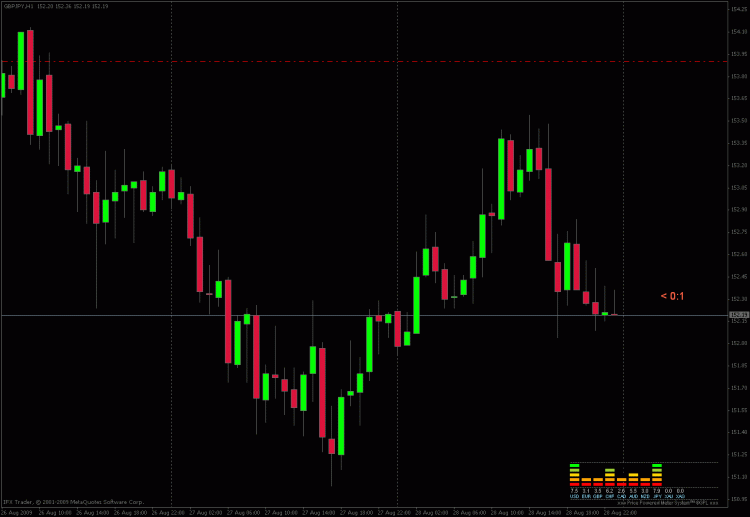
It's much better to add in the indicator of each currency strength GBP, USD, JPY, EUR..etc..
example in xmeter indicator
look at the arrows this in not what you have
how i get it right
thank you great tool
Hi,
I think there is one thing that you are missing. You did not include the fonts that were with he indicator. Pls try doing that and the problem will be solved
Just a note to those having difficulty...
You must put Multi-Meter in the Experts folder within the MetaTrader program folder, NOT the Indicator folder. Do this before starting MetaTrader, or restart if it is already open. Then open the file in MetaEditor and press Compile. You should now be able to drag and drop it onto a chart, from the Expert folder in the Navigator window. It will not trade automatically.
Copy the Fonts in the Zip file to C:/Windows/Fonts
Keep the Chart Shift button on so the price stays to the left of the indicator.
Truly all in one. It'll be good, if it can show not standart timeframes
help
their is somethings that cover both the indicator and platform, is there any way i can adjust it
Is is possible to get a Background on Multimeter ... like this:
CreateBackground("BgroundGG","BackGroundMultiMeter",120,3,0,400);
void CreateBackground (string backName, string text, int Bfontsize, int LabelCorner, int xB, int yB)
{
if(ObjectFind(backName) == -1){
ObjectCreate(backName, OBJ_LABEL, 0, 0, 0, 0, 0);}
ObjectSetText(backName, text, Bfontsize, "Webdings");
ObjectSetDouble(0,backName,OBJPROP_ANGLE,90);
ObjectSet(backName, OBJPROP_CORNER, LabelCorner);
ObjectSet(backName, OBJPROP_BACK, True);
ObjectSet(backName, OBJPROP_XDISTANCE, xB);
ObjectSet(backName, OBJPROP_YDISTANCE, yB );
ObjectSet(backName, OBJPROP_COLOR, Black);
}
do you have an MT5 version?