Custom Timeframe Bar Pro
- Göstergeler
- Sürüm: 1.7
- Etkinleştirmeler: 5

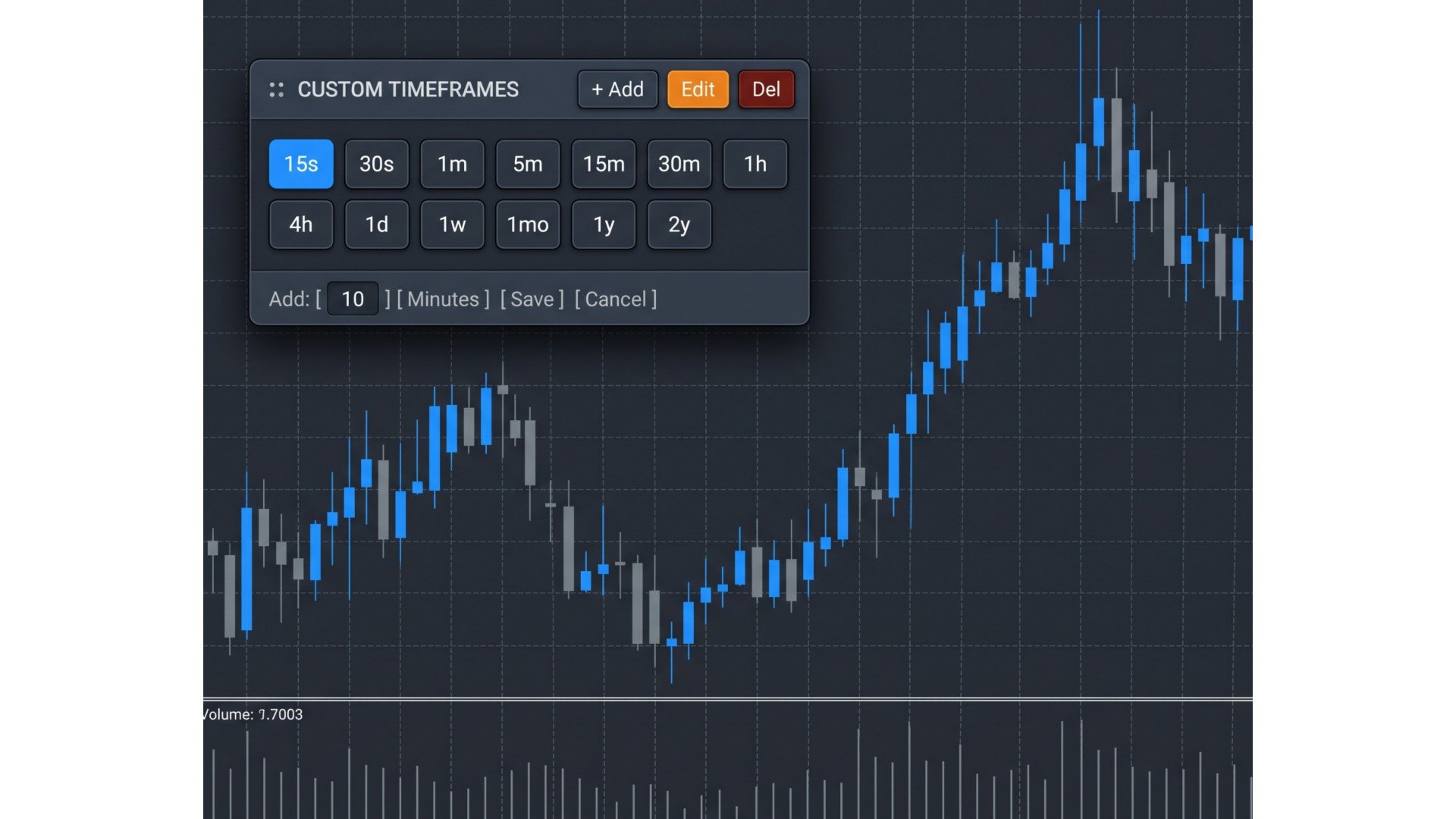
Custom Timeframe Bar Pro adds a sleek, draggable floating timeframe toolbar directly onto your MetaTrader 4 charts—giving you one-click access to any custom timeframe from 1 second up to multiple years, alongside all 9 standard MT4 periods.
Designed specifically for scalpers, multi-timeframe price action traders, and swing/position analysts, the panel lets you add, edit, or delete an unlimited number of custom timeframe buttons ( 1 to N ) directly on the chart without editing code or restarting your terminal.
Key Features
-
Unlimited Custom Timeframes (1 to N): Create any timeframe across Seconds ( s ), Minutes ( m ), Hours ( h ), Days ( d ), Weeks ( w ), Months ( mo ), and Years ( y )—such as 5s , 15s , 30s , 2m , 3m , 10m , 2h , 6h , 3d , 3mo , 1y , or 2y .
-
On-Chart Visual Editor ( + Add / Edit / Del ): Add new timeframes, modify existing buttons, or remove unused periods directly from the floating toolbar.
-
100% Native MQL4 — Zero DLLs Required: Built strictly with native MQL4 functions. No external DLL imports, no security warnings, and full compatibility with standard MT4 indicators and Expert Advisors on generated charts.
-
Lossless Sub-Minute & Historical Seeding: Sub-minute timeframes ( 1s – 59s ) combine historical M1 price structure with a 10,000-tick in-memory buffer for smooth, gap-free live candles. Minute-to-year timeframes aggregate directly from native broker history.
-
Draggable & Multi-Chart Synchronized: Drag the floating bar anywhere on your chart. Every layout change and button edit is saved automatically and synced across all open charts.
-
Lightweight Chart-Window Indicator: Runs as an indicator rather than an Expert Advisor, leaving your chart's EA slot free for automated trading or trade management tools.
Input Parameters
| Parameter | Default | Description |
| Default Timeframes (1 to N) | 15s,30s,1m,5m,15m,30m,1h,4h,1d,1w,1mo,1y,2y | Comma-separated initial timeframe buttons loaded on first launch. |
| Max Historical Bars for Custom Charts | 2000 | Maximum number of historical candles generated for custom offline charts. |
| Max Timeframe Buttons Per Row | 10 | Controls horizontal button wrapping before starting a new row. |
| Initial Panel X / Y Position | 20 / 30 | Default top-left screen coordinates in pixels (updated automatically when dragged). |
| Panel, Header, Border & Button Colors | Dark Slate / Blue | Full color customization to match any dark or light chart template. |
| Button Font Size | 8 | Font size used for toolbar headers and timeframe labels. |
User Guide & How to Use (For Buyers & Manual Tab)
-
Attach to Any Online Chart:
-
Drag Custom Timeframe Bar Pro from the MT4 Navigator onto any active chart (e.g., EURUSD M1 ).
-
Keep at least one standard online chart open for each symbol you are viewing on custom timeframes, as it acts as the live tick feeder.
-
-
Switch Timeframes:
-
Standard Timeframes ( 1m , 5m , 15m , 30m , 1h , 4h , 1d , 1w , 1mo ): Switches the active chart window instantaneously in-place.
-
Custom Timeframes ( 15s , 30s , 3m , 2h , 1y , 2y , etc.): Automatically generates the historical data file, opens the custom chart window, and streams live ticks in real time. Clicking an already-open custom timeframe brings that chart window straight to focus.
-
-
Add, Edit, or Delete Timeframes:
-
Add: Click + Add , type a number (1 –999 ), click the unit button to cycle through Seconds → Minutes → Hours → Days → Weeks → Months → Years , and click Save .
-
Edit: Click Edit , select any timeframe button on the bar, adjust its value or unit, and click Save .
-
Delete: Click Del , then click any timeframe button you wish to remove (click Del again to exit delete mode).
-
-
Move the Floating Bar:
-
Click and hold anywhere on the top header strip (:: CUSTOM TIMEFRAMES ) and drag the panel to your preferred corner. Its position is saved automatically.
-
-
Auto-Load the Bar onto Every New Custom Chart (Optional Tip):
-
Once your floating bar and chart colors are styled to your liking, right-click the chart → Template → Save Template... and save it as offline.tpl . MT4 will automatically apply your bar and styling to every new custom timeframe window opened.
-