LIne Alert Snap
- Индикаторы
-
Pieter Van Aswegen
 I am an investment risk professional with over 15 years of experience in global financial markets, specialising in risk management, portfolio analytics, and systematic trading oversight. My work has focused on developing quantitative models, stress testing, and governance frameworks to strengthen
 - Версия: 1.31
- Активации: 20
AURUM Line Alerts [SNAP]
Description
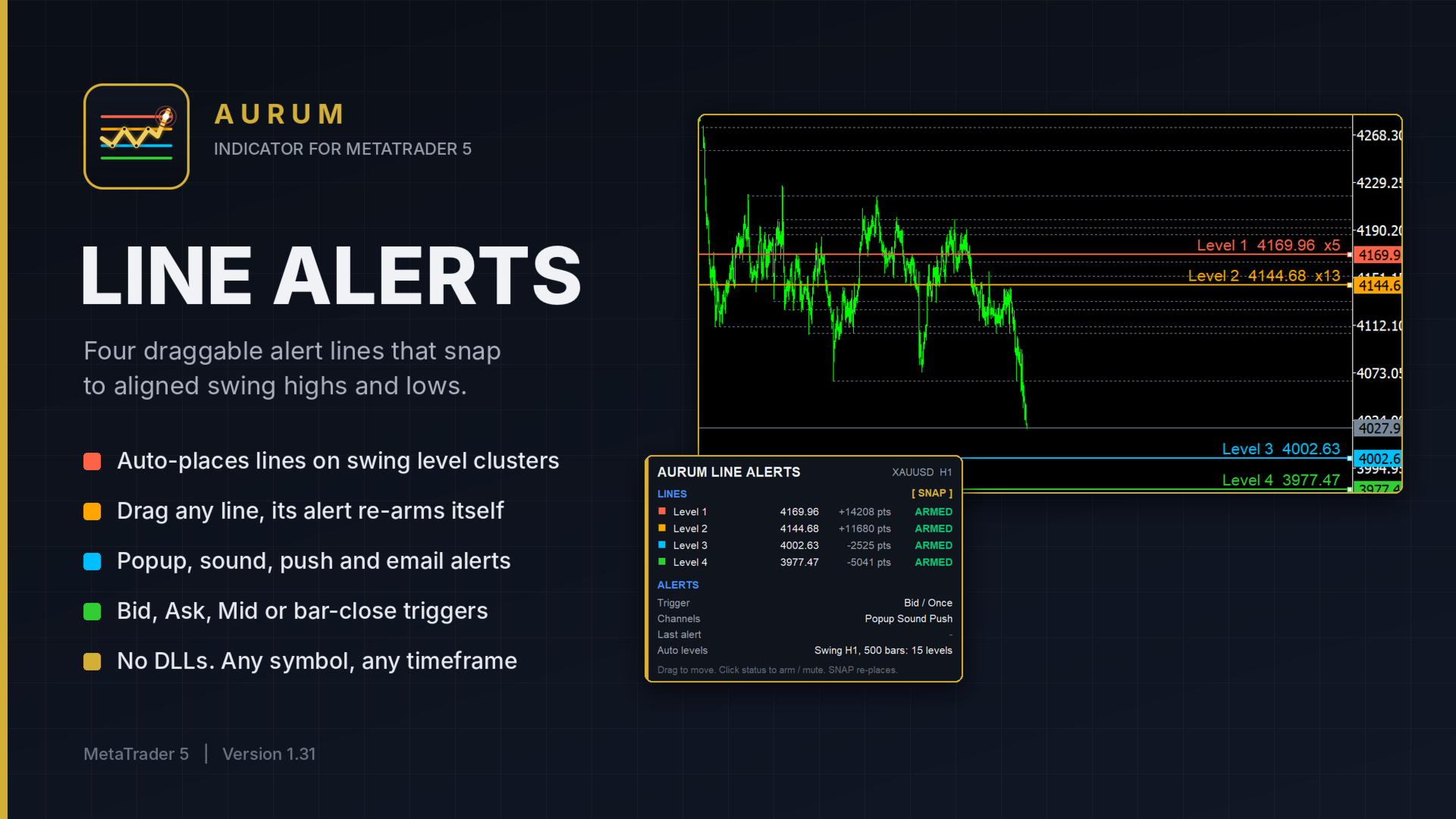
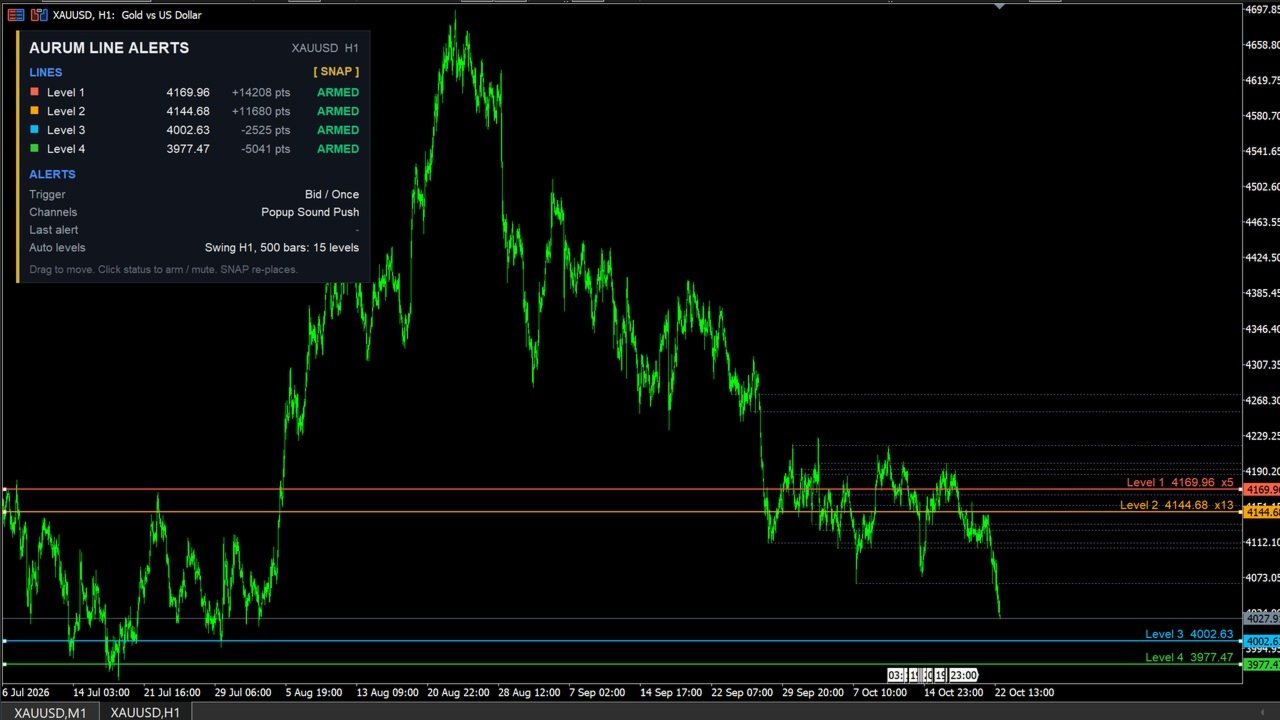
AURUM Line Alerts gives you four horizontal price alert lines that place themselves on the levels where price has repeatedly turned. Instead of drawing lines by hand and setting alerts one by one, attach the indicator and the lines appear on the strongest aligned tops and bottoms: two above price and two below. Drag any line to a new price at any time, and its alert re-arms automatically.
Key features
- 4 independent alert lines, each with its own label, price, alert direction, colour, style and width
- Automatic placement on swing high and low clusters, where tops and bottoms align within a fraction of ATR
- Fully draggable lines; a dragged line re-arms itself
- Positions remembered across terminal restarts and timeframe changes
- One-click SNAP button to re-place the lines on current levels
- Optional magnet that pulls a dropped line onto the nearest level
- Optional display of every detected level, with zone range and touch count in the tooltip
- Popup, sound, push notification and email alerts
- Trigger on Bid, Ask or Mid every tick, or on confirmed bar close
- Alert once per line, or repeat after a cooldown
- Compact panel: each line’s price, distance in points and status, plus trigger mode, active channels, last alert and level count
- Panel scales correctly on high-DPI screens
- No DLLs, no external files, no internet access required
- Works on any symbol and any timeframe
How it works
- Swing detection. The indicator scans the chosen lookback on the selected swing timeframe and marks confirmed swing highs and lows. A swing needs the set number of bars on each side, so unconfirmed recent bars are never used.
- Level building. Swing points that sit within the alignment tolerance (a multiple of ATR14) are grouped into one level. Highs and lows are grouped together, so a former resistance that became support counts as one level. Neighbouring groups that form a single zone are merged. A level needs at least the minimum number of swing points.
- Line placement. Lines left at Price = 0 are placed on detected levels. L1 and L2 go above price, L3 and L4 below. Levels are ranked by number of touches (Strongest) or by proximity (Nearest). A minimum distance from price and a minimum gap between the two lines on each side prevent lines from crowding price or each other. If not enough levels are found on a side, those lines are placed within the visible chart range.
- Alerting. Each line tracks which side of it price is on. When price crosses the line in the allowed direction, the selected alerts fire. In Once mode the line then shows as dotted and HIT until it is dragged or re-armed from the panel. In Repeat mode it fires again after the cooldown.
How to use
- Attach the indicator to a chart. The four lines appear on the strongest swing levels around current price.
- Leave the lines where they are, or drag any of them to your own price. A dragged line keeps its new position.
- Click a line’s status on the panel to mute or re-arm it.
- Click SNAP to move all auto-placed lines onto the current swing levels.
- To fix a line at an exact price, enter it in that line’s Price input. That line is then never moved automatically.
- For push alerts, set your MetaQuotes ID under Tools > Options > Notifications. For email, configure Tools > Options > Email.
- To run more than one copy on the same symbol, give each copy a different Instance ID.
Parameters
Line 1 to Line 4 (the same inputs for each line)
- Enabled: show and monitor this line
- Label: name used on the chart, the panel and in alerts
- Price: fixed price for the line; 0 = automatic placement
- Alert direction: Both, Cross up only, or Cross down only
- Colour, Style, Width: line appearance; non-solid styles need width 1
Placement
- Instance ID (A): unique ID per copy on the same symbol
- Fallback auto spacing (1000 points): spacing used when no chart range or levels are available
- Remember dragged prices (true): keep line positions across restarts and timeframe changes
- Keep lines selected (true): lines can be dragged with a single click
- Show line labels (true): name, price and touch count at the right edge of each line
Auto Levels
- Auto placement (Swing high / low clusters): or Visible chart range
- Swing timeframe (Current): timeframe used to detect levels
- Lookback (500 bars): history scanned for swings
- Swing strength (5): bars required on each side of a swing
- Alignment tolerance (0.25 x ATR14): how close swing points must be to form one level
- Min swing points per level (2): minimum touches for a valid level
- Level selection (Most touches): or Nearest qualifying levels
- Line price within level (Cluster average): or Outer edge, or Inner edge facing current price
- Min distance from price (0.50 x ATR14): keeps lines away from current price
- Min gap between the 2 lines on a side (1.00 x ATR14): keeps paired lines apart
- Magnet snap after drag (false): pull a dropped line onto the nearest level
- Magnet range (0.30 x ATR14): how far the magnet reaches
- Show all detected levels (true): draw every level as a dotted line
Trigger
- Price used for cross (Mid): Bid, Ask, Mid (every tick) or Bar close (confirmed)
- Re-arm mode (Once): or Repeat after cooldown
- Cooldown per line (300 seconds): minimum time between repeat alerts on one line
Notifications
- Popup alert (true)
- Play sound (false) and Sound file (alert.wav)
- Push notification (true)
- Email (false)
- Message prefix (AURUM): text at the start of every alert
Panel
- Show panel (true)
- Panel X / Panel Y (12 / 24 px): position from the top-left corner
Notes
- Changing any Auto Levels setting re-places the automatic lines. Changing other settings keeps your line positions.
- Detected levels refresh on every new bar. Lines are never moved without your action, except on first attach or after the Auto Levels settings change.
- Removing the indicator from the chart clears its saved positions, so the next attach starts fresh.