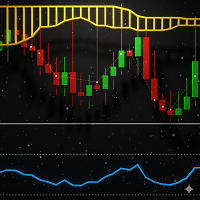
EasyTrading Panel by Vexo
- Experts
- 버전: 5.30
- 업데이트됨: 24 4월 2026
- 활성화: 5

BUY / SELL
Market orders with SL → Confirm flow
B.LIMIT / S.LIMIT
Limit orders with OK / CANCEL buttons
Auto POC
Volume Profile Point of Control (live)
MTF Trend
EMA 50/200 on M5 M15 H1 H4
Panel Layout
Risk% (default 1.0) • RR Ratio (default 2.5) • Magic Number • Slippage • EMA Fast/Slow • POC Bars/Bins
Market Orders: BUY / SELL
For instant market execution. Set your SL first, then click BUY or SELL.
Click SET to place SL line
A red draggable SL line appears at the current price. Drag it to your desired stop loss level. The TP line (green) auto-calculates from your RR ratio. Lot size auto-sizes from Risk% and SL distance.
Click BUY or SELL
The SL line locks. A confirmation bar appears at the bottom of the panel showing: order type, lot size, entry price (live Ask/Bid), SL, and TP.
CONFIRM or CANCEL
Click CONFIRM to execute the trade with your broker. Click CANCEL to go back — the SL line unlocks for re-adjustment. An alert pops up on success or failure.
Limit Orders: B.LIMIT / S.LIMIT
For pending orders. All 3 lines appear at once. Drag to adjust, then OK to confirm.
Click B.LIMIT or S.LIMIT
Three chart lines appear instantly: blue Entry (draggable), green TP (draggable), red SL (auto-calculated from RR). The buttons change to OK (green) and CANCEL (red).
Drag Entry and/or TP
Drag the blue Entry line to your desired entry price. Drag the green TP line to your target. The red SL auto-adjusts live using: SL distance = TP distance / RR ratio. Lot recalculates too.
Click OK → CONFIRM
Click OK — lines lock and the confirmation bar shows Entry, SL, TP, Lot. Click CONFIRM to place the pending order. CANCEL goes back to the drag phase so you can re-adjust without starting over.
Auto POC (Volume Profile)
The panel automatically calculates the Point of Control from tick volume distribution.
The price range of the last 100 bars is divided into 80 bins. Each bar's tick volume is distributed across the bins it spans. The bin with the highest total volume is the POC.
A purple dotted POC line draws on the chart and updates every 500ms. The POC price also shows in the panel's POC field.
Type a price into the POC field to set a custom level. Type 0 to go back to auto mode.
POC Bars (default 100) — how many bars to analyze. POC Bins (default 80) — price resolution.
MTF Trend Bias
Multi-timeframe trend using EMA 50 and EMA 200 on four timeframes:
Editable Fields
Click and type a custom lot size. Auto-risk turns OFF. Edit Risk% to re-enable auto.
Percentage of account balance risked per trade. Editing re-enables auto lot calculation.
Reward-to-Risk ratio (e.g. 1:2.5). Used for TP calculation and limit order SL auto-sizing.
Type a price for manual POC. Type 0 for auto mode. Shows on chart as purple dotted line.
Click to toggle: NEUTRAL → BULLISH → BEARISH. Visual reference only — no trade filtering.
- CLEAR button resets everything to defaults (lot, risk, RR, lines, POC back to auto)
- Confirmation is ALWAYS required before any order is placed — no accidental trades