EuroSurge EA MT5
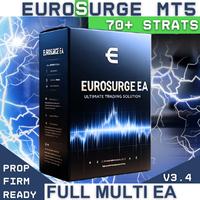
149 USD
Demo heruntergeladen:
139
Veröffentlicht:
18 August 2025
Aktuelle Version:
3.44
Keinen passenden Roboter gefunden?
Geben Sie Ihren Eigenen in Auftrag
auf Freelance!
Gehen Sie zu Freelance
Geben Sie Ihren Eigenen in Auftrag
auf Freelance!
Wie man einen Roboter oder Indikator kaufen kann
Starte Deinen EA im
Virtual Hosting
Virtual Hosting
Teste einen Indikator/Roboter vor dem Kauf
Möchtest Du Geld im Market verdienen?
Wie man Produkte richtig präsentiert

Sie verpassen Handelsmöglichkeiten:
- Freie Handelsapplikationen
- Über 8.000 Signale zum Kopieren
- Wirtschaftsnachrichten für die Lage an den Finanzmärkte
Registrierung
Einloggen
Sie stimmen der Website-Richtlinie und den Nutzungsbedingungen zu.
Wenn Sie kein Benutzerkonto haben, registrieren Sie sich
The EuroSURGE v3.0 update brings significant changes to the Expert Advisor (EA), an automated trading system, focusing on efficiency, reliability, and simplification. Below is a breakdown of the key updates:
Reworked Trading Logic
Optimized Parameters for Currency Pairs
Multiple Strategies per Symbol
Multi Symbol Mode
Streamlined Interface
Removal of Redundant Risk Features
Comprehensive Overhaul
Simplified Risk Adjustment
Flexible Symbol Management
Max Simultaneous Trades Setting
Enhanced Backtesting
Proven Robustness
Summary
EuroSURGE v3.0 is a major update that simplifies the user experience by removing manual configurations like set files and redundant risk controls. It introduces a reworked trading logic, supports multiple strategies per symbol, and offers efficient multi-symbol management from a single chart. With enhanced backtesting and a solid foundation tested over decades, the EA aims to deliver reliable, high-quality trading while allowing flexibility in risk and trade settings.
EuroSurge MT5 Installation Guide
(Refer to the screenshots)
Welcome
First of all, welcome—and thank you for supporting this endeavor. If this guide does not help you get set up, feel free to contact me directly for assistance.
Important Notice on Broker Compatibility
The EA (Expert Advisor) was optimized using MetaQuotes and cross-tested using IC Markets, as I personally use IC Markets.
Therefore, it is very important that you use IC Markets. I cannot account for potential differences or discrepancies that may arise when using a different broker.
If You Prefer a Different Broker
You must backtest the EA using “Real Ticks” for at least 5 years with your chosen broker.
If the results are desirable, you may proceed.
If the results are not desirable, you have two options:
Option 1:
Open an IC Markets account and run the EA directly on that account.
Option 2:
Open a demo account with IC Markets and copy the trades to your preferred broker using the FX Blue Trade Copier.
FX Blue is free and efficient.
This option will require two MT5 terminals and additional setup steps not covered in this guide.
Please contact me directly for help setting this up.
Installation Steps
Download the EA into your MT5 terminal.
Open 3 (or more) new charts.
The specific symbols do not matter.
For demonstration, I’ll use: EURGBP, GBPUSD, and XAUUSD (Screenshots).
Set all chart timeframes to 5 minutes for consistency.
Locate the EA under the “Market” folder in the Navigator window, and add it to the first chart.
Chart Setup & Inputs
Important: Do not load more than 2 symbols per chart.
Chart 1 Example: EURGBP and EURUSD
The order of symbols does not matter.
You may combine any 2 symbols or load each one on a separate chart for individual customization.
Max Simultaneous Trades Input
Default is 1, which limits each symbol to one active trade at a time.
Setting it to 0 disables this limit, allowing for multiple trades (my personal preference).
Note: If your broker enforces FIFO rules, keep this input at 1.
GMT Offset & News Filter
The GMT offset is based on your broker’s server time.
Adjust this value according to your broker as described in the Input Notes.
The News Filter is optional.
The EA was optimized with news events included, so disabling it will not negatively affect long-term performance.
This feature is mainly useful for prop traders.
Important Built-in Rule
The EA is hardcoded to close all trades at 12:00 PM (noon) broker time on the first Friday of each month.
This cannot be disabled.
It helps avoid exposure to the NFP (Non-Farm Payroll) event, which is typically very volatile.
Close All Positions Friday Evening
This is a new input meant for prop trading use.
Default: false
I recommend keeping it false , as enabling it may prematurely close trades that could perform well the following week.
Repeat for Remaining Charts
Chart 2: Load GBPUSD and XAUUSD.
You can adjust risk per symbol (e.g., 0.5% for XAUUSD and 1% for GBPUSD) by loading them on separate charts and customizing their parameters individually.
Repeat for remaining symbols.
Final Notes
You can load each symbol on its own chart or combine up to 2 per chart, depending on whether their settings are the same (IE risk preference).
After loading, the UI panel will indicate which symbols are active on each chart.
The UI Panel will indicate whether AutoTrading is Enabled or Disabled. If Disabled - Turn on Algo Trading and ensure "Allow Algo Trading" is checked in the "Common" tab in the EA settings
Need Help?
If you need further assistance or clarification, do not hesitate to contact me directly. I'm happy to help.
EuroSurge v3.0 Inputs Overview (Referring to the Image)
Key Input Settings:
Important Note:
These are the only settings you should consider adjusting. All other parameters are hard-coded to simplify the interface, as the system incorporates over 70 strategies, which would otherwise require an overwhelming number of inputs.
Lots of green this month so far.