Pending Manager Pro
- 实用工具
-
Sangjun Han
 Best Prop Firm
🌍 FTMO Global (Non-US):
https://join.ftmo.com/OXEQwmfJGvvNnlKxfXIR
FTMO US (United States): - 版本: 1.5
- 更新: 30 十月 2026
Do you trade with UBS (Ultimate Breakout System), other pending-order EAs or place pending orders manually?
Then bring your pending orders into one clear workspace with Pending Manager Pro, a free MT5 utility built for everyday order management.
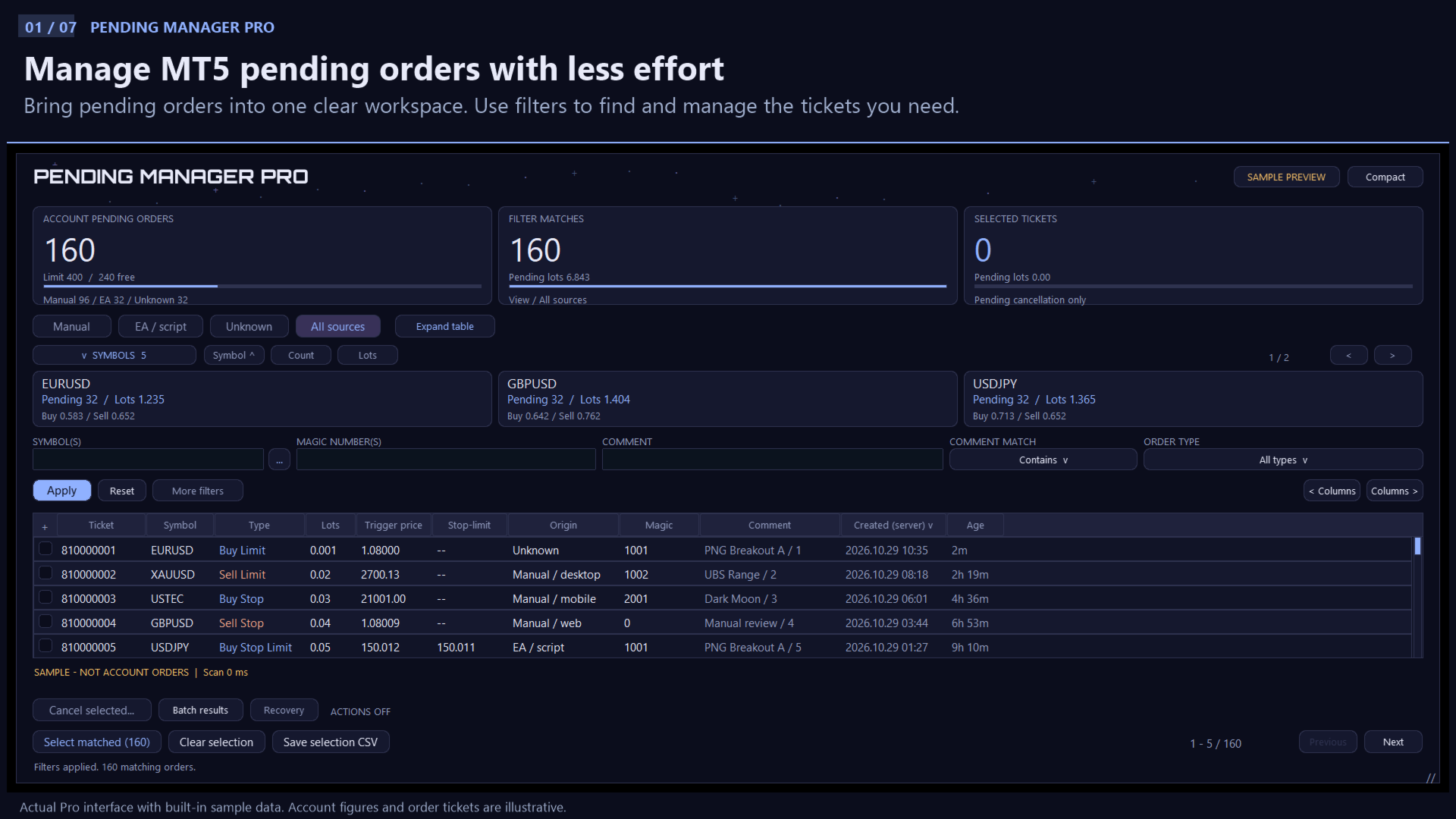
See how many pending orders are on your account, check the broker-reported limit and remaining capacity, and find exactly the orders you want among dozens or hundreds of tickets. Filter by symbol, Magic number or comment, select your group, and review it before cancellation.
Less searching. Clearer selection. Easier pending-order management.
For a detailed explanation, please download the PDF file from this blog.
See your pending orders at a glance
Keep the account-wide order count, matching orders and selected tickets clearly separated. View the broker-reported pending-order limit and remaining slots when available.
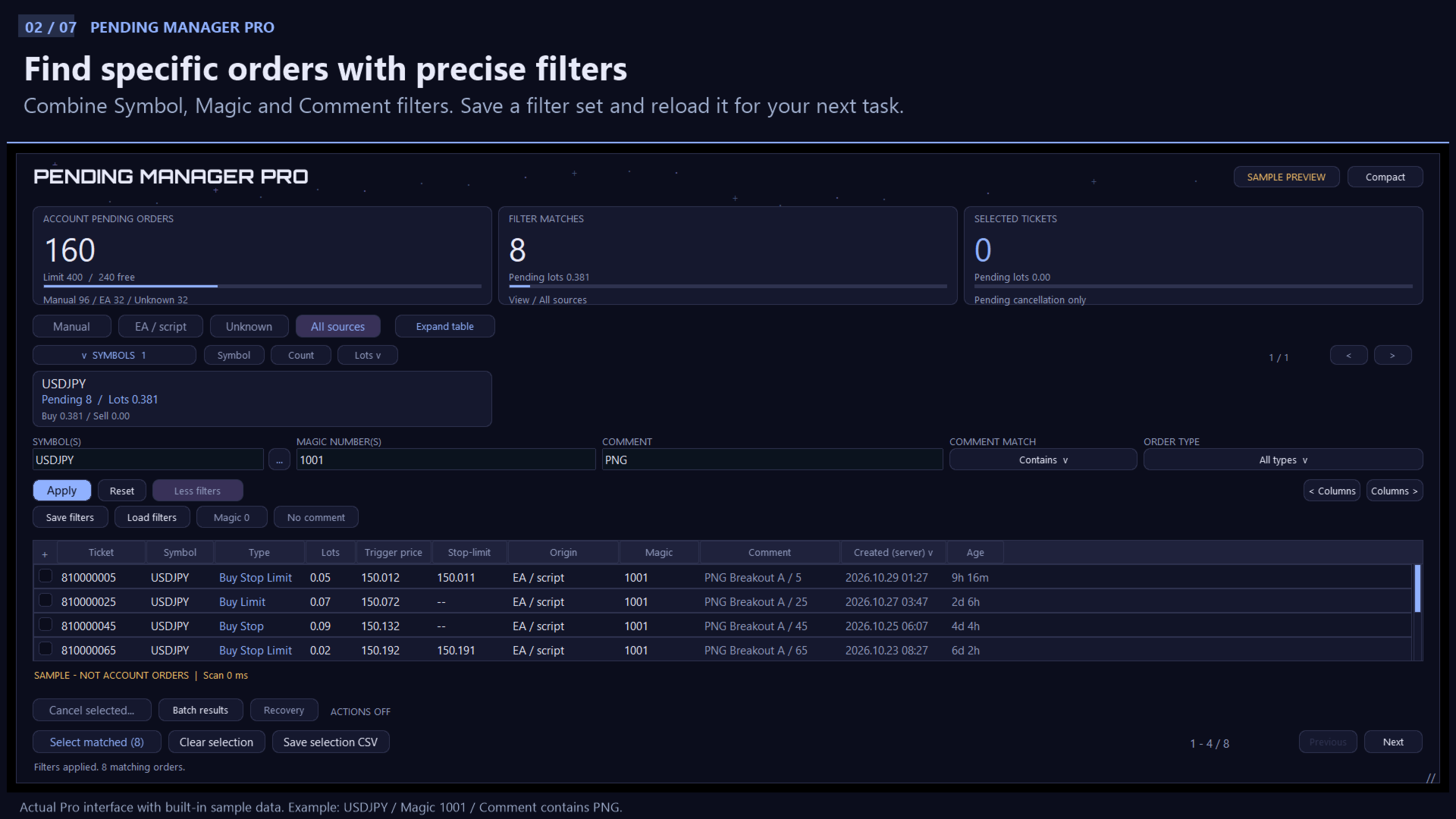
Find one EA, one symbol or one group
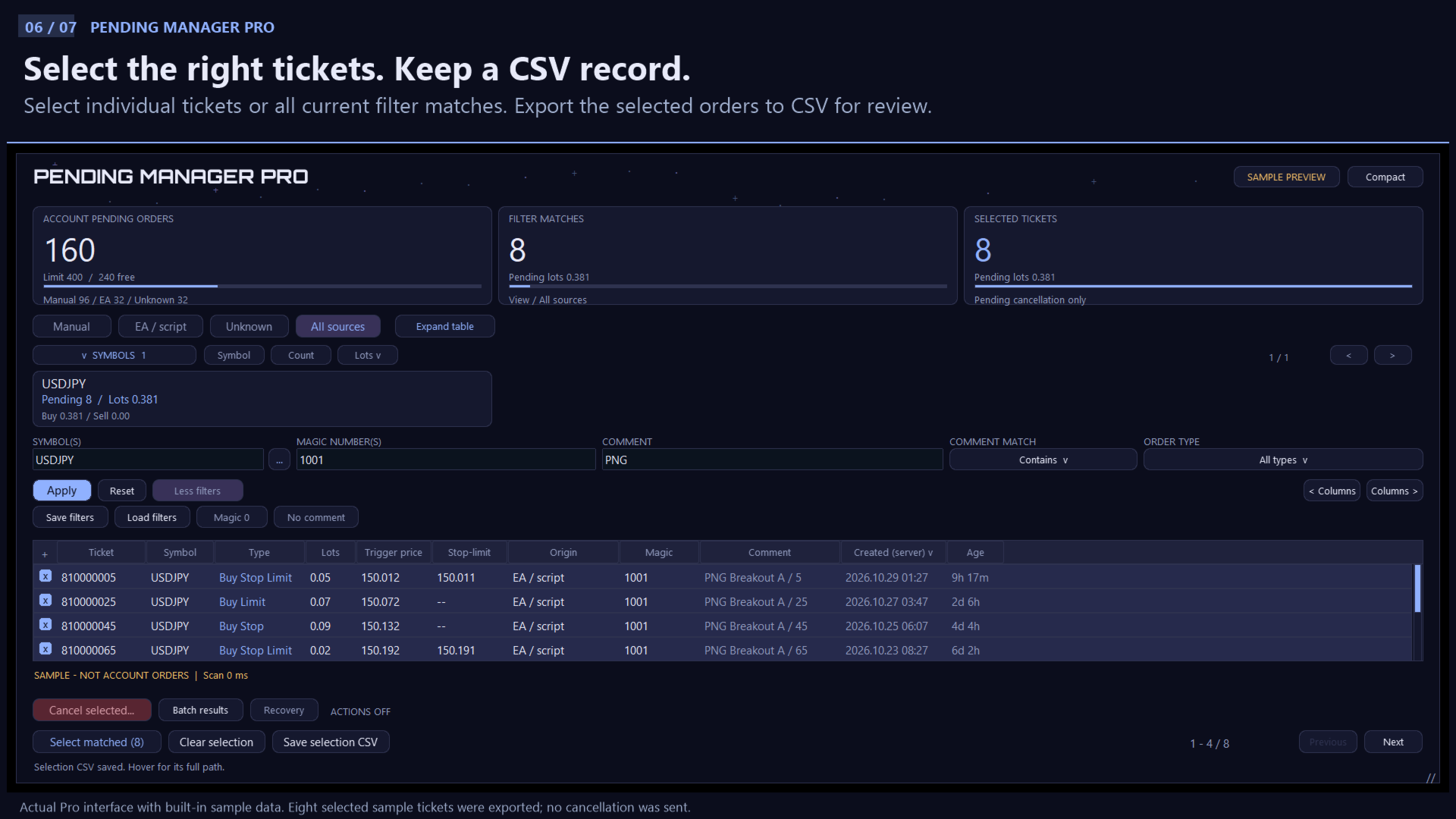
Combine symbol, Magic number, comment and order-type filters. Search for a word in a strategy comment, focus on a specific symbol, or narrow the list to one EA. Save and reload your preferred filter setup.
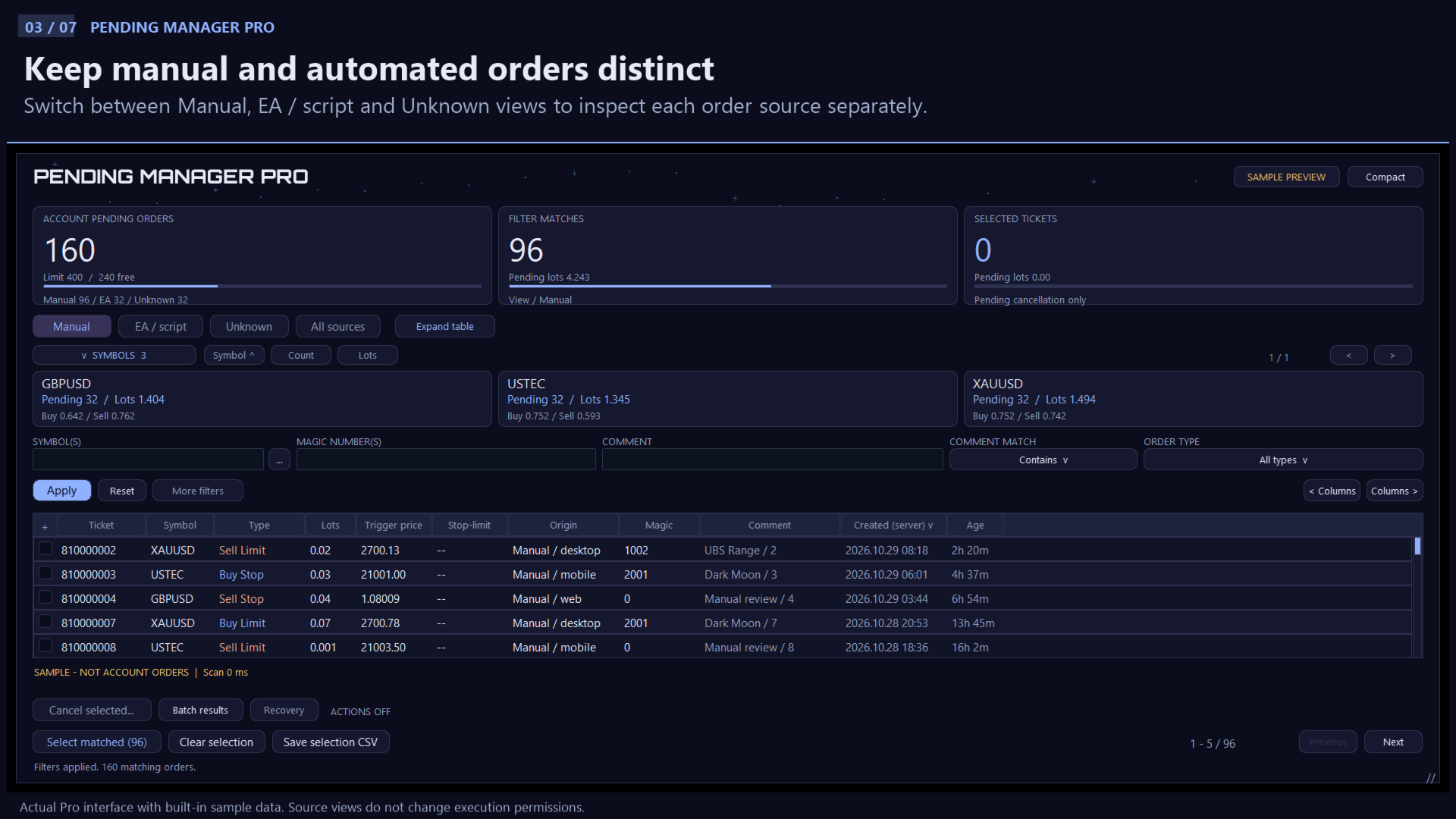
Keep manual and automated orders organized
Switch between Manual, EA / script, Unknown and All sources. Use the Magic 0 and No comment shortcuts to find orders with those attributes.
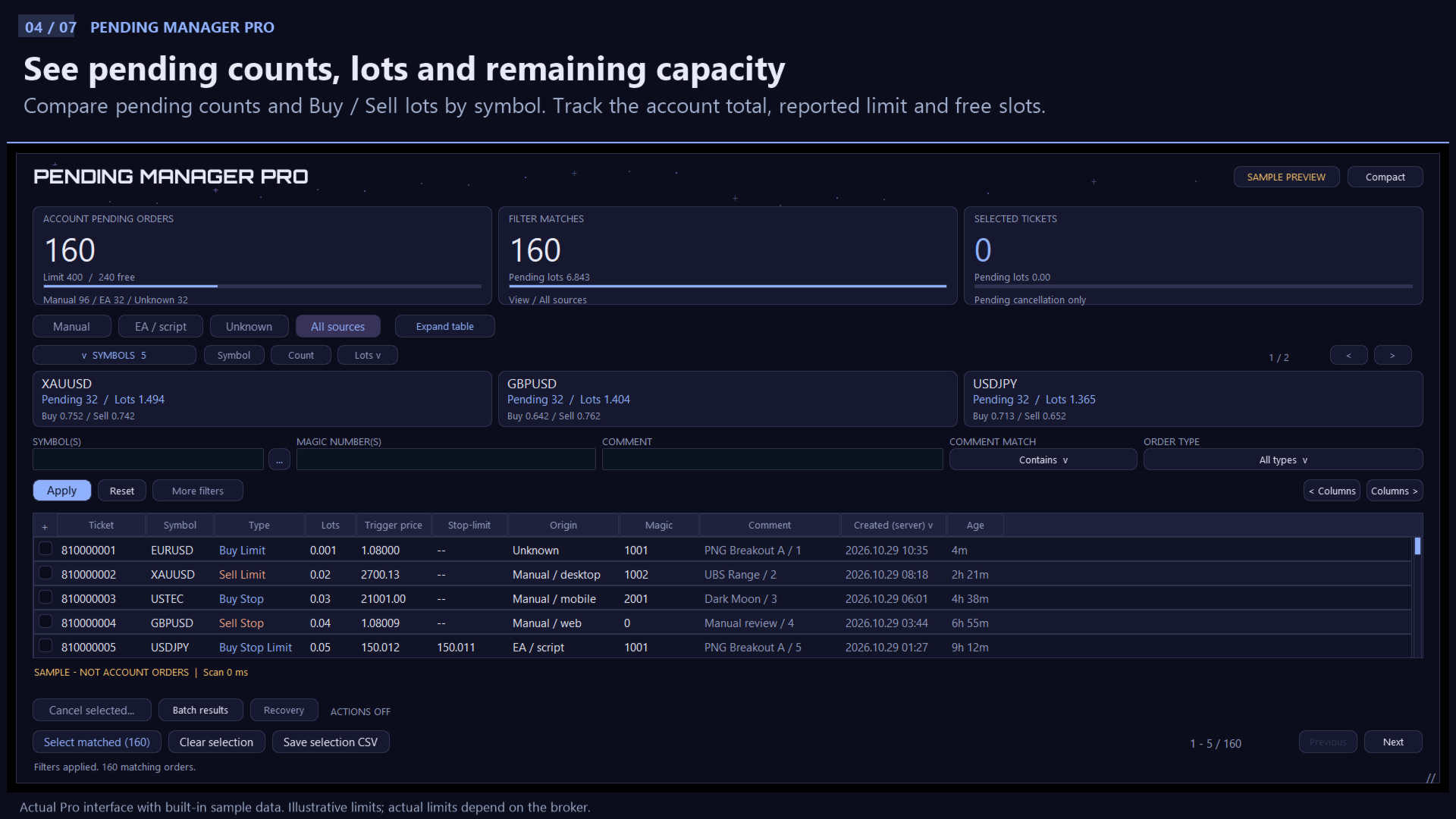
Compare symbols without counting tickets by hand
View pending-order counts, total lots and buy/sell lots by symbol. Sort the summary by symbol, order count or total lots, and use the searchable symbol picker to find the market you need.
Cancel the tickets you choose
Select individual tickets or all current filter matches across pages. Review the selected ticket list before confirming a batch cancellation. Use Protected Magics to keep specified strategies outside cancellation scope.
Keep a clear record
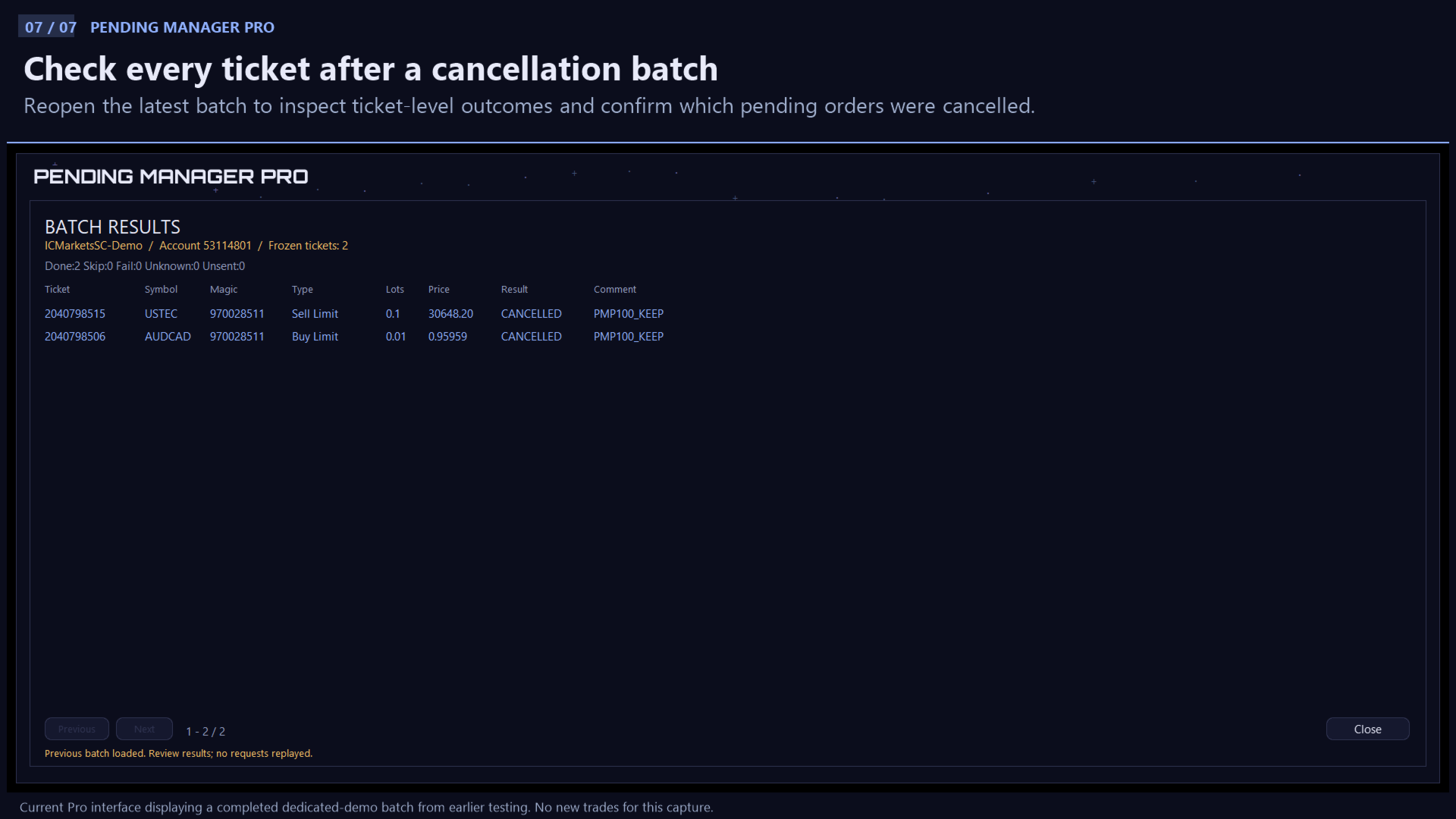
Save selected orders to CSV and check ticket-by-ticket results in Batch results. Local audit records and Reconcile help you check unresolved outcomes after an interruption.
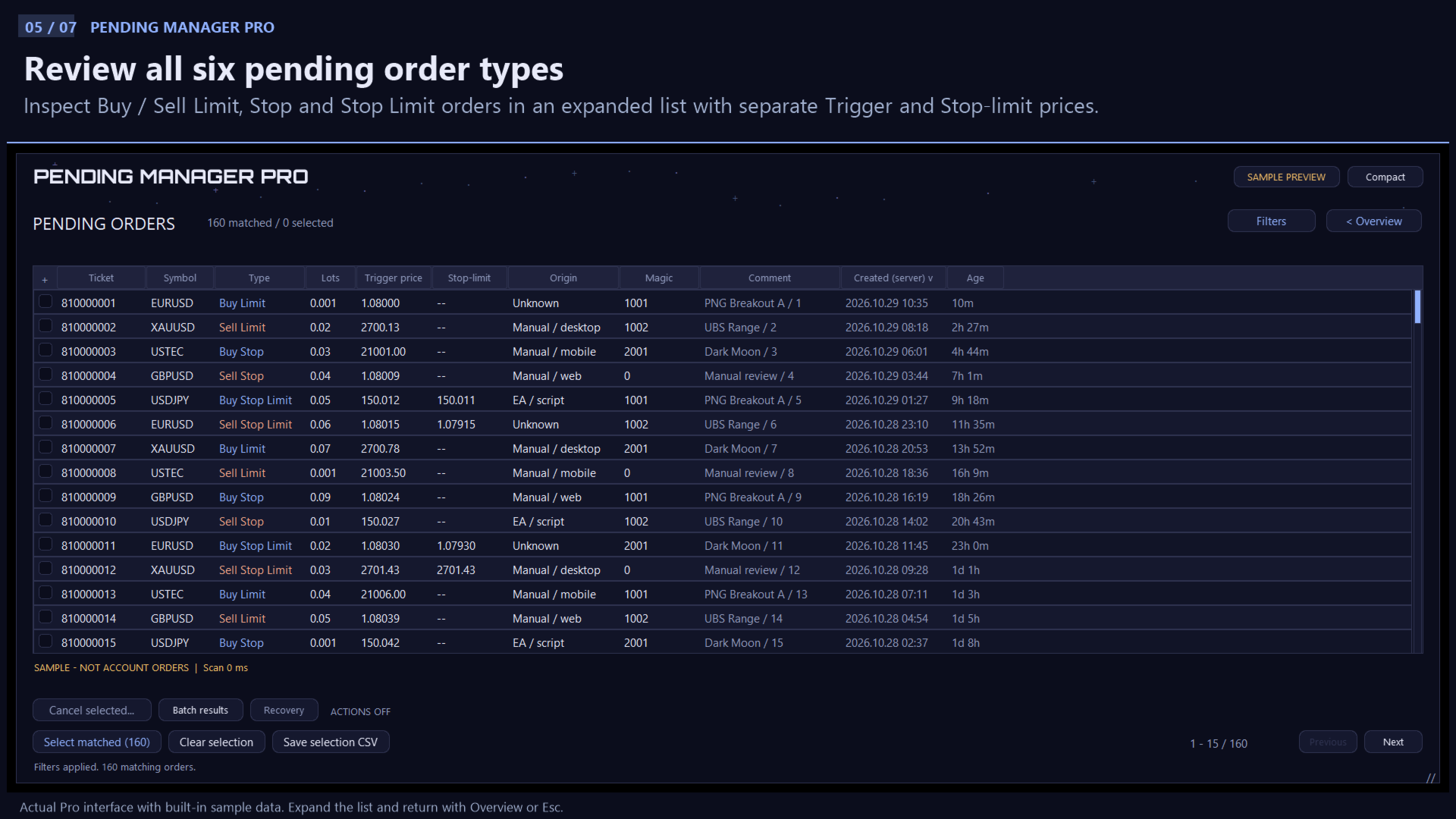
an expandable pending-order table and reusable filters keep the workflow easy to follow: find, select, review and cancel.
Simple setup. Only Nine inputs.
Display
- Sample preview — Default: false. Set true to explore the panel with built-in sample orders. Use false for your account.
- UI scale (%) — Default: 100. Adjust panel size from 80 to 150.
Cancellation
- Enable pending cancellation — Default: false. Set true when ready to send reviewed cancellation requests.
- Manage scope — Default: PS_MANUAL. Choose manual orders (PS_MANUAL), selected Magics (PS_ALLOWLIST), or all sources (PS_ALL).
- Max tickets per batch — Default: 50. Maximum tickets in one cancellation batch. Adjustable from 1 to 1000.
Optional Magic settings
- Allowed Magics — Default: blank. For PS_ALLOWLIST, enter permitted Magic numbers separated by commas, such as 12345,67890.
- Protected Magics — Default: blank. Magic numbers to exclude from cancellation in every mode.
- Allow Magic 0 outside Manual — Default: false. Enable to include Magic 0 in PS_ALL or PS_ALLOWLIST. In PS_ALLOWLIST, also add 0 to Allowed Magics.
- Manual execution-panel Magics — Default: blank. Nonzero Magics used by your manual order panels. These orders join the Manual group.
Start in four steps
- Attach Pending Manager Pro to one MT5 desktop chart. Keep Sample preview = false for your account.
- For cancellation, open F7 and set Enable pending cancellation = true. Turn on MT5 Algo Trading and allow algorithmic trading in the EA Common settings.
- Choose Manage scope. For a specific EA, use PS_ALLOWLIST and enter its Magic in Allowed Magics.
- Use ACCOUNT mode, apply your filters and select tickets. Click Cancel selected, review the list and confirm. Check Batch results afterwards.
Viewing, filtering and CSV export are available with trading permissions turned off. Cancellation uses your configured scope and a confirmation step. Your EAs continue running according to their own strategy logic.
Frequently asked questions
Can I manage pending orders from just one EA?
Yes. Filter by its Magic number or an identifying comment, optionally add a symbol, and select the matching tickets. Set Manage scope to permit that EA before confirming cancellation.
Do I need a separate chart for every symbol?
No. One panel reads pending orders across the current account. Use its symbol filters and summary to move between markets.
Can I explore the interface first?
Yes. Turn on Sample preview to try the panel with illustrative orders. Switch to ACCOUNT when ready to view your own pending orders.
Which pending-order types are supported?
Buy Limit, Sell Limit, Buy Stop, Sell Stop, Buy Stop Limit and Sell Stop Limit.
Download Pending Manager Pro and make your MT5 pending orders easier to find, review and manage. Free to use, with the filters and cancellation tools you need in one panel.
If you enjoyed it, please leave a review :)