Take a Break MT5 FREE
- Utilità
- Eric Emmrich
- Versione: 8.63
- Aggiornato: 27 agosto 2025
The most advanced news filter on MQL market
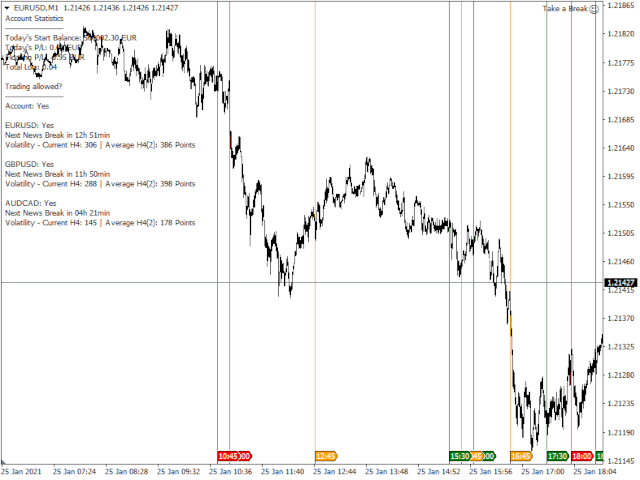
Take a Break has transformed from a basic news filter into a comprehensive account protection solution. It seamlessly pauses any other Expert Advisors during news events or based on your custom filters, all while safeguarding your EA settings - restoring them automatically when trading resumes for complete peace of mind.
Typical use cases:
- A single news filter for all your EAs.
- Stop trading during news/high volatility (+ close all trades before).
- Stop trading when Account Equity, Balance or Margin is low.
- Only trade on specific dates or times, e.g. only during the US session.
- Stop trading for the day when a certain profit/loss is reached (useful also for funding programs such as FTMO).
The numerous, built-in filters finally give you full control over your EA's operations making Take a Break an indispensable tool for every automated trader. As such, Take a Break might be the only tool you need for
- account protection
- drawdown control
- equity control
As a tool by traders for traders, your feedback is appreciated. If you have a feature request, find a bug or simply need support, just contact me. I'll be happy to help.
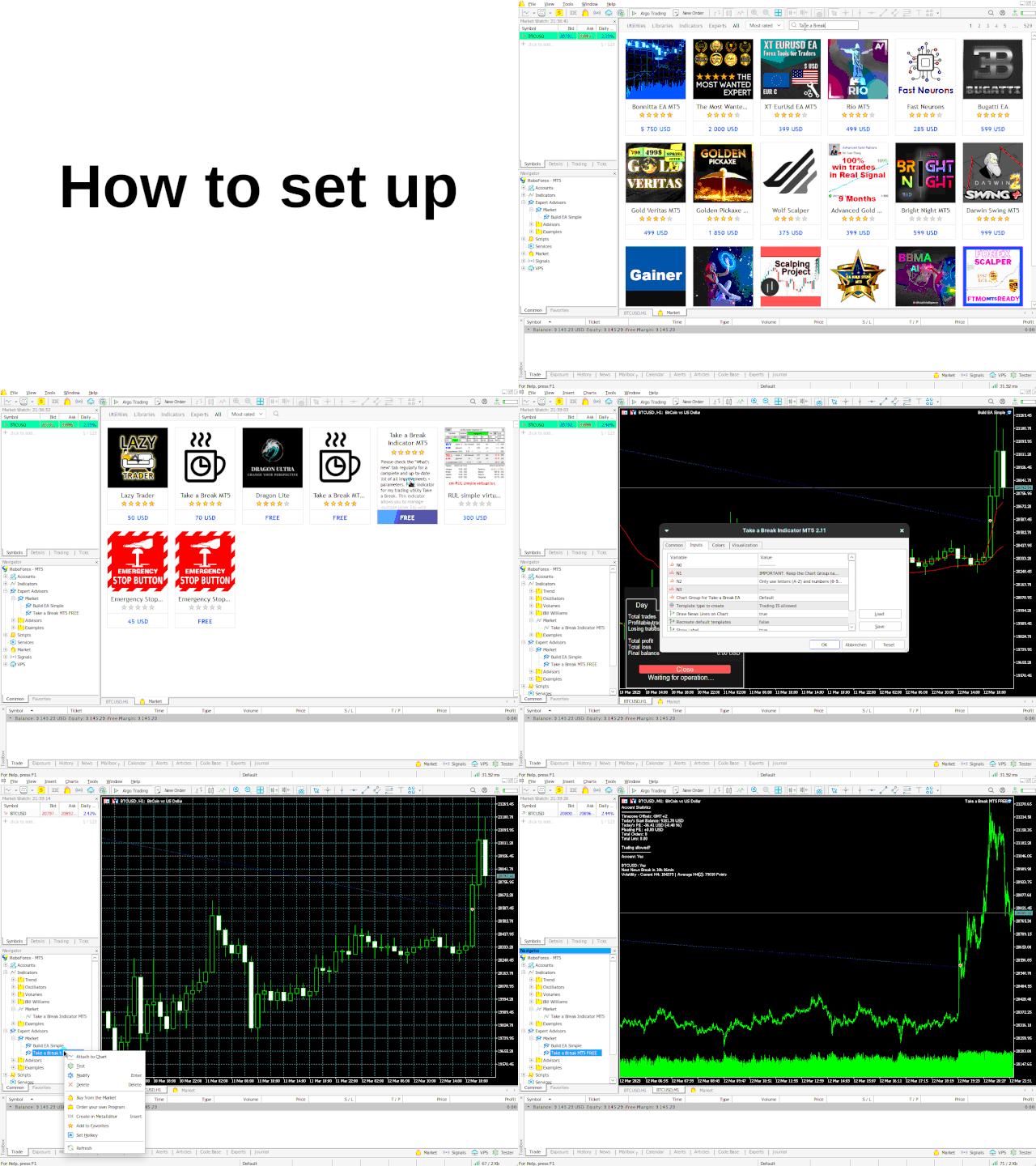
How to set up
- Add the URL https://trading.custom-solutions.it to the list of allowed WebRequest URLs (press CTRL+O, tab "Expert Advisors")

- Download the FREE Take a Break Indicator and follow the setup example.
Documentation
Ask me :)
... or navigate to the "What's new" tab and use your browser's search function (usually CTRL + F) to search for a specific parameter. I usually added a comprehensive description to all of them.
Parameters (excerpt)
--- External EA Settings ---
- Force stop trading: If set to "true", templates will be applied even if there are open trades of your other EA. Useful to prevent your other EA from opening new trades during news, increased spreads etc. But can possibly leave the open trades unprotected during these periods (if they have no S/L set). Use with caution.
--- News Filters ---
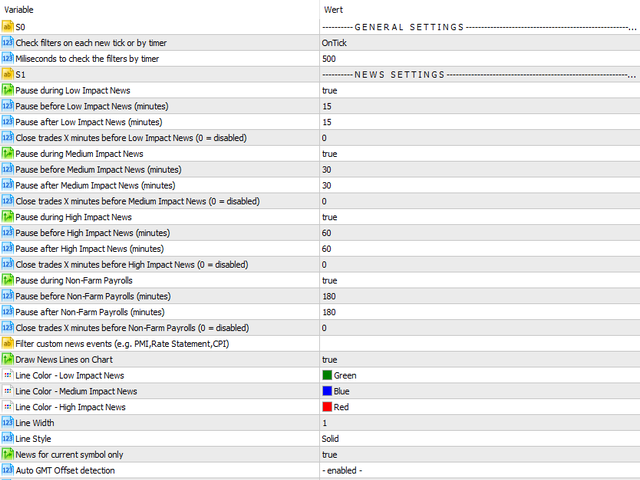
- Pause before NFP/High/Medium/Low Impact News (minutes)
- Pause after NFP/High/Medium/Low Impact News (minutes)
- Close trades X minutes before NFP/High/Medium/Low Impact News: Either all trades or only those with the specified "Magic Numbers" will be closed X minutes before the news.
- Filter News Events: Only pause during specific events. Separate multiple event names by a comma like e.g. "PMI,Rate Statement,CPI".
- Filter News Symbols: By default, Take a Break will determine the news for each symbol automatically. However, you can also specify your own set of symbols (e.g. "EUR,USD,GBP").
--- Additional Filters ---
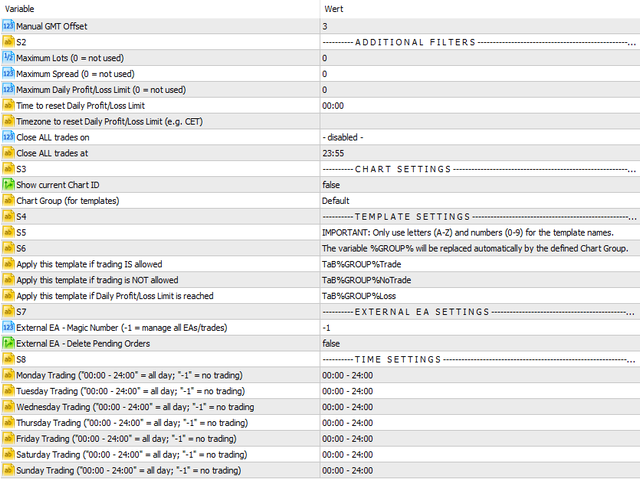
- Maximum Lots (0 = not used): Trading will be disabled when the sum of all orders' lots >= Maximum Lots. Set to "0" to disable it.
- Maximum Spread (0 = not used): Spread filter for each symbol. Set to "0" to disable it.
--- Account Protection ---
- Maximum Daily Profit Limit (0 = not used): Enter a daily profit limit in your account's base currency here. E.g. "100" means "stop trading when the daily profit reaches 100 EUR/USD/...". In this case, all trades will be closed and the chart template "Daily Profit/Loss Limit reached" applied.
- Maximum Daily Loss Limit (0 = not used): Same as "Maximum Daily Profit Limit" but you specify a negative value here. E.g. "-100" means "stop trading when the daily loss reaches -100 EUR/USD/...".
- Daily Profit/Loss Limit calculation mode: If set to "Equity", the profit/loss of open positions will also be taken into account when performing calculations. If set to "Balance", only the profit/loss of closed positions will be taken into account.
- Timezone to reset Daily Profit/Loss Limit: By default, the limits are reset once every day at the specified "Time to reset Daily Profit/Loss Limit" broker server time. If you want the daily limits to be reset in another timezone, enter it here (e.g. "CET"). See List of Timezone Abbrevations.
--- Trading Times ---
- Monday/Tuesday/Wednesday/Thursday/Friday/Saturday/Sunday Trading: Specify trading times as ranges and separate them by a comma. E.g. to trade from 04:00 to 05:00 and from 20:00 to 22:00 (broker server time), use one of the following formats:
- 04:00 - 05:00,20:00 - 22:00 (extended)
- 4,20-22 (simple)
- Close trades on: In addition to the news filter, all trades can be closed either daily or on a specific weekday at the time specified under "Close trades at".
#equity protect #balance protect #drawdown limit #drawdown control #master control #trade manage #order manage #risk manage #prop firm

Absolute Game Changer – A Must-Have for Every EA User! Before I found Take a Break MT5 EA, I was constantly losing money during news events. Like many traders with a full-time job, it was nearly impossible for me to manually stop all my EAs before high-impact news or to be at the screen to catch the news right as it dropped. This meant I was always at the mercy of volatility, and it was hurting my bottom line. Then I discovered Take a Break, and everything changed. This EA is an absolute hidden gem. It lets me pause trading across all my expert advisors automatically during news events, without having to babysit my terminal or rush to manage things manually. The peace of mind it provides is invaluable, and my account performance has improved dramatically since I started using it. What’s even better is that it works seamlessly with any EA that doesn’t have a built-in news filter — and let’s be honest, most don’t. Just plug it in, set your preferred time filters or news filters, and you’re protected. Simple as that. Massive respect and appreciation to the developer. It’s clear a lot of thought and hard work went into building something that solves a real problem for traders. I strongly urge anyone running automated strategies to support this project and integrate Take a Break into their setup. Your account will thank you.