Fx Gamma Profile
- Indicatori
- Versione: 1.0
- Attivazioni: 5

Fx Gamma Profile - see where the options market is positioned, directly on your MetaTrader 5 chart.
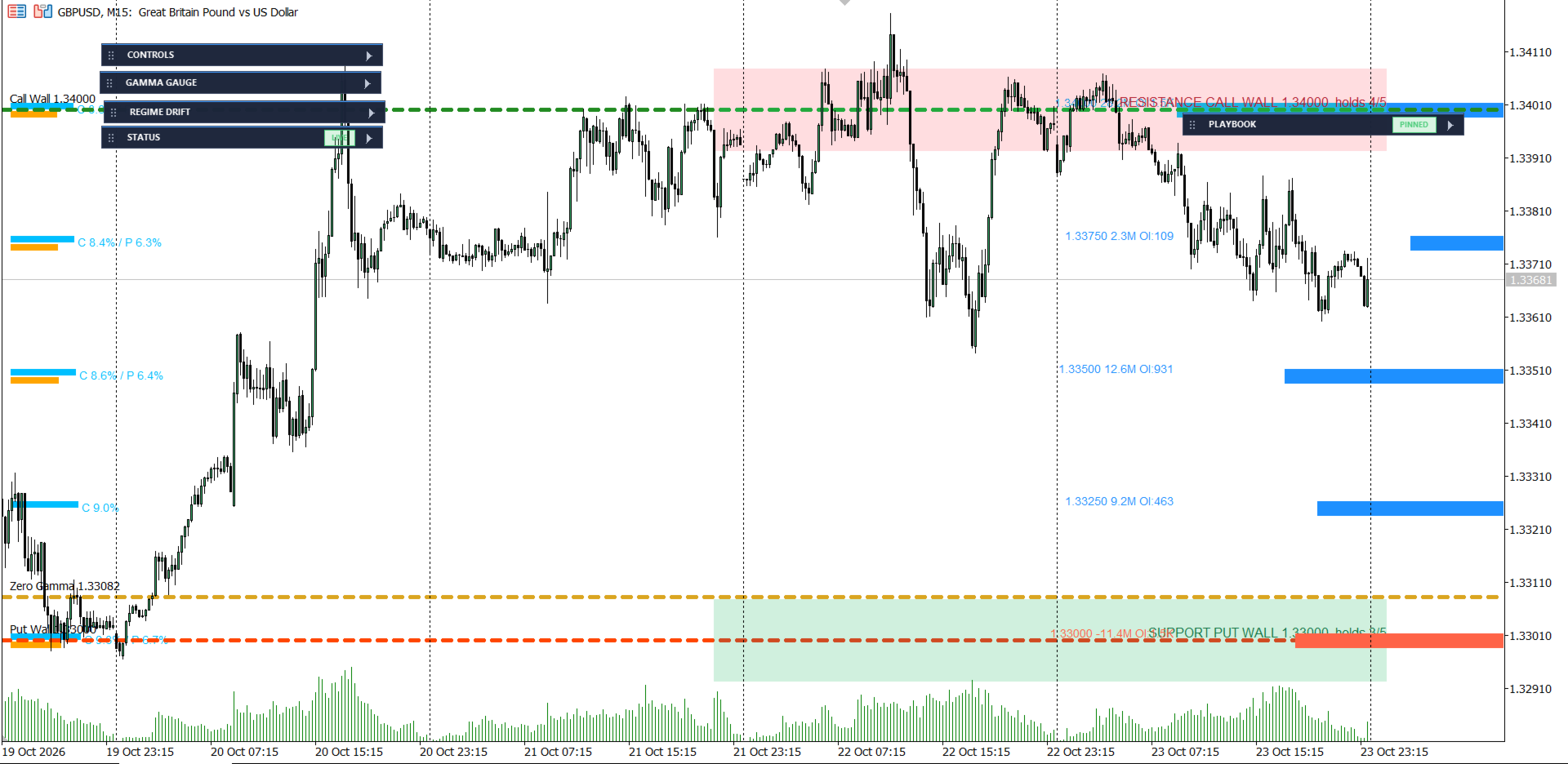
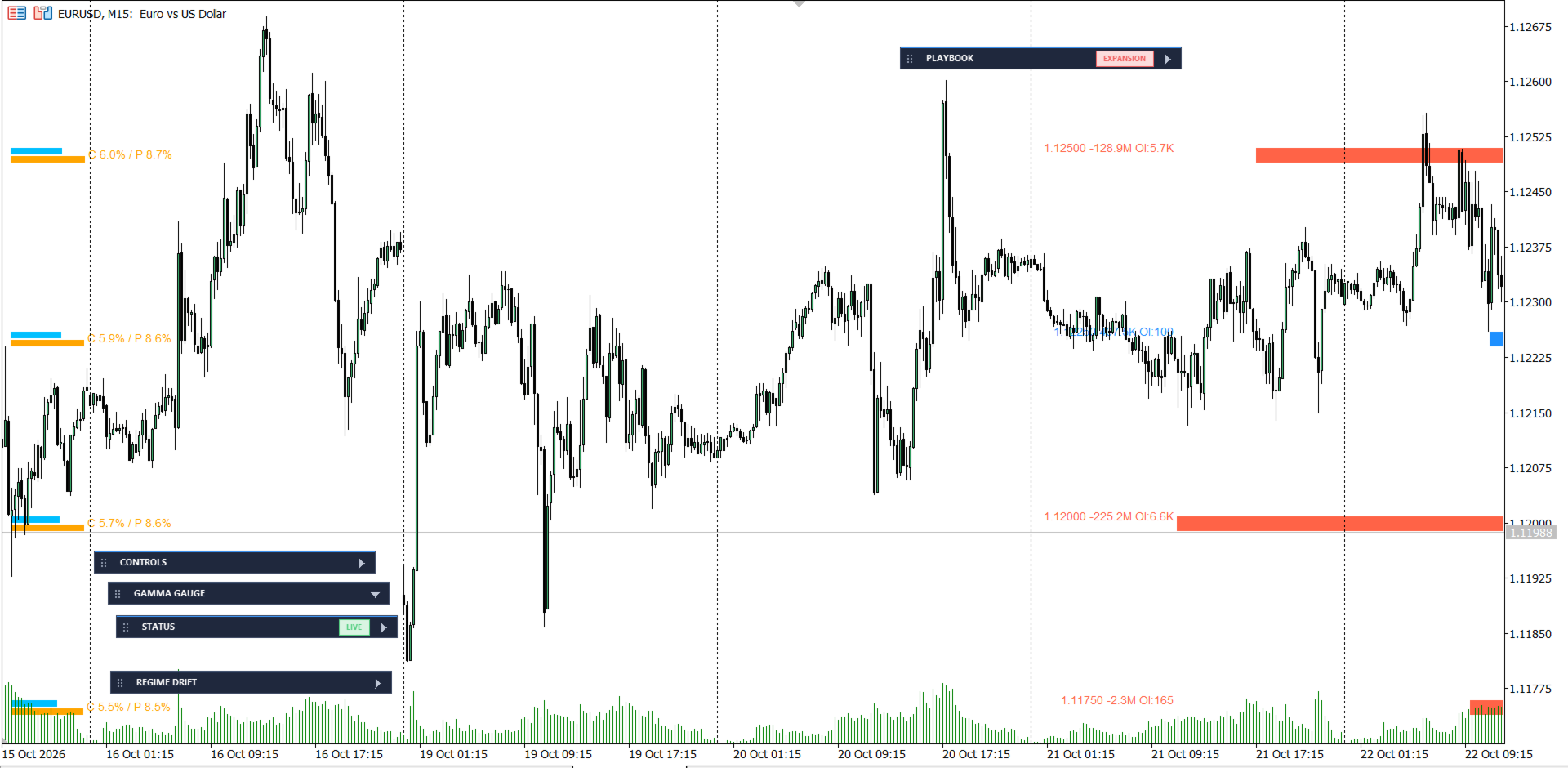
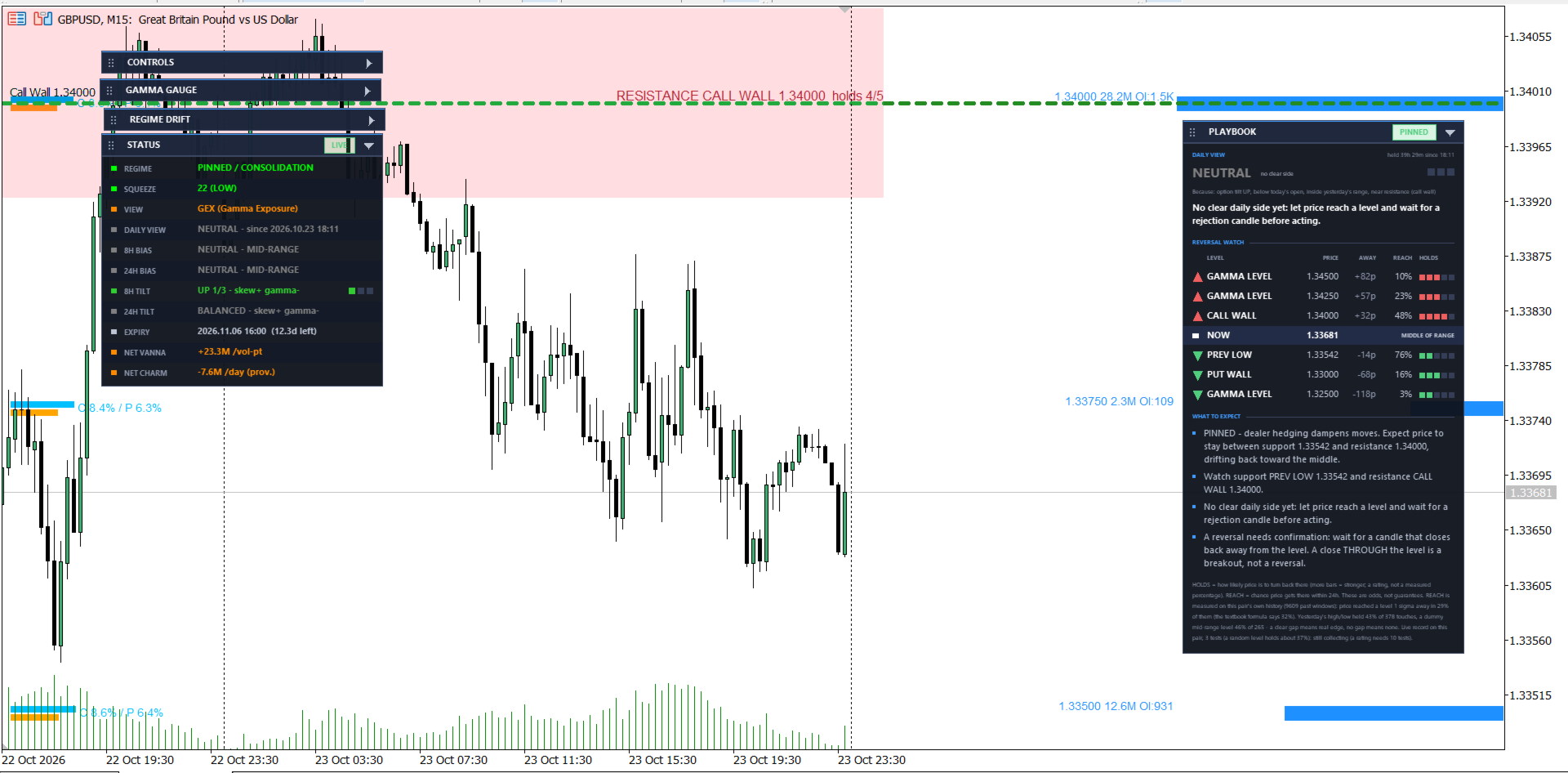
Fx Gamma Profile turns an options-chain file into a gamma-exposure (GEX) map and draws it beside price: a bar for every strike, the call wall, the put wall and the zero-gamma level, plus a status panel that explains in plain words what the numbers imply. It is a decision-support tool for discretionary traders who want options-market context for FX pairs.
⚠ READ BEFORE YOU BUY - THIS INDICATOR NEEDS A DATA FILE
- The indicator reads an options-chain CSV in Barchart format (for example the EURUSD or GBPUSD options chain) that you download and save into your terminal's MQL5\Files folder.
- Name the file SYMBOL_options.csv, for example GBPUSD_options.csv. Broker suffixes such as GBPUSD.m are handled.
- The indicator does not download data and uses no internet access, no DLLs and no WebRequest. The data source and its terms of use are your responsibility.
- Options data is a daily snapshot, so levels are fixed for the day while the reading against live price updates continuously. Replace the CSV regularly to keep the chain fresh.
BUILT-IN DEMO MODE - TRY IT BEFORE YOU ADD YOUR OWN DATA
- If no CSV file is found, the indicator shows a clearly labelled DEMO chain so you can see every panel working immediately after you attach it.
- The demo is sample data only. It is not real market data and has no connection to current options positioning. It is marked on the chart with a "DEMO - NOT REAL" banner, a DATA row in the status panel, a DEMO health flag and a "DEMO DATA - sample numbers, not real" prefix in the Playbook.
- Demo numbers are never saved, never counted in the statistics and never mixed with real data.
- As soon as your real CSV appears in the Files folder, the indicator switches to it automatically (within about 10 seconds) and the demo disappears. You can also press the on-chart Reload button.
- Never trade on demo numbers. You can switch the demo off at any time with the input DEMO WHEN NO CSV.
- The demo is built for pairs quoted in the usual way (for example EURUSD, GBPUSD, AUDUSD). It is not supported on inverted-quote pairs.
WHAT YOU GET
- Gamma profile bars - net gamma exposure for every strike, with extra view modes: DEX, IV skew and Volume vs Open Interest.
- Call wall, put wall and zero-gamma level - plus a short trail showing how the walls have moved during the session.
- REGIME read-out - positive or negative gamma and how strong it is. A weak regime is labelled as weak and a hysteresis filter stops the label flipping on noise.
- Dollar-gamma gauge, expected-move cones and a vanna / charm panel.
- Playbook panel - a slow, stable Daily View, a Reversal Watch listing the levels to watch with distance and historical hold-rate (compared against a dummy level), and a What To Expect summary.
- 8H and 24H bias engine and a Monte Carlo odds card.
- Data-health display - file age, expiry (flagged ASSUMED when the indicator had to guess it) and number of strikes, so you always know how much to trust what you see.
- Clean panel mode - draggable, collapsible cards that work on white and dark chart backgrounds.
- Six indicator buffers for your own EA through iCustom: call wall, put wall, zero-gamma, net GEX, 8H bias and daily bias.
- Light on resources - cached and throttled drawing: only changed objects are rewritten, off-screen strikes are removed, and chart redraws are combined so the chart stays smooth.
HOW IT WORKS
Implied volatility is solved from the chain's prices, gamma is calculated with the Black-76 model, and net GEX is call gamma minus put gamma. This follows the common simplification that dealers are long calls and short puts. That assumption cannot be verified for FX (there is no public dealer-positioning data), so treat the sign of net gamma as a model output, not a fact. When net gamma is small compared with gross gamma, or price is near the zero-gamma level, the sign can change with small input changes - the indicator labels these cases rather than hiding them.
HOW TO DOWNLOAD THE CORRECT FILE FROM BARCHART (step by step)
- Open the Barchart futures-options page for your currency future. Example for British Pound (GBPUSD): https://www.barchart.com/futures/quotes/B6Z26/options/nov-26
Barchart's futures codes: B6 = British Pound (GBPUSD), E6 = Euro (EURUSD), A6 = Australian Dollar (AUDUSD). The ending is the futures month and year (Z26 = December 2026). Search the symbol box on Barchart if you need another pair or month. - Click Options Prices in the left menu (under OPTIONS).
- Set the selectors above the table exactly like this:
- Options Type: Monthly Options
- Expiration: the expiry you want to trade around (normally the nearest monthly, for example Nov 2026). The page shows "xx Days to expiration on mm/dd/yy" - note that date.
- Strikes: Show All (not just near-the-money strikes)
- View: Stacked (calls and puts together in one table, so the file has one row per option with a Call/Put Type column)
- Click download at the top right of the table. Barchart usually requires a free account and being logged in to download.
- Rename the file to SYMBOL_options.csv - for example GBPUSD_options.csv - and copy it to File > Open Data Folder > MQL5 > Files. Do not edit the contents; the last line starting with "Downloaded from Barchart.com" is normal and is used to show the data age.
- Within about 10 seconds the DEMO banner disappears and your real chain loads. Check the EXPIRY row in the status panel matches the expiry date you chose; if it says ASSUMED, set EXPIRY MODE to Manual and enter that date.
Tips for good data: download after the market has closed or at least once per day, and replace the file every day (AUTO RELOAD DAILY picks up the new file). Use one expiry per file. The Bid and Ask columns can show N/A in the evening - the indicator then uses the settlement / last price, which is why the data age is shown in the panel. Use the unmodified Barchart download (columns Strike, Open, High, Low, Latest, Change, Bid, Ask, Volume, Open Int, Premium, Time, Type). If you use another data source, convert it to this same layout first.
Barchart is a third-party website that is not affiliated with this product. Its data is subject to Barchart's own terms of use; you are responsible for having the right to download and use it.
GETTING STARTED IN 3 STEPS
- Attach the indicator to a chart. You will see the demo chain straight away.
- Download your options-chain CSV from Barchart (see the step-by-step section above) and save it as SYMBOL_options.csv in File > Open Data Folder > MQL5 > Files. The demo switches to your data by itself.
- Check the EXPIRY row in the status panel. If it says ASSUMED, set EXPIRY MODE to Manual and enter your chain's expiry date.
MAIN INPUTS
- CSV FILE NAME TEMPLATE / OVERRIDE - which file to read ({SYMBOL} is replaced automatically).
- USE COMMON FOLDER - read the CSV from the shared Common\Files folder (needed for the Strategy Tester).
- DEMO WHEN NO CSV - show the labelled sample chain while no CSV is present.
- EXPIRY MODE / EXPIRY DATE / EXPIRY CUTOFF - Auto (CSV, file name, your date, else the next CME monthly, flagged ASSUMED) or Manual.
- SHOW PLAYBOOK, view mode, panel corner and colours - every input has a capitalised feature name so it is easy to find.
- AUTO RELOAD DAILY - reload the CSV at the start of each new day.
- UI DIAGNOSTICS - writes redraw and repaint rates to the Experts log for troubleshooting.
STRATEGY TESTER NOTE
The Strategy Tester uses its own private Files folder, so a CSV in your normal MQL5\Files folder is not visible there. Enable USE COMMON FOLDER and place the CSV in Terminal\Common\Files to test with real data. Without a file the tester shows the labelled demo chain. This is a levels-and-context indicator - the chain is a single current snapshot, so it does not reconstruct historical gamma for backtesting.
FREQUENTLY ASKED QUESTIONS
Does it work without a CSV? It shows the labelled demo so you can explore the panels, but it needs your own CSV for real levels.
Does it connect to the internet? No. It reads a local file only.
Which symbols? Any symbol for which you provide a matching options CSV.
Is it an auto-trading system? No. It draws information on the chart and offers buffers if you want to use it in your own EA. It never opens or closes trades.
Why does the regime often read negative or near the flip? When the chain is balanced, net gamma is close to zero and the sign is close to a coin flip. The indicator marks these readings as weak instead of presenting them as signals.
IMPORTANT DISCLAIMER
This product is an analytical tool provided for information and education only. It is not financial, investment or trading advice, and it is not a recommendation to buy or sell any instrument. All levels, regimes, biases, odds, hold-rates and probabilities are model-based estimates that depend on the quality and timeliness of the data you provide and on modelling assumptions (including the unverifiable dealer-positioning assumption) that may not hold. They are not predictions and not guarantees. Historical behaviour of price around a level does not guarantee future behaviour, and some levels show no measurable edge over a random level.
Trading leveraged products such as forex and CFDs carries a high risk of loss and may not be suitable for everyone. You can lose more than your initial deposit. Only trade with money you can afford to lose, test on a demo account first, and use your own risk management. No profit is promised or implied. The developer accepts no liability for any loss arising from use of this product. Demo-mode numbers are sample data and must never be used for trading decisions. Options data from third parties remains subject to that provider's terms; you are responsible for having the right to use the data you load.
SUPPORT
Questions or problems? Send me a private message on my MQL5 profile or use the product's Comments tab. Please include your terminal build, the symbol and the relevant lines from the Experts log. Updates are published through the Market, and you can see what changed on the Versions tab.