Candle Timer Countdown and Spread
- Indicateurs
- Version: 1.10

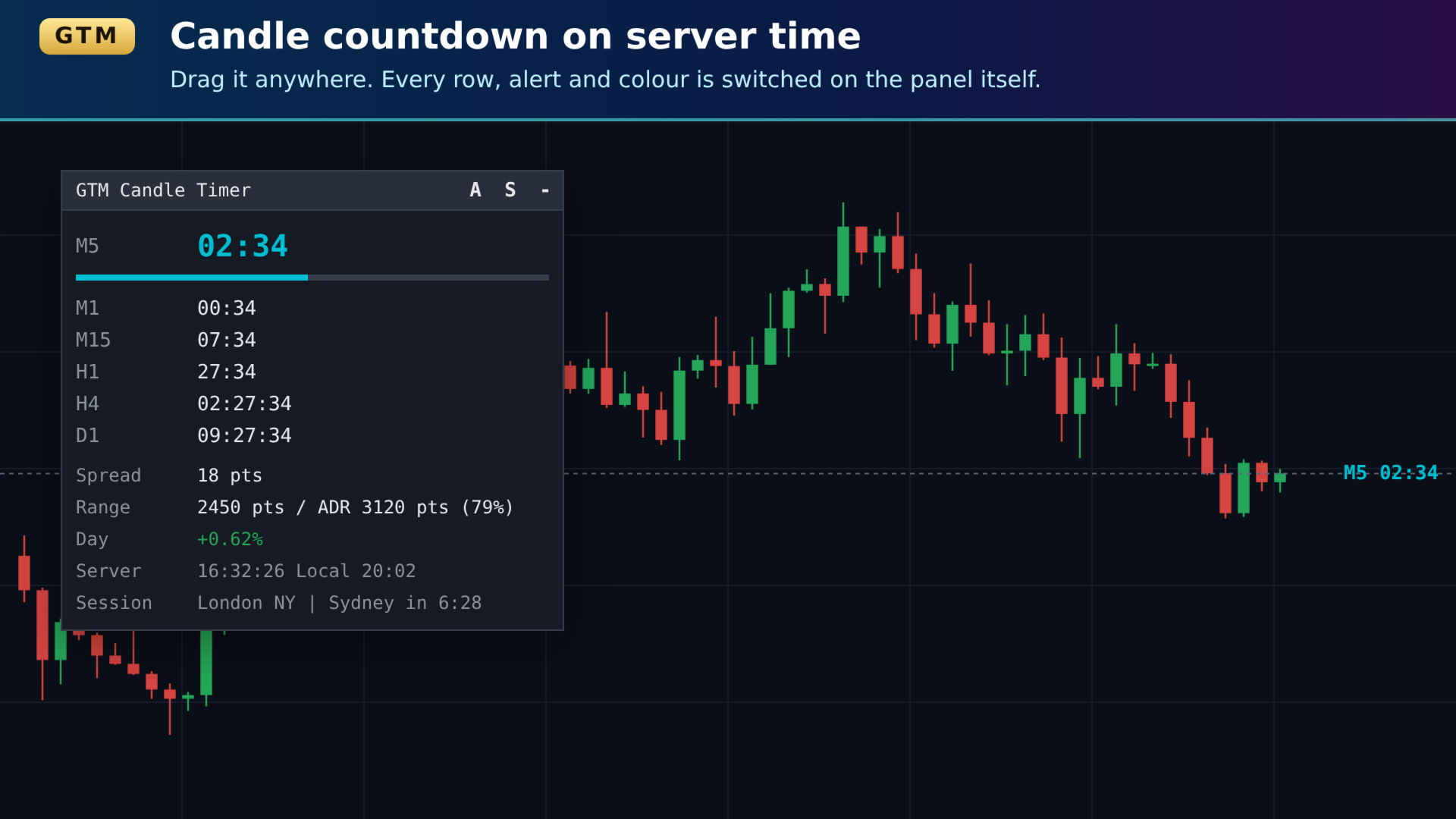
GTM Candle Timer shows how long the current candle has left — counted on your broker's server time, in a small panel you can drag anywhere on the chart. Everything it shows can be switched on and off from the panel itself, without opening the inputs dialog.
It is free, it has no paid "full version", and every alert type — popup, sound and phone push — is included.
| Why another candle timer? The most common complaints in candle-timer reviews are the same few: the colour cannot be changed or is invisible on a white chart, the timer cannot be moved, it uses the computer clock instead of server time, it stops when no ticks arrive, it falls off the chart, and alerts are missing or kept for a paid version. GTM Candle Timer was built to answer each of those. |
What you see
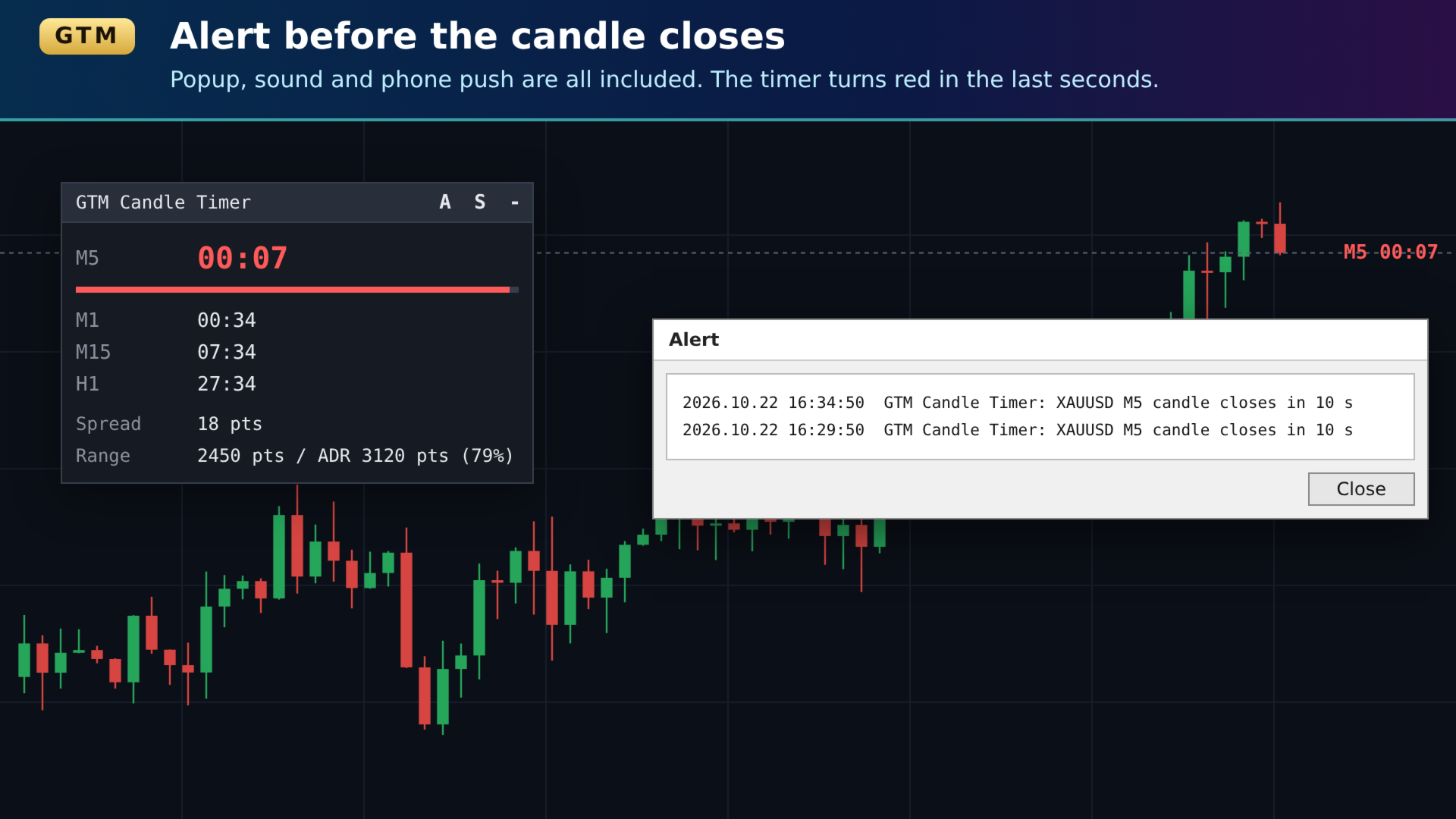
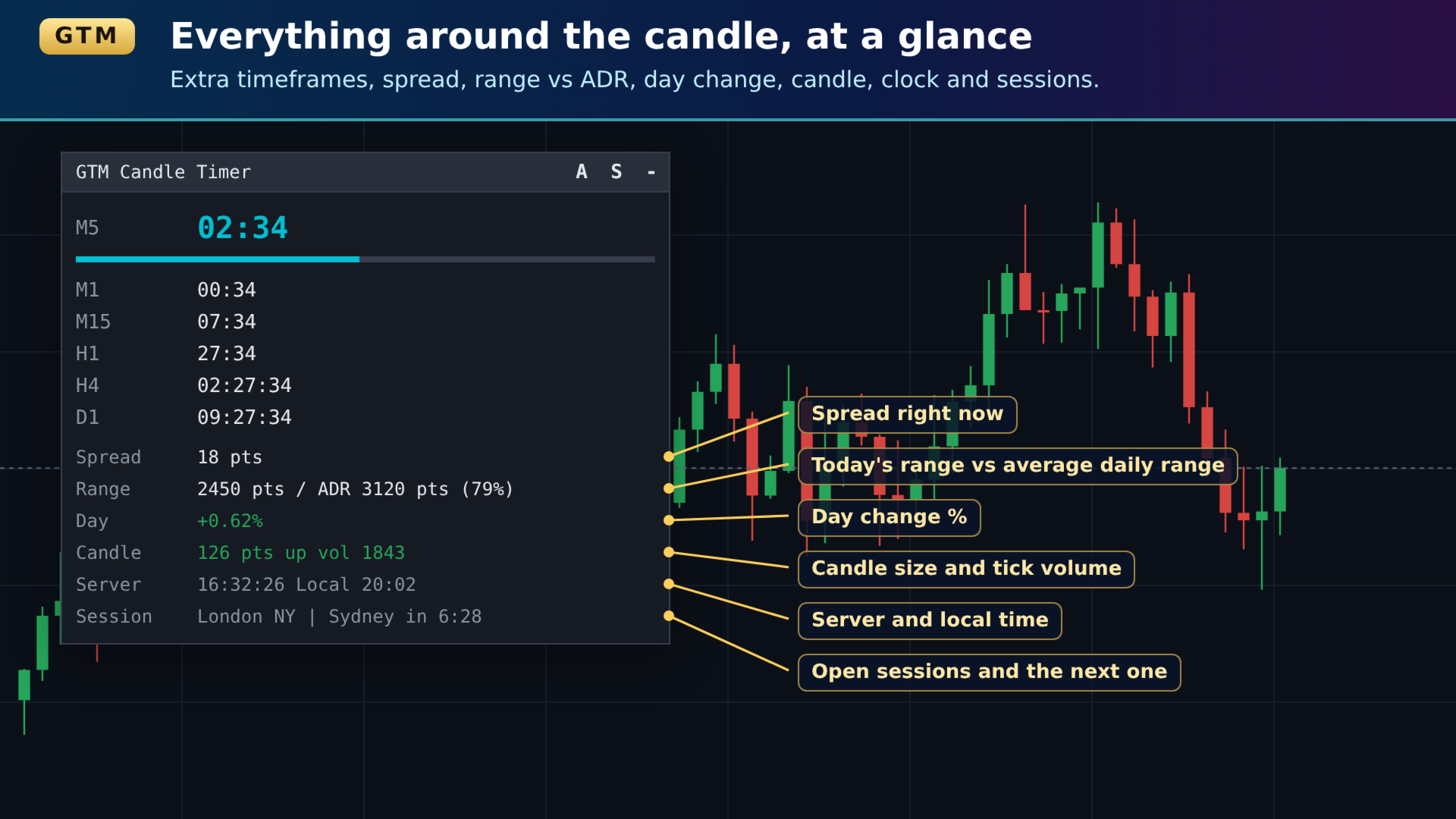
- Big countdown for the chart's own timeframe, with a progress bar that fills as the candle runs. In the last seconds the timer and bar turn red (you choose how many seconds).
- Several timeframes at once — by default M1, M5, M15, H1, H4 and D1 under the main timer. Any list you like, up to eight extra timeframes, including W1 and MN1.
- Spread right now.
- Today's range against the average daily range (ADR) — for example "62 pips / ADR 80 pips (78%)", so you can see how much of a normal day's move is already used.
- Day change %, green or red.
- Current candle size and tick volume.
- Open positions on this symbol — count, lots, profit in your account currency and in pips.
- Server time and local time.
- Sessions — which of Sydney, Tokyo, London and New York are open, and how long until the next one opens ("London | NY in 0:45").
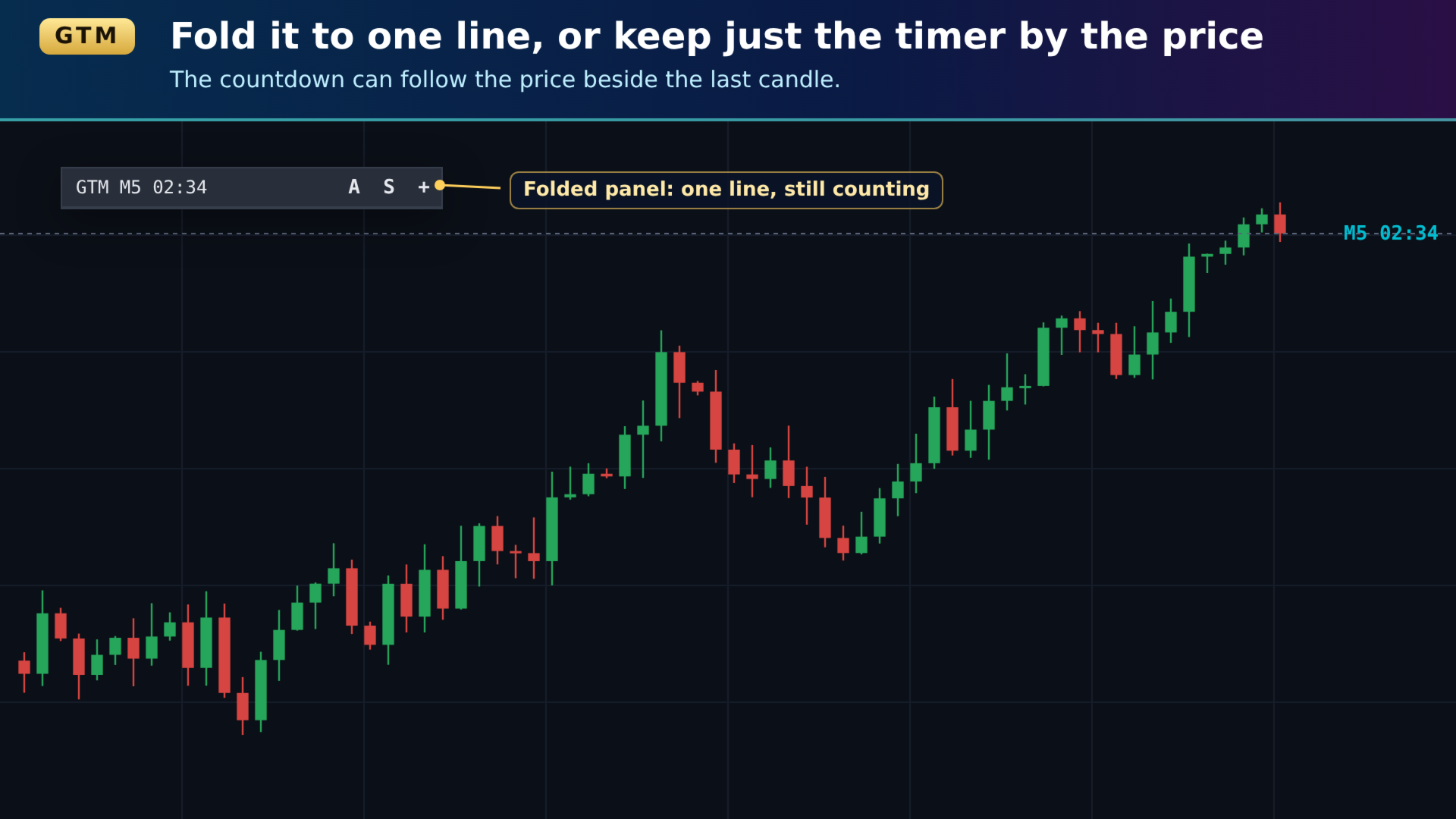
- Timer next to the price — a small countdown that follows the price, beside the last candle. Use it with the panel or on its own.
Controlled from the panel
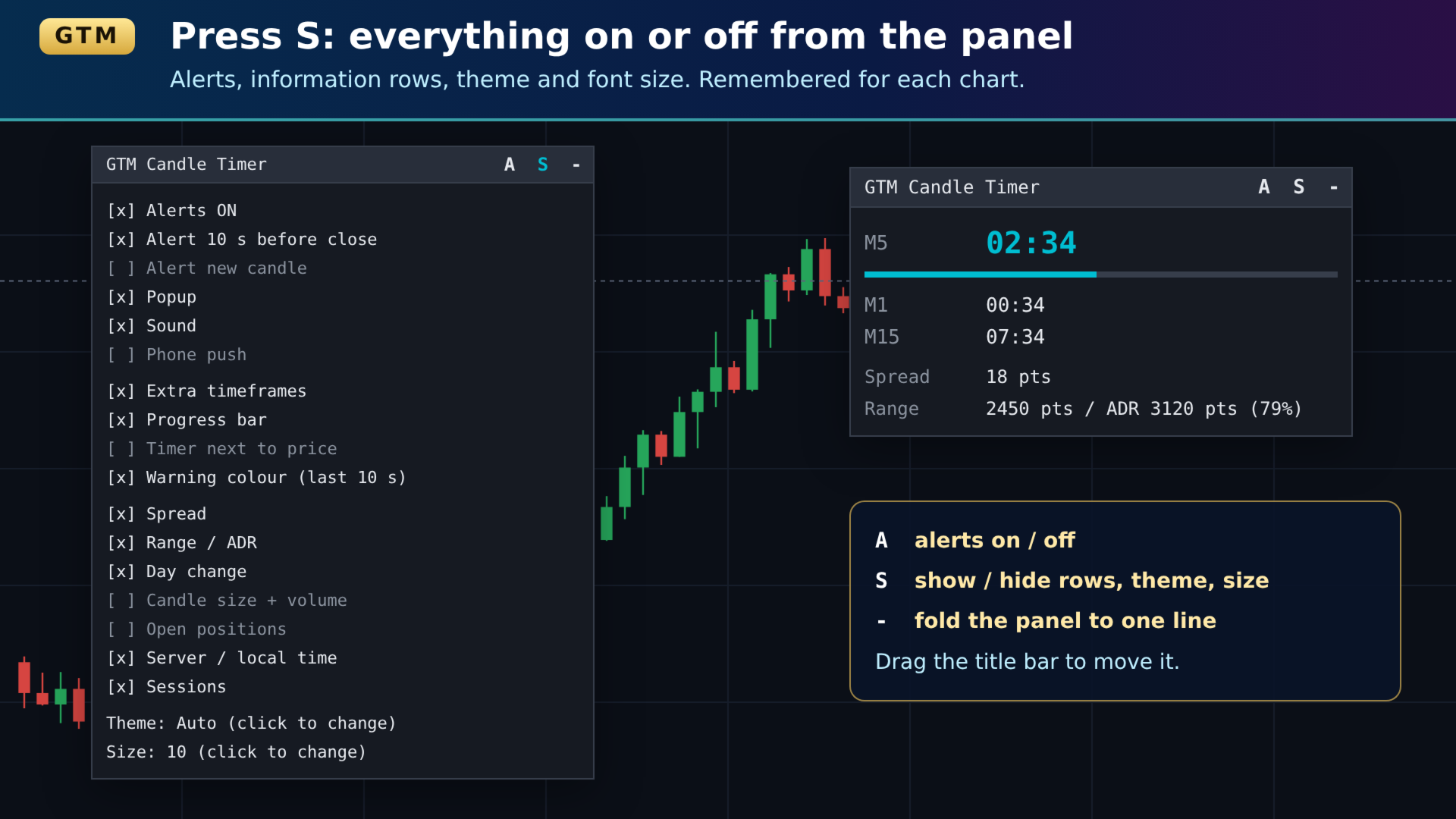
Three buttons sit on the panel's title bar:
| A | Alerts on / off. Blue when alerts are on. |
| S | Settings. Click any line to tick or untick it: each alert type, every information row, extra timeframes, progress bar, timer next to price, warning colour, theme (Auto / Dark / Light / Custom) and font size (8 to 14). |
| – | Fold the panel down to its title bar. The countdown keeps running in the title. |
Drag the panel by its title bar. Its position and every setting are remembered for that chart, also after MetaTrader restarts.
Alerts
- Before the candle closes — N seconds before, once per candle.
- When a new candle opens.
- For the chart's timeframe only, or for every timeframe shown in the panel.
- Popup, sound (any file in the terminal's Sounds folder) and push notification to the MetaTrader mobile app — each switched on or off separately.
Alerts start off, so an M1 chart does not ring every minute until you want it to. Press A to switch them on.
Built to stay out of your way
- Server time, always running. The countdown uses the trade server's clock, not your computer's, and keeps counting when the symbol has no ticks. When the market is closed the panel says closed instead of showing a frozen number.
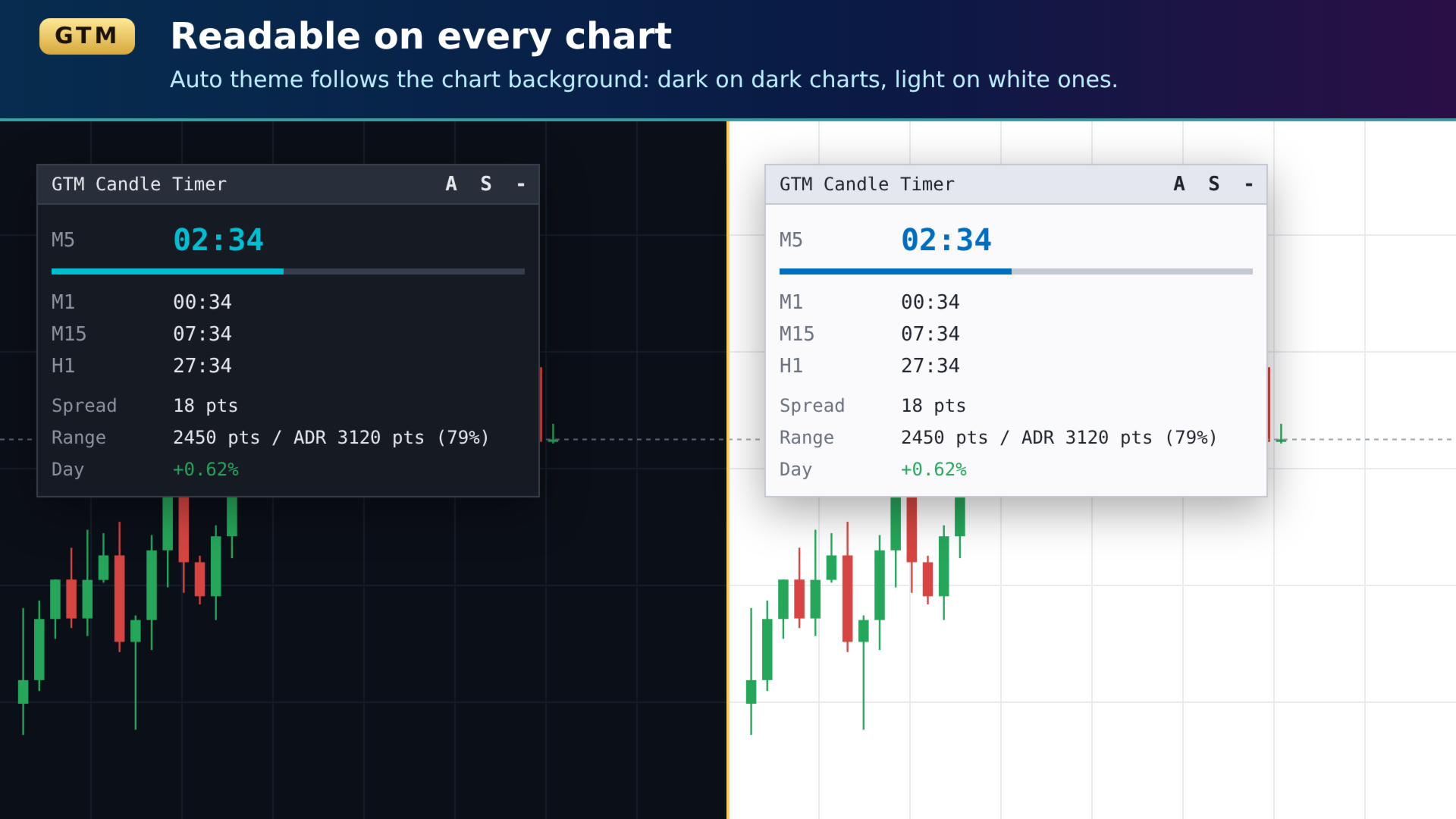
- Readable on any chart. The Auto theme looks at the chart background and switches between dark and light colours by itself. A Custom theme takes your own colours.
- Fits its content. The panel widens itself when a value is long, and adapts to high-DPI screens. Very large point values (synthetic indices, crypto) are shown in price units so they stay short.
- Light on the terminal. Objects are only redrawn when something on them changes, and dragging moves the panel without rebuilding it.
- Plays well with other panels. It only starts dragging when you press on its own title bar, and it never switches off chart scrolling or mouse events that another tool relies on.
- One copy per chart. If it is attached twice by mistake, the second copy warns you and draws nothing, so there are never two overlapping timers.
- Cleans up. Removing it removes every object it drew.
For EAs
Buffer 0 ("Seconds left") holds the seconds remaining on the current candle. An Expert Advisor can read it with iCustom and CopyBuffer — for example to act only in the last seconds of a candle. In GTM EA Bot Studio it can be used through the custom indicator block.
What it does not do
- It does not trade, and it gives no signals. It reads the chart and your positions; it never opens, changes or closes an order.
- Session times are fixed GMT hours (Sydney 21:00, Tokyo 00:00, London 07:00, New York 12:00) and do not shift for daylight saving, so in part of the year a session may show up to an hour early or late.
- The average daily range is the ATR of the last completed daily candles. It is a guide to a normal day, not a forecast.
- Push alerts need your MetaQuotes ID set in Tools → Options → Notifications.
Getting started
- Drag GTM Candle Timer onto any chart.
- Drag the panel where you want it by its title bar.
- Press S and untick what you do not need.
- Press A if you want alerts.
Input parameters
These are only the start values. Everything except the timeframe list, positions, font name and alert seconds can be changed on the panel later.
| Input | Default | What it does |
| Panel | ||
| Show the panel | true | Off = only the timer next to the price. |
| Extra timeframes | M1,M5,M15,H1,H4,D1 | Comma list. The chart timeframe is always shown first. |
| Panel start X / Y | 20 / 40 | First position in pixels. After a drag the new position is kept. |
| Font size | 10 | 8 to 14. |
| Font | Consolas | A fixed-width font keeps the numbers from jumping. |
| Timer next to price: bars right of the last candle | 3 | How far right of the last candle the small timer sits. |
| Remember position and panel settings | true | Off = every start uses the inputs. |
| Rows shown at start | ||
| Extra timeframes, Progress bar, Spread, Range, Day change, Server/local time, Sessions | true | Rows shown the first time. |
| Candle size and volume, Open positions, Timer next to price | false | Rows hidden the first time. |
| Units for distances | Auto | Auto = pips on 3/5-digit forex, points elsewhere, price units for very large moves. Or force points, pips or price. |
| Days for the average daily range | 14 | ATR period on D1. |
| Colours | ||
| Colour theme | Auto | Auto, Dark, Light or Custom. |
| Custom: text / background / accent | white / dark / teal | Used by the Custom theme. |
| Warning colour | red | Colour of the timer and bar in the last seconds. |
| Warning colour in the last N seconds | 10 | When the warning colour starts. |
| Alerts | ||
| Alerts on at start | false | Same as the A button. |
| Alert N seconds before the candle closes | 10 | Once per candle. |
| Alert before close / Alert when a new candle opens | true / false | Which alerts fire when alerts are on. |
| Which timeframes alert | Chart timeframe only | Or every timeframe shown in the panel. |
| Popup / Sound / Push notification | true / true / false | How alerts reach you. |
| Sound file | alert.wav | Any .wav in the terminal's Sounds folder. |
More GTM tools
- GTM Panel Pro — manual trade manager: four trade groups, four pending-order slots, one-click break-even and trailing, Telegram control.
- GTM Journal — turns your trade history into an eleven-page journal with R multiples, setups, calendar and reports.
- GTM EA Bot Studio — build your own Expert Advisor from drag-and-drop blocks, no code.
All of them are on my profile. Questions and requests are welcome — send a message and I will answer. If something does not work the way this page says, tell me and it will be fixed.