DataExporter MT5
- Utilitaires
- Version: 1.0

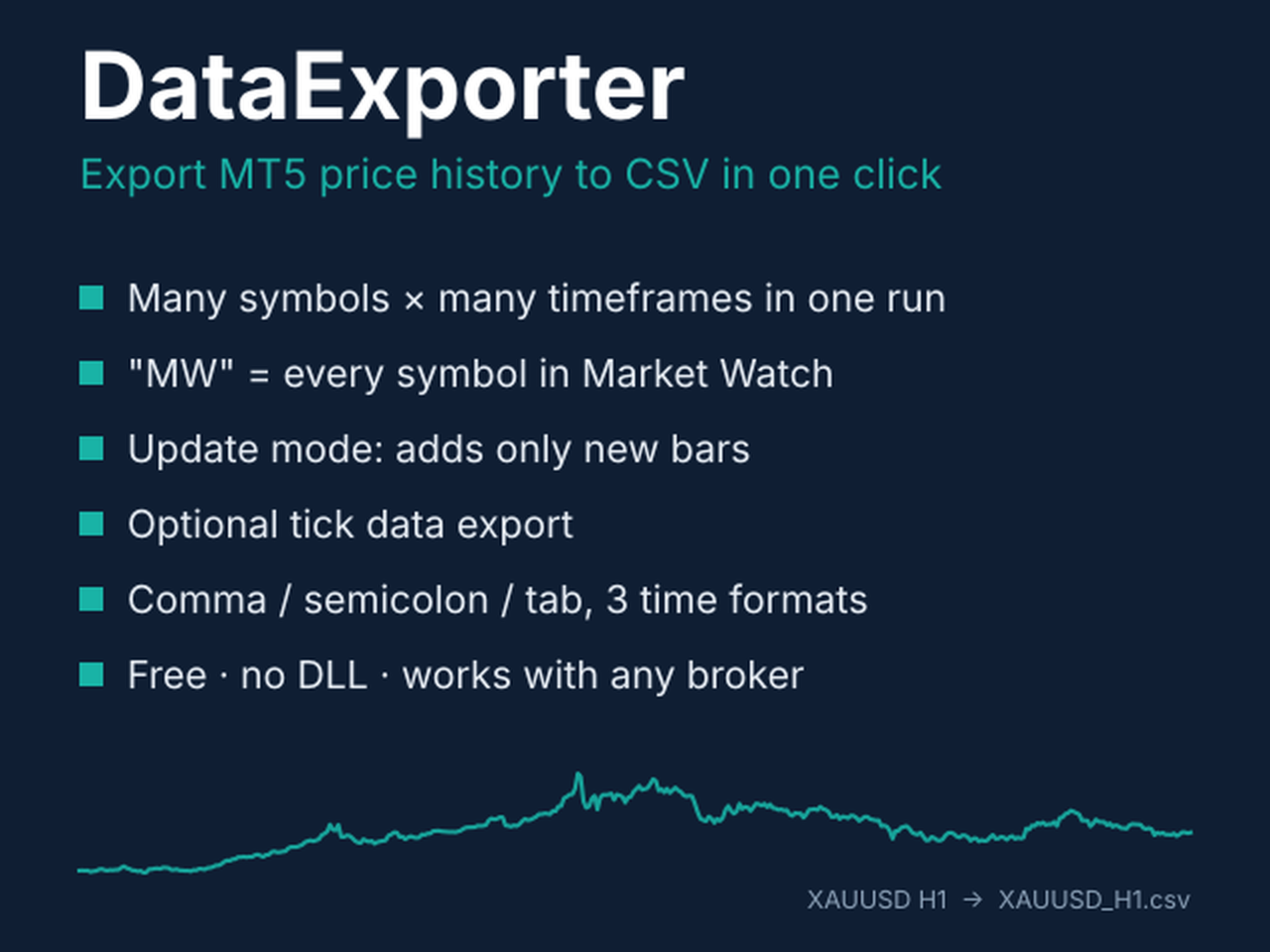
DataExporter is a free script that saves the price history from your MetaTrader 5 terminal as CSV files, ready to open in Excel, Google Sheets, Python, R or any other analysis tool.
Instead of exporting one symbol at a time through the Symbols window, DataExporter exports as many symbols and timeframes as you want in a single run.
Main features
- Export many symbols and many timeframes in one run (for example 30 symbols x M15, H1 and D1).
- Enter MW to export every symbol in your Market Watch.
- Update mode: run it again later and it adds only the bars that are new since the last run.
- The bar that is still forming is skipped by default, so your files only contain finished bars.
- Waits for the terminal to download missing history before exporting.
- Optional tick export (bid, ask, last, volume, flags) for the last N days.
- Comma, semicolon or tab separator; three time formats (MetaTrader, ISO, Unix).
- Optional spread, tick volume and real volume columns.
- Save to MQL5\Files or to the Common folder shared by all your terminals.
- Short instructions on the Common tab and grouped, labelled inputs.
- No DLL, no internet connection, no account restrictions.
What traders use it for
- Testing strategy ideas in Python or Excel.
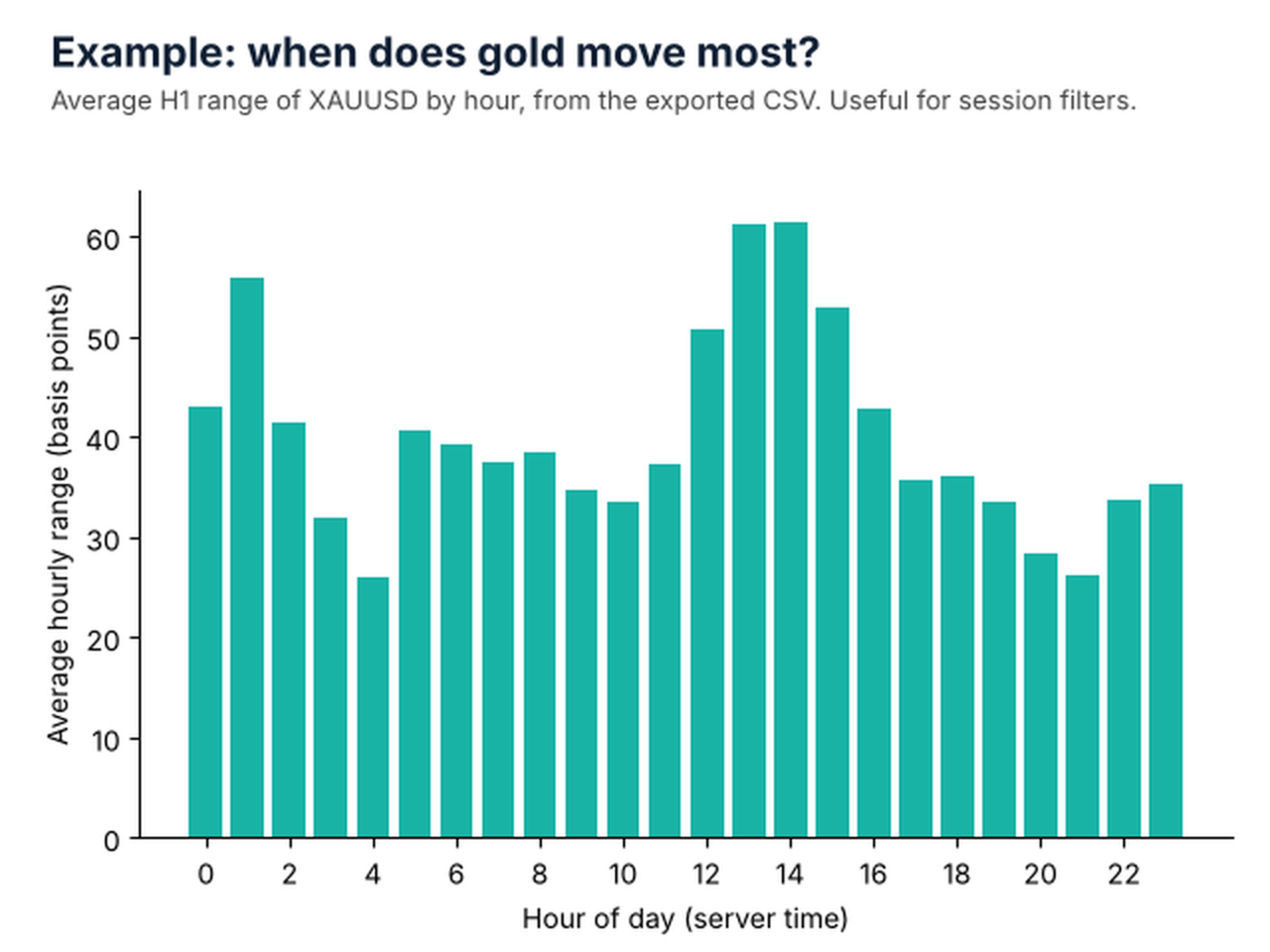
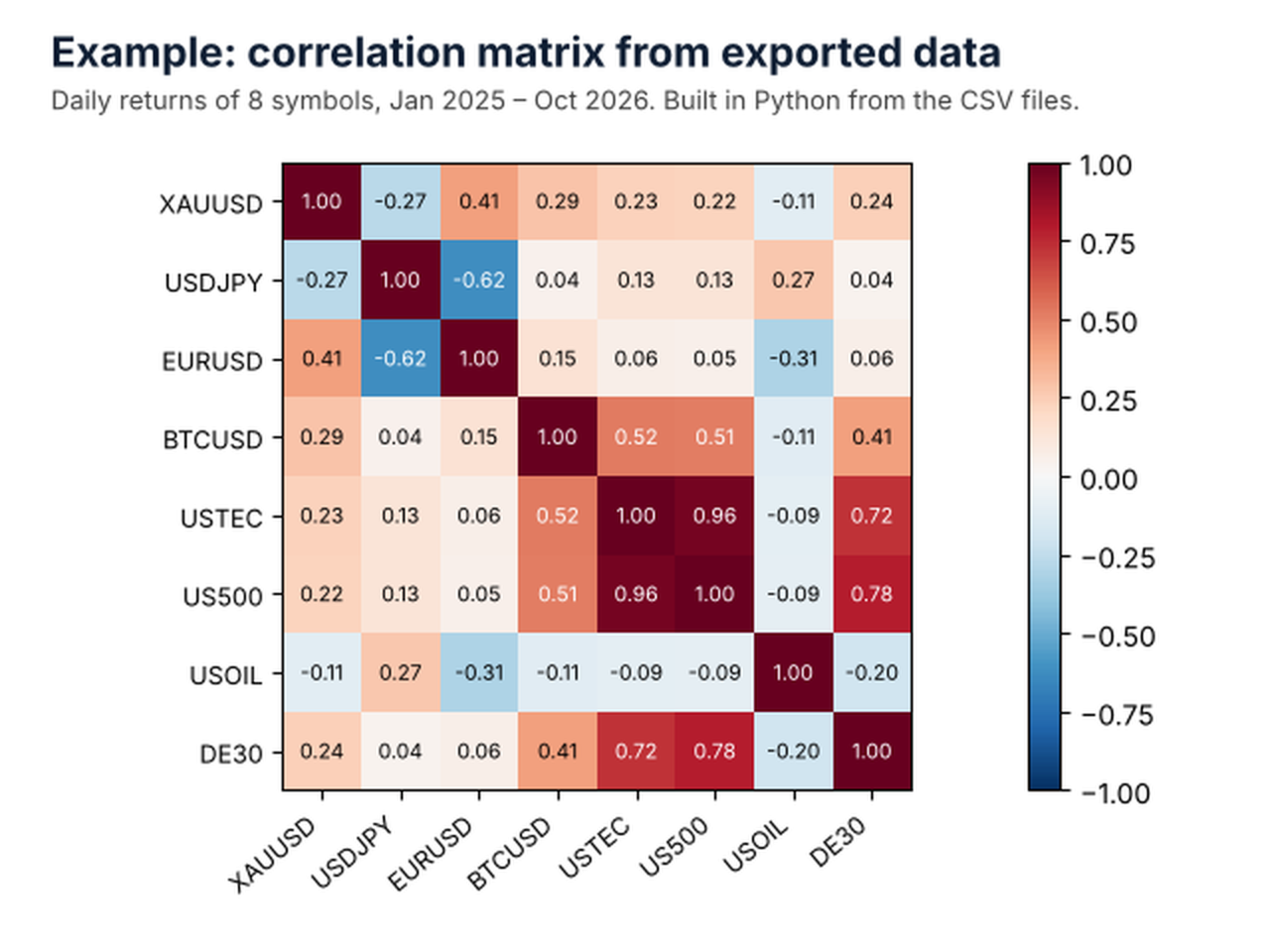
- Correlation, seasonality and volatility studies (see the screenshots).
- Comparing spreads and history between brokers.
- Feeding journals, dashboards and machine-learning models.
How to use
- Drag DataExporter from Navigator > Scripts onto any chart (a chart with an EA running is fine).
- Choose symbols, timeframes and dates on the Inputs tab, then press OK.
- Progress is shown on the chart; the Experts tab shows one line per file and a summary.
- Open the files via File > Open Data Folder > MQL5\Files\export.
Output
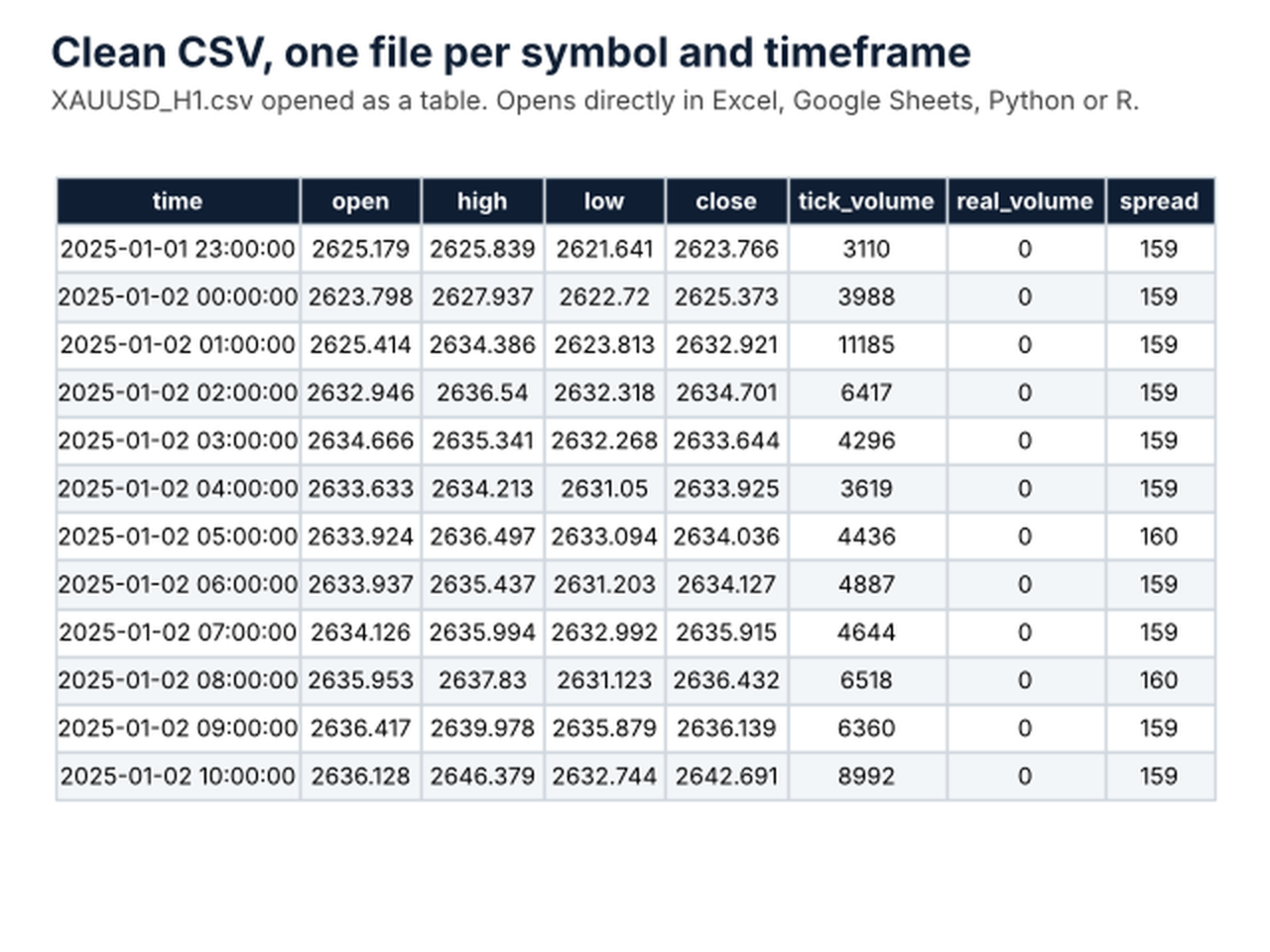
One file per symbol and timeframe, for example XAUUSD_H1.csv, with the columns:
time, open, high, low, close, tick_volume, real_volume, spread
Ticks are saved as SYMBOL_ticks.csv.
Input parameters
1. What to export
- Symbols: MW for all Market Watch symbols, or a list such as EURUSD;XAUUSD (comma or semicolon separated).
- Timeframes: one or more of M1, M5, M15, M30, H1, H4, D1, W1, MN1 (and all other MT5 timeframes), e.g. M15;H1;D1.
2. Date range
- From date: start of the export. A date older than the broker's history exports everything available.
- Export up to now: on by default. Switch off to use the To date.
- To date: end of the export when 'Export up to now' is off.
3. Export mode
- New export (replace existing files) or Update existing files (add new bars only).
- Include the bar that is still forming: off by default.
4. File format and location
- Folder name inside MQL5\Files (default: export).
- Use the Common\Files folder (shared by all terminals).
- Column separator: comma, semicolon or tab. Use semicolon if your Excel uses a decimal comma.
- Time format: 2026.10.13 15:00, 2026-10-13 15:00:00 or Unix seconds.
- Include spread column; include tick and real volume columns.
5. Ticks and advanced
- Also export ticks (files can be very large) and the number of days of ticks.
- Maximum wait per symbol for history download (seconds).
Notes
- The amount of history depends on your broker; DataExporter exports what the terminal can download.
- Very large exports (many symbols on M1 or ticks) can take a few minutes and use disk space.
Questions or ideas for new features are welcome in the comments.