Discussing the article: "MQL5 Trading Tools (Part 24): Depth-Perception Upgrades with 3D Curves, Pan Mode, and ViewCube Navigation"
Currently, we position the 3D curve segments one step after the scene renders, so they're not in place on the first static frame. Just orbit (left-click drag) or zoom (scroll wheel) once over the canvas — that forces another render and the curve shows up.
If you want the curve rendered instantly when you switch to 3D, just move the curve rendering function before the render call. See below:
Before:
   //+------------------------------------------------------------------+
   //| Render the 3D scene and overlay 2D UI elements on top            |
   //+------------------------------------------------------------------+
   void render3DVisualization()
     {
      //--- Abort if data has not been loaded
      if(!m_isDataLoaded) return;

      //--- Recompute the view and light transforms for this frame
      updateCameraPosition();
      //--- Reposition all 3D histogram bars to match current data
      update3DHistogramBars();

      //--- Use the configured background colour for the clear pass
      color bgColor     = backgroundTopColor;
      uint  bgColorArgb = ColorToARGB(bgColor, 255);
      //--- Clear colour and depth buffers, then render the 3D scene
      m_mainCanvas.Render(DX_CLEAR_COLOR | DX_CLEAR_DEPTH, bgColorArgb);

      //--- Overlay the 2D border frame on the 3D render
      if(showBorderFrame)
         draw3DBorder();
      //--- Overlay the header bar on the rendered 3D image
      drawHeaderBarOn3D();
      //--- Overlay the stats panel and legend if enabled
      if(showStatistics)
        {
         drawStatisticsPanelOn3D();
         drawLegendOn3D();
        }
      //--- Reposition all PMF curve tube segments for this frame
      update3DCurveSegments(); // THIS IS AFTER THE SCENE RENDERS, SO THE 3D SEGMENTS DELAY RENDERING UNTIL INTERACTION. SEE THE CANVAS RENDER ABOVE IN YELLOW
      //--- Draw the pan mode toggle icon
      drawPanIconOverlay();
      //--- Draw the interactive view cube widget
      drawViewCubeOverlay();
      //--- Draw the resize grip indicator when hovering
      if(m_isHoveringResizeZone && enableResizing)
         drawResizeIndicatorOn3D();
      //--- Flush the pixel buffer to the chart object
      m_mainCanvas.Update();
     }
After:
   //+------------------------------------------------------------------+
   //| Render the 3D scene and overlay 2D UI elements on top            |
   //+------------------------------------------------------------------+
   void render3DVisualization()
     {
      //--- Abort if data has not been loaded
      if(!m_isDataLoaded) return;

      //--- Recompute the view and light transforms for this frame
      updateCameraPosition();
      //--- Reposition all 3D histogram bars to match current data
      update3DHistogramBars();
      //--- Reposition all PMF curve tube segments BEFORE rendering
      update3DCurveSegments(); // JUST MOVE THE FUNCTION BEFORE THE 3D RENDER FOR INSTANT RENDERING, TO BE COUPLED WITH THE 3D BARS

      //--- Use the configured background colour for the clear pass
      color bgColor     = backgroundTopColor;
      uint  bgColorArgb = ColorToARGB(bgColor, 255);
      //--- Clear colour and depth buffers, then render the 3D scene
      m_mainCanvas.Render(DX_CLEAR_COLOR | DX_CLEAR_DEPTH, bgColorArgb);

      //--- Overlay the 2D border frame on the 3D render
      if(showBorderFrame)
         draw3DBorder();
      //--- Overlay the header bar on the rendered 3D image
      drawHeaderBarOn3D();
      //--- Overlay the stats panel and legend if enabled
      if(showStatistics)
        {
         drawStatisticsPanelOn3D();
         drawLegendOn3D();
        }
      //--- Draw the pan mode toggle icon
      drawPanIconOverlay();
      //--- Draw the interactive view cube widget
      drawViewCubeOverlay();
      //--- Draw the resize grip indicator when hovering
      if(m_isHoveringResizeZone && enableResizing)
         drawResizeIndicatorOn3D();
      //--- Flush the pixel buffer to the chart object
      m_mainCanvas.Update();
     }
Thanks for catching this. I hope this helps. Thanks.
Currently, we place the segments of the 3D curve one step after the scene is rendered, so they are not yet visible in the first static frame. Simply rotate (by dragging with the left mouse button) or zoom (using the scroll wheel) over the canvas once — this will trigger a re-render, and the curve will appear.
If you want the curve to render instantly when switching to 3D, simply move the curve rendering function before the render call. See below:
Before:
After:
Thank you for pointing this out. I hope this helps. Thank you.
Or rather, you didn’t hear me correctly.
You don’t have 3D curves, only 2D curves. It is important to use the correct terminology, especially in articles.
Here is an example of a 3D curve. When a curve is in three-dimensional space, the projection of such a curve onto any plane will never result in a straight line, as in your case
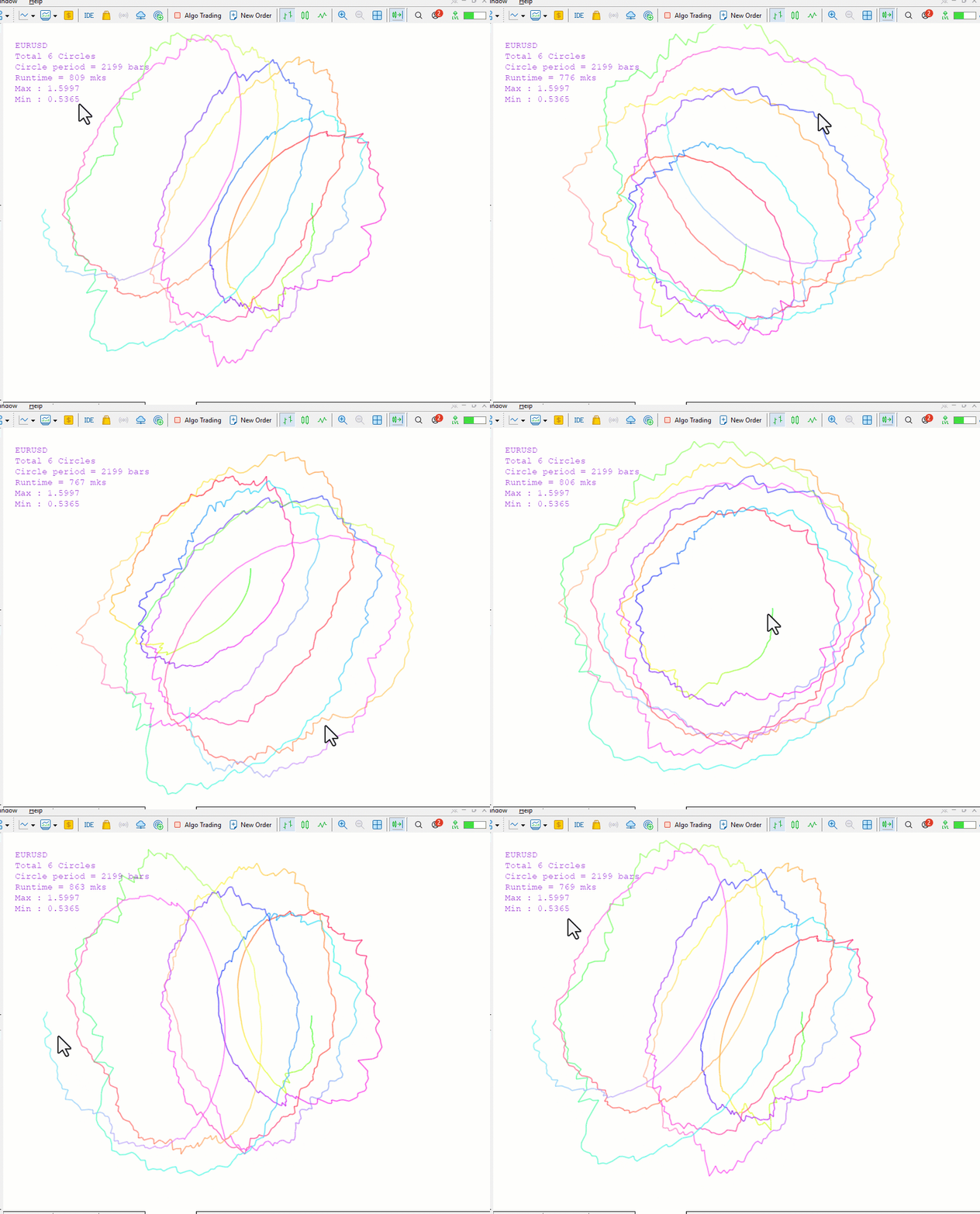
You didn’t hear me.
Or rather, you didn’t hear me correctly.
You don’t have 3D curves, only 2D curves. It is important to use the correct terminology, especially in articles.
Here is an example of a 3D curve. When a curve is in three-dimensional space, the projection of such a curve onto any plane will never result in a straight line, as in your case
Now i get what you mean. Fair enough; you're right on the terminology. Strictly speaking it's a planar curve (fixed Z; only the success count and probability vary), so it isn't a 3D curve in the proper sense, and I take the point.
The intention was to render the PMF as a real object in the 3D scene; rotatable, with tube geometry, sitting alongside the 3D histogram bars so it stays aligned with them as they render and you can track the two together in the same space. So "3D" was meant in the sense of rendered in the 3D view rather than a true space curve. Thanks for pointing it out.

- Free trading apps
- Over 8,000 signals for copying
- Economic news for exploring financial markets
You agree to website policy and terms of use
Check out the new article: MQL5 Trading Tools (Part 24): Depth-Perception Upgrades with 3D Curves, Pan Mode, and ViewCube Navigation.
In this article, we enhance the 3D binomial distribution graphing tool in MQL5 by adding a segmented 3D curve for improved depth perception of the probability mass function, integrating pan mode for view target shifting, and implementing an interactive view cube with hover zones and animations for quick orientation changes. We incorporate clickable sub-zones on the view cube for faces, edges, and corners to animate camera transitions to standard views, while maintaining switchable 2D/3D modes, real-time updates, and customizable parameters for immersive probabilistic analysis in trading.
In the market, use the depth-accurate curve alongside the histogram to judge whether the probability mass function peak aligns with the highest-frequency bin, signaling a well-calibrated model. Pan to center low-probability tails for closer inspection before sizing positions near extreme outcomes. Use the view cube's top view to compare bar heights across all bins simultaneously, and the front view to read individual bar values cleanly.
We will extend the tool by creating box-based curve segments scaled and rotated to form a continuous tube, implement pan logic using camera-relative vector calculations, and render the view cube with projected vertices, face sorting for correct drawing order, and bilinear interpolation for subdivided hover zones. We will also integrate timer-driven animations for view transitions, blended pixel overlays for icons and the cube, and event handling for clicks and hovers to make the interface fully responsive. Have a look below at our objectives.
Author: Allan Munene Mutiiria