 MetaTrader 5
 Experts
 지표
지표 스크립트
스크립트 라이브러리
라이브러리 보관함
보관함당사 팬 페이지에 가입하십시오
- 게시자:
- [삭제]
- 조회수:
- 124
- 평가:
- 게시됨:
- 업데이트됨:
-
 이 코드를 기반으로 한 로봇이나 지표가 필요하신가요? 프리랜스로 주문하세요
프리랜스로 이동
이 코드를 기반으로 한 로봇이나 지표가 필요하신가요? 프리랜스로 주문하세요
프리랜스로 이동


기능
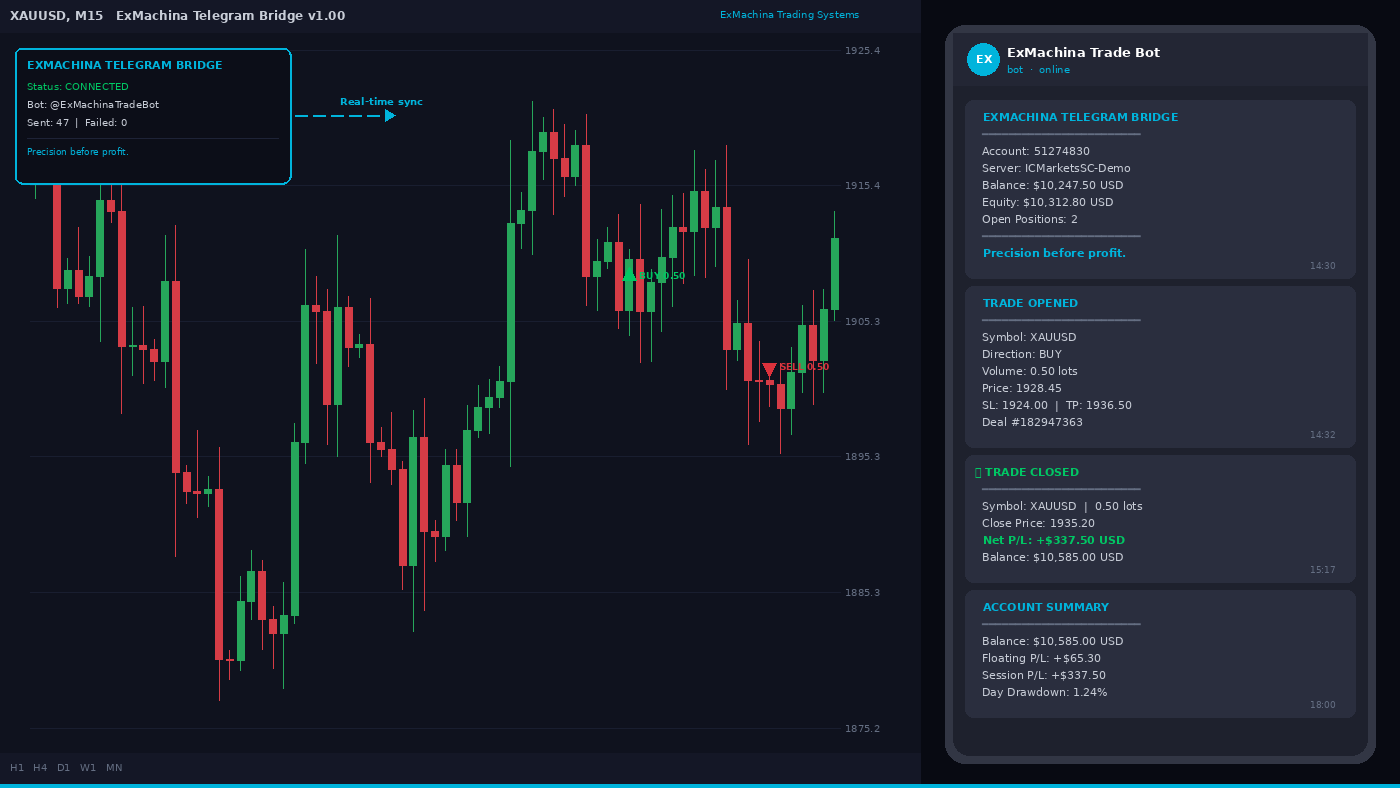
EA는 두 가지 독립적인 메커니즘을 통해 거래 이벤트를 감지합니다: 실시간 감지를 위한 온트레이드트랜잭션 핸들러와 폴백으로 주기적인 거래 내역 스캔. 중복 제거 시스템은 두 메커니즘이 동일한 이벤트에서 트리거되더라도 동일한 알림을 두 번 받지 않도록 보장합니다.
지원되는 알림:
- 거래 개시: 심볼, 방향(매수/매도), 거래량, 가격, SL, TP, 매직넘버, 딜 티켓
- 거래 마감: 심볼, 거래량, 종가, 총 손익, 수수료, 스왑, 순 손익, 업데이트된 잔액
- SL/TP 수정: 이전 값과 새 값이 나란히 표시됨(예: SL: 1924.00 → 1926.50)
- 대기 주문: 유형(매수 제한, 매도 제한, 매수 중지, 매도 중지, 매수 중지 제한, 매도 중지 제한), 가격, 거래량
- 포지션 반전: 새로운 방향, 마감된 P/L
- 입출금: 금액 및 업데이트된 잔액
- 정기 계좌 요약: 잔고, 편일예탁잔고, 여유 마진, 변동 손익, 세션 손익, 오픈 포지션, 일일 고점/저점 편일예탁잔고, 드로다운 비율
- 세션 통계가 포함된 연결 및 연결 해제 메시지
설정 - 단계별
텔레그램에서 두 가지가 필요합니다: 봇 토큰과 채팅 ID.
1단계: 텔레그램 봇 생성하기
텔레그램을 열고, @BotFather를 검색하여 대화를 시작합니다. newbot 명령을 전송합니다. BotFather는 표시 이름(원하는 이름)과 사용자 이름("bot"으로 끝나야 함)을 선택하도록 요청할 것입니다. BotFather가 생성되면 7123456789:AAH1bCdEfGhIjKlMnOpQrStUvWxYz와 같은 긴 문자열인 API 토큰을 보냅니다. 이 토큰을 복사합니다.
2단계: 대화 ID 받기
텔레그램에서, 사용자인포봇(또는 @getmyid_bot)을 검색하여 아무 메시지나 보내세요. 숫자 채팅 ID (예: 123456789)로 답장이 올 것입니다. 이 번호를 복사합니다.
그룹 알림의 경우: 내 봇을 텔레그램 그룹에 추가한 다음, 그룹에서 @getidsbot을 사용하여 그룹 채팅 ID(음수, 예: -1001234567890)를 받습니다.
3단계: 봇과 대화 시작하기
이 단계는 잊기 쉬운 단계입니다. 텔레그램 검색에서 사용자 아이디로 봇을 찾아서 열고, 시작을 누릅니다. 이 단계를 건너뛰면, 텔레그램의 API가 모든 메시지를 거부합니다.
4단계: 메타트레이더 5에서 웹리퀘스트 허용하기
MT5에서 도구 → 옵션 → 전문가로 이동합니다. "나열된 URL에 대한 웹 요청 허용"을 선택합니다. 추가를 클릭하고 https://api.telegram.org 을 정확히 입력한 후 확인을 클릭합니다. 이 구성은 일회성입니다. 이 단계를 건너뛰면 전문가 탭에 WebRequest 오류 4014가 표시되며 메시지가 전송되지 않습니다.
5단계: EA 설치
ExMachina_TelegramBridge.mq5를 MQL5/Experts/ 폴더에 복사합니다(MT5에서 파일 → 데이터 폴더 열기를 통해 액세스). 메타에디터(F4)를 열고 파일로 이동한 후 컴파일(F7)을 누릅니다. 오류 0개, 경고 0개가 표시되어야 합니다.
6단계: 차트에 첨부
탐색기 패널에서 EA를 아무 차트에나 드래그합니다. 설정 대화 상자에서 봇 토큰과 채팅 ID를 붙여넣습니다. 확인을 클릭합니다. 몇 초 내에 계좌 번호, 서버, 잔고, 에퀴티, 오픈 포지션 수를 보여주는 연결 메시지가 텔레그램으로 전송될 것입니다.
입력 매개변수
텔레그램 설정:
- 봇 토큰: @BotFather의 API 토큰 (필수)
- 채팅 아이디: 숫자 채팅 아이디(필수, 그룹 아이디일 수 있음)
알림 설정:
- 거래 개시 시 알림: 참/거짓(기본값: 참)
- 거래 마감 시 알림: 참/거짓(기본값: 참)
- SL/TP 수정 시 알림: 참/거짓(기본값: 참)
- 지정가 주문 알림: 참/거짓(기본값: 참)
- 입금/출금 시 알림: 참/거짓(기본값: 참)
계좌 요약:
- 요약 보고서 간격: 꺼짐, 1시간마다, 4시간마다, 8시간마다, 24시간마다(기본값: 4시간마다)
- 요약에 편일예탁잔고 포함: 참/거짓(기본값: 참)
- 드로다운 정보 포함: 참/거짓(기본값: 참)
표시 및 스타일:
- 메시지 스타일: 최소(간결한 한 줄), 상세(레이블이 있는 전체 정보) 또는 이모티콘 포함(유니코드 아이콘이 있는 상세). 기본값: 최소: 이모티콘 포함.
- 차트에 대시보드 표시: 참/거짓(기본값: 참)
- 대시보드 배경, 텍스트 색상, 강조 색상: 사용자 지정 가능. 기본값은 ExMachina 스틸 팔레트를 사용합니다.
필터:
- 심볼 필터: 쉼표로 구분된 모니터링할 심볼 목록입니다. 모든 기호는 비워둡니다. 예시: "EURUSD,XAUSD"
- 알림을 받을 최소 랏 크기: 알림을 트리거할 최소 볼륨입니다. 0 = 필터 없음. 마이크로 랏을 무시할 때 유용합니다.
- 매직넘버 필터: 특정 매직넘버가 있는 거래에 대해서만 알림을 보냅니다. -1 = 모든 거래(수동 포함).
메시지 스타일
미니멀 - 간결한 한 줄 형식:
XAUUSD | 매수 | 0.50 랏 @ 1928.45
상세 - 레이블이 지정된 필드로 구성된 구조:
거래 마감
━━━━━━━━━━━━━━━━━━━━
기호: XAUUSD
Close: 매도(종가 매수)
거래량: 0.50 랏
가격: 1935.20
───────────────────
총 P/L: +$340.00
수수료: -$2.50
스왑: -$0.00
순 손익: +$337.50
잔액: $10,585.00 USD
거래 #182947363
이모티콘 풍부(기본값) - 상세와 동일하지만 각 필드에 유니코드 아이콘이 있습니다. 거래 개시 시에는 매수 시 녹색 원, 매도 시 빨간색 원이 표시됩니다. 청산은 수익은 체크 표시, 손실은 십자 표시로 표시됩니다.
필터
매직넘버 필터는 같은 계좌에서 여러 EA를 실행하는 경우 특히 유용합니다. 특정 EA의 매직넘버로 설정하면 해당 EA의 알림만 받을 수 있습니다. 모든 알림(수동 거래 포함)을 수신하려면 -1로 설정합니다.
심볼 필터는 쉼표로 구분된 목록을 사용할 수 있습니다: "XAUSD, EURUSD, GBPUSD". 해당 심볼에 대한 거래만 알림을 생성합니다. 모든 심볼을 모니터링하려면 비워두세요.
계좌 요약
정기 요약에는 잔고, 편일예탁잔고, 여유 증거금, 오픈 포지션 수, 총 변동 손익(스왑 포함), EA 시작 이후 세션 손익, 일일 고점 편일예탁잔고, 일일 저점 편일예탁잔고, 당일 고점에서 계산한 드로다운 비율 등이 포함됩니다.
일일 드로다운 한도를 원격으로 모니터링해야 하는 프롭 펌 트레이더에게 유용합니다. 활성 세션 중에는 간격을 1시간으로 설정하세요.
차트 대시보드
차트 왼쪽 상단에 있는 간결한 상태 패널이 표시됩니다:
- 연결 상태: 연결됨(녹색) 또는 연결 끊김(빨간색)
- 봇 사용자 아이디
- 실행 카운터: 전송 및 실패한 메시지 수
- ExMachina 태그 라인
대시보드는 기본적으로 ExMachina 스틸 팔레트(배경 C'8,10,18', 액센트 C'0,180,220')를 사용하며, 디스플레이 입력을 통해 사용자 지정하거나 비활성화할 수 있습니다.
테스트 방법
1단계: 데모 계좌의 차트에 EA를 연결합니다. 전문가 탭에서 "봇 @YourBotName에 연결됨"을 확인합니다. 텔레그램에서 연결 메시지를 확인합니다.
2단계: 수동으로 작은 시장가 주문을 엽니다(예: 0.01 랏 EURUSD). "거래 개시" 알림을 받게 될 것입니다.
3단계: 개설된 포지션의 SL 또는 TP를 수정합니다(오른쪽 클릭 → 수정). 이전 → 새 값이 표시된 "SL/TP 수정됨" 알림을 받게 됩니다.
4단계: 포지션을 청산합니다. 손익 내역과 함께 "거래 종료" 알림을 받게 됩니다.
5단계: 지정가 주문(예: Buy Limit)을 체결합니다. "주문 대기 중" 알림을 받아야 합니다.
6단계: 차트에서 EA를 제거합니다. 세션 통계와 함께 "연결이 끊어짐" 메시지가 표시됩니다.
빠른 브라우저 테스트: EA를 사용하기 전에 토큰과 채팅 ID를 확인하려면 브라우저에 이 URL을 붙여넣으세요(자리 표시자를 바꾸세요):
https://api.telegram.org/bot<YOUR_TOKEN>/sendMessage?chat_id=<YOUR_CHAT_ID>&text=Test
응답에 {"ok":true}가 표시되면 자격 증명이 올바른 것입니다.
빠른 스모크 테스트 스크립트: MQL5/Scripts/에 스크립트(EA가 아님)로 저장하고 컴파일한 후 데모 차트에서 실행합니다:
#include <Trade\Trade.mqh>
void OnStart()
{
CTrade trade;
trade.Buy(0.01, "EURUSD");
Sleep(3000);
for(int i = PositionsTotal()-1; i >= 0; i--)
{
if(PositionGetSymbol(i) == "EURUSD")
trade.PositionClose(PositionGetTicket(i));
}
}
텔레그램에서 개시 및 청산 알림을 모두 받을 수 있습니다.
중요: 이 EA는 전략 테스터에서 작동하지 않습니다. 전략 테스터는 웹리퀘스트(네트워크 호출)를 지원하지 않습니다. EA는 인터넷 접속이 가능한 라이브 또는 데모 차트에서 실행해야 합니다.
다른 EA와 함께 실행하기
MT5는 차트당 하나의 EA만 허용합니다. 텔레그램 브릿지를 별도의 차트(임의의 심볼)에 연결합니다. 연결된 차트뿐만 아니라 전체 계좌를 모니터링합니다. 브리지가 어떤 차트에서 실행되고 있는지에 상관없이 모든 EA와 수동 거래의 모든 거래가 감지됩니다.
매직넘버 필터를 사용하여 특정 EA로 알림을 제한할 수 있습니다.
문제 해결
수신된 메시지가 없습니다:
1. 도구 → 옵션 → 전문가 조언자 → 웹 요청 허용에 https://api.telegram.org 가 있는지 확인합니다.
2. 봇 토큰과 채팅 ID가 올바른지 확인합니다(공백이 없는지).
3. 봇의 텔레그램 채팅에서 시작을 눌렀는지 확인합니다.
4. 전문가 탭(보기 → 도구 상자 → 전문가)에서 오류 메시지를 확인합니다.
웹 요청 오류 4014: 텔레그램 URL이 허용 목록에 없습니다. 가장 흔한 문제입니다.
HTTP 401 권한 없음: 잘못된 봇 토큰. 봇아버지에서 다시 복사하세요.
HTTP 400 잘못된 요청: 채팅 ID가 잘못되었거나 봇과 대화를 시작하지 않았습니다.
HTTP 429 너무 많은 요청: 텔레그램 속도 제한. EA에는 백오프 기능이 있는 재시도 로직이 내장되어 있습니다. 이는 거래 빈도가 매우 높은 경우에만 발생합니다.
봇 토큰과 채팅 ID가 모두 필수라는 INIT_PARAMETERS_INCORRUPT가 표시됩니다. 두 필드 모두 비어 있지 않은지 확인하세요.
대시보드가 표시되지 않음: EA 입력에서 "차트에 대시보드 표시"가 true로 설정되어 있는지 확인하세요.
기술적 세부 사항
- 거래 감지: 온트레이드트랜잭션(실시간)을 통한 이중 메커니즘 + 2초마다 거래 내역 폴링(폴백)
- 중복 제거: 처리된 거래는 메모리에 저장(최근 500개 거래 추적)
- SL/TP 감지: 매 틱마다 위치 스냅샷 배열 비교, 변경 시 트리거링
- 텔레그램 API: 웹리퀘스트, URL 인코딩 페이로드, 마크다운 파싱 모드를 통한 HTTPS POST
- 재시도 로직: 메시지당 최대 3회 시도, 재시도간 1초 지연, HTTP 429에서 3초 지연
- 연결 테스트: 토큰 유효성 검사 및 봇 이름 검색을 위해 초기화 시 호출되는 /getMe 엔드포인트
- 요약 타이머: 이벤트 설정 타이머(60)는 설정된 간격이 경과했는지 확인합니다.
- 차트 개체: 모든 대시보드 개체는 접두사 "EXTB_"를 사용하며, 초기화 시 정리됩니다.
- 외부 DLL, 타사 서버 없음. HTTPS를 통한 직접 MT5 → 텔레그램 통신.
이 EA는 무료 오픈 소스입니다. 피드백, 평가 및 제안을 환영합니다.
ExMachina 트레이딩 시스템 - 수익보다 정확성.
MetaQuotes Ltd에서 영어로 번역함.
원본 코드: https://www.mql5.com/en/code/70383
 XPro Trade Panel — Full Trade Management Panel for MT5/MT4
One-click trade panel for MT5 and MT4. Manage entries, exits, SL, TP, pending orders and partial closes without touching the keyboard.
 Mini Prop-Firm Traders Utility Dashboard
This mini custom-built MetaTrader 5 dashboard is a robust, comprehensive risk management and performance based monitoring tool and utility created to give both Prop firm and personal funded traders full visibility and control over their trading activity in real time.
CRT Indicator(STF) : Explorer
이 비주얼라이저는 100줄 미만의 미니멀한 CRT(캔들 범위 이론) 시각화 도구로, 실제 시장에서 '완벽한' 단일 타임프레임 설정이 실제로 어떤 결과를 만들어내는지 보여줍니다.
 ASQ Session Manager
Institutional-grade forex session detection and analysis library for MetaTrader 5.