ClearDeck MT4
- Utilità
-
Tamara Garcia Infantes
 I'm a systems administrator and programmer specialising in algorithmic trading.
Jasopex is my brand: under it I develop Expert Advisors and tools for MetaTrader 5 and MetaTrader 4, designed to help you trade with a method and keep risk under control.
How I work - Versione: 1.1
ClearDeck — see everything on your chart and remove only what you choose
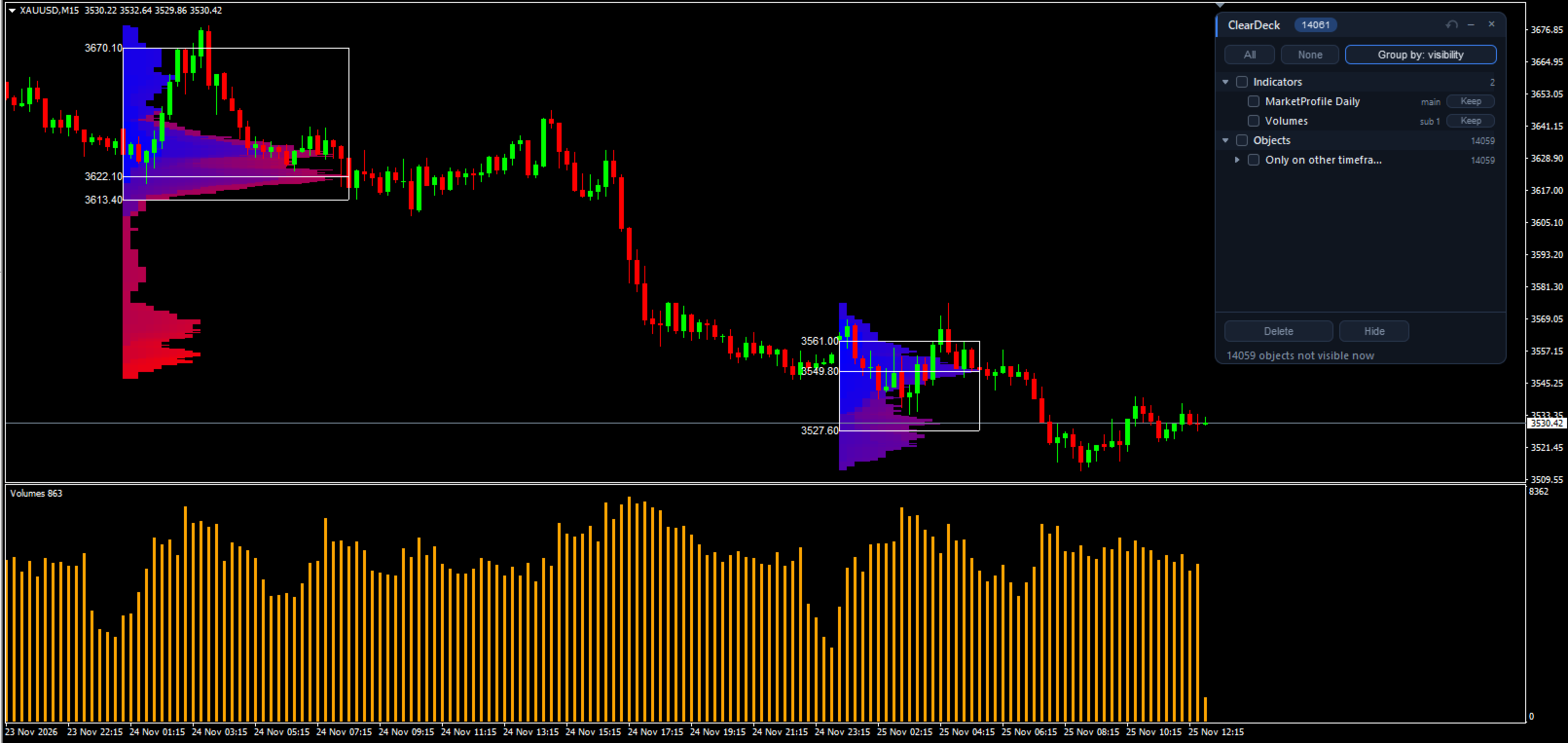
After a few days of trading a chart fills up with old lines, arrows from scripts, labels from indicators you no longer use and objects drawn on other timeframes that you cannot even see. The standard object list shows them one by one, with no way to tell where each one came from. ClearDeck lists everything in one panel, grouped so you can review it, and removes, hides or protects what you decide in a couple of clicks.
What it shows
• Every indicator on the chart, in the main window and in each subwindow.
• Every object, grouped by type (trend lines, horizontal lines, arrows, texts, shapes, Fibonacci, channels, panels and buttons), by source (your manual drawings, trade history marks and one group per program) or by visibility (visible now, off-screen, only on other timeframes, hidden).
• Tags on each object: "off-screen", "other TF" or "hidden".
• The chart comment, when it has visible text, and the Expert Advisor running on the chart (for information only).
What you can do
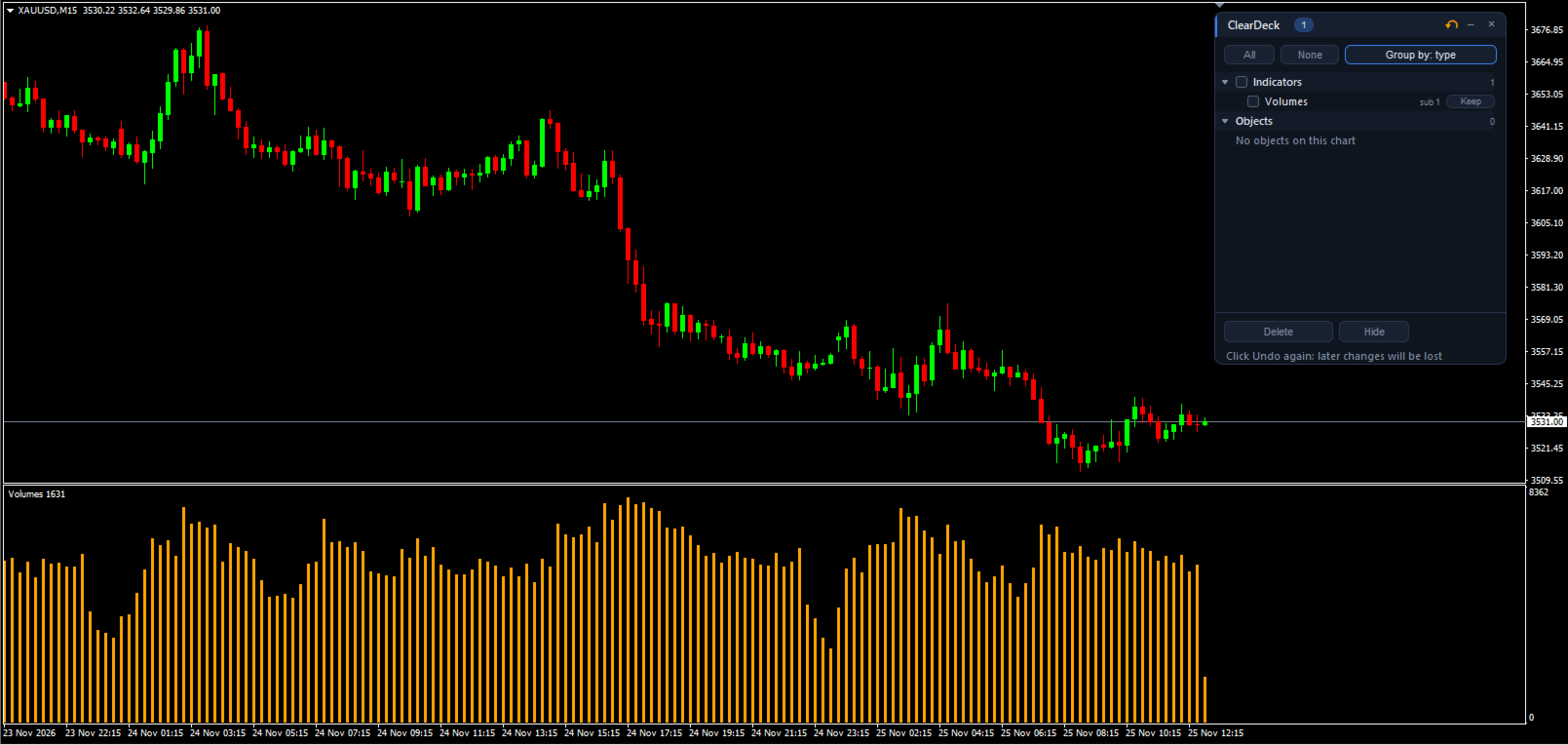
• Tick a row, a group, a section or everything, and remove it with Delete and a confirmation click.
• Hide objects without deleting them and bring every hidden object back with one button.
• Protect an indicator, a group or a single object with Keep. Protected items stay greyed out and cannot be ticked, now and on every chart.
• Click an object's name and the chart scrolls to it and makes it blink, even if it was drawn months ago.
• Undo the last delete: ClearDeck saves a copy of the chart before each delete and restores the chart from it.
Designed to be safe
• It only acts on the chart where it is loaded.
• It never removes Expert Advisors or scripts, and it never opens, modifies or closes trades.
• Delete always asks for a second click, and undo is disabled while an Expert Advisor is on the chart, so the EA is never reloaded without your permission.
Panel
• Drag it by its title bar, minimize it or close it. Closing removes ClearDeck and leaves nothing behind.
• The list updates by itself when something changes on the chart, and you scroll it by dragging its scroll bar (MetaTrader 4 does not send the mouse wheel to programs).
• Light and dark theme (automatic, following the chart background) and English or Spanish interface.
Inputs
• Language: English or Spanish.
• Panel theme: automatic, dark or light.
• Visible rows in the list: 6 to 30.
ClearDeck does not open, close or modify trades. It is a chart utility and works on any symbol and timeframe.
Installation: ClearDeck is an indicator, even though it is listed as a utility. After downloading it, you will find it in the MetaTrader 4 Navigator under Indicators → Market. Drag it onto the chart you want to use it on. It does not take the place of the Expert Advisor running on that chart.
Also available for MetaTrader 5.