Quick Chart Control Panel
- Indicatori
- Versione: 3.0

Overview
Quick Chart Control Panel is a compact, modern-looking toolbar that sits in a corner of your chart and gives you instant control over the most common chart display options. Instead of opening the chart properties dialog (F8) or digging through menus, you can switch things on and off with a single click.
The panel is designed with performance in mind. It does no work on incoming ticks and updates only what has actually changed, so it can stay attached to every chart you use without slowing down your terminal.
It is a pure utility indicator. It does not open, modify or close any trades, and it does not generate trading signals.
Features
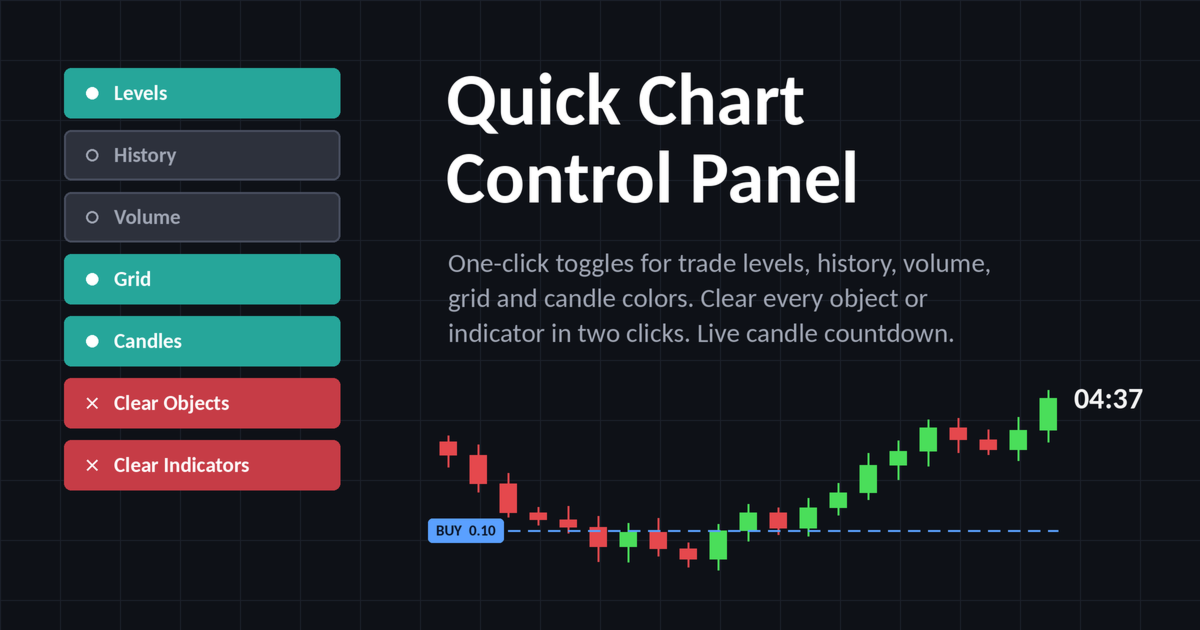
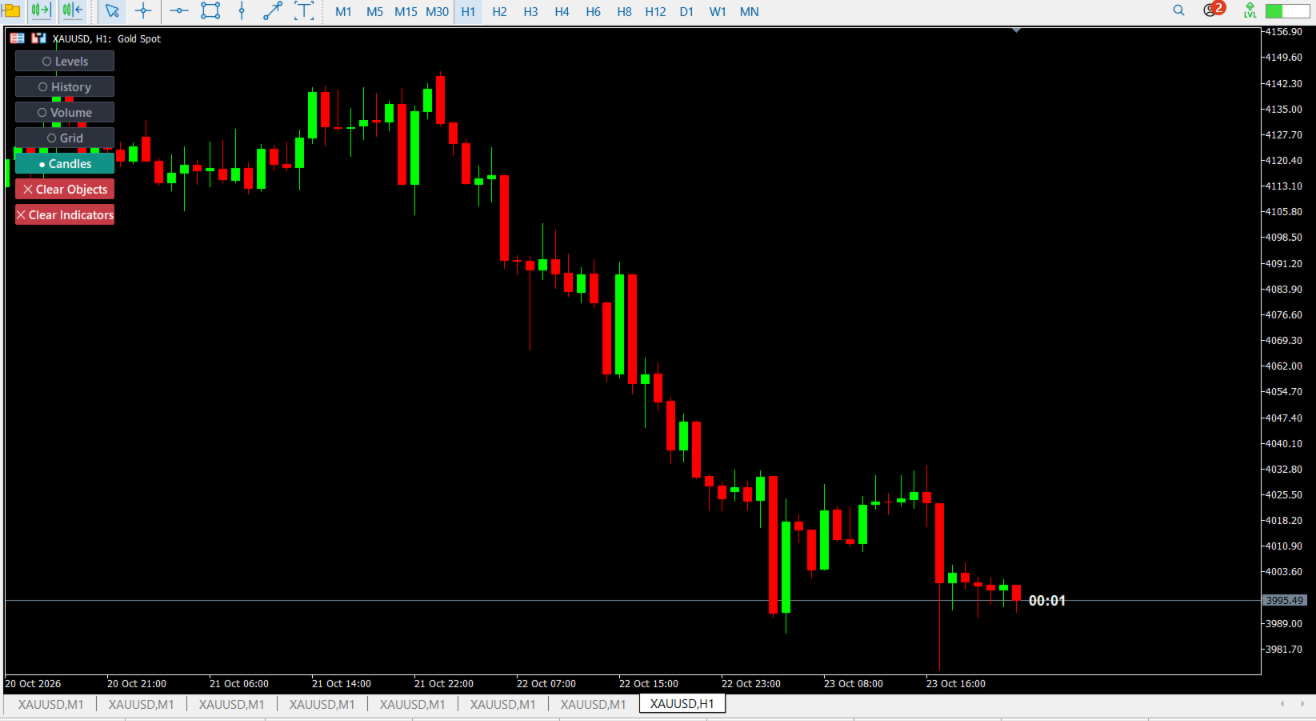
Toggle buttons (each one shows its state with a colored background and an indicator dot: ● means ON, ○ means OFF)
- Levels: shows or hides trade levels (open positions, stop loss, take profit and pending orders) on the chart.
- History: shows or hides the trade history markers on the chart.
- Volume: shows or hides tick volume at the bottom of the chart.
- Grid: shows or hides the chart grid.
- Candles: switches the chart to custom bull and bear candle colors (default: lime for bull, red for bear). Clicking it again restores your original chart colors. The original colors are stored temporarily per chart, so they are preserved even if you change timeframe or symbol while the custom colors are active.
Clear buttons (both use a safe two-step confirmation)
- Clear Objects: deletes all graphical objects on the chart (lines, arrows, text labels, rectangles, Fibonacci tools and so on) in all windows. The panel’s own buttons and countdown label are never deleted.
- Clear Indicators: removes all other indicators from the chart, including those in separate sub-windows. The panel itself stays attached.
To prevent accidental clicks, the first click on a Clear button turns it orange and changes the text to “Click to confirm”. You must click it again within 3 seconds to execute the action. If you do not, or if you click any other button, the confirmation is cancelled automatically. The number of deleted objects or removed indicators is printed to the Experts tab.
Candle countdown timer
- Shows the remaining time until the current candle closes, placed to the right of the latest candle.
- Works on every timeframe, from M1 to MN1, including correct handling of monthly candles.
- Automatically switches format depending on the remaining time: MM:SS , HH:MM:SS , or Dd HH:MM:SS .
- Two text formats: standard ( 12:34 ) or with label ( Remaining 12:34 ).
- Fully customizable color, font, size, bold option and position.
Performance
The indicator was written to be as light as possible:
- OnCalculate() contains no logic and simply returns, so there is zero per-tick overhead.
- The countdown is driven by a 1-second timer only. The timer object is modified and the chart is redrawn only when the displayed text or its position actually changes.
- Static object properties (font, color, size) are set once when the object is created.
- When you click a button, only that button is refreshed rather than the whole panel.
- The candle close time is recalculated only when a new bar appears.
- If the countdown is disabled in the inputs, the timer does not run at all. It is started only briefly while a Clear button is waiting for confirmation.
Input parameters
Button Settings
- Chart corner: the corner where the panel is anchored.
- Distance X / Distance Y: offset from the chosen corner, in pixels.
- Button width / Button height: size of each button.
- Gap between buttons: vertical spacing.
- Font size / Font name: button text font (default: Segoe UI Semibold).
Button Colors
- Color when ON / Color when OFF / Border color when OFF.
- Clear buttons color / Clear confirmation color.
- Text color when ON / Text color when OFF.
Candle Colors
- Bull candle color (default: lime).
- Bear candle color (default: red).
Candle Timer Settings
- Show candle timer: enable or disable the countdown.
- Timer font color, font name and font size.
- Horizontal shift: how many bars to the right of the last candle the label is placed.
- Vertical shift: vertical offset of the label, in points.
- Thickness: values of 3 or higher use a bold font.
- Timer text format: standard or with label.
Usage notes
- The toggle buttons synchronize with the current chart state when the indicator is attached or reloaded. If you change a chart property through another way (for example the F8 dialog or a hotkey), the button may not reflect it until you click it or reattach the indicator.
- Clear Objects and Clear Indicators cannot be undone. Removed indicators have to be added again manually, and deleted objects cannot be restored.
- The countdown is based on the last known server time, which is updated by incoming quotes. On very quiet or illiquid symbols, or when the market is closed, the displayed time may lag or stand still until the next tick arrives.
- The default button font (Segoe UI Semibold) is available on Windows. If it is not installed on your system, change the font name in the inputs.
- The Candles button changes both candle colors and bar/line chart colors. If original colors were never stored (for example, the custom colors were already set before the indicator was attached), turning the button off restores a default white and black scheme.
- Each chart needs its own copy of the indicator, since it controls only the chart it is attached to.
Compatibility
- Platform: MetaTrader 5 (any build supporting #property indicator_chart_window and standard chart property functions).
- Works on all symbols and all timeframes.
- Works alongside Expert Advisors and other indicators without interfering with them. All objects created by the panel use the QCP_ prefix.