Gold Deck
- Utilità
- Versione: 2.4
- Attivazioni: 5

# Gold Deck — Manual Trading Panel for MT5
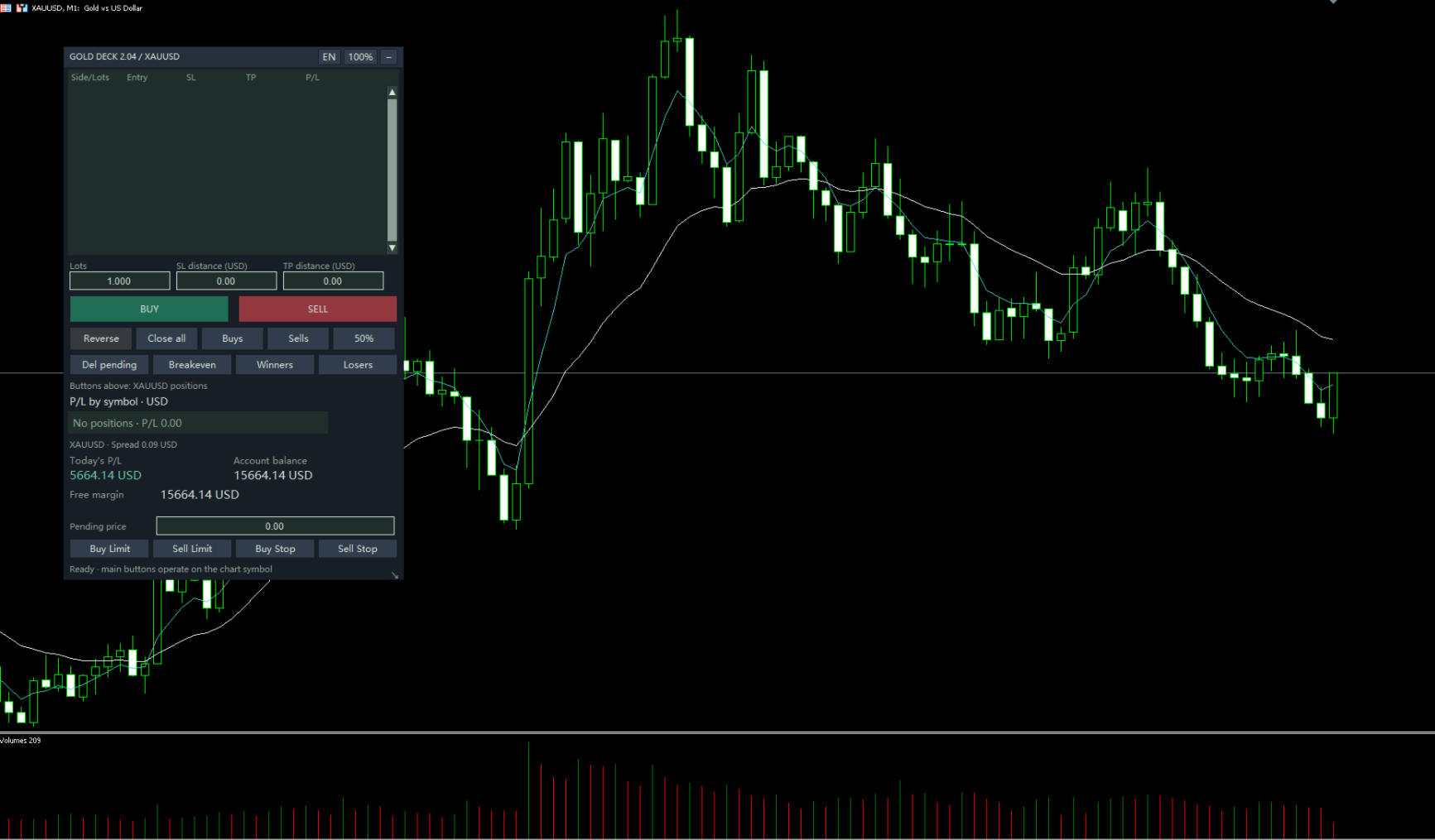
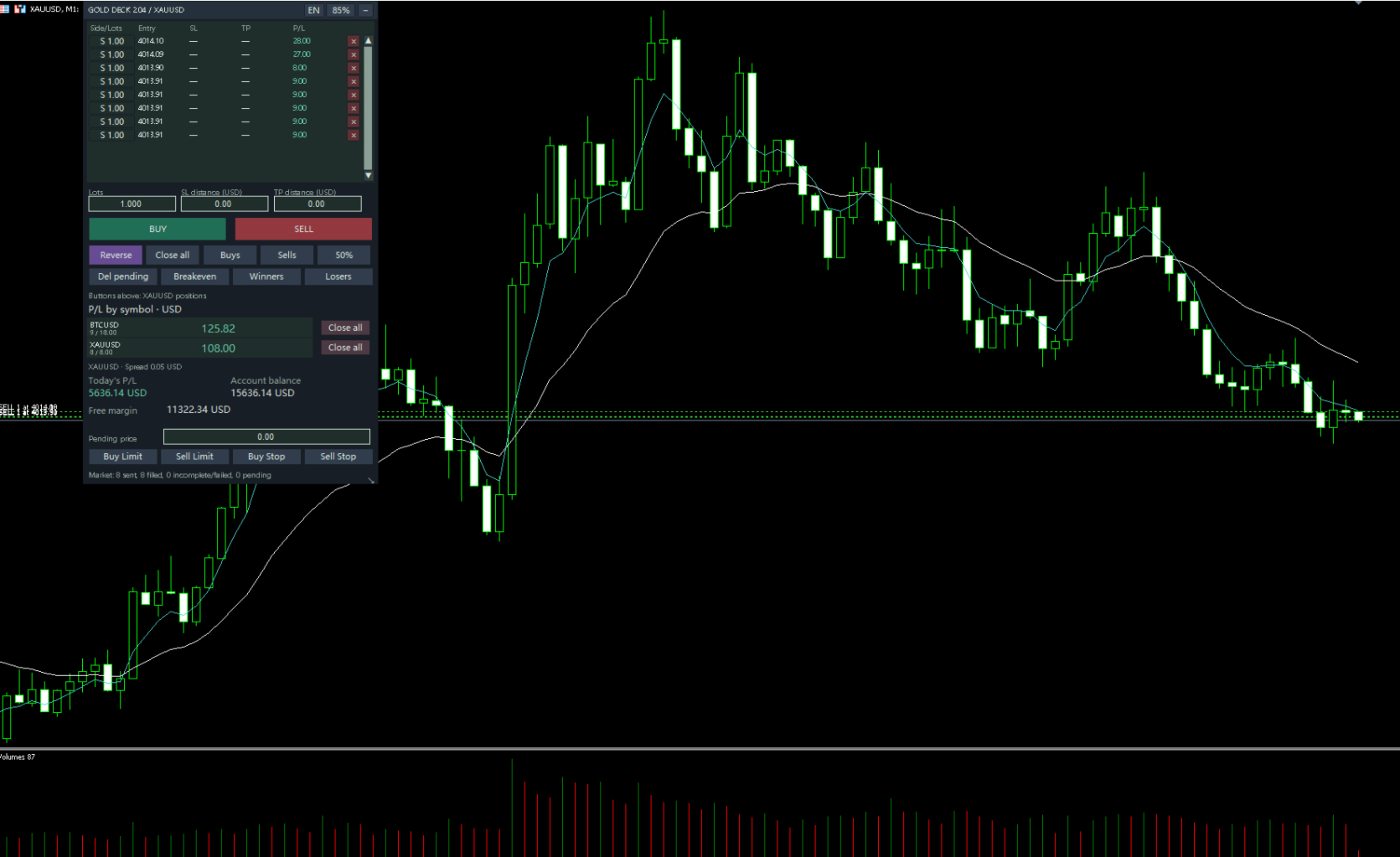
Gold Deck brings order entry, position management and account information into a compact, movable panel for MetaTrader 5. Manage trades directly from your chart, review individual positions and monitor floating profit and loss across symbols.
Use it on gold or another instrument offered by your broker. Main trading controls manage the chart symbol, while the symbol overview displays positions across the account.
## Main features
- Market Buy and Sell with a configurable lot size.
- Entry SL / TP specified as instrument price distances.
- Close all, close buys, close sells, close winners, close losers and reduce each matching position by approximately 50 percent.
- Reverse same-direction holdings using the lot size entered in the panel.
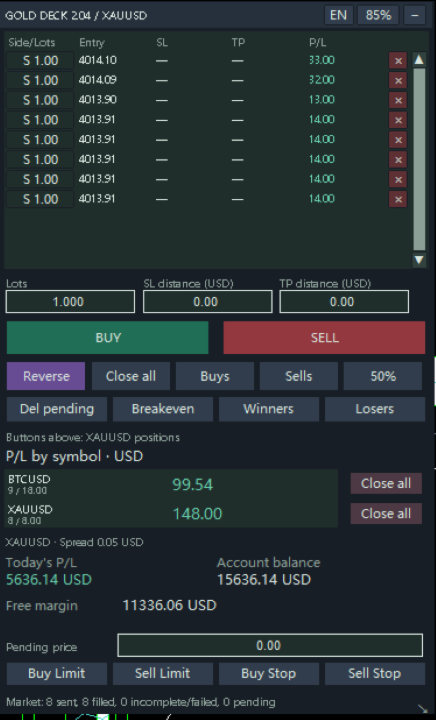
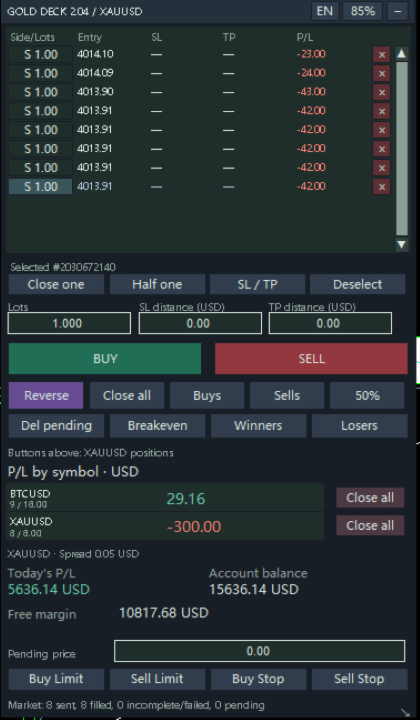
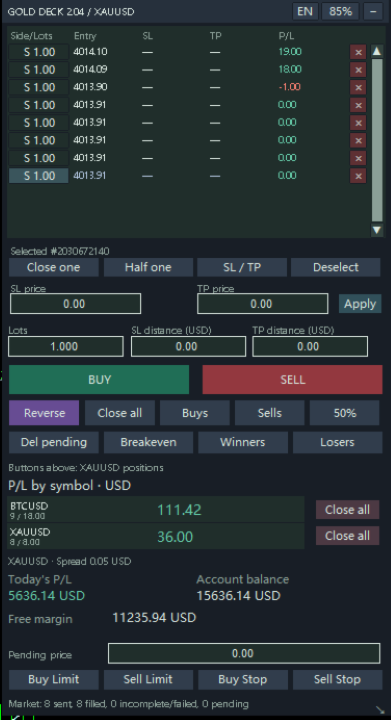
- Position table with direction, volume, entry price, SL, TP and floating P/L.
- Select a position to close it, halve it or edit its SL / TP. Use its row close button to close it directly.
- Click the selected position again or click empty space to deselect it.
- Account-wide floating P/L grouped by symbol, with a separate Close all button for each symbol.
- Today's booked P/L, account balance, free margin and chart-symbol spread.
- Permanently visible Buy Limit, Sell Limit, Buy Stop and Sell Stop controls, plus chart-symbol pending-order cancellation.
- Manual breakeven and optional automatic breakeven and trailing-stop settings.
- English and Chinese interfaces, adjustable width and visible position rows, scrolling, collapse and 85 / 100 / 115 percent display presets.
- Saved layout and inputs for the same chart, account and symbol.
- Button press feedback and an optional short click sound.
## Installation and file location
### Purchased through MQL5 Market
1. In MT5, open Tools → Options → Community and sign in with the MQL5 account used to purchase the product, rather than your broker trading login.
2. Find Gold Deck in your purchased Market products and install it. MT5 manages the installation location and activation; no manual file placement is required.
3. Find Gold Deck under Expert Advisors in Navigator and drag it onto the intended symbol chart.
4. Enable terminal Algo Trading and allow algorithmic trading in the EA settings.
### Manual EX5 installation
1. In the MT5 terminal you intend to use, select File → Open Data Folder.
2. Open MQL5 → Experts and create a folder named GoldDeck.
3. Place GoldDeck.ex5 at this location:
[Current MT5 Data Folder]\MQL5\Experts\GoldDeck\GoldDeck.ex5
4. Refresh Navigator, or restart MT5 if necessary, then attach Gold Deck to the chart.
Use the active terminal's data folder. Do not place the file under Indicators, Scripts or an arbitrary Program Files installation directory. Market purchases should use the Market installation process; copying an EX5 to another computer does not replace platform activation.
The click sound is embedded. No separate WAV file, DLL or additional installer is required.
## Scope and units
Main controls manage all matching positions or pending orders for the chart symbol, including manual trades and those opened by other EAs. Management is not filtered by Magic Number. Selecting one position does not change the main buttons' scope. A symbol-row Close all button closes that symbol's positions only and leaves pending orders in place.
Entry SL / TP values are instrument PRICE DISTANCES, not account-currency cash risk. For example, a gold buy at 2700 with SL distance 5 gives an SL near 2695. Selected-position SL / TP editing uses ABSOLUTE PRICES. Zero omits or removes the corresponding level.
The 50 percent action rounds each reduction down to the broker's volume step. If any matching position cannot leave a valid reduction and remaining volume, the batch is not submitted.
## Input parameters
| Parameter | Default | Description |
|---|---|---|
| InitialLots | 0.10 | Initial lot size; saved panel values take precedence |
| MagicNumber | 20261023 | Identifier for panel trade requests; does not filter managed positions |
| DeviationPoints | 30 | Requested maximum price deviation in symbol points, where applicable to the execution mode |
| MaxEntrySpreadPoints | 0 | Maximum entry spread in points; 0 disables the filter |
| FontSize | 9 | Base button and input font size; other labels have separate layout sizes |
| ClickSound | true | Enable the click sound; it is not a fill confirmation |
| Language | Chinese | Initial language; saved chart preferences take precedence |
| InterfaceScale | 100 | Initial interface scale percentage; saved preferences take precedence |
| MaxSymbolRows | 6 | Visible symbol-row limit, clamped to 1–12 and reduced if chart space is limited |
| AutoBreakevenTriggerPoints | 0 | Profit distance to trigger automatic breakeven, in points; 0 disables it |
| BreakevenOffsetPoints | 0 | Breakeven SL offset from entry, in points |
| TrailingDistancePoints | 0 | Trailing-stop distance in points; 0 disables it |
| TrailingStartPoints | 0 | Profit distance at which trailing starts, in points |
Input-parameter points refer to the symbol's point size and differ from the price-distance units used in the panel entry fields. Automatic breakeven and trailing stops are disabled by default. Enabling them activates automatic management of matching positions.
## Account and execution information
This release targets MT5 desktop Hedging accounts. Full Netting and Exchange-netting support is not offered, and these account modes are not automatically blocked by this build. Immediate reversal is unavailable on FIFO accounts.
Reverse submits close requests followed immediately by an opposite entry at the panel lot size, without waiting for the original positions to close. It is available only for same-direction holdings. Partial fills or rejected requests can leave exposure different from the intended result.
Market entries and closing batches use asynchronous submission with outcome monitoring. Pending orders, pending-order cancellation and SL / TP modifications use synchronous calls. Input feedback and request acceptance do not guarantee execution. Actual execution depends on the broker, liquidity and connection.
Today's P/L uses booked trading results and costs since broker-server midnight, excluding floating P/L and cash deposits or withdrawals. Free margin is not a withdrawal amount. Reconcile account statistics with your broker's history.
Uncertain requests are not automatically resent. Recovery may remain blocked when a historical outcome cannot be identified; this version has no manual recovery override screen. Preserve Experts messages and request records for support.
Check compatibility with your broker on a demo account before live use. For support, use the product comments or MQL5 private messages.