CapGuard
- Utilità
- Jaturong Boonchusri
- Versione: 1.2
- Attivazioni: 5
Stop blowing your account. CapGuard monitors your risk in real time and closes all trades the moment your limits are breached.
Whether you are a manual trader, use another EA, or trade on a Prop Firm — CapGuard runs silently in the background and acts as your last line of defense.
⚡ What Does It Do?
CapGuard watches your account 24/5 and automatically closes all open orders when any of your predefined risk limits are hit. It works alongside any other EA or manual trading style.
✅ Risk Rules Included
Equity & Balance Protection
- Absolute equity floor — close everything if equity drops below a set level
- Daily loss limit — stop trading after losing a fixed amount per day
- Daily drawdown % — close all if drawdown exceeds a percentage of day-start balance
Profit Protection
- Daily profit limit (currency) — lock in profits by closing all trades at a target
- Daily profit % — close all when profit reaches a set percentage
Weekly Protection
- Weekly loss limit — prevent catastrophic weekly losses
Per-Trade Protection
- Max loss per trade (currency) — close all if any single trade loses too much
- Max loss per trade (%) — same but calculated as % of account balance
Trade Count Rules
- Max trades per day — prevent overtrading
- Max losing trades per day — stop after consecutive bad sessions
- Max losses in a row — halt trading after a losing streak
Order Management
- Max open orders — prevent excessive exposure
- Close-to-fit mode — close only excess orders (worst loss first) instead of all
- Manual close-all button — one click to close everything from the panel
📊 Live Info Panel
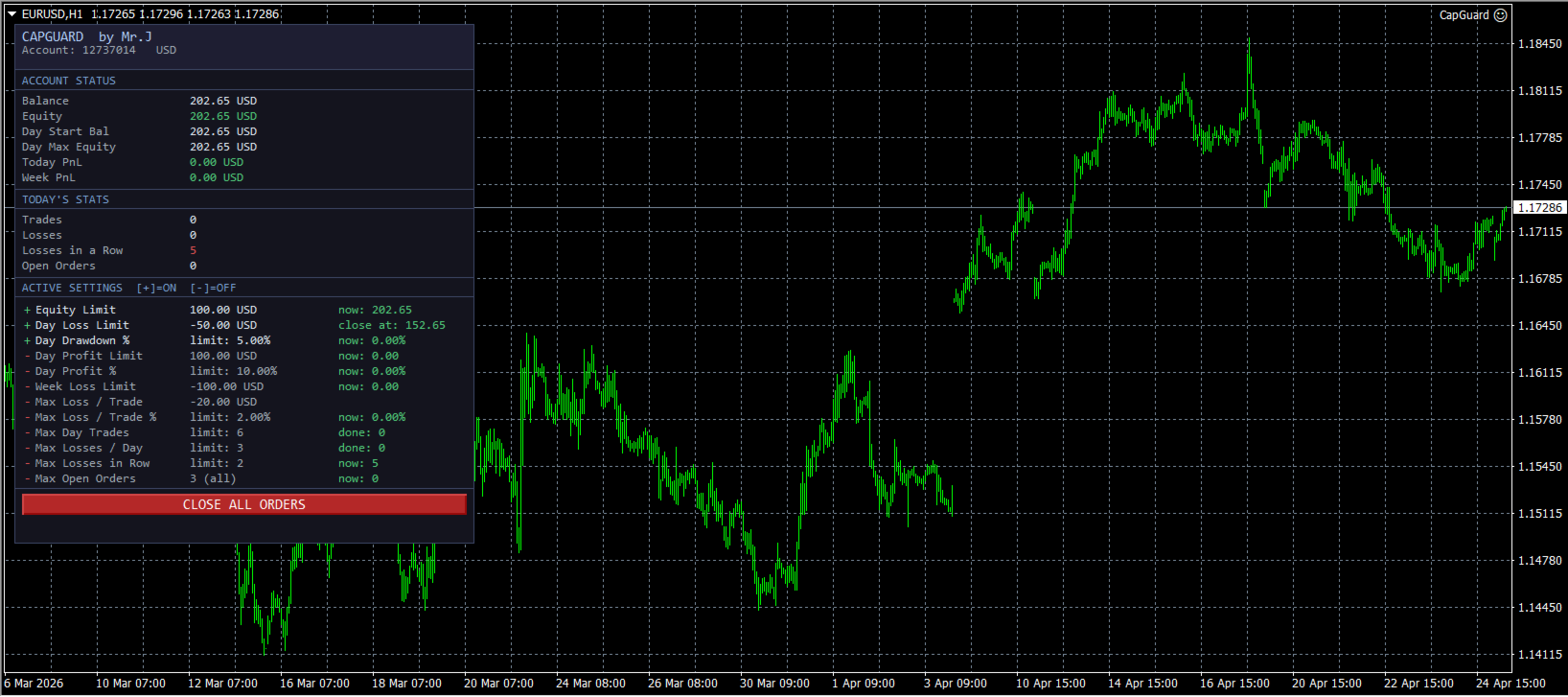
CapGuard displays a clean, always-visible panel on your chart showing:
- Account balance, equity, and today's PnL
- Weekly PnL
- Today's trade count, losses, and losing streak
- All active settings with live current values vs limits
- Color-coded indicators: 🟢 green = safe, 🔴 red = near limit or triggered
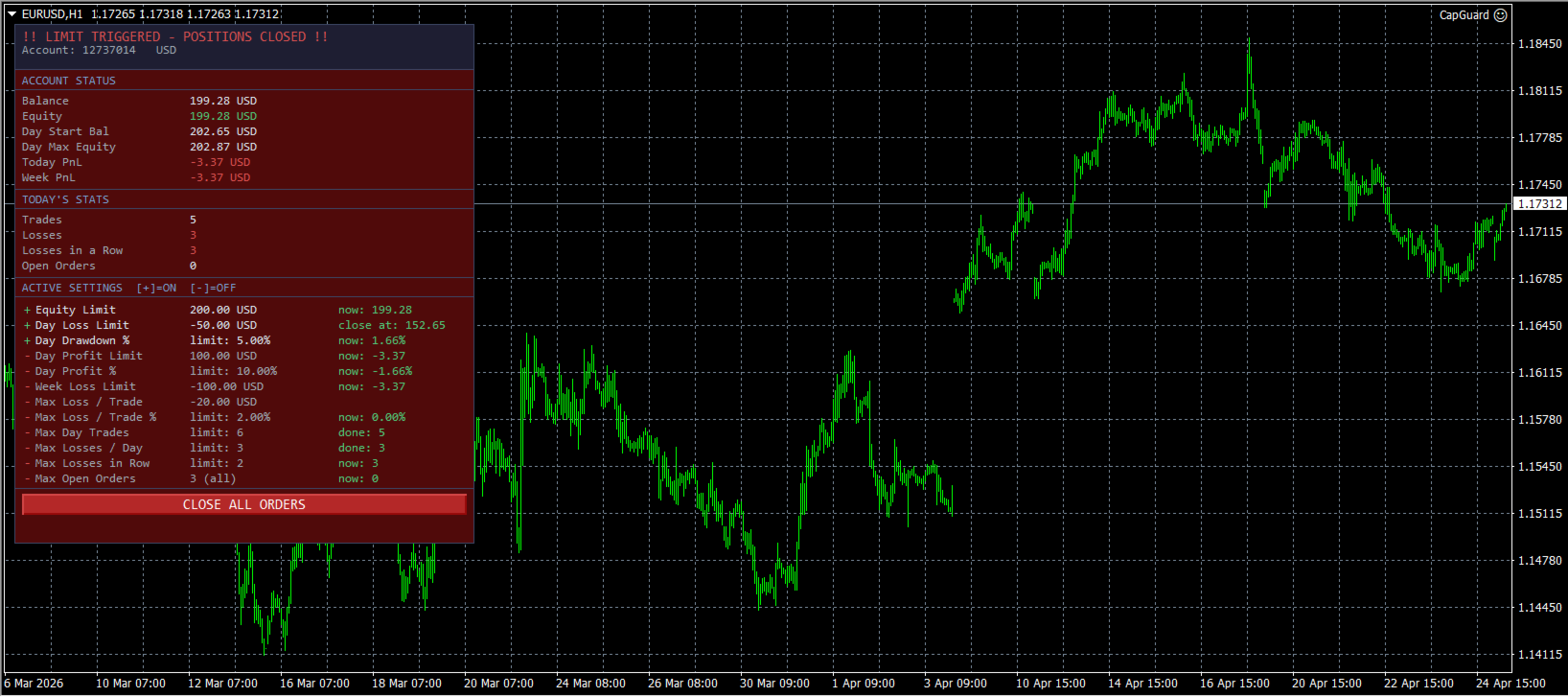
- Panel turns red instantly when any limit is triggered
🔔 Notifications
- Push notifications — sent to your MetaTrader mobile app (requires MetaQuotes ID)
- Email alerts — sent via your broker's SMTP settings
Each alert includes: account number, time, reason triggered, balance, and equity.
⚙️ Settings Are Grouped & Easy to Read
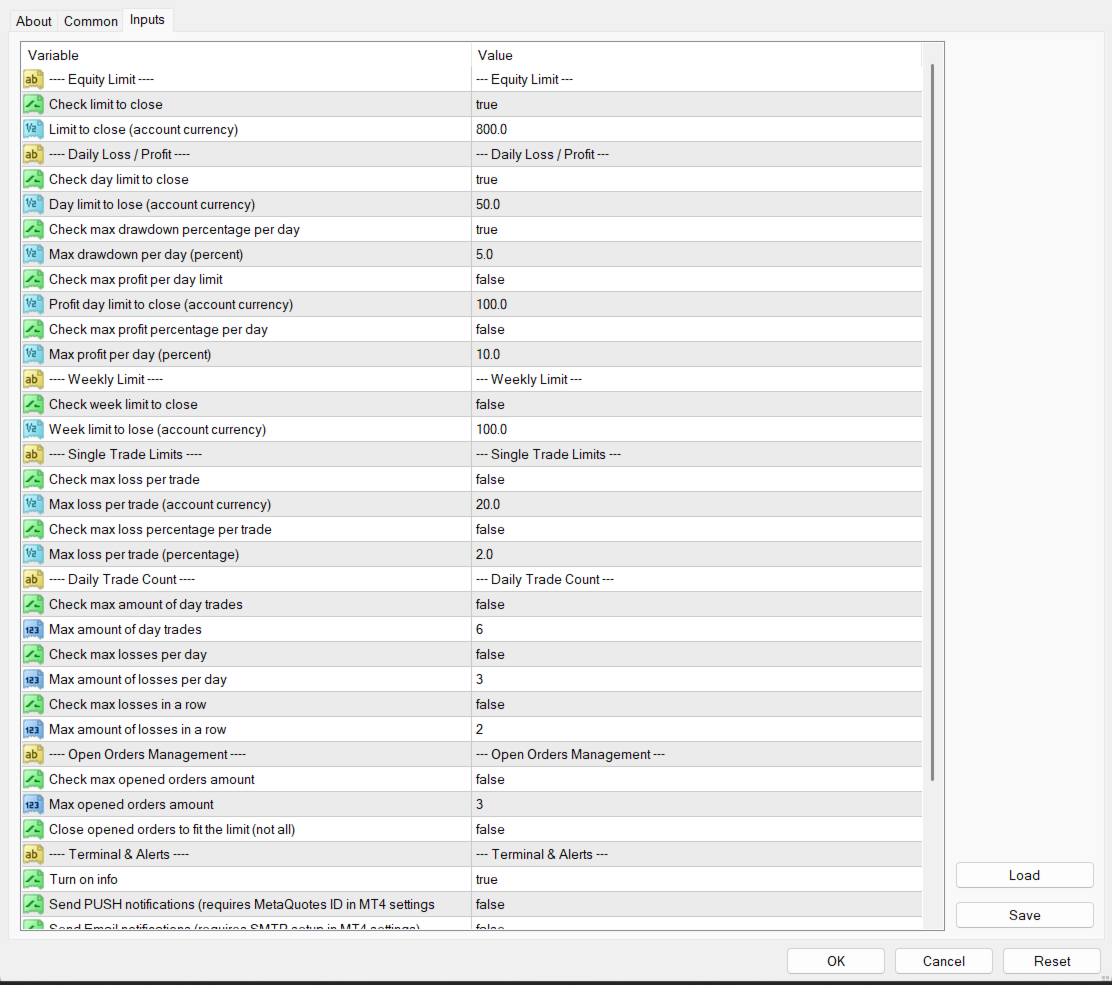
All inputs are organized into clear sections in the EA properties window:
| Group | What It Controls |
|---|---|
| Equity Limit | Global equity floor |
| Daily Loss / Profit | Day-level loss and profit caps |
| Weekly Limit | Week-level loss cap |
| Single Trade Limits | Per-trade loss rules |
| Daily Trade Count | Trade frequency rules |
| Open Orders Management | Max open positions |
| Terminal & Alerts | Notifications and terminal close |
- Every rule can be individually turned ON or OFF
- Sensible defaults included for a $1,000 account
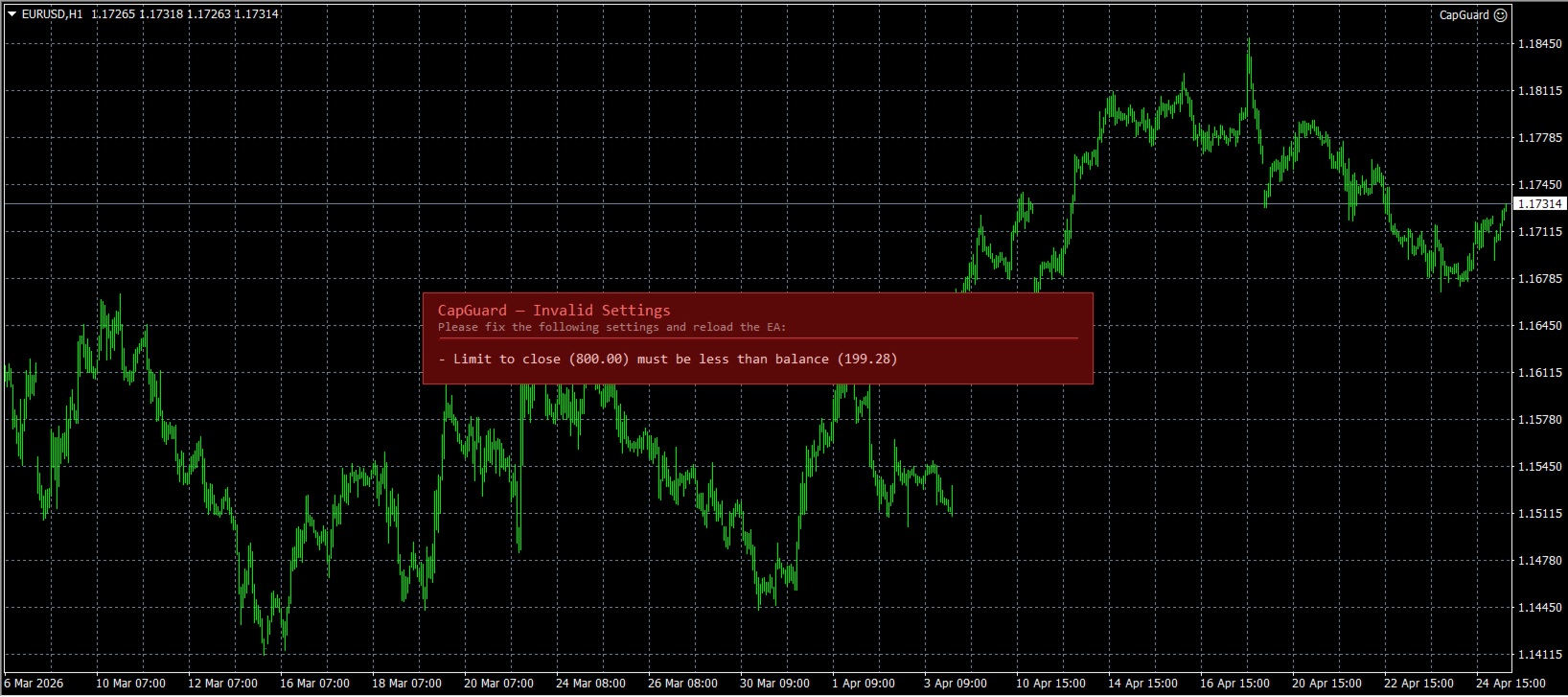
- Input validation on startup — invalid settings show a clear error panel on-chart, EA will not run until fixed
🏦 Prop Firm Friendly
CapGuard is designed with Prop Firm rules in mind:
- Daily drawdown % rule matches standard Prop Firm requirements (e.g., 5% daily max)
- Weekly loss limit matches firms that use weekly drawdown rules
- Works alongside any trading EA — just attach CapGuard to any chart
🔧 Technical Details
- Platform: MetaTrader 4 (MT4)
- Type: Expert Advisor (EA)
- Works with: All symbols and timeframes
- Compatible with: Manual trading and other EAs simultaneously
- Swap & commission included in all PnL calculations
- Uses server time (not local time) for accurate day/week detection
- Configurable slippage for order execution
📌 How to Use
- Attach CapGuard to any chart (e.g., EURUSD M1)
- Configure your risk limits in the EA settings
- CapGuard runs in the background — no input needed
- When a limit is hit, all trades close automatically and the panel turns red
- Use the CLOSE ALL ORDERS button anytime for manual instant close
⚠️ Important Notes
- CapGuard closes trades on the account it is attached to — all symbols, all orders
- Make sure AutoTrading is enabled in MT4 for the EA to execute closes
- For Push/Email alerts, configure your MetaTrader notification settings first
- Closing the terminal after a limit breach is optional and disabled by default
CapGuard — Parameter Reference
--- Equity Limit ---
| Parameter | Default | Description |
|---|---|---|
| Check limit to close | true | Enable the absolute equity floor. When active, CapGuard will close all orders if the account equity drops to or below the value set in Limit to close. |
| Limit to close | 800.0 | The minimum equity level (in account currency) that must not be breached. If equity falls to this value or lower, all positions are closed immediately. Example: set to 800 on a $1,000 account to prevent losing more than $200 in total. |
--- Daily Loss / Profit ---
| Parameter | Default | Description |
|---|---|---|
| Check day limit to close | true | Enable the daily loss limit. CapGuard calculates your loss from the balance at the start of each trading day and closes all orders if the loss exceeds the amount set in Day limit to lose. |
| Day limit to lose | 50.0 | Maximum amount (in account currency) that can be lost in a single trading day. Calculated from the opening balance of the day. Example: set to 50 on a $1,000 account to enforce a 5% daily loss limit. |
| Check max drawdown % per day | true | Enable the daily drawdown percentage limit. Closes all orders if the drawdown from the day's opening balance reaches the percentage set in Max drawdown per day. |
| Max drawdown per day | 5.0 | Maximum allowed drawdown percentage for the day, measured from the day-start balance. Example: 5.0 means CapGuard will close all positions if equity drops 5% below where it started the day. Ideal for Prop Firm rules. |
| Check max profit per day limit | false | Enable the daily profit target. When active, CapGuard closes all orders once your profit for the day reaches the amount set in Profit day limit to close. Useful for locking in gains. |
| Profit day limit to close | 100.0 | The daily profit target (in account currency). All positions are closed once this profit level is reached for the day. |
| Check max profit % per day | false | Enable the daily profit percentage cap. Closes all positions when the day's profit reaches the percentage set in Max profit per day. |
| Max profit per day | 10.0 | Maximum profit percentage for the day, measured from the day-start balance. Example: 10.0 means all positions close once today's profit reaches 10% of the opening balance. |
--- Weekly Limit ---
| Parameter | Default | Description |
|---|---|---|
| Check week limit to close | false | Enable the weekly loss limit. CapGuard tracks your total realized and floating loss since Monday 00:00 (server time) and closes all orders if the weekly loss exceeds the amount set in Week limit to lose. |
| Week limit to lose | 100.0 | Maximum total loss (in account currency) allowed per week. Example: set to 100 on a $1,000 account to enforce a 10% weekly drawdown limit. |
--- Single Trade Limits ---
| Parameter | Default | Description |
|---|---|---|
| Check max loss per trade | false | Enable the per-trade loss limit in account currency. CapGuard monitors all open positions and closes everything if any single trade's floating loss reaches the value set in Max loss per trade. |
| Max loss per trade | 20.0 | Maximum floating loss (in account currency) allowed on any single open trade. If one trade loses this amount, all positions are closed immediately. |
| Check max loss % per trade | false | Enable the per-trade loss percentage limit. Closes all positions if any single trade's floating loss reaches the percentage of account balance set in Max loss per trade %. |
| Max loss per trade % | 2.0 | Maximum floating loss percentage allowed on any single open trade, calculated as a percentage of account balance. Example: 2.0 means any trade losing 2% of balance triggers a full close. |
--- Daily Trade Count ---
| Parameter | Default | Description |
|---|---|---|
| Check max amount of day trades | false | Enable the daily trade count limit. Once the number of closed trades for the day reaches Max amount of day trades, all remaining open positions are closed and no new trades should be placed. |
| Max amount of day trades | 6 | Maximum number of completed trades allowed per day. Helps prevent overtrading. |
| Check max losses per day | false | Enable the daily losing trade limit. Closes all positions once the number of losing trades for the day reaches Max amount of losses per day. |
| Max amount of losses per day | 3 | Maximum number of losing trades allowed in a single day. Once reached, CapGuard closes all open positions. |
| Check max losses in a row | false | Enable the consecutive loss limit. Closes all positions if the most recent trades are all losses and the streak reaches Max amount of losses in a row. |
| Max amount of losses in a row | 2 | Maximum number of consecutive losing trades before CapGuard closes all open positions. Helps prevent chasing losses. |
--- Open Orders Management ---
| Parameter | Default | Description |
|---|---|---|
| Check max opened orders amount | false | Enable the open order count limit. CapGuard monitors the total number of open market orders and acts when the count exceeds Max opened orders amount. |
| Max opened orders amount | 3 | Maximum number of simultaneously open market orders allowed. |
| Close opened orders to fit the limit | false | When enabled, CapGuard closes only the excess orders (worst floating loss first) to bring the count down to the limit, instead of closing all positions. When disabled, all positions are closed when the limit is exceeded. |
--- Terminal & Alerts ---
| Parameter | Default | Description |
|---|---|---|
| Turn on info | true | Show the live CapGuard information panel on the chart. Displays account status, today's stats, and all active settings with real-time values. Disable to hide the panel. |
| Send PUSH notifications | false | Send a push notification to the MetaTrader mobile app when a limit is triggered. Requires MetaQuotes ID to be configured in MT4 under Tools → Options → Notifications. |
| Send Email notifications | false | Send an email alert when a limit is triggered. Requires SMTP settings to be configured in MT4 under Tools → Options → Email. |
| Email address | (empty) | The destination email address for alert notifications. Only used when Send Email notifications is enabled. |
| Close terminal after limit overrun | false | Automatically close the MT4 terminal after all positions have been closed due to a limit breach. Use with caution — only enable if you want MT4 to shut down completely after a trigger event. |
| Close terminal immediately | true | When Close terminal after limit overrun is enabled, this setting determines timing. If true, the terminal closes as soon as all orders are confirmed closed. If false, it waits the number of seconds set in Seconds before close. |
| Seconds before close | 5 | Number of seconds to wait before closing the terminal, when Close terminal immediately is set to false. A countdown is displayed on the chart during this period. |
| Slippage (Points) | 30 | Maximum allowed slippage in points when closing orders. Higher values increase the chance of the close being filled during fast markets. 30 is suitable for most pairs including Gold (XAUUSD). Reduce to 10 for slower instruments. |