Solo gli utenti che hanno acquistato o noleggiato il prodotto possono lasciare commenti
Thushara Dissanayake  

Introduction to Moving Average Currency Strength Dashboard


The Moving Average Currency Strength Dashboard is a revolutionary tool designed to provide traders with a comprehensive analysis of currency strength and momentum in the forex market. Powered by advanced algorithms and cutting-edge technology, this dashboard offers valuable insights into currency pairs and their respective timeframes, enabling traders to make informed trading decisions.

With its user-friendly interface and intuitive design, the Moving Average Currency Strength Dashboard caters to both beginner and experienced traders. It presents a visual representation of currency strength through the clever use of moving averages and crossover points. By tracking the performance of various currency pairs, traders can identify potential trading opportunities and capitalize on market trends.

One of the standout features of this dashboard is its Scanner Mode, which allows traders to scan the market for potential setups and trading signals. With a single click, you can access a wealth of information, including currency pairs, timeframes, and relevant signals. This feature streamlines the trading process, saving valuable time and effort.

The Group Mode feature further enhances the functionality of the Moving Average Currency Strength Dashboard. It organizes currency pairs into groups based on their base currencies, providing a structured view of currency relationships. By analyzing the strength of currency groups, traders can gain a deeper understanding of market dynamics and make more accurate trading decisions.

Customizability is another key aspect of this dashboard. Traders have the flexibility to adjust parameters such as calculation methods for pips, choice of moving average periods, and color themes. This level of customization ensures that the indicator aligns with individual trading preferences and strategies.

The Moving Average Currency Strength Dashboard also offers a range of alert options to keep you updated on market movements. Whether it's pop-up alerts, mobile notifications, email alerts, or sound alerts, you'll never miss a trading opportunity even when you're away from your trading desk.

In summary, the Moving Average Currency Strength Dashboard is a powerful tool that brings together the strength of currencies and the precision of moving averages. It provides traders with a comprehensive view of the forex market, enabling them to identify profitable trading setups and make well-informed decisions. Whether you're a seasoned trader or just starting out, this dashboard is an indispensable asset in your trading arsenal.


The Moving Average (MA) can be used in trading for various purposes:

  • Trend Identification: Moving Averages' smoothing properties and responsiveness to price changes make them useful for identifying trends. An upward-sloping MA indicates a bullish trend, while a downward-sloping MA suggests a bearish trend. The position of the MA relative to the price provides additional information about the trend.

  • Spot Trend Reversals: When a Moving Average crosses above or below the price, it can signal potential trend reversals. If the MA moves above the price after an uptrend, it may indicate a bearish trend reversal. Conversely, if the MA moves below the price, it may signal a bullish trend reversal. It's important to use the Moving Average alongside other indicators for confirmation.

  • Support and Resistance: Moving Averages can act as dynamic support and resistance levels. When the price is above the Moving Average, it may act as a support level, while when the price is below the Moving Average, it could act as a resistance level. Traders can use these levels to set stop-loss orders or take-profit targets.

  • Moving Average Crossovers: When different Moving Averages with different periods cross each other, it can provide trading signals. A bullish crossover occurs when a shorter period Moving Average crosses above a longer period Moving Average, indicating a potential upward price movement. Conversely, a bearish crossover occurs when a shorter period Moving Average crosses below a longer period Moving Average, suggesting a potential downward price movement.

  • Price-Moving Average Relationship: The distance between the price and the Moving Average can provide valuable insights. If the price consistently stays above the Moving Average, it suggests a strong bullish trend. Conversely, if the price consistently stays below the Moving Average, it indicates a strong bearish trend.

  • Moving Average Bounce: When the price approaches a Moving Average, it may bounce off it, providing potential trading opportunities. Traders can look for price rejections or bullish/bearish candlestick patterns near the Moving Average as confirmation.

  • Moving Average as Dynamic Entry/Exit Levels: Moving Averages can serve as dynamic entry and exit levels for trades. Traders may consider entering a trade when the price pulls back to a Moving Average during an uptrend or bounces off a Moving Average during a downtrend. Exiting a trade can be considered when the price moves away from the Moving Average.

  • Moving Average Confluence: Identifying areas where multiple Moving Averages converge can provide strong support or resistance zones. These confluence areas can act as significant price levels where traders can look for trade setups or potential reversals.

  • Moving Average Slope: The slope of the Moving Average can indicate the strength of the trend. A steeply sloping Moving Average suggests a strong trend, while a flat or sideways Moving Average indicates a ranging or consolidating market.

  • Moving Average Envelopes: Using multiple Moving Averages with different deviations from the central line can create envelopes around the price chart. These envelopes can help identify overbought and oversold conditions, as well as potential price breakouts or reversals.


The Moving Average Currency Strength Dashboard can be used in trading for various purposes:

  • Analyzing currency strength: The Moving Average Currency Strength Dashboard allows traders to assess the relative strength of different currencies in the forex market. By tracking moving averages and crossover points, it provides insights into the momentum and potential direction of currency pairs.

  • Identifying trading opportunities: With its Scanner Mode, the dashboard enables traders to scan the market for potential setups and trading signals. By highlighting currency pairs and timeframes that exhibit strong trends or crossovers, it helps identify favorable entry and exit points.

  • Monitoring currency relationships: The Group Mode feature organizes currency pairs into groups based on their base currencies. This allows traders to analyze the relationships between currencies and spot potential correlations or divergences that can be used for trading strategies.

  • Risk management: The dashboard can assist traders in managing risk by providing insights into the strength or weakness of specific currencies. This information can be used to adjust position sizes or set appropriate stop-loss levels.

  • Trend confirmation: By analyzing moving averages and crossover points, the dashboard can help traders confirm the presence of a trend. This confirmation can be valuable when making trading decisions, such as entering trades in the direction of the trend or holding onto existing positions.

  • Scalping and short-term trading: The dashboard's ability to scan multiple timeframes and currency pairs makes it useful for scalpers and short-term traders. It allows them to quickly identify opportunities for quick profits based on short-term price movements and momentum.

  • Swing trading: For swing traders who aim to capture medium-term price swings, the dashboard can provide valuable insights into the strength and potential direction of currency pairs. It helps traders identify potential entry and exit points for swing trades.

  • Strategy development: The Moving Average Currency Strength Dashboard serves as a powerful tool for strategy development. Traders can use it to backtest various strategies and assess their performance based on historical data. The insights gained from the dashboard can be used to refine and optimize trading strategies.

  • Multiple market analysis: The dashboard's ability to analyze multiple currency pairs and timeframes simultaneously enables traders to gain a broader perspective of the market. It helps identify overall market trends, correlations, and potential trading opportunities across different currency pairs.

  • Educational purposes: The dashboard can be used for educational purposes, helping traders understand the concepts of currency strength, moving averages, and crossover points. It provides a visual representation of these concepts, making it easier for traders to grasp and apply them in their trading decisions.
Thushara Dissanayake  

v1.3 Parameters

  • Mode
    • Scanner mode - Scanner mode (choose between dashboard and single line drawing).
    • Group mode - Categorizes currency pairs into distinct groups based on their respective base currencies.
  • Dashboard Parameters
    • Symbols (SemiColon(;) separated) - Symbol list used in Group mode: Disabled (Use " ; " to separate).
    • Timeframes (SemiColon(;) separated) - Timeframe list ( Use " ; " to separate)).
    • Dashboard refresh in milliseconds - Determines the interval at which the dashboard updates its information.
    • Pips calculation method - Specifies the method used to calculate pips, either based on candle open, candle close, or the moving average line.
    • Group 1 to 8 - Activates the symbol list used in Group mode for each respective currency group.
    • Group 1 to 8 base currency - Adds the base currency to each group, enabling the identification of the base currency in each symbol. 
    • Group 1 to 8 symbol list - Symbol list used in Group mode: Enabled (Use " ; " to separate).
  • MA Parameters
    • Fast HMA period - Period for fast Moving Average calculation.
    • Fast method - Method used for fast Moving Average calculation.
    • Fast price - Price used for fast Moving Average calculation.
    • Slow HMA period - Period for slow Moving Average calculation.
    • Slow method - Method used for slow Moving Average calculation.
    • Slow price - Price used for slow Moving Average calculation.  
  • Alert Filters 
    • Pop-up alert activated - Pop-up alerts enabled.
    • Mobile alert activated - Mobile alerts enabled.
    • Email alert activated - Email alerts enabled.
    • Sound alert activated - Sound alerts enabled.
      • Bullish signal message - Custom message for bullish signals.
      • Bearish signal message - Custom message for bearish signals.
    • Graphic Parameters
      • Magic number - Assigns a unique identifier to each object, facilitating the distinction between multiple dashboards when they are added to the same chart.
      • Button font - Sets the font style for symbol and timeframe buttons in the dashboard.
      • Button font size - Font size for symbol and timeframe buttons.
      • Signal font - Sets the font style for displaying signals in the dashboard.
      • Signal font size - Font size for displaying signals.
      • Arrow size - Sets the arrow size.
      • Bar text - Customizes the text displayed for a single bar count (either 1 or 0), allowing for width reduction of the dashboard.
      • Bars text - Customizes the text displayed for multiple bars count (greater than 1), allowing for width reduction of the dashboard.
      • Pip text - Customizes the text displayed for a pip count either 1 or 0, allowing for width reduction of the dashboard.
      • Pips text - Customizes the text displayed for a pips count greater than 1, allowing for width reduction of the dashboard.
      • Theme color - Color for symbol and timeframe buttons in the dashboard.
      • Bullish button color - Color for bullish signal buttons.
      • Bearish button color - Color for bearish signal buttons.
      • Non-directional or lost button color - Represents the color for no movement with 0 pips or when the price is currently in the middle area.
      • Button state color - Color for button state (checked/unchecked).
      • Button border color - Color for the borders of buttons.
      • Symbol button font color - Color for the text on symbol buttons.
      • Timeframe button font color - Color for the text on timeframe buttons.
      • Signal font color - Color for the text on dashboard signals.
      • Group 1 to 8 color - Color for each distinct group based on their respective base currencies.
      • Dashboard distance from top - Vertical distance of dashboard from the top.
      • Dashboard distance from left - Horizontal distance of dashboard from the left. 
      • Timeframe button width - Customizes the timeframe button width, allowing for width reduction of the dashboard.
      • Symbol button width - Customizes the symbol button width, allowing for width reduction of the dashboard.
      • Button height - Customizes the height of all buttons, allowing for a reduction in the height of the dashboard.
      • Dashboard split - Enables splitting and drawing the symbol list and signal on the right side to match the height of the screen.
      • Dashboard split by [x] buttons - Maximum number of buttons per column (0 for unlimited).
      • Pips information distance from left - Customizes the horizontal distance of pips count from the bars count, allowing for width reduction of the dashboard.
      • Blank chart for dashboard - Display a blank chart in the dashboard.  
    Haroon Rashid  
    Hi Thushara, I just rented the dashboard to test for a few months, i keep getting the following error "EURGBP30 chart has fewer bars than the input period of 25. Please update the historical data." not sure what to do here? Plus all i get is a blank screen on my MT4. Please help.
    Haroon Rashid  
    Haroon Rashid #:
    Hi Thushara, I just rented the dashboard to test for a few months, i keep getting the following error "EURGBP30 chart has fewer bars than the input period of 25. Please update the historical data." not sure what to do here? Plus all i get is a blank screen on my MT4. Please help.

    Keeps getting stuck in intialize mode: 


    Haroon Rashid  
    Haroon Rashid #:

    Keeps getting stuck in intialize mode: 


    Again, please help.
    Thushara Dissanayake  
    Haroon Rashid #:
    Hi Thushara, I just rented the dashboard to test for a few months, i keep getting the following error "EURGBP30 chart has fewer bars than the input period of 25. Please update the historical data." not sure what to do here? Plus all i get is a blank screen on my MT4. Please help.

    Thank you for your feedback about the error you encountered. Yes, I have identified that the indicator has a problem with some functions. I am now working on finding a solution for this issue. I sincerely apologize for any inconvenience caused. Rest assured, I will do my best to provide you with the support you need.

    Please give me two days to resolve this error and release an update. Additionally, I want to inform you that new indicator functions have already been added, making the next update even more useful. Thank you for your understanding and patience during this process.

    Thushara Dissanayake  
    Version 1.4 is now ready for the update. I've included some interesting extra tools and added a custom indicators function to the indicator. Now, you can analyze charts using the Fibonacci tool, Bollinger Bands, Parabolic SAR, and Stochastic Oscillator indicators with the new opening chart. Additionally, I've incorporated parameters to highlight the latest signals in the dashboard, making it easier to identify signals quickly.

    Dashboard - Group Mode:
    Dashboard - Group Mode


    Dashboard - Standard Mode:
    Dashboard - Standard Mode


    New Opening Chart:
    New Opening Chart

    The Fibonacci tool panel is hidden in the default settings. You can enable it via input parameters. Additionally, to quickly show or hide the Fibonacci tool dashboard, simply double-click on the new chart. I hope this is easy for you to understand.


    Some users have encountered errors during the initialization stage. As a result, I have made modifications to the default input parameter setup. To see the dashboard, make sure to enable Scanner Mode and Group Mode when adding the indicator to the chart. I will provide more details later.

    If you encounter any errors with this update, kindly send all the details via the private message system. I value your feedback and welcome any suggestions you may have. Thank you.

    Thushara Dissanayake  
    The Moving Average Currency Strength Dashboard provides real-time updates on the latest signals. Presently, it indicates that the AUD and NZD are the strongest currency pairs, while the JPY is the weakest. This dashboard allows you to track all currency-related symbols simultaneously. Moreover, it enables you to compare the strength of different currencies, aiding in making well-informed market entries. Additionally, the dashboard's ability to swiftly identify trend reversals is a valuable asset for traders.

    Thushara Dissanayake  
    Check out the latest updated signals! Currently, the USD ranks as the strongest currency, followed by the EUR. However, the AUD and NZD are the weakest currencies. Pay attention to the GBP group and look for Magenta color in the M15 column, as it indicates the latest reversal signals. Don't miss out on potential trading opportunities!


    Thushara Dissanayake  
    Signals

    Take a peek at the H1 columns. The dashboard is pointing out a couple of crossover signals. The newest crossovers are standing out with lime and magenta colors. Lime means strong, while magenta signals weakness.

    Here's the trick: with the M5 or M15 columns, you can catch that initial signal and hop in. To be extra sure, check the M30 column to confirm the trend. And if the H1 column also agrees with a crossover signal in the same direction, you've got the green light to keep your entry and hunt for more pips. Happy trading!

    danmar  

    Hi Thushara , i PM you a message, warmly

    danmar  

    HI Thushara

    in my MT4 i have a problem of time (may be 5 hours - 1 day )

    to have all values in my dashboard (cf screencopy)

    and even for D1 i could have never all D1 informations filled (some cells yes most no)

    - my computer is powerfull and with 32 giga ram

    - in this instance of MT4 i have 2 charts

    - one is the dashboard on M5 with same EMA for M1 M5 M30 H4 D1

    - in tools i have 5000 bars allowed for charts and for all

    - in the dashboard the refresh is 10000 (10 secondes )

    Thank you a lot to help me to adjust to have better results

    Warmly


    Thushara Dissanayake  
    LUIS HUMBERTO LEAL MONTOYA #:
    How to fix the initializing drama?

    "Initializing" means the indicator can't access enough historical data to calculate moving averages. This typically happens when you first load the indicator onto a chart. To resolve this issue, follow these steps:

    1. Update your historical data (M5, M15, M30, H1, etc.).
    2. Enable your historical data according to the indicator's symbols and timeframes.
    3. Increase the number of available bars on your chart.
    4. Select the timeframe of the chart showing the initializing state, then click on the symbol. This will automatically open the chart in a new window and load the historical data.

    If you follow these four steps, you can save your input parameters as a set file, then remove and reload the indicator on the chart.

    I hope these simple steps help. Let me know how it goes. Thank you!

    Thushara Dissanayake  
    danmar #:

    HI Thushara

    in my MT4 i have a problem of time (may be 5 hours - 1 day )

    to have all values in my dashboard (cf screencopy)

    and even for D1 i could have never all D1 informations filled (some cells yes most no)

    - my computer is powerfull and with 32 giga ram

    - in this instance of MT4 i have 2 charts

    - one is the dashboard on M5 with same EMA for M1 M5 M30 H4 D1

    - in tools i have 5000 bars allowed for charts and for all

    - in the dashboard the refresh is 10000 (10 secondes )

    Thank you a lot to help me to adjust to have better results

    Warmly


    Please follow the 4 steps I mentioned in the previous comment. I apologize for the late reply.
    Thushara Dissanayake  

    Version 1.5

    Version 1.5


    Version 1.6

    Version 1.6

    Add a new input option called 'Max Bars in History' to resolve the 'Initialization...' message that occurs with multiple signals. The default history range is set to 100, but you can adjust this according to your needs. For example, if a pair's monthly history bars are fewer than 100 on your chart, setting 'Max Bars in History' to 100 will not be effective. Instead, you should reduce the number to the minimum available bars on the chart. Remember to follow the steps below to update your history bars first.

    1. Update your all historical data (M5, M15, M30, H1, etc.).
    2. Enable your historical data according to the indicator's symbols and timeframes.
    3. Increase the number of available bars on your chart.
    4. Select the timeframe of the chart showing the initializing state, then click on the symbol. This will automatically open the chart in a new window and load the historical data.
    danmar  

    Hi Thushara,

    your indicator is exceptional and 1 of my 2 dashboards that i need absolutely

    actually, i am using it with differents cross of EMA in same TF and i need to have differents charts for each cross of EMA on same time frame

    it is ok for me even it will be more easy to manage if i could put differents instances of the dashboard on same chart?

    i try this with changing param Black chart for dashboard = FALSE and Magic number different for each instance

    but i see only the second instance on same chart and no more the first instance

    Is it possible? if yes what i am making wrong?

    if it is not possible i could continue like i do with different chart for each dashboard

    Thank you for your answer

    Warmly

    Thushara Dissanayake  
    danmar #:

    Hi Thushara,

    your indicator is exceptional and 1 of my 2 dashboards that i need absolutely

    actually, i am using it with differents cross of EMA in same TF and i need to have differents charts for each cross of EMA on same time frame

    it is ok for me even it will be more easy to manage if i could put differents instances of the dashboard on same chart?

    i try this with changing param Black chart for dashboard = FALSE and Magic number different for each instance

    but i see only the second instance on same chart and no more the first instance

    Is it possible? if yes what i am making wrong?

    if it is not possible i could continue like i do with different chart for each dashboard

    Thank you for your answer

    Warmly

    Yes, it’s definitely possible to add two moving average based dashboards on the same chart. Here's how you can do it:

    First, add your first dashboard with your preferred EMA settings. Then, when adding the second instance of the indicator, make sure to do the following:

    • Change the Magic Number to make each instance unique.
    • Adjust the Dashboard Distance from Top and Dashboard Distance from Left inputs, so the second dashboard is drawn in a different position on the chart.

    If you don’t change the dashboard positions, the second one will just overlap the first, which is likely why you’re only seeing one of them.
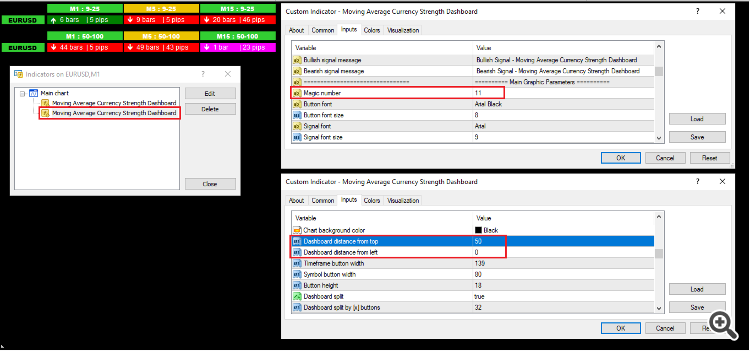
    Here's how you can do it

    danmar  

    Hi Thushara

    your dashboard is really excellent and it is and dashboard that i always have in my screen

    recently i try other parameters like MA 1 x 2400 with number of bars back to 3000 and bars in chart 5000

    and downloaded history last 5000 bars

    in M1 EMA 1 x 2400 the indicator disappear of the chart

    do you know how to resolve that ?

    thank you for your help

    Warmly

    Thushara Dissanayake  
    danmar #:

    Hi Thushara

    your dashboard is really excellent and it is and dashboard that i always have in my screen

    recently i try other parameters like MA 1 x 2400 with number of bars back to 3000 and bars in chart 5000

    and downloaded history last 5000 bars

    in M1 EMA 1 x 2400 the indicator disappear of the chart

    do you know how to resolve that ?

    thank you for your help

    Warmly

    Hey! Thanks so much for the kind words about the dashboard, I'm really glad you find it useful!

    You're running into a pretty common issue when working with large historical calculations like MA 2400 on M1. The problem isn't your download, it's that the indicator can't fetch enough bars when many symbols and timeframes are enabled at once.

    Here’s a reliable workaround: Open each symbol and timeframe manually in separate charts, then scroll back in history to force MT4 to load all the required bars. Yes, it takes time, but it ensures every symbol has the data needed for heavy calculations like 2400 period MA.

    You're right, the indicator could definitely be improved to handle these large calculations more smoothly. I'll note this down for a future update to optimize the data fetching logic.

    Let me know if the manual loading helps!
    Solo gli utenti che hanno acquistato o noleggiato il prodotto possono lasciare commenti