CandleClosePro
- Experts
- Version: 1.12
- Activations: 5

MQL5 Market Product Description
Candle Close Pro is a precision trade-execution Expert Advisor for MetaTrader 5 built for price-action, breakout, and multi-timeframe traders who wait for candle-close confirmation before entering the market. Instead of staring at a countdown timer or suffering slippage from late manual clicks, you simply select your directional bias on the on-chart panel, set your lot size, and let the EA execute at the exact millisecond the target candle closes.
Core Capabilities
-
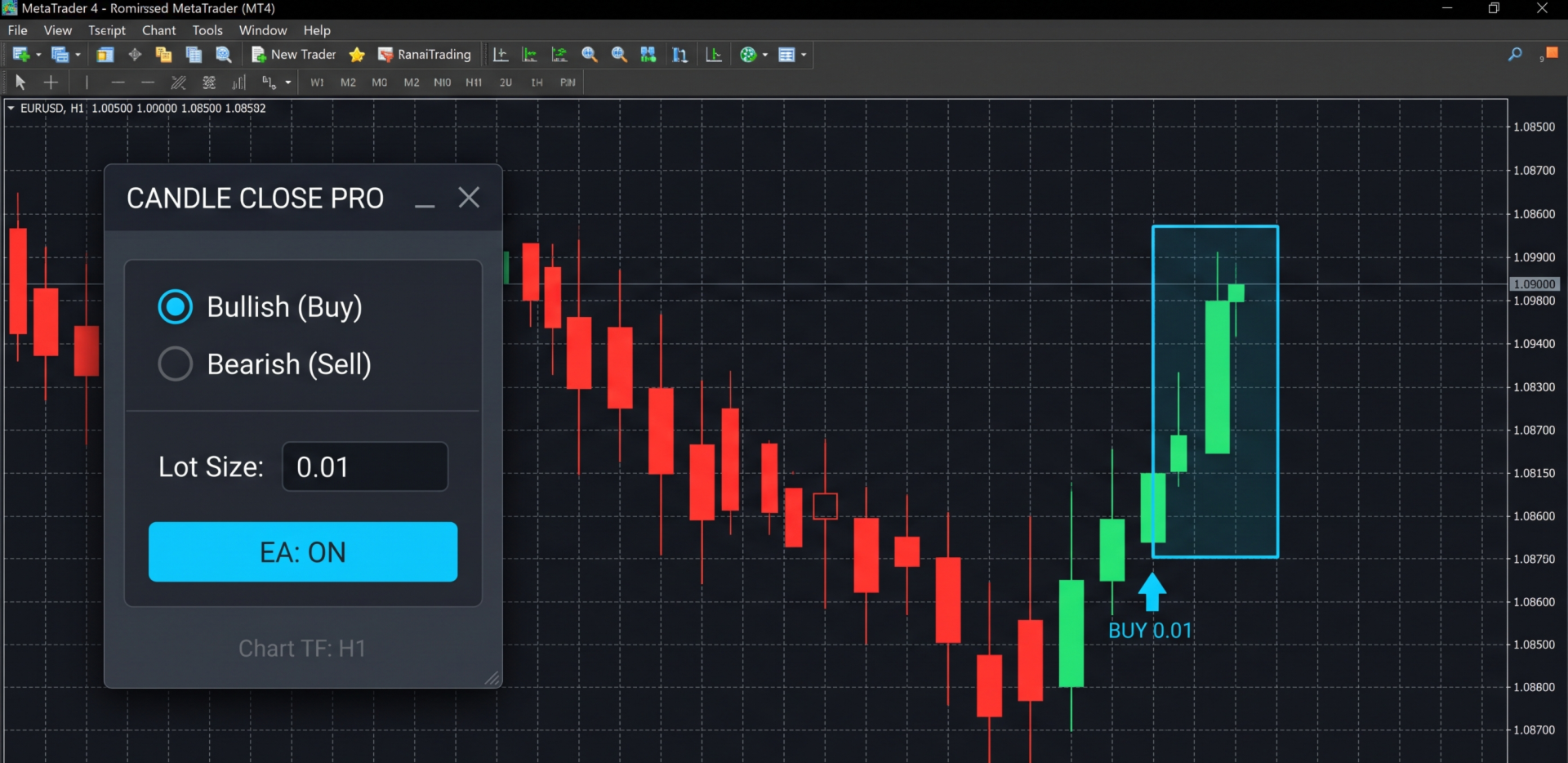
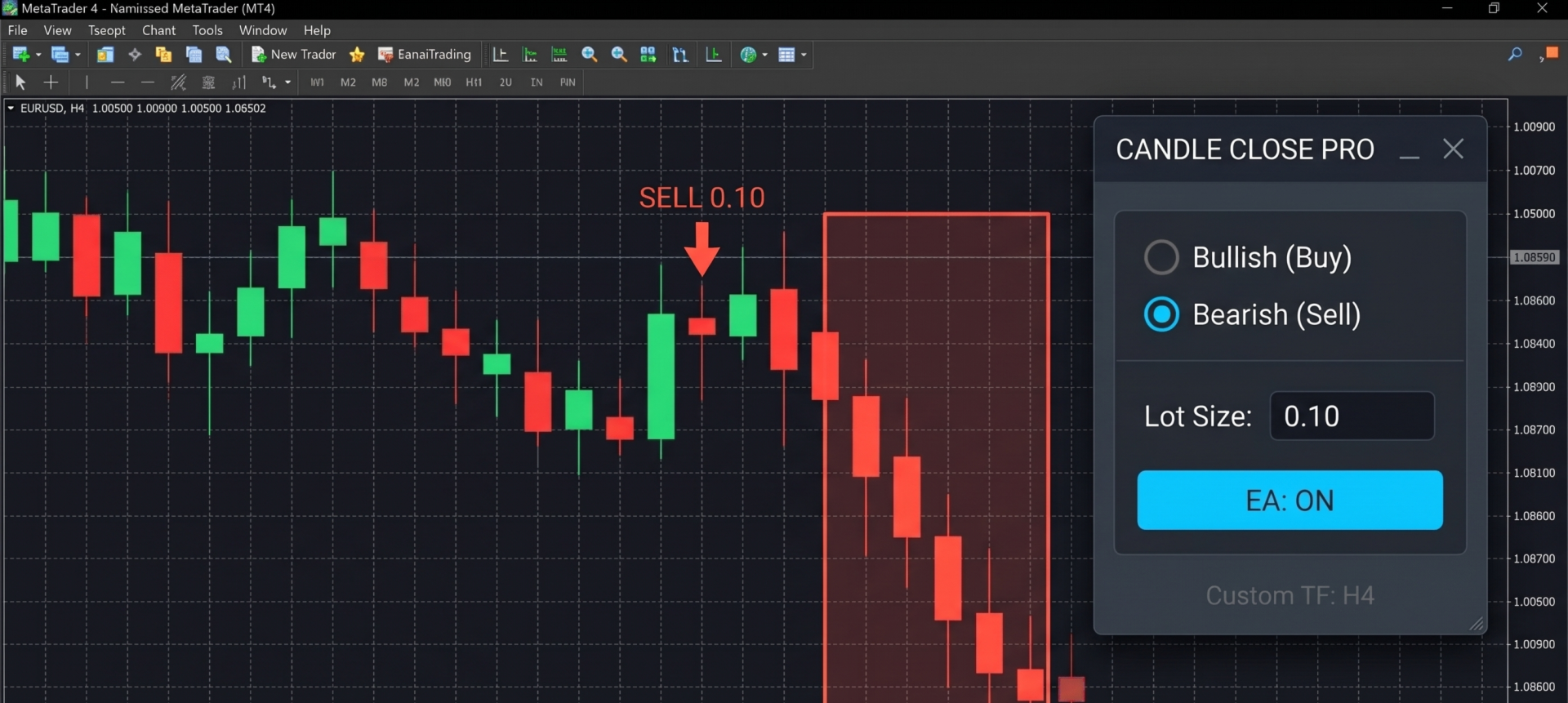
Directional Radio Control ( Bullish (Buy) / Bearish (Sell) ): Arm the EA strictly for the confirmation you want. When Bullish (Buy) is selected, the EA enters a long position only if the next candle closes bullish (Close > Open ). When Bearish (Sell) is selected, it enters a short position only if the next candle closes bearish (Close < Open ). Neutral Doji candles (Close == Open ) are automatically ignored.
-
Chart Timeframe & Custom Multi-Timeframe Engine: Monitor the current chart timeframe (PERIOD_CURRENT ) or track any custom timeframe (M1 through MN1 ) independently. For example, you can watch price action on an M5 chart while triggering entries strictly off the H1 or H4 candle close.
-
Smart One-Shot & Stacking Defaults: By default, One-Shot Mode executes on the next matching candle close and automatically toggles the panel to EA: OFF , protecting you from unintended consecutive entries. Combined with Allow Multiple Stacked Positions, you can scale into trends across multiple candle closes simply by adjusting your lot size and clicking EA: ON again.
-
Smooth Draggable & Collapsible Control Panel: Drag the window anywhere on your chart via its header bar, collapse it (— / + ) to save screen space, and switch timeframes without losing your selected direction, lot size, power state, or window coordinates.
-
Real-Time On-Chart Visualization: Displays a live color-coded bounding box around the currently developing signal candle (Aqua Blue while bullish, Coral Red while bearish) alongside historical entry arrows and price/lot labels.
-
Broker-Safe Execution Architecture: Automatically normalizes lot sizes to broker MINLOT /MAXLOT /LOTSTEP constraints, verifies free margin prior to order transmission, enforces broker STOPLEVEL minimums, filters wide spreads, and supports 2-, 3-, 4-, and 5-digit quotes.
Input Parameters Overview
| Category | Parameter | Default | Description |
| Core Settings | InpTimeframe | PERIOD_CURRENT | Signal timeframe ( Current or any custom timeframe M1 – MN1 ) |
| Core Settings | InpDefaultDir | DIR_BULLISH | Initial radio direction ( Bullish (Buy) or Bearish (Sell) ) |
| Core Settings | InpStartEnabled | true | Initial power state on startup ( EA: ON / EA: OFF ) |
| Core Settings | InpExecMode | MODE_ONE_SHOT | One-Shot (auto-OFF after trade) or Continuous (every matching close) |
| Core Settings | InpOppAction | OPP_ALLOW_STACKING | Allow Stacking , Ignore If Open , or Close Opposite & Open |
| Risk & Orders | InpLotSize | 0.01 | Default trade volume (editable directly on the chart panel) |
| Risk & Orders | InpStopLossPips | 0.0 | Fixed Stop Loss in pips ( 0 = disabled) |
| Risk & Orders | InpTakeProfitPips | 0.0 | Fixed Take Profit in pips ( 0 = disabled) |
| Risk & Orders | InpMaxSpreadPips | 5.0 | Maximum allowed spread in pips at candle close ( 0 = disabled) |
| Risk & Orders | InpSlippagePips | 3 | Maximum allowed price slippage in pips |
| Risk & Orders | InpMagicNumber | 20261119 | Unique EA identifier for isolating positions |
| Visualization | InpShowCandleBox | true | Draws a live framing box around the developing signal candle |
| Visualization | InpShowArrows | true | Draws entry arrows and lot/price labels on executed trades |
| Panel Theme | InpPanelBgColor / InpBtnOnColor | Dark Slate / Aqua Blue | Full customization of panel dimensions, fonts, coordinates, and colors |
Step-by-Step Usage Guide
-
Enable AutoTrading in MT5: Ensure the AutoTrading button in the top MetaTrader 4 toolbar is active (green) and Allow live trading is checked under the EA's Common tab when attaching it to a chart.
-
Choose Your Signal Timeframe: Leave Signal Timeframe set to current to trade the chart's active timeframe, or select a higher/lower timeframe (such as H1 or H4 ) in the Inputs tab to trigger entries from that timeframe while viewing any chart.
-
Select Your Directional Bias: On the draggable chart panel, click either Bullish (Buy) or Bearish (Sell) . The active option highlights in Aqua Blue.
-
Set Your Position Size: Click inside the Lot Size input box, type your desired volume (e.g., 0.05 or 1.00 ), and press Enter. The EA automatically snaps the number to your broker's valid lot step.
-
Arm the EA ( EA: ON ): Click the main toggle button so it displays EA: ON in Aqua Blue. The EA will wait until the current developing candle closes:
-
If the closed candle matches your selected radio direction, the order executes immediately at market open of the new bar, and the button automatically switches back to EA: OFF (in default One-Shot mode).
-
If the closed candle finishes in the opposite direction (or as a Doji), no trade is opened and the EA stays armed for the next candle close.
-
-
Reposition or Minimize: Drag the CANDLE CLOSE PRO title bar to move the panel anywhere on the chart, or click — in the top-right corner of the panel to collapse it into a compact header bar.
Operational Tips & Risk Warnings
Practical Tips for Best Results
-
Higher-Timeframe Precision Entries: Set InpTimeframe = PERIOD_H1 (or PERIOD_H4 ) while watching an M5 or M15 chart. The live framing rectangle shows you the developing high, low, open, and close of the H1 /H4 candle in real time so you can time EA: ON right before key structural closes.
-
Scaling Into Breakouts: Because Allow Multiple Stacked Positions and One-Shot Mode are enabled by default, you can enter an initial position on the first breakout candle close, adjust your lot size on the panel, and click EA: ON again to add a second position on the next confirmation candle without closing your first trade.
-
Strategy Tester Note: MetaTrader 5's built-in Strategy Tester does not process interactive mouse clicks (OnChartEvent ). When backtesting or running optimization, configure your direction, lot size, and execution mode directly in the EA's Inputs tab (InpDefaultDir , InpLotSize , InpExecMode ).
-
Low-Liquidity Rollover Hours: Keep InpMaxSpreadPips configured (default 5.0 pips) so sudden spread spikes at daily market rollover (23:59 –00:05 server time) do not trigger entries at unfavorable prices.
Risk Warning
Trading foreign exchange, indices, commodities, and CFDs on margin carries a high level of risk and may not be suitable for all investors. Candle Close Pro is a trade-execution utility that automates entries based strictly on user-defined directional selections and candle-close conditions; it does not predict future market direction or guarantee profits. Always test your configuration on a demo account before trading live capital, and never risk funds you cannot afford to lose.