NextGenChart
- 유틸리티
- 버전: 1.0
- 활성화: 5

NextGenChart — Advanced Chart Navigation for MetaTrader 5
Take Control of Your Charts.
Transform the way you interact with MetaTrader 5.
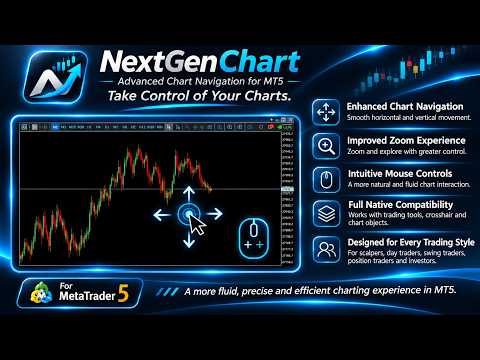
NextGenChart is an advanced chart navigation utility designed to make moving, zooming and interacting with MT5 charts more intuitive, comfortable and efficient.
Inspired by the fluid chart navigation experience of platforms such as TradingView, NextGenChart enhances the way you control your charts while preserving the powerful native tools of MetaTrader 5.
Whether you are a scalper, day trader, swing trader, position trader or long-term investor, NextGenChart helps you focus on your analysis instead of struggling with chart navigation.
Key Features
1. Enhanced Chart Navigation
Move freely across your charts using intuitive mouse controls.
-
Horizontal chart movement
-
Vertical chart movement
-
Combined horizontal and vertical dragging
-
Adjustable navigation sensitivity
2. Improved Zoom Experience
Navigate between MT5's native zoom levels using your mouse wheel, with enhanced zoom positioning designed to make chart exploration more comfortable.
3. Intuitive Mouse Controls
Enjoy a more natural chart interaction experience, reducing the need to rely on traditional navigation controls.
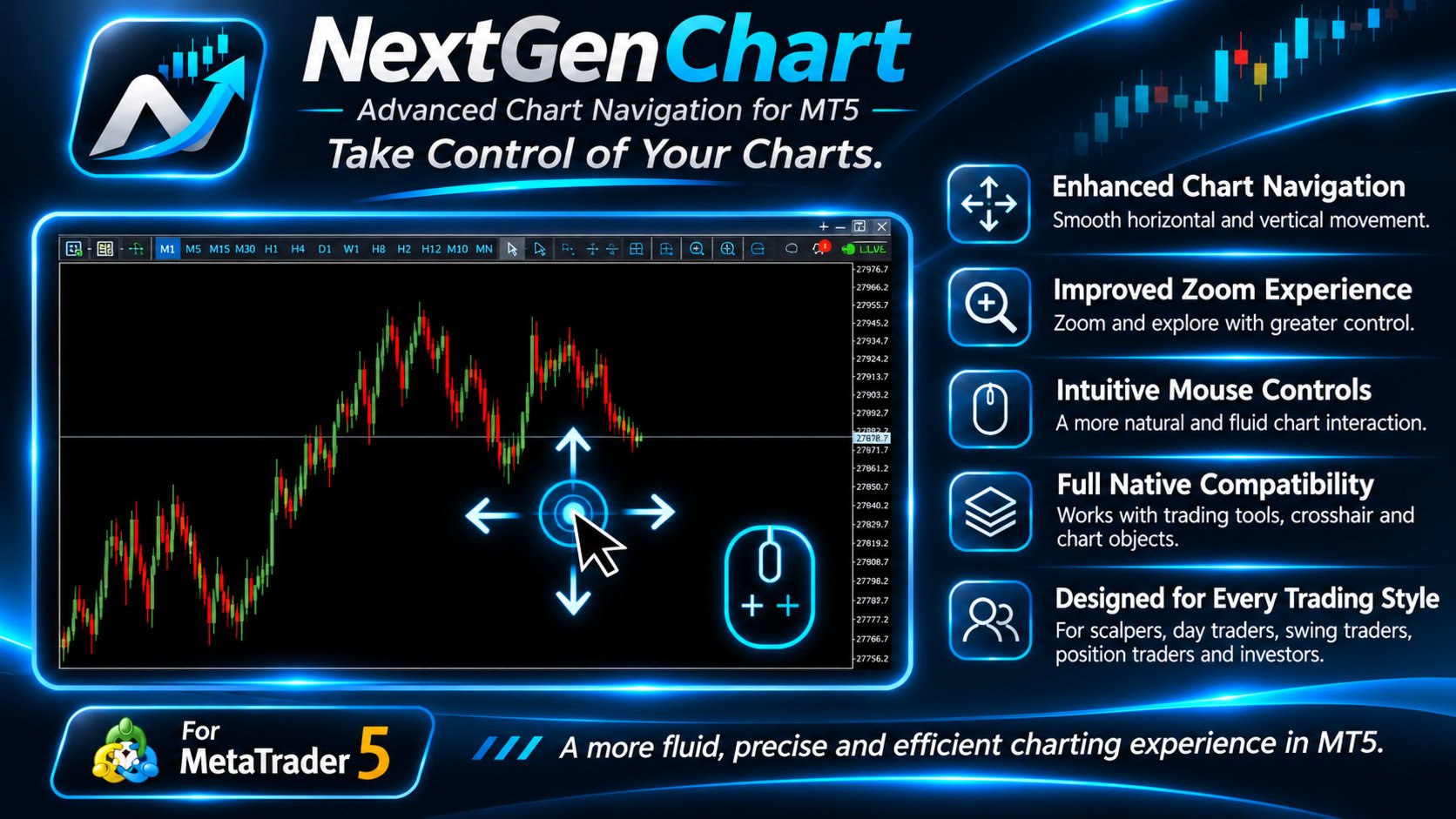
4. Native MT5 Tool Compatibility
Continue working with essential MetaTrader 5 features, including:
-
Crosshair and price/time measurement
-
Trendlines and graphical objects
-
Fibonacci tools
-
Native Stop Loss and Take Profit lines
-
Standard chart analysis tools
5. Designed for Every Trading Style
NextGenChart is a general-purpose chart navigation enhancement suitable for traders and investors across different markets, instruments and timeframes.
Installation & Quick Start
Follow these steps to install and configure NextGenChart in MetaTrader 5.
Step 1 — Install NextGenChart
-
Open MetaTrader 5 and sign in to your MQL5.community account.
-
Locate NextGenChart in your purchased Market products.
-
Download and install the product.
-
Open the chart where you want to use NextGenChart.
-
Locate NextGenChart in the Navigator panel and attach it to the chart.
Step 2 — Configure Your MT5 Chart
Before using NextGenChart, apply these required settings:
-
Right-click the chart and select Properties (F8).
-
Open the Common tab.
-
Enable Scale fix (Fix Scale).
-
Click OK.
-
Disable Auto Scroll (Scroll the Chart to the End) using the MT5 toolbar.
Important: Fix Scale must be enabled and Auto Scroll must be disabled on every chart where NextGenChart is active.
Step 3 — Start Navigating
Once configured, you can:
-
Left-click and drag on an empty chart area to navigate horizontally and vertically.
-
Use the mouse wheel to zoom in and out.
-
Drag the right-hand price axis to adjust vertical scaling.
-
Press Esc to cancel an active drag interaction.
Step 4 — Customize Your Experience
Open the NextGenChart input settings to adjust navigation speed, zoom sensitivity and other available preferences.
NextGenChart is now ready to use.
Mouse Controls
-
Left-click and drag on an empty chart area: Move the chart horizontally or vertically.
-
Mouse wheel: Adjust horizontal chart zoom.
-
Drag the right-hand price axis: Adjust the vertical price scale.
-
Esc: Cancel an active NextGenChart drag interaction.
Native MT5 chart objects and trade-level controls remain available for their intended use.
Customizable Settings
NextGenChart includes configurable parameters for navigation speed, mouse-wheel zoom, axis interaction and chart behavior.
The following inputs are available in version 1.00:
-
InpDisableAutoScroll: Controls automatic chart scrolling while navigating.
-
InpRestoreOnRemove: Restores relevant previous chart settings when the utility is removed.
-
InpHorizontalSpeed: Adjusts horizontal navigation sensitivity.
-
InpVerticalSpeed: Adjusts vertical navigation sensitivity.
-
InpMouseWheelZoom: Enables or disables coordinated mouse-wheel zoom.
-
InpAxisDragScaling: Controls axis-based scaling interaction.
-
InpPriceAxisPixels: Defines the price-axis interaction region.
-
InpTimeAxisPixels: Defines the time-axis interaction region.
-
InpVerticalZoomSpeed: Adjusts vertical scaling sensitivity.
-
InpWheelSensitivity: Adjusts mouse-wheel zoom sensitivity.
-
InpWheelPanRatio: Reserved compatibility parameter; additional wheel panning is disabled.
-
InpZoomDiagnostics: Enables optional diagnostic information.
Required MT5 Chart Settings
For proper operation, NextGenChart requires the following MetaTrader 5 chart settings:
-
Fix Scale: Enabled (ON)
-
Auto Scroll (Scroll the Chart to the End): Disabled (OFF)
These settings must be applied to every chart where NextGenChart is active.
If chart navigation is not working as expected, please verify both settings before changing the utility's input parameters.
Important Information
NextGenChart enhances chart navigation and does not generate trading signals, execute trades or provide investment recommendations.
The utility operates within MetaTrader 5's native charting architecture and zoom levels. Minor chart repositioning may occur near the latest candles.
NextGenChart is an independent product and is not affiliated with, endorsed by or developed by TradingView or MetaQuotes.
NextGenChart — Keep the power of MetaTrader 5. Enjoy a better charting experience.