Dashboard Premium
FREE
Pubblicato:
1 aprile 2022
Versione attuale:
1.2
Non hai trovato un robot adatto?
Ordina il tuo
su Freelance
Vai alla sezione Freelance
Ordina il tuo
su Freelance
Come acquistare un Robot di Trading o un indicatore
Esegui il tuo EA
hosting virtuale
hosting virtuale
Prova un indicatore/robot di trading prima di acquistarlo
Vuoi guadagnare nel Market?
Come presentare un prodotto per venderlo con successo

Ti stai perdendo delle opportunità di trading:
- App di trading gratuite
- Oltre 8.000 segnali per il copy trading
- Notizie economiche per esplorare i mercati finanziari
Registrazione
Accedi
Accetti la politica del sito e le condizioni d’uso
Se non hai un account, registrati
Inputs
General settings
If you have programmed several signals, then you need to write a name for each signal. Signals are searched by the number of recorded names.
You can specify a value starting from 1, increasing the value to increase the depth.
For example, if you enter the value 20, the information in the panel will be updated every 20 seconds.
You can choose one of four possible options — top left, top right, bottom left, bottom right.
Note that the specified subwindow should already be open on the chart. This may be under the window of another indicator.
The default value is 100%, but you can increase this value to increase the size of the panel, and you can also reduce the size of the panel.
If you are doing markup, then this mode will make the work more convenient. For example, if you mark the right places with trend lines, then when switching to another symbol, your trend lines will be temporarily hidden so as not to interfere with making other markings. When you return to the previous symbol, you see your trend lines again.
Timeframes
You can include the necessary timeframes.
Notifications
You will receive pop-up notifications in the terminal every time a signal is found.
You will receive push notifications to the mobile terminals every time a signal is found.
You need to specify the interval in minutes before the candle closes in order to receive notifications a little earlier.
Graphic settings
You can select individual symbols on the panel in order not to lose sight of them.
Signal programming
Let's consider the aspect of programming in more detail.
Let's create the conditions for determining signals by the "Stochastic Oscillator" indicator.
Buy when the Oscillator (%D) falls below a specific level (20) and then rises above that level. Sell when the Oscillator rises above a specific level (80) and then falls below that level.
Please note that this is all that we have changed in the file.
In order to create conditions for only one signal, in most cases no other changes are needed.
The lines that we changed are 107-110.
Let's create the conditions for determining signals by the "Relative Strength Index" indicator.
Buy when the indicator falls below a specific level (30) and then rises above that level. Sell when the indicator rises above a specific level (70) and then falls below that level.
Let's analyze the lines of code in more detail.
iRSI(NULL, 0, 14, PRICE_CLOSE, i)
iRSI(NULL, 0, 14, PRICE_CLOSE, i + 1)
bf0[i]=low[i]
bf1[i]=high[i]
i — index of the last candle on the right.
i + 1 — index of the second last candle on the right. This candle is located to the left of the i-th.
HI,
Why I can't add it on M4T??
Click download and it don't added to my mt4...
From journal:
2023.04.24 23:42:42.037 MQL4 Market: failed to get list of user products [403]
2023.04.24 23:42:42.037 MQL4 Market: failed parsing info about purchasing a product 'Dashboard Premium'
Example of signal connection
1- Get the average pips of the previous 10 zigzag lines ( input)
2- Compare this with the pips volume of the current ZigZag line ( the last line)
3- If current is 2x ( input) or more of the previous average, show a signal on the dashboard ( if current line is going down, show red, if going up , show green)
I hope my description is clear
To solve this problem, I wrote a ZigZag+ signal indicator that does the necessary work in real time.
The indicator is based on the standard ZigZag indicator. Input parameters are available for configuration.
The number of zigzag lines is set by the variable 'Lines', and the multiplicity of the signal condition is set by the variable 'k' (item #3).
I connected ZigZag+ to the signal collection indicator.
The depth of the search for the end point of the forming zigzag line is set in the input parameters of the signal collection indicator. The default value is 20 bars.
ZigZag+ shows signals only in real time, but it can be used in the strategy tester to analyze the chronology.
Use 'Config' with the alarm panel settings.
How it works.
1. Drag the standard ZigZag onto any chart.

2. Drag the 'Signal Collection' indicator onto the same chart.
3. Drag the 'Dashboard Premium' signal panel onto the same chart.
If the cell is colored in a brighter color, it means that the zigzag line ends at the current forming candle.
To do this, get used to editing the signal collection indicator, it's not as difficult as it seems.
It is convenient to use such a signal panel because you can simply click on the cell with the signal and the desired chart will automatically open. We collapse the panel to analyze the chart, see a good signal and open a position. So, we can analyze the entire market at once. This is a very convenient solution.
Thank you Boris for your kind help. I tried to use the system but after I installed everything on the chart as instruction, I got this error message!!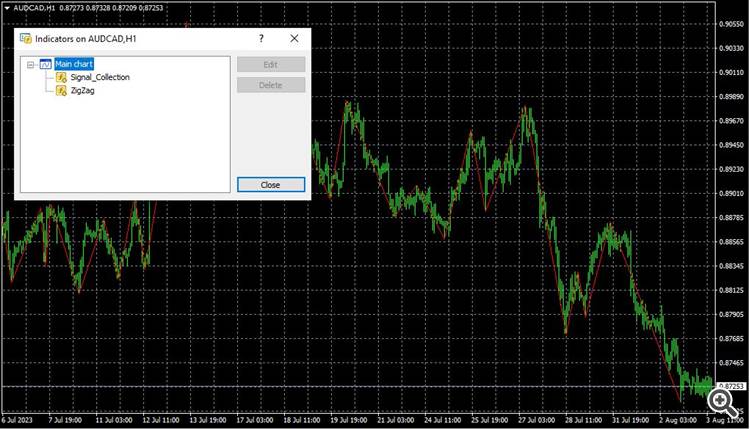
Thank you Boris for your kind help. I tried to use the system but after I installed everything on the chart as instruction, I got this error message!!
and still the same error message
Thank you Boris for your kind help. I tried to use the system but after I installed everything on the chart as instruction, I got this error message!!
In the first screenshot, everything is running correctly.
'Dashboard Premium' checks that the 'Signal_Collection' indicator is already running on the chart.
This check is done by the short name of the indicator 'Signal_Collection'. The short name is not explicitly specified, which means it matches the file name of the indicator 'Signal_Collection'.
If you have added a string to the 'Signal_Collection' indicator specifying a different short name, in this case 'Dashboard Premium' will not be able to find the 'Signal_Collection' indicator.
For example:
IndicatorShortName("My Signal");
If you do this, Dashboard Premium will not be able to find the Signal_Collection indicator.
Check it out.
In addition, there may be some error with the encoding - the name of the indicator is written in Latin characters. Usually there are no problems with this, I will try to figure out how this is possible.
Where to install the ZZ plus file? and the config set?
You can use the ZigZag+ indicator as an independent product. But there are no additional functions, notifications, etc.
In order for 'Signal_Collection' to receive signals, ZigZag+ must be available in the navigator.
'Config' contains settings for 'Dashboard Premium'.
When installing on a chart, you can download the settings from the 'Config' file.
All components should be running in one window.
Thank you so much. It is working now
Please write — what was the problem?
How did you find the solution?
This is important for other users.