Signal Buffer Trader
- Experts
- Versione: 1.0
- Attivazioni: 10

Turn the arrows of your indicator into disciplined, explainable trades.
Signal Buffer Trader opens a trade when the indicator you choose shows a new BUY or SELL signal on a closed bar. Every order carries a stop-loss, the position size follows the risk you set, and every bar is explained on the chart and in the log.
Not sure which buffers your indicator uses? The free Signal Buffer Inspector finds the BUY/SELL buffers and the signal shift, checks for repainting and exports a settings file that this EA imports with one click.
Signal sources
- Custom indicator buffers — any indicator file in MQL5\Indicators: path, inputs, BUY buffer, SELL buffer and signal shift. EMPTY_VALUE and 0 mean "no signal". A single buffer with positive/negative values is supported.
- Arrow chart objects — for indicators that draw arrows as objects: object name prefix and arrow codes.
- Built-in moving average cross — the default, so the EA works out of the box and can be tried without any extra file.
Combine up to three indicators
Slots 2 and 3 confirm or filter the signal:
- Same signal (AND) — the second indicator must signal in the same direction, optionally within N bars;
- Price vs line — BUY only above an indicator line, SELL only below;
- Value sign — BUY only when a buffer is positive, SELL only when it is negative.
Risk and trade management
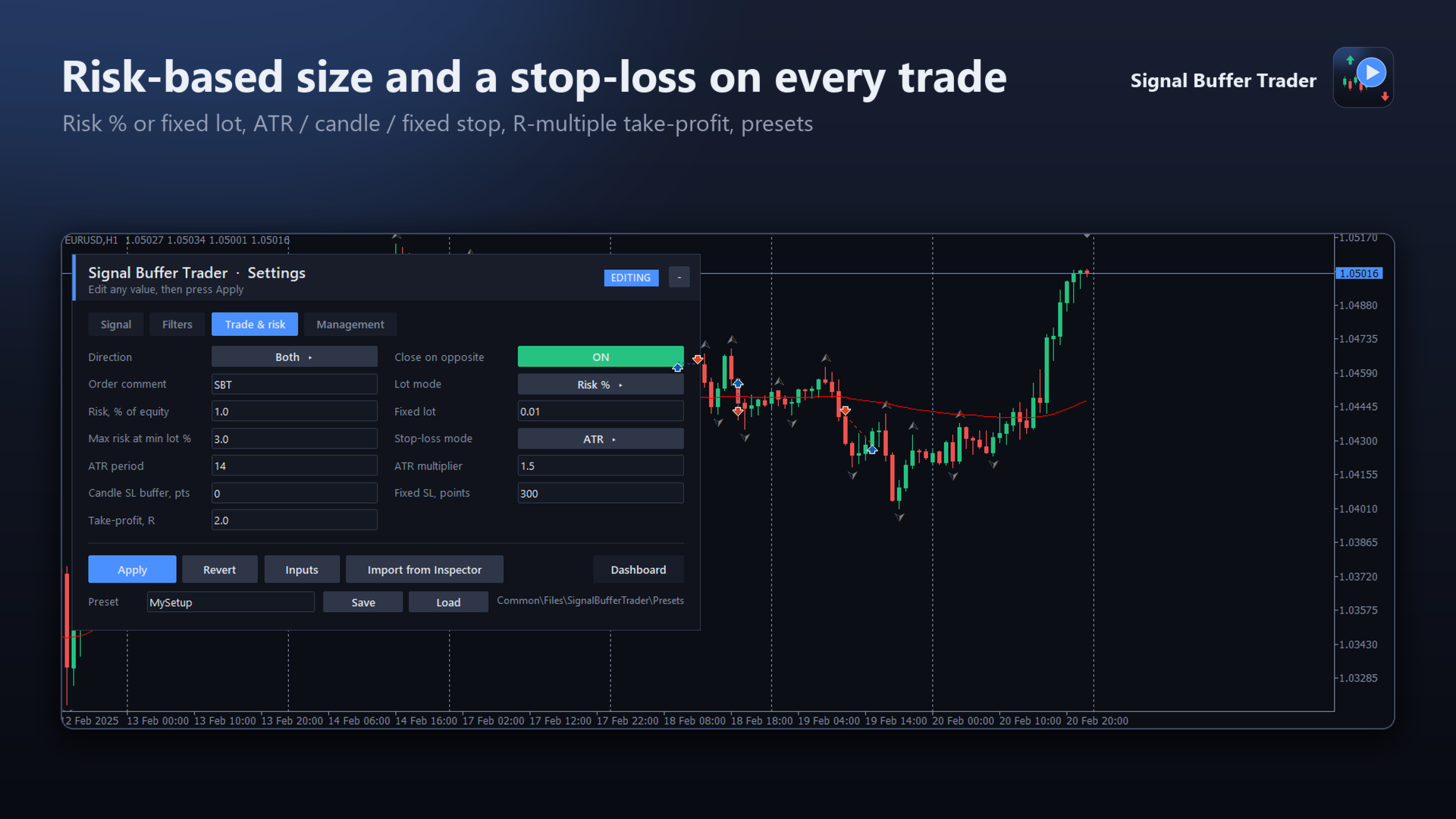
- Lot by risk % of equity (the loss at the stop is calculated by the terminal in your account currency) or a fixed lot.
- Stop-loss on every trade: ATR multiple, signal candle high/low plus a buffer, or fixed points.
- Take-profit as a multiple of the stop distance, or none.
- Optional breakeven and ATR trailing stop.
- Daily loss limit measured from the equity at the start of the server day; optionally closes the EA's positions and pauses new entries until the next day.
- Session window (overnight sessions allowed) and maximum spread filter.
- One position per symbol and magic number, one trade per signal bar, optional close on the opposite signal, long-only or short-only mode.
- Volume, stop and freeze levels, margin and trading permissions are checked before every order.
Dashboard and settings on the chart
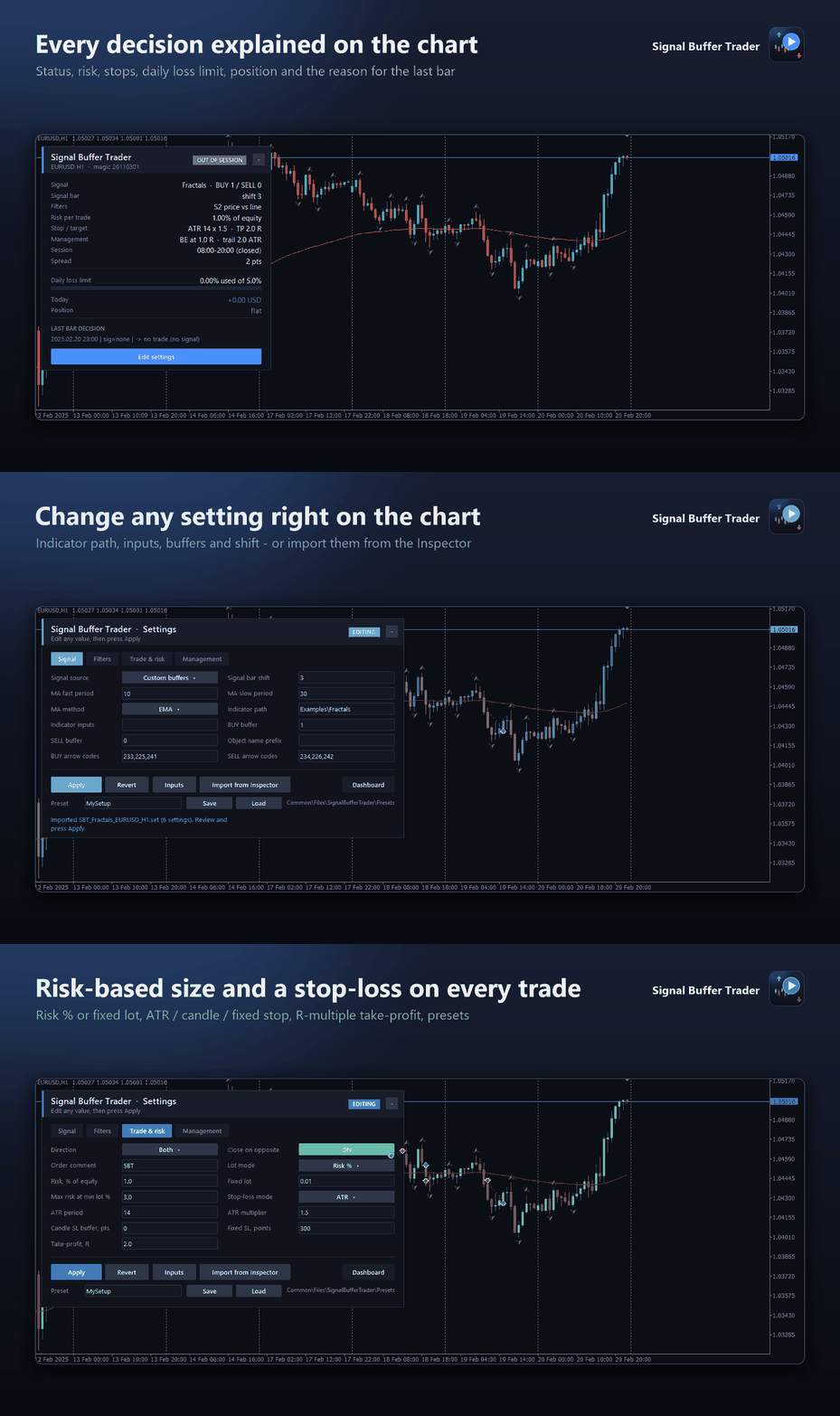
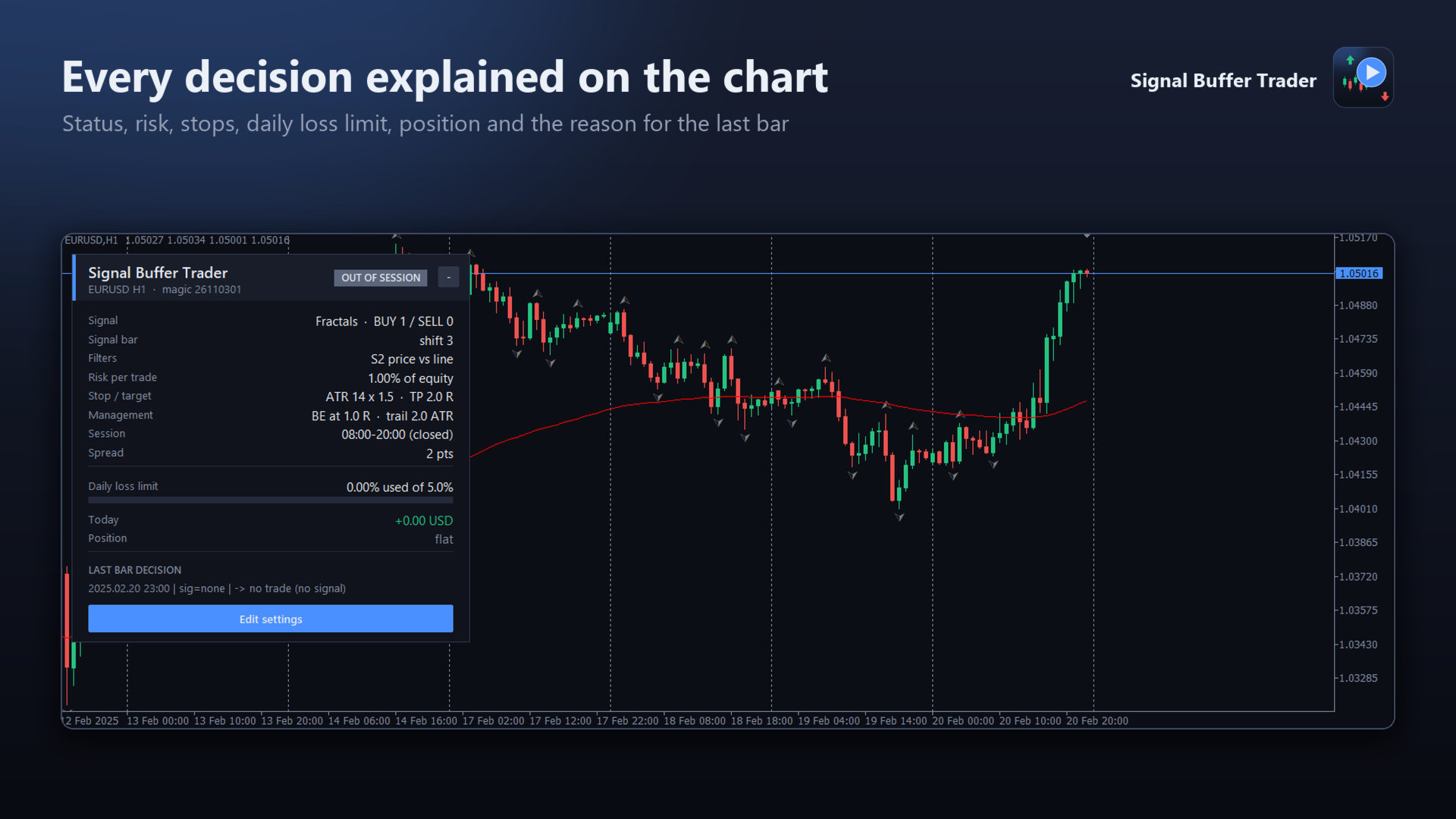
The dashboard shows the status (ACTIVE, PAUSED, OUT OF SESSION, ALGO OFF), the signal, filters, risk, stops, session, spread, how much of today's loss limit is used, the open position with its floating result and the decision for the last bar.
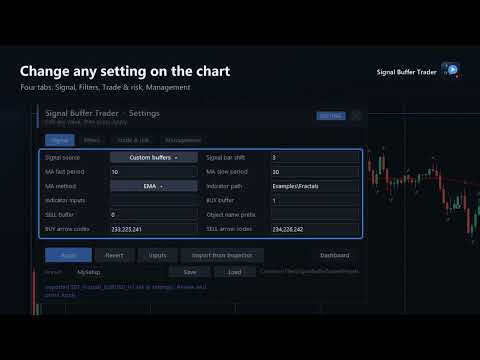
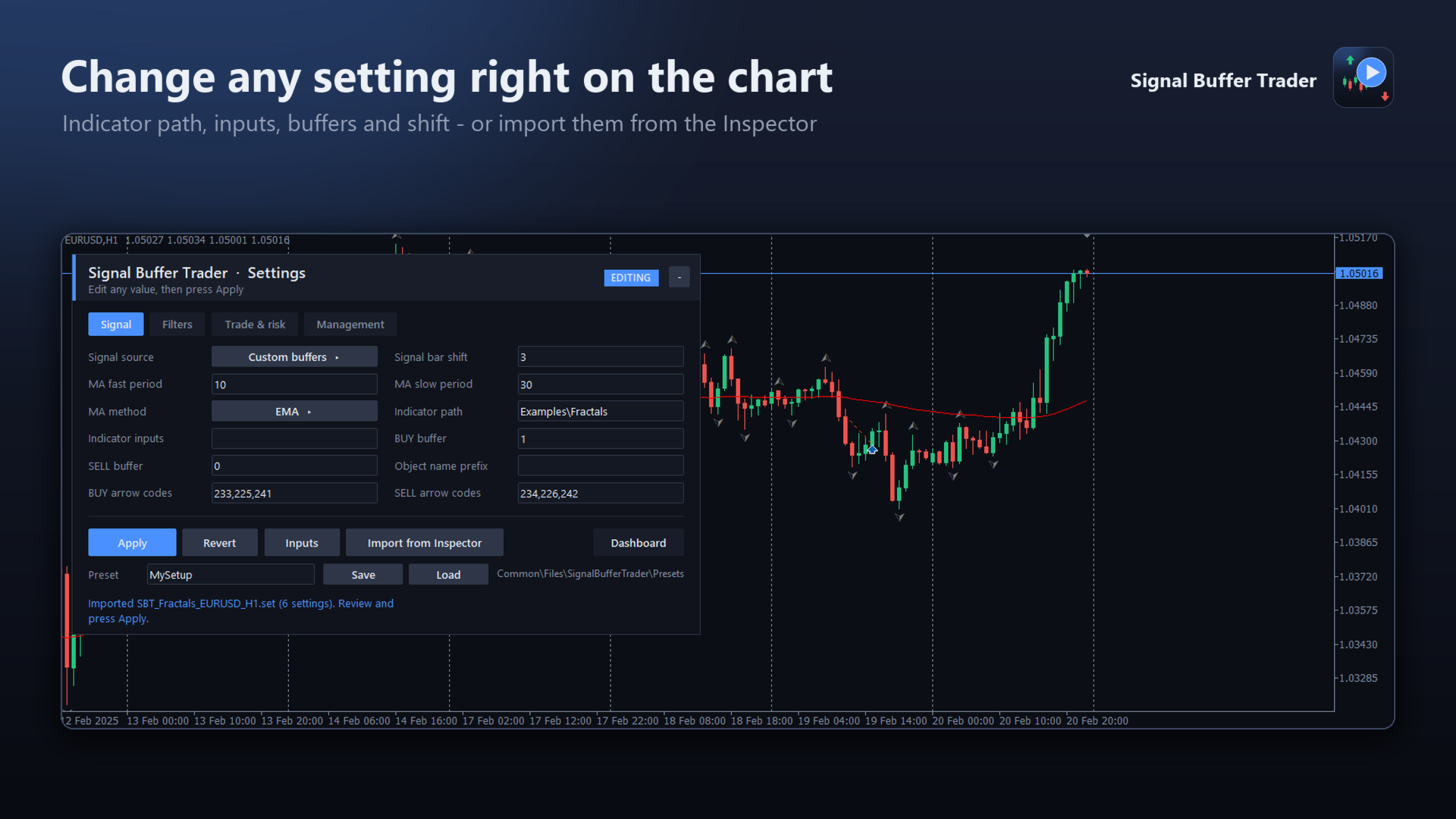
Edit settings opens an editor with four tabs — Signal, Filters, Trade & risk, Management. Change any value and press Apply: the values are checked and the indicators are reloaded in place; invalid values are rejected and the running settings stay unchanged. Revert discards edits, Inputs restores the values of the Inputs dialog, Save and Load keep your own presets, and Import from Inspector loads the latest Signal Buffer Inspector export for the chart's symbol and timeframe. Settings applied on the panel are remembered for the chart; values changed in the Inputs dialog take priority.
Every bar explained
One line per bar in the Experts log, for example:
SBT 2025.01.02 06:00 | sig=BUY(buf1=1.03442) | close #2 on opposite signal: done | -> OPEN BUY 0.48 @ 1.03719 SL 1.03516 TP 1.04125 risk 97.44 USD
SBT 2025.01.02 12:00 | sig=SELL(buf0=1.03723) | -> no trade (position already open)
What it does not do
No grid, no martingale, no averaging, no increase of the lot after a loss, no hidden stops. The EA does not predict the market: the results depend entirely on the indicator and the settings you choose. Test your setup in the Strategy Tester and on a demo account first.
Getting started
- Find the buffers with Signal Buffer Inspector and press Export .set (or note the buffer numbers yourself).
- Attach Signal Buffer Trader, press Edit settings → Import from Inspector → Apply. You can also set Signal source = Custom indicator buffers, the indicator path (for example Examples\Fractals), the BUY and SELL buffers and the signal shift in the Inputs tab.
- Choose the risk, the stop-loss mode and the filters, then enable Algo Trading.
Notes
- Indicator inputs are written as a list separated by ";" — for example 14;2.5;true. Each "input group" line of the indicator takes one item as well (an empty "s:" is enough); the inspector writes this list for you.
- Signal shift 1 reads the last closed bar. A repainting indicator can show arrows on history that were not there when the bar closed; the EA trades what it sees at the close of the bar.
- The indicator file must be in MQL5\Indicators on the computer where the EA runs.
- No DLLs, no internet connection.